Specs are compiled from manufacturer listings and verified buyer reviews and can change over time — please confirm the key details on the product page before buying.
Your Chromebook already has a camera, so the honest question is whether a plug-in one is worth adding. For most people the answer lands on one thing: do you look dim and grainy on calls, and does your voice come through muffled? A USB webcam fixes both in one connection, and the picks below are the ones that actually play nice with Chrome OS instead of demanding a driver download you cannot install.
This guide is built by comparing the manufacturers’ published specifications and the patterns across verified customer reviews, so you get each pick’s real strengths and trade-offs instead of marketing spin.
Chromebooks run on Chrome OS, which means there is no driver disc to hunt down and no setup wizard to wrestle with — the camera has to be recognized the moment you plug it in. That single rule trims the field fast, and it is exactly what separates a smooth call from a stalled one, so here is the shortlist for a USB webcam for Chromebook.
Top Picks

How To Choose The Best USB Webcam for Chromebook
Buying a webcam for a Chromebook is not the same job as buying one for a Windows laptop. Chrome OS keeps things locked down, so a camera that leans on its own software to open up basic features can leave you with nothing but a default picture. The first filter is always the same: does it work the second you plug it in?
Connection type decides whether it even works
Most webcams end in a USB-A plug — the familiar rectangular connector that covers two of the three ports on a typical budget Chromebook. Some newer thin models ship with only USB-C, the smaller oval port that also charges your phone. Check which ports your Chromebook actually has before you buy, because an adapter is one more loose part to keep track of. A few of the cameras here include a Type-A to Type-C adapter in the box, which solves the mismatch for you.
Resolution is only half the picture story
A 1080p sensor means 1,920 by 1,080 pixels of video — sharp enough that your face reads clearly in a small meeting tile. Some cameras here push to 4K, which is roughly four times the raw pixel count of 1080p, so you can crop in or show a whiteboard and still keep detail. But 4K also means more of everything: more data for your Chromebook’s processor to chew on, and a sharper view of a badly lit room. If your desk sits under a single dim lamp, a good 1080p sensor with automatic exposure correction often beats a 4K one fighting for light.
Field of view sets your framing
Field of view is how much of the scene the lens captures, measured in degrees. A wider 85° pulls more of your room into the frame, so it suits you if you move around or share a desk. A tighter 66° keeps the frame on you and hides the laundry pile behind your chair. Neither is better; you are choosing how much of your room to broadcast.
Autofocus versus fixed focus
Fixed focus means the lens stays put and everything past a set distance is acceptably sharp — one less thing to break, and no hunting blur mid-sentence. Autofocus moves the lens to lock onto your face, which helps if you lean in to show a document but can wobble if the background is busy. If you mostly sit still and talk, fixed focus is quietly reliable.
Side-by-Side Comparison
| Model | Best For | Max Resolution | Field of View | Focus Type | Amazon |
|---|---|---|---|---|---|
| Logitech C920x HD Pro★ Best Overall | All-round calls | 1080p at 30 fps | — | Autofocus | Amazon |
| Insta360 Link 2C ProLow-Light Leader | Low-light quality | 4K | — | Autofocus | Amazon |
| OBSBOT Tiny 3Tracking Ace | Tracking and presenting | 4K at 30 fps / 1080p at 120 fps | — | Dual All-Pixel PDAF | Amazon |
| UGREEN 4K Webcam | Dark rooms | 4K at 30 fps / 1080p at 60 fps | — | PDAF autofocus | Amazon |
| NexiGo N930AF | Value 1080p | 1080p at 30 fps | — | Autofocus (switchable) | Amazon |
| HP 320 FHD | Chromebook compatibility | 1080p | 66° | Fixed focus | Amazon |
| Lenovo Essential FHD Gen 2 | Simple conferencing | 1080p at 30 fps | 85° | — | Amazon |
| Acer A610 | Budget meetings | 1080p | 83° | Fixed focus | Amazon |
Detailed Reviews
1. Logitech C920x HD Pro PC Webcam
Our pick — 4.5+★ from 22,000+ verified ratings; the strongest balance of quality and price.
The safe answer for a Chromebook call — a camera that just works when you plug it in.
This is the pick that removes the guesswork. It sends 1080p video at 30 fps (30 frames per second, the smoothness of the motion), and Chrome OS recognizes it as a plain USB camera the moment it connects — no software open up needed. Its 4.5+ star rating across 22,000+ owners makes it the most proven pick here.
What wins people over is how it handles bad light. The camera auto-adjusts exposure and lighting so your face does not turn into a silhouette under a single desk lamp. The pairing of a wide sensor and dual stereo mics means your voice carries clearly on Google Meet or Zoom without an add-on microphone.
The catch is the autofocus. It is the most-discussed quirk in its reviews, and a few owners find it hunts now and then rather than locking in tight. In a still, well-lit room you rarely notice, but if you lean around a lot during a demo it can drift. There is also no privacy shutter in the box, so you rely on the red activity light or an app to know you are not on camera.
Why this earns top spot
- 1080p at 30 fps keeps your face sharp and motion smooth
- Automatic lighting and exposure adjustment handles a dim room
- Dual stereo mics carry your voice without a separate mic
- Plug-and-play USB works across Windows, macOS, and Chrome OS
Where it asks patience
- Autofocus can hunt in a busy or shifting frame
- No privacy shutter included
Reach for this if: you want one camera that behaves on a Chromebook call and does not punish a dim desk.
Look elsewhere if: you need a physical shutter for confidence. The HP 320 covers that.
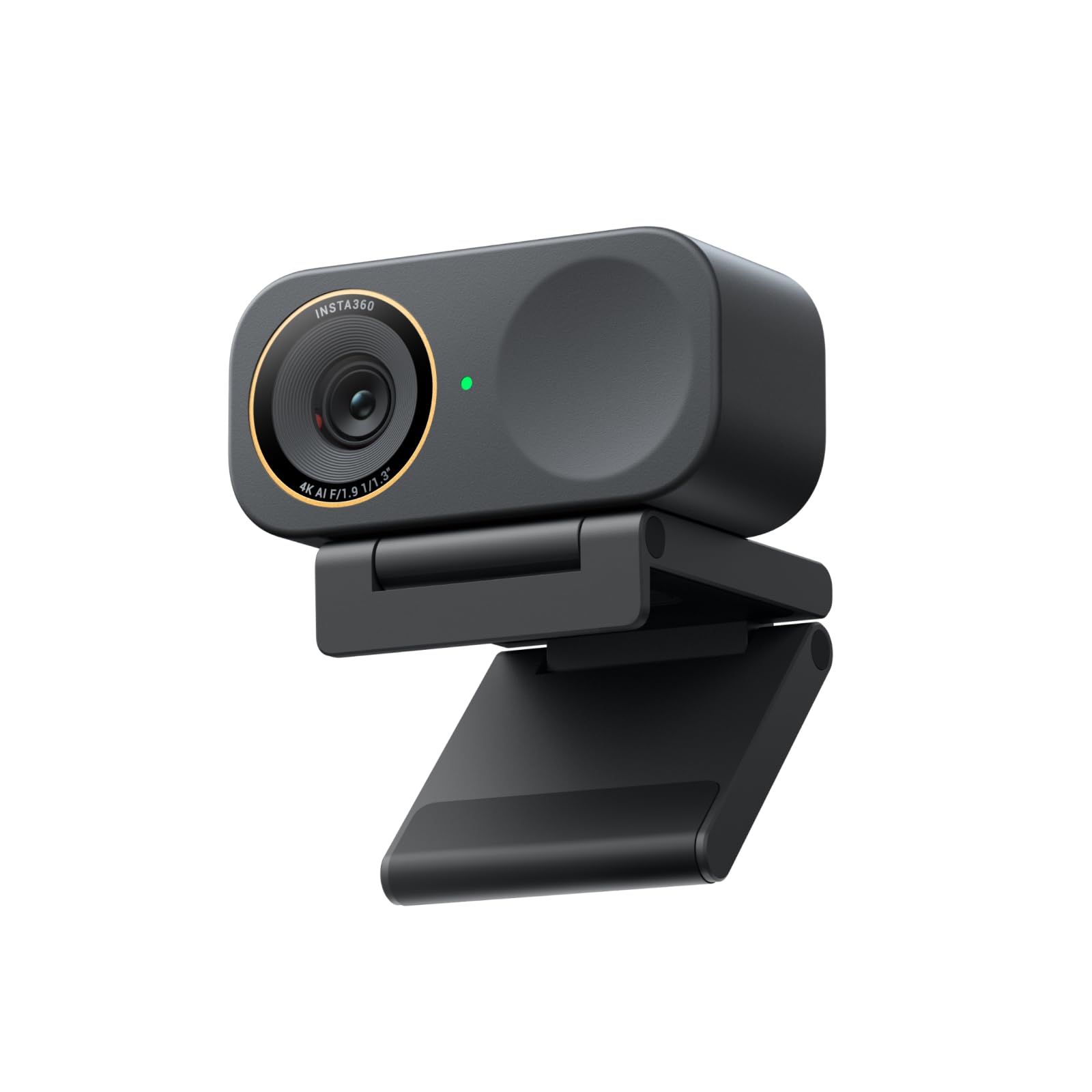
2. Insta360 Link 2C Pro
A 1/1.3” sensor that pulls clean video out of a room you would call too dark.
A webcam is only as good as the light it grabs, and this one grabs a lot. The 1/1.3” sensor is a physical measure of how much light the camera collects — bigger than the standard sensor in most laptop cameras — and that is why a dark corner still looks clean rather than grainy. It shoots up to 4K, so a cropped whiteboard shot still holds readable detail.
Where it earns its keep for a Chromebook owner is the “just works” side. It self-corrects framing so you stay in shot whether you are alone or sharing a desk with a colleague. The directional dual mics push your voice forward and leave background noise behind, and the included USB-C to USB-A adapter covers both port types without a separate trip to the shop.
Two things to weigh before choosing it. First, the fancier modes, like the natural bokeh blur, lean on its own Link Controller software. That software is not made for Chrome OS, so on a Chromebook you get the excellent camera, not the full toolkit. Second, it is a premium purchase with a heftier price than the 1080p picks above. If you stream mostly to Chrome OS apps and need only a sharp, well-lit face, the HP 320 at a fraction of the cost does the basic job.
The real draw: the large 1/1.3” sensor makes low light look deliberate instead of accidental, and 4K keeps fine detail on typography, packaging, or a whiteboard.
Honest limit: the advanced modes lean on desktop software that does not run on Chrome OS, so the Chromebook experience is the camera without the extras.
The upgrade call: pick it if your room is dim or you stream content and want a sharper image than 1080p.
Pass if: your day is plain meeting tiles on a Chromebook, where the extra 4K rarely shows up.
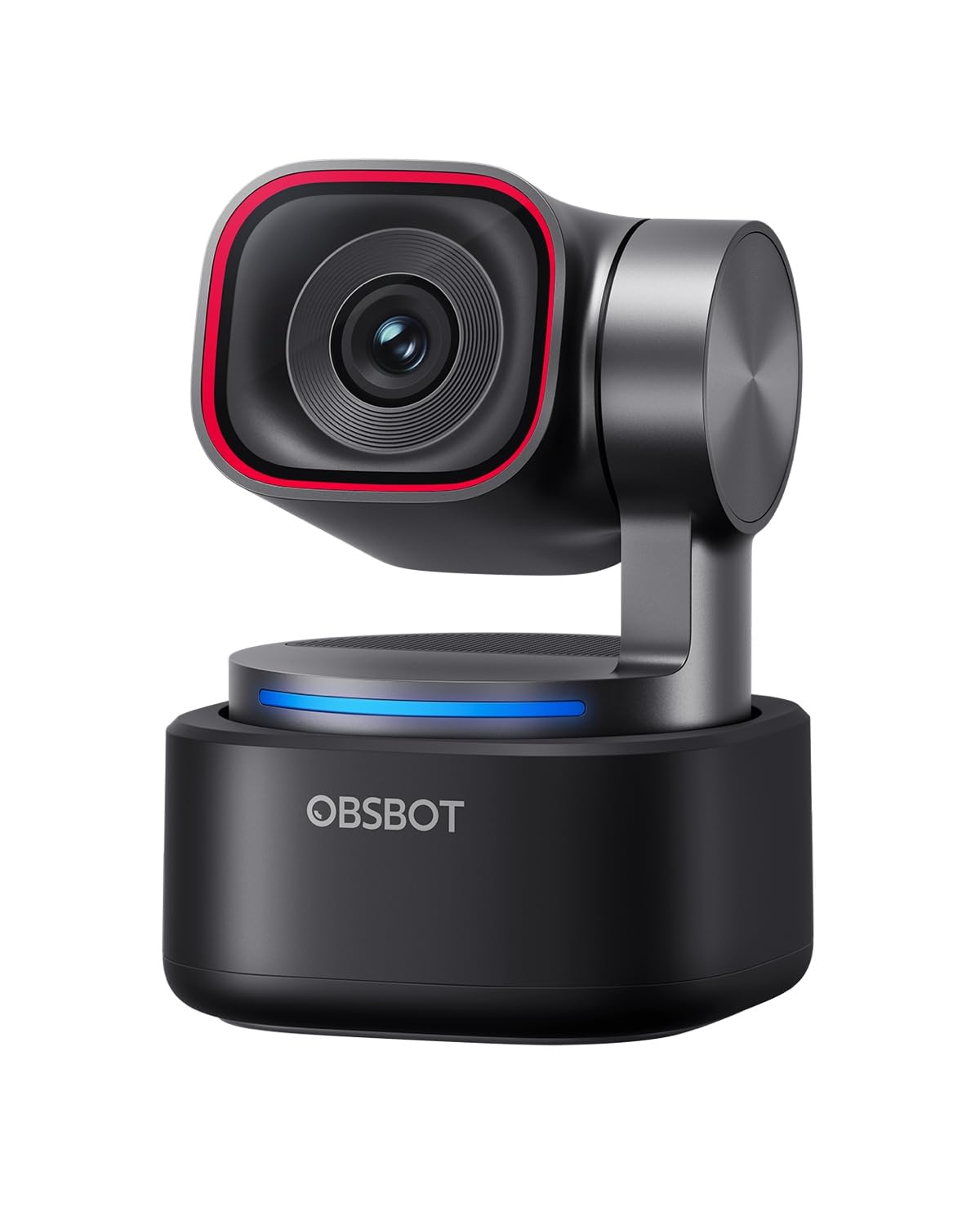
3. OBSBOT Tiny 3
A camera with a neck — it turns to follow you as you move around the room.
If you present standing up, this changes how you work. The Tiny 3 is a PTZ camera, which stands for pan, tilt, and zoom — a small motorized head moves the lens to follow you. Its AI Tracking follows a person, a group, or 200-plus object types, so a close-held demo stays framed hands-free. Video runs 4K at 30 fps, or 1080p at 120 fps if you want fast motion captured smoothly.
Audio got real attention here too. A triple-mic array pairs one omnidirectional mic with two directional MEMS mics across five audio modes, keeping your voice forward and the room fan in the background. It ships with a storage case and an adjustable mount, and the body is small enough to pack with a laptop for a trip.
Here is the honest catch for a Chromebook owner. The camera connects over USB-C, and the box includes a USB-C to USB-A adapter for older ports, so the hardware plugs in fine. But the AI tracking, gesture control, and audio modes are driven by OBSBOT Center, which is a Windows and macOS app. On Chrome OS you get a good raw camera feed, not the magic. If you need the tracking, pair it with a Windows laptop; if you need a simple clear monitor camera, the Insta360 or the NexiGo N930AF covers it at a lower price.
What you are buying
- Motorized pan, tilt, and zoom follows you as you move
- 4K at 30 fps or 1080p at 120 fps for fast motion
- Triple-mic array with dedicated audio modes
- Comes with a hard storage case and adjustable mount
What to know first
- AI tracking and gesture control need the desktop app, not Chrome OS
- Smoothness of operation draws mixed reactions in reviews
- The highest outlay on this list by a wide margin
Worth it for: presenters and teachers who walk around and want the camera to follow them.
Not the one for: a Chromebook-only setup, where the smart features sit locked behind a non-Chrome app.
4. UGREEN 4K Webcam with Ring Light
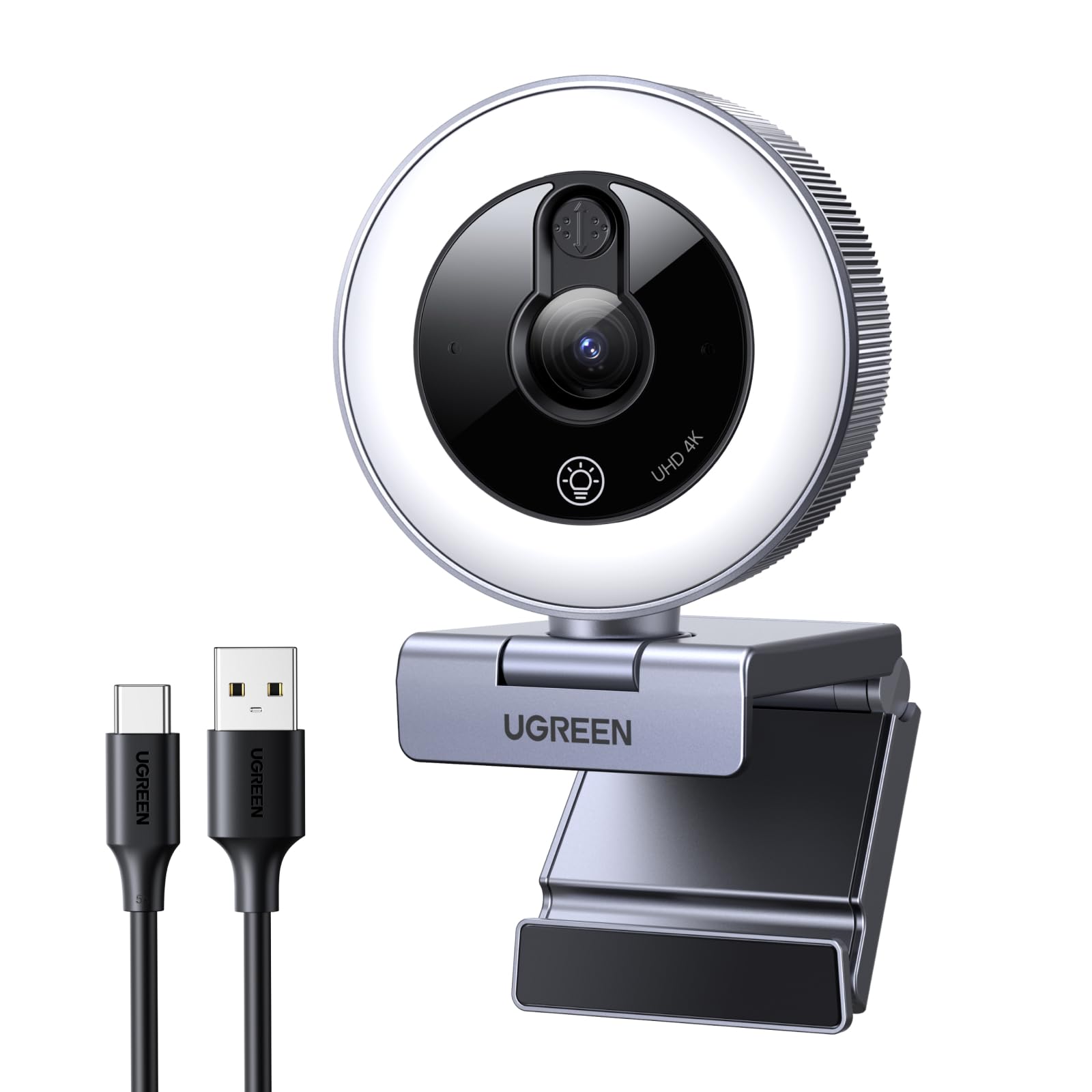
It brings its own fill light, so your room’s lamp stops being the problem.
This is the camera made for the person whose desk faces a wall with no window behind it. A built-in ring fill light runs six levels — two cold, two warm, and two mixed — so you can warm up or cool down the glow to match your room. That is a genuine fix for night calls and basement offices, where most webcams show a dark, grainy face and little else.
Sharpness steps up to 4K at 30 fps, and it can fall back to 1080p at 60 fps when you want smoother motion. PDAF (phase detection autofocus) locks onto you in roughly three-tenths of a second, faster than the contrast hunting most webcams rely on. A sliding privacy cover is built into the body, and the whole thing is a plug-and-play USB camera that needs no driver, which makes it Chrome OS friendly.
The one honest note comes from UGREEN itself: the ring light brightens your face but cannot replace room lighting, so it is a fill, not a studio. Also, a 4K feed leans on your Chromebook’s horsepower, so a lower-spec machine may not enjoy the full-resolution stream. Set up as directed with the included adapter, and it lands as the most forgiving camera here for a badly lit desk.
The standout: the six-level ring light is exactly the right tool for low-light desks, and it is the only pick here built around it.
Keep in mind: it fills in light, it does not replace it, so pitch-dark rooms still need a lamp.
Ideal if: your call setup is a dim corner and you want a camera that lights your own face.
Choose differently if: you have bright natural light already and would rather not pay for the ring.
5. NexiGo N930AF Webcam

The 1080p camera with the biggest following on this list for good reason.
Video quality is the thing people celebrate here. A 2 MP CMOS sensor delivers 1080p at 30 fps, and owners describe the picture as clear and true to colour — the kind of everyday sharpness that makes you look intentional on Zoom, Teams, or Webex. It also lists Chrome OS among its supported systems, so it reads as a camera on a Chromebook without a fuss.
The autofocus does a specific trick most cheap cameras skip: it can be switched off. It focuses from as close as 7 cm and across a wide range, and you can lock the focal point for a fixed desk setup. That is a real advantage on a Chromebook where you cannot always run the maker’s tuning app. The folding clip fits a laptop, monitor, or tripod, and the 6.5 ft USB cord gives you slack to position it.
The honest asterisk is the autofocus itself. For every owner who says it locks on foreground and background, there are others where it wanders toward a distracting object, so it is a mixed bag rather than a guarantee. Audio is also on the softer side of the spectrum. Both are worth knowing before you commit, but neither changes the fact that this is a lot of camera for the money.
Where it shines
- 1080p at 30 fps with a 2 MP CMOS sensor
- Autofocus can be switched to a fixed point
- Folding clip works on laptops, monitors, and tripods
- Lists Chrome OS among supported systems
Where it stumbles
- Autofocus can drift toward background objects
- Audio quality is not the strongest part
Best for: budget-conscious buyers who want reliable 1080p and a camera that respects Chrome OS.
Think twice if: you record a lot of audio and need premium sound capture.
6. HP 320 FHD Webcam
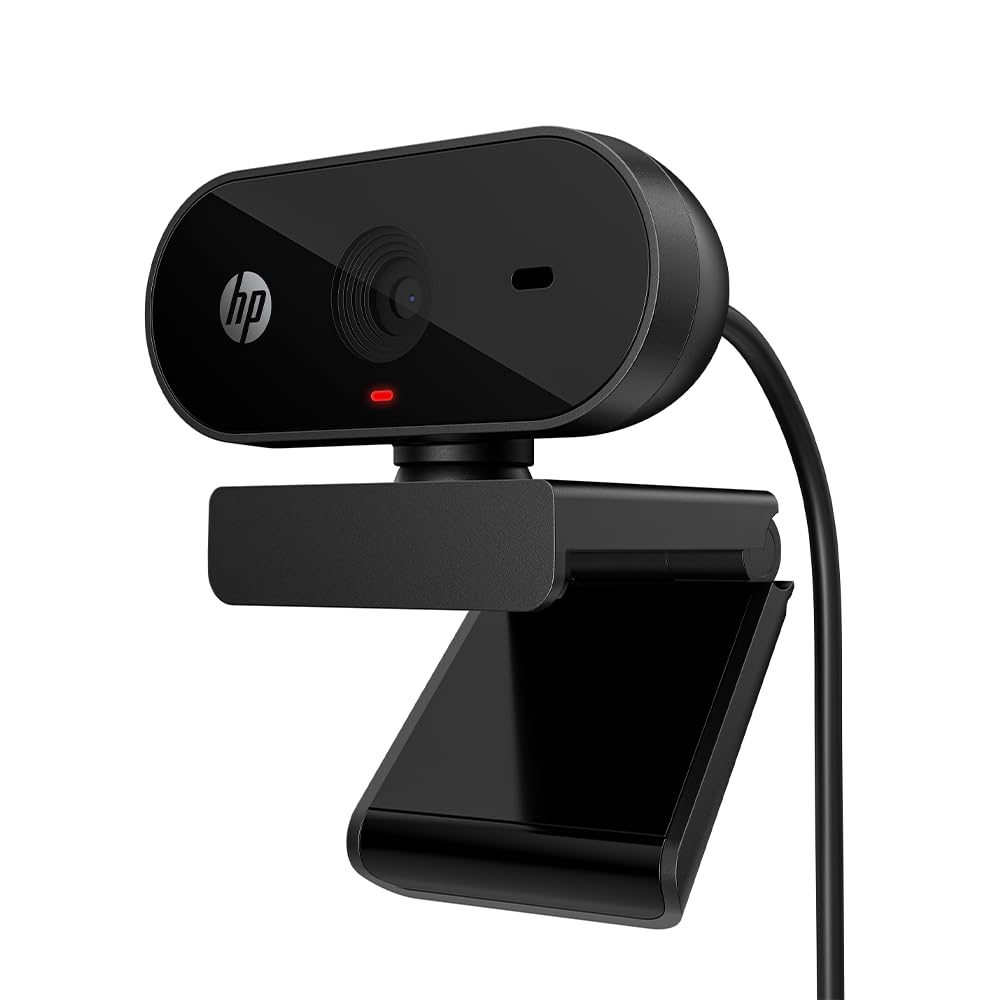
The one brand that names Chromebook support on the box — and means it.
Most webcam listings tuck Chrome OS into a compatibility line. The HP 320 leads with it. HP says this camera is tune to work with your Chromebook and Chrome OS devices, which for a shopper who has been burned by a driver mismatch is the most comforting sentence on this page. It sends Full HD 1080p video and adds a 66° field of view that keeps the frame on you rather than your whole room.
For privacy it is the most complete on this list. A manual shutter slides over the lens, and a red LED tells you when the camera is live. The clip mount swivels 360 degrees and supports tripod mounting, so you can angle it on a thin laptop lid or park it on a desk stand. At 3.84 ounces it is light enough to leave clipped to a monitor. For context on how light, the Lenovo Essential FHD Gen 2 next is 5 ounces — this one is the lighter carry of the two.
Where it gives ground to the pick above is the lens itself. It uses fixed focus, which means everything past its set distance is sharp but there is no active tracking onto your face. And the most-discussed frustration in its reviews centers on the mount, so treat the clip gently and it will serve you. For a pure Chromebook setup, though, the explicit support statement makes it a genuinely safe buy.
The clincher: explicit Chromebook optimization, a privacy shutter, a red in-use LED, and a 360-degree swivel clip all in one small package.
Consider the trade: fixed focus is stable but does not lock onto your face the way autofocus can.
Pick this one if: you want the safest, most Chromebook-specific buy with privacy built in.
Look past it if: you need autofocus to track you as you move.
7. Lenovo Essential FHD Webcam Gen 2
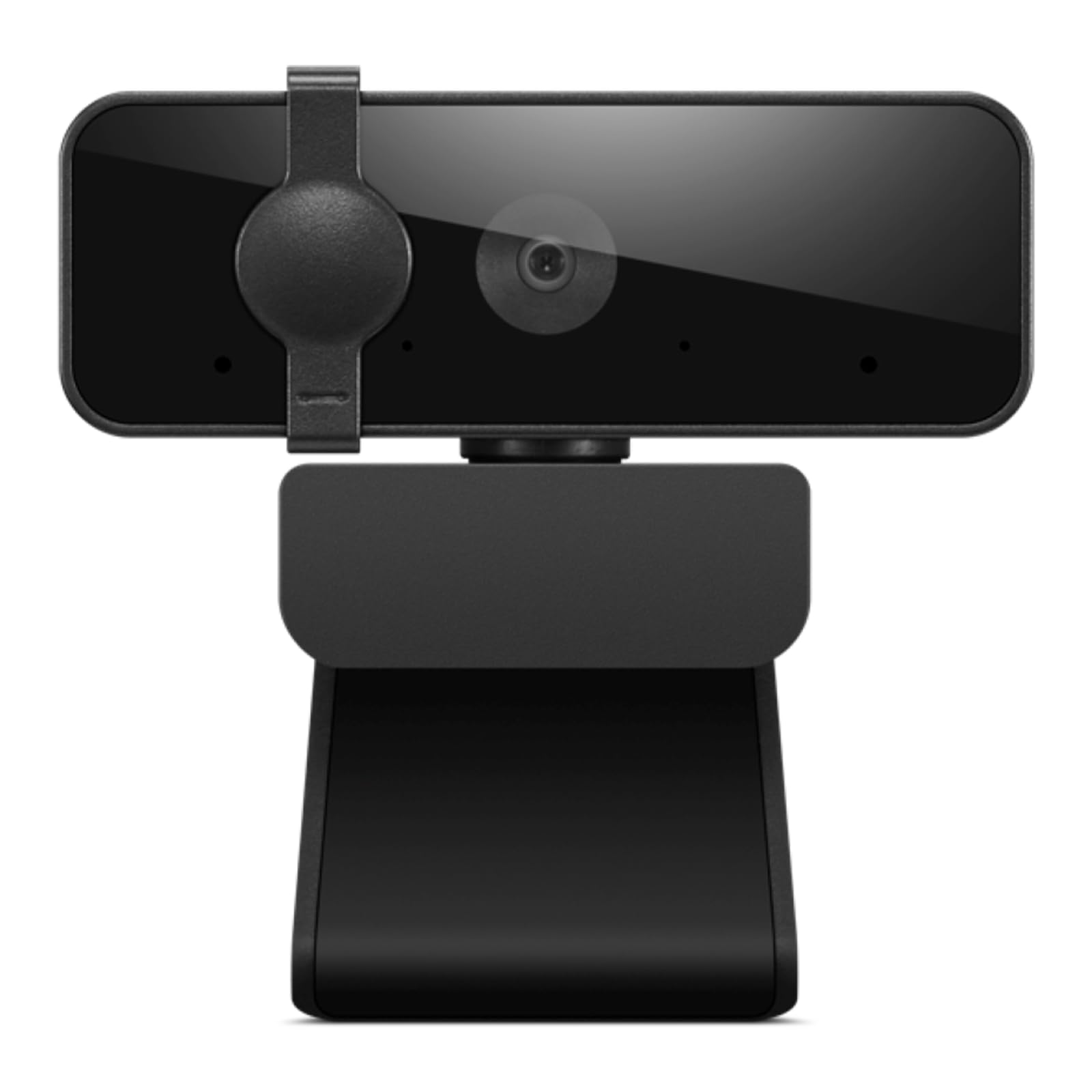
An 85-degree lens that fits a whole whiteboard in the frame — or a whole family.
The angle is the headline. This Lenovo captures an 85° field of view, so it reaches wider than the HP 320’s 66° and even a touch wider than the Acer A610’s 83°. Practically, that means you can lean back, invite a second person in, or angle the camera at a whiteboard during a lesson and still keep everything in shot. Video is 1080p at 30 fps, with brightness and colour tuned so faces look natural rather than washed out.
You sound close and clear on calls, because dual built-in microphones handle the audio. That separates it from cameras where you sound distant and muffled. It connects over USB-A 2.0 with a 1.8m integrated cable, a long lead that reaches from a monitor to a tower without a separate extension. The privacy shutter slides closed with a push, so you have a physical block between calls. The clip fits monitor panels from 4 mm to 40 mm thick, and the head tilts through a -20° to 10° range to aim at your face.
One honest consideration: with a 40+ rating track record it is a newer listing than the Logitech and NexiGo, so you are relying on Lenovo’s build rather than a long backlog of owner experience. Think of it as the choice when the angle matters — the wide reach is why you would take it over a tighter lens.
Why the angle matters
- 85° field of view fits a second person or a whiteboard
- Dual built-in mics keep your voice clear
- 1.8m integrated cable reaches across a desk
- Slide privacy shutter and a tilt range of -20° to 10°
What to accept
- Newer listing, so owner feedback is thinner than the big names
- USB-A only, so a USB-C-only Chromebook needs an adapter
Go for it if: you share a desk, teach to a board, or just want more of the room in frame.
Leave it if: you prefer a tight, face-only frame and want a USB-C plug from the start.
8. Acer A610 1080p Webcam

The budget-first option: a fresh profile image for the meetings that matter.
This is the one to look at if you want sharp video without spending on extras. A new CMOS sensor feeds 1080p output, and the 83° field of view sits between the tight framing of the HP 320 and the wide reach of the Lenovo. It sets up by plug-and-play — no drivers — and includes a Type-A to Type-C adapter, so both a classic USB-A port and a newer USB-C Chromebook are covered straight from the start.
Two mics with noise-reduction carry your voice, and the privacy cover slides down over the lens when you are done — a simple block between you and the room. The head rotates 360 degrees to find the right angle, and automatic low-light correction and exposure adjustment keep faces readable in dim spots. Acer does note this model does not support zoom control, so there is no cropping in for a close-up.
The biggest thing to know is focus: this is fixed focus, not autofocus, so there is no tracking lens. On a busy background that keeps things stable, but if you lean in and out it cannot follow. There is also no built-in speaker, so your sound output stays with the Chromebook. As a first webcam for a fixed desk and a budget in mind, it does the job quietly.
What you get: 1080p from a fresh CMOS sensor, an 83° view, a privacy cover, and a Type-A to Type-C adapter in the box.
The catch: fixed focus means no tracking, and there is no zoom control — plan for a steady, seated setup.
Smart starter if: your budget is tight and your setup lives on one desk with a steady viewer.
Step up if: you move around on camera and need the lens to follow you.
Know the Specs
Resolution and frame rate
Resolution is how many pixels each frame holds — 1080p means 1,920 by 1,080 of them, and 4K is roughly four times that. On a Chromebook the small video tiles in Google Meet or Zoom rarely display the full 4K stream, so higher resolution helps more when you crop in or present a document. Frame rate, written in fps, is the smoothness of motion; 30 fps is fine for talking, and 60 or 120 fps captures fast movement without blur. Balance resolution against what your Chromebook’s processor can handle — a weaker machine juggling 4K will drop frames.
Field of view and focus
Field of view is how much the lens captures, measured in degrees. A wide 85° means more room in the frame, good for sharing a desk or showing a whiteboard. A narrower 66° keeps the shot on you. Focus is the second half. Fixed focus means the lens sits at one point and everything past it looks sharp, which is stable and predictable. Autofocus moves the lens to lock onto your face and helps when you lean in, but it can hunt if the background is busy. That is why some cameras let you switch it off and set your own focal point.
Common Questions
Will a USB webcam actually work on my Chromebook without extra software?
Does the HP 320 really work with Chrome OS?
My Chromebook only has USB-C ports — can I still use these webcams?
Is 4K worth it on a Chromebook?
What does field of view mean and which one should I pick?
Will a webcam’s built-in microphone work on a Chromebook?
Is autofocus better than fixed focus for video calls?
How do I keep a webcam from watching me when I am not on a call?
Can I mount these webcams on a tripod instead of a laptop lid?
Do I need to download software for the special features like tracking or bokeh?
The Bottom Line
For most Chromebook owners, the usb webcam for chromebook winner is the Logitech C920x HD Pro. It plugs in and works on Chrome OS without a driver, sends solid 1080p at 30 fps (1080p is sharp high-definition video, 30 fps means 30 frames per second), and auto-adjusts to a dim desk. If privacy and explicit Chromebook support top your list, grab the HP 320 FHD Webcam with its manual shutter and 66° framing. And for a dark room where your own face needs lighting, reach for the UGREEN 4K Webcam with its built-in ring light.
How we choose
We do not accept paid placement. Every pick is matched to a real buyer and a real use-case; we do not hands-on test units.
Sources
Specifications: manufacturer listings and product documentation. Review insights: verified customer reviews, as of November 2026. Pricing: not shown on this page (it changes often); check the current price via the retailer link.
As an Amazon Associate, Tactical Gear Guy earns from qualifying purchases. This does not affect which products we feature.