Specs are compiled from manufacturer listings and verified buyer reviews and can change over time — please confirm the key details on the product page before buying.
You want three monitors on your desk and one cable going into your laptop. That is the whole job of a multiple HDMI docking station, and only some docks actually do it. Every model below has two or three real HDMI outputs. This guide tells you plainly which ones need a driver, which ones cripple a Mac, and which ones just plug in and work. One note before you scroll: this list uses flexible, human-like matching for the “multiple HDMI outputs” requirement, so not every pick is the exact port count you searched for — the nearest same-type model serves the same purpose. You will always see the real port count in each write-up.
This guide is built by comparing the manufacturers’ published specifications and the patterns across verified customer reviews, so you get each pick’s real strengths and trade-offs instead of marketing spin.
Some docks need a driver installed before a second or third screen wakes up, and a few will only mirror on a Mac. The picks below sort that out, so the right Multiple HDMI Docking Station is the one matching your laptop’s port and your screen count.
Top Picks

How To Choose The Best Multiple HDMI Docking Station
The single question that decides everything: does your laptop push video out of its USB-C port on its own, or does the dock have to fake extra screens with software? Get that wrong and you buy a dock that shows one screen and ignores the other two. Answer it first, then read the rest.
Check for DisplayPort Alt Mode before anything else
DisplayPort Alt Mode (often shortened to DP Alt Mode) means your laptop’s USB-C port can carry a video signal natively — no driver needed. Most modern Windows laptops and Thunderbolt Macs have it. If yours does not, you need a DisplayLink dock instead, which installs a driver and draws the extra displays in software. The OREI and the Plugable UD-6950PDH both lean on that driver route.
Know how many screens your laptop will actually extend
Windows laptops with a full-featured USB-C port can usually extend across three displays on a dock like the Acer or the TobenONE DC1501A. Macs are the exception. Base M1 and M2 MacBooks extend only one external display natively, and even on docks with three HDMI ports, macOS often mirrors the same image across every screen. Docks that use DisplayLink — the TobenONE K1211 and the Plugable UD-6950PDH — are the ones built to get around that.
Match the power delivery to your laptop’s charger
Power Delivery (PD) is how the dock charges your laptop through that same single cable. A dock rated for 100W input typically passes around 85W to the laptop, and that gap matters if you run a power-hungry machine. The TobenONE DC1501A ships with its own 150W adapter, so it does not borrow your laptop charger at all. If you have to supply a 100W+ charger yourself, buy one — a weaker brick will not keep up.
Side-by-Side Comparison
| Model | Best For | HDMI Outputs | Total Ports | Max Display | Amazon |
|---|---|---|---|---|---|
| OREI SplitXtend SX-2C4K-D100W★ Best Overall | Triple screens without a big spend | 3 | 3 | 4K (driver-based) | Amazon |
| Wozoyo Type C 11 in 1Best for Travel | Portable travel desk | 2 | 11 | 2x 4K@60Hz + 4K DP | Amazon |
| Acer ODK5B0 13-in-1Fastest Data | Fast file transfers alongside screens | 3 | 13 | 4K@60Hz + 4K@60Hz + 1080P@60Hz | Amazon |
| Kensington SD4760P | Mixed Mac and Windows offices | 3 | 11 | 1x 4K@30Hz + 2x 1080p@60Hz | Amazon |
| TobenONE DC1501A 16-in-1 | Power users running three 4K panels | 3 | 16 | 2K@144Hz single / 4K@60Hz multi | Amazon |
| Plugable TBT4-UD5 | IT-standardized Thunderbolt fleets | 2 | 13 | Dual 4K@60Hz / single 8K | Amazon |
| Plugable UD-6950PDH | Adding dual displays to a Mac | 2 | 14 | 2x 4K@60Hz (DisplayLink) | Amazon |
| Anker Prime A83B6 | Charging a whole desk of devices | 2 | 14 | 2K@60Hz (DP 1.4) / 1080p@60Hz (DP 1.2) | Amazon |
| TobenONE K1211 DisplayLink | Four extended screens, Mac included | 3 | 18 | 3x or 4x 4K@60Hz | Amazon |
Detailed Reviews
1. OREI SplitXtend USB C Docking Station
Our pick — 4.5+★ from 200+ verified ratings; the strongest balance of quality and price.
Three HDMI sockets for the price of a single cable, and owners keep coming back for exactly that.
If your desk has three monitors and your budget does not stretch to a flagship dock, start here. The OREI SplitXtend runs three HDMI outputs from one USB-C cable — that is the 3 in its model name, and it is the reason it tops this list. It weighs 3.99 ounces, so it disappears into a bag when you move between office and home.
The catch is the driver. This dock uses SiliconMotion software to draw the extra screens, which means you install it once on each machine you plug into. Do that and it behaves; skip it and you get one display. OREI is upfront that HDCP-protected streaming like Netflix and Hulu will not play through it, and that it is not built for gaming or colour-critical design work. For spreadsheets, email and a browser on three panels, that is a fair trade.
Reviewers praise most how reliably it drives three monitors once set up, with build quality a close second. Power Delivery reaches 85W but only if you feed it a 100W charger, and you supply that yourself. That is the honest limit: buy a proper brick with it or your laptop will drain while the screens are lit.
triple monitor split
- Three HDMI outputs from a single USB-C cable — a genuine triple-monitor dock at entry-level money
- Setup is quick once the SiliconMotion driver goes on, and owners describe it as easy to use
- 85W Power Delivery keeps the laptop topped up during the workday, provided you supply a 100W charger
- At 3.99 ounces it travels without complaint
power brick bulk
- No charger in the box — you must own a 100W USB-C brick and cable already
- HDCP-protected streaming services will not play; this is a work dock, not a media dock
- Driver install required on every host machine, and macOS is not the target audience here
need three screens: you run Windows, own three monitors, and want triple HDMI without paying flagship money.
single monitor user: you stream paid video on those screens or need colour-accurate output for design.
2. Wozoyo Type C 11 in 1 Docking Station
A palm-sized hub that turns one laptop port into two 4K HDMI screens plus a DisplayPort.
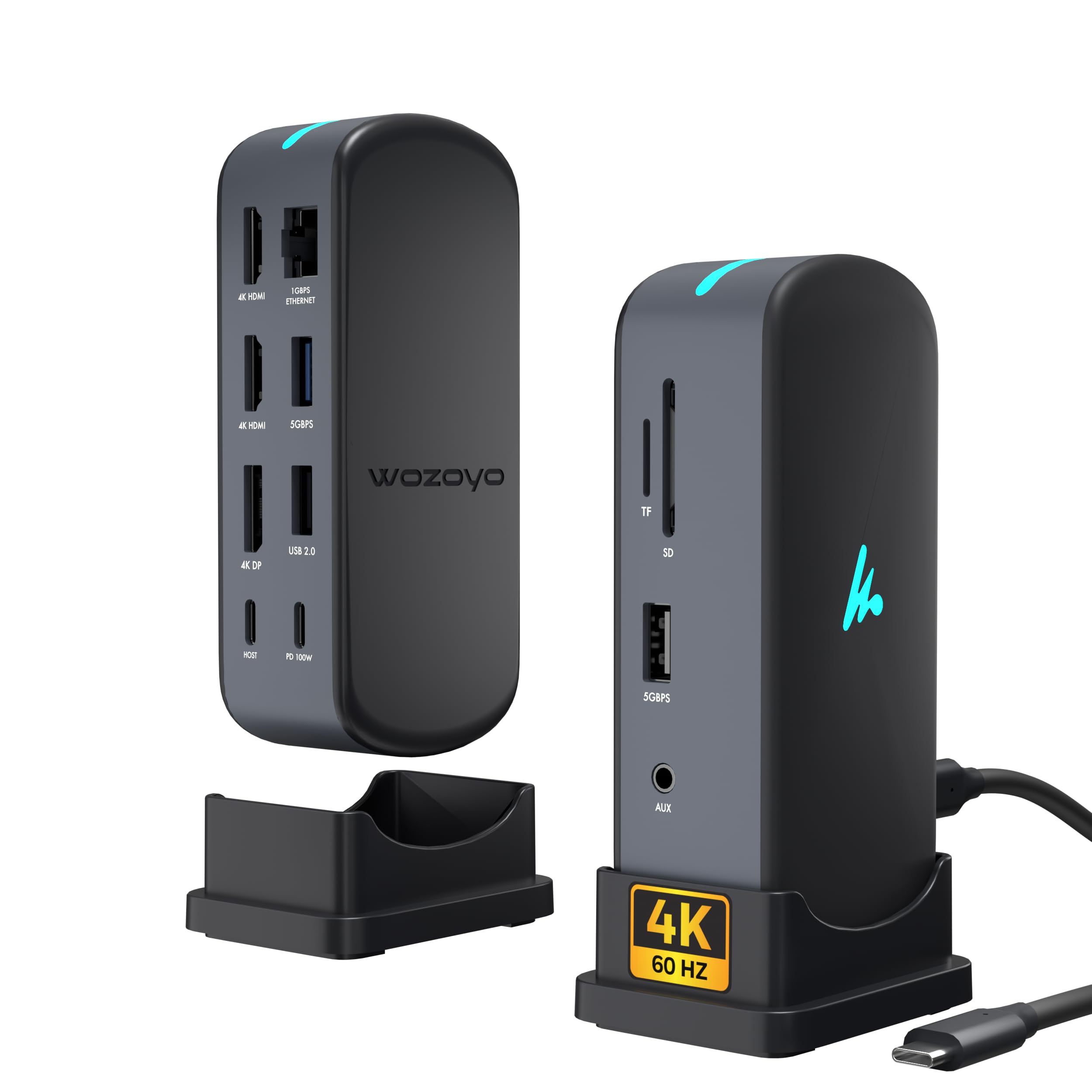
Picture a hotel desk in a strange city: laptop, two travel monitors, and a brick of a hub that fills half the table. The Wozoyo avoids that. It measures 5″L x 1.4″W x 2″, weighs 0.11 kg, and packs a flexible 15 cm cable, so it slips into a laptop sleeve without adding a lump.
The screen story is the reason it sits this high. You get dual 4K HDMI at 60Hz plus a 4K DisplayPort, which on Windows stretches your desktop across all three. That is also where Windows and Mac split: Windows supports triple-monitor extension over MST, while macOS mirrors the external displays and will not give you three independent screens. If you own a MacBook and want three separate desktops, this is not the dock for you.
Everything else punches above the size. Eleven ports cover dual USB at 5Gbps, a 1Gbps Ethernet jack, SD and TF card readers, an AUX port and 100W Power Delivery, and the maker backs it with a 2 year warranty. The recurring gripe on the review pages is occasional monitor drop-outs and some confusion over the power wiring, so treat the connections as something to seat firmly. Weigh it against the Acer below: the Acer moves data at 10Gbps where this Wozoyo runs 5Gbps, but the Wozoyo is the one that fits in a jacket pocket.
light travel kit: a Windows road warrior who wants two HDMI screens and a wired network from one tiny hub.
demanding 4K rig: you need three independent Mac displays or the fastest possible file copies.
3. Acer Docking Station 3 Monitors 13-in-1 USB C Hub
Three HDMI ports, six USB ports, and 10Gbps lanes that double the transfer speed of the smaller hubs here.
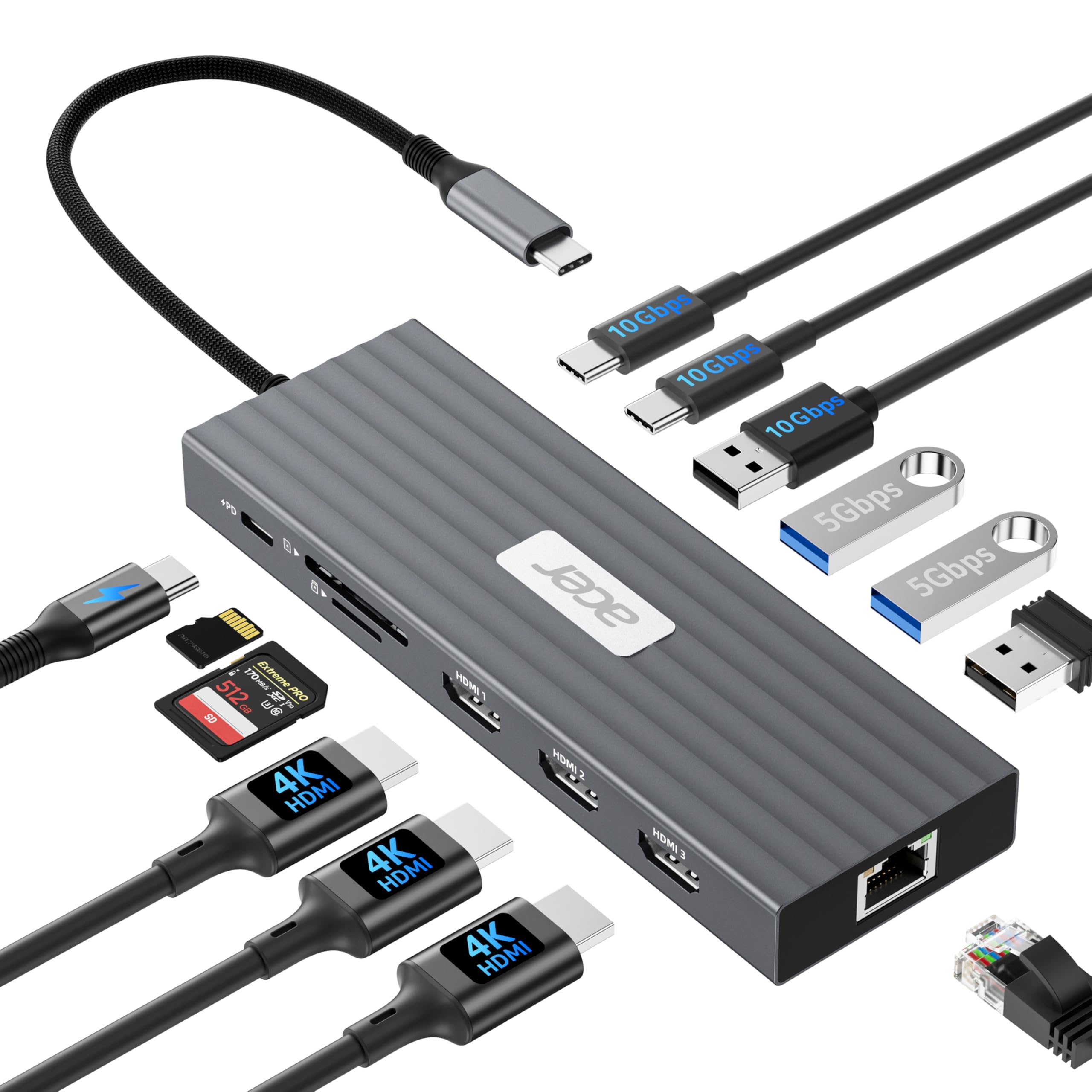
Three HDMI outputs is the headline, and the Acer delivers them at 4K@60Hz each. Plug three panels in and it allocates resolution based on what each monitor can take — typically two screens at 4K@60Hz and a third at 1080P@60Hz. That is plenty of desktop for spreadsheets, a browser and a chat window running side by side.
The data lanes are what separates it from the Wozoyo. The Acer moves files at 10 gigabits per second where the Wozoyo manages 5 — a 2.0x gap, and it shows when you dump a card of photos or clone a drive. You also get 13 ports, six of them USB, with two USB-C and one USB-A at the fast 10Gbps tier. Power Delivery runs 100W in and 85W out to the laptop, but again you supply the 100W charger and cable.
Here is the honest part. Reliability is the most-discussed topic around this dock, and the feedback is split — plenty of units run fine, and some owners find certain USB and USB-C dongles simply do not respond. The USB ports are data-only and will not charge your phone. Go in expecting a fast, triple-screen work hub and check every peripheral you rely on within the return window.
fast USB lanes: 10Gbps across three of its USB ports makes it the quicker dock for anyone shuffling large files, and the triple 4K@60Hz HDMI gives you real desktop space rather than mirrored screens.
limited video outs: dongle compatibility is the reported weak spot, and the all-data USB ports mean your phone charges somewhere else.
speed over extras: a Windows or DP Alt Mode laptop driving three screens with big file transfers in the mix.
triple 4K seeker: a Mac user, since macOS mirrors across the external displays here, or anyone who needs the USB ports to charge devices.
4. Kensington SD4760P 11-in-1 USB-C Docking Station

The office-grade dock that hands three screens to an M-series MacBook where most rivals mirror.
This is the one for a desk shared between a Windows laptop and a MacBook. It uses DisplayLink technology (a software driver that sends video over USB) to push up to three external monitors from one plug-and-play connection — one 4K display at 30Hz (30 frames per second, fine for documents and video) and two 1080p displays at 60Hz (60 frames per second, smoother for everyday work). It supports USB-C Alt Mode laptops (USB-C ports that can carry video) including the MacBook M1, M2, M3 and M4. That is the specific problem it solves: Macs that natively refuse to extend past one screen.
Beyond the screens you get six USB-A 3.2 Gen1 ports at 5Gbps, a combo audio jack and a Gigabit Ethernet port, with up to 100W of laptop charging passed through the dock. It also covers Thunderbolt 5, Thunderbolt 4, USB4 and USB-C hosts on Windows 10 or above, macOS 11 or above, and Chrome OS 114 or above, so a mixed office can standardize on one model. The 3-year limited warranty and the FSC-certified packaging round out the business case.
The trade-off is speed at the top end. One of those three displays tops out at 4K@30Hz while the other two stop at 1080p — this is a productivity dock, not a high-refresh playground. Reliability is also the most-discussed point around it, and a handful of units have been reported to give out after a couple of months. That is not the common experience, but it is worth the trip through the warranty. If you want three identical 4K panels, the TobenONE K1211 further down does that job better.
office fleet buy: a mixed Mac and Windows office that needs one dock model for everyone and a three-screen extension on the Mac side.
budget shopper: three matching 4K monitors or anyone chasing high refresh rates.
5. TobenONE 16-in-1 Laptop Docking Station Triple 4K Monitor
Its own 150W power brick means this dock never has to borrow your laptop’s charger.
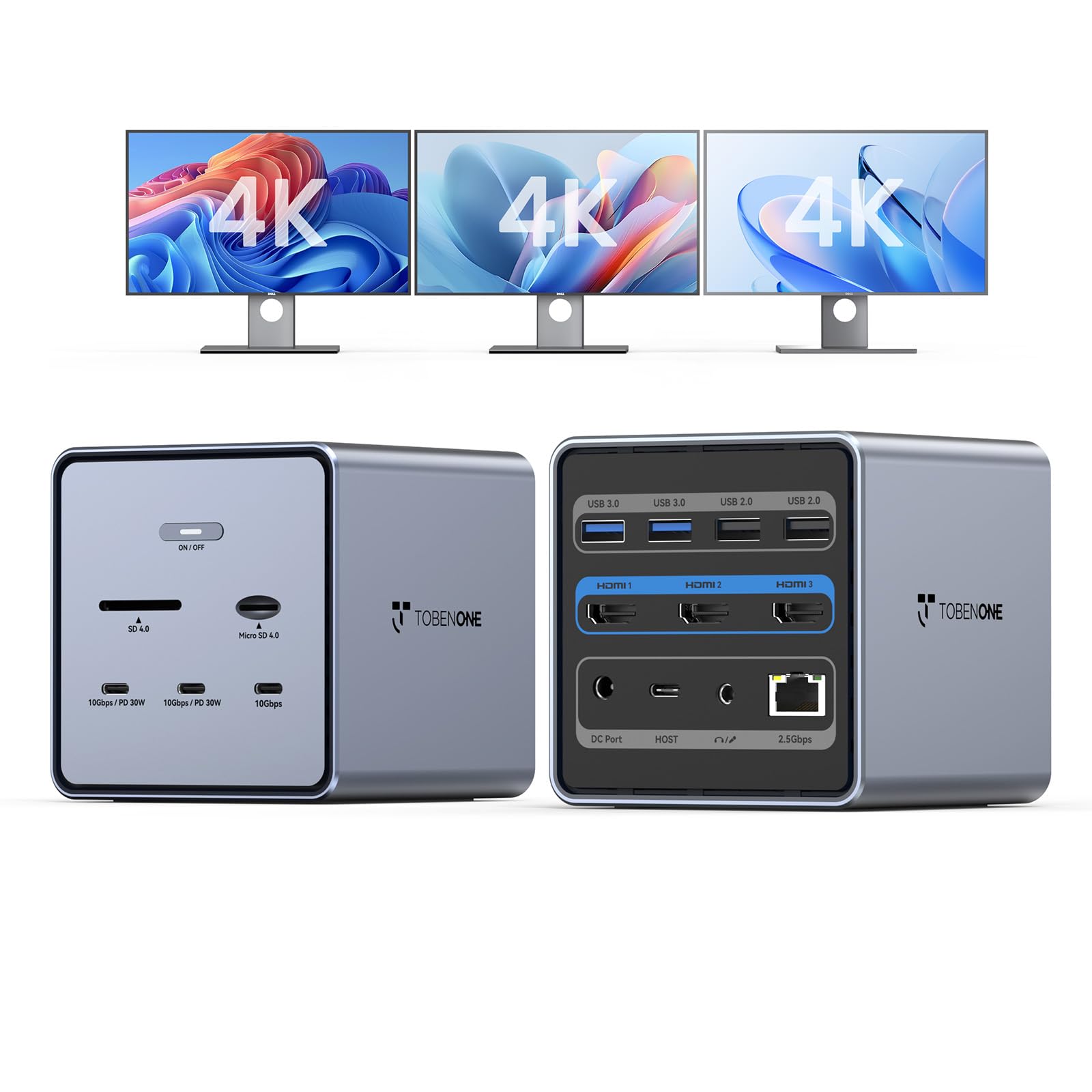
Here is the difference in one line: most docks here make you supply the power brick. The TobenONE 16-in-1 includes a 150W adapter in the box, and it feeds a stable 100W to the laptop while running three displays and a stack of peripherals. If your laptop charger lives in your bag and you hate hauling it out at the desk, that alone justifies the step up.
The screens are the reason power-hungry buyers pick it. Three HDMI ports drive a single monitor at up to 2K@144Hz, or dual and triple monitors at up to 4K@60Hz if your laptop has a DP1.4 source with DSC. Sixteen ports in total cover three USB-C at 10Gbps, four USB-A, SD and microSD 4.0 card readers at 312MB/s, 2.5Gbps Ethernet and a 3.5mm audio jack. Two front USB-C ports fast-charge a phone at 30W each, or 15W each when both are busy.
The honest note is the Ethernet. That 2.5Gbps jack is faster than the 1Gbps ports on the Acer and the Kensington, and it is aimed at editors moving 4K and 8K footage across a network. The catch to plan for is longevity — the reliability topic is the noisiest one in its feedback, with a run of units reported to fail during normal use. The vast majority of this 4.0+ star crowd is happy, but buy from a seller with a clean return path. MacBooks are also limited to one extended display or mirroring, so this is a Windows-first dock.
sixteen port spread
- 150W adapter in the box drives 100W to the laptop — no separate charger required
- 2.5Gbps Ethernet outruns the 1Gbps jacks on most docks in this list
- 16 ports including three 10Gbps USB-C and SD/TF 4.0 readers at 312MB/s
- 2K@144Hz on a single screen for smoother motion than a plain 60Hz dock
hefty desktop footprint
- Reliability is the most-discussed topic around it, with failures reported during normal use on some units
- MacBooks get only one extended display, not three
- The USB-C ports cannot drive a USB-C monitor, so plan around HDMI
power user desk: you have a full-featured USB-C Windows laptop, a 2.5Gbps network, and no interest in carrying a charger.
minimal setup fan: you rely on a MacBook for multi-display work or want the longest track record of long-term reliability.
6. Plugable Thunderbolt 4 Dock with 100W Charging
Forty gigabits per second, driverless, and a spec sheet written for the IT department rather than the kitchen table.
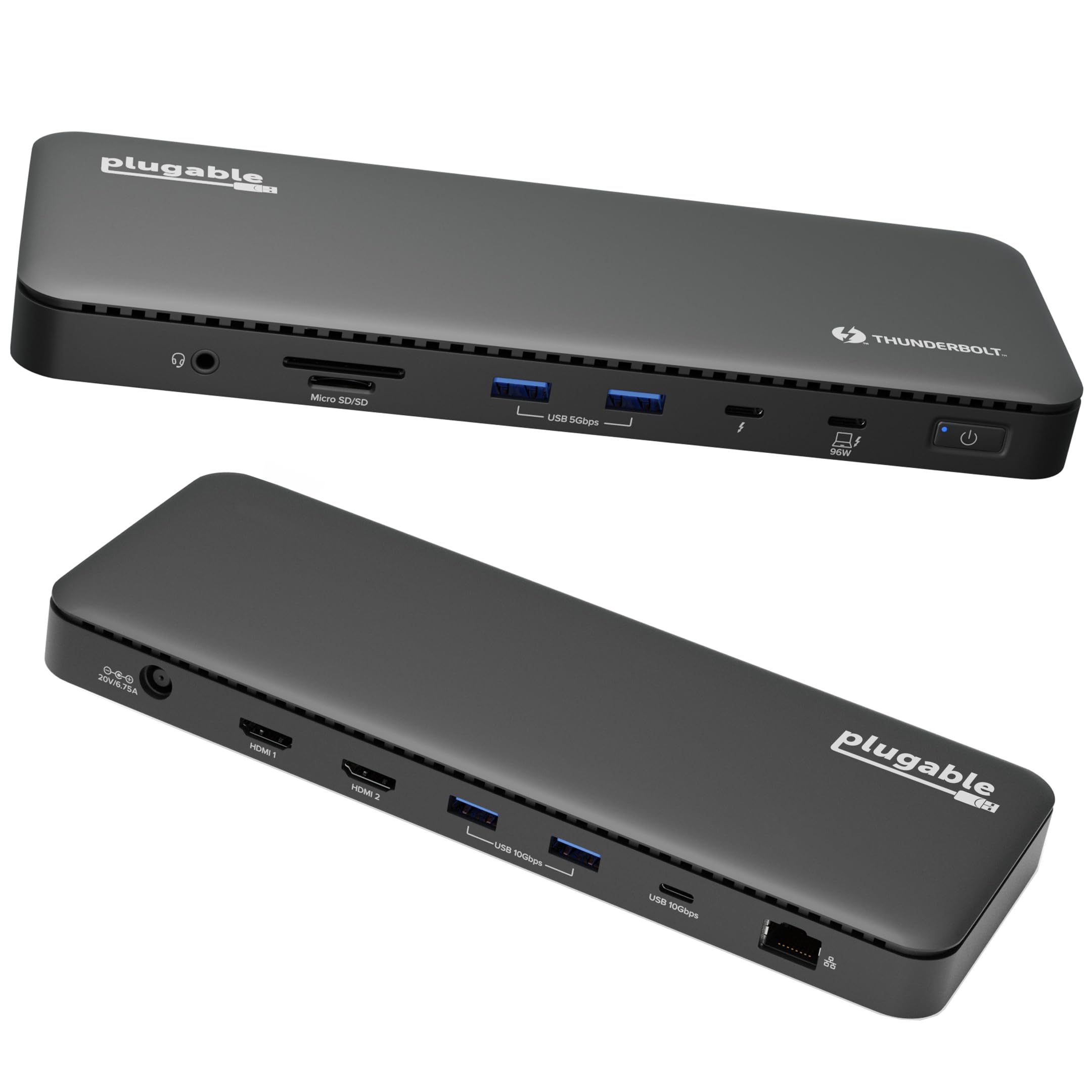
Where the driver-based docks above need software, this Plugable runs on raw Thunderbolt 4 bandwidth — 40Gbps of it — with no install at all. Two HDMI ports push dual 4K at 60Hz, or a single 8K display on a Thunderbolt 4, Thunderbolt 5 or USB4 laptop. Thirteen ports cover a downstream Thunderbolt 4 port at 40Gbps with 15W charging, four USB ports, USB-C, SD and microSD, audio, Gigabit Ethernet and a K-lock slot.
The compatibility map is the thing to read before buying. Windows Thunderbolt 4, Thunderbolt 5 and USB4 machines (fast USB-C standards) get full dual-display support. Older Thunderbolt 3 and plain USB-C systems drop to one external screen. On macOS, dual displays only work on M5, M4, M3 Pro or Max, M2 Pro or Max and M1 Pro or Max models, plus base M3 in clamshell mode (laptop lid closed) — a base M1 or M2 MacBook extends just one screen. Check your exact chip before you commit.
Charging is where owners split. Most find the 100W (96W certified) delivery keeps a laptop fed all day, while a share report the charge cutting out. Reliability is the heaviest topic in its feedback and it lands mixed, so this is a dock to buy for the driverless Thunderbolt build and the 13-port layout, not on the promise of bulletproof longevity. Set it up on a desk that stays put and it earns its keep; a machine that moves daily is a harder life for any dock.
thunderbolt certified: 40Gbps Thunderbolt 4 with no driver to deploy, 13 ports including a downstream Thunderbolt 4 at 15W, and dual 4K@60Hz or a single 8K on supported laptops.
pricey cable needs: older Thunderbolt 3 and plain USB-C hosts get one display only, and base M1 and M2 MacBooks are capped the same way — verify your chip and port before ordering.
thunderbolt laptop owner: a business deploying Thunderbolt 4 or USB4 Windows laptops who wants zero software and one dock model.
USB-C only machine: you are on a base M1 or M2 Mac, an older Thunderbolt 3 machine, or a plain USB-C laptop that needs two screens.
7. Plugable USB C Docking Station, Dual Monitor 4K 60Hz

Macworld’s pick for MacBooks — it adds a second 4K desktop to a one-screen Mac.
If you own an M1 through M5 MacBook and have been told two external monitors is impossible, this is the workaround. DisplayLink technology lets it drive dual 4K at 60Hz over HDMI and DisplayPort — even on Macs that natively extend only one display. You get the monitors in HDMI, DisplayPort, or one of each, so you are not locked into a single connector type.
The build matches the price point. Premium aluminum housing in space gray, 14 ports, front-facing USB-C and USB for charging, three more USB 3.0 ports, SD and microSD readers, a 3.5mm headset jack, Ethernet and 100W charging. The 11.7-ounce body is light enough to move between a teaching station and a home desk without a struggle.
Two things to know before you buy. DisplayLink means a driver install on macOS, Windows or ChromeOS — it is not driverless — and HDCP is not supported, so streaming services may refuse to play through it. Performance is the point owners polarize on: some report no lag whatsoever, others find the software-drawn displays noticeably slower than a native connection. For documents, code and email, that gap rarely matters. For video playback and fast-moving content, it can. Reliability is what reviewers praise most, so it is built to stay on a desk for years.
two screen worker: an M-series MacBook owner who wants two real 4K desktops and can live with a driver install.
three monitor planner: you watch protected streaming content on those screens or need zero-lag motion.
8. Anker Prime Docking Station, 14-in-1 Dual Monitor

Fourteen ports, 160W of total output, and enough juice to run your laptop and three other devices at once.
Anker built this as a charging desk first and a display hub second, and the numbers show it. Total output is 160W across three USB-C ports at 100W max each plus one USB-A at 12W max, so up to four devices charge from one brick. If your desk has a laptop, a phone, a tablet and a headset all wanting power, this is the one that keeps up.
The displays are dual HDMI only, not triple. You get extended or mirrored output across two screens at up to 2K@60Hz on a DP 1.4 laptop, or 1080p@60Hz on a DP 1.2 machine. It does not support a 5120*1440 monitor, and macOS mirrors the two external displays rather than extending them. Data moves at up to 10Gbps, and there is audio and Ethernet in the 14-port layout. It also is not compatible with Linux.
Where it stumbles is consistency. Reliability is the most-discussed theme in its feedback and it splits, with a portion of owners reporting units that would not work at all. Connectivity lands mixed too, particularly around MacBooks and external monitors. Most of this 4.0+ star crowd is happy — the plug-and-play ease and the power delivery get plenty of praise — but verify your laptop’s DP Alt Mode and Power Delivery support before it lands. It is a heavy desk unit at 1.28 kg, so treat it as a permanent fixture rather than something to pack.
anker charging speed: 160W of total output and 100W per USB-C port mean the dock doubles as a multi-device charger, and its 14 ports cover dual 4K HDMI, audio and Ethernet at up to 10Gbps.
dual display only: it is dual display only, macOS mirrors the two screens, and Linux is unsupported — plus connectivity with MacBooks is the reported soft spot.
anker ecosystem fan: a Windows desk that needs two screens and wants to charge four devices from the same block.
quad port dreamer: Mac users chasing extended dual displays, Linux machines, or anyone who needs three HDMI outputs.
9. TobenONE DisplayLink Docking Station

Eighteen ports, six display outputs, and the only dock here that extends four screens on Windows and three on a Mac.
Count the video outputs on this one and the price starts to make sense. Three HDMI plus three DisplayPort gives you the freedom to mix connectors, and Windows machines can run up to four external monitors if the laptop’s USB-C port carries video. macOS runs three. All of them stretch across 4K@60Hz panels, which is the sort of setup trading desks and video editors build their day around.
It is a DisplayLink dock, so the driver is mandatory on both Mac and Windows. On macOS you also need to grant Screen Recording permission for the displays to work — the dock does not record your screen, it just needs that toggle switched on. The included 120W adapter charges the laptop at up to 100W (96W certified) and tops a phone at 18W through the front USB-C port. Data moves at up to 10Gbps across four USB 3.1 and two Type-C ports.
Reliability is the most-praised topic in this dock’s reviews by a wide margin, with functionality a close second. That track record is why it costs more than anything else here. The honest caveats: it cannot play Netflix or the paid streaming services, it is not built for high-refresh gaming, and value for money draws a split response — a share of buyers feel the outlay is steep. For a professional workstation that has to run three or four 4K panels every day, the port count and the reliability record are the argument.
mixed laptop fleet: a trading station, OBS rig or dev desk that needs three or four extended 4K screens and 18 ports on one cable.
plug and play purist: a two-monitor home office, a gamer chasing refresh rate, or anyone who wants paid streaming to work on the same screens.
Know the Specs
DisplayLink vs DisplayPort Alt Mode
DisplayPort Alt Mode (DP Alt Mode) lets a laptop send video out of its USB-C port natively — plug the dock in and the screens light up with no software. DisplayLink is the software route: a driver draws the extra displays through the USB connection, which is how a dock adds screens to a machine that refuses to extend. Driverless docks are simpler to deploy; DisplayLink docks reach the machines that need help, especially base M1 and M2 MacBooks. Expect to install a driver and, on macOS, grant Screen Recording permission for DisplayLink docks.
Power Delivery wattage
Power Delivery is how the dock charges your laptop through the same cable that carries video and data. A dock rated for 100W input typically passes around 85W to the laptop, and the rest powers the dock itself. If a dock ships its own adapter — like a 150W or 120W supply — you leave the laptop charger in the bag. If it does not, you must buy a 100W+ USB-C charger and cable, and your laptop’s USB-C port has to support PD charging in the first place.
How many screens your laptop will really extend
Three HDMI ports on the dock do not guarantee three independent screens. A full-featured USB-C Windows laptop usually extends across three panels. Most Macs cap at one extended display natively, and many docks mirror the same image across the rest. If you run a Mac and need two or three separate desktops, look for a DisplayLink dock and confirm your specific chip is supported.
4K@60Hz vs 4K@30Hz
The 60Hz figure is how many times per second the screen refreshes, and it is what makes a mouse cursor glide rather than stutter. A 30Hz panel is fine for a document parked to the side, but you notice the drag when scrolling. When a dock lists mixed resolutions like one 4K at 30Hz and two at 1080p, that is a bandwidth budget being shared across the ports — plan your most-used screen on the fastest output.
Common Questions
Will a three HDMI dock give me three separate screens on a MacBook?
Do I need to install a driver for a multiple HDMI docking station?
How do I know if my laptop’s USB-C port supports video output?
Can a multiple HDMI docking station charge my laptop at the same time?
Why does Netflix or Hulu refuse to play on my dock?
Is 4K@30Hz good enough for a work monitor?
What is the difference between a dock and a splitter that mirrors screens?
Will a three-monitor dock work with a Chromebook or a Linux machine?
Do the USB ports on these docks charge my phone?
Why do some docks need a 100W charger that is not included?
The Bottom Line
For most buyers, the best Multiple HDMI Docking Station here is the OREI SplitXtend because it gives you three real HDMI outputs for entry-level money and handles them reliably once the driver is in. If you want a dock that travels in a jacket pocket, the Wozoyo 11-in-1 is the one to reach for. And if you drive a Mac and need three extended 4K panels with eighteen ports behind them, the TobenONE K1211 is the long-haul pick — its reliability record is the strongest in this lineup, which is why it costs the most.
How we choose
We do not accept paid placement. Every pick is matched to a real buyer and a real use-case; we do not hands-on test units.
Sources
Specifications: manufacturer listings and product documentation. Review insights: verified customer reviews, as of November 2026. Pricing: not shown on this page (it changes often); check the current price via the retailer link.
As an Amazon Associate, Tactical Gear Guy earns from qualifying purchases. This does not affect which products we feature.