Specs are compiled from manufacturer listings and verified buyer reviews and can change over time — please confirm the key details on the product page before buying.
You did not buy a Thunderbolt 5 laptop to babysit a tangle of adapters. A Thunderbolt 5 hub takes one cable from your machine — a single connection carrying 80Gbps, or up to 120Gbps when the hub shifts bandwidth toward video — and fans it out into displays, drives, wired network, and card readers. The picks below cover that job at every size, from a compact nine-port box that still hands your laptop 90W of charging to a 15-port desktop slab with a 240W supply behind it.
This guide is built by comparing the manufacturers’ published specifications and the patterns across verified customer reviews, so you get each pick’s real strengths and trade-offs instead of marketing spin.
What separates a hub you keep from one you return is rarely raw speed. It is how many displays your own machine will actually drive, how much power reaches your laptop while everything else is plugged in, and whether the ports sit where your cables fall. Every pick here meets the Thunderbolt 5 standard, so the choice depends on fit — and this breakdown of the thunderbolt 5 hub field shows you which one matches your desk.
Top Picks

How To Choose The Best Thunderbolt 5 Hub
The first thing to settle is not which hub is fastest — every unit here is a genuine Thunderbolt 5 device. It is whether your laptop can use what the hub offers. A Thunderbolt 5 hub only reaches its full 80Gbps when the machine on the other end of the cable actually speaks Thunderbolt 5 or USB4 v2. Plug the same hub into a Thunderbolt 4 laptop and it still works, but it drops back to what that older port can carry.
Match the display count to your own machine first
This is where most returns come from. Windows Thunderbolt 5 laptops can often run three 4K displays at once through these hubs, while macOS machines generally stop at two extended displays — and base M1 through M3 Macs will not drive two external screens at all. Read the hub’s display wording against the exact model you own, not against the biggest number in the listing.
Read the power delivery figure as laptop charging, not total power
The wattage printed on a hub is the power it can hand your laptop over the single cable — not the size of its external power supply. A big-budget 16-inch pro laptop wants a high host figure to charge at full tilt. A slim ultraportable is usually happy with far less, so you may not need to pay for the top number.
Decide if you want a desk dock or a travel hub
Port-heavy docks with built-in power bricks and M.2 storage slots are meant to sit still and swallow every cable on your desk. Small hubs are meant to slide into a bag and give you a few fast ports on the road. Be honest about which one you are actually buying, because a heavy dock that never leaves the desk is a waste in a backpack, and a tiny hub will frustrate you if it lacks the card readers and Ethernet you use daily.
Side-by-Side Comparison
| Model | Best For | Ports | Host Charging | Weight | Amazon |
|---|---|---|---|---|---|
| CalDigit E5 Element 5 Hub★ Best Overall | Everyday all-rounder | 9 | 90W | 8.9 ounces | Amazon |
| WAVLINK Thunderbolt 5 DockMost Versatile | Long desk runs | 12 | 140W | 610 g | Amazon |
| OWC Thunderbolt 5 HubFastest Small Hub | Speed on a budget | 5 | 140W | 382 g | Amazon |
| Kensington SD5010T5 | HDMI monitor owners | 13 | 140W | 2 pounds | Amazon |
| Plugable TBT-UDT3 | Mac and PC switchers | 11 | 140W | 3.6 pounds | Amazon |
| Razer Thunderbolt 5 Dock Chroma | Gaming desks | 10 | 140W | — | Amazon |
| Satechi Thunderbolt 5 CubeDock | Clutter-free desk | 13 | 140W | 3.7 pounds | Amazon |
| CalDigit TS5 | Power-hungry laptops | 15 | 140W | — | Amazon |
| HyperDrive Next Thunderbolt 5 Dock | Two-PC workflows | 11 | — | — | Amazon |
Detailed Reviews
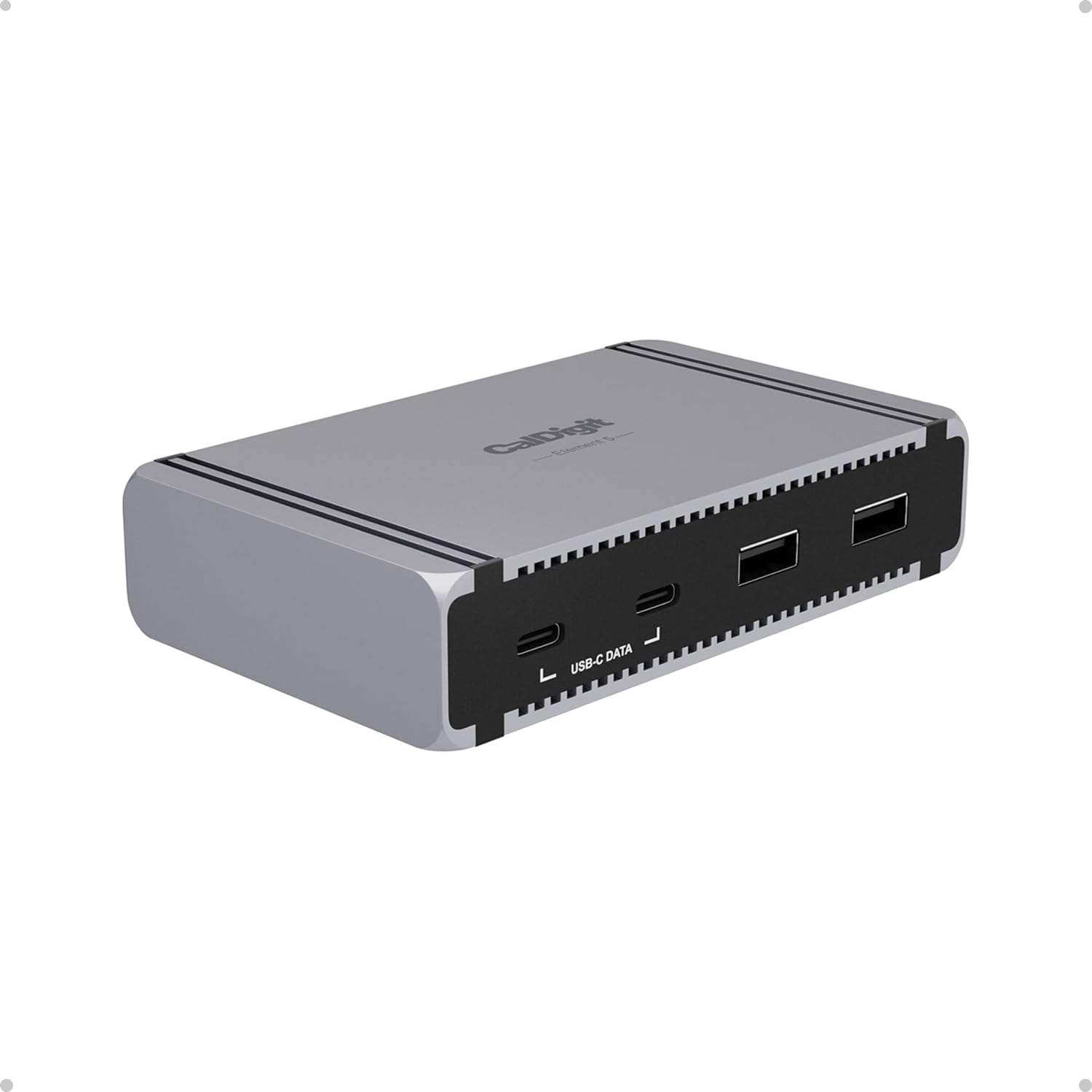
1. CalDigit E5 – Thunderbolt 5 Element 5 Hub
Our pick — 4.5+★ from 150+ verified ratings; the strongest balance of quality and price.
A small gray box that runs four Thunderbolt 5 ports without breaking a sweat.
Four of the nine ports on this CalDigit are Thunderbolt 5 running at 80Gb/s — and those four carry 64Gb/s of PCIe, which is the lane type a fast external SSD needs. The other five (three USB-A and two USB-C, all 10Gb/s) handle mice, keyboards, and camera cards. In practice, one cable to your laptop keeps every desk peripheral connected while drive transfers run over the 64Gb/s PCIe lanes.
Owners keep returning to the same point in reviews: build quality and reliability. The chassis feels solid in the hand and the ports grip their cables, so the hub fades into the workflow instead of demanding attention. Its 180W external power supply is the reason it can hold steady charging no matter how much you plug in — up to 90W sustained to the laptop, and CalDigit notes that it also keeps charging devices even when the hub isn’t attached to a host computer at all.
Where the desktop other picks bring more is power headroom: the bigger CalDigit TS5 hosts 140W and the WAVLINK delivers 140W upstream, so a very power-hungry 16-inch pro laptop will charge faster there than here. And the honest display caveat — triple displays are not supported on macOS, Thunderbolt 4, or USB-C PCs — is one you need to check against the machine you own before you commit. Charge a mid-power ultraportable and the 90W figure is plenty to keep up.
The strengths that hold up
- Four Thunderbolt 5 ports at 80Gb/s, with 64Gb/s PCIe for fast external SSDs
- 90W sustained laptop charging even with all nine ports loaded
- Offline charging keeps accessories topped up without a host
- Compact footprint — 4.5 inches long, 8.9 ounces
What to weigh first
- 90W falls short of the bigger docks for a high-draw pro laptop
- Triple monitors only work on supported Windows Thunderbolt 5 hosts
- Some buyers question the cost for the port count
Steady-hand pick: a MacBook Air or slim Windows ultraportable owner who wants a quiet, well-built anchor for a four-drive desk setup.
Look past it if: your laptop pulls hard at full load and you have seen it slow-charge, because the larger docks in this list give the laptop more watts.
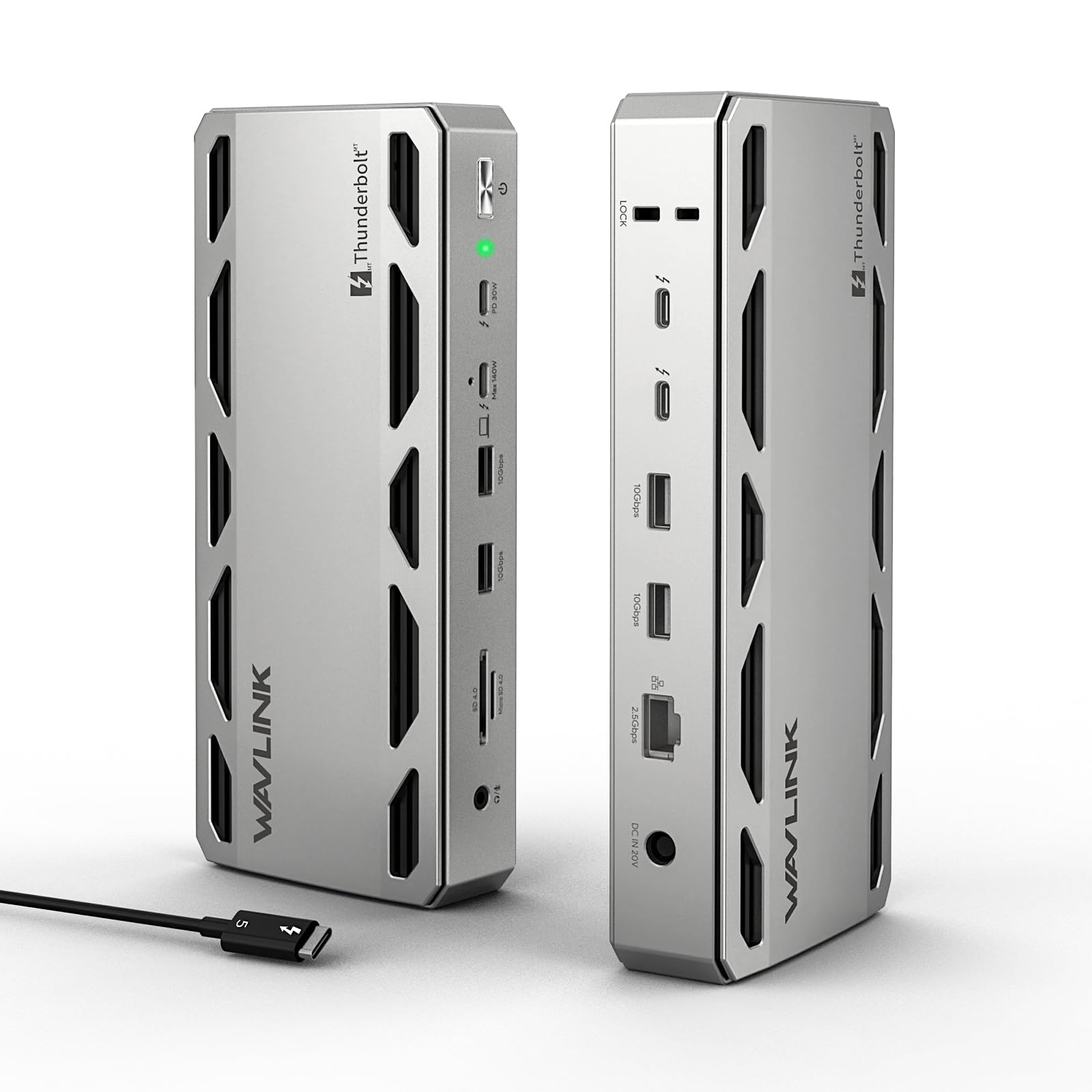
2. WAVLINK Thunderbolt 5 Dock
Eight and a half inches of aluminum that pulls double duty as a desk hub and a charging brick.
The same single cable carries 120Gb/s, which is Thunderbolt 5’s boosted mode, and an extra three downstream Thunderbolt 5 ports let you chain displays or fast drives off the back.
Its party piece is the port spread: a 2.5G Ethernet jack, four USB-A 3.2 ports, an SD 4.0 reader, and a 3.5mm audio jack all sit on the same 8.6-inch aluminum slab. The chassis measures 8.6 inches long and weighs 610 g, so it wants a permanent spot on the corner of your desk rather than a laptop bag. An integrated SD 4.0 slot reads at up to 312 MB/s — quick enough to pull a card straight into your editor instead of hunting for a separate reader.
Mac owners should note the display limit up front: macOS supports dual external screens through this dock, while triple 4K 144Hz needs a Windows 11 PC with a Thunderbolt 5 port. Port availability is the area where opinions split — some would trade an extra HDMI for the audio jack — but the compatibility reports, especially with M4 MacBook Pro setups and proper wake from sleep, are the calmest in this group.
Where it wins: the 140W upstream plus 2.5G Ethernet plus four USB-A ports is the widest spread on this half of the list, and the 120Gb/s ceiling covers high-refresh displays as well as fast drives.
The catch: no HDMI output means your monitors must run through Thunderbolt-to-HDMI or DisplayPort adapters, which are not included in the box.
Reach for this if: you want a wired network, a card reader, and full-power laptop charging from one box.
Skip if: your monitors are plain HDMI and you would rather not buy adapters to attach them.
3. OWC Thunderbolt 5 Hub 5-Port Connectivity Solution
Five ports, fanless, and the smallest power brick in the roundup.
If you want speed without a tower on your desk, the OWC is the lightest serious contender here: four Thunderbolt 5 ports at 80Gb/s with a 120Gb/s boosted ceiling, plus one USB-A 10Gb/s, all inside a fanless aluminum body that weighs 382 g. There is no fan whine to keep your microphone track clean, and no moving part to wear out.
What people actually use it for is throughput. Buyers report sustained reads and writes in the neighborhood of 4500 MB/s when a fast external SSD is attached, which puts large video projects and photo libraries onto an external drive at close to internal speeds. The 140W power supply keeps a demanding laptop charged, and three separate daisy chains let you pull a device from one line without disturbing the others.
Let’s be straight about the trade-off: five ports is the narrowest spread in this group — the Kensington SD5010T5 offers 13 for comparison — so if you keep a card reader, an Ethernet run, and multiple displays busy at once you will run out of jacks. That makes it a great laptop bag companion and a tight fit for a fully loaded desktop.
My take: OWC has done the hard part — fast, silent, and pocketable — and asked the buyer to supply their own adapters for the rest.
Best fit: creative workers who dock and undock a laptop daily and want a compact fast hub that rides in the bag.
Not for you if: you need Ethernet, HDMI, or card slots built in, because this one expects you to add them.
4. Kensington SD5010T5 Thunderbolt 5 Docking Station

Two HDMI sockets on the back and 140W going up the cable.
Count the ports and this is the widest dock in the roundup: 13, including two HDMI inputs, two Thunderbolt 5 (one host and one downstream at 15W), a pair of USB-C 10Gbps ports, three USB-A ports split across 10Gbps and 5Gbps, a 2.5Gbps Ethernet jack, a 3.5mm audio combo, and both SD and microSD 4.0 readers. That is the difference between a dock and a dock plus three adapters.
Its 140W dynamic power delivery makes it a natural fit for a demanding workstation, and the KonstantCharge feature keeps attached devices charging even after you undock your laptop. The Kensington also ships with DockWorks software on Windows and a 3-year limited warranty, which is the longer coverage in this group, and the case uses 100% post-consumer recycled aluminum.
Owners of HDMI displays will appreciate the two direct sockets — no adapters, no dongles, no guessing which monitor chain supports what. Just be aware that display output varies by laptop: M4/M5 base-chip MacBooks get dual 4K at 60Hz through the two HDMI ports, while Windows Thunderbolt 5 machines stretch to three 4K monitors at 144Hz. Confirm your model supports the configuration before buying.
Why it earns a slot
- 13 ports — the highest count here
- Two HDMI sockets, so standard monitors plug in without adapters
- 140W dynamic charging plus KonstantCharge for docked accessories
- 3-year limited warranty and optional VESA mounting bracket
Before you click buy
- Mounting bracket and cable lock sold separately
- Mac triple-display limits are the tightest of the big docks
- Firmware and DockWorks work is a Windows-first experience
Take it when: your monitors are standard HDMI and you want a single dock to swallow every cable you own.
Pass if: you are a Mac-only user who needs three external screens, since macOS support caps at two here.
5. Plugable Thunderbolt 5 Docking Station (TBT-UDT3)
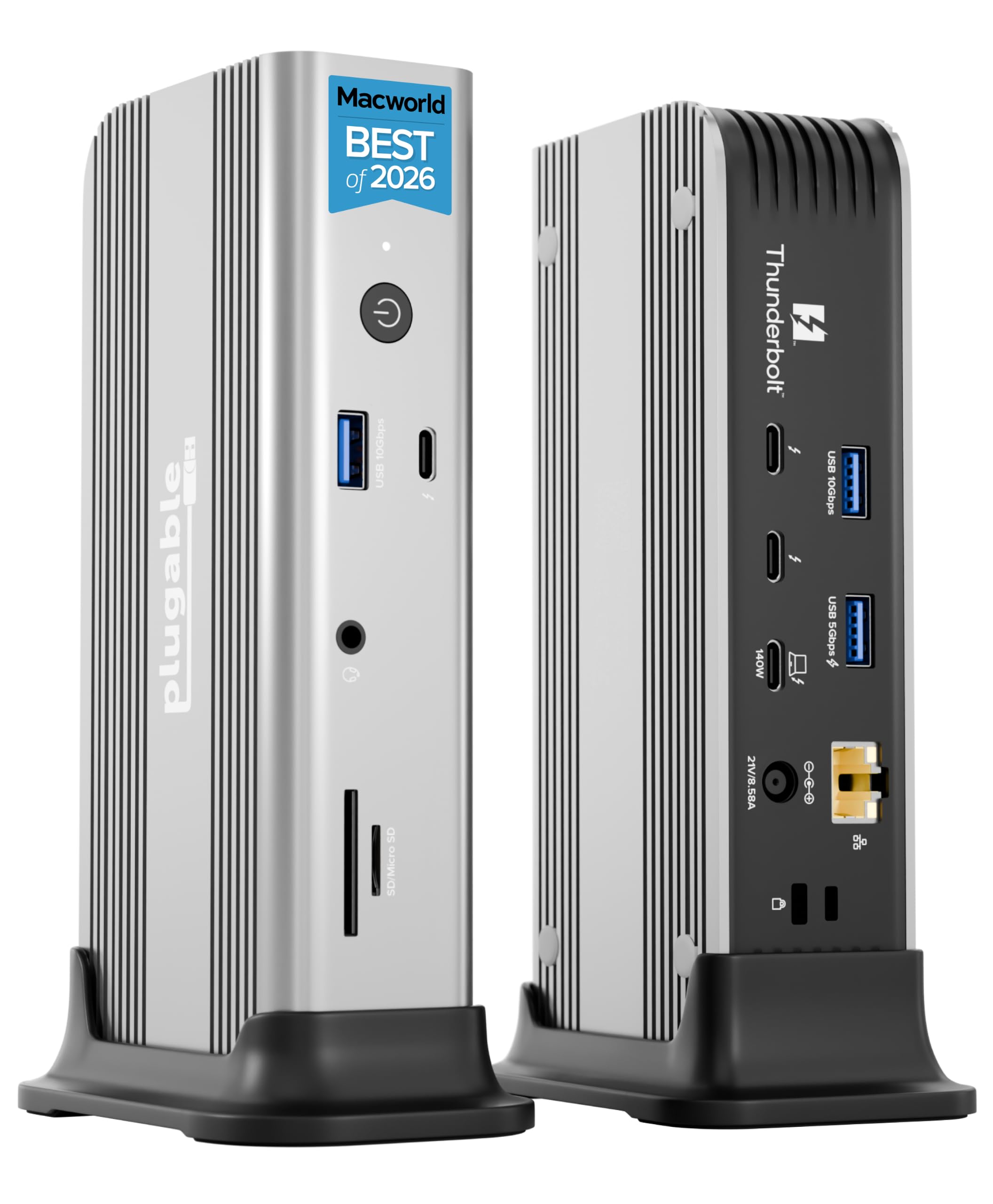
A dock built for the desk that has both a MacBook and a Windows laptop on rotation.
Three Thunderbolt 5 ports at up to 120Gb/s, each supplying 15W downstream, plus a 140W upstream port for the laptop — that is the core of the Plugable TBT-UDT3. Two USB 10Gbps, one USB 3.0, SD and microSD slots, a 2.5Gbps Ethernet jack, and Thunderbolt Share fill out the 11 ports. On the display side, Macs can drive up to three 6K at 60Hz or three 4K at 144Hz, while Windows takes two 8K at 120Hz or two 4K at 144Hz.
The practical case for this one is driverless compatibility across macOS, Windows, and USB4. Plug it into macOS, Windows, or a full-featured USB4 machine and it works with no driver download, no reboot, and no admin approval. IT departments buying in bulk will also note the MacWorld Best of 2026 and PCWorld Editors’ Choice nods, and Plugable backs it with lifetime support from a North American team.
Connectivity is the spot that earns mixed reviews — a lot of owners mention everything working smoothly, while others hit dropped connections or poor network performance through the Ethernet port. That is worth flagging honestly, especially if your daily work depends on stable wired networking. It is also the heaviest dock here at 3.6 pounds.
Honest read: the multi-platform flexibility is real and the 140W charging is generous, but the Ethernet and connection experience leaves a question mark for network-dependent work.
The redeeming detail: three Thunderbolt 5 downstream ports at 15W each means your bus-powered drives and tablets charge while they work.
Pick it if: you regularly swap a Mac and a Windows machine onto the same desk and want one dock for both.
Hold back if: wired Ethernet reliability is the whole point of your setup.
6. Razer Thunderbolt 5 Dock Chroma

The one dock in the group that adds storage to a desk and lights it up.
Razer has built a desk toy that takes its work seriously: 120Gb/s Thunderbolt 5 bandwidth, 140W power delivery to the laptop, triple 4K displays at 144Hz, or a single 8K screen at 60Hz, or a 1440p panel running 500Hz for competitive players. The Mercury White finish is a clear attempt to sit next to a MacBook or an aluminum monitor without looking like server hardware.
Then there is the feature none of the other hubs bring: an M.2 slot that lets you add up to 8TB of NVMe storage inside the dock itself. For a video editor or a gamer with a big library, that means the dock doubles as a drive enclosure and the single USB-C connection carries storage and display at once.
The picture has a wrinkle worth naming plainly: this is a 3.5+ star-rated product in a group where several picks sit at 4.0+ and above, and reliability is the area where opinions split — some buyers find it fantastic, others describe it differently. If you buy it for the storage slot and display flexibility, you are buying a specific set of features that no competitor matches here; just keep the return window comfortable and think of it as a specialty purchase, not a default recommendation.
The standout: the built-in M.2 SSD slot is genuinely unique in this roundup and turns the dock into a storage enclosure as well as a connector.
Made for: gamers with a 500Hz display in mind and creative users who want a built-in drive bay they can grow into.
Second thoughts if: you want the safest, most predictable dock in the category, because this one has more feedback diversity than the leader.
7. Satechi Thunderbolt 5 CubeDock
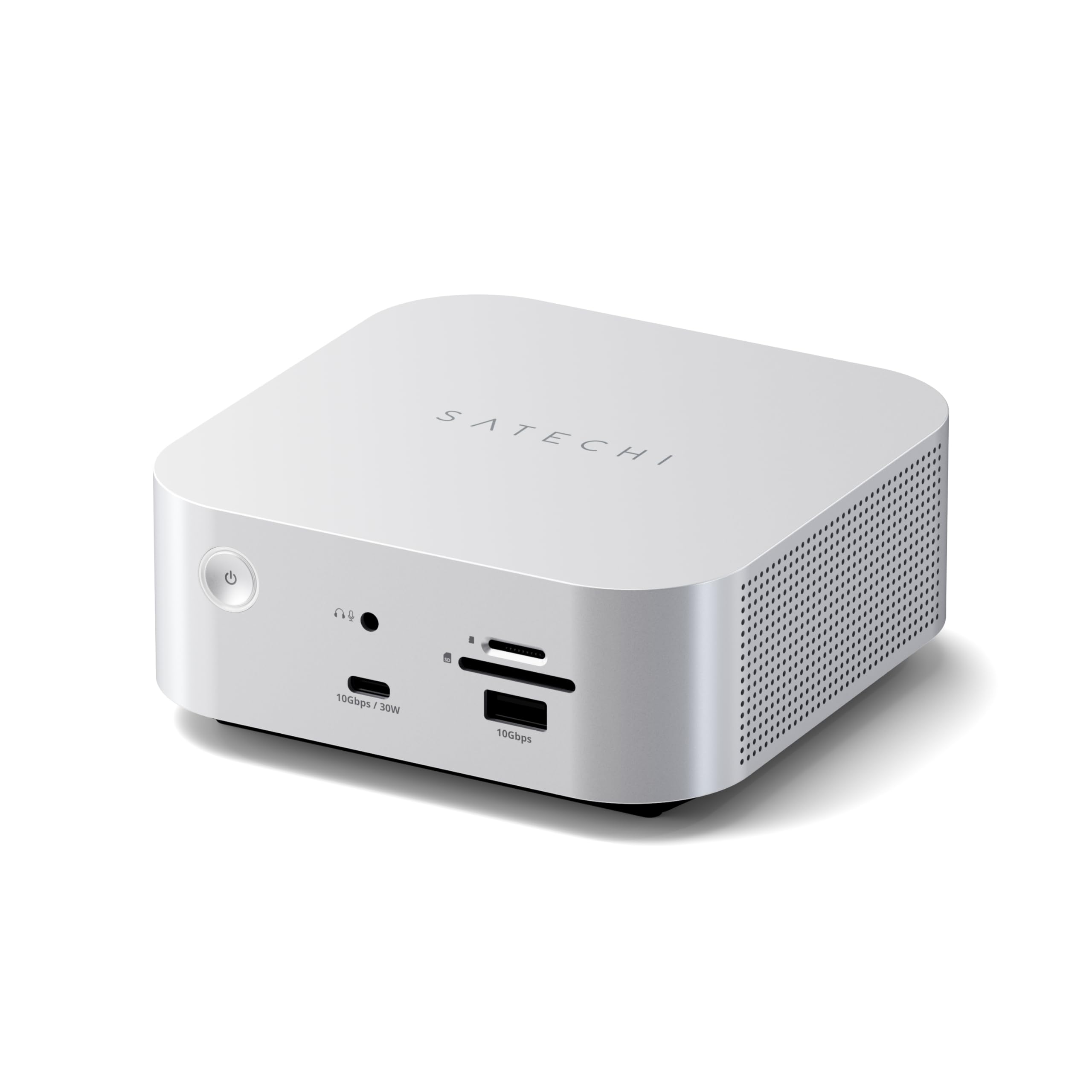
A desktop cube that hides an M.2 bay and a 140W charger inside the shell.
Satechi’s approach is to make a dock look like furniture. The CubeDock is a 5-inch-by-5-inch silver cube that hides an M.2 NVMe slot — up to 8TB, PCIe 4×4 — inside the case. Working straight from the dock, a fast drive can reach up to 6000MB/s, which is quick enough for live video editing and photo libraries that no longer need to live on the laptop itself.
The supporting specs match the desktop ambition: 140W host charging, 30W USB-C power delivery for a second device, UHS-II SD and microSD readers at 312 MB/s, USB-C and USB-A at 10Gbps, and 2.5Gb Ethernet. Display output on Windows reaches a single 8K at 144Hz, dual 8K at 120Hz, or triple 8K at 60Hz; Macs with M3 through M5 chips reach dual 6K at 60Hz. No drivers and no DisplayLink — the CubeDock runs native Thunderbolt 5.
The fit is precise: the SSD bay takes single-sided M.2 NVMe only, and a double-sided drive is not supported and could damage the unit. Satechi also asks you to eject the SSD safely before unplugging, restarting, or shutting down, and stresses that data loss from improper use is outside the warranty. The active cooling system runs at 20–40 dB(A), which is quiet enough to live on the same desk as a microphone, though heat and noise are the two areas where user opinions are most mixed.
What makes it worth a desk spot
- Built-in M.2 NVMe bay with PCIe 4×4, up to 8TB, up to 6000MB/s
- 140W host charging plus 30W USB-C power delivery
- UHS-II SD and microSD at 312 MB/s, plus 2.5Gb Ethernet
- Fan runs at 20–40 dB(A) — quiet in a small studio
The fine print
- Single-sided M.2 NVMe only — double-sided drives are not supported
- Safe eject discipline required before unplugging or shutting down
- SSD itself is sold separately
The match: a small studio or home office where the dock needs to vanish visually while adding real fast storage.
The mismatch: anyone with a double-sided SSD on hand, since the CubeDock will not accept it.
8. CalDigit TS5 Thunderbolt 5 Dock
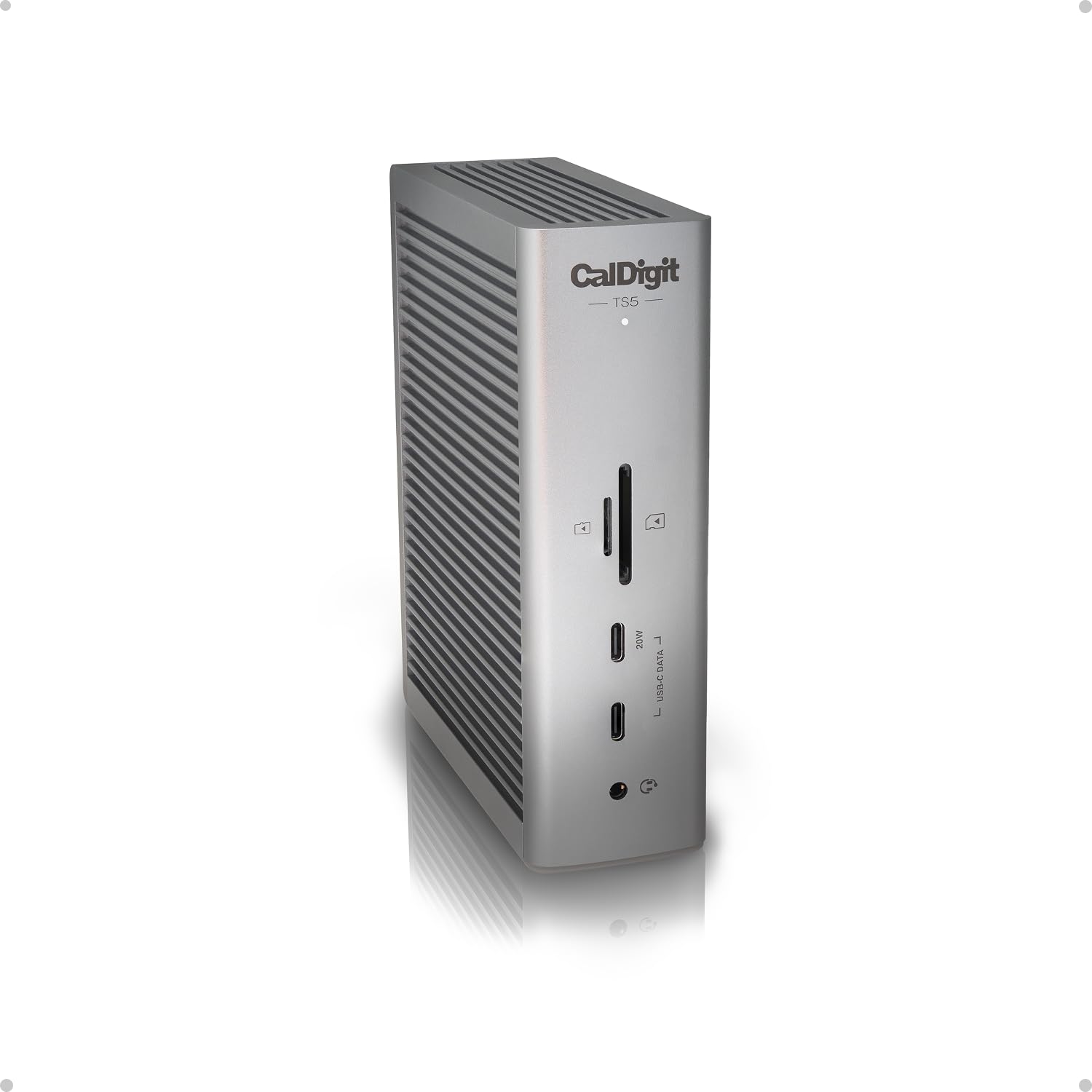
Fifteen ports, a 240W power supply, and an aluminum case that acts as its own heat sink.
The headline number on the CalDigit TS5 is 240W — the size of the external power supply that keeps sustained power flowing to every port even under load. On top of that, the host charging port delivers up to 140W, which is the number that matters for a 16-inch MacBook Pro or a similar power-hungry Windows laptop. Three downstream Thunderbolt 5 ports at 80Gb/s add 15W each, and one front USB-C port pushes up to 20W to a phone or tablet.
Fifteen ports is the biggest spread in the roundup: one USB-A Gen 2 at 10Gb/s, one USB-A at 480Mb/s, three USB-C 3.2 Gen 2 at 10Gb/s, DisplayPort 2.1, SD 4.0 and microSD 4.0 UHS-II readers, 2.5GbE Ethernet, and three audio ports. The bus bandwidth sits at 64Gb/s of PCIe, the lane speed that fast external SSDs rely on. Owners tend to praise exactly that range — the ability to leave every peripheral plugged in while the laptop charges.
The trade-off is size and heat. The aluminum chassis is designed to radiate heat as a heat sink, and CalDigit recommends leaving clearance around it — a detail note before you shove it under a monitor riser. It is also the pricier of the two CalDigit options here, which puts it in the buy-once category for a heavy workstation.
The case for it: if a workstation never leaves the desk, 15 ports and 140W host charging under a sustained 240W supply is the deepest capability in this list.
The honest limit: it needs airflow and desk space, and macOS still caps at dual displays or dual at high refresh rather than triple.
Ideal owner: the editor or engineer with a fully loaded 16-inch laptop and a desk full of peripherals that never move.
Skip when: your desk is small or you need a hub that travels, since this is the anchored-desktop option.
9. HyperDrive Next Thunderbolt 5 Dock with SSD Enclosure
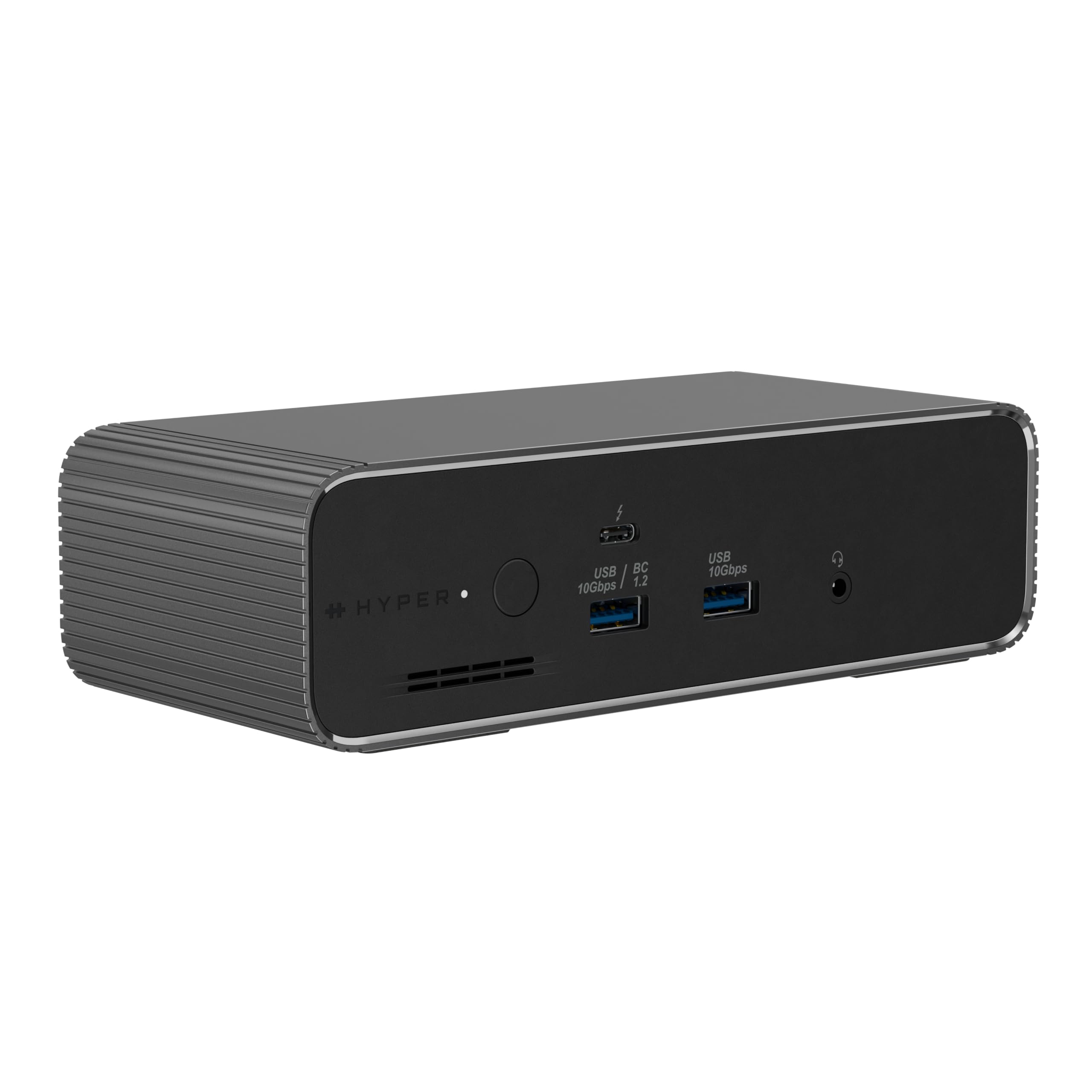
A dock that lets two computers share one keyboard, mouse, and file set.
HyperDrive takes a different route to earning a desk slot: Thunderbolt Share. You plug in two PCs and one keyboard and mouse control both, with files and devices shared over the cable rather than the network. For a setup with a work laptop and a personal desktop on the same monitor arm, that saves you the KVM switch you would otherwise need.
The rest of the spec sheet is solid: 120Gb/s Thunderbolt 5 bandwidth, two Thunderbolt 5 downstream ports, three USB-A at 10Gbps, 2.5Gbps Ethernet, a 3.5mm audio port, and both nano and standard security lock slots. It also carries a built-in M.2 PCIe Gen 4 x4 and Gen 3 slot for NVMe SSDs and compatible M.2 modules, including AI accelerators. Display output reaches three 4K at 60Hz or one 8K at 144Hz, though macOS and Chrome OS machines cap out at two extended displays.
As a newer entry with fewer rating points behind it, it asks for more faith than the CalDigit or OWC picks, and the listing does not state host charging wattage, so check that figure before buying if your laptop demands high power. The two-PC sharing and the M.2 slot are what make it worth a look at all.
Worth noting: Thunderbolt Share plus a PCIe Gen 4 SSD slot is a combination the CalDigit and Kensington docks both leave out entirely.
Worth your time if: you juggle two machines on one desk and want to share storage and peripherals without a separate KVM.
Worth a second look at: the host charging figure before you click buy — it is not printed in the listing, and a high-draw laptop needs to know.
Know the Specs
Bandwidth: 80Gbps vs 120Gbps
Thunderbolt 5 runs at 80Gbps in both directions at once, and can shift bandwidth around to reach 120Gbps in one direction — that boost is what “Bandwidth Boost” means. In practice, the 120Gbps figure is where high-resolution, high-refresh displays get their headroom, while your external SSDs live on the standard 80Gbps and the 64Gb/s PCIe lane. You rarely push 120Gbps without a demanding display in the chain, so treat the number as display ceiling, not everyday transfer speed.
Host Charging Wattage
The wattage listed as “power delivery” is the power that travels up the cable to your laptop — not the size of the power brick. A 90W host figure keeps a slim ultraportable topped up, while a 140W figure can power a 16-inch pro laptop at full charge. If the wattage printed is lower than your laptop’s own charger, your laptop will still work but may lose charge under heavy load. Match the wattage to your laptop before comparing port counts.
Multiple Displays by Operating System
Windows Thunderbolt 5 machines typically drive three 4K displays through these hubs. macOS usually supports two extended displays — and older base M-series chips (M1 through M3) do not drive two external screens on their own without a workaround. The hub’s capabilities are the ceiling; your laptop is the limit. Read the display wording on the listing against your exact model, not the biggest number on the box.
Ethernet, Card Readers, and SSD Slots
A 2.5Gb Ethernet port gives you faster wired networking than the older 1Gb standard. An SD 4.0 reader reaches speeds around 312 MB/s, while the UHS-II versions sit at the same mark on some units. A built-in M.2 NVMe SSD slot adds local storage inside the dock, usually PCIe Gen 4 x4 on the newer units, so you can put project files on the hub itself rather than buying an external enclosure.
Common Questions
Will a Thunderbolt 5 hub work with my Thunderbolt 4 laptop?
Can a Thunderbolt 5 hub run three 4K monitors on a Mac?
Do I need an external power supply for a Thunderbolt 5 hub?
How much power delivery does my laptop actually need from the hub?
What is a built-in M.2 SSD slot on a dock and do I need one?
Will the 2.5Gb Ethernet port work on my Mac?
What is the difference between a Thunderbolt 5 hub and a Thunderbolt 5 dock?
Can I use Thunderbolt Share through these docks?
Do I need a special cable for Thunderbolt 5?
Will a Thunderbolt 5 hub charge my laptop while all the ports are full?
The Bottom Line
For most people, the hub that earns the desk is the CalDigit E5 Element 5 Hub — four Thunderbolt 5 ports at 80Gb/s, 90W sustained charging, and a build that keeps working without complaint. It sits comfortably at the top of the practical picks. If your laptop draws more power and you want a wider spread of ports, the WAVLINK Thunderbolt 5 Dock gives you 140W upstream and a 2.5G Ethernet jack. And for a fully loaded workstation that never moves, the CalDigit TS5 with 15 ports and a 240W supply is the deepest pick here. Whichever you choose, check your laptop’s display support and charging wattfigure against the hub’s spec sheet before clicking buy — that check saves more returns than any port count ever will.
How we choose
We do not accept paid placement. Every pick is matched to a real buyer and a real use-case; we do not hands-on test units.
Sources
Specifications: manufacturer listings and product documentation. Review insights: verified customer reviews, as of November 2026. Pricing: not shown on this page (it changes often); check the current price via the retailer link.
As an Amazon Associate, Tactical Gear Guy earns from qualifying purchases. This does not affect which products we feature.