Specs are compiled from manufacturer listings and verified buyer reviews and can change over time — please confirm the key details on the product page before buying.
If you draw or write on a Mac, a pen tablet (a flat pad you draw on with a stylus while the marks appear on your screen) can change how you work. The biggest decision is if you want a screen built into the tablet or a plain pad you work on blind. Get that call right and the rest of the decision falls into place. This guide covers both types and the Mac compatibility details that actually trip people up.
This guide is built by comparing the manufacturers’ published specifications and the patterns across verified customer reviews, so you get each pick’s real strengths and trade-offs instead of marketing spin.
Every tablet here connects to a Mac over USB-C or Bluetooth, so check your driver support before you commit. The best writing tablet for Mac matches its pressure levels, screen (or lack of one), and cable setup to how you actually work.
Top Picks


How To Choose The Best Writing Tablet for Mac
A writing tablet for a Mac is either a pad you draw on while watching your monitor, or a tablet with its own screen you draw directly on. Both work with macOS, but they ask different things of your setup. The pad type needs only a USB-A or USB-C port and works on any Mac. The screen type usually needs a full-featured USB-C port that carries both power and display signal — or an HDMI adapter if your Mac lacks one.
Screen or no screen
A pen display (a tablet with a built-in LCD you draw straight onto) gives you direct hand-to-eye connection — you see the line form exactly where your pen lands. That matters most for detailed line work and illustration. A screenless pad costs less and weighs less, but you draw in one place and watch the monitor in another. Some artists adapt to that in a day; others never do.
Pressure sensitivity explained
Pressure sensitivity is how many gradations of pen pressure the tablet registers. More levels means finer control over how thick or thin a line gets as you press harder or lighter. A tablet with 16,384 levels detects very small pressure changes and suits delicate shading. One with 8,192 levels is plenty for sketching, note-taking, and most everyday art.
Wired or Bluetooth
Wired connections never drop and never need charging, which makes them the safe default for a desktop Mac. Bluetooth lets you work untethered, but wireless connectivity draws mixed reports across review pages — some love the freedom, others hit disconnects. If you sketch on the couch or travel, Bluetooth with a solid battery rating is worth having.
Check the macOS driver first
Every tablet on this list supports macOS, but the minimum version varies — some list macOS 10.12, others 10.13. Install the maker’s driver before you judge the pen; many “it doesn’t work” complaints trace back to a missing or outdated driver. Check your Mac’s port type too, since a screen tablet that needs full-featured USB-C won’t work through a plain charging-only port.
Side-by-Side Comparison
| Model | Best For | Pressure Levels | Screen | Connection | Amazon |
|---|---|---|---|---|---|
| HUION Kamvas 13 (Gen 3)★ Best Overall | All-round pen display | 16384 | 13.3″ LCD | USB-C / 3-in-1 | Amazon |
| GAOMON WH851Budget Champion | Budget Bluetooth pad | 16384 | None | Bluetooth 5.0 / USB | Amazon |
| HUION Inspiroy Frego MediumWireless Minimalist | Wireless minimalist pad | 8192 | None | Bluetooth / USB-C | Amazon |
| UGEE UE12 Plus | Vivid colour on a budget | Not stated | 11.9″ FHD | USB-C / 3-in-1 | Amazon |
| UGEE UE16 | Big screen, small budget | 16K | 15.4″ LCD | HDMI / USB | Amazon |
| XPPen Artist 13.3 Pro V2 (Red Dial) | Beginner-friendly control | 16384 | 13.3″ LCD | USB-C | Amazon |
| XP-PEN Artist 13.3 Pro V2 (Upgraded) | Plug-and-play single cable | 16384 | 13.3″ FHD | USB-C / HDMI | Amazon |
| Wacom Intuos Pro Medium | Pro screenless pad | 8192 | None | Bluetooth / USB-C | Amazon |
| XPPen 4K Artist Pro 19 Gen2 | 4K studio-grade display | 16384 | 18.4″ 4K UHD | USB-C / 3-in-1 | Amazon |
Detailed Reviews
1. HUION Kamvas 13 (Gen 3) Drawing Tablet with Screen
Our pick — 4.5+★ from 850+ verified ratings; the strongest balance of quality and price.
A screen you draw straight onto, with pressure control fine enough for brushwork.
The Kamvas 13 (Gen 3) is the pick that ties a screen, a stylus, and Mac support together without asking you to be an expert. You draw directly on a 13.3-inch fully laminated display, so the line forms under your pen instead of on a separate monitor. That direct connection is the whole reason to buy a pen display, and at this price it suits a serious hobbyist or a working freelancer.
Its precision comes from the hardware: 16384 pressure levels and a 2g initial activation force. It reads 16384 levels of pressure sensitivity — twice the 8192 that older and cheaper pads offer — so small changes in how hard you press translate into finer line weight. A 2g initial activation force means the pen responds to a light touch rather than needing a firm press to start a line. The Canvas Glass 2.0 finish cuts glare and the full lamination reduces the gap you feel between nib and cursor. Screen quality runs to 99% sRGB coverage across 16.7 million display colours, and the panel is calibrated at the factory to Avg. ΔE<1.5, a measure of how far displayed colour drifts from true.
The workflow controls are where it earns the top spot: 5 programmable shortcut keys plus two dial buttons. There are 5 programmable shortcut keys plus two dial buttons, so you can map undo, brush size, and zoom to your left hand instead of reaching for menus. A single USB-C cable handles the connection if your Mac has a full-featured port, and Huion includes the 3-in-1 cable, a draw glove, spare nibs, and the ST300 adjustable stand. On macOS the driver supports 10.12 or later. Buyers on a budget themselves call the clean 1080p display and responsive performance the standouts, and beginners single it out as an easy first pen display.
Where it wins for Mac artists
- 16384 pressure levels give twice the gradation of an 8192-level pad, so shading feels gradual rather than stepped.
- Full lamination and Canvas Glass 2.0 reduce the parallax that makes a screen tablet feel disconnected.
- 5 shortcut keys plus dual dials keep brush, zoom, and undo within reach of your free hand.
- Factory calibration report and Avg. ΔE<1.5 give you colour you can trust when proofing against a print.
The honest letdowns
- It is not a standalone device — it must stay tethered to your Mac to work at all.
- The single-cable USB-C setup needs a full-featured port; a plain charging port will not drive the screen.
Worth it if: you want to draw on a real screen and your Mac has a full-featured USB-C port or you are happy with the bundled 3-in-1 cable.
Think twice if: you sketch on the move — this display and its stand want a desk.
2. GAOMON WH851 Bluetooth Graphics Drawing Tablet
The light little pad that lets you sketch untethered for hours.
If you want to try a pen tablet without committing to a screen or a big footprint, the WH851 is the sensible entry. It carries 16,384 levels of pressure sensitivity — double the 8,192 of the Inspiroy Frego further down this list — in a body that weighs just 397 g. That is 149 g lighter than the 546 g Frego, which you notice when it rides in a bag all day. The 8×5 inch active area is small but enough for sketching, annotating, and e-signing.
Battery life is the headlining number: up to 18 hours of drawing per charge, enough for a full workday. Bluetooth 5.0 handles the wireless link, and USB Type-C covers the wired mode when you want zero lag. The centre dial has driver and radial modes for zooming the canvas and adjusting brush size, and 8 customizable keys take the repeat chores off your keyboard. A 0.45mm pen retraction and slight friction give it a more natural pen-on-surface feel than a slick glass pad. GAOMON lists Windows, Android, and Mac as supported.
Buyers keep praising its performance for the price, citing smooth running and reliable connectivity. On a Mac, treat Bluetooth as a convenience rather than the default; the wired USB-C route is steadier for long sessions. Set the drawing area to 16:10 or 20:10 in the driver to match whatever screen you are mirroring.
Why it earns its place: 16,384 pressure levels, an 18-hour battery, and a 397 g body make this the most portable value pick here — proof that a light pad need not feel cheap.
The realistic caveat: an 8×5 inch area is tight for full-page layouts; it suits quick strokes more than large canvases.
Grab this one if: budget matters and you want a wireless pad for sketching and note-taking on the go.
Pass it by if: you need a large drawing area or a built-in screen to see your strokes directly.
3. HUION Inspiroy Frego Medium Wireless Drawing Tablet
A clean, keyless slab that runs a full day on one charge.
The Frego Medium strips the controls off a drawing pad and gives you a smooth, uninterrupted surface instead. No physical shortcut keys, just a 10×6.25 inch working area — a touch smaller than an A4 sheet — that you draw on with the slim PW550S pen. That pen has a 9.5mm diameter and a 0.4mm retraction distance, and carries 2 programmable side keys for brush, eraser, zoom, and undo.
The battery is the quiet standout: a 2.5-hour top-up gives up to 24 hours of use, which is longer than the WH851’s 18 hours. Bluetooth or USB-C both work, and wireless mode on Mac needs macOS 10.13 or later while the wired route drops that to 10.12. The sloping curved edges and a bottom wrist rest soften long sessions, and the symmetrical shape works for left- and right-handed artists alike. There is a built-in nylon pen holder, so the stylus travels with the pad.
Build quality wins people over: owners praise the sturdy, well-finished feel above all. Pressure sensitivity and wireless connectivity draw more mixed notes, with some finding the pen needs a firmer press and others hitting the odd disconnect over Bluetooth. On a Mac, the wired USB-C connection sidesteps that entirely.
The real-world read: a 24-hour battery and a clean, keyless surface make this a fine writing and sketching pad for someone who dislikes clutter.
What to know before ordering: the 8,192 pressure levels and firm-press feel suit casual and mid-level work more than ultra-fine professional line art.
A natural fit for: students and hobbyists who want a tidy, long-running wireless pad.
Look elsewhere if: you lean on programmable keys for heavy shortcuts, since the Frego leaves them off on purpose.
4. UGEE UE12 Plus 11.9 Inch Pen Display
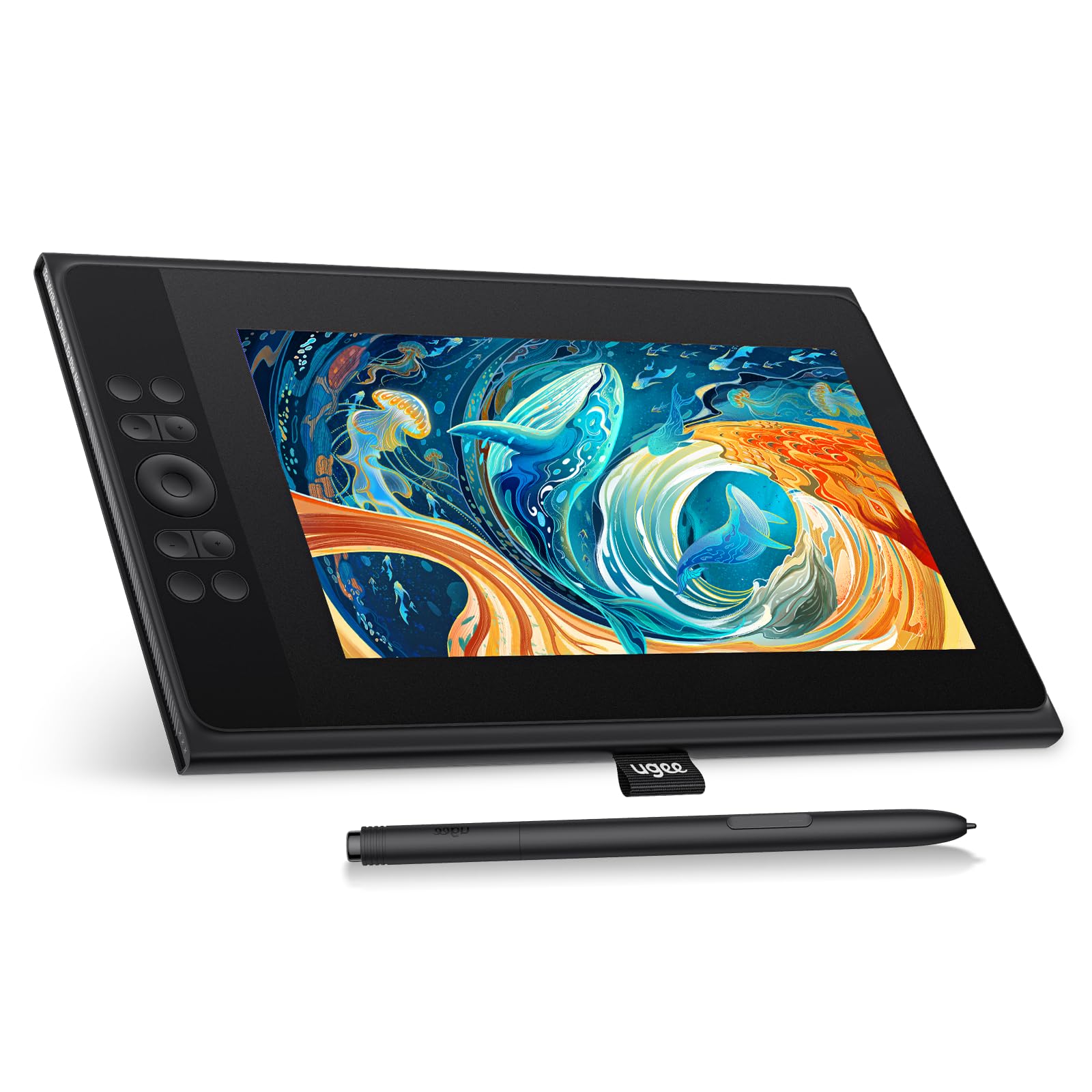
A budget pen display that punches well above its colour game.
Colour is the reason to look at the UE12 Plus. It covers a 147% sRGB gamut (a measure of how much of the standard colour range the screen can show) — noticeably wider coverage than the 99% on the HUION Kamvas 13 (Gen 3) at the top of this list — and lets you switch between sRGB, Adobe RGB, and DCI-P3 colour spaces to match the job. In practice, that means rich, saturated hues and a screen you can tune to what you are producing. For an entry-level pen display, that gamut headroom is unusual.
The 11.9-inch screen is full-laminated and anti-glare, with an FHD 1920×1080 resolution that keeps fine detail crisp and reduces the parallax gap between pen and cursor. The stylus is battery-free, so it never needs charging, and carries two programmable keys for quick tool swaps. A shortlist of 8 shortcut keys plus a scroll wheel handles navigation, and a full-featured USB-C cable is included for a one-cable hookup to Mac, PC, or Android. macOS 10.10 or later is supported, and it works with the usual suspects — Photoshop, Illustrator, Manga Studio, CorelPainter, ibis.
Two practical notes on the Mac side. First, the single-cable connection relies on a full-featured USB-C port; a charging-only port will not carry the display signal. Second, if your Mac lacks one, UGEE lists a 3-in-1 cable route that is sold separately. The display is not a standalone tablet — it needs your Mac to run. Its listed weight is heavier than the pads here, so plan to keep it on a desk.
What stands out: a 147% sRGB panel, full lamination, and true 1920×1080 resolution make this the colour-forward pick for a first pen display.
Worth flagging: the 3-in-1 cable is not in the box, so have a full-featured USB-C port ready or budget for the extra cable.
Your move if: vivid colour and a laminated screen matter more to you than a huge canvas.
Keep shopping if: you want a big work surface — 11.9 inches is the smallest screen on this list.
5. UGEE UE16 15.4 Inch Drawing Tablet with Screen

Fifteen inches of laminar draw surface at a mid-range ask.
Portrait or landscape, a 15.4-inch screen gives you room to breathe. The UE16 asks you to draw on a fully laminated panel with an anti-glare finish, and pairs it with 16K pressure sensitivity — the pen reads fine gradations, so shading and line weight stay smooth. Its 143% sRGB gamut and 8-bit colour depth cover 16.7 million colours, and four colour spaces (sRGB, Adobe RGB, DCI-P3, and a Black & White mode) let you match the screen to the task. The U-Pencil is battery-free, has two custom hotkeys and a pressure-sensitive eraser.
Controls run to 8 physical shortcut keys plus a scroll wheel that toggles through 4 preset functions. The full-lamination plus 60° tilt support means shading behaves like a real pencil edge-on. macOS 10.12 or later is supported, and it works with Windows, Chrome OS, Android, and Linux as well. Note the connection path: the UE16 uses HDMI and USB, and the 3-in-1 cable is packed separately — check the parcel for it, because a full-featured USB-C port alone may not be the whole setup here.
The screen size and vivid colour are the first things owners mention, and performance sits at the top of the praise. The recurring gripe is the nibs — the stylus tips wear down faster than expected, so pick up spares early. Treated as an honest running cost rather than a fault, that is the trade for a screen this size at this price.
Where it delivers: 143% sRGB colour, 16K pressure, and 8+1 hot keys make this a lot of drawing real estate for the money.
The trade-off to size up: stylus nibs thin out with use, so a spare set in the drawer keeps you from a mid-project stall.
Reach for this if: you want a large, colour-rich drawing screen without stretching to a premium price.
Skip the match if: you want a plug-and-go single USB-C cable — this one leans on HDMI plus USB.
6. XPPen Artist 13.3 Pro V2 Drawing Tablet (Red Dial)
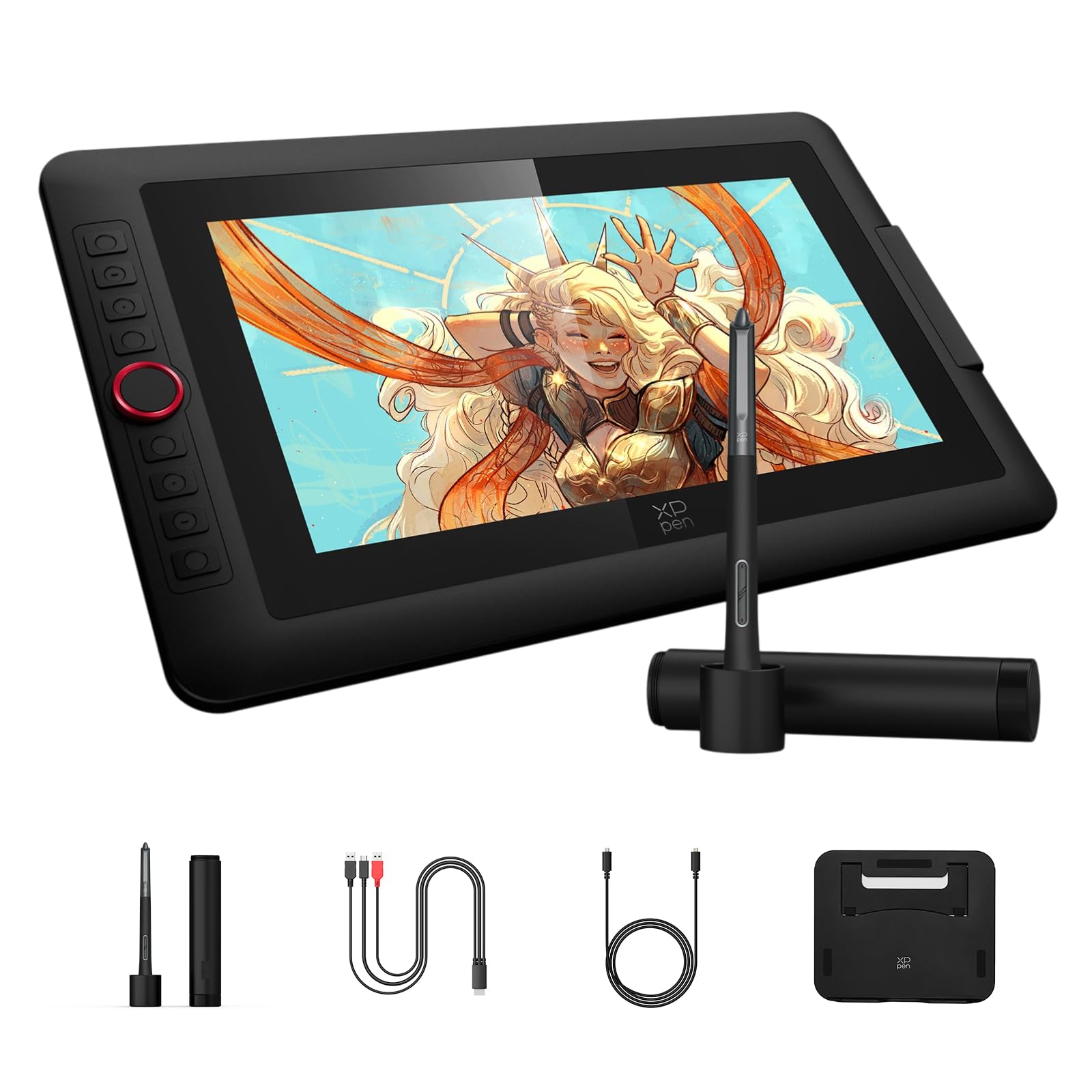
A 13.3-inch pen display tuned for the first-time artist on a Mac.
The Red Dial version is set up so newcomers are not left guessing. Its 13.3-inch fully laminated screen with AG film cuts parallax and glare for a paper-like feel, and the IPS panel gives a wide 178° viewing angle with FHD resolution. The X3 Pro smart chip stylus (PD21C) reads 16K — 16,384 — levels of pressure sensitivity, and XP-Pen lists a 90ms initial response rate with accuracy improved to bring out fine detail. For sketching, animation, and photo work on a Mac, that translates to lines that form quickly and do not break.
The red dial is the usability story. One quick key rolls brush size, navigation, and zoom together, so your free hand stays on the tablet instead of menu-hopping. The 8 customizable keys take the repeats. An included AC42 adjustable stand angles the screen 90 degrees for better posture, and the whole kit is built to set up without tech headaches — XP-Pen’s guidance is aimed squarely at beginners. macOS 10.13 or later is supported, along with Photoshop, Illustrator, SAI, CDR, GIMP, Krita, MediBang, Fire Alpaca, and Blender 3D.
Where it draws the most credit is performance — it works well and works smoothly for most people. The fair caveats: some hit a pen that misbehaves until reset, and the USB-C to USB-A port path is fussy for a few setups. It is not standalone, so it needs your computer attached. Hook it up with a full-featured USB-C cable (included) to avoid the port snags.
The case for it: 16K pressure, a one-dial control scheme, and a stand in the box make this the least intimidating way into a screen tablet.
Honest fine print: reliability and port quirks show up in the mix, so run it on the included full-featured USB-C cable and keep the driver current.
Made for: a first pen display where learning the controls should not be the hard part.
Not the fit if: you demand a spotless out-of-box record — a few units need driver resets to settle.
7. XP-PEN Artist 13.3 Pro V2 Drawing Tablet (Upgraded)
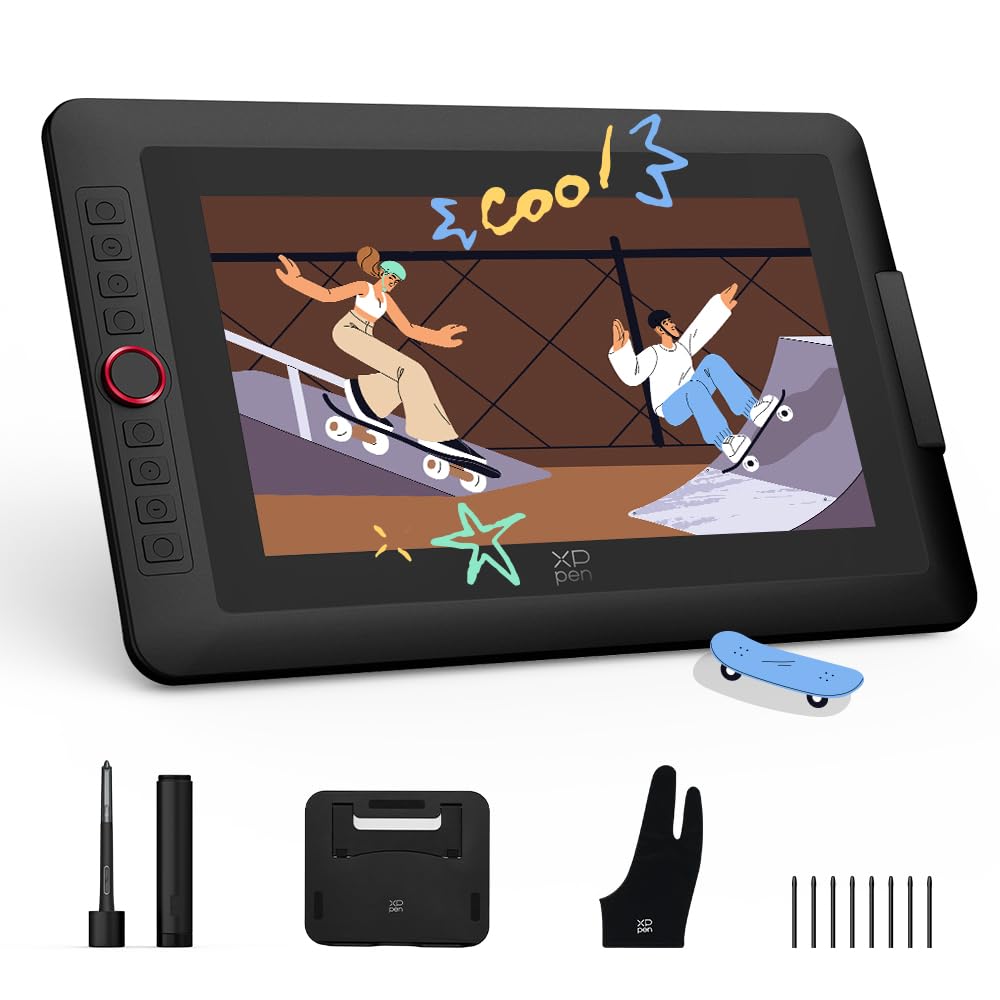
One cable to your Mac, and a screen that doubles as a pad.
The upgraded 13.3 Pro V2 fixes the cable mess that bothers desk-sharers. A full-featured USB-C port gives a clean single-cable link to a compatible Mac, Windows PC, Chromebook, or Android device — provided the port carries USB3.1 and DisplayPort 1.2 — and a legacy HDMI port stays for older setups. The 13.3-inch fully laminated 1920×1080 FHD panel removes the air gap for minimal parallax, and a pre-applied anti-glare film adds textured pen resistance. Colour runs to 99% sRGB, 89% Adobe RGB, and 95% P3 across 16.7 million colours.
Under the pen is the same X3 Pro smart chip (PD21C) with 16,384 levels of pressure and a built-in tail eraser, plus 60° tilt for natural shading. Precision is listed at ±0.4mm at centre with an ultra-low initial activation force, so a light stroke registers right away. The red dial roller and 8 customizable keys cover zoom, brush size, and undo, and a rigid metal back panel helps dissipate heat on long sessions. It toggles between pen display mode and pen tablet mode (screen off), which saves laptop battery and eases neck strain. A foldable stand, pen holder with 8 replacement nibs, and artist glove are in the box.
The Mac caveat is the same as its sibling: single-cable mode needs a full-featured USB-C port, and the adapter is not included. If your Mac lacks that port, the HDMI route via a 3-in-1 cable works, though that cable is sold separately. macOS is supported and it is certified for Photoshop, Illustrator, and Blender.
The standout: one USB-C cable, 16K pressure, and a switchable pen-tablet mode make this the tidy-desk choice for Mac users with the right port.
What to check first: confirm your Mac’s USB-C port is full-featured, because a charge-only port will not drive the screen.
Matches you if: you want a single-cable pen display and the option to use it as a blank drawing pad.
Look past it if: your Mac has no full-featured USB-C port and you would rather not add an HDMI cable.
8. Wacom Intuos Pro Medium Bluetooth Drawing Tablet

For pros who draw on a pad and watch a big Mac display.
No screen here, and that is the point. The Intuos Pro Medium is a 14.56-ounce pad with a large 11.4 x 8.1 inch active area on a compact footprint, built for people who watch their Mac monitor and draw below it. The Pro Pen 3 carries 8,192 pressure levels with tilt support and lag-free tracking, and lets you choose a slim, straight, or flared grip and adjust balance and button layout to your hand. It is magnesium-bodied and 4mm at its thinnest, so it sits flat and sturdy on a desk.
For heavy shortcut users the controls are the draw: 10 customizable ExpressKeys and 2 mechanical dials sit near the keyboard, so both hands stay efficient. The 16:9 active format suits multi-monitor and wide workflows, and a Bluetooth switch lets you flip wirelessly between multiple computers. USB-C to USB-A and USB-C to USB-C cables are both included. On Mac it is listed simply as Mac / PC, so check the current driver on Wacom’s site before you start.
Performance is what people talk about — it runs smooth and predictable, and some go as far as preferring it to an iPad for focused photo editing. The honest trade-offs appear in the mix: durability, connectivity, value, and button placement all draw two-sided comments, and the pad is a real investment next to the value screens here. What it does not ask, though, is for a full-featured USB-C port or HDMI — it connects over standard USB or Bluetooth.
Why pros pick it: a genuinely large 11.4 x 8.1 inch area, 10 ExpressKeys, and dual dials make this the control-rich choice for a Mac multi-monitor setup.
The honest trade: you are paying premium for a screenless pad, so this is for artists who already know they prefer drawing off-screen.
Built for: the working illustrator or photo editor who wants shortcut depth and a big pad, not a built-in display.
Second-guess it if: you have never drawn off-screen — try a cheaper pad before committing at this tier.
9. XPPen 4K UHD Artist Pro 19 Gen2 Drawing Tablet

An 18.4-inch 4K canvas for the studio, not the rucksack.
This is the top of the tree, and it looks it. The Artist Pro 19 Gen2 puts a 4K UHD (3840×2160) resolution panel on an 18.4-inch screen, so you can zoom deep without losing crispness and view multiple layers at once. Colour is Calman-verified at △E < 1.5, covering 99.8% sRGB, 96% Adobe RGB, and 98% Display P3 across 1.07 billion colours — the kind of fidelity that matters when you print, grade film, or proof web colour. It is a big step up from the 99% sRGB of the 13.3-inch displays here.
The drawing feel is deliberately paper-like. The fully laminated AG etched glass has a TÜV SÜD certified texture and cuts glare, so café or home sketching stays comfortable. Two styluses are supplied: the X3 Pro Roller (PD22D) and the lightweight X3 Pro Slim (PD21C) with removable buttons, both at 16,384 pressure levels with 3g initial active force and 60° tilt. A wireless ACK05 shortcut keyboard with a physical dial and 10 customizable keys runs on Bluetooth 5.0. A wing-shaped stand and standard VESA adapter sort the desk mounting.
On Mac, the dual reversible USB-C connections and HDMI input let you switch between a MacBook and laptop without hunting for the right cable, and macOS 10.13 or later is supported. The display is not standalone. The most-mentioned trade-off is compatibility, followed by responsiveness — some units need a software reset to get the pen working again. With a screen this large and heavy, keep it parked on a stand rather than moving it daily.
Where it wins: a Calman-verified 4K 18.4-inch screen, two 16K styluses, and a wireless keydial make this a full studio console in one package.
What you accept: occasional pen-to-software resets and a display that wants to stay put, so it is a desktop anchor, not a travel kit.
The pick for: working illustrators and colourists who need a large, accurate 4K screen at a desk.
Not for you if: you draw on the road or want a lightweight footprint — this one is a permanent studio fixture.
Know the Specs
Pressure sensitivity levels
This is the number of gradations a tablet reads as you press harder or lighter. More levels give smoother line-weight control — 16,384 is finer than 8,192, which is finer than 1,024. For sketching and note-taking, 8,192 levels is often enough; for delicate shading and fine line art, the 16,384-level tablets on this list give you more room. The pen’s initial activation force matters too: a lower figure like 2g or 3g means the line starts with a light touch rather than a firm press.
Full lamination and glare
Full lamination bonds the glass to the LCD so there is no air gap between your pen and the pixels. That reduces parallax — the gap where the line appears slightly away from the nib — and makes drawing feel direct. An anti-glare or etched-glass finish then cuts reflections and adds a textured, paper-like resistance under the pen. On a Mac-driven pen display, these two traits together do more for the drawing feel than resolution alone.
USB-C and HDMI connections
A screen tablet needs a data link that carries a display signal, not just power. A “full-featured” USB-C port (one that supports USB3.1 and DisplayPort 1.2 or later) can run the tablet from one cable. A charging-only port cannot. If your Mac lacks that port, an HDMI-based 3-in-1 cable is the fallback, and it is sometimes sold separately. Always check the port type and the cable in the box before you buy a screen tablet.
Battery life on wireless pads
Bluetooth pads run on an internal battery, and the figure to watch is drawing hours per charge. Longer life — like the 24-hour rating on the Inspiroy Frego and the 18-hour rating on the GAOMON WH851 — means you can leave the cable at home for a full workday. Wired mode always works as a backup when the battery runs down.
Common Questions
Will a writing tablet work with my MacBook?
Do I need a full-featured USB-C port for a pen display?
Is 8192 pressure sensitivity enough, or do I need 16384?
Can a writing tablet replace my mouse on a Mac?
Do these tablets need to be plugged into a computer to work?
What is the difference between a pen display and a screenless pad?
How long does a wireless drawing tablet battery last?
Will an anti-glare screen tablet be easier on my eyes?
Can I use these tablets with software like Photoshop and Blender on a Mac?
Do I need to replace pen nibs, and how often?
The Bottom Line
For most people, the best writing tablet for Mac is the HUION Kamvas 13 (Gen 3) — a 13.3-inch laminated screen with 16384 pressure levels (how finely it senses how hard you press), factory colour calibration, and dual dials that keep you drawing rather than menu-diving, all for a mid-range outlay. It pairs with a Mac over USB-C and comes with the 3-in-1 cable and stand in the box. If colour range is your priority on a tighter budget, the UGEE UE12 Plus delivers a 147% sRGB gamut and a fully laminated FHD panel (a screen with a sharp 1920×1080 resolution). And if you would rather draw off-screen with pro-grade shortcut control and a large active area, the Wacom Intuos Pro Medium is the one to reach for.
How we choose
We do not accept paid placement. Every pick is matched to a real buyer and a real use-case; we do not hands-on test units.
Sources
Specifications: manufacturer listings and product documentation. Review insights: verified customer reviews, as of November 2026. Pricing: not shown on this page (it changes often); check the current price via the retailer link.
As an Amazon Associate, Tactical Gear Guy earns from qualifying purchases. This does not affect which products we feature.