Specs are compiled from manufacturer listings and verified buyer reviews and can change over time — please confirm the key details on the product page before buying.
You want to draw, annotate, or take handwritten notes on your MacBook, and a mouse simply cannot do curves, signatures, or a natural pen stroke. The short answer: the Wacom Intuos Small is the safest first pick because it is plug-and-play on macOS with no charging and no Bluetooth pairing, and the XPPen Deco 01 V3 gives you a much larger drawing area if you plan to sketch seriously. A writing pad for a MacBook is not a screen you draw on — it is a flat board you place next to the laptop, and your pen strokes appear on the laptop screen instead.
This guide is built by comparing the manufacturers’ published specifications and the patterns across verified customer reviews, so you get each pick’s real strengths and trade-offs instead of marketing spin.
Below you will find each board’s pressure sensitivity, active drawing area, and Mac compatibility spelled out in plain terms, so you can match one to how you actually work. Every pick here is confirmed to work with macOS, and this is the simplest way to choose the right writing pad for macbook.
Top Picks


How To Choose The Best Writing Pad for MacBook
Most beginners assume a drawing tablet is a screen you touch with your finger. It is not. A standard pen tablet has no display at all — you look at your MacBook screen while your hand moves on a matte board beside it. That separation feels strange for about ten minutes, and then it disappears.
Start with macOS compatibility, not brand loyalty
A few boards sold online are Windows-only or built for iPads, and they will not respond to a MacBook. Every pick in this guide lists macOS support in its own specs — several name macOS 10.11, 10.12, 10.13, or 11 as the minimum, so check your Mac’s version before you buy. On macOS you may also have to grant Accessibility and Input Monitoring permissions in Security & Privacy after installing the driver, which some boards state outright and others leave to their setup guide.
Decide how big a work surface you want
A small board lets you cover the whole pad with a short wrist flick — great for signatures and quick retouching on a coffee shop table. A large board gives you room for long, sweeping strokes across a full-size canvas. The trade-off is desk space: a compact pad slips into a laptop sleeve, while a wide one wants an actual table.
Check the pen, not just the tablet
Every pick here uses a battery-free pen (a passive stylus that draws power from the tablet, so it never needs charging). What varies is pressure sensitivity — the number of levels the board can read between your lightest and heaviest press. More levels mean smoother shading and more natural line-weight changes.
Side-by-Side Comparison
| Model | Best For | Active Area | Pressure Levels | Connection | Amazon |
|---|---|---|---|---|---|
| Wacom Intuos Small★ Best Overall | First-time Mac buyers | 6″ x 3.7″ | — | USB-A | Amazon |
| XPPen Deco 01 V3Biggest Canvas for the Money | Big drawing area on a budget | 10″ x 6.25″ | 16384 levels | USB-C | Amazon |
| XPPen Deco Pro LW 2ndDesktop Studio Pick | Serious illustration on a desktop | 11″ x 7″ | 16384 levels | Bluetooth / USB-C / 2.4G | Amazon |
| GAOMON WH851 | Cable-free sketching | 8″ x 5″ | 16384 levels | Bluetooth 5.0 / USB-C | Amazon |
| HUION Inspiroy Frego Medium | Minimal desk setup, long battery | 10″ x 6.25″ | 8192 levels | Bluetooth / USB-C | Amazon |
| GAOMON M106K PRO | Hotkey-heavy workflows | 10″ x 6.25″ | 8192 levels | USB | Amazon |
| XOPPOX 10×6 | Online teaching on a budget | 10″ x 6″ | 8192 levels | USB | Amazon |
| XPPen StarG640 | Cheapest entry point | 6″ x 4″ | — | USB | Amazon |
Detailed Reviews
1. Wacom Intuos Small
Our pick — 4.5+★ from 23,500+ verified ratings; the strongest balance of quality and price.
The plug-in-once board that never needs charging or pairing.
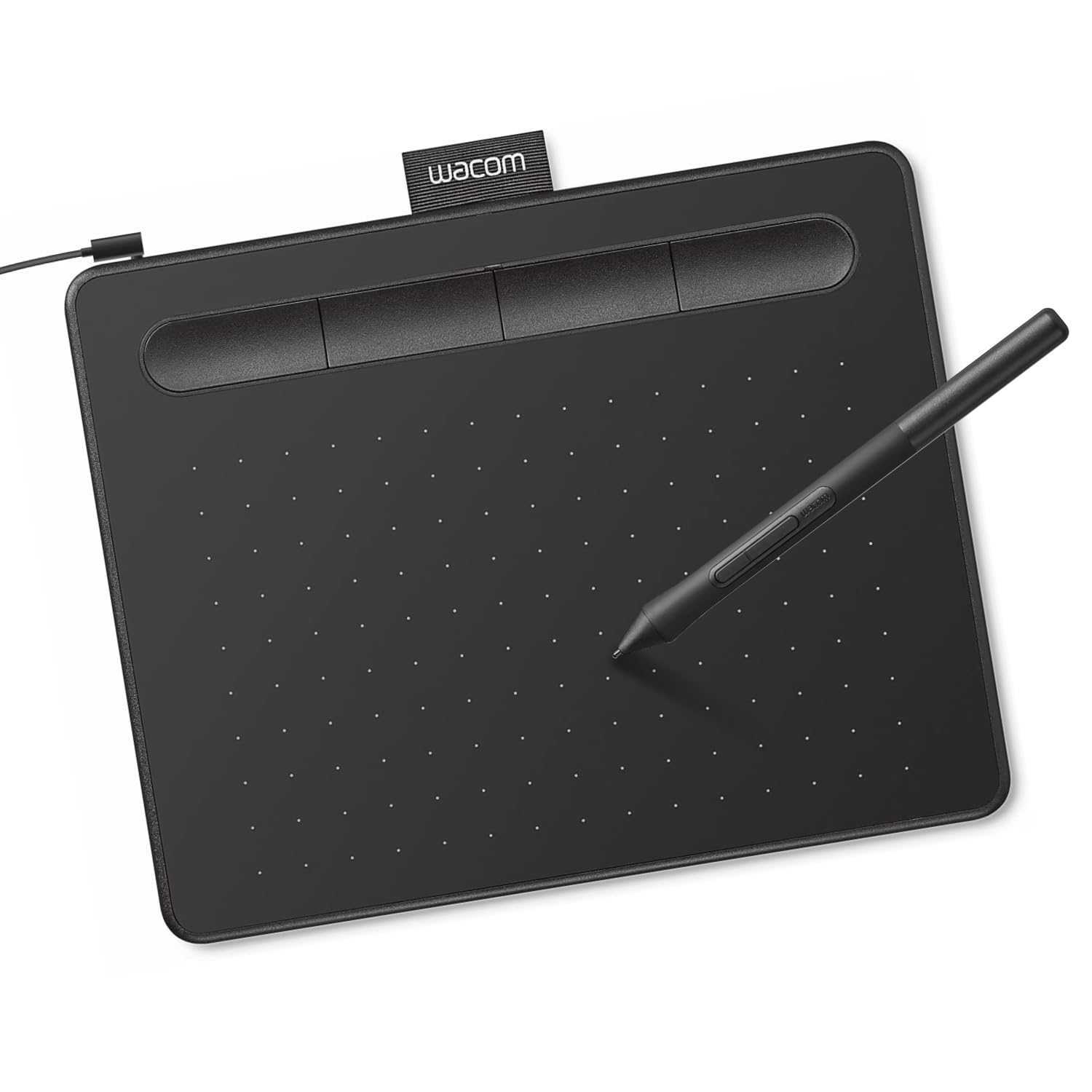
This is the board to buy if you have never owned a drawing tablet and you want the shortest possible path from unboxing to drawing on your MacBook. It runs on Wacom’s EMR pen technology, which means the pen has no battery to charge and draws its power from the tablet surface itself. That single detail removes the most common beginner frustration: a dead stylus in the middle of a sketch.
Its active area is 6″ x 3.7″ — roughly the size of a large phone screen. That sounds small, and it is, but it is exactly what makes it feel natural: a short wrist movement carries your cursor the full width of your MacBook display. Four ExpressKeys (programmable shortcut buttons) sit on the side, so you can map undo, brush size, or scroll without reaching for the keyboard. It connects over USB-A, and the box includes the tablet, a Wacom Pen 4k, the cable with an L-shaped connector, three extra nibs, and a nib removal tool.
What wins people over is how little it asks of you: it is plug-and-play on Chromebook, and on macOS 10.11 or later it just works once the driver is installed. Beginners and online-class students are the ones who take to it fastest, and the bundled creative software and Wacom training sweeten the deal for anyone starting from zero. The honest catch is the cable — this is the non-Bluetooth version, so you are tethered to the MacBook, and the small 6 x 3.7 inch surface feels cramped if you plan long, sweeping illustration strokes. Think of it as a note-taking and retouching companion rather than a full studio canvas.
What it has going for it
- Battery-free EMR pen — no charging cable, ever
- Genuinely plug-and-play on macOS and Chromebook
- Four ExpressKeys for quick undo and brush switching
- Wacom’s long track record in pen displays and tablets
Where it holds you back
- Wired USB-A only — no Bluetooth on this version
- Small 6″ x 3.7″ active area is tight for big illustrations
Reach for this if: you are starting out, mainly taking notes or retouching photos, and want zero setup friction on a MacBook.
Look elsewhere if: you need to sketch large canvases or work untethered — a wider, wireless board suits you better.
2. XPPen Deco 01 V3
A 10 x 6.25 inch canvas with 16,384 pressure levels and 60° tilt.
If the Wacom’s small surface left you wanting, the Deco 01 V3 is the direct answer: it hands you a 10 x 6.25 inch active area — more than double the working room — while staying roughly in the same price lane. The stylus delivers 16,384 levels of pressure sensitivity and supports up to 60 degrees of tilt, so the line weight shifts with how hard you press and the shading responds to how you angle the pen. That tilt support is what makes a digital pencil sketch feel less like a drawing program and more like an actual pencil.
It measures just 8 mm thin, so it slides into a backpack beside your MacBook without adding bulk. Connectivity runs USB-C to USB-C with adapters included, and the board works with macOS 10.13 or later, Windows 7 or later, Android 10.0 and above, Chrome OS 88 or later, and Linux. Eight customizable shortcut keys are laid out for both left- and right-handed users, and the included kit is generous: pen stand, glove, protective film, replacement nibs, and the cable and adapter.
What sells it is value — it is widely regarded as a strong first board for beginners on a budget, and it works cleanly with Sketchbook and Photoshop. The recurring note is its weight: at 1000 g it is noticeably heftier than the compact boards here, so it lives on a desk rather than in a bag, and the driver wants your Mac on macOS 12 first for the smoothest experience. For a student who wants room to actually draw, that trade is easy to accept.
The pressure story: 16,384 levels plus 60° tilt means shading and tapering lines read naturally — no more flat, uniform strokes when you are sketching.
The space trade: that big active area costs portability; this is a desk board, not a coffee-shop pad.
Worth choosing when: you want maximum canvas and pro-level sensitivity without a premium outlay.
Steer away if: you plan to carry it daily — the 1000 g body is better suited to a permanent spot.
3. XPPen Deco Pro LW 2nd
The biggest 11 x 7 inch canvas here, plus a wireless shortcut remote.
This board is built for the creator who treats a MacBook as the engine of a real illustration workflow. The active area is a spacious 11 x 7 inches — the biggest on this list — so long strokes across a full-resolution canvas never run out of room. The X3 Pro chip inside delivers 16,384 pressure levels with a 90ms initial response, which is the delay between the pen touching down and the line starting; a low figure means the ink appears under your pen rather than lagging behind it.
Two details set it apart from everything above. First, the surface carries a simulated paper texture coating, and paired with the included felt nibs it generates real friction instead of the slick glass feel most boards have. Second, the pen has a digital eraser on its tail, so you flip it over to correct a line the way you would with a wood-cased pencil. A programmable ACK05 wireless shortcut remote with a physical scroll wheel rounds out the kit, letting you place hotkeys wherever your left hand rests.
The 3030mAh battery runs over 10 hours per charge over dual Bluetooth 5.0, so you can sketch untethered on the sofa or outdoors and switch between desktop and laptop without cables. What wins people over is the overall build and finish — the quality is the headline — followed by how quick the setup is. The honest caveat is that this is a board for someone settling at a desk; it wants room, and the mixed notes on responsiveness remind you that Bluetooth on a busy 2.4GHz band is never quite as instant as a cable.
Why illustrators lean this way
- Largest 11 x 7 inch active area on the list
- Paper-texture coating plus felt nibs for real friction
- Tail eraser on the stylus for instant corrections
- 10+ hours of Bluetooth wireless from a 3030mAh battery
- Independent ACK05 wireless remote with scroll wheel
What you should know
- Takes up real desk space and is the heaviest tier here
- Bluetooth response can feel slower than a wired link
The ideal owner: a concept artist or illustrator who wants a near-paper feel and a wide canvas in a fixed studio setup.
The one hesitation: if you sketch on the move in tight spaces, its footprint works against you.
4. GAOMON WH851
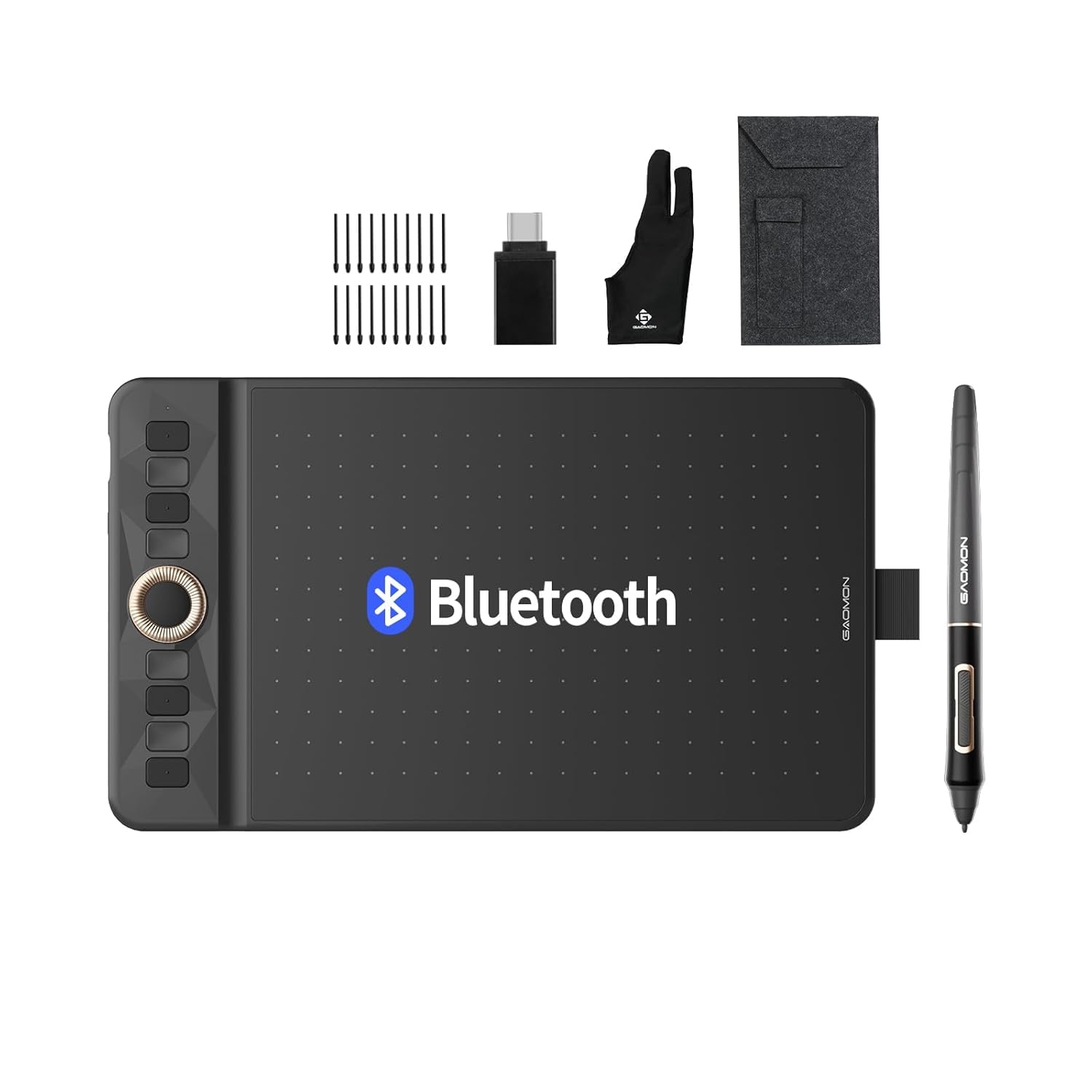
Bluetooth 5.0 freedom with a two-mode dial for zoom and brush size.
Here is the pick for the person who hates being tied down by a cable but still wants a dedicated control surface. The WH851 connects two ways — USB-C wired or Bluetooth 5.0 wireless — and its battery runs 18 hours per charge, so a full day of sketching on the couch or in a lecture hall is well covered. The 8 x 5 inch active area is a middle ground: bigger than a compact pad, but still slim enough to travel.
The pen is the same passive, battery-free type you see across this list, but it carries 16,384 levels of pressure and tilt detection for fine line and shading control. Where it distinguishes itself is control: a central dial works in two modes (driver and radial) for zooming the canvas, resizing the brush, or scrolling up and down, and it pairs with eight customizable press keys. GAOMON also tuned the surface so the pen sinks just 0.45 mm into the board, which mimics the give of a real pen on paper rather than skating over hard glass.
What buyers respond to most is plain performance — it does the job well and exceeds expectations for the outlay — with the Bluetooth link drawing steady praise for working with various smart boards. It handles macOS alongside Windows and Android, so a MacBook pairs without fuss. The trade-off is size-dependent: at 8 x 5 inches it is neither the smallest nor the largest board here, so if you want a huge canvas this is not it, and the Bluetooth pairing means one more wireless device competing for bandwidth.
What the dial buys you: zooming and brush sizing without leaving the pen — a small thing that speeds up long sessions.
The honest limit: an 8 x 5 inch canvas keeps it portable, but it will not replace a wide studio board for large-format work.
Pick it for: untethered sketching where you want a dial and hotkeys within thumb reach.
Pass if: you work at a fixed desk and would rather have a larger wired surface.
5. HUION Inspiroy Frego Medium

No shortcut keys, no clutter — just a 10 x 6.25 inch canvas and 24-hour battery.
Some people do not want twelve buttons and a dial under their hand. The Inspiroy Frego Medium is built for exactly that instinct: it strips out physical shortcut keys entirely, leaving one smooth drawing surface with nothing to bump into mid-stroke. The working area is 10 x 6.25 inches — trimmed to sit just shy of an A4 sheet, which means your arm moves in a familiar, comfortable range.
Its quiet strength is endurance. A full charge in 2.5 hours delivers up to 24 hours of use, and it connects over Bluetooth or a direct USB-C cable. The PW550S stylus is slim at 9.5 mm diameter with a 0.4 mm retraction distance — that small give under the nib adds up over hours of drawing. Two programmable side keys on the pen handle brush, eraser, zoom, and undo, so you keep your hand on the stylus instead of hunting for the keyboard.
The ergonomics deserve a mention beyond the spec sheet: sloping curved edges soften where your hand meets the border, and a built-in wrist rest at the bottom eases long sessions. What earns the most credit is the overall build — it feels well made — and it is widely seen as good value. The honest catch is that its simplicity is also its limit: the same lack of shortcut keys that keeps the canvas clean means power users will miss on-board buttons, and the pressure and wireless response draw a mix of opinions, so try it for lighter work first.
Where it shines
- Up to 24 hours per charge, full top-up in 2.5 hours
- Bluetooth or USB-C, working with Windows, macOS, Android and Linux
- Built-in wrist rest and curved edges for long sessions
- Nylon pen holder built into the body for travel
What to weigh
- No physical shortcut keys for heavy-software users
- Pressure and wireless response divide opinion; test before committing
For the tidy set-up: someone who wants a wide, quiet canvas and long battery, and prefers pen-side keys over a button bank.
Not for button hoarders: if you lean on on-board shortcuts, the keyless design will frustrate you.
6. GAOMON M106K PRO Drawing Tablet, 10×6.25, 12 Keys with Tilt

Twelve hotkeys, 16 soft keys, and a pen sleeve for shortcut-heavy workflows.
This board is for the workflow tinkerer — the person who wants undo, zoom, scroll, and the eraser mapped to their off-hand so the pen never stops moving. It carries 12 programmable hotkeys plus 16 soft express keys, all configurable in the GAOMON driver, and the hotkeys keep working even when the driver is not installed. A small pen jacket on the right side holds the stylus when you set it down, so it does not wander off the desk.
The Art Pen AP32 is a passive, battery-free stylus with 8192 levels of pressure sensitivity and ±60 degrees of tilt for smooth, natural strokes. The 10 x 6.25 inch working area gives you genuine room to create, and when you switch to an Android phone the active area narrows to 6.25 x 3.5 inches to match the screen. The whole tablet weighs just 780 g, so it is portable for its size — lighter than the wide XPPen boards above.
Where it earns trust is reliability across systems: it works well even on Debian-based Linux, alongside macOS 10.12 and above, Windows, and Android 6.0 and up, and it syncs with Adobe Acrobat Reader DC’s digital signature feature for signing documents. The clearest strong point is plain functionality — it does what you ask without drama — and ease of use follows close behind. The one thing to accept is that cable: it connects over a mini-USB to USB cable, so on a modern MacBook you will need an adapter or hub.
The shortcut advantage: 12 hotkeys plus 16 soft keys mean your editing rhythm never breaks — map scroll, undo, and eraser once and forget it.
The adapter reality: a mini-USB cable into a USB-C-only MacBook needs a dongle, so factor that into your desk kit.
The right fit: shortcut-driven editors who want a roomy canvas and a heavier button bank.
Think twice if: your MacBook has no USB-A ports and you do not want to carry an adapter.
7. Graphics Drawing Tablet 10×6
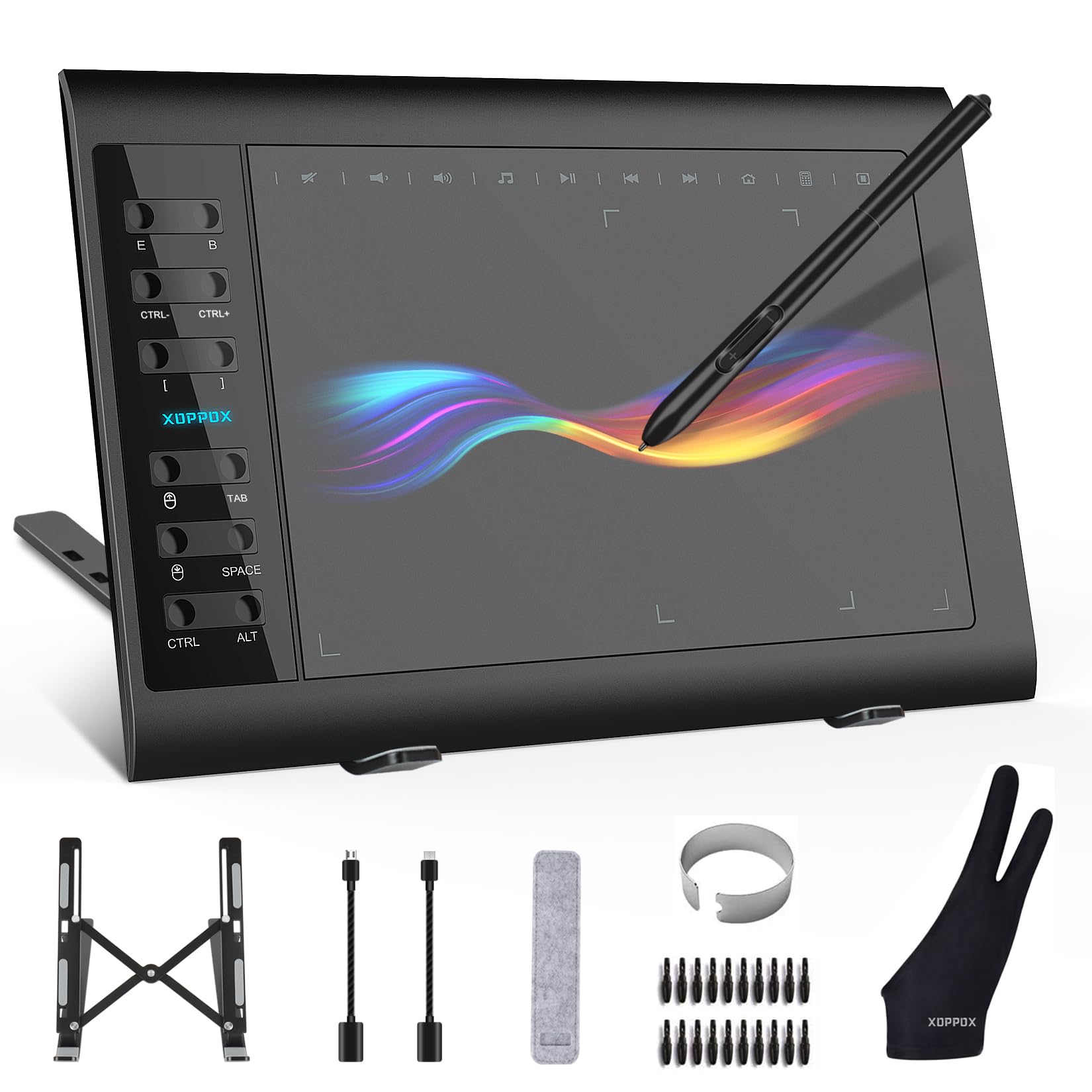
A 10 x 6 inch surface with 20 nibs, a glove, a stand, and OTG adapters.
For anyone whose MacBook is mostly a whiteboard during remote meetings and online classes, this board overdelivers on the accessories front. The box includes 20 replacement nibs, a two-finger glove, a cleaning cloth, a tablet stand, and both micro-USB and Type-C OTG adapters — a fuller package than most. The active area is 10 x 6 inches with 5080 LPI of resolution (lines per inch, a measure of how finely the board reads your pen position) and 60 degrees of tilt support.
The pen is battery-free with 8192 levels of pressure sensitivity, and there are 12 customizable shortcut keys plus 10 multimedia keys — though those multimedia keys only work on Windows, not macOS. Setup on a Mac needs one extra step: after installing the driver, you grant permissions for Accessibility, Input Monitoring, and Full Disk Access in Security & Privacy, and then restart before drawing. It supports macOS 11 or later and Windows XP through 11, but is explicitly not compatible with iPhone, iPad, or Chromebook.
What stands out in use is the canvas size for the money and how well it suits digital art — it is said to help with intricate lines and details, which is exactly the job for a teacher annotating slides or a designer tracing a reference. Weigh the setup: at 2.7 pounds it is a substantial board, and the extra permission steps on macOS mean first-run is not instant. Give it fifteen careful minutes and it settles into a dependable daily driver.
What lands well
- Generous 10 x 6 inch active area with 5080 LPI resolution
- 12 customizable shortcut keys plus 60° tilt
- Big accessory kit: 20 nibs, glove, stand, and OTG adapters
- Handles Word, Excel, PowerPoint and design apps alike
Where it strains
- Mac setup needs Accessibility and Input Monitoring permissions first
- Not compatible with iPhone, iPad, or Chromebook; multimedia keys are Windows-only
Made for: teachers and remote workers who want a big canvas and a fully stocked box.
Skip if: you want a purely plug-and-play macOS experience or need iPad compatibility.
8. XPPen StarG640

The lowest-risk way to find out if pen input suits you.
Not everyone needs a wide canvas to start. The StarG640 is the smallest and most accessible board here — a 6 x 4 inch surface with a battery-free PN01 stylus that never needs charging. At just 2 mm thick it is as slim as they come, so it disappears into a laptop sleeve and reappears when you need to sign a document, draw a diagram, or take notes in a Zoom call.
It is built to be a mouse replacement as much as a drawing pad: it handles digital signatures, photo editing, e-signatures, and online teaching, and it works with Microsoft Office apps like Word, PowerPoint, OneNote, and Zoom. On the Chromebook side it clocks in with Google services too — Google Jamboard whiteboards, Google Keep for notes, and Google Canvas for diagrams. Compatibility covers Windows 7 and above, Mac OS X 10.10 or later, and Chrome OS 88 or later, and it weighs just 170 g.
The reason people reach for it is speed of adoption: it does not take long to get used to drawing with it, which is exactly what a nervous first-timer needs, and it suits both beginners and professionals for lighter jobs. Accept the limits up front — a 6 x 4 inch canvas is a sketchpad, not a canvas, and the small size will feel cramped once you start drawing in earnest. It is the perfect way to test whether pen input fits your MacBook before spending more.
Why it works as a first pad
- Only 2 mm thick and 170 g — easy to carry
- Battery-free PN01 stylus, no charging
- Doubles as a mouse replacement for Office and Zoom
- Chrome OS 88 and macOS 10.10 supported
What to accept
- Small 6 x 4 inch active area limits larger drawings
- Wired USB connection, no wireless option
Start here if: you are unsure about pen input and want to try it with minimal commitment.
Grow past it if: you find yourself wanting room to shade — step up to a 10-inch board.
Know the Specs
Pressure Levels
This is the number of distinct steps the tablet can tell apart between your lightest and heaviest press. More levels mean smoother, more natural line tapering and shading — 8192 is plenty for most work, and 16384 is the current ceiling on the boards that carry it.
Active Area
The size of the actual drawing surface, measured in inches. A small pad (6 x 3.7 inch) lets a short wrist flick cover the whole screen; a large one (11 x 7 inch) gives room for sweeping strokes but takes more desk space.
Battery-Free Pen
A passive stylus that draws power from the tablet surface itself instead of an internal cell. It means no charging cable and no dead pen mid-project — a meaningful upgrade over older pen designs.
Connection Type
USB-A, USB-C, and Bluetooth are your options here. Wired links are the most consistent; Bluetooth adds freedom but can compete for bandwidth, so pair it with the board’s battery life when you plan to work untethered.
Common Questions
Will a pen tablet actually work with my MacBook?
Do I need a screen on the tablet, or is a blank pad enough?
How much pressure sensitivity do I really need for note-taking?
What is the difference between these boards and an iPad with a pencil?
Will a small 6 x 4 inch pad frustrate me?
Do any of these work if my MacBook only has USB-C ports?
How long does a wireless board like the GAOMON WH851 or HUION Frego run per charge?
Can I use these drawing pads for online teaching and remote work?
Does Bluetooth on a drawing tablet feel laggy compared with a cable?
Will the pen ever need charging or replacing?
The Bottom Line
The writing pad for macbook winner for most people is the Wacom Intuos Small, because the battery-free pen and plug-and-play macOS support remove every excuse not to start. If your priority is a wide canvas for real illustration, the XPPen Deco 01 V3 gives you 16384 pressure levels across a 10 x 6.25 inch surface. And for untethered sketching with a dial at your thumb, the GAOMON WH851 is the one to reach for.
How we choose
We do not accept paid placement. Every pick is matched to a real buyer and a real use-case; we do not hands-on test units.
Sources
Specifications: manufacturer listings and product documentation. Review insights: verified customer reviews, as of November 2026. Pricing: not shown on this page (it changes often); check the current price via the retailer link.
As an Amazon Associate, Tactical Gear Guy earns from qualifying purchases. This does not affect which products we feature.