Specs are compiled from manufacturer listings and verified buyer reviews and can change over time — please confirm the key details on the product page before buying.
Your line should get thick when you press and thin when you lift — that is the whole point of a drawing tablet. Every pick below uses a pressure-sensitive stylus (a pen that reads how hard you press) to do exactly that. They split into two families. A pen tablet is a blank pad you draw on while watching your screen. A pen display is a screen you draw on directly. Your choice depends on portability versus eye-to-hand accuracy.
This guide is built by comparing the manufacturers’ published specifications and the patterns across verified customer reviews, so you get each pick’s real strengths and trade-offs instead of marketing spin.
Accuracy starts with pressure levels and surface area, not brand logos — the finest control here reaches 16,384 levels with a battery-free pen. That is the short version of what separates these eight options, and it is exactly what this breakdown of the writing and drawing tablet market sorts out for you. Each pick below is judged on real specs and owner experience.
Top Picks


How To Choose The Best Writing and Drawing Tablet
The first fork in the road is form factor, and it decides almost everything else. A pen tablet like the Huion models is a flat, screenless pad — you draw on it while your eyes stay on your monitor, which keeps the cost lower and the setup simple. A pen display puts the screen under your hand, so your pen lands exactly where you see it. The third option is a standalone tablet with its own processor and battery, which cuts the computer out of the equation entirely.
Pressure levels: the number that shapes your line
Pressure sensitivity counts how many distinct steps the pen recognizes between a feather touch and a firm press. More levels mean smoother shading and finer control over stroke weight. The entry point on this list is 4,096 levels, mid-range pads run 8,192, and the premium screens climb to 16,384. For handwriting and casual sketching, 8,192 levels is plenty; for illustration and animation where you blend and shade, the higher counts pay off in gentler transitions.
Battery-free versus rechargeable styli
A battery-free stylus uses electromagnetic resonance — the tablet powers the pen wirelessly, so you never charge it or hunt for a replacement battery. Every full-size tablet here ships with one. That matters more than it sounds: a dead pen mid-project stops your work cold, and a battery-free stylus removes that failure point for the life of the tablet.
Side-by-Side Comparison
| Model | Best For | Pressure Levels | Active Area | Form Factor | Amazon |
|---|---|---|---|---|---|
| HUION Inspiroy 2 Large★ Best Overall | Everyday drawing and notes | PenTech 3.0 stylus | 10.5 x 6.56 inch | Screenless pen tablet | Amazon |
| HUION HS611Budget Champion | Budget beginners | 8192 | 10.2 x 6.36 inch | Screenless pen tablet | Amazon |
| XPPen Artist 12 Pro LiteDraws On Screen | Drawing directly on screen | 8192 | 11.6 inch display | Pen display | Amazon |
| VEIKK Studio 16 | Large-screen illustration | 16384 | 15.6 inch display | Pen display | Amazon |
| Wacom Intuos Pro Medium | Pro pen-tablet workflow | 8192 | 11.4 x 8.1 inch | Screenless pen tablet | Amazon |
| AINOTE Air | Meetings and note-taking | 4096 | 8.4 inch display | Standalone notebook | Amazon |
| XPPen Magic Drawing Pad | Art on the go, no PC | 16384 | 12.2 inch display | Standalone tablet | Amazon |
| BOOX Note Air6 C | Color e-ink note-taking | BOOX Pen3 stylus | 10.3 inch E Ink | E Ink notebook | Amazon |
Detailed Reviews
1. HUION Inspiroy 2 Large Drawing Tablet
Our pick — 4.0+★ from 14,500+ verified ratings; the strongest balance of quality and price.
A big, roomy pad that stays still while you work and reads every stroke without lag.
The Inspiroy 2 Large takes the top spot for one reason: it gives you the largest drawing zone in its class — a 10.5 x 6.56 inch active surface (the drawing area itself, not the plastic frame around it) — at a mid-range price. That extra room changes how you draw: your arm travels further per stroke, so lines come out longer and looser than on a cramped 6-inch pad. Your arm travels further with each stroke, so lines come out longer and looser than on a cramped 6-inch pad. It runs the newer PenTech 3.0 stylus, which HUION built to reduce the wobble and lag older pens showed. A slow diagonal line stays smooth instead of jittering.
The controls are the practical payoff. A programmable scroll wheel sits on the pad and lets you zoom a canvas or scrub a timeline with your thumb, while 3 sets of 8 press keys give you 24 mappable shortcut slots. You can switch those key sets per app, so Photoshop, Illustrator and your note app each keep their own layout. The battery-free PW110 stylus inside is slim with a soft silicone grip and side buttons — you never charge it, because the pad powers it through the surface. Setup is one USB-C cable in, one driver install, done, and it works for Mac, Windows, Linux and Android on OS 6.0 or later.
What wins people over is the combination of portability and performance — it weighs 1.2 pounds and slips into a laptop bag, yet the pad works instantly from the start. The one catch is obvious up front: there is no screen. You draw on the pad and watch your monitor, so your hand and eye are in two different places. That trips up anyone expecting a screen right under the pen, and it is the reason this sits in the pad family rather than the display family.
Why It Leads The Pack
- A full 10.5 x 6.56 inch drawing zone gives your strokes room to breathe
- 24 shortcut slots across 3 switchable key sets, mapped per app
- Battery-free PenTech 3.0 stylus never needs charging
- 1.2 pounds and USB-C simple, ready across Mac, PC, Linux and Android
The Honest Trade-off
- No built-in screen, so you draw blind and watch your monitor
- Needs a computer or Android device connected to work at all
Made for the daily doodler: pick this if you want a large, steady surface for sketching, note-taking and design work without paying display money.
Think twice if: you need to see your stroke land directly under the pen tip — that is a pen display’s job, not this one’s.
2. HUION HS611 Drawing Tablet
The lowest-cost way onto a serious pen tablet, without giving up pressure control.
The HS611 is the smart entry if you are new to digital drawing and do not want to spend much before you know you will stick with it. It delivers 8,192 levels of pen pressure — the same count as tablets that cost noticeably more — so light touches register thin and heavy presses register bold. The PW500 battery-free pen adds 60 degrees of tilt support, so angling the pen lays down broad shading like the side of a pencil. A 266pps report rate (how many times per second the tablet reads the pen) keeps fast strokes tracked rather than skipped.
The standout feature is a first for its category: 8 multimedia keys built into the tablet body. They handle volume, track skipping, play and pause, software switching and a back-to-desktop jump, so you stop reaching for your keyboard mid-sketch. Add 10 programmable shortcut keys and a touch strip, and you have real workflow control on a budget. The working area is 10.2 x 6.36 inch — just a hair under the Inspiroy 2 Large’s 10.5 x 6.56 inch, a small difference you will only feel on wide, sweeping strokes. At 7mm thin in a space-grey finish, it stays out of the way on a desk.
It is genuinely easy to set up, which is why beginners warm to it fast, and it works on Windows 7 or later, macOS 10.12 or later, and Android 6.0 or later through an adapter. The catch worth knowing: on some Samsung Galaxy phones and tablets the cursor does not show up, though the Note series is fine, so check your exact device before relying on it for mobile sketching.
Best value read: you get 8,192 pressure levels, tilt, multimedia keys and a 10.2 x 6.36 inch area for beginner money — the feature set punches well past the tier.
Worth noting: the pen runs off the tablet’s power, so there is no charging routine to keep up with.
Reach for this if: you are testing the water on digital art or taking class notes and want proven pressure control without committing much.
Look elsewhere if: you need guaranteed mobile cursor support across every Android device — verify yours first.
3. XPPen Artist 12 Pro Lite Drawing Tablet
This is where your pen finally touches the art — a 11.6-inch screen you draw on directly.
The Artist 12 Pro Lite fixes the one flaw built into every screenless pad above: your hand and the line you make sit in the same place. Under the pen is a fully-laminated IPS display (the glass and the panel bonded into one layer) at 1920×1080 resolution, and that lamination is the point. It removes the air gap that makes a cheap pen display feel like you are drawing through glass. The pen tip tracks your line with far less parallax — the visual offset between where the pen touches and where the cursor appears. You get a paper-like feel and a distraction-free view.
For control, 8,192 pressure levels drive the pen, and 60 degrees of tilt lets you shade by leaning the stylus rather than changing brush direction in software. A programmable red dial sits on the frame for thumb-controlled zooming or brush sizing, backed by 8 shortcut keys. The 3-in-1 cable design means no adapter is needed to hook it to your computer — plug in and start sketching on the 11.6-inch display. It supports Windows 7 or later, macOS 10.10 or later, ChromeOS 88 or later and Linux, and runs with Photoshop, Illustrator, SAI, CDR, GIMP, Krita, Medibang, FireAlpaca and Blender 3D.
The honest limit is that this is a display, not a standalone tablet: it must be tethered to a computer, and a screen this size asks more desk space than a flat pad. But for anyone moving up from a screenless tablet to draw where they look, this is the natural next step.
Paper-feel win: the full lamination plus anti-glare glass is what makes the eye-to-hand match work — you draw where you see, and lines land where the pen tip touches.
Plan for it: budget a computer to pair with it and a spot on the desk; it is a screen first and a travel pad second.
Suits the upgrade shopper: anyone stepping up from a screenless pad who wants direct-on-screen drawing at a still-mid-range level.
Not for the deskless: if your only work spot is a couch or a shared table, the tether and footprint will frustrate you.
4. VEIKK Studio 16 Drawing Tablet

A 15.6-inch display and a staggering 16,384 pressure levels — the most sensitive pen here.
Start with the headline: 16,384 pressure levels is double what the Artist 12 Pro Lite and Intuos Pro offer. That finer resolution between a whisper and a press is what makes soft shading blend smoothly instead of stepping. VEIKK ships two battery-free pens — one slim, one standard — so you pick the size that fits your hand instead of adapting to a single grip. The 15.6-inch 1920×1080 full HD screen carries 125% sRGB color coverage, a 178-degree viewing angle and 5080 LPI resolution (lines of detail per inch the pen can detect). Together that means vivid color on a canvas big enough for full illustrations.
The screen is full-laminated with anti-glare and anti-fingerprint treatment, and 60 degrees of tilt support lets you shade by leaning the pen. A machined aluminum quick dial handles zoom and brush sizing, with 5 customizable hotkeys beside it. It connects by HDMI, USB or Type-C to Type-C, so a single cable can link it to a compatible computer. Its body spans 15.6 x 9.6 inches — for comparison, the HS611 above measures 13.12 x 8.59 inches, so this is the noticeably wider desk presence. It works with Windows 7 and above, macOS 10.12 and above, and Linux.
Here is the honest part. Reliability is the recurring mixed note — the tablet generally works well, yet a few report it can stop working properly after about an hour and a half of use. Setup also draws split feedback, easy for some, fiddly for others. Treat this as the pick for someone willing to work through a driver or cable quirk, not the plug-and-forget shopper.
Where It Shines
- 16,384 pressure levels — the finest control in this lineup
- Two battery-free pens in slim and standard sizes for different hands
- 15.6-inch laminated anti-glare screen with 125% sRGB color
- Aerospace-grade aluminum dial plus 5 customizable hotkeys
What To Expect
- Reliability is mixed — a few units reportedly act up after extended use
- Setup splits opinion, easy for some and fiddly for others
- Large desk footprint and requires a computer connection
For the color and detail chaser: illustrators who want the biggest screen and the most pressure sensitivity here, and will set aside time to get it running right.
Pass if: you want a tablet that just works on the first try with zero tinkering.
5. Wacom Intuos Pro Medium Drawing Tablet

A magnesium-bodied 4mm slab that feels like drawing on paper and works without a cable.
Most tablets here need a cable to your computer. This one does not — the Intuos Pro connects over Bluetooth to multiple computers with a simple switch, so you can move between machines without re-plugging. That wireless freedom, plus a 11.4 x 8.1 inch active area on a medium body that keeps a small footprint, is the case for it. Performance is what wins people over by a wide margin. The Pro Pen 3 delivers 8,192 pressure levels, tilt support and lag-free tracking. You can swap its grip between slim, straight and flared, adjust the pen’s balance and rearrange the button layout for comfort.
Ten customizable ExpressKeys sit at the top of the tablet next to two mechanical dials, positioned close to your keyboard so shortcuts land without a reach. The 16:9 format suits multiple monitors and wide displays. At 4mm at its thinnest and 14.56 ounces, it slips into a bag and feels like pen-on-paper on the desk, and the magnesium build is meant for office and travel alike.
The honest trade-offs cluster around connectivity and budget: connection setup draws mixed feedback, as does value for money and exact button placement. It is the premium-priced pen-only option, so you are paying for the pen feel and wireless freedom, not a screen. Professionals who live in Photoshop, animation or 3D tools will feel the difference in the pen; casual buyers may find it more tablet than they need.
What the pros pay for: the Pro Pen 3 with swappable grips and balance tuning is the most adjustable pen on this list, and wireless Bluetooth across computers removes desk clutter.
Fair warning: no screen, premium price, and connection quirks make it a tool for committed professionals rather than casual note-takers.
The professional’s pick: for animators, retouchers and 3D artists who want a top-tier pen and wireless freedom from their computer.
Skip the splurge if: you draw occasionally, want a screen under your hand, or expect instant Bluetooth pairing every single time.
6. AINOTE Air 8.4″ Digital Notebook Tablet
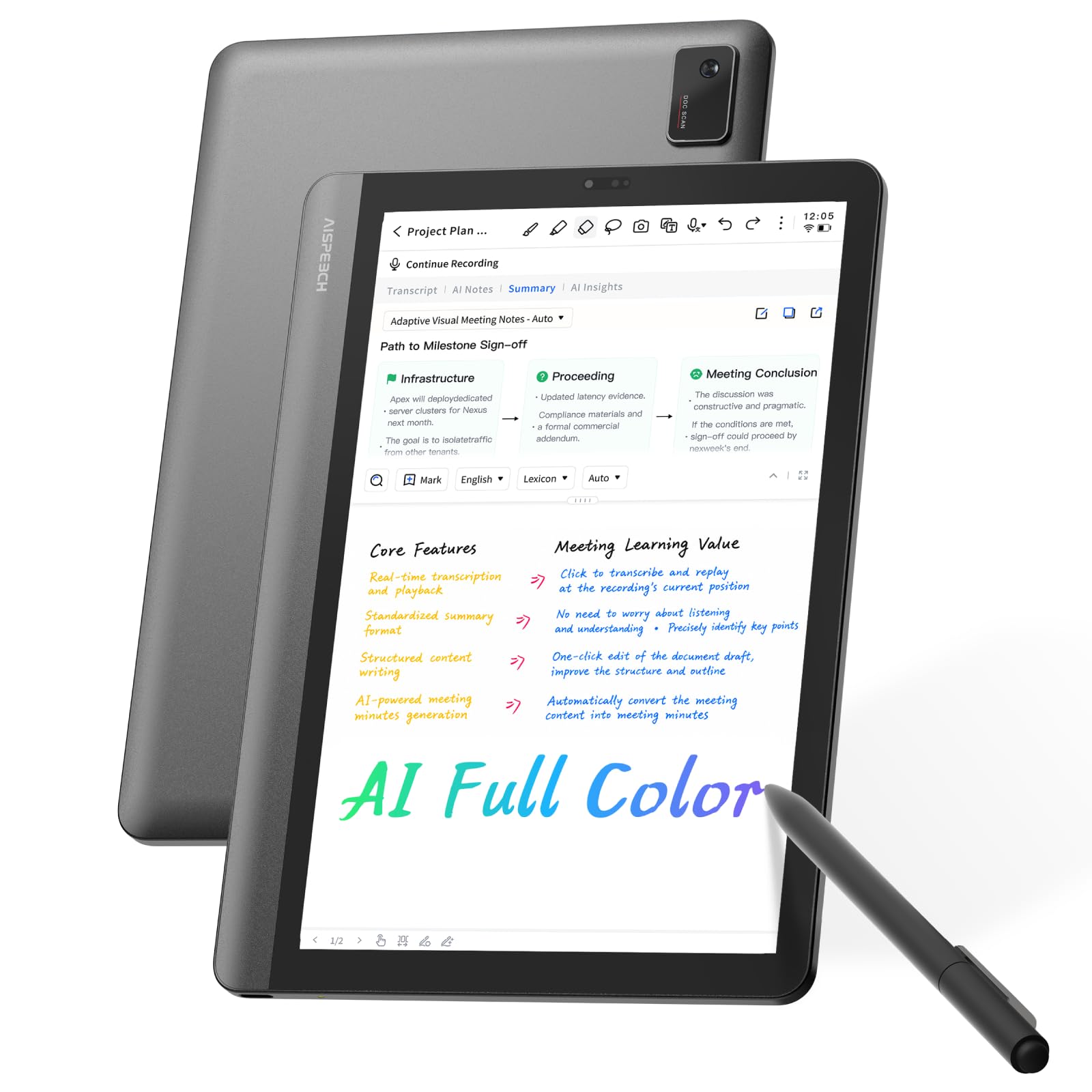
Less a sketchpad, more a meeting companion that writes, records and summarizes on its own.
The AINOTE Air takes a different job on: this is a note-taking tool that happens to accept a pen. Its 8.4-inch soft-color paper-like screen filters 99.36% of harmful blue light with AG anti-glare treatment, so long writing sessions stay gentle on the eyes. The 4,096-level electromagnetic pen gives you a natural handwritten feel, and a one-tap conversion turns your handwriting into editable digital text with AI recognition across 66 languages. That is the feature that changes how you use it — write on the screen, then have it become editable, searchable text.
The AI meeting assistant is the real draw. It transcribes and translates in real time across 48 languages, captures audio offline and stores it locally, then generates organized summaries and action items once you are connected. It weighs just 320g and runs up to 25 days per charge, so it rides in a bag without a charger. Storage is 64GB local with password protection and encrypted audio transmission, and it reads a long list of document formats including PDF, EPUB, MOBI, DOC and PPTX, plus supports third-party apps.
Set your expectations on one thing: an 8.4-inch display with 4,096 pressure levels is built for writing and annotating, not for fine illustration. If your goal is sketching portraits or shading artwork, the pressure count and screen size here are the smallest on the list. As a notebook that thinks for you, it is a different class of device.
The note-taker’s angle: real-time transcription in 48 languages plus 66-language handwriting recognition turns spoken meetings and scribbles into tidy digital text.
Mind the scope: a 4,096-level pen and 8.4-inch screen suit note-taking, not detailed artwork — pick a bigger pen display for illustration.
Built for the busy professional: students, travelers and office workers who live in meetings and notes and want them auto-organized.
Not your art tool: illustrators will want more pressure levels and a larger canvas than this notebook offers.
7. XPPen Magic Drawing Pad
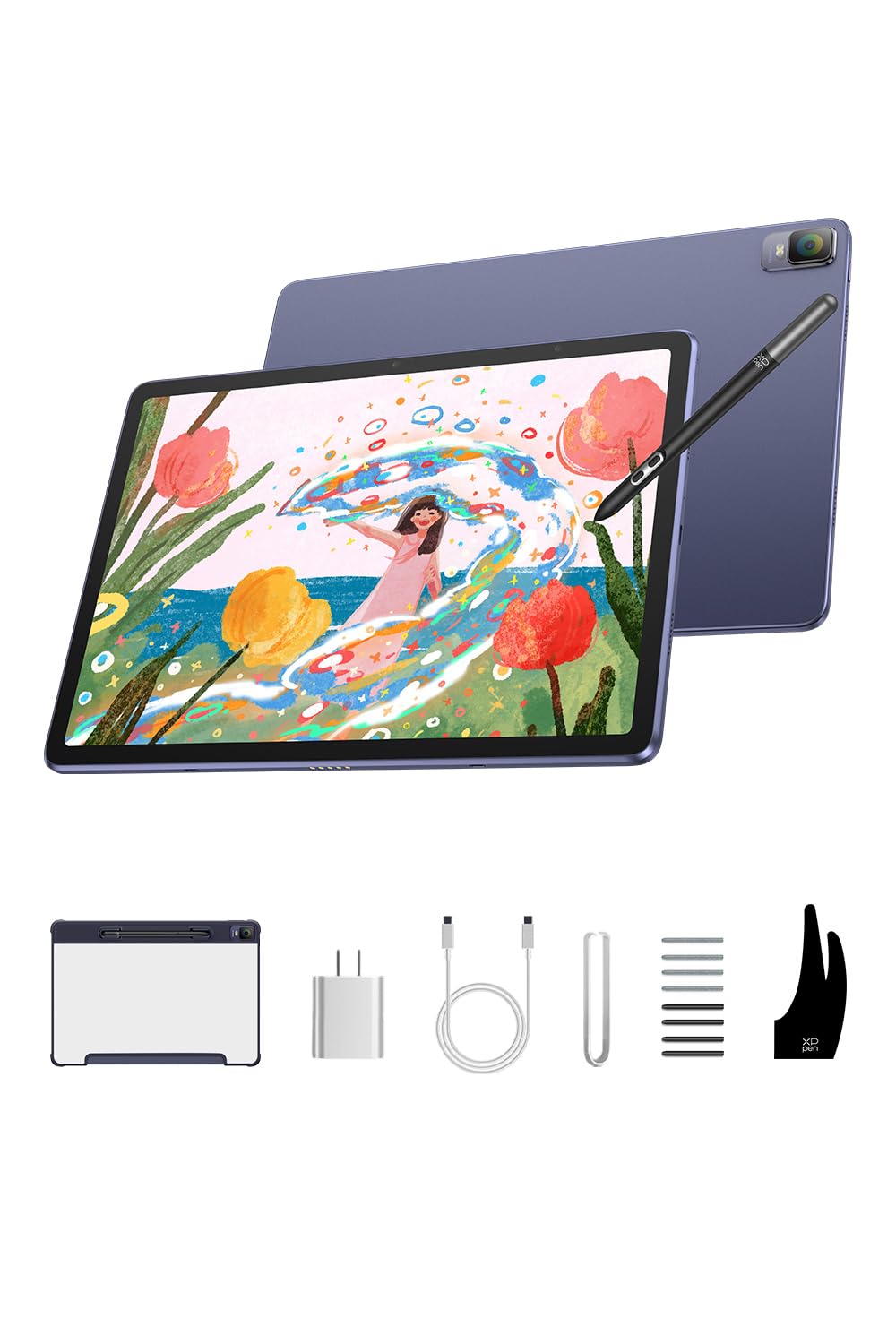
The all-in-one answer — a screen, a battery and 16K pressure with no computer in sight.
Every pen display above needs a computer tethered to it. The Magic Drawing Pad does not — it runs its own Android 14 system with 8GB RAM and 256GB storage, expandable up to 512GB, so you draw, browse and save without another device nearby. The pen matches the Studio 16’s top figure with 16,384 pressure levels, driven by the X3 Pro Slim Stylus (PD51B) with tilt function. Fine shading and bold strokes arrive with the same sensitivity as a premium desk screen. The 12.2-inch display runs 2160×1440 resolution at a 3:2 aspect ratio with a 97% sRGB color gamut, giving you a taller, more paper-like canvas than the widescreen 16:9 panels here.
Battery life keeps it going: an 8000mAh cell delivers up to 13 hours of continuous use, so a full day of sketching clears without a charge hunt. It also does more than draw — dual-window support lets you read e-books, watch video or play games alongside your work. The screen is TÜV Rheinland-certified with ten levels of soft light treatment for long sketching sessions. At 6.9mm thick and 599g light, it goes anywhere; it packs an anti-glare glass front, a 13MP rear and 8MP front camera, a headphone jack and Bluetooth 5.1 with dual-band Wi-Fi.
The catch is a fair one: this is a complete tablet, so you are paying for the processor, the battery and the screen all at once rather than adding to a computer you already own. What wins people over, though, is how enjoyable it is to draw anywhere — no wires, no desk, no computer.
Why Artists Love It
- 16,384 pressure levels with a tilt-capable X3 Pro Slim Stylus
- Fully standalone — Android 14, 8GB RAM, 256GB storage, no PC needed
- 8000mAh battery for up to 13 hours of continuous drawing
- Sharp 2160×1440 screen at 97% sRGB with anti-glare glass
Before You Commit
- Premium cost — you pay for the whole computer inside it
- Standalone system means you work in its apps, not your desktop suite
The traveler’s choice: artists who want to sketch on the train or in a café with nothing but the tablet and the pen.
Stick with a display if: you already work in a full desktop software suite and want to plug into your computer.
8. BOOX Note Air6 C E Ink Tablet
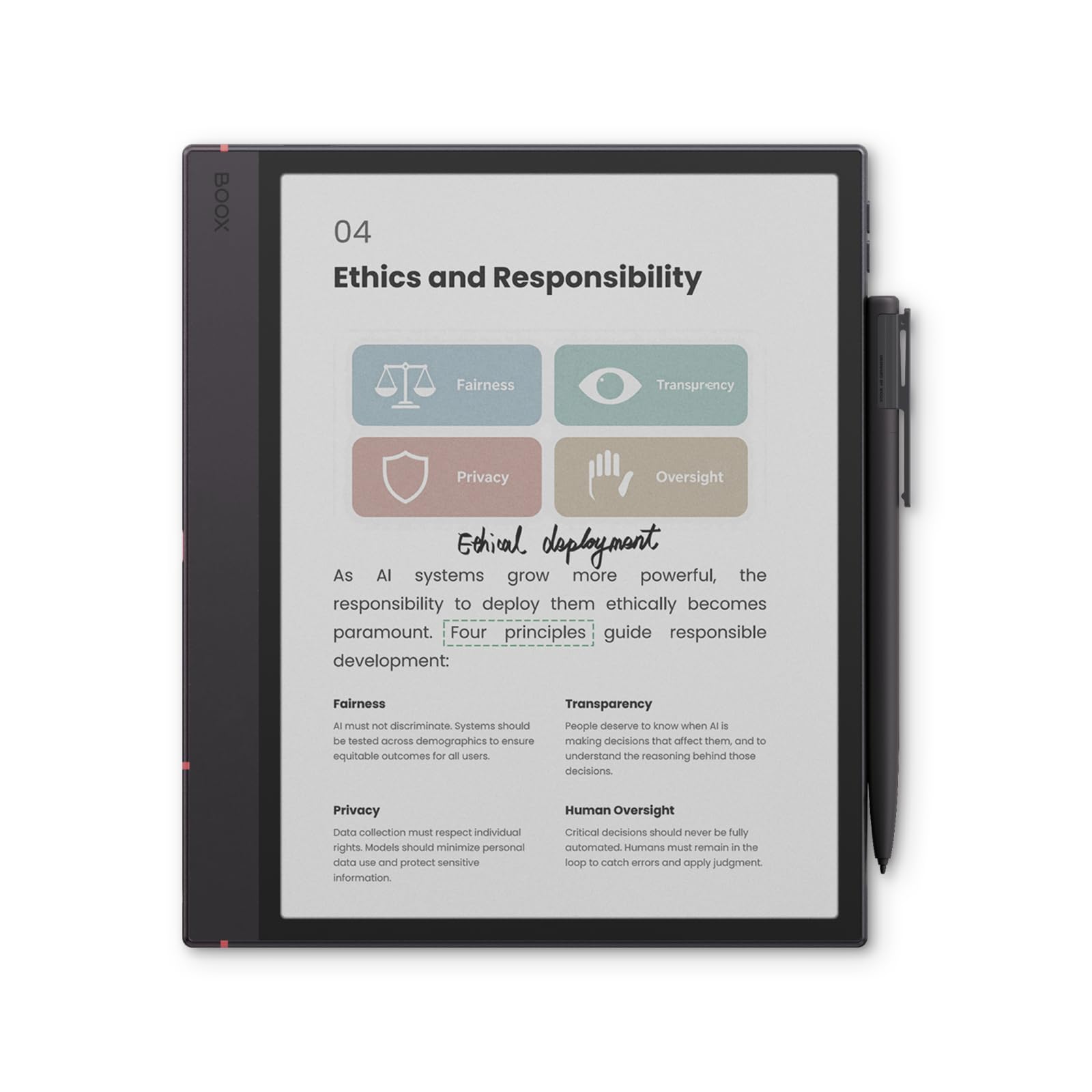
A color e-paper notebook that reads like paper and sips power for weeks of writing.
The Note Air6 C is for the writer who wants paper’s calm, not a bright LCD. Its 10.3-inch Kaleido 3 E Ink panel displays 4,096 colors, with black-and-white text at 2480×1860 (300 ppi) and color at 1240×930 (150 ppi). On E Ink, sharp 300 ppi black-and-white is exactly what makes small text easy on the eyes — your notes and books read crisp while color covers and highlights appear softer. The BOOX Pen3 stylus attaches magnetically and works alongside a capacitive touch layer, so you can write and tap with the same device.
Inside it runs a Qualcomm 6690 processor with BSR GPU, 6GB RAM and 64GB storage, with a microSD slot for more. Connectivity covers Wi-Fi and BT 6.0, and there is a 3,700mAh Li-ion Polymer battery that E Ink stretches far — writing on a power-sipping screen is why e-paper lasts so much longer than an LCD tablet between charges. A front light with warm and cold color temperature control lets you read or write in the dark, and the flat glass cover-lens keeps the surface smooth under the pen. It weighs roughly 440g, and a fingerprint-recognition power button adds a layer of privacy.
The honest note on color E Ink is speed. Screen responsiveness draws mixed feedback — quick for some, slower for others — and that is the nature of E Ink versus LCD: page turns and app switching take a beat. Display clarity and value draw mixed readings too. For focused writing, reading and color-marked documents it excels; for fast, colorful illustration, a bright pen display is the better fit.
Paper feel, digital smarts: crisp 300 ppi black-and-white text plus 4,096 colors makes reading and color-coding notes a genuinely eye-friendly experience.
The E Ink cost: refresh is slower than LCD, so expect a measured pace when tapping through apps — a trade for battery life and easy-on-the-eyes reading.
For the reader-writer: note-takers and readers who want color marking and paper-like readability with days of battery between charges.
Not for speed: if you need snappy app switching or fast colorful drawing, an LCD pen display will serve you better.
Know the Specs
Pressure sensitivity levels
This counts how many distinct pressure steps the pen reads from a light touch to a firm press. More steps mean smoother shading and finer line control. On this list the range runs from 4,096 levels up to 16,384 — the higher counts shine in illustration and animation where gentle transitions matter, while 8,192 is plenty for notes and casual sketching.
Active surface area
This is the drawable zone itself, not the outer frame — often listed as two figures like 10.5 x 6.56 inch. A bigger area lets your arm move further and your strokes flow longer, which suits wide gestures and full-page layouts. A smaller area keeps the tablet portable and desk-friendly. Match the size to whether you sketch full illustrations or jot quick notes.
Report rate and tilt
Report rate, measured in pps, is how many times per second the tablet reads the pen position — a higher figure keeps fast strokes tracked without skipping. Tilt support, often listed as an angle like 60 degrees, lets you lay the pen on its side to shade broadly, like the edge of a pencil. Both together make drawing feel natural rather than mechanical.
Screen versus screenless
A screenless pen tablet keeps costs down and travels light, but you draw while watching your monitor, so eye and hand are apart. A pen display puts the screen under your pen, matching what you see to what you draw — full lamination (bonding glass to panel) reduces the offset — at the cost of a computer tether and more desk space. Standalone tablets remove the computer entirely.
Common Questions
Do I need a computer to use a writing and drawing tablet?
What is the difference between a pen tablet and a pen display?
How many pressure levels do I actually need?
Will a battery-free stylus ever need charging?
Is a drawing tablet good for taking notes in class or meetings?
Do these tablets work with both Windows and Mac?
Can I use a drawing tablet for left-handed drawing?
What does tilt support do on a drawing tablet?
Why does an E Ink drawing tablet feel slower than an LCD one?
Can a pen display connect to my computer with just one cable?
The Bottom Line
For most people, the best Writing and Drawing Tablet here is the HUION Inspiroy 2 Large — a 10.5 x 6.56 inch canvas, 24 shortcut slots and a battery-free stylus at a mid-range price that leaves nothing essential on the table. If seeing your line land directly under the pen is what you crave, step up to the VEIKK Studio 16 for its 16,384 pressure levels on a 15.6-inch screen. And if you want to draw with nothing but a tablet and a pen, the XPPen Magic Drawing Pad cuts the computer out completely.
How we choose
We do not accept paid placement. Every pick is matched to a real buyer and a real use-case; we do not hands-on test units.
Sources
Specifications: manufacturer listings and product documentation. Review insights: verified customer reviews, as of November 2026. Pricing: not shown on this page (it changes often); check the current price via the retailer link.
As an Amazon Associate, Tactical Gear Guy earns from qualifying purchases. This does not affect which products we feature.