Specs are compiled from manufacturer listings and verified buyer reviews and can change over time — please confirm the key details on the product page before buying.
If your wrist aches by mid-afternoon, the fix is not a new mousepad — it is a mouse that stays parked while your thumb does the steering. A wireless rollerball mouse puts the cursor under a ball you roll with one finger or your thumb, so your arm and wrist never sweep across the desk. That is why cramped desks, sore forearms, and laptop-on-the-couch setups keep coming back to them.
This guide is built by comparing the manufacturers’ published specifications and the patterns across verified customer reviews, so you get each pick’s real strengths and trade-offs instead of marketing spin.
You will see which connection types travel well, why DPI levels matter less than ball size, and how tilt angles change your hand position. Every pick below is a genuine rollerball, not a standard optical mouse with a scroll wheel, and the shortlist covers thumb-driven and index-finger designs so you can match one to your grip. Here is the practical breakdown of the best wireless rollerball mouse for a desk that no longer hurts.
Top Picks

How To Choose The Best Wireless Rollerball Mouse
The first decision is not brand or price — it is which finger moves the ball. A thumb-controlled trackball keeps your hand in a relaxed handshake shape and leaves your fingers free for buttons. An index-finger ball sits under your first two fingers and asks for a different motion, more like rolling a marble forward. Neither is better in the abstract; the right one depends on how your hand rests and how much room your desk gives you.
Thumb ball or index-finger ball
Thumb models like the Nulea M508 and the ProtoArc EM05 keep the ball on the side, so your arm stays planted and your thumb does the work. Index-finger designs such as the Perixx PERIMICE-822IR and the Nulea M505 put a larger ball on top, which some people find easier to steer precisely because the fingers are more dexterous than the thumb. If you have thumb joint discomfort, an index-finger model shifts the load away from it.
Connection: Bluetooth, 2.4GHz, or both
A 2.4GHz USB receiver (a tiny dongle that plugs into your computer) usually gives the most stable connection and needs no pairing. Bluetooth lets you skip the dongle entirely, which matters on a laptop with limited ports. Many picks here offer both and let you switch between up to three paired devices with a button press — handy if you jump between a work laptop and a personal tablet.
DPI, tilt angle, and battery
DPI stands for dots per inch, the sensitivity setting that controls how far the cursor travels per ball movement. A low setting like 400 DPI gives fine control for design work; a high setting like 1600 DPI moves the cursor faster across a big monitor. Tilt angle (the slope your palm rests on) changes wrist alignment, and adjustable models let you pick between a flat and angled position. On power, rechargeable lithium batteries and swappable AA cells each have fans — rechargeable saves buying batteries, while AA means you are never tethered waiting for a charge.
Side-by-Side Comparison
| Model | Best For | Max DPI | Connection | Ball Control | Amazon |
|---|---|---|---|---|---|
| Nulea M508★ Best Overall | All-round desk pick | 1600 | 2.4GHz + 2x Bluetooth | Thumb | Amazon |
| Kensington TB450Longest Battery | Long battery life | 1600 | 2.4GHz + Bluetooth LE | Thumb | Amazon |
| ProtoArc EM05 NLBest Vertical Grip | Vertical handshake grip | 1600 | 2.4GHz + BT 5.1 + BT 3.0 | Thumb | Amazon |
| ProtoArc EM02 | Adjustable tilt on a budget | 1600 | 2.4GHz + Bluetooth | Thumb | Amazon |
| SABLUTE Ergonomic | High-DPI multi-tasker | 4800 | 2.4GHz + Bluetooth | Thumb | Amazon |
| Nulea M505 | Index-finger control | — | 2.4GHz + Bluetooth | Index finger | Amazon |
| Perixx PERIMICE-822IR | Large index-finger ball | 2400 | 2.4GHz + 2x Bluetooth | Index finger | Amazon |
| Logitech MX Ergo S | Premium thumb ergonomics | — | Bluetooth + Logi Bolt | Thumb | Amazon |
Detailed Reviews
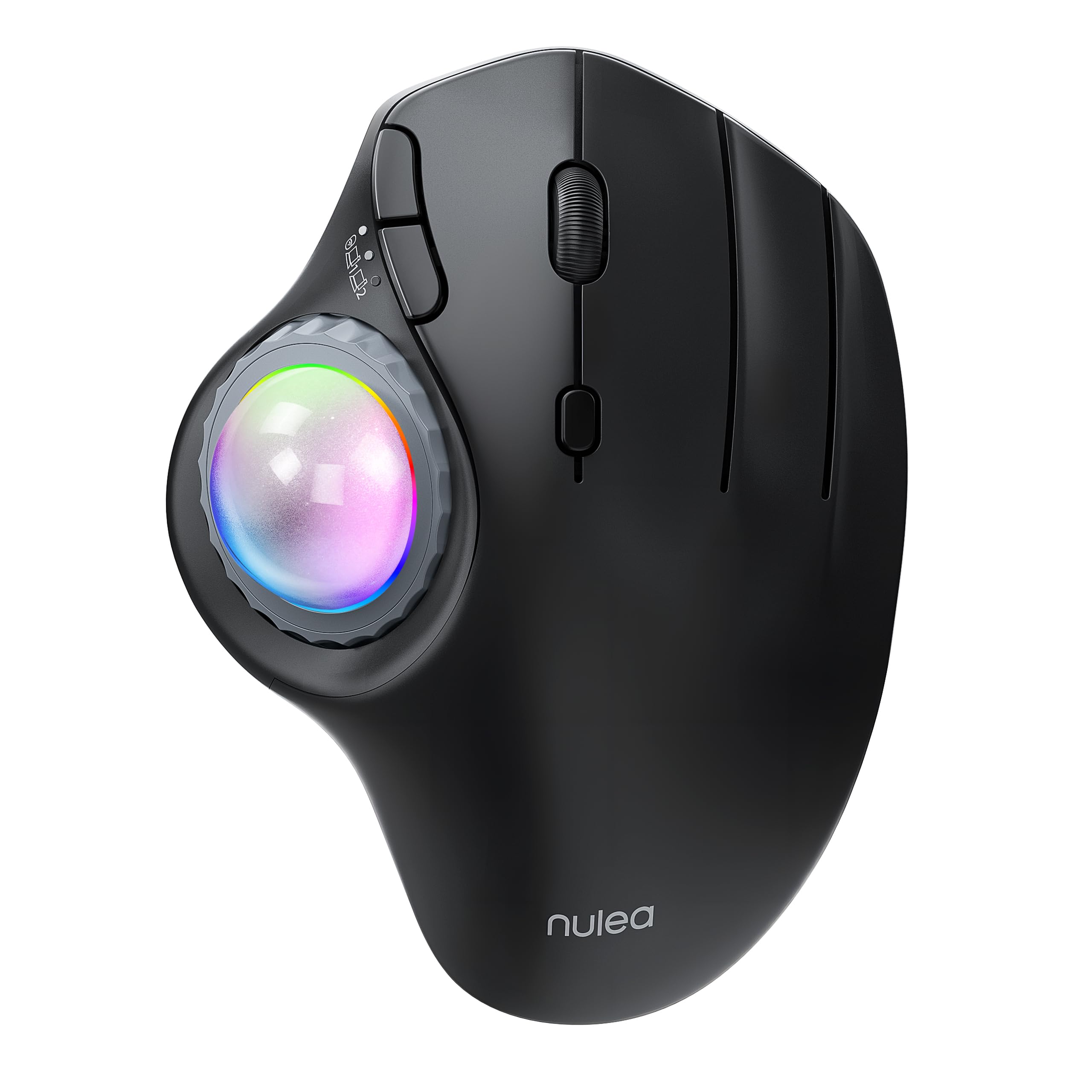
1. Nulea M508 Wireless Trackball Mouse
Our pick — 4.5+★ from 250+ verified ratings; the strongest balance of quality and price.
The thumb ball that parks your wrist and lets one finger do all the driving.
Four sensitivity settings do the heavy lifting here: 400, 800, 1200, and 1600 DPI let you dial from slow design work to quick cursor sweeps across a wide monitor. The scroll wheel-free thumb ball means your hand stays put while the cursor moves — no more lifting and re-planting your arm every few inches. For a cramped desk or a sore forearm, that parked-wrist motion is the daily fix.
You can pair it three ways — a 2.4GHz USB receiver, BT1, or BT2 — and hop between a laptop, a desktop, and a tablet with a single button. The RGB lighting is controlled by a physical knob, so you can switch between flowing water, breathing, solid-color, neon, or off without opening any software. A physical knob means you can kill the glow in a dark room without opening software.
The honest catch is the sensitivity ceiling. At 1600 DPI maximum, this is a controlled, precise cursor, not a darting, high-speed one — if you like a cursor that flies across a 4K screen on a flick, a 4800 DPI model like the SABLUTE below suits that better. For mainstream office, browsing, and editing, 1600 DPI is plenty. The RGB is a taste call too; some will love it, others will set it to off and forget it.
What it gets right
- Three-way connection (2.4GHz, BT1, BT2) across three devices
- Four DPI settings from 400 to 1600 for fine or fast control
- Knob-controlled RGB in five modes including off
- Right-hand sculpted shape for long desk sessions
Where it levels off
- 1600 DPI top end is modest for very large displays
- Right-hand only, so lefties sit this one out
Best for: the buyer who wants one dependable thumb trackball for a mixed desk-and-laptop routine and does not need a light show.
Think twice if: you drive a high-resolution multi-monitor setup and want a very fast cursor.
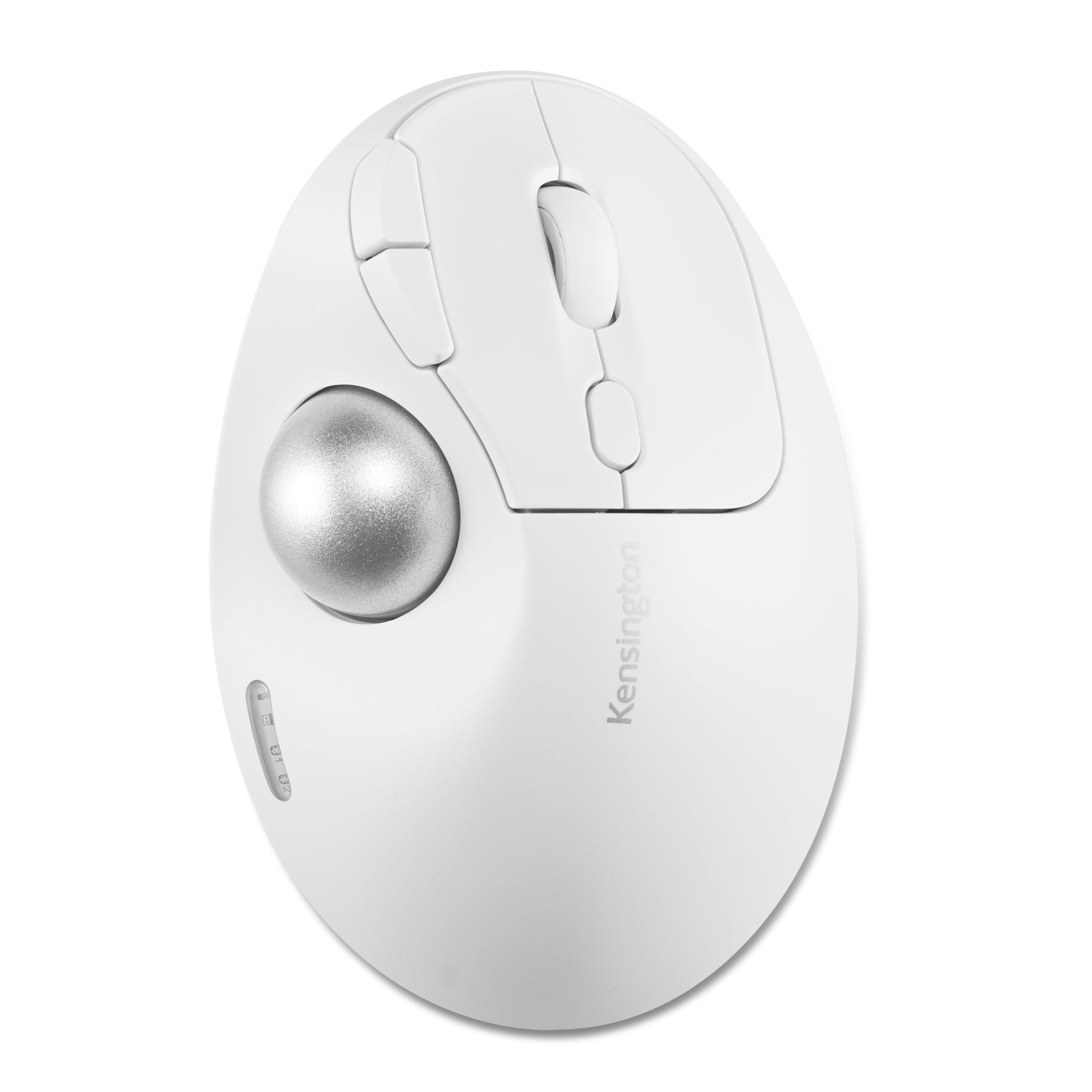
2. Kensington TB450 Wireless Trackball Mouse
Up to 18 months on a single AA, so the battery is an afterthought.
The headline number is the runtime: up to 18 months on a single AA with the 2.4GHz receiver, or up to 15 months over Bluetooth LE. That runtime means you stop thinking about the battery between swaps. For anyone who has fished a dying mouse out of a bag before a meeting, that margin is the whole point.
Two choices keep it flexible — a 2.4GHz nano receiver (a small dongle that plugs into the USB-A port) or Bluetooth LE, with the ability to connect up to three devices and switch between them. The sculpted body carries a unique 45° tilt that nudges your wrist and forearm into better alignment, and the 34mm thumb ball rolls smoothly on a high-quality optical sensor with four DPI settings: 400, 800, 1200, and 1600. So you get fine control when you need it and faster travel when you don’t.
One detail worth knowing: those same numbers come with 128-bit AES encryption, which the maker describes as government-grade, to deter anyone trying to monitor the wireless link. The enclosure uses recycled plastic, and six buttons give you more commands within thumb reach than the three-button basics. The trade-off is battery over recharging — this one runs on AA cells, so you will never plug it in, but you will eventually swap a battery rather than top up over USB-C.
Battery-first thinking: A single AA lasts up to 18 months, so charging anxiety disappears, and the 45° tilt keeps your wrist aligned through a full workday.
The honest limit: no rechargeable cell means no USB-C top-up, so keep a spare AA nearby for that eventual swap.
Reach for this if: you want a trackball you set up once and rarely think about again, with a tilt that eases wrist alignment.
Look elsewhere if: you would rather plug in a cable than hunt down a replacement battery.
3. ProtoArc EM05 NL Wireless Trackball Mouse
A 62-degree handshake grip that keeps your arm relaxed all day long.
That 62° tilt is the defining feature — it puts your palm in a natural handshake position so your arm and wrist rest instead of twisting flat to the desk. The thumb ball moves the cursor while your hand stays put through a long screen session. The smooth frosted surface and quiet clicks round out the “stay focused” pitch.
What wins people over is how well it simply performs — crisp tracking, comfortable grip, and enough connection flexibility to matter. On that last point you get three modes: 2.4GHz, Bluetooth 5.1, and Bluetooth 3.0, so one button hops you between Android, tablet, and Mac as you work. Five DPI steps — 200, 400, 800, 1200, and 1600 — let you set the cursor speed you like, and the built-in battery recharges over the included USB-C cable.
Be honest about the break-in period: trackball control asks for a short adjustment, and the maker recommends giving it 1-2 weeks to feel natural. The buttons are non-programmable, and the forward/back buttons do not work on macOS — a real limitation if you are a Mac shortcut hound. Cleaning the ball and the three white rollers inside the socket now and then keeps it gliding smoothly.
Why it earns a slot
- 62° vertical tilt for a relaxed handshake hand position
- Three-way connection for switching across three devices
- Five DPI levels from 200 to 1600
- USB-C rechargeable with quiet clicking
Points to weigh
- Buttons cannot be reprogrammed
- Forward and back buttons are not compatible with Mac OS
Ideal for: the long-session desk worker who wants a vertical, thumb-driven grip and moves between PC, tablet, and phone.
The caveat: Mac users who rely on forward/back buttons will find those two doing nothing.
4. ProtoArc EM02 Wireless Trackball Mouse
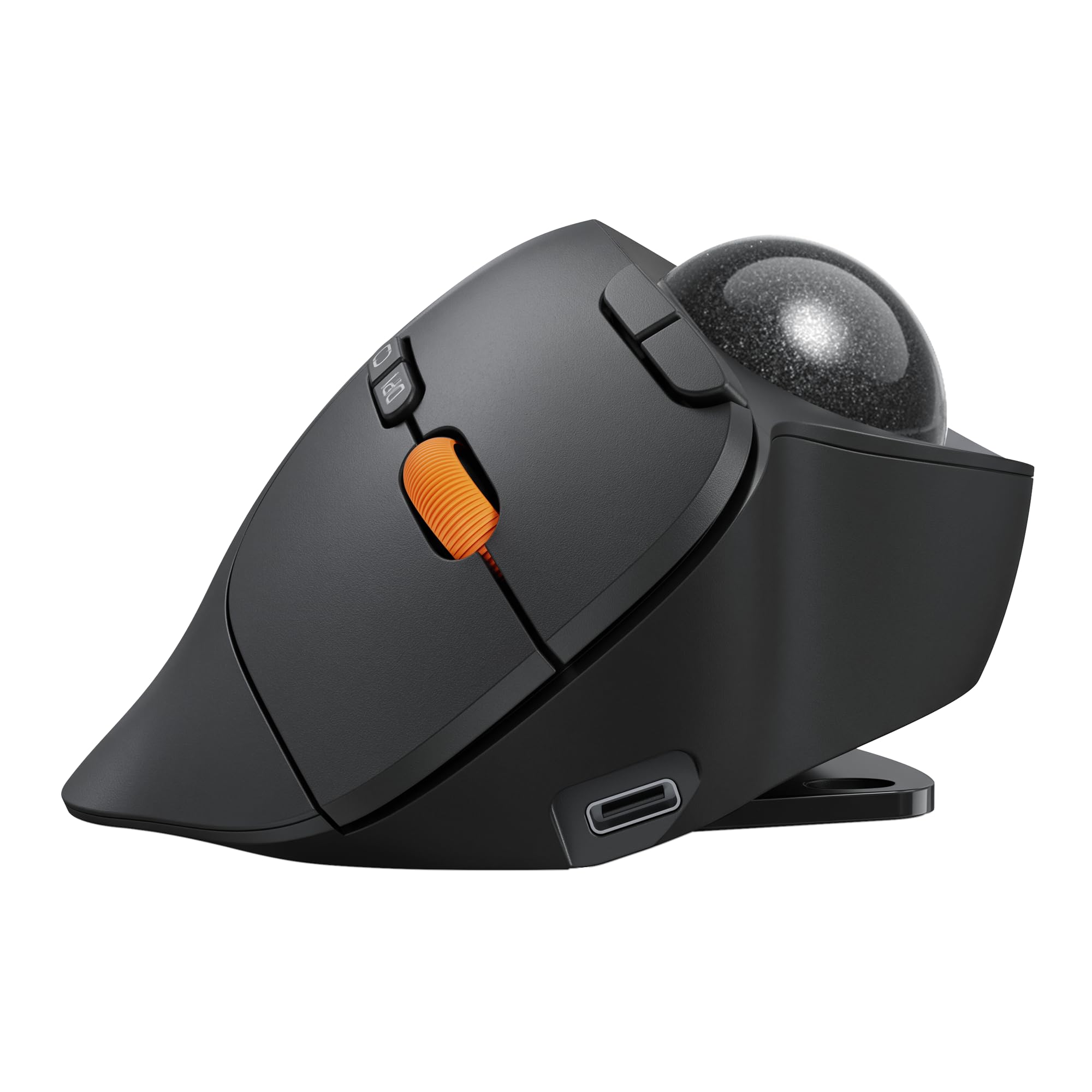
A hinge that flips between flat and tilted, so your hand finds its own angle.
The adjustable hinge is the reason to look here: set the body flat at 0° or tilted at 15°, and the change nudges your hand into a more natural posture. That flexibility is hard to find at this tier, and it lets one trackball suit different desk heights and hand sizes. Roll the thumb ball instead of your wrist, and a cramped or cluttered workspace stops fighting you.
You connect over 2.4GHz wireless or Bluetooth and switch between devices with one button, with broad system compatibility (note the forward and back buttons do not work on Mac OS). Five DPI levels — 200, 400, 800, 1200, and 1600 — let you tune cursor speed for tight design work or broad navigation. The USB-C port tops up the built-in battery, and a full charge stretches to 90 days of standby, so it sits ready rather than dead in a drawer.
Build quality is the running theme in owner feedback — it feels solid and stands up to daily use. The quiet-touch buttons make it a good neighbor in a shared room or a late-night session. The one recurring talking point is button responsiveness, which draws mixed feelings — so if you hammer clicks quickly and care about a crisp tactile feel, try before you commit. Otherwise, it is a well-built adjustable-angle trackball that does the quiet, precise work most desks ask for.
Build and battery: solid construction and a 90-day standby mean it survives the commute and the cluttered desk without complaint, while the 0°/15° hinge keeps your hand aligned.
One honest wrinkle: button feel gets split opinions, so a very click-heavy user should confirm the tactile response suits them.
Choose it for: a well-built trackball with an adjustable tilt and a long standby, ideal for mixed work and study tasks.
Consider passing if: you want rock-solid, crisp button feedback over everything else.
5. SABLUTE Ergonomic Wireless Trackball Mouse
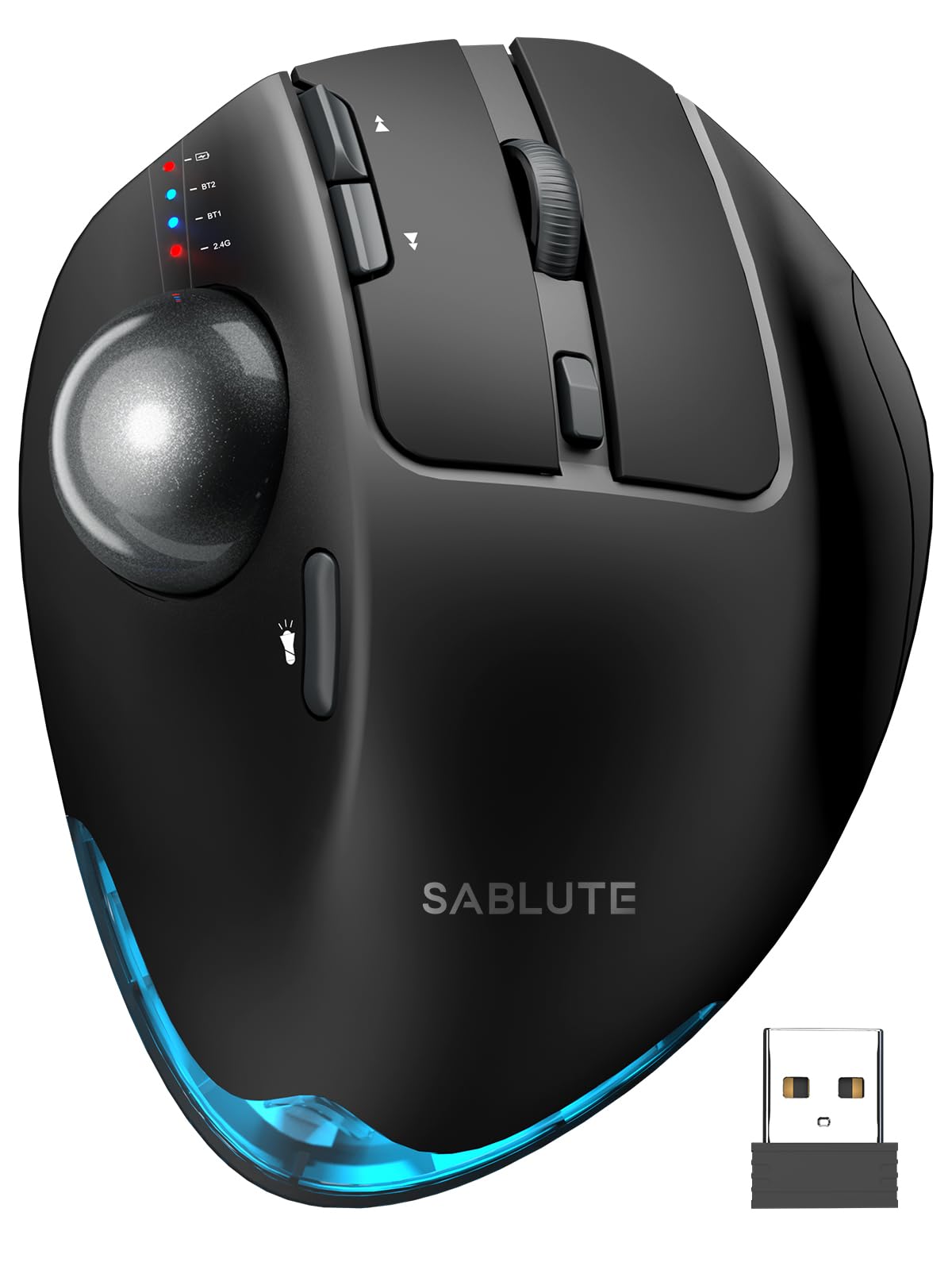
Five DPI levels up to 4800 give this thumb trackball the widest speed range here.
If cursor speed range matters, this is the one: five DPI settings from 800 all the way to 4800 let you go from slow, careful editing to a cursor that crosses a big screen in a flick. That top end is the widest on this list, and it makes the SABLUTE the flexible choice for mixed work — spreadsheets up close, then broad navigation across multiple windows.
The ergonomic angle adjusts between a flat 0° and a tilted 18°, and the 18° position follows your wrist’s natural resting posture to ease strain through long sessions. A soft ambient backlight can be switched on or off, and the USB receiver tucks neatly into the base so it will not get lost in a drawer. Eight buttons give you more commands at your fingertips, and the built-in battery recharges over USB-C.
Owners praise the responsive, smooth movement and the adjustable angle most, and it earns strong marks for quality and value. The trade-off is battery life, which draws mixed feedback — as with most backlit trackballs, leaving the ambient light on will drain the cell faster, so switch it off when you do not need the glow. There is also a driver for custom settings, though it is not compatible with Mac OS, so Mac users should plan on the hardware defaults.
The high points
- Five DPI levels from 800 to 4800, the widest range in this list
- Adjustable 0°/18° tilt to match your wrist posture
- Eight buttons plus optional ambient backlight
- USB receiver stores in the base
The trade-offs
- Battery life gets mixed feedback, especially with the light left on
- Customization driver is not compatible with Mac OS
Reach for this if: you want the widest cursor-speed range and an adjustable angle for mixed precision and fast work.
Know before you buy: expect to manage the backlight to protect battery life, and Mac users skip the driver.
6. Nulea Wireless Trackball Mouse RGB 44mm

A 44mm ball under your index finger turns your arm into a stationary anchor.
This one swaps the thumb ball for a 44mm index-finger ball, so your first finger does the steering while your hand stays planted. It is the pick for anyone whose thumb tires on a side ball, or who simply finds the fingers more precise for fine cursor work. The larger ball gives more surface to roll and, in practice, a finer feel for small movements.
Five DPI modes let you tune cursor movement, switched with a button on the underside of the mouse — a little out of the way, but it keeps the top clean. The built-in rechargeable battery lasts up to 45 days on a full charge, so it stays ready across weeks of daily use. Over Bluetooth and USB you get flexible connection, and the RGB effect adds a pop of color to your setup — long-press the left and right buttons for three seconds to toggle it off or on.
Because the cursor tracks on almost any surface, it works on a cluttered desk, a couch, or even a bed, which is where a lot of people end up when a laptop is on their lap. The catch is that the DPI button sits on the bottom, so changing sensitivity mid-task takes a quick flip rather than a top-side tap. For most owners that is a minor inconvenience next to the comfort and the long battery.
Index-finger comfort: the 44mm top ball shifts the work onto your finger for precise, flexible navigation, and a 45-day charge keeps it live for weeks.
The small snag: sensitivity changes require flipping the mouse to reach the bottom button.
Suits you if: you prefer a top ball under your index finger and want long battery life with a little RGB flair.
Maybe not if: you want to switch DPI speed from the top of the mouse during work.
7. Perixx PERIMICE-822IR Wireless Trackball Mouse

A big 1.58-inch European ball rolls under two fingers for a finer touch.
The standout is that 1.58-inch (40 mm) trackball, made in Europe with a glossy surface and integrated particles for accurate sensor tracking. A ball that size gives your index and middle fingers more to grip and roll, which translates to a smoother, more controlled cursor for detailed work. It is also ambidextrous, so left- and right-handers both get the same layout.
Three-way connection — one 2.4GHz link and two Bluetooth channels — lets you pair a desktop, laptop, tablet, or phone and switch without re-pairing. Six quiet-click buttons run across the main, side, and DPI controls, and you can program supported functions through the Perixx website without installing extra software, with Windows, macOS, and Linux support. Adjustable DPI ranges from 400 to 2400 for precise or faster control.
The maker-specific extras are what set it apart: a built-in dock on the bottom accepts compatible 3D-printed add-on modules, so makers can customize the base (the printed accessories are not included). The honest catch is the same as for most index-finger balls — a switch from a thumb model or standard mouse takes a short adjustment, with most people comfortable within 1-2 weeks. Also note the USB-C port is for charging only, not data — so you rely on the receiver or Bluetooth to connect.
Big-ball precision: the 40 mm ball and 400-to-2400 DPI range make fine control feel natural, while the quiet-click buttons keep a shared office calm.
Heads-up: the USB-C port charges only — it carries no data, so plan on Bluetooth or the dongle for the connection.
Go for this if: you want a large index-finger ball, ambidextrous fit, and maker-friendly customization.
Look elsewhere if: you want plug-in data over USB-C or have no patience for a short adjustment period.
8. Logitech MX Ergo S Advanced Wireless Trackball Mouse

The premium thumb trackball with a 20-degree tilt and a one-minute top-up.
The defining upgrade here is the charging speed: a 1-minute USB-C charge gives up to 24 hours of use, and a full charge stretches to 120 days. That is the kind of margin that ends the panic over a dead mouse at the wrong moment. A 20° tilt angle puts a better posture on your forearm, and Logitech claims an 80% quieter click than the version before it. Quality is the thing that earns the most praise, with ergonomics close behind.
Switch between speed and high-precision tracking at the tap of a button, so you can jump from quick cursor travel to fine control without a settings menu. Six customizable buttons work through the Logi Options+ App for shortcuts and multi-step actions. Dual wireless gives you Bluetooth or the included Logi Bolt receiver, with an Easy-Switch button for moving between devices. The plastic parts use 20% certified post-consumer recycled plastic, and it is contoured for medium- to large-sized hands.
Two things to size up honestly. The recommended hand fit is medium to large, so smaller hands may find the sculpted body a stretch. And value draws mixed feelings, since it sits at the top of this list — you are paying for the fast charge, the proven ergonomics, and the software ecosystem rather than raw specs. Reliability and button feel also get split opinions. If those extras matter to you, it justifies the premium; if you just need a steady thumb ball, the picks above cover that for less.
What justifies the premium
- 1-minute charge for up to 24 hours, up to 120 days on a full charge
- 20° tilt with claimed 80% quieter clicks
- Six customizable buttons via Logi Options+
- Bluetooth or Logi Bolt with Easy-Switch
What to weigh
- Contoured for medium- to large-sized hands
- Value and reliability draw split opinions at this tier
Worth it for: the buyer who wants the proven ergonomics, fast charging, and software shortcuts of a premium thumb trackball, with medium-to-large hands.
Skip the upgrade if: you have smaller hands or just want a dependable controlled cursor without the premium extras.
Know the Specs
DPI (Dots Per Inch)
DPI is the sensitivity setting — how far the cursor travels each time you roll the ball. A low value like 400 DPI gives fine, slow control for detailed work; a high value like 4800 DPI moves the cursor fast across a large screen. On a trackball the ceiling matters more than on a standard mouse because you are limited to small thumb or finger motions, so a wider DPI range gives you more flexibility between precision and speed. Five adjustable levels, as on many picks here, let you tune that on the fly.
Ball Size and Control Type
The ball’s size and where it sits change your whole hand position. Thumb balls keep your fingers on the buttons while the thumb steers; index-finger balls put a larger surface under your first two fingers. Larger balls give more material to roll and finer control, which is why a 40mm or 44mm ball can feel more precise than a small one. Whichever you choose, plan on a short break-in — the maker of the SABLUTE and others suggest 1-2 weeks to adjust to rolling rather than moving your arm.
Wireless Connection Types
A 2.4GHz USB receiver is a small dongle that plugs into your computer and usually gives the most stable link with no pairing. Bluetooth skips the dongle and is best for laptops with few ports. Many of these trackballs offer both and let you pair up to three devices, switching with a button so your work laptop and personal tablet share one mouse. If security matters, some models add 128-bit AES encryption to protect the wireless link.
Battery and Charging
You will see two approaches: swappable AA cells and built-in rechargeable batteries charged over USB-C. An AA model can run for many months on a single battery, so you are never tethered. Rechargeables save you buying cells and often support quick top-ups, but they need a cable eventually. Backlit models drain faster when the light is left on, and a long standby figure like 90 days means the mouse sits ready rather than dead between sessions.
Common Questions
Will a wireless trackball work with my Mac or iPad?
How long does it take to get used to a trackball?
Is a thumb trackball better than an index-finger trackball?
Why does my trackball feel sticky or slow?
Do I need a mousepad under a trackball?
What DPI setting should I start with?
Can I connect one trackball to two computers at once?
How often will I need to charge or replace the battery?
Are trackball buttons programmable?
Does a wireless rollerball add lag compared to a wired mouse?
The Bottom Line
For most people, the wireless rollerball mouse winner is the Nulea M508 because it balances a comfortable thumb ball, three-device switching, and four DPI settings in one right-hand package. If long battery life is your priority, the Kensington TB450 stretches a single AA to many months. And if you prefer a top ball under your index finger, the Perixx PERIMICE-822IR gives you a large 40mm ball with an ambidextrous fit. Whichever you choose, your hand stays still while your finger does the steering.
How we choose
We do not accept paid placement. Every pick is matched to a real buyer and a real use-case; we do not hands-on test units.
Sources
Specifications: manufacturer listings and product documentation. Review insights: verified customer reviews, as of November 2026. Pricing: not shown on this page (it changes often); check the current price via the retailer link.
As an Amazon Associate, Tactical Gear Guy earns from qualifying purchases. This does not affect which products we feature.