Specs are compiled from manufacturer listings and verified buyer reviews and can change over time — please confirm the key details on the product page before buying.
If years of mouse dragging have left your wrist aching, a wireless rechargeable touchpad swaps click-and-drag for finger swipes on glass. For most desk setups, buy the Apple Magic Trackpad 2 (Renewed) first. It brings Force Touch pressure sensing (the pad reads how hard you press) to a glass surface nearly 30 percent larger than the previous trackpad, so you can click anywhere without hunting for a button. If you are locked into Windows, the Amazon Basics Multi-Touch Trackpad is the sensible budget entry point.
This guide is built by comparing the manufacturers’ published specifications and the patterns across verified customer reviews, so you get each pick’s real strengths and trade-offs instead of marketing spin.
Below you will find six pads that all run on a built-in rechargeable battery and connect without a wire — the two non-negotiables for this category. Whether your desk is a Mac or a Windows PC changes everything, so read on for a plain-English breakdown of wireless rechargeable touchpad options that actually fit your machine.
Top Picks

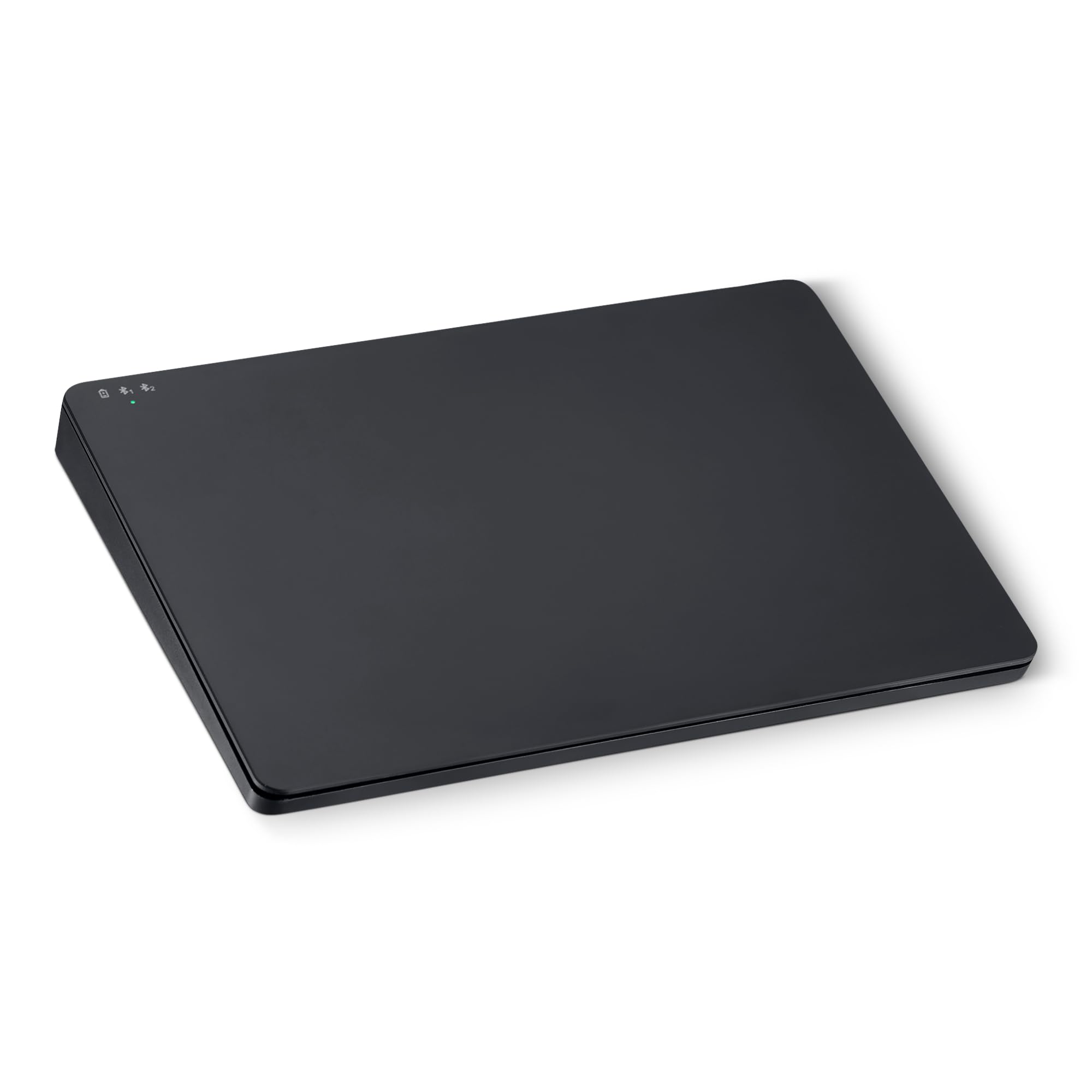
How To Choose The Best Wireless Rechargeable Touchpad
The first thing most buyers get wrong is assuming any touchpad works with any computer. It does not. Several pads on this list are built for Windows only and will not run properly on a Mac, so matching the pad to your machine is the single biggest decision you will make before spending a cent.
Check the operating system before anything else
A pad sold as Windows-only will not give you full gesture control on macOS, and a Mac-tuned pad may fight with Windows settings. The Apple Magic Trackpad 2 is built for Mac and pairs automatically, while the Amazon Basics, Perixx and Tacti Trix pads are built around Windows. The POLARMETA pad claims compatibility with both, which makes it the flexible middle ground if you split your day between two systems.
Decide if you need physical buttons or a click surface
Some pads give you actual left and right mouse buttons you press down. Others rely on tap-to-click or pressure-sensitive zones with no physical buttons at all. If you are coming from a laptop where you already tap to click, a button-free pad feels natural. If you want that satisfying mechanical press for every click, look for the pads that list real buttons — the Logitech T650 lists a button quantity of 14, and the Perixx lists 3.
Match the surface size to your desk and your hand travel
A larger glass surface means your cursor moves further per swipe, which reduces how often you lift and reset your finger. The POLARMETA pad runs a 7.5-inch frosted glass surface, the largest here, while the Perixx measures 5.31 inches across. Bigger is not always better — a 5.31-inch pad like the Perixx frees up desk space when you work on a narrow tray or a laptop stand.
Side-by-Side Comparison
| Model | Best For | Connectivity | Surface | Weight | Amazon |
|---|---|---|---|---|---|
| Apple Magic Trackpad 2 (Renewed)★ Best Overall | Mac users who want Force Touch | Bluetooth | Edge-to-edge glass | 16 ounces | Amazon |
| Amazon Basics Multi-Touch TrackpadBest Value | Budget Windows entry point | Bluetooth (2 devices) | 6.4-inch touch surface | 261.2 g | Amazon |
| Perixx PERIPAD-706 | Switching between three devices | Bluetooth + 2.4G RF | 5.31 x 4.57 inch | 0.14 kg | Amazon |
| Tacti Trix Wireless Bluetooth Trackpad | Long battery sessions | Bluetooth 5.0, 2.4G, USB-C | 6.3 x 4.7 inch glass | 0.31 kg | Amazon |
| POLARMETA Magic Trackpad X2 | Big-gesture Mac and Windows work | 2.4G USB receiver | 7.5-inch frosted glass | — | Amazon |
| Logitech Rechargeable Touchpad T650 (Renewed) | Windows gesture veterans | 2.4GHz Unifying Receiver | Glass | — | Amazon |
Detailed Reviews
1. Apple Magic Trackpad 2 (MJ2R2LL/A) (Renewed)
Our pick — 4.5+★ from 150+ verified ratings; the strongest balance of quality and price.
Four force sensors under glass that click anywhere — the desktop pad Mac owners keep coming back to.
The Magic Trackpad 2 puts four force sensors underneath the surface, and that single design choice is why this pad leads the list. Those sensors let you click anywhere on the pad, not just at the bottom edge, and they detect how hard you press — a light tap versus a firm push triggers different actions. If you have ever used a modern MacBook, this is that same pressure-sensitive feel, moved to your desk.
The surface is edge-to-edge glass and runs nearly 30 percent larger than the previous trackpad, so long swipes across a wide monitor need fewer finger resets. It pairs automatically with your Mac, which means no dongle hunting and no driver install. At 16 ounces it sits planted and does not skate around while you drag with two fingers, and the built-in lithium polymer battery means you charge it rather than feed it disposables. Against the Logitech T650, which lists 14 buttons, this pad lists just 1 — Apple moved the clicking into the surface itself instead of physical keys.
What wins people over here is the build and the way the gestures just work, because quality and functionality are the two things this pad gets praised for most. The honest catch is the refurbished element: surface condition is where opinions split, with some pads arriving with small scratches. Buyers are also divided on whether the price is fair for a renewed unit. Runs on Mac only, so a Windows PC will not get the full gesture set.
Where this pad earns its keep
- Four force sensors let you click anywhere and vary pressure for deeper control
- Glass surface nearly 30 percent larger than the previous trackpad
- Pairs automatically with your Mac — no setup fuss
- Built-in rechargeable lithium polymer battery
What to weigh before buying
- Renewed units can show small scratches on the surface
- Mac-only, so Windows users get nothing from it
- Single-button design may feel limited if you like physical clicks
Made for: Mac owners who want laptop-grade pressure clicking at their desk and are fine with a renewed unit.
Think twice if: you run Windows or want a factory-sealed surface — the scratches on some renewed pads would bother you.
2. Amazon Basics Multi-Touch Trackpad with Dual Device Control
Six-point-four inches of Windows-friendly glass-free surface with real left and right buttons built in.
For a Windows user who wants to try a touchpad without committing much, this is the natural starting point. It is a 6.4-inch pad with multi-touch gestures up to four fingers, plus actual built-in left and right mouse buttons — the kind of physical click that some buyers miss on button-free pads. The USB-C port recharges the lithium battery, so you are not buying cells.
The feature that punches above its tier is dual device control: it connects two devices at a time over Bluetooth, and a mode switch button flips between them. That means one pad can drive your desktop and your tablet-class Windows machine without re-pairing every time. The slim profile and colored indicator lights make it easy to see which mode you are in. At 261.2 grams it is sturdy enough to feel planted — by comparison the Perixx below sits at 0.14 kg, so this one carries noticeably more weight on your desk.
The recurring gripe is responsiveness and Bluetooth behavior, which buyers describe as inconsistent — some say it pairs quickly and works like a charm while others find it lagging or unresponsive. The manual even recommends switching to wired mode for infrequent use to cut latency. Beyond that, it is Windows only, with no macOS, Chrome OS or Linux support. Build quality and value are the two things this pad is praised for most.
Buy it if: you want a low-risk Windows pad with real buttons and the ability to flip between two machines on one desk.
The fine print: connect it by Bluetooth and expect the odd lag spike — and to right-click, press the lower-right corner or tap with two fingers.
Right choice for: Windows multitaskers who need a second device handoff and prefer a physical button under their thumb.
Skip if: you own a Mac or Chrome OS machine — this pad simply does not support them.
3. Perixx PERIPAD-706 Wireless Slim Touchpad

Three devices on one pad through Bluetooth and 2.4G — the multitasker’s answer to desk clutter.
If your day is split across a laptop, a tablet and a desktop PC, the Perixx is the one that keeps up. Its claim to fame is dual connectivity — Bluetooth and 2.4G RF — so you can switch between up to three devices without unplugging anything. It ships with a USB receiver for the 2.4G side and recharges over USB-C. The 5.31 x 4.57 inch surface gives you decent room for cursor movement, and non-slip rubber feet keep it from wandering under your hand. It has three buttons, against the one on the Apple pad above.
Weigh those perks against the reality that this pad’s core performance is where owners get divided. Functionality and build quality are the biggest talking points, and both are mixed — some find it great while others say it falls short of expectations. Tracking and sensitivity draw similar split opinions, and the activation threshold in particular is not well-tuned for everyone, meaning taps can register inconsistently until you adjust your touch. The connectivity feature, by contrast, is the bright spot buyers agree on most.
It also runs at 0.14 kg, so it is light enough to toss in a laptop bag without noticing. Just note it is built for Windows 7, 8, 10 and 11 only — a Mac will not get proper support. If you are purely after one-device simplicity, a single-purpose pad is the safer bet.
Why it stands out: three-device switching with a physical mode jump is rare at this level and genuinely useful for a multi-machine desk.
Where it stumbles: split opinions on tracking and sensitivity, plus a Mac-compatibility wall that rules out Apple users entirely.
Pick it when: you juggle three Windows devices and want one pad to rule them all with USB-C charging convenience.
Pass it over if: consistent tap accuracy on the first try is critical — you will need to tune your touch to its threshold.
4. Tacti Trix Wireless Bluetooth Trackpad for Windows 10/11
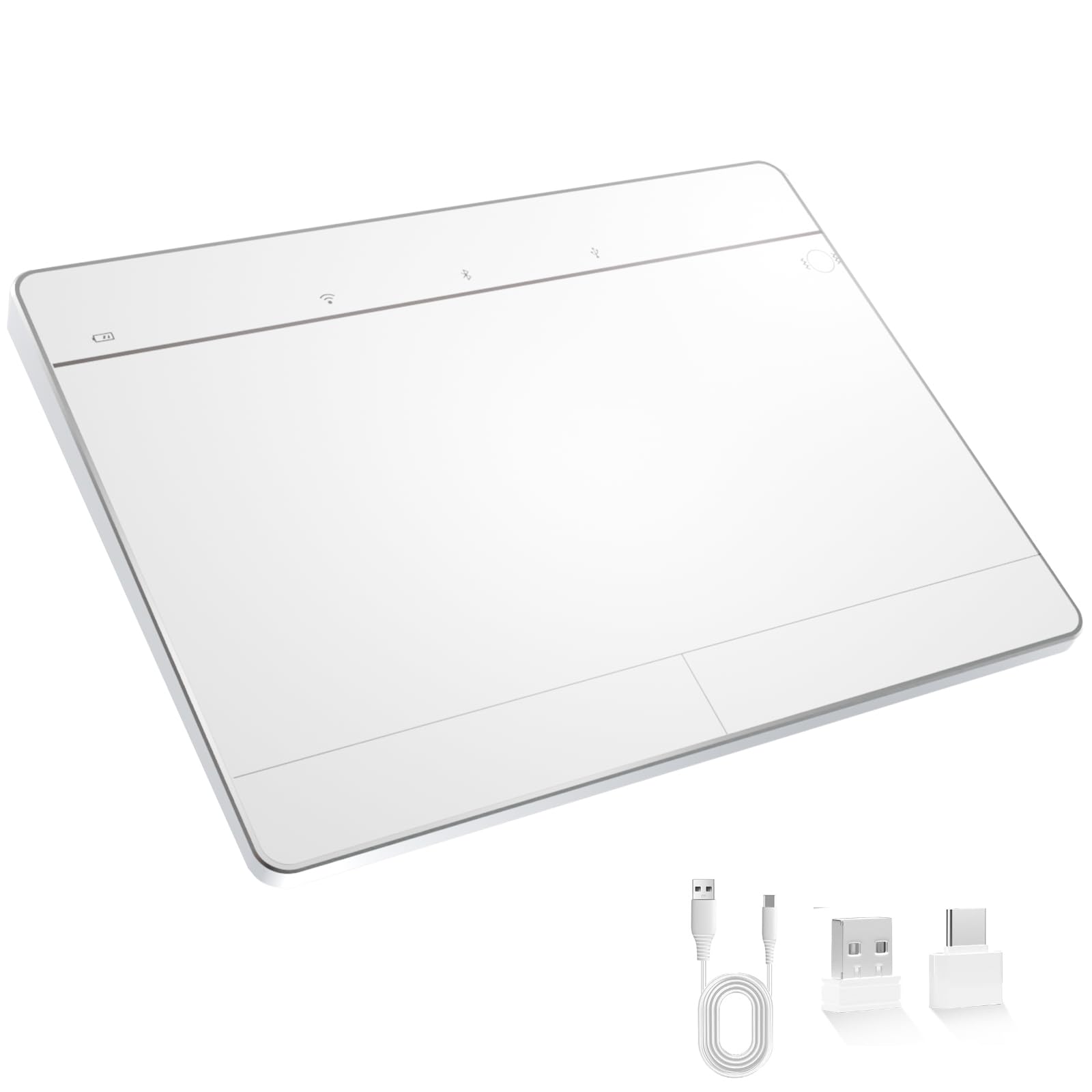
A 500mAh battery rated to run up to 50 hours — this is the pad you charge on the weekend, not daily.
The Tacti Trix wins on battery life. Its 500mAh lithium-ion cell (a rechargeable battery) is rated for up to 50 hours of use per charge, so you can work a full week of desk sessions before plugging in. It recharges over USB-C (the oval, reversible connector) with a cable included. The Apple pad above lists a single lithium polymer battery with no runtime figure, so the Tacti Trix is the one that tells you exactly how long you can go between charges — handy for a desk you do not want tethered.
It gives you three ways to connect: Bluetooth 5.0 (one device at a time), 2.4G wireless, or USB-C wired, plus a USB-to-USB-C adapter in the box. The 6.3 x 4.7 inch glass surface sits in an ultra-thin metal body, and it supports multi-touch gestures up to four fingers. There are pressure-sensitive zones with customizable haptic feedback you can switch on or off — no physical left and right buttons. At 0.31 kg it is the heaviest pad here, roughly double the Perixx’s 0.14 kg, so it does not slide around.
The honest trade-off is button behavior. Button responsiveness is the thing buyers flag as off, with complaints about left and right clicks not registering properly. Responsiveness, quality and connectivity all draw mixed notes as well. If your workflow leans on precise clicks rather than swipes, that is the area to watch.
Strengths that matter day to day
- 500mAh battery rated for up to 50 hours per charge
- Three connection modes: Bluetooth 5.0, 2.4G and USB-C wired
- 6.3 x 4.7 inch glass surface in a thin metal body
- Adjustable haptic feedback you can toggle on and off
Trade-offs to sit with
- No physical left and right buttons, so clicks rely on pressure zones
- Button responsiveness is the area buyers report trouble with
- Windows-only — no Mac, Chrome OS or Linux support
Built for: Windows users who want long runtime between charges and flexible wired-or-wireless setup.
Look elsewhere if: your work depends on dependable physical clicks — the pressure-zone buttons are the weak link.
5. POLARMETA Magic Trackpad X2 for Mac & Windows
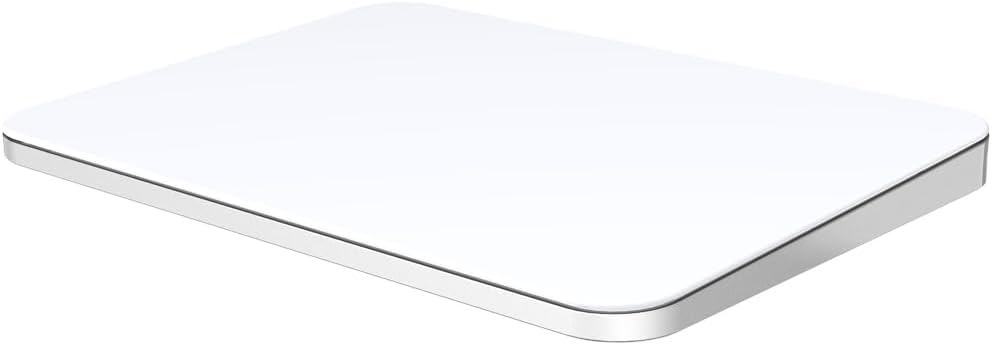
The biggest surface here at 7.5 inches of frosted glass — for wide-screen work on either Mac or Windows.
Working across a big monitor and want long, sweeping cursor travel? The POLARMETA’s 7.5-inch frosted glass surface is the largest on this list, so your finger glides smoothly for precise control. It sits in an aluminum alloy body with an anti-slip rubber base, so it stays put while you swipe. Its key selling point is genuine dual support: multi-touch gestures (pinch, swipe and scroll with several fingers) on both macOS and Windows 10/11, so you can carry one pad between a MacBook and a Windows desktop.
Rather than Bluetooth, it uses a dedicated 2.4G USB receiver for a low-latency link with no drivers required — you plug in and work. A USB-C cable lets you charge while using it, so there is no downtime. The 900mAh rechargeable battery is rated for up to 7 days per charge under typical daily use, recharging in about 2 hours over USB-C. That 900mAh puts it ahead of the Tacti Trix’s 500mAh cell on capacity, though the pads quote their endurance in different units — days versus hours — so read the numbers side by side. It is ambidextrous and slim enough to slip into a laptop sleeve.
The honest catch is the click. Clicking feel is the most consistent complaint, with buyers finding it very clicky and loud, and build quality, responsiveness and compatibility all draw mixed notes. There is also no Bluetooth option — lose the tiny 2.4G receiver and the pad becomes a paperweight, so keep it with the unit.
The draw: the largest glass surface on the list with true Mac-and-Windows gesture support from a single pad.
The honest limit: a loud, clicky mechanism and a dongle-only connection that demands you keep track of the USB receiver.
Reach for this if: you split time between a Mac and a Windows PC and want one big glass pad to serve both.
Think again if: you need a quiet click or want Bluetooth — the click is loud and there is no wireless fallback without the dongle.
6. Logitech Rechargeable Touchpad T650 (910-003057) (Renewed)

Thirteen Windows gestures, a month of runtime per charge — the veteran Windows pad still doing the job.
For a Windows user who wants the widest gesture vocabulary, the T650 lists support for up to 13 Windows gestures for scrolling, swiping between apps and reaching the Start Screen. That gesture range, plus a button quantity of 14, makes it the most configurable pad here — well beyond the single button on the Apple pad. The large glass surface is scratch-resistant, so it keeps gliding smoothly over time.
What buyers appreciate most is that it just works right from the start, and functionality plus build quality are the two things it gets praised for most. The battery life draws its own praise too, and a single charge lasts up to 1 month — the kind of runtime you charge and forget. It connects through Logitech’s Unifying Receiver on a 2.4GHz link that can pair up to 6 compatible devices, and it recharges over USB.
The catch is that this is an older design tuned for Windows 8. It works with Windows 7 and Windows 10, but gesture support can vary on those systems. Sensitivity and ease of use also split opinion — some find it intuitive while others say it takes time to adjust. It is a renewed unit, so expect the occasional cosmetic mark. If you want the newest gesture handling, the POLARMETA above is the fresher option.
Why Windows veterans keep it
- Up to 13 Windows gestures for scrolling and app switching
- Built-in battery lasts up to 1 month per charge
- Unifying Receiver pairs with up to 6 compatible devices
- Scratch-resistant glass surface for smooth gliding
Before you commit
- Tuned for Windows 8; gesture support varies on Windows 7 and 10
- Renewed unit may show cosmetic wear
- Sensitivity and ease of use split opinion
Go for it if: you are on Windows and want the most gesture options with a charge-and-forget battery.
Leave it if: you need guaranteed gesture parity across newer Windows versions — support varies by OS.
Know the Specs
Connectivity: Bluetooth vs 2.4G USB
Bluetooth pairs directly to your computer with no dongle to lose, but it can lag under heavy load or when the pad sleeps. A 2.4G USB receiver gives a tighter, lower-latency link — the POLARMETA and Logitech pads go this route — but you have to keep track of the little receiver. Some pads, like the Tacti Trix and Perixx, offer both.
Battery capacity in mAh and runtime
Milliamp-hours (mAh) is the size of the fuel tank, while hours-per-charge is how far you drive on it. The Tacti Trix quotes a 500mAh cell and up to 50 hours; the POLARMETA quotes a 900mAh cell and up to 7 days; the Logitech quotes up to 1 month. Because these are stated in different units, read them as approximate endurance rather than a strict ranking.
Surface size and material
The touch surface is where your finger lives, so its size and material shape the feel of every swipe. Glass glides and resists scratches; a larger surface means more cursor travel per swipe. The POLARMETA’s 7.5-inch glass and the Perixx’s 5.31-inch surface are the two ends of the range here — bigger for wide monitors, smaller for tight desks.
Gestures and button count
Gesture support is how many multi-finger moves the pad recognizes, and button count tells you how many physical or logical click points it offers. The Logitech lists a button quantity of 14 and up to 13 gestures, while the Apple pad lists one button backed by four force sensors. More gestures mean more shortcuts, but only if your operating system supports them.
Common Questions
Will a Windows-only touchpad work on a Mac?
Do I need Bluetooth or a USB receiver for a wireless touchpad?
How long does a rechargeable touchpad battery last on one charge?
Is a glass touchpad better than a plastic one?
Can I right-click on a touchpad without physical buttons?
What is Force Touch and which pad has it?
Should I buy a renewed touchpad or a new one?
How many gestures can a touchpad support?
Can a touchpad replace my mouse for everyday work?
Will my touchpad charge over USB-C?
The Bottom Line
For most desk setups, the wireless rechargeable touchpad winner is the Apple Magic Trackpad 2 (Renewed). Its four force sensors (pressure points under the glass) let you click anywhere on the surface, and the surface runs nearly 30 percent larger than the previous model — that is the feel Mac owners keep coming back for. If you are on Windows and want the most gesture options with a charge-and-forget battery, grab the Logitech T650 with its 13 Windows gestures and up to a month per charge. And for a multi-machine desk that spans a Mac and a Windows PC, the POLARMETA Magic Trackpad X2 is the one to reach for, with its 7.5-inch glass surface and dual-system support.
Here is the honest nudge: match the pad to your computer first, then to your surface-size preference. Once those two match, buttons, battery figures and gesture count are just tiebreakers.
How we choose
We do not accept paid placement. Every pick is matched to a real buyer and a real use-case; we do not hands-on test units.
Sources
Specifications: manufacturer listings and product documentation. Review insights: verified customer reviews, as of November 2026. Pricing: not shown on this page (it changes often); check the current price via the retailer link.
As an Amazon Associate, Tactical Gear Guy earns from qualifying purchases. This does not affect which products we feature.