Specs are compiled from manufacturer listings and verified buyer reviews and can change over time — please confirm the key details on the product page before buying.
Spending under a hundred dollars on a Windows machine usually means one of two things: a slow little netbook that chokes on three browser tabs, or a used desktop that hides its age behind a generic listing. The good news is that a genuine Windows PC — not a Chromebook, not an Android tablet dressed up as a laptop — really does exist in that range, and a couple of them are surprisingly usable. This guide covers the three that hold up, and the plain-English reasons one will suit you better than another.
This guide is built by comparing the manufacturers’ published specifications and the patterns across verified customer reviews, so you get each pick’s real strengths and trade-offs instead of marketing spin.
You do not need to know what a Celeron chip is to pick well here; you only need to know what you will actually do on the machine. Below, each pick is broken down by what it does well in daily use, what it cannot do, and who it is genuinely built for. The goal is simple: a buyer’s shortlist of the best Windows OS computer under $100, with the hype stripped out and every spec translated into what it means for your desk.
Top Picks
How To Choose The Best Windows OS Computer Under $100
At this budget, you are not shopping for power — you are shopping for enough RAM and storage to stay usable. Every machine here will run Windows, open a browser, handle Word documents and stream video. What separates them is how much storage and memory you get, and whether the design suits a desk or a backpack. Get those three things right and the rest follows.
Processor: what a Celeron actually means for you
The Intel Celeron N4020 is a dual-core processor built for light work. Two cores means it can juggle a couple of tasks at once — a browser tab plus a document, say — but it will not enjoy ten tabs while a video plays. Every pick here uses a chip in this class, so none of them is a power machine. What you gain is a Windows machine that boots, browses and streams without a fan roaring at you.
RAM and storage: the numbers that decide how it feels
4GB of RAM is the practical floor for Windows 11, and it handles email, web pages and documents comfortably. 8GB lets you keep more windows open before things slow down. Storage matters just as much: 64GB of flash fills up fast once Windows and updates take their share, while a 240GB SSD leaves real room for files. If you plan to keep photos, install programs or use the machine for years, storage headroom is the single most important choice you will make.
Laptop or tiny desktop: match the shape to your desk
A 2-in-1 converts into a tablet and travels in a bag, but you pay for that flexibility with a smaller screen and tighter storage. A compact desktop sits on a desk, needs its own monitor and keyboard, and gives you far more room inside for a bigger drive and faster processor. Buy for where the machine will actually live, not for how it looks in the listing photos.
Renewed vs new: what the label really tells you
All three picks are renewed, which means they have been previously used and restored for resale. That is how a Windows PC lands in this price band at all. Renewed units are inspected and usually arrive with a charger or adapter, but cosmetic wear and battery condition vary from unit to unit. Ask the seller what is covered before you commit, and expect a machine that works rather than one that looks factory-fresh.
Side-by-Side Comparison
| Model | Best For | RAM | Storage | Top CPU Speed | Amazon |
|---|---|---|---|---|---|
| TOSHIBA Dynabook K50 2-in-1★ Best Overall | Travel and touchscreen use | 4 GB | 64 GB | 2.8 GHz | Amazon |
| Lenovo 100e Windows 2nd Gen | Kids and schoolwork | 4 GB | 64 GB | 2.8 GHz | Amazon |
| Lenovo ThinkCentre M73 Tiny | Desk work with real headroom | 8 GB | 240 GB | 3.6 GHz | Amazon |
Detailed Reviews
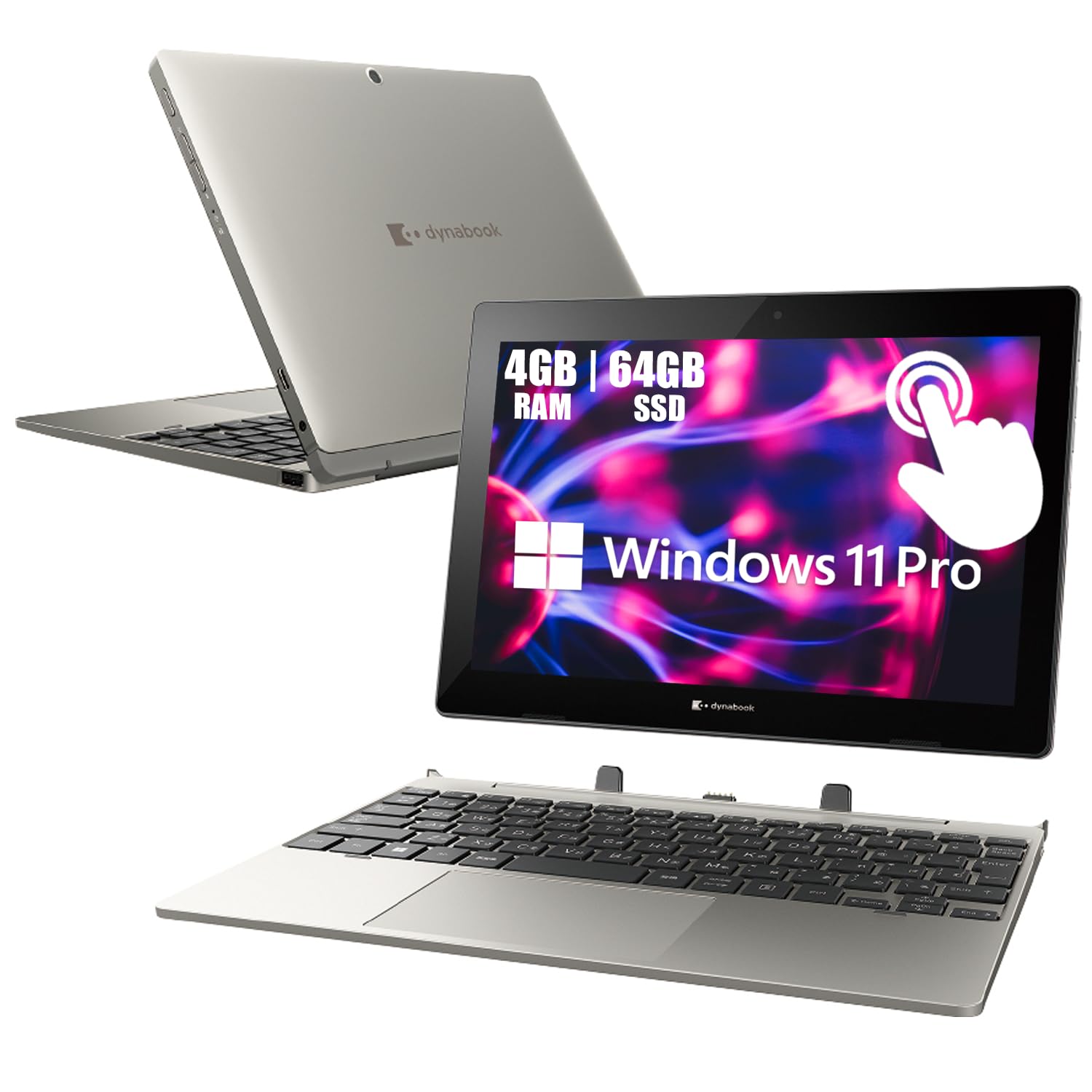
TOSHIBA Dynabook K50 2-in-1 Touchscreen Laptop
The only pick here that folds flat into a tablet and still runs full Windows 11 Pro.
If you want a machine that slips into a bag and pulls double duty as a touchscreen tablet, the Dynabook K50 is the one to look at first. It pairs an Intel Celeron N4020 dual-core processor with 4GB of RAM and 64GB of eMMC storage — enough for web browsing, video streaming, video calls and school or work apps, which is exactly what the maker says it is built for. Windows 11 Pro comes preinstalled, so the extra security and remote-management features are there from the first boot rather than requiring an upgrade.
The ports are the quiet win here. You get USB Type-C, USB Type-A, an audio jack, a microSD card slot, and HDMI on the included dock — so you can plug into a projector or an external monitor for presentations without hunting for an adapter. A front-facing camera handles video conferences. The Japanese keyboard layout is worth noting: if you touch-type by muscle memory, the key positions may feel off, and that is the sort of thing that bothers some people daily.
The storage is the honest catch. 64GB of eMMC flash is shared with Windows itself, so you are not getting 64GB of free space — plan on cloud storage or a microSD card for photos and bigger programs. Compared with the ThinkCentre M73 below, this machine carries a quarter of that desktop’s 240GB SSD, which is the clearest way to see the trade-off: you are buying portability, not room to grow. It is the most versatile machine in the group; it is not the most spacious.
What earns it first place
- Converts into a touchscreen tablet while running a full Windows OS
- Windows 11 Pro preinstalled with remote-management features
- USB-C, USB-A, HDMI on dock, microSD and audio jack all in one small body
What to weigh before buying
- 64GB eMMC storage is tight once Windows takes its share
- Japanese keyboard layout can trip up touch-typists
- Renewed unit, so cosmetic condition varies
Buy this one for: the commute-and-couch crowd who want Windows apps plus a touchscreen they can hand to a child.
Think twice if: you plan to store a photo library or install large programs on the machine itself.
Lenovo 100e Windows 2nd Gen 81M80035US 11.6″ Netbook

A no-frills school laptop that does the homework and asks nothing in return.
The pitch here is simple: an 11.6″ HD screen at 1366 x 768 pixels, a Celeron N4020 dual-core chip, 4GB of RAM and 64GB of flash storage, all in a gray body that looks like it belongs in a classroom. That resolution is modest by laptop standards, but it is fine for documents, web pages and video at this screen size. Bluetooth 4.2 lets you pair a mouse or headphones without a dongle, and the machine connects over USB and Wi-Fi like any other Windows laptop.
What owners are actually getting is a machine that performs. Owners praise its performance first and its value second, describing it as a bargain for what it does. That reputation fits the brief: a second Windows machine for a child, a spare laptop for the kitchen table, or a cheap way to get a full desktop OS instead of a stripped-down tablet. For basic schoolwork and browsing, it holds up.
Reliability is the honest caveat, and it is the most-discussed topic in the reviews. Some units have needed repairs, which is normal for renewed hardware — you are buying a restored machine, not a new one. Buy from a seller with a clear return policy and check the unit thoroughly in the first week. That caution applies equally to the Dynabook above, but the Lenovo’s mixed reliability record makes it the one where a careful first-week check matters most.
The value read: a 1366 x 768 screen paired with the same Celeron N4020 and 4GB of RAM as the Dynabook, at a slightly lower ask — this is the pick if the touchscreen and tablet mode mean nothing to you and you just want a working school laptop.
The catch that matters: 64GB of flash memory is the same squeeze as the Dynabook, and the mixed reliability record means a careful return-policy check is part of the purchase, not an optional extra.
Right call for: a parent buying a first Windows laptop for schoolwork, or anyone who wants a second screen for the kitchen table.
Look elsewhere for: anything beyond browser tabs and word processing, or a machine you need to last untouched for years.
Lenovo ThinkCentre M73 Tiny Desktop PC

The small black box that outruns both laptops on every number that matters.
Look at the raw figures and this is not close. The ThinkCentre M73 packs an Intel Core i5-4570T running up to 3.6 GHz alongside 8GB of RAM and a 240GB SSD, against the Dynabook’s 2.8 GHz chip, 4GB of RAM and 64GB of storage — four times the drive and double the memory. That headroom is the difference between a machine that stutters when you open a heavy spreadsheet and one that simply gets on with it. The i5 is a step above the Celeron chips in the two laptops, and the SSD keeps Windows and programs loading quickly.
It is genuinely tiny, which is the point of the Tiny line. It sits behind a monitor or on a corner of the desk and disappears. There are speakers built in, the case is air-cooled, and it will drive an external display at up to 1920×1080 resolution. This is a Windows 10 Pro machine, so check that your software and workflow are happy with Windows 10 rather than 11 before you commit. You supply the monitor, keyboard and mouse — the listing calls out compatibility with keyboard, mouse, monitor, printer, speaker, headphone and projector, which tells you it is meant as a hub for a full desk setup.
Two honest points before you buy. Windows 10 Pro is the installed system here, not Windows 11, so this is the pick where you need to read the fine print on software support. And port selection draws mixed feedback, with the missing HDMI port a common complaint — check whether DisplayPort or VGA works for your monitor before the box arrives. Neither issue affects the performance story, and the compact size plus the value are what keep this machine at the front of the queue for a desk.
Why it leads on hardware
- 8GB of RAM — double both laptops — for heavier multitasking
- 240GB SSD leaves real room for files, programs and updates
- Core i5-4570T up to 3.6 GHz is the fastest chip in this group
- Tiny footprint hides behind or beside a monitor
The fine print
- Windows 10 Pro installed, not Windows 11
- No HDMI port, so check DisplayPort or VGA for your monitor
- Needs a monitor, keyboard and mouse you supply yourself
Best fit for: a fixed desk setup — a home office, a study corner, or a kid’s homework station where the power matters more than the portability.
Not for: anyone who needs to carry the computer with them or who relies on an HDMI cable to connect a screen.
Know the Specs
RAM: the short-term memory
RAM is where Windows keeps everything it is working on right now — open tabs, documents, a video player. 4GB is the floor for comfortable Windows 11 use and handles browsing and writing fine. 8GB lets you keep more windows open before the machine starts paging to the drive, which is why the ThinkCentre’s 8GB feels noticeably less cramped than the two laptops’ 4GB.
Storage: where your files actually live
Storage is your permanent space — the operating system, programs, photos and downloads. Flash or eMMC storage is slower and smaller, and a 64GB drive loses a chunk of its capacity to Windows itself. A 240GB SSD is faster to read and write and leaves real room for files. At this budget, storage headroom is the number that decides how long the machine stays useful.
Processor speed: the headline number, read carefully
A processor’s speed is quoted in GHz, which measures how many cycles per second it completes. Higher is generally better, but the chip family matters more than the clock alone — the Core i5-4570T’s 3.6 GHz tops the Celeron N4020’s 2.8 GHz, and the i5 is the stronger design overall. Do not buy purely on the GHz figure; look at the chip family and core count together.
Screen resolution: pixels and what you see
Resolution is the number of pixels on screen, written as width x height. 1366 x 768 on an 11.6″ laptop is fine for text and video, though not sharp by modern standards. A desktop like the M73 drives an external monitor up to 1920×1080, which is the sharper, more spacious option if you spend long hours reading or working in spreadsheets.
Common Questions
Is a Celeron N4020 fast enough for browsing and schoolwork?
Should I pick a 2-in-1 laptop or a tiny desktop at this budget?
Is 64GB of storage enough for Windows 11?
What does a renewed Windows PC actually mean?
Can the ThinkCentre M73 Tiny run Windows 11?
Do I need a monitor and keyboard with the tiny desktop?
Which pick has the best performance for the money?
Can I use these machines for video calls and streaming?
Why does the top pick have the lowest owner rating of the three?
The Bottom Line
For most buyers, the windows os computer under $100 that makes the most sense is the TOSHIBA Dynabook K50, because it is the only one that gives you a full Windows 11 Pro install, a touchscreen, a 2-in-1 hinge and a generous port selection in a body you can carry. If your machine will live on a desk and you want the most headroom for the money, the Lenovo ThinkCentre M73 Tiny delivers the i5 chip, 8GB of RAM and 240GB SSD that the laptops simply cannot match. And if you just need a sturdy Windows laptop for schoolwork, the Lenovo 100e is the value play — just confirm the seller’s return policy before it ships.
How we choose
We do not accept paid placement. Every pick is matched to a real buyer and a real use-case; we do not hands-on test units.
Sources
Specifications: manufacturer listings and product documentation. Review insights: verified customer reviews, as of November 2026. Pricing: not shown on this page (it changes often); check the current price via the retailer link.
As an Amazon Associate, Tactical Gear Guy earns from qualifying purchases. This does not affect which products we feature.