Specs are compiled from manufacturer listings and verified buyer reviews and can change over time — please confirm the key details on the product page before buying.
Your Windows PC is probably nearly full, and a plug-in drive fixes that in about a minute. The short answer: the WD 2TB Elements Portable External Hard Drive is the one to buy for most people. It mounts in File Explorer on Windows with no software to install, and its 4.5+ star record across 139,000+ ratings backs that up. Everything below explains which drive fits which job.
This guide is built by comparing the manufacturers’ published specifications and the patterns across verified customer reviews, so you get each pick’s real strengths and trade-offs instead of marketing spin.
Some drives arrive already formatted for Windows, so they show up the moment you plug in. Others ship blank and need reformatting first. That one detail decides whether setup takes a minute or an evening. Read on for the best windows external hard drive picks that skip the headache entirely.
Top Picks


How To Choose The Best Windows External Hard Drive
Two wrong turns account for most bad drive purchases. One is buying a drive that needs reformatting before Windows will even see it. The other is buying a drive with a fast-sounding number on the box that delivers a slow real-world copy. Both are easy to avoid once you know which specs to read.
Start with format, not capacity
A drive pre-formatted for Windows works the moment you plug it in — no setup screens at all. A drive that ships blank needs you to open Disk Management, pick a file system and format the disk before you can save a single file. For a Windows PC, you want the drive to arrive in NTFS (the file system Windows reads natively), so it appears in File Explorer with no extra steps. A drive formatted for Mac must be reformatted before Windows can write to it. That process also wipes whatever is already on the drive.
Understand what the capacity number really means
Drive makers count capacity in decimal terms — one terabyte written as 1,000,000,000,000 bytes. Windows counts in binary, where one terabyte is 1,073,741,824 bytes. That is why a 1TB drive shows up in Windows as roughly 931GB. Nothing is missing; the two counting systems simply disagree. Plan your storage around the Windows figure, not the box figure, so you are not caught short at 931GB.
Check the connection your PC actually has
Every drive here connects over USB, and the interface version sets your speed ceiling. USB 3.2 Gen 1 (the connector most people still call USB 3.0) tops out at 5Gbps of raw bandwidth. A drive with a slower rated transfer rate will bottleneck a big drag-and-drop of video files. A drive rated at 5Gbps only hits that speed if your port and cable support it. Use the cable that comes in the box.
Portable versus desktop, and the power question
A 2.5-inch portable drive draws its power over the USB cable, so you carry one cable and nothing else. A 3.5-inch desktop drive needs its own power adapter — an extra plug and a drive that stays on a desk. Pick portable for laptops and travel. Pick desktop when the drive lives in one spot and you want the largest single-capacity option. If you are storing ripped movies or a whole game library, the storage ceiling matters more than the form factor.
Side-by-Side Comparison
| Model | Best For | Capacity | Rated Transfer | Form Factor | Amazon |
|---|---|---|---|---|---|
| WD 2TB Elements Portable★ Best Overall | Most Windows PCs | 2 TB | 5 Gbps | 2.5-inch portable | Amazon |
| Maxone 750GB Ultra SlimSlimmest Carry | Pocket-thin everyday carry | 750 GB | 625 MB/s | 2.5-inch portable | Amazon |
| Kosbees 1TB PortableConsole Friendly | Console game libraries | 1 TB | 110 MB/s | 2.5-inch portable | Amazon |
| Toshiba Canvio Basics 1TB | Windows-first simplicity | 1 TB | 5 Gbps | 2.5-inch portable | Amazon |
| Seagate Portable Drive 2TB | Drag-and-drop backups | 2 TB | 1 Gbps | Portable | Amazon |
| WD 2TB My Passport | Password-protected files | 2 TB | 5 Gbps | 2.5-inch portable | Amazon |
| WD 5TB Elements Portable | Large media libraries | 5 TB | 1 MB/s | 2.5-inch portable | Amazon |
| Seagate Desktop Drive 8TB | Desk-bound bulk storage | 8 TB | 160 MB/s | 3.5-inch desktop | Amazon |
Detailed Reviews
1. WD 2TB Elements Portable External Hard Drive
Our pick — 4.5+★ from 139,500+ verified ratings; the strongest balance of quality and price.
The drive that just works the second you plug it into a Windows PC.
It takes first place because 4.5+ stars across 139,000+ ratings is the strongest owner track record on this list, and it needs no formatting or setup before your first file copy. It arrives with 2 TB of room — enough for a serious photo library plus years of documents — and Windows recognizes it without any setup step. Buyers report the recurring theme that it behaves exactly like an external drive should.
The spec behind that: a 5 Gbps rated connection over USB 3.2 Gen 1 (the standard blue-tongue USB port your PC almost certainly has). That 5 Gbps ceiling keeps a multi-gigabyte folder copy moving at a steady pace. And 2 TB is double the 1 TB that the Kosbees drive offers, which matters if you are consolidating rather than topping up.
The catch is thin but real. It is a mechanical drive in a plastic shell — a small spinning disk that does not like being dropped, so treat it that way. There is also no password protection and no bundled backup software; it is plain storage. If you need files locked behind a password, the My Passport below is the version that adds it, at the same 2 TB capacity.
What earns it first place
- Works with Windows the moment it leaves the box — no formatting, no install disc.
- 2 TB of space is a genuine archive, not a stopgap.
- 5 Gbps connection keeps large drag-and-drop copies moving steadily.
- Compact enough to live in a laptop bag without a second thought.
Where it stops short
- No password protection or bundled backup software — storage only.
- Plastic enclosure and moving platters mean it wants careful handling.
Buy this if: you want to plug a drive into a Windows PC and start moving files immediately.
Look elsewhere if: you want your files encrypted behind a password from the start.
2. Maxone 750GB Ultra Slim Portable External Hard Drive
An all-aluminum drive barely wider than a stack of cards.
At 0.4 inch thick, this is the drive you buy when your laptop bag is already full. The all-aluminum enclosure has a scratch-resistant finish that holds up next to keys and cables. Owners mention setup takes about “30 seconds” before you are copying files.
Speed is where it pulls ahead. The rated data transfer rate is 625 megabytes per second, against 110 megabytes per second on the Kosbees drive — a 5.7x gap on paper. In everyday terms, a large photo folder copies in a fraction of the time the 110 MB/s Kosbees would take.
Now the honest part. Windows compatibility is listed for 7, 8 and 10, and customers note a split: plenty of people find it fast and painless, while a smaller group hits connectivity trouble on a PC and slow transfers. If you are on a very recent Windows build, read the listing against your own machine. And at 750 GB it is the smallest capacity here — fine for a working drive, tight for a full media archive.
Where the value lands: aluminum build, a 5.7x faster rated transfer than the Kosbees drive, a 3-year manufacturer warranty and a 19-inch cable in the box. For a 750 GB drive, that is a strong bundle.
The fair caveat: it is the smallest capacity on this list at 750 GB, so treat it as a working drive you carry, not the place your whole library lives.
Made for: commuters and students who need files on hand and refuse to carry a brick.
Skip if: you are archiving years of video and need the biggest single pool of space.
3. Kosbees 1TB Portable External Hard Drive for Windows
One drive for the PC, the PS4 and the old Xbox in the same cabinet.
You reach for this one when a PC and a last-gen console are fighting over the same storage. The 1 TB capacity works across Windows, Linux, Mac, PS4 5, Xbox One and Xbox 360, so you can move a game library off a console’s internal drive and keep it on hand. It is the only drive here that spells out that console list.
Inside, the drive spins at 5400 rpm (revolutions per minute — how fast the disk platter turns) and connects over USB 3.0. Its rated read speed is 110MB/s to 133MB/s and its write speed is 103MB/s, which is useful for moving a folder of files but not for editing 4K video off the drive. At 0.6 lbs it is light enough to live in a backpack pocket. It arrives plug-and-play on Windows — no install disc, no software.
The limitation is one the maker states plainly: you can play last-gen games (PS4 and Xbox One) directly from the drive, but current-gen PS5 and Xbox Series X|S titles must be copied to the console’s internal SSD first. The drive holds your library; it will not run the newest games for you. There is also the usual Windows math — a 1 TB drive shows as 931GB in File Explorer, which the listing explains at length.
The draw: 1 TB of cross-platform storage with a 2-year after-sales warranty and a genuinely low weight of 0.6 lbs.
Know before you buy: current-gen console games have to be copied to internal storage before they will play, and Mac users must format it to ExFat (a file system both Windows and Mac can read) first.
Reach for this if: you want one drive to serve a Windows PC and a last-gen console library.
Think twice if: your main goal is running PS5 or Series X|S games straight off the drive.
4. Toshiba Canvio Basics 1TB Portable External Hard Drive

Ships already talking to Windows, so there is nothing to configure.
What earns this drive its spot is the format it ships in: pre-formatted NTFS (the file system Windows reads natively). Plug it into a PC and it appears in File Explorer ready to accept files. No Disk Management, no format dialog, no risk of wiping the wrong disk. Mac owners will need to reformat it, which the listing says outright.
The connection is 5 Gbps over USB 3.0, the same ceiling as the WD Elements drive above, and it is backward compatible with older USB 2.0 ports. That 5 Gbps figure towers over the 1 Gbps rating on the Seagate Portable Drive — a 5.0x gap on paper that shows up as a noticeably quicker large copy. The polycarbonate shell has a matte, smudge-resistant finish that keeps it looking clean after a year in a bag.
Reliability is the mixed note. The drive performs well for most owners and frees up a cramped PC in one afternoon, but reviewers point out a spread between drives that run for years and a few that arrive unusable. Treat any single failure as a one-off rather than a pattern, and keep a second copy of anything you cannot lose. A 1-year limited warranty covers the drive itself.
Why Windows buyers like it
- Pre-formatted NTFS — it is readable on a PC with zero setup steps.
- 5 Gbps connection matches the WD Elements’ ceiling.
- Matte polycarbonate shell resists smudges and fingerprints.
- USB 2.0 backward compatibility for older machines.
The honest trade-offs
- 1-year limited warranty, shorter than the 3-year cover on the Maxone.
- Mac users must reformat before the drive is writable.
Best fit for: a Windows-only user who wants zero format steps and a clean-looking drive.
Not for: anyone who needs the drive to work on a Mac the day it arrives.
5. Seagate 2TB Portable Hard Drive USB 3.0
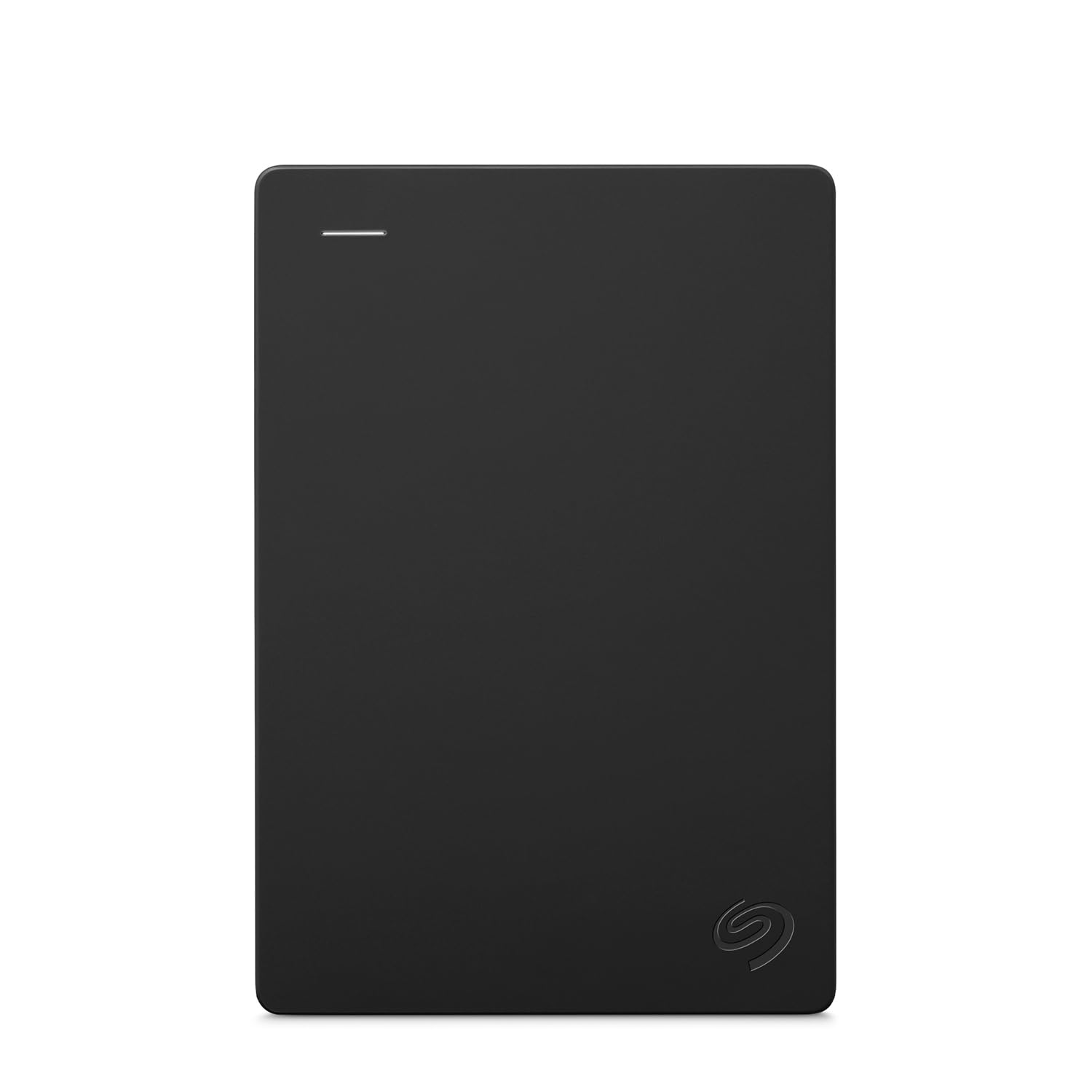
A 2 TB workhorse that asks for nothing but a free USB port.
Its 2 TB of room matches the WD Elements, so it holds a large photo and video collection without complaint — and that equal capacity is the main reason it stays on this list. Setup is automatic recognition with no software required. The included 18-inch USB 3.0 cable is the entire installation kit. It works with Windows or Mac.
Where it falls behind its neighbors is the rated transfer rate: 1 Gbps, against the 5 Gbps on the Toshiba Canvio Basics — a 5.0x gap. That does not ruin the drive, but a single 100 GB copy will take noticeably longer than on the 5 Gbps Toshiba. On console duty the reviews are warmer, with owners running it happily on PS4 and Xbox Series S.
Two things worth knowing before you pick it. Shoppers say a clear split on speed, with plenty of owners calling it fast and a smaller set finding it slow, and there are reports of trouble on Mac. On Windows this drive does the job. As ever, available storage capacity may vary from the printed figure.
What you are paying for: 2 TB and a genuinely hands-off setup, with an 18-inch cable in the box so you are not hunting for one.
What gives: the lowest rated transfer rate of the 2 TB portables here, so giant single file moves take longer.
Pick it when: you want a big drive for simple drag-and-drop backups on a Windows PC.
Pass it over when: you routinely move very large files and want the faster rated connection.
6. WD 2TB My Passport Portable External Hard Drive
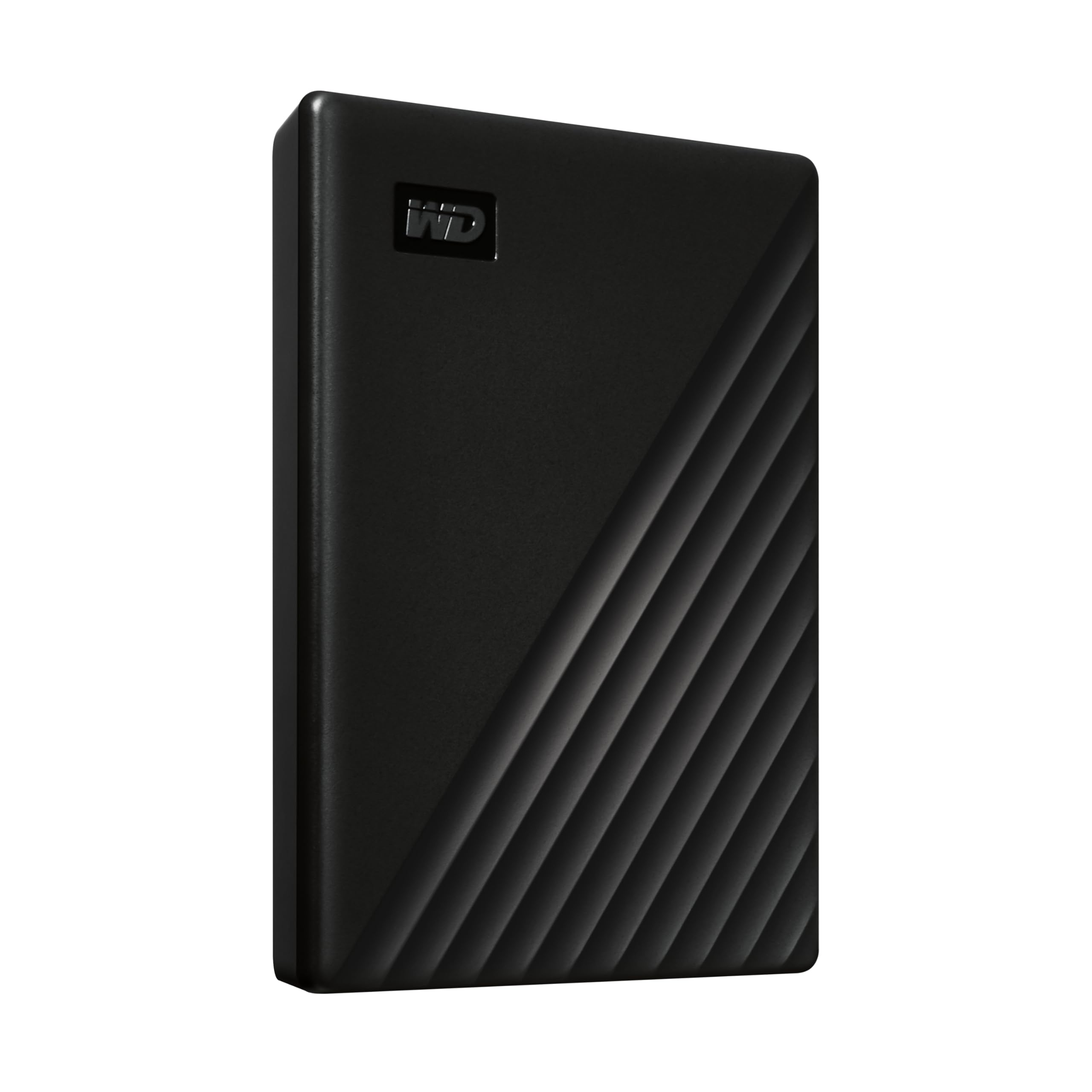
The same 2 TB as the Elements, with a lock on the door.
This is the pick that stops your tax returns sitting readable on a drive in a bag. It carries password protection and hardware encryption, meaning the lock lives in the drive’s own controller rather than in a software wrapper you can bypass by moving the disk. Bundled device management software adds backup with defense against ransomware, and the whole package is covered by a 3-year limited warranty.
The storage figure is identical to the WD Elements: 2 TB, versus the 1 TB on the Kosbees drive, a 2.0x gap in room. It connects over SuperSpeed USB-A at 5Gbps, the same rated bandwidth as the Toshiba, so speed is not where it wins or loses. What reviewers praise most is the compact size and the pace of big copies — reviewers cite copying 360 GB in roughly five minutes.
The trade-off is friction. You will deal with the software that open up the drive every time you plug it in. That is the right trade for sensitive documents and the wrong one for a drive you use as a scratch disk.
What wins people over: real hardware encryption and ransomware defense plus a 3-year warranty, in a shell slim enough to forget in a bag.
The friction to accept: open up the drive is a step every time, so it suits protected files more than constant quick swaps.
Choose this if: the drive will carry documents, records or anything you would not want read by a stranger.
Don’t bother if: you just want a dumb bucket for downloaded movies and game saves.
7. WD 5TB Elements Portable External Hard Drive

Two and a half times the room of the Elements, same no-setup promise.
Five terabytes is the reason this drive exists — 2.5x the room of the 2 TB Elements above. That is enough for a video library the maker describes as hundreds of hours’ worth, and it still plugs into a Windows PC with nothing to install. It keeps the same SuperSpeed USB 3.2 Gen 1 connection at 5Gbps as its smaller sibling and shares the same compatible-device list: desktop, laptop, tablet, plus Xbox 360 and PlayStation 4.
Buyers report speed as a strength, saying the drive moves data without drama across long sessions. Storage capacity is the second recurring theme, which is exactly what you would expect from a drive whose reason to exist is bulk room.
The honest note is reliability, and it is a mixed picture rather than a clean one. A drive with 5 TB of capacity is also a drive with 5 TB to lose, so the sensible habit with any high-capacity disk is a second copy of the things that matter. If you want the biggest portable pool without jumping to a desktop drive that needs a wall plug, this is the one. Otherwise the 2 TB Elements gives you the same experience with less on the line.
Reasons this earns a spot
- 5 TB in a portable 2.5-inch shell — no power adapter required.
- Same zero-setup Windows experience as the smaller Elements.
- 5 Gbps connection keeps big media libraries moving.
- Works with Xbox 360 and PS4 as well as PC and Mac.
What to weigh
- With this much capacity on one disk, a second backup copy is a sensible habit.
- Overkill if 2 TB already covers your files.
Fits best: video editors, photographers and hoarders of large files who have outgrown 2 TB.
Think smaller if: your whole library fits comfortably on a 2 TB drive.
8. Seagate Desktop Drive 8TB External Hard Drive

The biggest single pool of storage here, and it stays on your desk.
Eight terabytes in one 3.5-inch chassis is why this drive earns a slot: it is the largest capacity on this list by a wide margin. The maker pitches it at photos, movies and music for a home, office or dorm. It works with Windows or Mac, backs up with a quick drag and drop, and is recognized automatically with no software. The box includes an 18-inch USB 3.0 cable and an 18-watt power adapter. That adapter is the tell that this is not a drive you toss in a backpack.
Its rated data transfer rate is 160MB/s, and performance is the thing owners praise most. That figure sits above the 110MB/s of the Kosbees portable and the nominal rating on the Seagate Portable Drive, so a big bulk copy of a whole media archive gets the quickest of the mechanical drives here.
Reliability is the mixed note, and it matters more at 8 TB: owners mention a split between drives that run as advertised for years and some that fail after a few months. That is not a reason to skip it — it is a reason to treat this as one copy in a two-copy plan. Plug it in, leave it plugged in, and keep the irreplaceable things somewhere else as well.
The standout number: 8 TB in one enclosure, the largest capacity on this list, backed by a rated 160MB/s transfer over USB 3.0.
The trade you accept: a 3.5-inch body and an 18W adapter mean it lives where you plug it in, not in a laptop bag.
Right for: a desk setup where the drive can sit permanently and swallow an entire media archive.
Wrong for: anyone who needs to carry their storage between machines.
Know the Specs
Transfer Rate and What It Changes
A drive’s rated data transfer rate is the manufacturer’s figure for how fast it can move data, measured in bits or bytes per second depending on how the spec is written. A higher figure means less waiting during a large single copy — a folder of photos or a video project. The rub is that your drive connects through a USB port, so the port’s ceiling caps what you actually see. USB 3.2 Gen 1 (the same physical connector most PC owners call USB 3.0) tops out at 5Gbps. A drive rated above that will not exceed it, and a drive rated below it will hold everything back. Check the figure on the box, then check what port your PC actually has.
Format, File System and the 931GB Question
A brand-new drive has to be formatted (prepared with a file system) before an operating system can store files on it. The file system it uses decides which machines can read it. NTFS is the Windows-native choice, so a drive formatted that way appears in File Explorer ready to use. Macs use a different system, which is why many drives need reformatting for Mac. Reformatting erases whatever is on the drive, so do it before you fill it. Separately, that 931GB figure you may see on a 1 TB drive is a counting difference, not lost storage: makers count in decimal and Windows counts in binary.
Portable 2.5-inch vs Desktop 3.5-inch
The physical size of the disk inside (2.5-inch or 3.5-inch across) decides how you use the drive. A 2.5-inch portable drive draws power over the USB cable, so you carry one cable and no power supply. A 3.5-inch desktop drive spins a larger platter, typically offers the highest capacities, and needs its own power adapter — which is why it stays on a desk. If the drive is going to travel, portable is the right shape. If it is going to sit next to a monitor and hold years of video, desktop wins on capacity.
Encryption and Backup Software
Some drives are bare storage, and some add password protection with hardware encryption. That means the lock is enforced by the drive itself, not a software layer a determined person could bypass by moving the disk. Some also bundle backup software. Both add value if the drive carries sensitive files, and both add a step each time you plug the drive in. Decide which matters more to you before you buy, because you cannot switch the feature off entirely on a drive that has it.
Common Questions
Will an external hard drive work on Windows 11 from the start?
Why does my 1TB drive only show 931GB in Windows?
Do I need a separate power adapter for a portable external hard drive?
Can I play PS5 or Xbox Series X games straight from an external hard drive?
Is USB 3.2 Gen 1 the same as USB 3.0?
How long should an external hard drive last?
Can I use a Windows external hard drive on a Mac?
Does a faster rated drive feel faster in everyday use?
Do external hard drives come with backup software?
Is it worth paying more for hardware encryption on an external drive?
The Bottom Line
For most Windows PCs, the winner among the best windows external hard drive options is the WD 2TB Elements Portable. It pairs 2 TB of