Specs are compiled from manufacturer listings and verified buyer reviews and can change over time — please confirm the key details on the product page before buying.
If your desk currently holds two monitors and a rat’s nest of cables, a single wide screen does the same job in less space — and with no seam down the middle where your cursor gets lost. The list below covers real 21:9 and 32:9 panels built for spreadsheets, code, timelines and video calls, from budget-friendly workhorses up to a 5K2K professional display. Every pick here is a genuine ultrawide, not a stretched 16:9.
This guide is built by comparing the manufacturers’ published specifications and the patterns across verified customer reviews, so you get each pick’s real strengths and trade-offs instead of marketing spin.
Ultrawide shopping gets confusing fast, because the numbers that matter most — aspect ratio, curve radius and USB-C power delivery — rarely appear in the headline. The picks below are split by the job they do best, so you can match one to your desk instead of guessing.
Top Picks
How To Choose The Best Wide Monitors for Work
A wide monitor is a desk-space decision before it is a spec decision. Measure the width you can actually give up, then work backward from there. A 34-inch 21:9 panel is roughly a two-monitor replacement without needing a second arm, while a 49-inch 32:9 screen wants a deep desk and a wall you can sit back from.
Aspect Ratio Decides How Many Windows Fit
A 21:9 screen widens the familiar 16:9 shape, so two documents sit side by side without a bezel between them. A 32:9 panel doubles that again — it behaves like two 27-inch 16:9 screens joined at the bezel, which is why the KTC and Samsung 49-inch picks list it that way. If your day is two apps and a chat window, 21:9 is plenty. If you run three or four columns of data with no overlap, go 32:9.
Resolution, Not Just Inches
Two 34-inch monitors can carry very different pixel counts. A 3440 x 1440 panel gives you crisp text at normal viewing distance without scaling tricks. A 5120 x 1440 dual-QHD panel spreads those same vertical pixels across two full screen widths, so each half looks like a standard QHD display. The 5K2K class pushes higher again — the Dell U4025QW runs 5120 x 2160, which is the sharpest option on this list.
USB-C Power Delivery Changes Your Desk
One USB-C cable that carries video, data and laptop charging is the single biggest quality-of-life upgrade on a work monitor. Watch the wattage figure: the LG 34WR55QK-B supplies up to 65W, the INNOCN 45C1R and Samsung 49-inch both supply 65W and 90W respectively, and the ASUS ProArt pushes 96W over DisplayPort over USB-C. Match that to your laptop’s draw and you can leave the charger in the bag.
Curve Radius And Your Viewing Distance
A curve radius is the size of the imaginary circle the screen forms — a smaller number means a tighter, more wrapped curve. A 1000R panel like the KTC or the Samsung 49-inch curves hardest and suits a close sit. A 1800R curve like the LG 34SR60QC-W is gentler and behaves more like a flat panel at arm’s length. Neither is better; it depends on how far your chair sits from the desk.
Side-by-Side Comparison
| Model | Best For | Resolution | Aspect Ratio | Refresh Rate | Amazon |
|---|---|---|---|---|---|
| KTC H49S66★ Best Overall | Two machines, one screen | 5120 x 1440 | 32:9 | 180Hz | Amazon |
| Acer Nitro EDA340CURBudget Champion | Tight desks on a budget | 3440 x 1440 | 21:9 | 120Hz | Amazon |
| LG 34WR55QK-BClean Workhorse | Clean everyday workhorse | 3440 x 1440 | 21:9 | 100Hz | Amazon |
| Samsung CH890 | Business desks and docking | 3440 x 1440 | 21:9 | 100Hz | Amazon |
| LG 34SR60QC-W | Work and streaming in one | 3440 x 1440 | 21:9 | 100Hz | Amazon |
| INNOCN 45C1R | Big screen, modest footprint | 5120 x 1440 | 32:9 | 120Hz | Amazon |
| ASUS ProArt PA34VCNV | Colour-accurate creative work | 3440 x 1440 | 21:9 | — | Amazon |
| Dell UltraSharp U3425WE | Docking and multitasking | 3440 x 1440 | 21:9 | — | Amazon |
| Samsung 49″ C954 | Panoramic productivity | 5120 x 1440 | 32:9 | 120Hz | Amazon |
| Dell UltraSharp U4025QW | Sharpest image on the list | 5120 x 2160 | 21:9 | — | Amazon |
Detailed Reviews
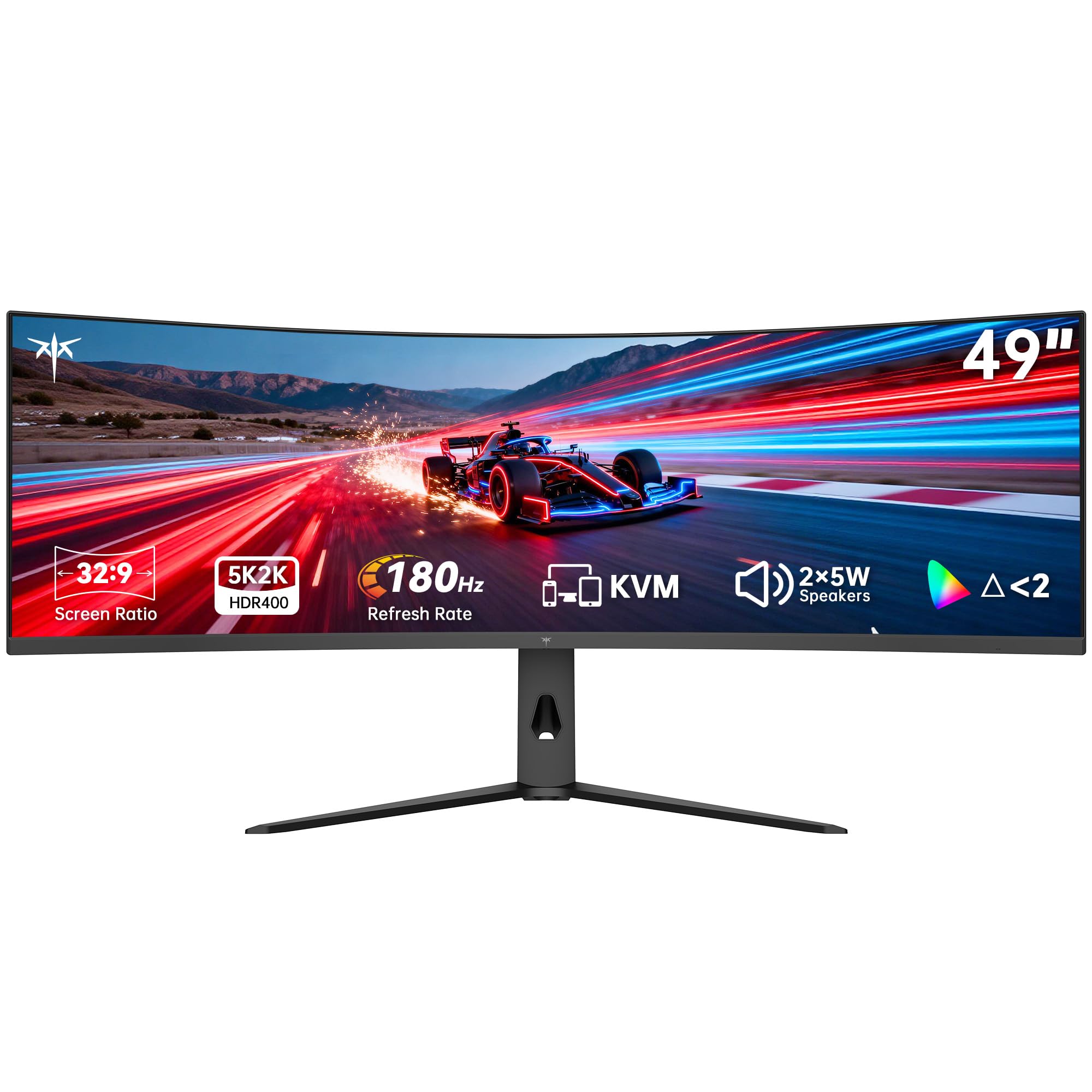
1. KTC H49S66 49 in Curved Gaming Monitor
Our pick — 4.5+★ from 2,500+ verified ratings; the strongest balance of quality and price.
The 49-inch screen that swallows two computers and asks for one keyboard.
Start with the resolution, because it is the reason this panel tops the list. The KTC H49S66 pushes 5120 x 1440 pixels across a 32:9 panel — versus the 3440 x 1440 LG 34WR55QK-B, and it means each half of the screen carries a full QHD workspace. Side-by-side editing, a spreadsheet plus a browser plus Slack, or two codebases open at once all fit without a single Alt-Tab.
The refresh figure is where it pulls away from everything else here. At 180Hz this panel runs well ahead of the 100Hz LG 34WR55QK-B, and the adaptive sync (FreeSync and G-Sync support) keeps the picture steady while you drag windows around. For pure office work that headroom mostly shows up as a smoother cursor and cleaner scrolling. For anyone who also games after hours, it is a lot of panel for the money.
What wins people over, though, is the workflow plumbing. A built-in KVM switch lets one keyboard and mouse drive both a desktop and a laptop, so switching machines is a button press instead of a cable swap. Add 90W USB-C power delivery and your laptop charges off the same cable carrying the picture. The 1000R curve is tight enough that the far edges stay in view, and the stand tilts, swivels and rises to suit your chair.
Where this panel earns its keep
- 5120 x 1440 pixels across 32:9 — two full QHD workspaces, no bezel between them
- Built-in KVM switch for one keyboard and mouse across two machines
- 90W USB-C carries video, data and laptop charging on one cable
- 180Hz with FreeSync and G-Sync support keeps motion clean and scrolling smooth
- Dual 5W speakers mean video calls work without extra desk clutter
What to weigh before you commit
- A 49-inch 32:9 panel demands a wide, deep desk — measure before you order
- The 1000R curve is aggressive; sit further back and the edges feel bent
- 400 nits brightness and HDR 400 are modest for serious colour grading
Reach for this if: you juggle a work laptop and a desktop, or you want three or four full windows open with no overlap.
Measure first if: your desk is shallow — this is a wide panel and the 1000R curve wants some distance.
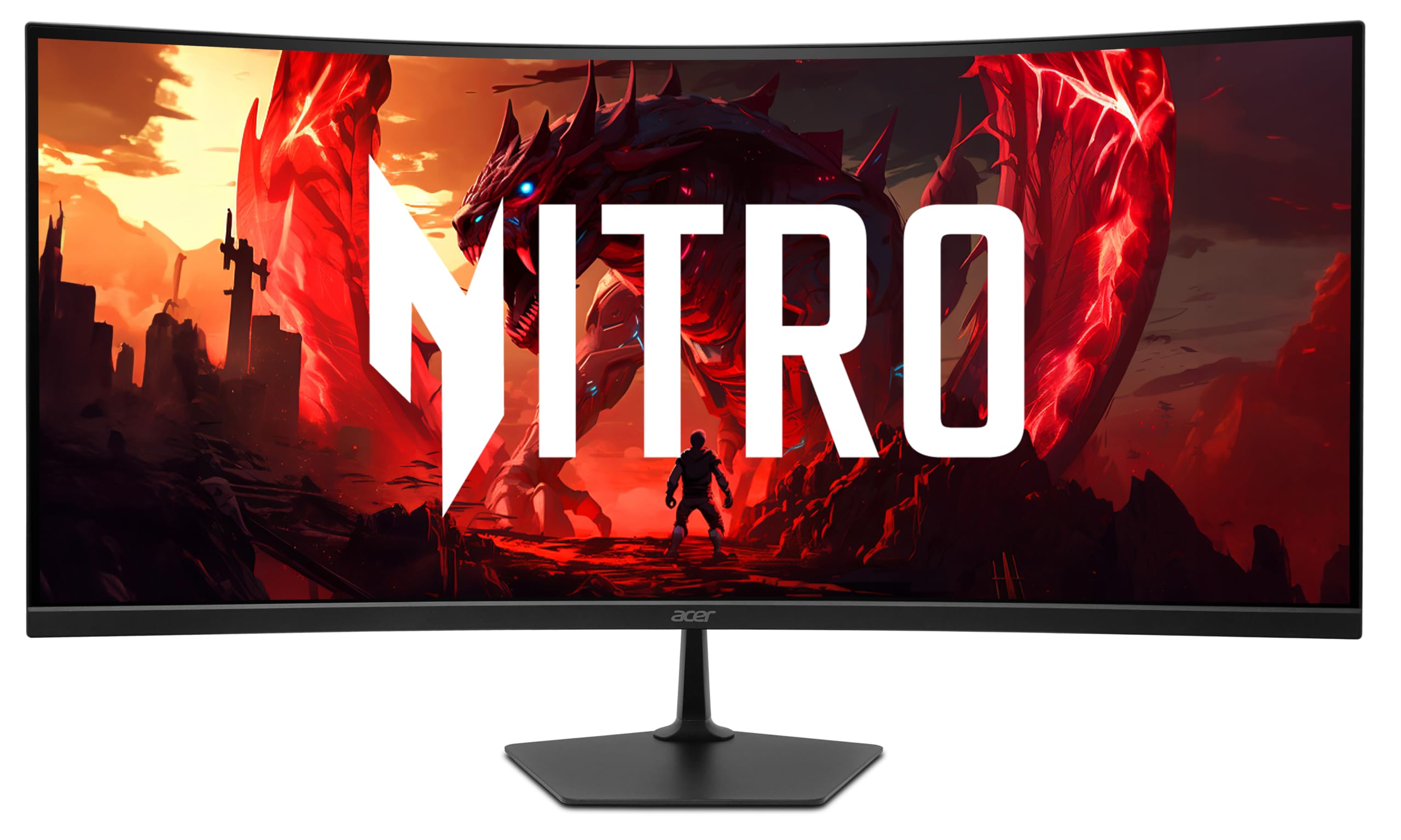
2. Acer Nitro EDA340CUR 34in Curved Monitor
The entry point into ultrawide that hides its price tag well.
Here is the fastest panel on this entire list: a 1ms response time (VRB) on a 21:9 3440 x 1440 display. That compares with the 5ms LG 34WR55QK-B, and it is the kind of speed that makes cursor movement and window dragging feel instant rather than syrupy. The 120Hz refresh backs it up, so fast scrolling and video playback stay clean.
What people notice first is the picture. The display quality is what buyers talk about most, and the reason is simple: a 3440 x 1440 QHD resolution at 99% sRGB coverage gives you sharp text and honest colour on a 34-inch curved panel. The 1500R curve is gentle — gentler than the 1000R KTC — wrapping the edges toward you without warping straight lines. A zero-frame design means the borders are thin enough to forget.
The honest trade-off is the stand. You get tilt from -5° to 20° and nothing else, so if you need height adjustment you are relying on the VESA 100 x 100mm mounting pattern and a separate arm. Ports are a DisplayPort 1.4 and two HDMI 2.1, with an HDMI cable in the box — but no USB-C, so laptop charging over the display cable is off the table here.
Value read: For a first ultrawide or a second workstation at the office, this gets you the 21:9 shape and a 120Hz panel without overspending on features you will not use.
The catch to know: Tilt is the only stand adjustment, and there is no USB-C — plan on a monitor arm and a separate laptop charger.
Best fit: a first ultrawide, a spare desk, or anyone who wants the wide format without paying for docking features.
Look elsewhere if: you want one cable to charge your laptop — this one has no USB-C port.
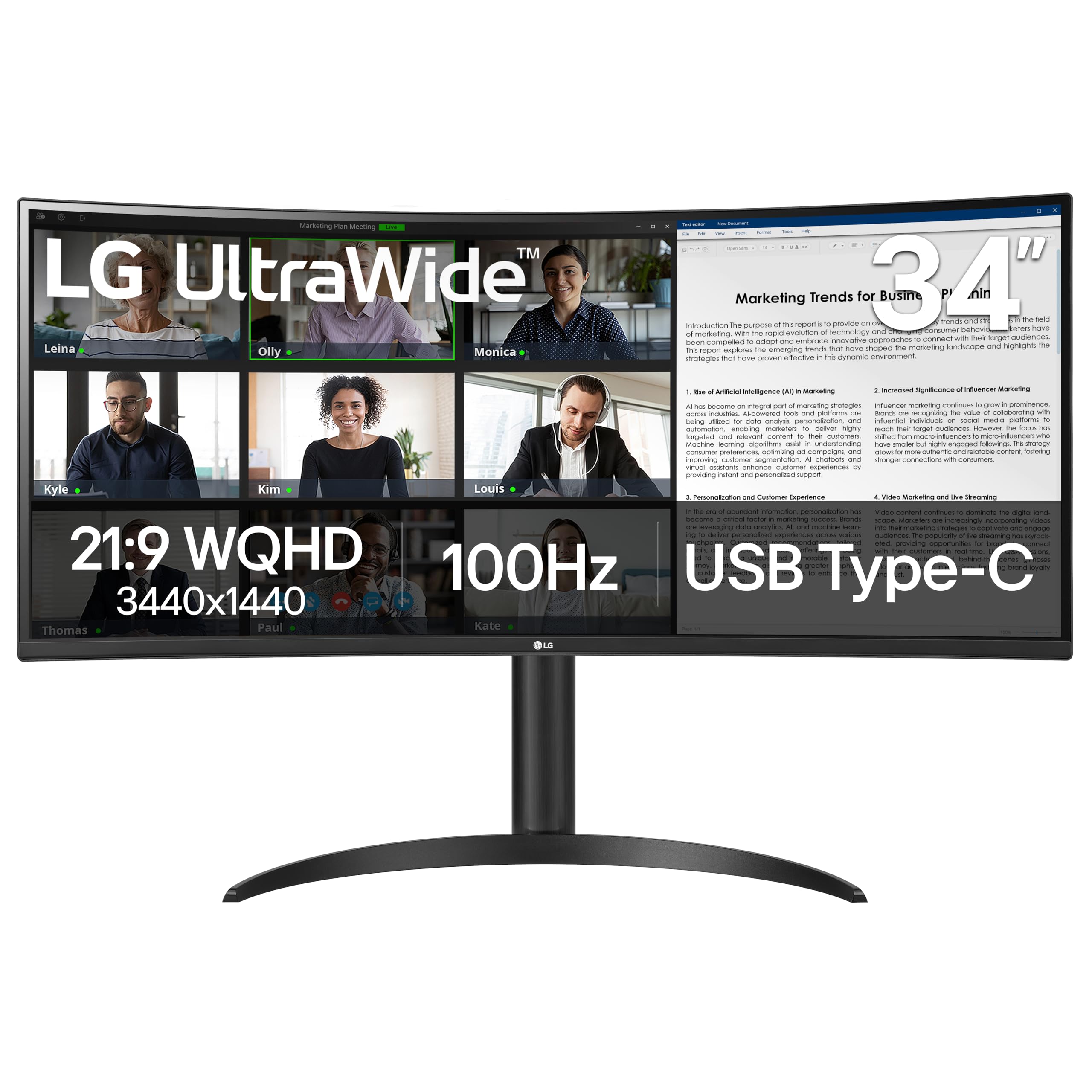
3. LG 34WR55QK-B 34-inch Curved Monitor
One USB-C cable, two windows, and a desk that finally looks tidy.
Screen quality is the thing that carries this LG — it is the attribute buyers praise most, and the reason shows up the moment you open a document. The 3440 x 1440 WQHD panel gives you crisp text on a 21:9 canvas, and the three-sided borderless design means the edges of the display are almost invisible against a wall. Nothing on the desk fights for attention.
The cable story is the practical win. A single USB-C port carries video and delivers up to 65W to your laptop, so the stock charger can stay home. Add OnScreen Control, which splits the display or adjusts settings with a few mouse clicks, and Picture-by-Picture for running two input sources on one screen at once. The stand handles height and tilt, and Reader Mode trims blue light for long document sessions.
Where it gives ground to the KTC above is refresh and resolution. At 100Hz it runs at 180Hz’s junior, and the 3440 x 1440 count is the standard 21:9 figure rather than the 5120 x 1440 dual-QHD kind. The honest note is brightness — 300 cd is fine for a normal office but will not fight a bright window. Picture quality draws mixed reactions in the review pages, so if colour-critical work is your day job, look at the ProArt pick instead.
Why it earns a spot: 65W USB-C charging, real height adjustment and a clean 21:9 panel make this the easy everyday recommendation for a laptop-driven desk.
Fit note: 300 cd brightness and a standard 100Hz refresh keep this in workhorse territory — a bright room or colour grading wants more.
Pick this one for: a laptop-first desk where one cable should handle picture and charging.
Pass if: you need peak brightness or a colour-graded panel — this sits at 300 cd and standard sRGB.
4. LG 34SR60QC-W 34-inch Curved Smart Monitor

A 34-inch ultrawide that keeps working after your laptop shuts down.
This is the only pick here with a full smart-TV brain inside. LG’s webOS runs built-in, with Netflix, Prime Video, the Apple TV app, Disney+, HBO Max and over 300 free LG Channels on tap, so the monitor doubles as the office television. That alone makes it the odd one out, and for a small home office it is a genuinely useful one.
The work side holds up too. A 34-inch 21:9 panel at 3440 x 1440 gives you a wide canvas for two windows, and the 1800R curve is the gentlest on this list — softer than the 1000R KTC, which suits a screen sitting at normal desk distance. Add AirPlay 2 and HomeKit support so you can mirror from an iPhone or Mac without an Apple TV box, and cloud access to Microsoft 365 and Google apps straight from the monitor.
Where it asks you to compromise: ports are two HDMI and three USB, and the spec sheet lists HDMI as the connectivity path — there is no USB-C charging here, so this is not a docking-station replacement. Brightness also lands at 300 cd. And the Magic Remote that makes webOS pleasant to navigate is sold separately, which is an odd omission on a screen built around streaming.
Why it stands out from the pack
- webOS23 built in with Netflix, Prime Video and 300+ free LG Channels
- AirPlay 2 and HomeKit let you cast from iPhone or Mac with no Apple TV needed
- 1800R curve — the most relaxed bend here, comfortable at desk distance
- Runs Microsoft 365 and Google apps from the monitor without a PC attached
Where it holds back
- No USB-C power delivery, so it will not charge your laptop
- Magic Remote is sold separately despite the streaming focus
- 300 cd brightness is fine indoors but not for a sunlit room
Built for: a home office where the same screen handles spreadsheets by day and streaming by night.
Not the one if: your laptop needs charging over USB-C — that port is missing here.
5. Samsung CH890 Series 34 inch Curved Monitor

A docking station disguised as a monitor, with a warranty to match.
Picture quality carries this Samsung — it is what owners single out most, and a 3440 x 1440 WQHD panel across 34 inches of 21:9 explains why. The 3000:1 contrast ratio gives dark text a clean edge against light backgrounds, which is exactly what long spreadsheet and document sessions need. A picture-in-picture and split-screen mode let you park a reference window in the corner while you work in the main space.
The connectivity is the headliner for a business desk. USB Type-C sends power, data and the display signal down one cable, while HDMI and DisplayPort sit alongside for everything else. The 100Hz refresh and AMD FreeSync pair with a 4ms response time, so scrolling and window dragging stay smooth. The stand adjusts for height, tilt and swivel, and VESA mounting is supported if you would rather arm-mount it.
Two honest notes before you buy. The USB connectivity and long-term reliability draw mixed reactions in the review pages, so treat the single-cable docking as convenient rather than bulletproof. And this is a business-line display with a three-year warranty rather than a consumer one — good news for coverage, less good if you want the newest panel tech.
For the desk that docks: USB-C with power, data and video on one cable turns this into the hub of a business workstation, backed by a three-year warranty.
Worth knowing: USB behaviour and reliability get mixed feedback, so keep a backup cable path in mind rather than leaning entirely on the dock.
Suits: a business workstation that wants one-cable docking and a warranty that outlasts the average consumer panel.
Consider the LG instead if: you want the simplest possible laptop-charging setup without docking quirks.
6. INNOCN 45C1R 45″ 5K2K 5120 x 1440p Ultrawide Curved Monitor

Forty-five inches of dual-QHD real estate at a 34-inch kind of price.
The number that defines this INNOCN is the 5120 x 1440 resolution across a 32:9 panel — the same dual-QHD count as the KTC and Samsung 49-inch picks, but in a 45-inch body. That means a slightly denser pixel spread than a 49-inch screen at the same resolution, and two full QHD workspaces side by side with a divider you never have to look at. The 1500R curve is a middle-ground bend, less aggressive than the 1000R panels above.
Ports are where this one punches above its tier. You get DisplayPort 1.4, USB-C with 65W power delivery, two HDMI 2.1, two USB-A, a USB-B, an RJ45 Ethernet jack and a 3.5mm audio output. That is a full docking hub built into the monitor, and it means a laptop connects through one USB-C cable for picture, charging and network. PIP and PBP split-screen handling covers running two sources at once.
The honest caveat is consistency. Monitor quality and value for money are the two things buyers praise most, but the performance, colour quality, adjustability and connectivity categories all draw mixed reactions — including reports of parts of the screen not working. For most desks it is a huge amount of screen for the tier, but buy from a seller with a clear return path.
What makes it tempting
- 5120 x 1440 across 32:9 — two QHD workspaces on one panel
- Full port set including RJ45 Ethernet, USB-C 65W and two HDMI 2.1
- HDR 400 with 99% sRGB and a 3000:1 contrast ratio
- Height, tilt and swivel adjustment on the included stand
The fine print
- Mixed feedback on colour consistency and panel performance
- Adjustability draws mixed reactions, so check the stand suits your desk
- 45 inches of screen needs real depth — measure the desk first
Worth a look if: you want dual-QHD width and a built-in Ethernet dock without stepping into the top tier.
Buy carefully if: colour consistency matters for client work — the feedback here is genuinely mixed.
7. ASUS ProArt PA34VCNV 34 Inch Monitor

Factory-calibrated colour on an IPS panel, aimed squarely at designers.
Start with the panel type, because it is the whole point. This is a 34.1-inch 21:9 IPS display at a gentle 3800R curve, with 100% sRGB and 100% Rec. 709 coverage on top. IPS panels hold their colour and contrast when you view off-centre, which matters far less on a curved screen than a flat one — and the frameless design keeps it looking clean.
The calibration claim is the differentiator. It ships Calman Verified with a factory calibration delivering Delta E below 2, which is the tolerance figure that matters when a colour needs to land the same on screen as in print or on a client’s display. Add DisplayPort over USB-C with 96W power delivery — the highest charging figure on this list, ahead of the 65W LG 34WR55QK-B — plus DisplayPort daisy-chaining, an HDMI input, a USB hub and an RJ45 LAN port.
The trade-off is the review pattern. Connectivity is what buyers value most, and it earns praise, but the display quality and picture quality get genuinely mixed reactions despite the calibration spec. At 300 cd brightness it is also a normal-office panel, not a light-box. And with 40+ ratings total, this is a niche creative tool rather than a crowd favourite.
The colour case: 100% sRGB and 100% Rec. 709 with Delta E under 2 from the start, on an IPS panel, plus 96W USB-C and daisy-chaining.
Where to hesitate: display and picture quality get mixed reactions in the review pages despite the calibration numbers — validate against your own workflow if colour is client-critical.
Best matched to: designers and editors who need documented colour accuracy and a Mac-friendly single-cable dock.
Think twice if: you want a proven crowd favourite — this is a specialist panel with a small review base.
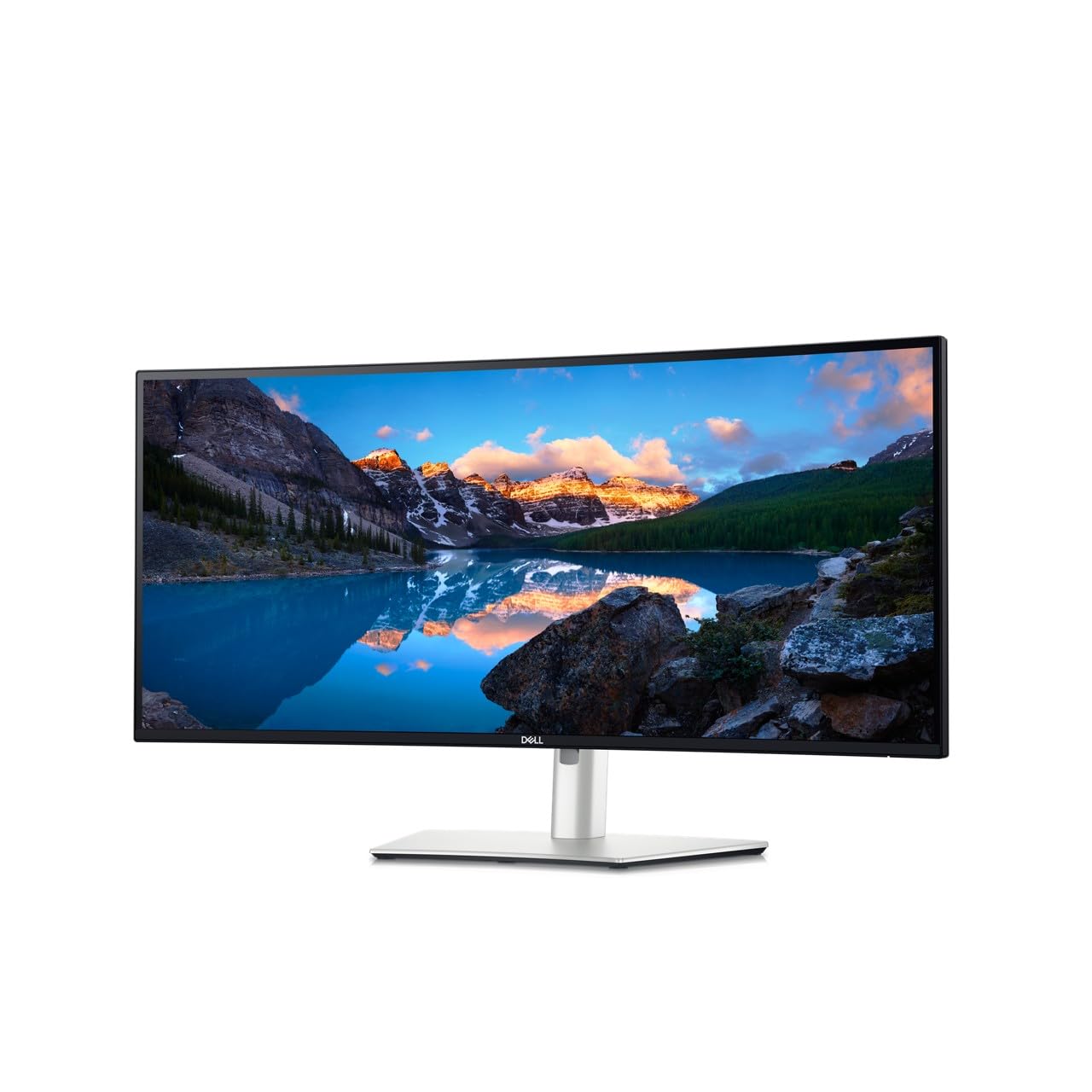
8. Dell UltraSharp 34 Monitor – U3425WE, 5K QHD 1440p
A 34-inch ultrawide built to be the only cable your laptop needs.
The spec that matters here is Thunderbolt 4. It appears in the hardware connectivity list alongside DisplayPort, Ethernet, HDMI, USB Type-A and USB Type-C, which means this Dell can serve as the single hub for a laptop, a wired network and a chain of other displays. Digital daisy-chaining and an internal multi-stream transport path let you run a second screen off this one without a second cable run to the machine.
The panel itself is a 34-inch 21:9 IPS at 3440 x 1440, with a 2000:1 contrast ratio and 100% colour gamut coverage. IPS keeps the picture steady when you glance from the centre to a corner, which is the practical benefit on a wide screen. An ambient light sensor adjusts brightness to the room, and the blue light filter and flicker-free backlight ease long sessions. Picture-by-Picture and the locking stand round out the desk-friendly details.
Picture quality and productivity are what buyers value most here, and the multitasking case holds up — a 21:9 panel at this width fits two large windows side by side without shrinking either. Performance draws mixed reactions, so treat the docking as excellent rather than flawless.
The hub argument: Thunderbolt 4, Ethernet, daisy-chaining and an ambient light sensor make this the most complete connection story under the top tier.
Where it is ordinary: performance feedback is mixed, and the panel brightness sits at 300 cd without an HDR headline.
Fits: a laptop dock setup where Thunderbolt 4 and Ethernet need to live in the monitor.
Skip if: you only need a wide screen and a single USB-C cable — the cheaper LG covers that.
9. Samsung LS49C954UANXZA 49” Curved Monitor

The 1000R wall of screen built to match the width of your eyesight.
Samsung’s argument for this 49-inch panel is field of view. The 1000R curve is the tightest bend on this list — tighter than the 1800R LG 34SR60QC-W — and paired with a 32:9 aspect ratio it is shaped to sit inside your natural sightline rather than past it. In practice that means the far edges stay readable without you turning your head, which is the whole reason to buy a screen this wide.
Behind the curve sits a Dual QHD 5120 x 1440 panel at 120Hz. That is a step up on the 100Hz LG 34WR55QK-B and enough to keep scrolling and window dragging clean all day. VESA DisplayHDR 400 lifts the contrast for video and design work, and the built-in speakers save you a pair of desk speakers. Productivity is the outcome buyers describe — more visible at once, less switching.
The docking story is deliberately complete: DisplayPort, two HDMI inputs, USB and USB Type-C with 90W charging, so the monitor acts as the hub. That 90W figure matches the KTC and clears the 65W LG 34WR55QK-B. The catch is a familiar one with panels this wide — it wants a deep desk and a wall you can sit back from, and at 400 cd it is bright but not a studio reference display.
Why the width works
- 1000R curve at 32:9 keeps the full width within your sightline
- Dual QHD 5120 x 1440 resolution gives two full work areas
- USB-C with 90W charging turns it into the desk hub
- Built-in speakers and VESA DisplayHDR 400 round out the package
Plan around these
- A 49-inch 32:9 screen needs a genuinely wide, deep desk
- The 1000R bend is aggressive — sit close and the edges curve in
- 400 cd brightness is comfortable but not a colour-grading reference
Choose this for: a fixed home-office desk where maximum visible workspace beats portability and compactness.
Rethink it if: your desk is shallow — 32:9 at 1000R wants room behind the keyboard.
10. Dell UltraSharp U4025QW 40″ Curved Monitor
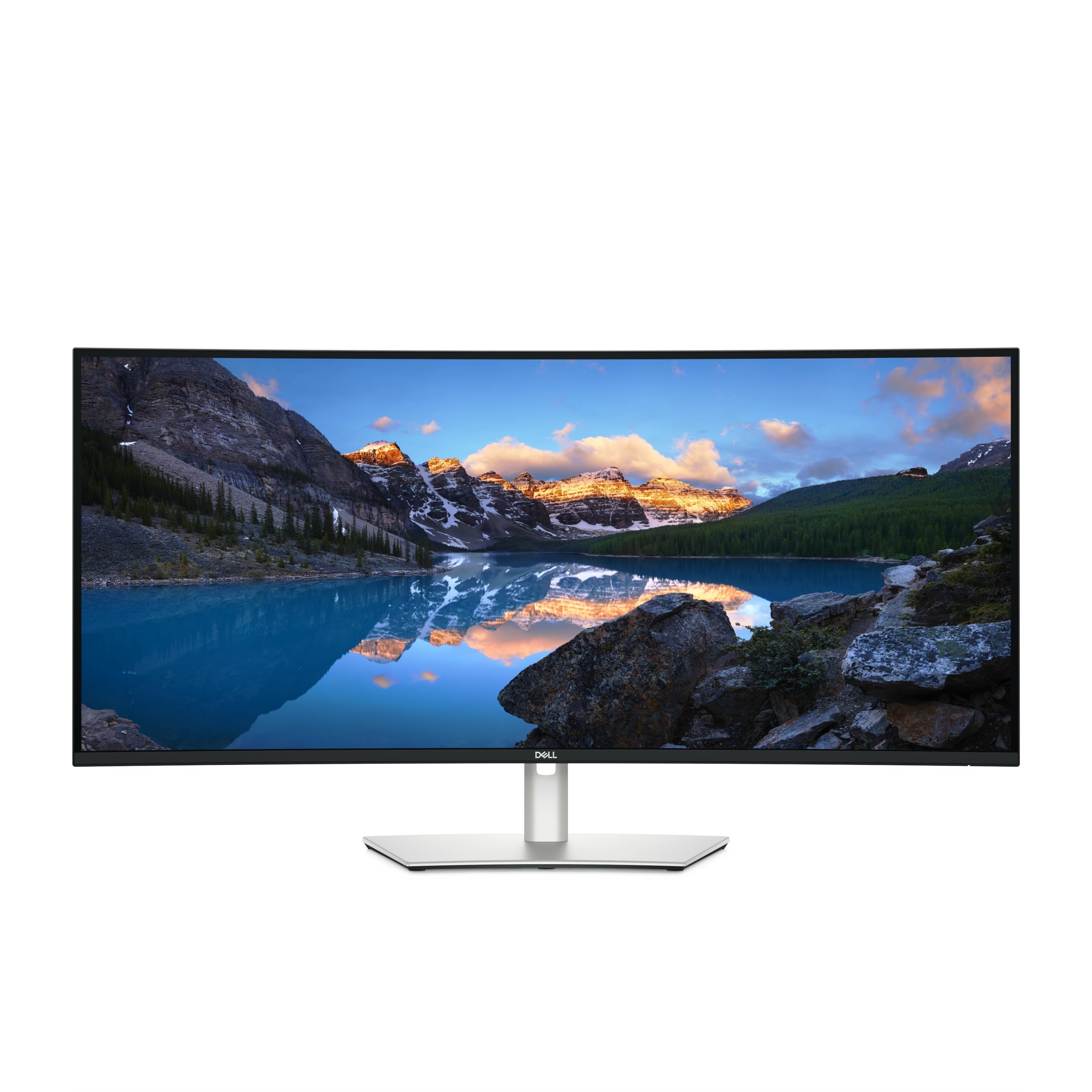
The one that makes every other panel here look slightly soft.
Resolution is the reason this Dell sits at the top of the tier. It runs 5120 x 2160 across a 39.7-inch viewable 21:9 screen — a taller pixel count than the 5120 x 1440 dual-QHD panels, and the sharpest image in this whole group. That extra vertical room means full-size drawings, dense code and multi-row spreadsheets all display without the squeeze you feel on a shorter panel.
The brightness is the other standout: 600 nits, the highest figure on this list, versus the 300 cd of the LG 34WR55QK-B. That is what lets you work in a well-lit room without squinting or closing the blinds. A 2000:1 contrast ratio and 99% colour gamut back it up, and anti-glare coating keeps reflections off the curve.
For a workstation, the KVM is the quiet hero. Built-in KVM operation is described as working cleanly with a Mac Mini M4 Pro — one keyboard and mouse across two machines, no cable swapping. Thunderbolt and Ethernet sit alongside HDMI, DisplayPort and USB in the connection list, with an ambient-style build and a stand that tilts, swivels and adjusts in height. The recurring honest note is value: the review pages are split on whether the panel justifies its position at the top of the range.
The case for the top tier: 5120 x 2160 at 600 nits with built-in KVM — the tallest resolution and the brightest panel on this list, plus a full Thunderbolt dock.
What you give up: value is the most contested point in the review pages, and at 40 inches this is a big panel to fit on a normal desk.
For the buyer who wants the best image: 5K2K resolution and 600 nits make this the reference panel here for detail-heavy work.
Be sure of the value: it costs the most in tier terms, and the review pages are genuinely divided on whether the extra resolution earns it.
Know the Specs
Aspect Ratio: 21:9 vs 32:9
Aspect ratio is the shape of the screen — the width compared with the height. A 21:9 ultrawide stretches the familiar widescreen shape sideways, giving you room for two documents without the extra height of a stacked pair. A 32:9 panel doubles that again and behaves like two standard widescreen monitors joined together, so three or four columns fit with no overlap. The Acer Nitro sits at 21:9, while the KTC, INNOCN and Samsung 49-inch all run 32:9.
Resolution: 3440 x 1440 vs 5120 x 1440 vs 5120 x 2160
Resolution is the number of pixels across and down, and it decides how sharp text looks at your sitting distance. The 3440 x 1440 figure is the standard ultrawide count and gives crisp text on a 34-inch panel. The 5120 x 1440 dual-QHD count spreads those pixels across two screen widths. The 5K2K figure on the Dell U4025QW adds height as well — 2160 down instead of 1440 — which is why it reads sharpest.
Refresh Rate And Response Time
Refresh rate is how many times per second the screen redraws, measured in hertz. A 100Hz panel redraws 100 times a second, which keeps scrolling and cursor movement smooth; a 180Hz panel like the KTC redraws 180 times a second. Response time is how fast a pixel changes colour, measured in milliseconds. The Acer Nitro’s 1ms figure means fast-moving content leaves no smear, which matters more for video and games than for a static spreadsheet.
USB-C Power Delivery And KVM
USB-C power delivery means the monitor can charge your laptop through the same cable that carries the picture. The wattage figure tells you how much it supplies — the LG 34WR55QK-B delivers 65W, the Samsung 49-inch delivers 90W, and the ASUS ProArt delivers 96W. A KVM switch is different: it lets one keyboard and mouse control two computers connected to the same screen, so you move between a desktop and a laptop without swapping cables.
Common Questions
Is a 34-inch ultrawide wide enough to replace two monitors?
What is the difference between 21:9 and 32:9 for office work?
Will a 49-inch monitor fit on a standard desk?
Do I need a special cable for the USB-C charging on these monitors?
What does the curve radius number mean in real use?
Is a 100Hz monitor smooth enough for spreadsheet and document work?
How does a built-in KVM switch help on a work monitor?
Can a 3440 x 1440 monitor show two full-size documents side by side?
What is Picture-by-Picture and do I need it?
Is higher resolution always better on a wide monitor?
Will a wide monitor work with my Mac laptop?
The Bottom Line
For most people setting up a serious work desk, the wide monitors for work winner is the KTC H49S66, because it pairs 5120 x 1440 dual-QHD resolution with a built-in KVM and 90W USB-C — two machines, one keyboard, one cable. If your desk is tighter and you just want the ultrawide shape without the docking complexity, the Acer Nitro EDA340CUR delivers a 3440 x 1440 21:9 panel at 120Hz with a 1ms response time. And for colour-critical creative work, the ASUS ProArt PA34VCNV brings Calman Verified calibration and 96W USB-C to the desk.
The panel you keep for years is the one that matches your actual daily windows, not the one with the biggest number on the box. Measure your desk, count how many windows you truly run at once, and check the USB-C wattage against your laptop.
How we choose
We do not accept paid placement. Every pick is matched to a real buyer and a real use-case; we do not hands-on test units.
Sources
Specifications: manufacturer listings and product documentation. Review insights: verified customer reviews, as of November 2026. Pricing: not shown on this page (it changes often); check the current price via the retailer link.
As an Amazon Associate, Tactical Gear Guy earns from qualifying purchases. This does not affect which products we feature.