Specs are compiled from manufacturer listings and verified buyer reviews and can change over time — please confirm the key details on the product page before buying.
If your desktop still tops out at old USB-A ports and you are tired of waiting on a card reader or an external SSD, the honest answer is simple: buy a card built on the ASMedia ASM3142 chip with 10Gbps USB-C ports and check your PCIe slot type before anything else. Most buyers get burned by slot mismatch, not by speed. A card that needs a PCIe x4 slot will not work in a small x1 socket, and a card that shares its bandwidth across four ports will crawl when you plug in two drives at once. This guide walks you through the nine cards worth a look and shows exactly which slot and chipset each one demands.
This guide is built by comparing the manufacturers’ published specifications and the patterns across verified customer reviews, so you get each pick’s real strengths and trade-offs instead of marketing spin.
Every card below was checked for a real USB-C connector, a named host controller, and a slot requirement you can match against your own motherboard, and we rank each pick so you can find the usb type-c expansion card that actually fits your machine.
Top Picks

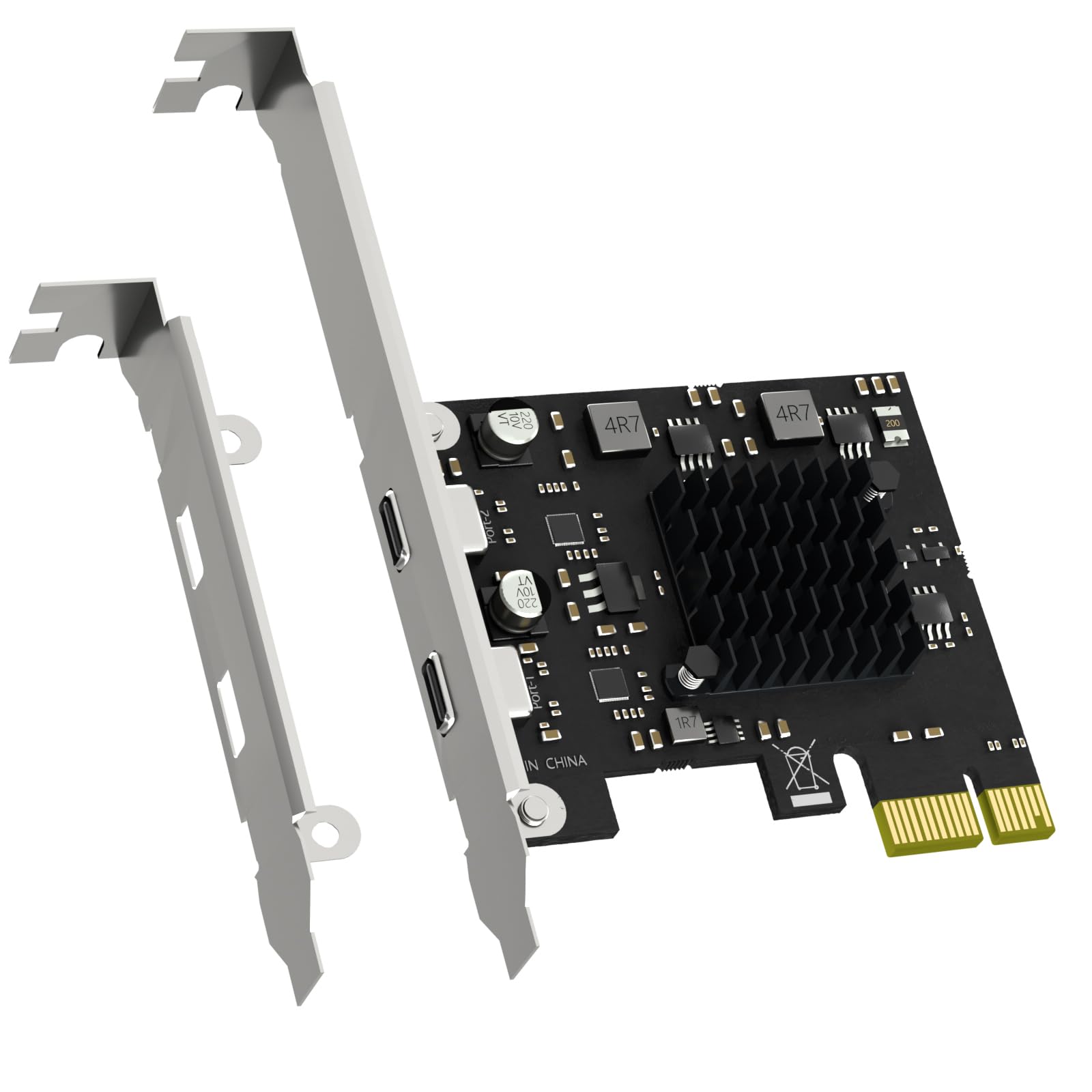

How To Choose The Best USB Type-C Expansion Card
You are adding ports to a machine you already own, so the card has to fit the slot you have free and feed the devices you actually plug in. Get the slot and the device load right and any card on this list will do the job. Get them wrong and you will be returning a card that technically works but will not seat in your board.
Check the slot before the speed
Cards in this category need either a PCIe x1 slot, a wider x4 slot, or will sit happily in an x16 graphics-length slot. A card designed for an x4 slot will not run in a tiny x1 socket. Open your case, find an empty slot, and read the label on the board. A card built for an x4 slot will not seat in an x1 socket, and that mismatch causes more returns than any speed rating.
Match the controller to your workload
The ASMedia ASM3142 is the chip behind most 10Gbps cards here, and it handles two USB-C ports with independent power management. Faster 20Gbps cards use the ASM3242. If you are moving a single external NVMe drive, either chip is plenty. If you want four ports running at once, understand that shared upstream bandwidth caps how fast all four can move together.
Know what data-only means
Nearly every card in this category is data only. That means no video signal over the USB-C port, no DisplayPort Alt Mode for a second monitor, and no fast charging for a phone or laptop. Power delivery of 5V/3A is there to run a bus-powered drive, not to top up a battery. If you need video out, this is the wrong product type.
Side-by-Side Comparison
| Model | Best For | Max Speed | USB-C Ports | Slot Needed | Amazon |
|---|---|---|---|---|---|
| StarTech PEXUSB312C3★ Best Overall | Reliable two-port daily driver | 10Gbps | 2 | PCIe 3.0 x4 | Amazon |
| GLOTRENDS U3142X1Compact Pick | Small-form-factor builds | 10Gbps | 2 | PCIe 3.0 x1 | Amazon |
| YEELIYA 10Gbps 4-PortMost Versatile | Front-panel header builders | 10Gbps | 2 external | PCIe x4 to x16 | Amazon |
| FebSmart FS-U304C-Pro | Four ports on a tight slot | 5Gbps | 4 | PCIe x1 | Amazon |
| FebSmart FS-C2-Pro | 10Gbps with a heatsink | 10Gbps | 2 | PCIe x4 | Amazon |
| Jorkar USB-C + Type-E Card | Front-panel Type-E hookup | 10Gbps | 1 | PCIe x4 | Amazon |
| NFHK NF-UC-104 | Single 20Gbps port | 20Gbps | 1 | PCIe 4x/8x/16x | Amazon |
| FANBLACK 7-Port | Port count over port speed | 20Gbps total | 3 | PCIe x4 to x16 | Amazon |
| StarTech PEXUSB321C | Fastest single-port transfer | 20Gbps | 1 | PCIe 3.0 x4 | Amazon |
Detailed Reviews
1. StarTech 2-Port USB 10Gbps PCIe Card PEXUSB312C3
Our pick — 4.5+★ from 500+ verified ratings; the strongest balance of quality and price.
Two 10Gbps USB-C ports, a proven ASM3142 chip, and drivers that install themselves on Windows 8 and up.
This is the card to buy if you want the safest bet in the category. It turns a spare PCIe 3.0 x4 slot into two USB-C ports running at up to 10Gbps, powered by the ASMedia ASM3142 host controller. Each port delivers up to 5V 3A, or 15W, which is enough to spin up a bus-powered SSD enclosure without a separate power brick. It sits mid-pack on price and holds 10Gbps on both ports at once.
Buyers report it works on first boot with no driver hunt. No driver hunt on Windows 8 and newer, the full-height bracket comes installed, and a low-profile bracket is in the box for slim cases. It supports UASP (a transfer protocol that speeds up storage devices) so external drives move data faster than they would on a plain USB port. One owner’s report that stands out: the card pulls SATA power straight from the power supply, which keeps high-draw devices stable.
Here is the honest catch. This card does not do DisplayPort Alt Mode, so no video out over USB-C. It will not fast-charge your phone, and it will not talk to Thunderbolt devices. Some owners find the real speed below the 10Gbps headline when the drive or cable is the limiting factor, and a few think it is pricey for two ports. It is 0.05 kg and measures 4.8 inches long by 3.1 inches wide, so it clears even a cramped rear slot.
What earns its keep
- ASM3142 controller for dependable 10Gbps on both ports
- Auto-install drivers from Windows 8 upward, no driver CD needed
- 15W per port runs bus-powered SSD enclosures
- Full and low-profile brackets both included
Where it stops short
- No DisplayPort Alt Mode, so no video over USB-C
- No fast charging for phones or laptops
- Real speed depends on your drive and cable
Reach for this if: you want two fast USB-C ports with zero driver fuss and a slot that can take a PCIe 3.0 x4 card.
Leave it if: you need video out or charging, because this card is data transfer only.
2. GLOTRENDS U3142X1 2-Port 10Gbps USB-C PCIe Card
The card that asks for the smallest slot in your case and still hands back two 10Gbps USB-C ports.
Most 10Gbps cards want a PCIe x4 slot, which can mean giving up a slot you were saving for something else. This one needs only a small PCIe x1 slot, so your x4, x8, and x16 slots stay free for a graphics card or a RAID controller. That is the whole pitch, and it is a good one for anyone building in a compact case where slots are precious.
The trade-off lives in the shared upstream. Both ports share a PCIe 3.0 x1 upstream of about 8Gbps, so if you run two drives together they split that ceiling rather than each getting a full 10Gbps. Run one drive alone and it gets the full speed. The ASMedia ASM3142 controller drives both ports with independent power management of up to 5V/2A each, enough for bus-powered NVMe enclosures and industrial gear. Full-height and low-profile brackets both ship in the box.
This is data transfer only. It does not charge phones or laptops and gives no DisplayPort Alt Mode video. It is offered with a 30-day warranty against manufacturer defects, which is the shortest coverage on this list, so treat the card gently and test it the day it arrives.
Slot math that helps: the x1 requirement is the reason to pick this over the StarTech above, which needs a x4 slot. If your board only has one narrow slot left, this card still fits.
Own the limit: with two drives going at once, expect the pair to split roughly 8Gbps between them, not 20Gbps combined.
Ideal for: mini-ITX and small builds where only a PCIe x1 slot is open.
Not the fit if: you need the longest warranty or you plan to run two drives flat out at the same time.
3. YEELIYA 10Gbps PCIE USB C Card 4-Ports
Two fast rear ports plus internal headers that reach your case’s own front panel, built on the ASM3142 chip.
If you care about reaching ports without crawling behind the tower, this card answers that in a way most rivals do not. It gives you four external ports and also puts an internal 19-pin USB 3.0 header and a USB Type-E connector on the board, so you can cable your case’s front-panel ports back to it. Based on the ASM3142 chipset, it pushes up to 10Gbps per the spec sheet, with actual speed limited by the device you plug in.
Owners mention the rear USB-C ports hit the advertised 10Gbps and the install takes minutes. It works on Windows XP through 11, offers Linux support, and accepts PCIe 3.0 and 2.0 boards in a PCIe x4, x8, or x16 slot. Note this one weighs 0.12 kg, notably heavier than the 0.05 kg StarTech, because of the additional headers and cabling on board, and the extra internal connectors are what that weight buys you.
The honest caveat: on the oldest systems, Vista, XP, and 7, you have to install the driver from the included CD, so a disc drive matters. Fit gets mixed feedback, so measure before you buy. It is covered for 2 years, the longer warranty of the group.
Front-panel payoff: the internal Type-E and 19-pin headers mean you can wire case ports straight to the card instead of reaching around to the rear.
Read this before you buy: the card needs a x4, x8 or x16 slot, so confirm your empty slot is wide enough, not just present.
Pick this when: you are building or upgrading a case and want its front USB-C and USB-A ports live, backed by a 2-year warranty.
Better options exist if: you are on the oldest Windows versions and cannot run the driver CD, or you only have a narrow x1 slot free.
4. FebSmart FS-U304C-Pro 4X 5Gbps USB-C Expansion Card

Four USB-C ports off one PCIe x1 slot, no power cable to run from the power supply.
This is the pick for the buyer who needs more ports, not more speed. It hands you four USB-C ports at up to 5Gbps each, running on the RENESAS UPD720201 controller and compatible with AMD, ARM, and Intel platforms. Compare it with the GLOTRENDS above: that card brings two 10Gbps ports, this one brings 4 at 5Gbps, a straight swap of speed for port count. All four plugged-in devices share the 5Gbps total, so this is for keyboards, cameras, hubs, and general peripherals rather than two fast drives at once.
FebSmart’s Self-Powered design means you never run a power cable from the PSU. Each port can get 5V/3A for 15W, or 60W total across the four, straight off the motherboard. Four safety fuses, four voltage-stabilizing capacitors, and four inductors sit on the card to protect your devices. Customers note all four ports work as designed and the card installs without fuss.
The limits are real and worth knowing. It does not support Mac OS X, it needs a driver on Windows 7 and older, and it mounts with a full-height bracket only with no low-profile option, so slim PCs are out. It measures 4.72 inches long, 3 inches wide, and 3.7 ounces, and it comes with a 1-year limited warranty.
Where it shines: the x1 slot requirement plus four ports makes it the easiest way to add USB-C to an older board that has no header and little room.
Set your expectation: every port tops out at 5Gbps shared, so this is not the card for a single fast NVMe transfer.
Fits best when: you have a full-size desktop with an open x1 slot and a pile of USB-C peripherals to plug in.
Look elsewhere if: you run a slim case or a Mac, since this one has no low-profile bracket and no Mac OS X support.
5. FebSmart FS-C2-Pro 2X 10Gbps USB-C PCIE Card

A 10Gbps card with a heat sink on the controller, so the chip stays cool and keeps its speed.
FebSmart built this one around the ASMedia ASM3142 controller, the third-generation USB 3.1 GEN2 host chip, and added a heat sink over the core components. That heat sink is the reason to care: when the controller runs hot, throughput can drop, so keeping it cool helps the ports hold their 10Gbps top speed. Each port delivers 5V/3A, or 6A across both, from the motherboard with no power cable.
Speed is the standout. This card does 10Gbps where the FS-U304C-Pro above does 5Gbps, a straight double of the headline rate with half the ports. It supports the Multiple INs feature, which auto-balances bandwidth between the two ports so mix-speed devices do not choke each other. It measures 95 g and 4.72 inches long by 3.19 inches wide.
The slot requirement is where people trip. It needs a PCIe x4 slot or wider, and it will not run in an x1 or x2 slot. It also is not a Thunderbolt card and does not support DisplayPort Alt Mode. Compatibility is broad, with plug-and-play on Windows 11 down to 8.x, driver-free on macOS 10.9.x and later, with a noted gap on macOS 10.11.x, and Linux support for most kernels.
Speed with cooling: the heat sink plus the ASM3142 chip is a sensible pairing for anyone moving large files on external NVMe drives.
Honest note: feedback on functionality is split, with some setups working instantly and others needing attention, so confirm your slot and OS before you order.
Worth it for: dual 10Gbps ports with a heat sink, on a board with a free PCIe x4 slot and a supported OS.
Wrong choice if: your only open slot is narrow, because this card will not seat in an x1 or x2 slot.
6. Jorkar PCIe to USB C 3.2 Gen 2 Expansion Card

One USB-C, one USB-A, and a Type-E front-panel adapter so your case’s ports get first-class cabling.
This card is aimed squarely at the front-panel builder. It gives you one USB-A and one USB-C on the back plate, then adds a 19/20-pin connector and a Type-E A-Key front-panel adapter so the ports on your case can be wired straight in. The controllers are the ASM3142, and each port can theoretically hit 10Gbps without sharing. It also supports PD fast charging, but no video signal and no Thunderbolt, so a monitor will not work over its USB-C.
The Jorkar avoids the one thing that annoys people about external USB hubs: dropped connections. Power comes through the PCIe slot from the motherboard, so the link stays stable and transfer speeds hold up. It supplies 5V/12A max for high-draw devices like HDD and SSD enclosures and VR gear, with no extra power cable needed. It measures 50 g, works with Windows 7 through 11 (32/64-bit) and Mac OS 10.8.2 and above, and needs a driver on XP, Vista, and 7 only.
Worth noting: the port count is lower than the four-port cards here, so this is about cable tidiness and front access rather than hooking up a pile of devices. It carries a 1-year warranty and a 43-card review base, so it is an established, if less-traveled, pick.
The clever bit: the bundled Type-E adapter is the differentiator, letting you route the card to a modern case’s front USB-C without an adapter hunt.
Where the list narrows: one USB-C port means you cannot run two external drives at full speed side by side.
Choose this for: front-panel wiring and PD charging on a desktop, with a slot wide enough for a PCIe x4 card.
Consider a two-port card if: you mostly need two USB-C drives running at once, since this model gives you one Type-C.
7. NFHK USB-C to PCI-E 4X Express Card Adapter, 20Gbps
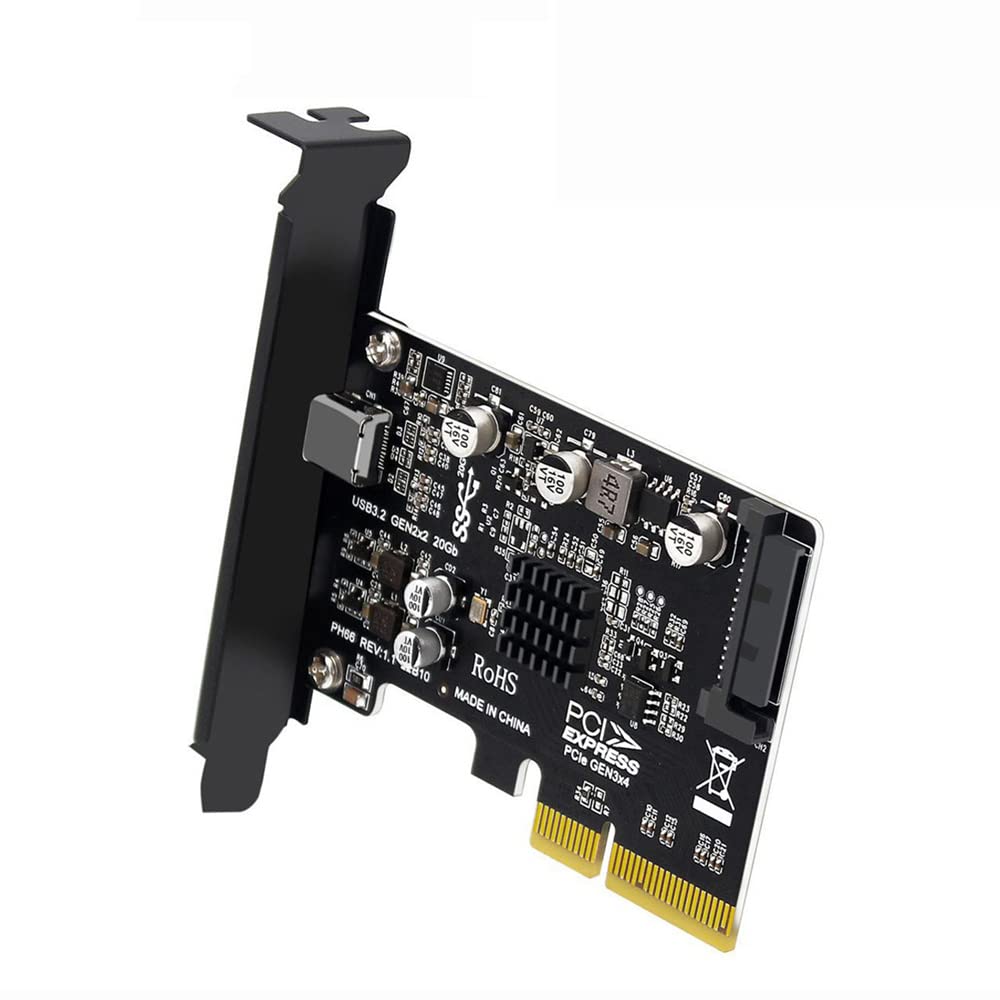
A single USB-C port at 20Gbps, aimed at one fast SSD and nothing else.
The fastest cards here step from 10Gbps to 20Gbps, and this NFHK adapter does it on one port. It converts an available PCIe 4x, 8x, or 16x slot on your motherboard into a single USB 3.2 Gen2 Type-C port pushing 20Gbps to an external SSD or HDD. That is 20Gbps against 10Gbps on the two-port cards, and for a single big-file transfer, the higher rate is the difference you feel.
Setup is simple. It needs no additional driver on Windows 10 and 11, and the compact adapter inserts directly. It weighs 0.08 kg, so it is light in the hand and easy to seat. If your entire reason for buying is one external NVMe drive and moving large footage or backups, one 20Gbps port can be more useful than four slower ones.
Two things to know. The port does not do audio, video, docking, PD power, or DisplayPort Alt Mode, so it is strictly for data. It also asks for a PCIe 4x slot or wider, so it will not fit an open x1. The review base is small, so weigh that against the more-reviewed options if you want the safety of a long track record.
Speed-first thinking: 20Gbps vs 10Gbps makes this the card for one external NVMe drive where transfer time matters most.
Do not mistake it: no video, no PD, no dock output. If you wanted a monitor or a charge, this cannot do it.
Right for: a single high-speed external SSD and a free PCIe 4x slot, especially on Windows 10 or 11.
Pass on it if: you need multiple ports or have only an x1 slot open.
8. FANBLACK PCIe to USB 3.2 Gen 2 Card 7 USB Ports

Seven ports on one card, with 3 Type-C and 4 Type-A for a desk full of gear.
If you are out of ports rather than short of speed, this is the pick. It puts 7 external USB 3.2 Gen 2 ports on one PCIe card, split as 4 Type-A and 3 Type-C, so a keyboard, mouse, printer, webcam, and a couple of drives can all live on the same board. Three of those ports share 10Gbps of bandwidth and the other four share a second 10Gbps, for up to 20Gbps total across the card.
Each port still hits up to 10Gbps when it is the only thing running. It works with Windows 7 through 11 (32/64-bit), Mac OS 10.8.2 and above, and Linux, and the maker lists it as fitting common desktops such as the HP Windows 11 tower, Dell 8950, MacPro 4.1/5.1, and Lenovo P520. It measures 0.12 kg and 3.43 inches long by 3.15 inches wide. Across a large review base, buyers call it easy to install and the extra ports genuinely useful.
The thing to plan for: the USB-A ports sit vertically, and on a narrow rear slot area you may have to trim the crossbar between two slots with small sheet-metal pliers to fit it. Some buyers also report ports being blocked by the PCIe slot itself. It only moves data, so no PD fast charging, no video, and no Thunderbolt.
Best for: a desk loaded with peripherals where 7 ports matter more than top speed on any one of them.
Check your case first: the vertical USB-A layout and slot blocking mean you may need to trim the rear crossbar to seat it.
9. StarTech 1-Port USB 20Gbps PCIe Card PEXUSB321C

One USB-C port at a full 20Gbps, built on the ASM3242 chip for the fastest single drive on the list.
StarTech’s premium single-port card takes the speed crown. It runs the ASMedia ASM3242 controller over four lanes of PCIe 3.0 to deliver up to 20Gbps to one USB-C port, which is the top rate in this group. Plug in an external NVMe drive and it moves data at twice the pace of a 10Gbps card. The port also provides up to 15W, or 5V at 3A, so it can power and charge a device while it works.
It is built to hold speed. UASP support sharpens performance with storage devices, and the Multiple INs feature reduces bandwidth loss when mixed-speed devices share a hub, provided the hub supports it too. It weighs 1.28 ounces and measures 2 inches long by 3.1 inches wide, so it is compact enough for a tight rear slot. Full and low-profile brackets both ship in the box, and it installs in a PCIe 3.0 x4 slot with backward support for PCIe 2.0.
Windows, macOS, and Linux all work, with auto-install drivers on Windows 8 and up. The catch is the port count. This is one USB-C, not two or seven, so it is the wrong card if you need to hook up several devices. It also does not do DisplayPort Alt Mode, so no video over USB-C. It is priced as a premium card, and it is the heaviest-hitting but narrowest option here.
The speed advantage: 20Gbps on one port beats the 10Gbps of the two-port StarTech above for a single fast transfer, and the 15W output keeps a drive alive through long jobs.
Know the shape: one port only, no video, no Thunderbolt. For a single external NVMe workflow it is excellent, for a desk full of devices it is not enough.
The one to grab for: a single external NVMe drive and a PCIe 3.0 x4 slot, where the top 20Gbps rate pays off every day.
Think twice if: you need more than one port or you only have a narrow slot free.
Know the Specs
Host controller and speed
The controller is the chip that does the work, and it sets the top speed. The ASMedia ASM3142 is the common 10Gbps chip on cards in this group, while the ASM3242 pushes 20Gbps. A card running 4 USB-C ports off a single 5Gbps shared upstream will move data noticeably slower than a two-port 10Gbps card. When shopping, match the controller and port count to the drive you actually move. A single NVMe enclosure on a 10Gbps port is fast, and a 20Gbps port doubles that ceiling.
Slots and shared bandwidth
The PCIe slot the card needs is the first thing to check. An x1 card fits a small socket, while an x4 card needs a wider one and will not seat in an x1. Shared bandwidth is the other piece. When several ports feed off one upstream lane, two drives going at once split the ceiling between them, so each one slows. A card with two independent lanes (like a 20Gbps-total split across port groups) avoids that choke point. Read the description for whether ports share bandwidth or run independently.
Power for bus-powered devices
Cards here supply 5V typically at 2A or 3A per port, enough to run a bus-powered SSD or HDD enclosure without an external brick. That is a power supply for the device, not a fast charger for a phone. If a port supports PD fast charging, it can top up a device, but most data-only cards do not. Power drawn from the motherboard also means no cable to the PSU, which keeps installs tidy.
Brackets and case fit
A full-height bracket fits a standard tower, and a card with no low-profile option will not work in a slim PC. Low-profile brackets are often included in the box, so check the listing. Card length and height matter in cramped rear slots, and some cards with vertical USB-A ports need you to trim the crossbar between two slots to seat them. Measure first, then buy confidently.
Common Questions
Will a 20Gbps USB-C expansion card work in a PCIe x1 slot?
Do I need to install drivers for a USB-C PCIe card?
Can I connect a monitor to a USB-C expansion card?
Why does my external SSD run slower than the card’s 10Gbps rating?
Will a USB-C expansion card charge my phone or laptop?
What is an internal Type-E header on a USB-C card used for?
Does a USB-C expansion card work on a Mac?
Do these cards need a separate power cable from the power supply?
How long is a USB-C expansion card covered?
Is a two-port 10Gbps card better than a four-port 5Gbps card?
The Bottom Line
The usb type-c expansion card that earns the top spot is the StarTech PEXUSB312C3, because two 10Gbps USB-C ports on the proven ASM3142 chip with auto-install drivers is the least risky way to add fast USB-C to a desktop. It does not do video or charging, so if that matters, look elsewhere. If you have only a PCIe x1 slot open, the GLOTRENDS U3142X1 squeezes two 10Gbps ports into the smallest slot. Want the fastest single transfer in the group? The StarTech PEXUSB321C hits 20Gbps on one port. And for a desk that needs ports more than speed, the FebSmart FS-U304C-Pro gives you four USB-C ports off a single x1 slot. Match the card to your free slot and the devices you actually plug in, and you will not be returning it.
How we choose
We do not accept paid placement. Every pick is matched to a real buyer and a real use-case; we do not hands-on test units.
Sources
Specifications: manufacturer listings and product documentation. Review insights: verified customer reviews, as of November 2026. Pricing: not shown on this page (it changes often); check the current price via the retailer link.
As an Amazon Associate, Tactical Gear Guy earns from qualifying purchases. This does not affect which products we feature.