Specs are compiled from manufacturer listings and verified buyer reviews and can change over time — please confirm the key details on the product page before buying.
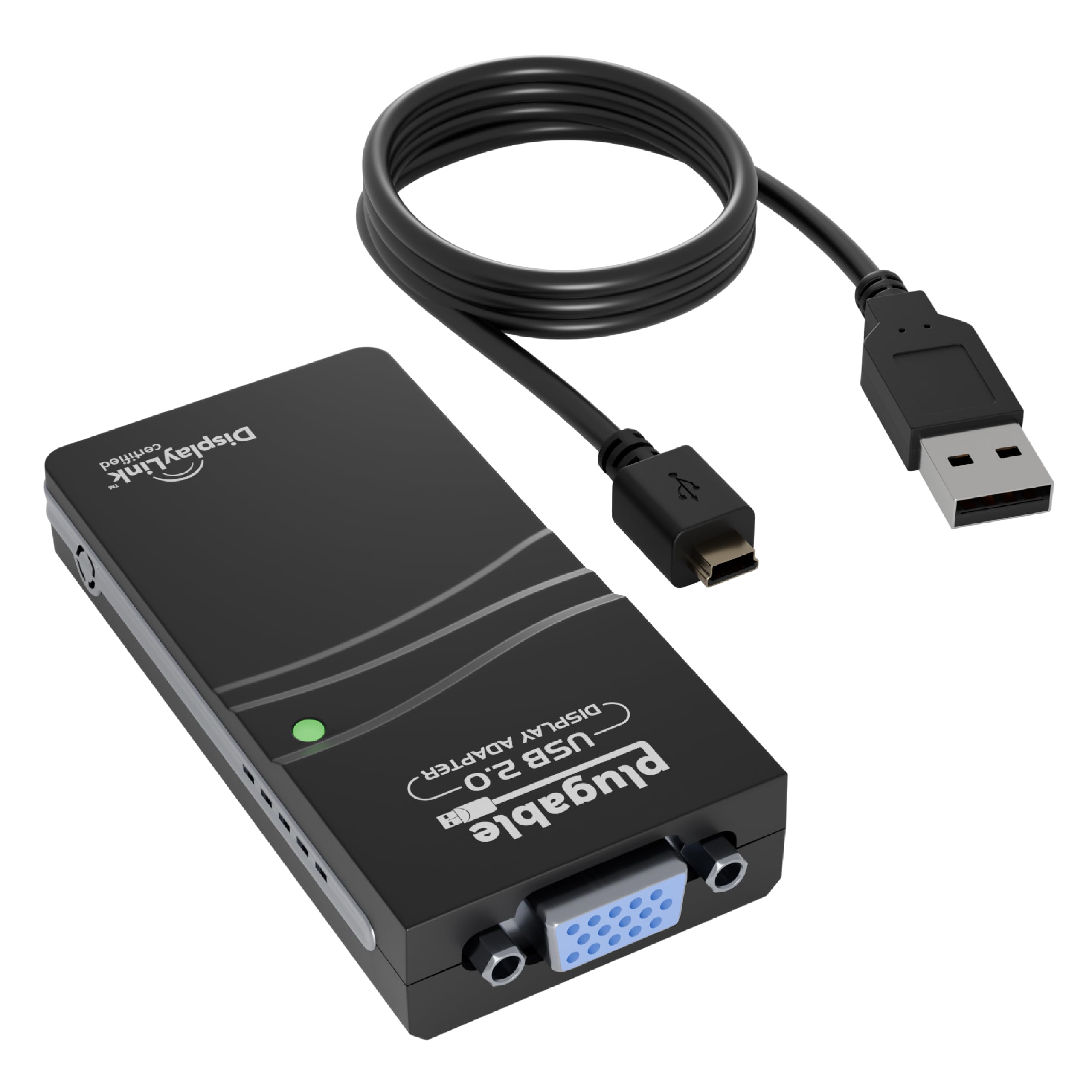
You have a working VGA monitor and a laptop with no VGA port. A USB to VGA adapter is the little box that bridges them — a USB Type-A plug on one end and the familiar blue 15-pin VGA connector on the other. The one catch that matters most: these adapters are almost all Windows-first, and compatibility, not picture quality, is where most buyers get burned. The pick that balances price, resolution ceiling and driver support best is the Plugable USB 2.0 to VGA Video Graphics Adapter — the crowd favorite here at 4.5+ stars across 1,500+ owners.
This guide is built by comparing the manufacturers’ published specifications and the patterns across verified customer reviews, so you get each pick’s real strengths and trade-offs instead of marketing spin.
Below you’ll find six adapters sorted by what they actually do well, from a 1920×1200 workhorse to a compact travel cable. If you want the short version, this guide to the best USB to VGA adapter covers every pick and the one spec that decides whether it works on your machine.
Top Picks

How To Choose The Best USB to VGA Adapter
Every adapter here connects a USB port to a VGA monitor, so three facts decide your purchase: your operating system, the resolution you need, and how many displays you want to run. Match all three and the adapter drives your VGA monitor. Miss one and the adapter stays in the drawer.
Confirm your operating system before anything else
Several adapters on this list are Windows-only, and that is not a technicality — it is a hard limit. The StarTech.com USB 2.0 model states plainly that it does not support macOS, ChromeOS or Linux, and the 5FT ELECABLE cable rules out macOS Monterey and later. If you are on a Mac, the Plugable and j5create picks are the two that name macOS support in their own specs. Check that line first, because no amount of driver fiddling fixes an unsupported platform.
Match the resolution to the monitor you already own
A 1920×1080 (1080p) ceiling covers most everyday monitors, projectors and TVs. A 1920×1200 ceiling gives you extra vertical room, which matters if you read long documents or work in tall spreadsheets. The StarTech.com USB 2.0 adapter tops out at an optimal 1440×900, which suits a small 17-inch to 19-inch screen but will look soft on anything larger. Buy for the resolution your monitor actually supports, not the biggest number on the box.
Decide how many extra screens you really need
Every adapter here drives one VGA display per unit. The Plugable and Tripp Lite models let you chain multiple adapters — up to six on Windows for the Plugable, and up to six total for the Tripp Lite — while both StarTech units scale to five. If a two-screen setup is all you need, the chaining limit will never come into play.
Budget for the driver install, not just the cable
A USB to VGA adapter is not a passive cable — it contains a small video chip and needs a driver. Windows usually installs it automatically for the Plugable and j5create picks, while the 5FT ELECABLE cable and both StarTech models need you to run an installer, and StarTech notes that administrator rights are required. Plan for a few minutes of setup on first use.
Side-by-Side Comparison
| Model | Best For | Max Resolution | OS Support | Weight | Amazon |
|---|---|---|---|---|---|
| Plugable USB 2.0 to VGA Video Graphics Adapter★ Best Overall | Most people, most desks | 1920×1080 | Windows, macOS, ChromeOS | 44 g | Amazon |
| StarTech.com USB 2.0 to VGA Adapter (1440×900)Small Screen Specialist | Small older monitors | Optimal 1440×900 | Windows only | 2.88 ounces | Amazon |
| Tripp Lite USB 2.0 to VGA Adapter (U244-001-VGA-R) | Multi-screen spreadsheets | 1920×1080 at 60Hz | Laptop, tablet via USB | 0.04 kg | Amazon |
| USB to VGA Adapter Cable 5FT (ELECABLE) | Cable reach without extras | 1920×1080 at 60Hz | Windows only | 0.09 kg | Amazon |
| StarTech USB 3.0 to VGA Adapter (USB32VGAES) | High-resolution Windows rigs | 1920×1200 | Windows only | 0.03 kg | Amazon |
| j5create USB to VGA Adapter Cable (JUA214) | Travel and remote setups | 2048×1152 | Windows, macOS | 0.03 kg | Amazon |
Detailed Reviews
1. Plugable USB 2.0 to VGA Video Graphics Adapter
Our pick — 4.5+★ from 1,500+ verified ratings; the strongest balance of quality and price.
One of only two adapters here that does not force you onto Windows — and it does it for the best balance of price and compatibility.
The number that makes this the safest buy is the operating system list: Windows 11, 10, 8.1, 7 and XP, plus macOS 10.14 and ChromeOS. That is the widest compatibility of any adapter in this roundup, and it matters because most USB to VGA adapters quietly exclude Macs entirely. Its own specs also confirm it works through USB 3.0, USB-C and Thunderbolt ports when you add a USB-C to USB-A adapter sold separately — so it fits nearly any modern laptop.
This model earns its place on plug-and-play reliability: buyers report setup takes “less than 5 minutes” and call it an inexpensive route to a second monitor. It is also a light 44 g, with a 3.54 x 1.57 x 0.59 inch body versus 2.25 x 6 x 8.5 inches for the Tripp Lite U244 — so it tucks behind a monitor without pulling on the port.
The honest trade-off is the chip inside. This is a USB 2.0 adapter with a 1920×1080 ceiling, so it is built for spreadsheets, email and reference windows rather than full-screen video. Some owners do report lag and picture quality issues, and that is the real split in the feedback — static work looks fine, motion is where it stumbles. For presentations and dual-monitor productivity, it is the right tool. For a video wall, it is not.
Why it takes the top spot
- Runs on Windows, macOS 10.14+ and ChromeOS — the widest support here
- Drives up to six external VGA displays on Windows when you add more units
- 1920×1080 output covers everyday monitors and projectors
- Backed by a 2-year warranty and lifetime support
What to weigh before buying
- USB 2.0 chip means motion video can lag
- macOS needs a manual driver install rather than an automatic one
- Your USB-C or Thunderbolt laptop needs a separate USB-C to USB-A adapter
Reach for this if: you want one adapter that works across Windows and Mac without guessing, and your second screen is for documents and dashboards.
Look elsewhere if: you plan to play full-screen video on the VGA monitor — the USB 2.0 path will show its limits.
2. StarTech.com USB 2.0 to VGA Adapter
Built for the 17-inch monitor already on your desk, not the 4K dream you have not bought yet.
This one is refreshingly blunt about its job. StarTech.com rates it at an optimal 1440×900 and names the exact screen size it suits — 17-inch to 19-inch monitors or smaller. Pair it with a small spare VGA panel and it does that job cleanly.
Installation is a short job rather than a project. The review pages sum it up: it is “up and running within 15 minutes” on a Windows machine. There is an 18in (46cm) cable built in, so you are not hunting for a separate VGA lead, and it draws power straight from the USB port with no wall plug. The catch is the platform rule — this is Windows-only, does not support macOS, ChromeOS or Linux, and the driver install needs administrator rights.
The narrower resolution is the honest limit worth naming. Compare it to the StarTech USB 3.0 model on this list: that one reaches 1920×1200, while this 2.0 version is tuned to 1440×900. Both are StarTech, but they are aimed at different desks — this one is the small-screen bargain, the other is the higher-resolution pick. If your monitor is compact and your goal is a cheap second screen, the trade makes sense.
Fit for the small-desk buyer: the 1440×900 tuning, the built-in 18in cable and the Windows-only driver set add up to a simple, single-purpose second screen for a compact monitor.
The line to respect: newer or larger monitors are where this model draws complaints, so it rewards matching it to the screen it was tuned for.
Built for: a Windows laptop and a modest 17-inch to 19-inch VGA monitor that needs a reliable third screen.
Not the one for: a Mac, a Chromebook, or a large high-resolution panel.
3. Tripp Lite USB 2.0 to VGA Adapter (U244-001-VGA-R)

The adapter that lets you add or drop a monitor mid-session without rebooting.
Stretch a budget spreadsheet across two screens and keep a video playing on the third — that is the workflow this Tripp Lite is built around. It outputs up to 1920×1080 at 60Hz (full HD, 60 frames per second, smooth enough for video), and it is hot pluggable — meaning you can add or remove a monitor without restarting the computer, so a quick extra screen for a meeting does not cost you your open tabs.
Buyers respond to how well it works with the computer already on their desk. It stays stable in a USB 2.0 port (the older, slower USB standard — a 2.0 adapter does not need a fast port to do its job), sets up quickly, and the few complaints centre on screen resolution rather than the connection itself. At 0.04 kg, against 0.09 kg for the ELECABLE 5FT cable, it adds next to nothing to a laptop bag.
Scaling is the quiet strength. Up to six adapters can run at once from a single computer, so a growing multi-monitor setup can expand one screen at a time without swapping hardware. The thing to know is that it bus-powers from the USB port, so on a busy powered hub you may see less consistent results than plugging straight into the laptop. For most desk setups, plug the adapter straight into the laptop rather than a hub.
Where it earns its place
- Hot pluggable — add or remove a screen with no reboot
- 1920×1080 at 60Hz output suits large spreadsheets
- Scale to six adapters on one computer
- Bus powered, so no extra wall adapter needed
The honest caveats
- It is a USB 2.0 adapter, not a faster 3.0 unit
- Screen resolution is where the mixed feedback sits — set expectations for video
Best for: anyone who adds and removes a second monitor through the day and wants the freedom to do it without a restart.
skip it if: you need a faster USB 3.0 connection for heavy full-motion content.
4. USB to VGA Adapter Cable 5FT (ELECABLE)

Five feet of reach and no separate VGA lead to hunt for — but it is strictly a Windows cable.
The selling point is in the name. At 5FT you can route the cable from a laptop on one side of the desk to a projector or monitor across the room without a separate VGA extension cable. It is a one-piece USB-to-VGA lead with a built-in chip, running over USB 3.0 and supporting 1920×1080 at 60Hz so you can extend or mirror your screen. The 1.5 A current rating is the highest of the cable-style options here, versus the 1 A on the Plugable and both StarTech adapters.
The catch is one you need to read before you order. It works with Windows 11, 10, 8.1, 8 and 7, and the spec sheet explicitly rules out macOS Monterey and later along with ChromeOS, Linux and any device that cannot install a driver. You will also need to run the driver on first use — it is built in or downloadable. And it is a one-way design: USB to VGA only, never VGA to USB, so it cannot make a USB monitor out of a VGA output.
Owner feedback here is genuinely mixed, and it is worth saying plainly. Some find it works perfectly; others hit compatibility snags with Windows and Linux drivers (the small software files that let the adapter talk to your system) and describe the quality as hit or miss. That split generally points to setup and platform mismatch rather than a defective cable. On a supported Windows build, with the driver installed cleanly, you land in the group most likely to be happy. Need a no-driver, cross-platform solution? One of the other picks here fits better.
What you gain: a single 5FT lead with USB 3.0 and 1080p output, so long desk runs need no extra VGA cable and no compromise on resolution.
The condition: this is a Windows-only, driver-required, one-way cable — a mismatch on any of those makes it the wrong purchase, not a faulty one.
Good match for: a Windows user who needs a five-foot run to a projector and is comfortable installing one driver.
Steer clear if: you are on a Mac, a Chromebook or Linux, or you want a plug-and-play cable with no install step.
5. StarTech USB 3.0 to VGA Adapter (USB32VGAES)

A slim stick that pushes the highest standard-VGA resolution here at 1920×1200 over USB 3.0.
If you work in long documents or tall spreadsheets, the extra vertical pixels are the reason to pick this one. It outputs up to 1920×1200, which beats the 1920×1080 ceiling on the Plugable and the Tripp Lite as well as the 1440×900 tuning of its StarTech USB 2.0 sibling. The slim body is 0.03 kg and only 7.5 x 1 x 0.5 inches, so it hangs off a laptop’s USB port with barely any leverage — handy on a desk where the ports are already crowded.
Setup reports lean clean. The adapter installs easily, works well with Windows 10, and delivers a clear image, with feedback suggesting it performs about as well as a direct connection for adding an external monitor. It is also TAA compliant, which matters if you buy for a government or public-sector procurement list. Scaling to five adapters on one source gives you room to grow the setup later.
The single thing to plan for is the platform. This one is Windows-only — no macOS, ChromeOS or Linux — and the driver install requires administrator rights, so on a locked-down work laptop you may need IT to approve it. That is the same rule as the other StarTech unit, and it is not a flaw, just a fact you should confirm before ordering on a managed machine.
The case for it
- 1920×1200 output — the highest standard VGA resolution in this roundup
- Slim 7.5 x 1 x 0.5 inch body and 0.03 kg weight
- USB 3.0 connection for a steadier feed than 2.0 units
- TAA compliant for procurement
The limits to know
- Windows only, with no macOS, ChromeOS or Linux support
- Driver install requires administrator rights
Choose it for: a Windows workstation where you need 1920×1200 on a tall monitor and a slim adapter that hides behind the desk.
Pass on it if: you are not on Windows, or your laptop is locked down with no admin access.
6. j5create USB to VGA Adapter Cable (JUA214)

A pocket-sized adapter that slips into a laptop bag and handles boardroom projectors on the road.
The standout number here is the resolution ceiling: it supports HD 1080p at 60Hz and resolutions up to 2048×1152. That tops every other adapter on this list, so it is the pick if you want the sharpest text on a good monitor. The body is a compact 3-inch cable at 0.03 kg, which is why it works so well for remote work — toss it in the backpack and it adds no noticeable weight. It handles mirroring for a projector or extending to a second screen in seconds, and it covers home, office and travel setups.
For Windows, setup is largely hands-off with automatic driver installation, and owners mention it simply works for adding a second monitor to a laptop. The clear picture, the plug-and-play feel and the value all land well. It also suits denser setups — offices, dorm rooms, call centers and graphic design desks — where a clean extra screen saves a lot of window switching. It is one of two picks here that name macOS support, the other being the Plugable.
Mac users should read this part carefully. On a Mac the driver install is manual, and the installation app and the device both need to be authorized during setup — it is not the automatic experience Windows gets. Feedback on Mac compatibility is also mixed, with some reporting it does not work on all systems. On a Windows laptop, automatic driver installation makes this one of the easiest picks here. On a Mac, check your specific machine and OS version first.
Why travelers like it: a compact 3-inch cable, 0.03 kg and a 2048×1152 ceiling make it the sharpest and most packable adapter here.
The Mac-sized asterisk: manual driver install and mixed real-world Mac reports mean Windows users get the smoothest ride.
Made for: the Windows laptop you carry between offices and hotel rooms, where a projector or spare monitor is always a maybe.
Think twice if: you are on a Mac and want a driver install that just happens on its own.
Know the Specs
Max Resolution (1080p vs 1200 vs 1440×900)
This is the sharpness ceiling of the adapter, written as width by height in pixels. A 1920×1080 (1080p) output is the everyday standard for monitors and projectors. A 1920×1200 ceiling gives extra vertical room, which suits tall documents and spreadsheets. A 1440×900 tuning is meant for small 17-inch to 19-inch screens. The j5create goes up to 2048×1152, the highest in this set. Match the number to the monitor you own — a higher ceiling on a small old screen gains you nothing.
USB 2.0 vs USB 3.0 and the Driver
These adapters contain a video chip, and the cable’s USB generation plus its driver decide how smoothly it runs. A USB 2.0 unit (the Plugable, the Tripp Lite and the StarTech USB 2.0 model) is fine for static work like email and spreadsheets but can lag on full-motion video. USB 3.0 units (the ELECABLE 5FT and StarTech USB32VGAES) offer a steadier feed. Every adapter here needs a driver — automatic on Windows for the Plugable and j5create, manual for the others — and StarTech mentions administrator rights, so confirm access before you buy.
Bus Powered and Port Count
A bus-powered adapter pulls its electricity from the USB port itself, so it needs no wall plug or power brick. Every adapter here works this way, which is why each is a single compact unit. The trade-off is that a busy powered hub can deliver inconsistent results compared with plugging straight into the laptop. The number of adapters you can chain matters for multi-screen setups: the Plugable and Tripp Lite scale to six displays, while both StarTech units go to five.
One-Way Design and Connector Type
A USB to VGA adapter is directional — it sends a signal from a USB port to a VGA display and cannot run the other way. You cannot use one to turn a VGA output into a USB signal. The VGA connector itself is the familiar blue 15-pin plug, which carries analog video, so treat the cable gently and avoid sharp bends. Check which end plugs into your computer: most here are USB Type-A, and a USB-C laptop needs a separate USB-C to USB-A adapter.
Common Questions
Will a USB to VGA adapter work with my Mac?
Can I connect more than one VGA monitor through these adapters?
Do these adapters need a driver install?
Will it work for watching video on the second screen?
What is the difference between mirror mode and extend mode?
Why does my adapter not work when I plug it in?
Can I use these to turn a VGA output into a USB signal?
Does the adapter need its own power supply?
What is the highest resolution I should expect from VGA?
Can I plug this into a USB-C or Thunderbolt laptop?
The Bottom Line
For most desks, the usb to vga adapter winner is the Plugable USB 2.0 to VGA Video Graphics Adapter. It is the one pick that runs across Windows, macOS and ChromeOS at 1920×1080, so it is the pick you are least likely to find incompatible with the laptop you already own. Want the sharpest picture on a good screen? The j5create JUA214 goes to 2048×1152 and packs into a bag. And for a Windows workstation that needs 1920×1200 and can approve an admin driver install, reach for the StarTech USB32VGAES.
If you are still deciding, start with your operating system and your monitor’s resolution — those two facts eliminate most of this list in seconds. Get those two right and any of these six adapters will drive your old VGA monitor.
How we choose
We do not accept paid placement. Every pick is matched to a real buyer and a real use-case; we do not hands-on test units.
Sources
Specifications: manufacturer listings and product documentation. Review insights: verified customer reviews, as of November 2026. Pricing: not shown on this page (it changes often); check the current price via the retailer link.
As an Amazon Associate, Tactical Gear Guy earns from qualifying purchases. This does not affect which products we feature.