Specs are compiled from manufacturer listings and verified buyer reviews and can change over time — please confirm the key details on the product page before buying.
You want one cable to your laptop and everything else to wake up with it. That is the whole job of a USB-C docking station with power delivery, and it is also exactly where most docks fall apart. The wattage printed on the box is the input, not what reaches your laptop, so a dock advertised as a charger can leave your battery sliding downhill during a long meeting. The picks below are sorted by how much power actually reaches the machine, how many displays you can really extend, and how often the thing simply keeps working after a year of daily plug-ins.
This guide is built by comparing the manufacturers’ published specifications and the patterns across verified customer reviews, so you get each pick’s real strengths and trade-offs instead of marketing spin.
A dock is only useful if it survives the commute, the clamshell setup, and the driver install on day one. What follows separates the workhorses from the paperwork, so you can buy once and stop troubleshooting your own desk with the best USB-C docking station with power delivery.
Top Picks

How To Choose The Best USB-C Docking Station with Power Delivery
The first thing to understand is that these boxes do two separate jobs at once. They split one USB-C cable into a whole desk of ports, and they feed power back up that same cable into your laptop. A dock that does the first job well and the second job badly will still run your monitors while your battery drains, which is the most common way people end up disappointed.
Read the pass-through wattage, not the adapter wattage
A dock ships with a power adapter, but the dock keeps some of that power for itself before passing the rest to your laptop. That is why a 100W adapter on a travel dock is quoted as 65W of power delivery — you get 65W at the laptop, and the dock uses the remainder. Match that pass-through number to your laptop’s own charger, and you will hold your charge level rather than slowly lose it.
Know if you need DisplayLink or native video
Native USB-C video only carries so many displays, and on many Macs that limit is one external screen. DisplayLink is a driver-based workaround: the dock compresses the image in software so you can drive three or four monitors from a single cable. The trade-off is a driver install on every machine you dock, plus the Screen Recording permission macOS asks for. If you run Windows and only need two screens, native video is simpler.
Count the ports you will use every day
Port count on the box means nothing if the mix is wrong. Look for the USB-A ports your mouse receiver and webcam need, one USB-C data port for a portable drive, and Ethernet if your building’s Wi-Fi is unreliable during calls. SD and microSD card slots matter only if you offload camera footage; for everyone else, they are filler.
Check the laptop compatibility before the spec sheet
These docks need a full-featured USB-C port, meaning the port has to carry video and power, not just data. Cheap laptops and older budget models sometimes ship a data-only USB-C port and simply will not drive a display from a dock. Confirm your model supports Thunderbolt, USB4, or full-featured USB-C first.
Side-by-Side Comparison
| Model | Best For | Laptop Charging | Display Output | Total Ports | Amazon |
|---|---|---|---|---|---|
| TobenONE DisplayLink Docking Station 3 Monitors★ Best Overall | Triple-screen desks | 100W (96W certified) | 3x HDMI, 3x DP, 4K@60Hz | 18 | Amazon |
| Dell Pro Laptop Docking Station WD25Fleet Standard | Fleet deployment | 100W | Up to four high-res displays | 10 | Amazon |
| Baseus Spacemate 11-in-1Smallest Footprint | Small desks | 85W output | Triple 4K on Windows | 11 | Amazon |
| Plugable USB C Docking Station UD-6950PDH | Dual 4K on a Mac | 100W | 2x 4K 60Hz, HDMI and DP | 14 | Amazon |
| Anker Prime Docking Station | Charging everything on the desk | 100W max per USB-C port | Dual HDMI, 2K@60Hz | 14 | Amazon |
| UGREEN 8-in-1 Thunderbolt 4 Docking Station | Thunderbolt 4 speed runs | 85W | Dual 4K@60Hz or single 8K | 8 | Amazon |
| Plugable Thunderbolt 4 Dock TBT4-UD5 | Mixed Mac and Windows fleets | 100W (96W certified) | Dual 4K 60Hz or single 8K | 13 | Amazon |
| TobenONE 16-in-1 with 150W Power Supply | Heavy data workloads | 100W | Triple 4K@60Hz, 2K@144Hz single | 16 | Amazon |
| Lenovo USB-C Dual Display Travel Dock | Bag-and-go setups | 65W (100W with optional 135W charger) | Dual 4K, DP 1.4 and HDMI 2.0 | 7 | Amazon |
Detailed Reviews
1. TobenONE DisplayLink Docking Station
Our pick — 4.5+★ from 950+ verified ratings; the strongest balance of quality and price.
Eighteen ports and a 120W brick that finally keeps a multi-screen desk fed
This is the dock for the trader, the streamer, or the developer who wants three or four separate monitors off one cable and does not want to think about it again. The headline is the DisplayLink chip inside, which lets you extend three screens on macOS and up to four on a Windows laptop whose USB-C port carries video. You get three HDMI and three DisplayPort outputs, all ticking at 4K@60Hz, so screen number three is a real workspace and not a stretched copy of screen one.
Power is where the 120W adapter earns its keep. It pushes up to 100W into your laptop (96W certified), which is enough to hold a demanding machine at charge while it drives those displays. Compare that with the Lenovo travel dock below and the gap is plain: 100 W against 65 W of pass-through. There is also an 18W front USB-C port for a phone, so your handset charges at the same time as the laptop.
Reliability is the most-praised trait here by a wide margin, with owners describing it settling into a desk and staying put. Data moves at up to 10Gbps across four USB 3.1 and two USB-C ports, so a video file offloads in seconds rather than a coffee break. The recurring gripe is monitor detection: a few setups need a re-plug before all three screens appear, and macOS wants the DisplayLink driver installed plus Screen Recording permission before external displays wake up. Paid streaming services will not play through a virtual display, so don’t expect Netflix on screen two.
Where the TobenONE pulls ahead
- Three HDMI plus three DisplayPort outputs drive triple or quad 4K@60Hz from a single cable.
- 100W certified laptop charging from the included 120W adapter, with 18W spare for a phone.
- 18 ports total, including gigabit Ethernet and 10Gbps data USB.
- DisplayLink means macOS is not capped at one external screen.
What to plan around
- Requires a DisplayLink driver install and macOS Screen Recording permission before displays work.
- Cannot play paid streaming services.
- Occasional monitor-detection issues require a reconnect.
Buy this when: your desk has three or more panels and your work is split across all of them.
Think twice: you want a zero-driver setup on a Mac and only run one monitor.
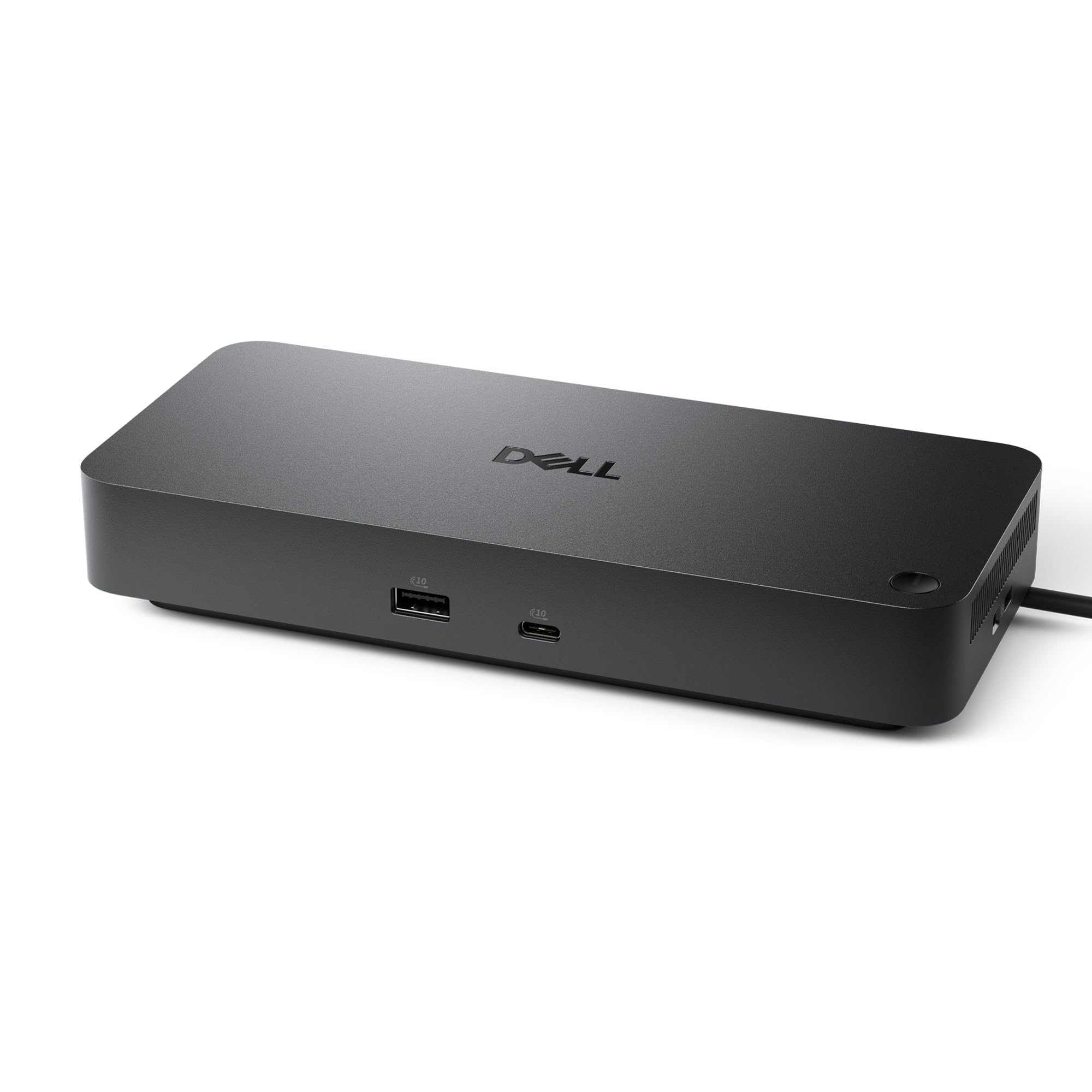
2. Dell Pro WD25 Docking Station
The dock an IT department buys in bulk because the cable works left or right
Dell built this one for the corporate desk, and the details show it. It delivers up to 100W to a mainstream Dell AI PC or a non-Dell machine, expanding to as many as four high-res displays natively. The USB-C cable routes left or right through an ambidextrous connector, which sounds minor until your desk is against a wall and the port wants to face the wrong way. Ten ports in all, and the chassis uses at least 65% postconsumer recycled material.
Setup is genuinely fuss-free — ease of use draws nothing but positive feedback in the reviews, and Linux machines and multi-monitor rigs both come up working. Compatibility is the next big strength, including Windows 10 and 11, Ubuntu 24.04, Red Hat Enterprise Linux 9.6+ and ChromeOS 137. That Linux line matters, because several docks here refuse it outright.
The honest caveat is longevity: a minority of units stop working within six months. A minority of units stop working within six months, and the value question splits buyers down the middle. If you are buying one for a home office and want it to outlive a laptop cycle, ask about warranty coverage before you commit. If you are an admin standardizing a fleet, the manageability tools and Dell’s support channel are the reason this one is on the list.
The management angle: this is sold as part of a manageable commercial docking family, so remote firmware and fleet control are part of the pitch, not an add-on.
The honest limit: durability is the weak spot men need to weigh, with a handful of units dying young.
Fits: Dell shops and Linux users who want a dock that just works with their OS.
Less ideal: anyone who wants the longest trouble-free lifespan as the first priority.
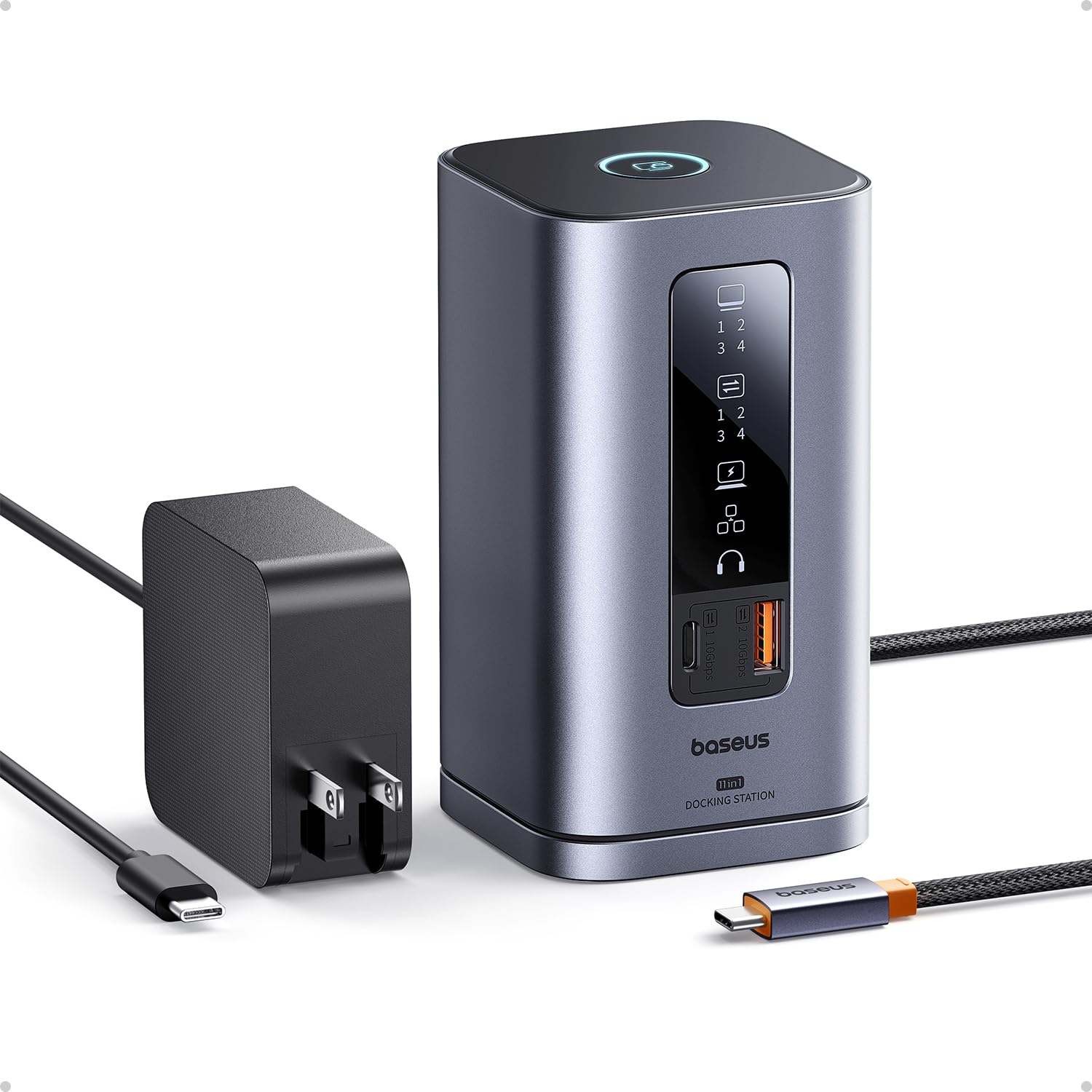
3. Baseus Spacemate 11-in-1 Docking Station
Stands up like a router and frees the rectangle your old dock hogged
Baseus took a different shape here. The Spacemate stands vertically on a magnetic base with an 80cm cable, so it occupies a sliver of desk instead of a slab. That vertical frame is the whole point: a small footprint on a cramped desk. It is also the physically largest housing on this list, and the comparison facts make that plain — the measurements for this and the Lenovo travel dock show a 4.4x gap in volume. So it stands tall but narrow, and it wants a corner rather than a drawer.
Inside you get 11 ports: two HDMI, two DisplayPort, one USB-C and two USB-A at 10Gbps, an extra USB-A 2.0 for a mouse receiver, 100W USB-C PD input, gigabit Ethernet and a 3.5mm audio jack. The included 100W GaN adapter sends up to 85W to your laptop, which is enough for a full working day at a normal load. The 10Gbps ports will move a 20GB file in around 20 seconds.
The built-in LED screen shows which ports are live, and a screen-lock button blanks the signal in one press when someone walks up to your desk. Functionality is the most-praised trait, with owners finding it works the way it should, and several note how little room the vertical stand takes up. The compatibility question is the one to check: it works on some Asus and Dell laptops and not others, all dependent on a full-featured USB-C port, so verify your model before buying. The triple display mode is a Windows feature, not something every Mac will mirror.
Desk math: the vertical stand and magnetic base turn a bulky dock into a vertical slab that lives behind your monitor.
The cost of the shape: triple 4K extension is aimed at Windows machines, and compatibility varies by laptop model.
Suits you if: desk space is the scarce resource and you run a Windows laptop.
Check first: your laptop’s USB-C port carries video and power, or you will not get the three screens.
4. Plugable USB C Docking Station

The Mac-specific fix for that stubborn one-external-screen limit
If you have an M-series MacBook and one monitor already feels like the ceiling, this is the Pick that blows past it. It uses DisplayLink to drive two 4K 60Hz screens over HDMI and DisplayPort on Macs and Neo devices that natively support only one external display. The aluminum housing comes in a space gray finish and holds 14 ports, including front-facing USB-C and USB for charging, three USB 3.0 ports, SD and microSD readers, a headset jack and Ethernet.
Charging works up to 100W through the dock, which is what you want when the laptop is closed and running two screens. Reliability is the most-praised trait, with macOS and Windows machines both coming up running without drama, and suitability for basic dual-monitor work sits right behind it. Installation is the one step nobody skips: the DisplayLink software must be installed on Windows, macOS and ChromeOS before full functionality and dual output appear. Worth knowing before you plug it in for the first time.
The honest trade-off is performance under load and charging stability, both of which draw mixed reports. Some buyers report no lag at all, while others find it noticeably slower than a native connection, and the charging feedback splits between working well and giving out. HDCP is not supported either, so protected content will not pass through. That is a real limit for anyone who watches protected video on a second screen; for spreadsheets, documentation and code, it stays out of your way.
Mac-screen open up: DisplayLink is the whole reason a base M-chip MacBook can run two monitors from this dock.
The performance question: software display scaling is not free, so expect a modest lag on some machines.
Made for: MacBook Air and MacBook Pro owners who need two extended screens and no driver shortcut.
Not for: anyone who wants dual screens without installing a driver.
5. Anker Prime Docking Station

A dock that doubles as the charging hub for your entire desk
The Prime is the only one here that treats power delivery as a multi-device problem. Total output is 160W, split across three USB-C ports at a 100W maximum each plus one USB-A port at 12W, so it charges the laptop, a phone, a tablet and a camera at the same time. For a streamer or a photographer juggling batteries, that beats a dock that only feeds the computer. Fourteen ports in all, with dual HDMI outputs and a 10Gbps data ceiling.
Functionality is the most-praised trait, with the port selection and charging close behind. Owners describe plug-and-play setup with no driver scramble and power that keeps a whole streaming setup alive on one plug.
Display support is narrower than the port count suggests. Dual HDMI runs up to 2K@60Hz on a laptop with DisplayPort 1.4, or 1080p@60Hz with DP 1.2, and a 5120×1440 monitor will not work at all. On macOS the two external monitors show identical images — mirror, not extend. Reliability and connectivity are the weak points to weigh: some units work incredibly well, while others overheat or drop the external screens, and MacBook users report the roughest compatibility ride. Linux is not supported.
The charge story: 160W total across four devices is unique here and the reason to shortlist it.
The display catch: dual 2K@60Hz and Mac mirroring mean this is not the triple-screen dock.
Take it if: your desk is a nest of devices that all need topping up from one wall wart.
Look elsewhere if: your priority is extended displays on three or more monitors.
6. UGREEN Thunderbolt 4 Docking Station

Eight ports, 40Gbps, and two 4K screens on a Thunderbolt 4 laptop
UGREEN went after bandwidth over port count. The 8-in-1 hub carries three Thunderbolt 4 ports at 40Gbps and 15W each, three USB-A 3.2 ports at 10Gbps, gigabit Ethernet and a 140W DC power input. In real terms, 40Gbps is the difference between waiting for a 4K project file and dragging it across; drives and cameras built for Thunderbolt will run at their ceiling. The included 140W GaN charger sends up to 85W to your laptop while it works, with no second adapter needed.
Display output is generous for the port count: two 4K@60Hz screens or a single 8K@30Hz on a Windows laptop, and the same dual 4K@60Hz on MacBooks with Pro or Max M-chips and Intel chips. Base M-chip MacBooks extend to one 4K@60Hz, which is the limit of the laptop rather than the dock. Build quality earns the most praise after overall quality, with owners calling it well made and easy to set up on a MacBook Pro.
Two practical limits. The dock needs the charger connected to function at all, so it is not a portable accessory. And reliability draws mixed reports: some say it works flawlessly on an M4 Mac with dual displays, while others lose the Ethernet port. Check your chip tier before you buy, because a base M-chip will not give you two extended displays even with a certified dock.
Why the spec is worth the spend
- Three Thunderbolt 4 ports at 40Gbps, 15W each, for high-speed storage and docks.
- Two 4K@60Hz screens or a single 8K@30Hz, depending on your platform.
- 85W laptop charging from the included 140W GaN brick.
Where it asks for patience
- The dock will not run without the charger connected.
- Base M-chip MacBooks are limited to one extended 4K screen.
- The Ethernet port occasionally fails for some setups.
Right call for: Thunderbolt 4 owners moving big files who need genuine bandwidth.
Wrong call for: machines without Thunderbolt 4 who want two 4K displays.
7. Plugable Thunderbolt 4 Dock with 100W Charging, Dual Monitor
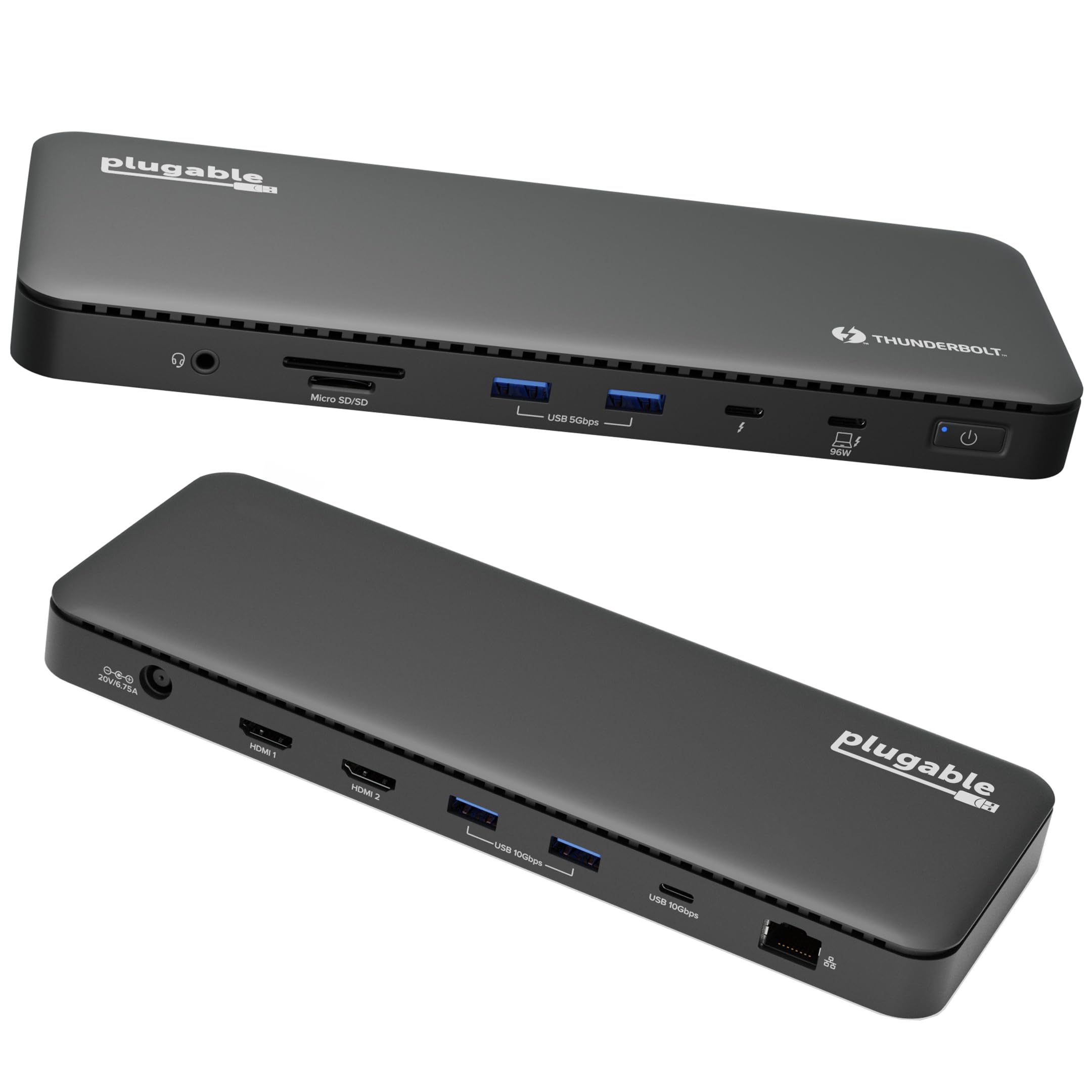
Thunderbolt certified, driverless, and built to standardize a whole office
If your team runs a mix of Macs and Windows machines, this is the dock that keeps the setup identical across all of them. It is Intel Evo-certified and delivers 40Gbps Thunderbolt 4 performance with up to 100W laptop charging (96W certified), plus dual 4K 60Hz HDMI or a single 8K display on Thunderbolt 4, Thunderbolt 5 and USB4 machines. Thirteen ports cover two HDMI, a downstream Thunderbolt 4 port at 40Gbps with 15W charging and 8K, four USB ports, a USB-C port, SD and microSD, audio, Ethernet and a K-lock slot.
The big deal is that it needs no driver at all. Plug it in, and the whole tree comes up over Thunderbolt. On a Windows Thunderbolt 4 machine you get dual displays from the start, which makes this a cleaner deployment than a DisplayLink dock. Compared with the Lenovo travel dock, it also carries far more ports: 13 versus 7. At 2.4 pounds it is desk furniture, not a bag item.
Where it asks for patience is charging and reliability, both of which split buyers. Some report the laptop stays topped up all day, while others hit charging stops and weak delivery. Plugable does provide lifetime support from its North American team, which is the reason to accept the caveats. Base M1 and M2 MacBooks stay at one external display, and base M3 only reaches two in clamshell mode.
Deployment reality: driverless install across a mixed fleet is a hidden IT cost saver that no spec sheet quantifies.
The honest caveat: this is a dock for laptops that support dual display over Thunderbolt — older and cheaper Macs are excluded.
Matches: IT buyers standardizing on Thunderbolt 4 laptops across Mac and Windows.
Mismatches: base M1 and M2 MacBooks and any machine without Thunderbolt.
8. TobenONE 16-in-1 Laptop Docking Station
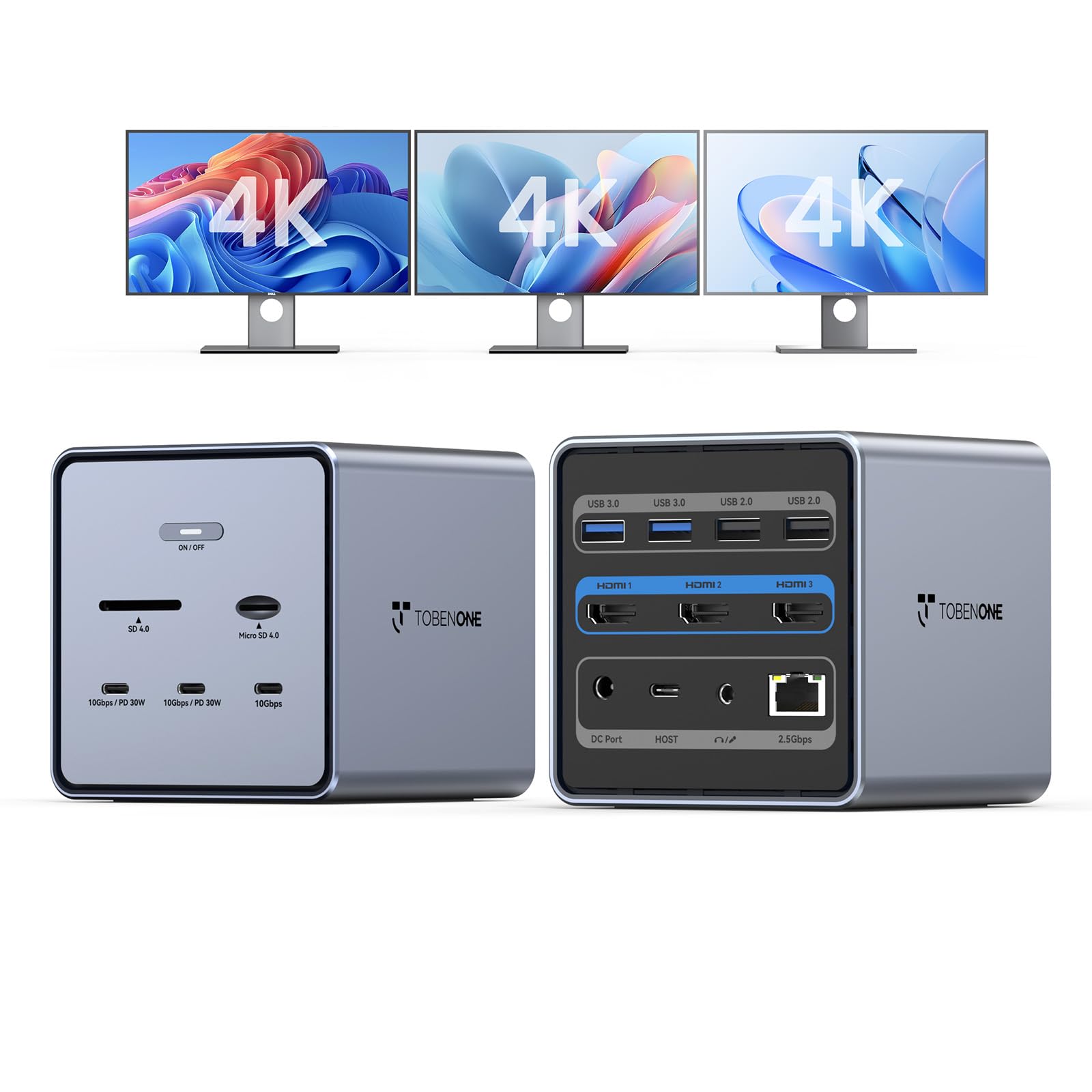
Sixteen ports, a 150W brick, and Ethernet fast enough for 8K footage
This is the dock you buy when your work moves huge files over a wire. The 2.5Gbps Ethernet port is the standout, aimed at video editors and engineers pushing 4K and 8K footage between a fast fiber connection and the laptop. Around it sit 16 ports: three HDMI, three USB-C at 10Gbps, two USB 3.0, two USB 2.0 for mice and keyboards, SD/microSD 4.0 card slots at 312MB/s, and a 3.5mm audio jack. The included 150W power supply sends a stable 100W to the laptop, with two front USB-C ports at 30W each for a phone or tablet.
Display output is broad. A single monitor runs up to 2K@144Hz, and dual or triple monitors run up to 4K@60Hz with a DP 1.4 and DSC source. For a coder or trader who wants one fast screen plus two reference panels, that mix works. The 150W supply is the reason it holds up with three displays and a clutch of peripherals running at once.
The concern here is reliability, and it is the one thing to think hard about. A chunk of owners mention units failing during normal use, with some defective on arrival and others stopping after six weeks. MacBooks also extend only one display here, not three. Everything else about the spec sheet is strong; the question is whether yours is a good unit.
Why power users shortlist it
- 2.5Gbps Ethernet moves large video files faster than gigabit.
- 150W supply holds a stable 100W laptop charge under triple-display load.
- 16 ports including SD 4.0 card slots at 312MB/s.
What to weigh honestly
- Multiple reports of units failing within weeks of arrival.
- MacBooks extend only one display.
- USB-C ports cannot drive a USB-C monitor.
Built for: editors and data-heavy desks that need 2.5G Ethernet and 100W at once.
Weigh carefully: the reliability record makes the warranty the deciding detail.
9. Lenovo USB-C Dual Display Travel Dock

Seven ports, an integrated cable, and a shell that packs flat
The Lenovo answers the question the big docks ignore: what do you throw in your bag? At 7 ports it is the leanest here, and its 1.4 pounds against the TobenONE’s 1.1 pounds puts it on the heavier side for a travel dock. But the integrated USB-C cable means nothing to lose, and it supports dual 4K displays through one DP 1.4 (DisplayPort 1.4, a video connection standard) and one HDMI 2.0 port, plus 10Gbps (gigabits per second) USB-A and USB-C data, an always-on USB port for charging a phone, and gigabit Ethernet (a wired network connection at 1 gigabit per second).
Power is the number to read carefully. The included 100W USB-C charger delivers 65W to your laptop, and an optional 135W charger raises that to 100W. That 65W figure is the gap between this and the TobenONE at 100W, so if your laptop is a hungry gaming or workstation model, plan on stepping up. It is also the smallest cluster of ports here — 7 against the TobenONE’s 18 — but that is the point of a travel dock.
Owners value the build quality and the compact size. It is called excellent quality and noted as not taking up much space. The honest catch is DisplayPort reliability: some setups report DP not working while HDMI will, and a few find it will not fully power their laptop on the included brick. Test the DP output on day one rather than the morning of a client presentation. The chassis uses 66% post-consumer recycled content, which is a nice touch for a corporate buyer.
Where a travel dock wins
- Integrated USB-C cable means no vendor adapter to lose in a bag.
- Dual 4K support from 7 ports in a compact body.
- Always-on USB port keeps a phone charged while the laptop is away.
Where it is outmatched
- 65W pass-through on the included charger, so laptops that demand more will not hold charge.
- 7 ports is a fraction of what the desk docks offer.
- DisplayPort connectivity is the recurring weak spot.
Packs well for: consultants, teachers and remote workers who move desk to desk.
skip it if: you need more than 65W to your laptop from the included adapter.
Know the Specs
Power delivery wattage
This is the amount of power the dock pushes back up the cable into your laptop, and it is always lower than the wattage printed on the included adapter. The dock keeps some for itself. Match the pass-through number to your laptop’s own charger, and you hold your battery level rather than slowly losing it. A lower-wattage laptop can charge on the lower end of this list’s range, but a power-hungry workstation needs the higher figure.
DisplayLink versus native video
Native video runs through the laptop’s own graphics hardware and is limited by the chip — many base Macs allow only one external screen. DisplayLink installs a driver and compresses the image in software, which lets one cable drive three or four monitors. The trade-off is a driver install on day one and the macOS Screen Recording permission. If you run Windows and only need two screens, native is simpler and cheaper.
Port speed tiers
USB ports carry different ceilings. A 10Gbps port is fast enough for a portable drive, while 5Gbps and 2.0 ports suit keyboards, mice and webcams where speed does not matter. Look for the fast ports where you will plug the drive, and expect the slow ports to sit on the back for the permanent accessories.
Ethernet speed
Gigabit is the everyday standard and fine for calls and browsing. A 2.5Gbps port is aimed at video editors moving large footage files across a fast local network. If you work over Wi-Fi and never touch a cable, this spec is one you can ignore when comparing.
Common Questions
Will a USB-C docking station charge my laptop while driving external monitors?
Why does my Mac only show one external display on a dock?
Do I need to install software for a USB-C dock to work?
Can I extend three or four monitors from one USB-C cable?
Is a 100W power adapter enough to charge my laptop through a dock?
Will my dock work with a Linux laptop?
What does the power delivery (PD) input port on the dock do?
Can I charge my phone from the dock too?
Do these docks work with a Thunderbolt 3 or USB4 laptop?
Should I buy a DisplayLink dock or a Thunderbolt dock?
The Bottom Line
The winner for most desks is the TobenONE DisplayLink Docking Station 3 Monitors, and the reason is simple: it does the one thing buyers keep asking for — up to 100W (watts) to the laptop while extending three screens. The 120W adapter, 18 ports and the driver-based display output (software that adds extra screens) make it the most complete package here. If your laptop demands more power per device on the desk, grab the Anker Prime Docking Station and its 160W total output. And for the person who lives out of a bag, the Lenovo USB-C Dual Display Travel Dock earns the spot with its integrated cable and compact build.
The one honest nudge: buy for your laptop’s display limit first, not for the port count. A dock with 18 ports will not give a base Mac two screens, and a dock with 7 ports will not give a Windows editor three panels. Match the spec to the machine you actually own, and the rest follows.
How we choose
We do not accept paid placement. Every pick is matched to a real buyer and a real use-case; we do not hands-on test units.
Sources
Specifications: manufacturer listings and product documentation. Review insights: verified customer reviews, as of November 2026. Pricing: not shown on this page (it changes often); check the current price via the retailer link.
As an Amazon Associate, Tactical Gear Guy earns from qualifying purchases. This does not affect which products we feature.