Specs are compiled from manufacturer listings and verified buyer reviews and can change over time — please confirm the key details on the product page before buying.
If you want a touch screen you can jab with a finger all day without the cursor fighting you, the panel you buy matters far less than one unglamorous detail: how the touch signal gets from the glass to your computer. Get that right and a mid-range 22-inch panel responds the moment your finger lands. Get it wrong and a big, bright, expensive screen ignores every tap. Below you will find the picks that handle that handshake cleanly, plus the ones that need a workaround.
This guide is built by comparing the manufacturers’ published specifications and the patterns across verified customer reviews, so you get each pick’s real strengths and trade-offs instead of marketing spin.
The picks run from a 21.5-inch 1080p panel to a 27-inch 2K display, each matched to a different desk setup. Every pick below is a touch screen desktop monitor that holds up to daily work, not a showroom demo.
Top Picks


How To Choose The Best Touch Screen Desktop Monitor
The first thing to understand is that a touch monitor is really two devices bolted together. One is the display, which you judge by resolution and panel type. The other is a touch digitizer, a thin layer over the glass that reports where your finger is. The display panel itself rarely fails. The digitizer is where buyers get caught out. Almost every complaint in this category traces back to a missing USB cable, an uninstalled driver, or an OS that never registered the touch panel.
Touch points: what 10-point multi-touch really means
Multi-touch is the number of fingers the screen can track at the same moment. A 10-point panel can register ten simultaneous contacts, which is what lets you pinch to zoom, rotate a photo with two fingers, or rest a palm on the glass while you draw. For spreadsheets and point-of-sale work, two fingers covers nearly everything. For creative apps, kiosks, or teaching, the higher count stops gestures from dropping out mid-move.
The connection that actually enables touch
Here is the assumption that trips up most first-time buyers: they plug in HDMI, see a picture, and assume touch is live. It is not. HDMI carries video only. Touch travels over a separate USB link, usually a USB-B cable from the monitor to your PC, or over USB-C on newer models where one cable does both. If touch does nothing, check that USB cable before you blame the panel.
Resolution, refresh rate, and what your eyes notice
Resolution is how many pixels the panel draws, written as width by height. A 1920 x 1080 panel is Full HD and fine for documents, spreadsheets, and point-of-sale work. A 2560 x 1440 panel is sharper and gives you more room for windows. Refresh rate in hertz (Hz) is how many times per second the image redraws; 60Hz is the standard, and 100Hz or 144Hz makes scrolling and dragging feel smoother, which matters most when your finger is the mouse.
Mounting, tilt, and where the screen sits
A touch screen you have to reach for all day needs to sit at the right height and angle. Look for a stand with real tilt range, or VESA compatibility, which is the standard four-hole bolt pattern on the back for wall or arm mounting. Both let you bring the glass to your hand instead of leaning into it.
Side-by-Side Comparison
| Model | Best For | Resolution | Touch Points | Refresh Rate | Amazon |
|---|---|---|---|---|---|
| ASUS VT229H 22 Inch★ Best Overall | Everyday desk work | 1920 x 1080 | 10-point | — | Amazon |
| FYHXele 22 InchBest for Kiosks | Kiosk and warehouse | 1920 x 1080 | 10-point | 75Hz | Amazon |
| CUNPU 27″Most Screen Space | Big-screen productivity | 1920 x 1080 | 10-point | 60Hz | Amazon |
| 24 Inch 2K QHD 144Hz | Touch gaming | 2560 x 1440 | 10-point | 144Hz | Amazon |
| Prechen 27 Inch 2K | Portrait and presentation | 2560 x 1440 | 10-point | 100Hz | Amazon |
| ASUS BE24ECSBT 24 Inch | Laptop docking | 1920 x 1080 | 10-point | — | Amazon |
| Dell P2424HT 24″ | Desk flexibility | 1920 x 1080 | 10-point | — | Amazon |
| ViewSonic TD2455 24 Inch | Mac touch setups | 1920 x 1080 | 10-point | 60Hz | Amazon |
| Dell P2418HT 23.8″ | Full-time touch desktops | 1920 x 1080 | 10-point | — | Amazon |
Detailed Reviews
1. ASUS VT229H 22 Inch 1080P FHD IPS Touchscreen Monitor
Our pick — 4.5+★ from 900+ verified ratings; the strongest balance of quality and price.
The 21.5-inch glass you can tap like a tablet and forget it is a monitor.
This is the pick that turns touch into something you stop thinking about. It puts a 10-point multi-touch layer over a 21.5-inch Full HD IPS panel, and it does it at a price that does not read like a specialty product. The panel is 1920 x 1080 across 16:9, with 178-degree viewing angles from the IPS technology, so the picture stays colorful even when you are leaning over from an angle to poke at a spreadsheet cell.
The frameless design is the quiet win for anyone building a two- or three-screen desk. With almost no bezel between panels, a pair of these sitting side by side reads as one wide surface rather than two windows with a gap. Add the built-in blue light filter and flicker-free backlight, and long afternoon stretches in front of it are easier on your eyes than a bare office panel. Connection is HDMI for the image and VGA as a legacy fallback, and ASUS backs it with a 3-year warranty with advanced replacement.
One number puts its picture punch in perspective: the contrast ratio is rated 100,000,000:1, against 1000:1 on the FYHXele 22-inch elsewhere on this list. That is a very different way of describing black depth, and in practice it translates to shadows that hold up rather than washing to grey during video calls. Where it deserves an honest caveat is touch consistency — the accuracy and speed are generally strong, but a share of buyers hit panels where touch needs driver attention before it behaves. Treat the USB link as part of setup, not an afterthought, and you avoid most of that. For a desk where touch is a daily input rather than a stunt, this is the balanced answer.
What earns it the top spot
- 10-point multi-touch handles pinch, rotate, and two-hand gestures without dropping inputs
- Frameless 21.5-inch IPS panel with 178-degree viewing angles keeps color steady off-axis
- Flicker-free backlight and blue light filter for long sessions
- 3-year warranty with advanced replacement backs a long desk life
Where it asks a little of you
- Touch runs over the USB link, so a loose or missing cable reads as a dead screen
- VGA is the only secondary input — no DisplayPort or USB-C here
The call: the right screen for a home office or classroom desk that wants honest touch without specialty pricing.
But know this: budget a few minutes for the touch driver on first setup so it registers cleanly.
2. FYHXele 22 Inch Touchscreen Monitor, IPS FHD 1080P, 75Hz
A display built to lie back flat on a counter and take a hundred fingers a day.
The stand is the reason to look here first. This 22-inch panel tilts from -5 degrees all the way to 180, which means it can sit nearly flat and face upward like a countertop terminal. That single range makes it the natural pick for a bar, a gym check-in desk, a warehouse station, or a restaurant order point. It also carries a 100mm x 100mm VESA pattern, so you can bolt it to an arm or a wall instead.
You get richer, less washed-out signage and product images because the panel covers 100 on the color gamut scale, against 72 on the ASUS VT229H. The screen itself is a 1920 x 1080 IPS layer (a panel type with wide viewing angles) rated at 300 nits of brightness (a measure of screen brightness), with a 178-degree viewing angle and 75Hz refresh (75 screen updates per second). Ten-point touch (it tracks ten fingers at once) is on board for zoom, rotate, and stylus handwriting, and it accepts HDMI, VGA, and USB for the touch signal.
Now the honest part, and it is worth weighing for a device that may never be switched off. Buyers report screen quality and touch sensitivity as the standout wins, and they are right about that. The recurring worry is longevity — a portion of units stop powering on, sometimes well inside the first year. Separately, Mac compatibility is not there; buyers who tried it on Apple hardware found it would not cooperate. On Windows this is a flexible, bright little terminal screen. On a Mac, look at the ViewSonic below instead.
The flexibility case: a 180-degree tilt plus VESA mounting means this screen adapts to a counter, a wall, or an arm without extra hardware.
The honest catch: this is not a Mac screen, and long-term reliability is the one thing to keep an eye on rather than assume.
Reach for this if: you are kitting out a Windows point-of-sale or check-in station that needs to lie flat and face the customer.
Look elsewhere if: the machine behind the counter is a Mac.
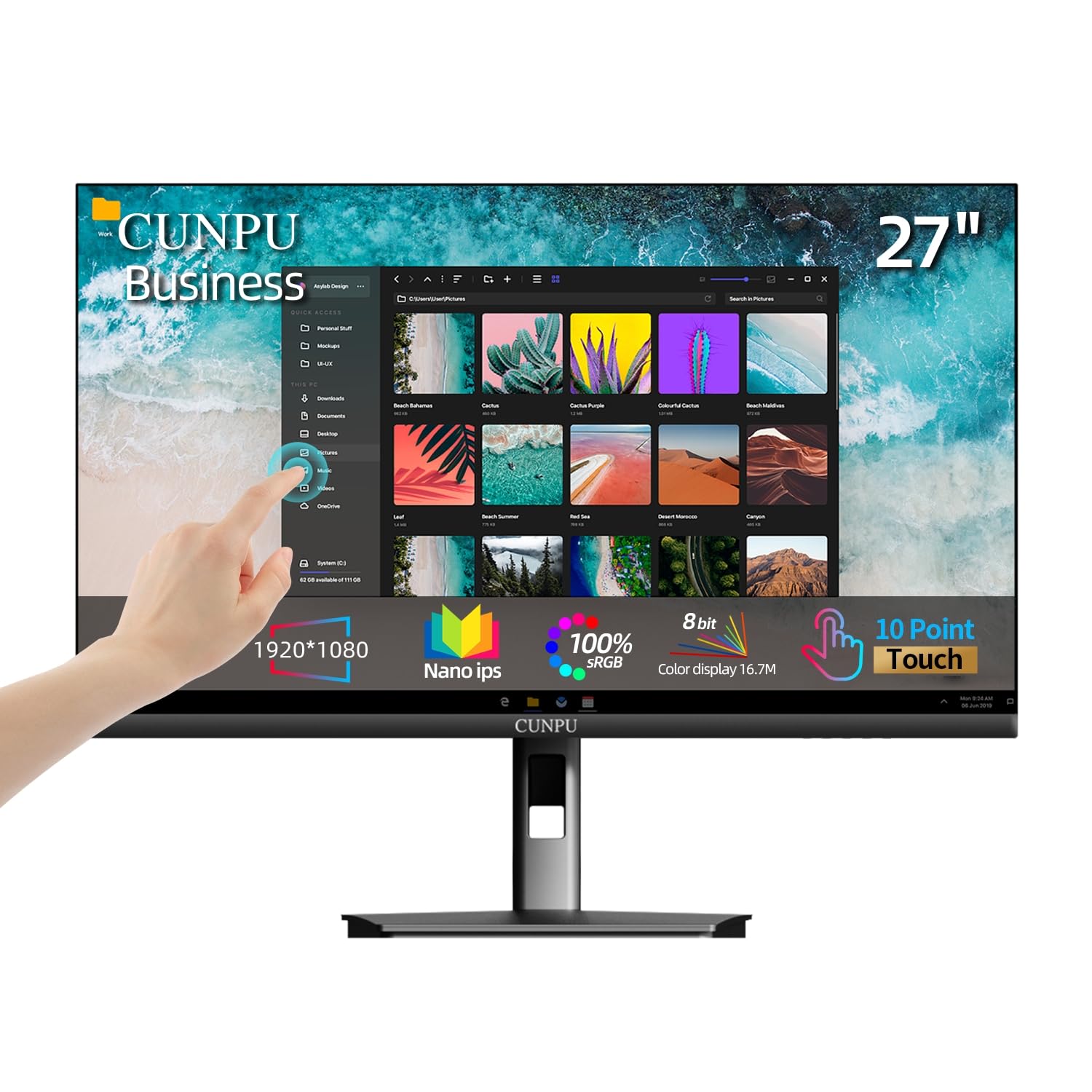
3. CUNPU 27″ 10-Point Touchscreen Monitor 1080P Nano IPS
A big 27-inch touch surface that treats a spreadsheet like a tablet app.
If your work lives in Excel or a drawing tool, the extra diagonal is the whole point. This is a 27-inch 1920 x 1080 panel at a 60Hz refresh rate with a 1000:1 contrast ratio and 220 cd/m² brightness, covering 100% sRGB and 16.7 million colors. The panel sits in an IPS layer with a 178-degree viewing angle, so it holds color whether you are dead center or poking at it from the side. HDR10 mode deepens the contrast further for video.
The touch side is where it earns its keep for accounting and admin work. Ten-point multi-touch means pinch-to-zoom, two-finger rotate, and timeline scrubbing are all native gestures, and the maker specifically points to the edge of the glass — no dead zone running along the border where taps fall through. You connect HDMI for video and USB-B for the touch signal, and there is VGA for older machines.
Two numbers frame the trade-offs honestly. At 4.45 kg (roughly 9.8 pounds) it is a desk fixture, not something you carry around, and it also measures 7.56 by 24.11 by 18.31 inches — noticeably chunkier front-to-back than the FYHXele at 1.68 inches deep. So think dedicated desk, not shared conference table. And touch is the one area where opinions split: most find it responsive and precise, a share find it sluggish on occasion. If you want Apple-style touch-to-wake on macOS, know that this model does not support it — the maker states that outright. For PC users who want a lot of touchable real estate, it fits the bill.
Why the size pays off: 27 inches of 100% sRGB screen means a wide sheet or a canvas is comfortably touchable, not cramped.
What to plan around: it is a 4.45 kg desk-mounted unit with no macOS wake support, so commit it to one permanent workstation.
Made for: a fixed PC workstation doing spreadsheet, design, or point-of-service work where more surface helps.
Avoid if: you split time between a Mac and a PC on the same monitor.
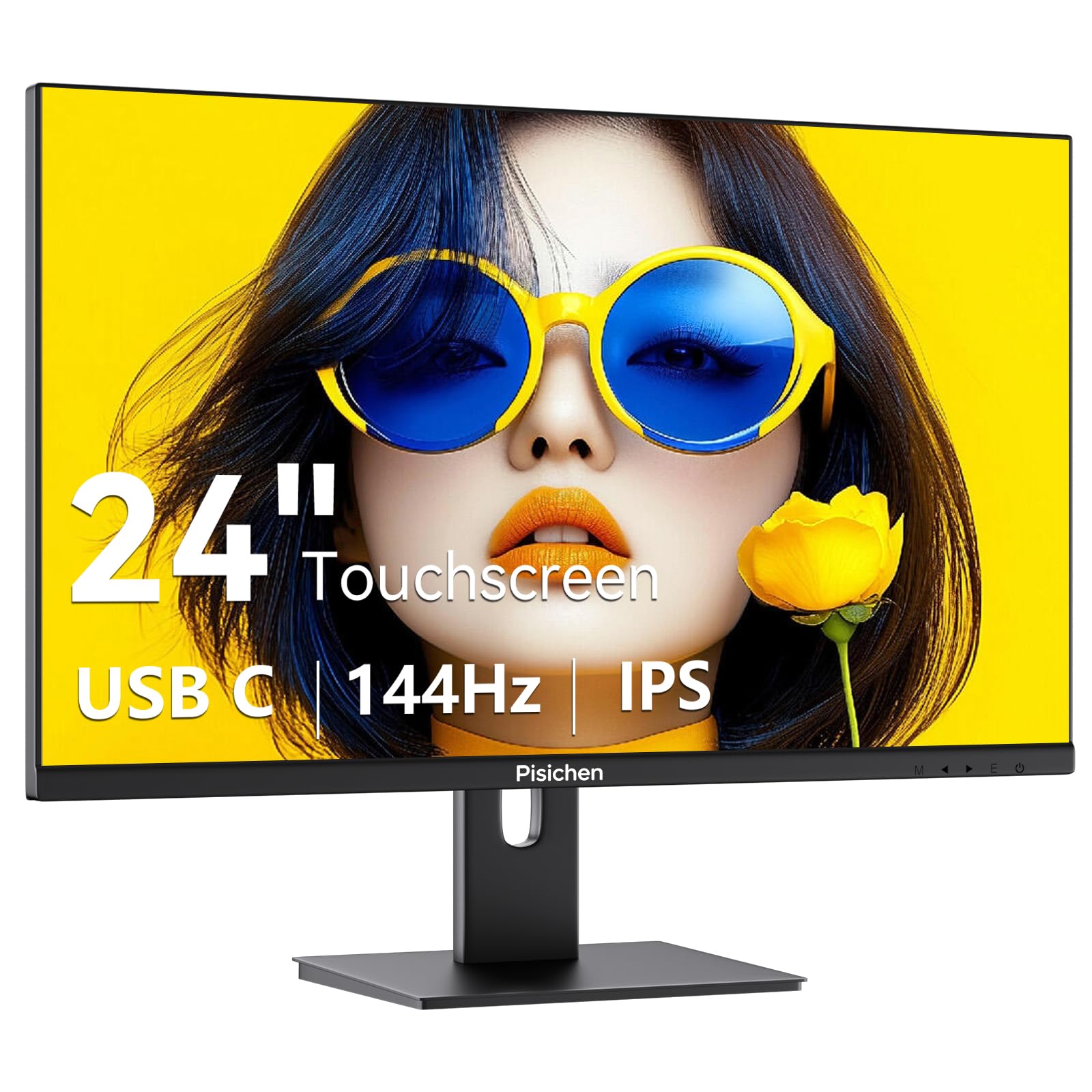
4. 24 Inch Touchscreen Monitor 2K QHD 2560×1440 IPS, 144Hz
The one touch screen here that scrolls as smoothly as it taps.
Most touch panels are office tools. This one is aimed at a finger on the glass during a game. The 144Hz refresh rate is the headline, and it runs more than double the 60Hz of the CUNPU 27-inch above — the difference shows up as scrolling and dragging that stay fluid instead of stepping. Pair that with a 3ms response time and blur during fast motion gets held in check, which is exactly when touch gaming feels stiff on a slower panel.
You see more detail than the 1920 x 1080 on the ASUS VT229H because the 2560 x 1440 QHD resolution (a sharper pixel grid) renders it. The IPS panel with 400 nits brightness (a measure of screen brightness) and a 3000:1 contrast ratio (the difference between dark and light areas) keeps colors rich, with 99 on the color gamut scale. Ten-point multi-touch (it tracks ten fingers at once) sits on top for design, presentations, and interactive apps. Connectivity covers DisplayPort, HDMI, and USB-C, and the USB-C port is the tidy single-cable route for video and data. A separate USB-B port handles touch, the setup is plug-and-play, and FreeSync (a feature that syncs the screen to your graphics card) keeps motion smooth when the graphics card and panel are in step.
What buyers keep coming back to is the screen — clean, sharp, and bright, with the resolution doing real work in both games and documents. The one thing to be aware of is touch calibration: it tracks well for most, but a portion of panels need a session in Windows settings before the pointer lands where your finger does. Budget the ten minutes and this is a genuinely fun all-rounder. There are built-in speakers and a tilt-adjustable stand, so it does double duty as a work screen.
Standouts
- 144Hz refresh and 3ms response time keep touch-driven motion fluid
- 2560 x 1440 QHD on a 400-nit IPS panel with 3000:1 contrast
- USB-C single-cable video and data plus FreeSync support
- Built-in speakers and a tilt stand for work-to-game flexibility
Set-up notes
- Touch can need a calibration pass in Windows before it aligns perfectly
- Touch runs on the USB-B link, not on the USB-C video cable alone
Built for: anyone who wants one screen for both interactive gaming and sharp desk work.
Skip the calibration and it will frustrate: spend the few minutes in touch settings and it sings.
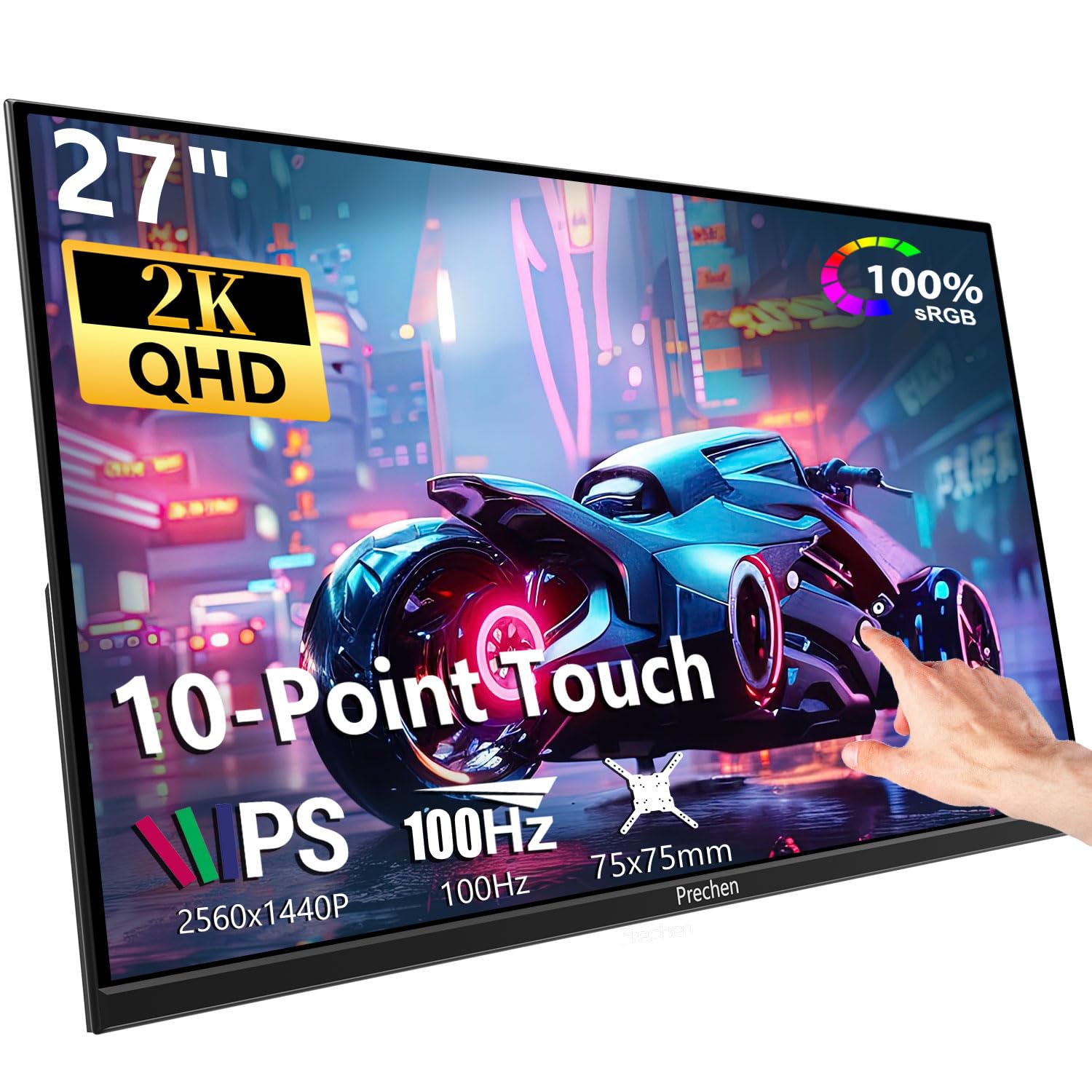
5. Prechen 27 Inch 2K QHD 100Hz Touchscreen Monitor
A 27-inch touch screen that stands up on its own and flips to portrait in a second.
The built-in stand is what makes this one unusual. It rotates a full 90 degrees, so the 27-inch panel swings from landscape to portrait without a separate mount or arm. That is a genuine convenience for anyone reading long documents vertically, running a menu board, or setting up a presentation kiosk on the fly. Around the screen you get a 2560 x 1440 QHD image, a 100Hz refresh rate, and 100% sRGB color across 16.7 million colors with a 1000:1 contrast ratio.
Ten-point touch handles drawing, gestures, and navigation, and the 178-degree viewing angle keeps color accurate from the side. Connectivity is USB-C or HDMI with no drivers needed, and built-in speakers mean you do not need a separate audio cable for a kiosk or a quick demo. This is the pick for a content creator or designer who wants true-to-life color on a large touchable canvas — the 100% sRGB coverage is real, not a rounded-up claim.
There is one setup rule you should know before you unbox it. Because of higher power draw, the maker says to plug the monitor into power before connecting the signal cable, or full touchscreen function may not come up. On the Apple side, single-point touch only — so a Mac user gets one finger, not five. The other thing worth weighing is stability: it generally runs like a charm, but some units power off unexpectedly, so a warranty matters here. That is a 12-month warranty with 24/7 support.
What it nails: a 90-degree rotating stand turns one 27-inch QHD panel into both a landscape desk screen and a portrait display.
Two rules before you start: power on first, then the signal cable — and expect single-touch only on a Mac.
Ideal for: the designer or presenter who wants one screen that flips orientation without a mount.
Think carefully if: you need full multi-touch on Apple hardware or rock-solid reliability without a support plan.
6. ASUS BE24ECSBT 24 Inch 1080P Touchscreen Monitor with Webcam

One USB-C cable docks your laptop, charges it, and lights up a touch panel.
This is the pick for the laptop worker who wants a real desk without a rat’s nest of cables. The USB-C port carries video and data to the screen and pushes up to 80W of power back to the laptop, so one cable handles the whole desk. Alongside it you get HDMI, DisplayPort in and out for daisy-chaining a second monitor, an earphone jack, and a USB hub. DisplayPort out is the quiet feature worth flagging: it lets you chain another display off this one rather than buying a separate dock.
The panel is a 23.8-inch 1920 x 1080 frameless IPS with 10-point multi-touch. It has a wide viewing angle, a blue light filter, and a flicker-free backlight, and it covers 100 on the color gamut scale. Brightness is rated at 300 cd/m² or higher, and FreeSync and G-Sync support keeps motion in step. The stand is unusually adjustable for a touch panel: +35 to -5 tilt, 180 swivel, 90 pivot, and 130mm of height travel, so you can raise the glass toward your hand instead of hunching to it. It is VESA mountable too.
Reliability is where it asks for a little faith, and it is worth being straight about. Performance draws the strongest praise, and the Linux crowd in particular reports it working beautifully. Touch is more of a coin flip — plenty find it excellent, but some units need attention before it engages, and quality is a mixed bag overall. Add a webcam and this becomes a complete video-call station, with a 3-year warranty with advanced replacement as the backstop. If you want a dock and a touch panel in one box, this is the tidy answer.
Why the docking wins: 80W of power delivery plus DisplayPort out means one cable charges the laptop and feeds a second screen.
Where to set expectations: touch engagement is inconsistent across units, and the Linux-friendly performance is the more reliable strength.
For the cable-tired: laptop users who want docking, charging, a webcam, and touch from a single USB-C line.
Not the safest bet if: touch-as-primary-input is non-negotiable and you want zero setup risk.
7. Dell 24″ Touch Monitor – P2424HT

A work screen with touch that goes edge to edge and glare that does not.
Dell’s angle here is the desk itself. The 23.8-inch 1920 x 1080 panel is an edge-to-edge 10-point touchscreen, which means the glass reads touch right up to the border — no dead strip where your finger falls through. It is an anti-glare surface with ComfortView Plus, low blue light, and flicker-free technology, all aimed at sitting comfortably through a full workday. Brightness is 300 candela per square meter, contrast is 1000:1, and the color gamut sits at 99.
You can plug in laptops, desktops, and certain gaming consoles, so it is at home in a home office or a shared workstation. On the connection side you get DisplayPort, HDMI, and USB for the touch link, with FreeSync support (a feature that syncs the screen to your graphics card). The flexible design lets you angle the screen to suit the way you actually reach for it, and the anti-glare coating (a layer that cuts reflections) matters more here than on a non-touch panel — you will be looking at this glass head-on, not from a meter back.
The most common friction point is not the screen but the handshake with Windows. Touch responsiveness itself earns solid marks, and the display is well regarded. But Windows sometimes needs a nudge to auto-detect the panel as a touch device rather than just a second monitor. That is a one-time setup step, not a defect — once it is registered, it behaves. If your workflow is a Windows desk that occasionally goes console-side, this is a clean, glare-resistant choice.
The edge-to-edge benefit: touch registers right to the border, so the last column of a wide table is as tappable as the first.
Set-up reality: expect to tell Windows the screen is touch-capable the first time, then leave it alone.
Best matched to: a Windows home office or workstation where glare control and full-surface touch both matter.
Less ideal if: you want zero-tinkering setup from the start.
8. ViewSonic TD2455 24 Inch 1080p Touch Screen Monitor, USB C

The rare touch panel that actually gets along with a Mac.
Mac users, start here. This 24-inch Full HD panel at 1920 x 1080 and 60Hz runs a 10-point projected capacitive (PCAP) touch layer — the same touch technology tablets use — so taps, pinches, and swipes register smoothly. The part that matters for Apple hardware is the vTouch driver, which open up touch and gesture control on a Mac connected to this display. Note the limits it sets itself: not available for iPhone or iPad, so this is a Mac desktop companion, not an iOS accessory.
Plugging in a laptop is a single motion because USB-C carries data, audio, and video over one cable and delivers 60W of charging (enough to power a laptop). The dual-hinge stand tilts to boost comfort and productivity across long sessions, and thin bezels keep the glass feeling open. The panel is an IPS layer with a blue light filter, flicker-free backlight, and frameless design, available for height adjustment. The maker describes the build as sturdy PCAP technology (a touch layer that senses fingers through the glass), and a full 1080p image keeps text crisp for touch-heavy apps.
The honest tension is usability. Functionality and display quality are the strengths people point to — it works beautifully and looks clear. Touch sensitivity is the split decision, with some finds it responsive and others find it only catches roughly half their taps. Some Mac buyers also note it will not cooperate in a multi-monitor arrangement. For a single Mac-linked touch screen it is one of the few real options, and it handles that job. Just do not expect console-style consistency from the touch layer.
Why Mac buyers look here
- vTouch driver open up touch and gestures on a connected Mac
- 10-point PCAP touch with a frameless IPS panel
- USB-C carries video, audio, data, and 60W charging over one cable
- Dual-hinge stand and height adjustment for comfortable angles
The fair warnings
- Touch sensitivity does not land every tap for every buyer
- No support for iPhone or iPad, and multi-monitor Mac chains can misbehave
A smart pick for: a single Mac desktop setup that needs a real touch surface and one-cable USB-C docking.
One look elsewhere caution: if your Mac desk runs multiple monitors, this is not the smoothest fit.
9. Dell P2418HT 23.8″ Touch Monitor – 1920×1080 LED

The battle-tested touch desk screen that has quietly outlasted a lot of newer panels.
Here is the mature pick, and the numbers back the reputation. This is a 23.8-inch 1920 x 1080 IPS panel with 10-point touch, 178-degree horizontal and vertical viewing angles, and 16.7 million colors. It renders 250 cd/square meter brightness against a contrast ratio listed as DCR 8,000,000:1, with pixel pitch at 0.275mm and a 6ms gray-to-gray response time. The math on all that lands at sharp, readable text and dependable color for spreadsheets, point-of-sale, and design review.
The articulating stand is the other half of the story. It swivels and tilts so you can pull the glass down toward your hand rather than reaching forward, and the adjustability is a recurring win for desk use. It covers analog RGB and digital connections across D-sub, HDMI, DisplayPort, and DVI, plus USB for the touch link. VESA mounting at 100mm x 100mm is there if you want it on an arm, and it lists 6.88 pounds. Power draw runs 18 watts operational.
What earns the confidence here is touch that works right from the start — display quality and touch responsiveness are consistently the most-cited strengths, and the screen is clear and crisp without fuss. It is fair to note that a few buyers find the cable management and the DVI situation wanting, so plan how you will route the cables. But as a do-everything touch desktop that has been on desks long enough to prove itself, it is hard to argue with. Think workhorse, not novelty.
Proof points
- 10-point touch and 178-degree IPS viewing angles from every seat
- Articulating stand swivels and tilts to bring the screen to your hand
- Full input spread: D-sub, HDMI, DisplayPort, DVI, and USB
- 8,000,000:1 dynamic contrast and sharp 0.275mm pixel pitch
Worth planning for
- Cable management gets mixed reviews — route with intent
- Some setups note the DVI option left a gap in usability
What it is: the safe, well-proven choice for a full-time touch desktop that needs to just work daily.
The trade to accept: you may want to think through cable routing before it goes into a tidy visible desk setup.
Know the Specs
Touch Points and the USB Link
Touch points are how many fingers the panel tracks at once — ten is the common ceiling, and it is what lets pinch, rotate, and palm-rest work at the same time. The more important spec is invisible on the box: touch travels over a USB cable, usually USB-B or USB-C, and it is separate from the HDMI or DisplayPort video cable. If the glass does not respond, check that USB link first, then the operating system’s touch driver, before assuming the panel is faulty.
Resolution and Refresh Rate
Resolution is the pixel grid, written width by height; 1920 x 1080 is Full HD and 2560 x 1440 is QHD, which packs in more detail and window room. Refresh rate in hertz is how often the image redraws each second — 60Hz standard, 100Hz and 144Hz smoother. When your finger drives the pointer, a higher refresh rate and a lower response time make drags feel like they track your hand rather than trail behind it.
Common Questions
Why does touch do nothing even though the screen shows an image?
Will a touch screen desktop monitor work with a Mac?
What does 10-point multi-touch actually change for me?
Can I wall-mount or arm-mount a touch monitor?
Is a 60Hz touch monitor worse than a 100Hz or 144Hz one?
Do these touch monitors include built-in speakers?
Will a touch screen monitor add lag for normal mouse work?
How do I clean fingerprints off a touch panel safely?
Is 1080p enough on a 27-inch touch panel?
Can I use one of these as a second screen for a laptop?
The Bottom Line
For most desks, the touch screen desktop monitor worth buying is the ASUS VT229H because it balances a 10-point touch layer, a frameless IPS panel, and a 3-year warranty at a price that does not read specialty. If one USB-C cable to your laptop is the priority, the ASUS BE24ECSBT docks and charges while it lights up the touch screen. And if you want a big, flexible 27-inch surface that stands up on its own, reach for the Prechen 27-inch. One last nudge: whichever you pick, plug in the USB touch cable on day one and let the driver install — that single step is what separates a screen you love from one that feels broken.
How we choose
We do not accept paid placement. Every pick is matched to a real buyer and a real use-case; we do not hands-on test units.
Sources
Specifications: manufacturer listings and product documentation. Review insights: verified customer reviews, as of November 2026. Pricing: not shown on this page (it changes often); check the current price via the retailer link.
As an Amazon Associate, Tactical Gear Guy earns from qualifying purchases. This does not affect which products we feature.