Specs are compiled from manufacturer listings and verified buyer reviews and can change over time — please confirm the key details on the product page before buying.
You want one cable into your MacBook Air and everything else — the monitor, the external drive, the SD card, the wired network — to just work. A Thunderbolt hub turns that one cable into video, USB-A, card readers, Ethernet, and laptop charging — and your Air’s chip, not the dock, sets how many screens you get. Base M1 and M2 Airs run a single external display no matter which dock you plug in. Base M3 Airs can do two, but generally only with the lid closed. M4 and M5 Airs and any Pro or Max chip can drive two at once. Pick a dock that matches your chip, and the rest is port count and charging wattage.
This guide is built by comparing the manufacturers’ published specifications and the patterns across verified customer reviews, so you get each pick’s real strengths and trade-offs instead of marketing spin.
Narrow it down by checking three specs: your chip’s display limit, the host-charging wattage against your Air’s own charger, and how many USB-A accessories you still plug in. The picks below are sorted around exactly that, and every one is a genuine Thunderbolt dock rather than a plain USB-C splitter, so your data stays at full speed. Here is the honest shortlist of the thunderbolt hub for macbook air buyers actually keep on their desks.
Top Picks

How To Choose The Best Thunderbolt Hub For Your MacBook Air
A Thunderbolt hub is a single box you plug into your Air’s Thunderbolt port that turns one cable into many — video out, USB-A for older accessories, card readers, wired network, and charging for the laptop itself. Get the wrong one and you either can’t run the monitors you own or you spend your afternoon swapping cables. Get the right one and one cable carries video, data, and charging to your Air.
Start with your chip, not the dock
Base M1 and M2 MacBooks support one external display, and no dock can change that — a dock listing “dual 4K” will still give you one screen on those chips. Base M3 supports two displays only in clamshell mode (lid closed). Pro, Max, and the newer M4/M5 chips run two external screens without that trick. Check your own chip first, then read the dock’s compatibility note carefully.
Charging wattage versus what your Air draws
The dock’s host-charging number is the wattage it sends back to your laptop through the same cable. A MacBook Air is a modest draw compared with a 16-inch MacBook Pro, which is why an 85W or 96W dock feels generous on an Air. What matters is that the dock’s wattage at least matches your Air’s own charger — and that enough power is left over for your external drives once the laptop has taken its share.
Count the ports you will use this week
Port count on the box is not the same as usable ports at once — check which ports share bandwidth before you buy. Read the listing for what shares bandwidth. If you own an external SSD, a card reader, and a USB-A mouse receiver, a 5-port hub can be plenty. If you also want dual HDMI monitors plus Ethernet plus a second USB-C drive, you need a bigger dock with independent chips per function so nothing throttles.
Thunderbolt 4 versus Thunderbolt 5 on an Air
Thunderbolt 4 moves data at 40Gbps through every port, which is more than an external SSD needs. Thunderbolt 5 raises that ceiling and can allocate extra bandwidth to high-refresh displays, but an Air with a Thunderbolt 4 port will run a Thunderbolt 5 dock at reduced function. Buy for the port your Air actually has.
Side-by-Side Comparison
| Model | Best For | Ports | Host Charging | Max Displays | Amazon |
|---|---|---|---|---|---|
| UGREEN 8-in-1 Thunderbolt 4 Docking Station★ Best Overall | Best Overall | 8 | 85W | Dual 4K@60Hz | Amazon |
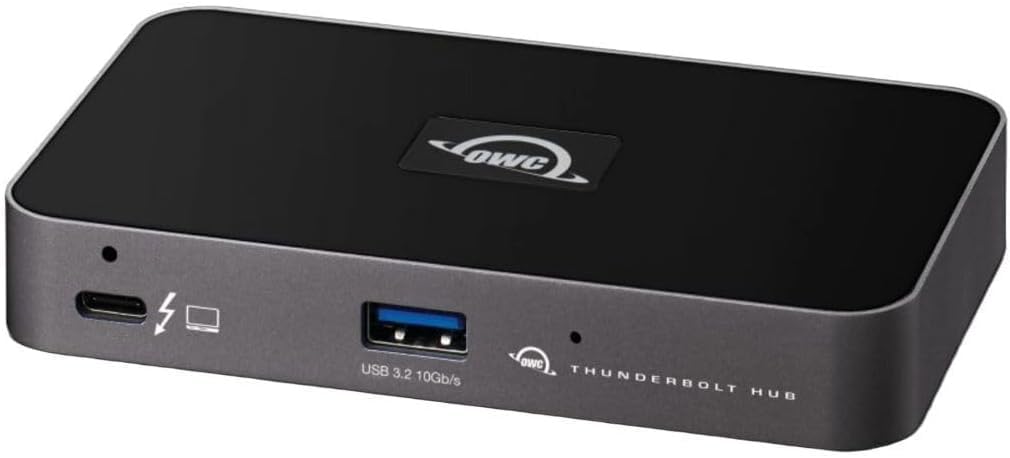
| OWC Thunderbolt Hub 5-PortSmallest Footprint | Smallest footprint | 5 | 60W | One 8K or two 4K | Amazon |
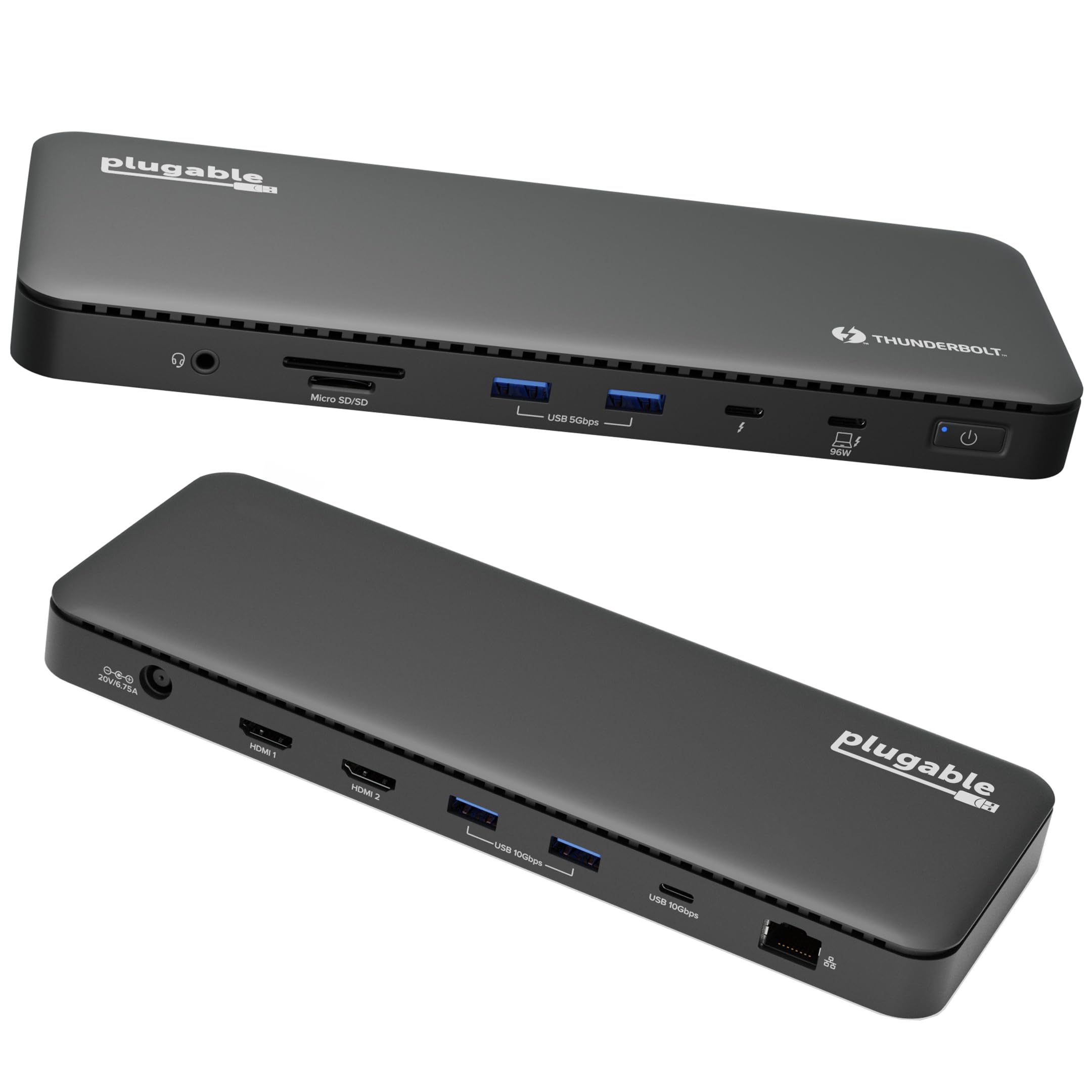
| Plugable TBT4-UD5Most Ports | Most ports | 13 | 100W | Dual 4K@60Hz | Amazon |
| Dell Pro Thunderbolt 4 Smart Dock SD25TB4 | Four monitors | 12 | 130W | Four 4K | Amazon |
| OWC 11-Port Thunderbolt Dock | SD card workflow | 11 | 96W | One 8K or two 4K | Amazon |
| Smartlinx 21-in-1 Dock | Maximum expansion | 21 | 90W | Dual 4K@60Hz (M2/M3) | Amazon |
| Satechi Thunderbolt 4 Docking Station | Four extended displays | — | 96W | Up to 4 at 4K/60Hz | Amazon |
| SD25TB4 Pro Smart Dock | Value Dell module | — | — | 8K | Amazon |
| CalDigit TS5 | Power users | 15 | 140W | Dual 6K/8K (Mac) | Amazon |
Detailed Reviews
1. UGREEN 8-in-1 Thunderbolt 4 Docking Station
Our pick — 4.0+★ from 300+ verified ratings; the strongest balance of quality and price.
The one-cable desk anchor for an Air user who wants charging and dual 4K without buying a wall brick too
Eighty-five watts through the uplink is the number that wins most people here. That is the host-charging figure the included 140W GaN power supply sends back up the cable to your Air while you work, so you retire the laptop’s own charger and free a wall socket. Around that sits a genuinely tidy 8-port layout: three Thunderbolt 4 ports rated at 40Gbps with 15W each, three USB-A 3.2 ports at 10Gbps, a gigabit Ethernet jack, and a 140W DC power input.
What owners describe over and over is a plug-and-play experience with MacBooks — one cable, the monitors wake, the drives mount, done. Build quality comes up again and again as the reason people stick with it, the kind of solid dark-gray brick that does not slide around under a monitor arm. If you pair it with a Pro, Max, or Intel chip Mac, you get two 4K displays at 60Hz, or a single screen at up to 8K. Base M-chip Airs are the honest catch: this dock gives them one 4K@60Hz display, exactly as Apple’s own limit dictates.
This is a desk dock, not a travel gadget. At 1.4 kg it is noticeably heavier than the OWC 5-port hub at 0.96 kg, and its footprint is closer to a small book than a pocket dongle — so it suits a desk you set up once, not a bag you carry every day. One thing to know before you buy: the Ethernet jack is the recurring weak spot in owner write-ups. A handful of buyers report it will not negotiate a link while every other port behaves. If wired network is central to your setup, test it in the first week.
Where it pulls ahead
- 85W host charging from the included 140W GaN supply means no second brick on your desk
- Three Thunderbolt 4 ports at 40Gbps plus three USB-A at 10Gbps — a rare mix at this size
- Dual 4K@60Hz works on Pro/Max chips; the Air’s own chip sets the ceiling, not the dock
- Gigabit Ethernet built in, for teams that want wired stability over hotel Wi-Fi
What to weigh first
- 1.4 kg and a wide footprint — it is a desktop fixture, not a travel companion
- The Ethernet port is the one component owners most often report misbehaving
- Base M-chip Airs get a single 4K@60Hz display from it
Desk-dweller verdict: Buy this if your Air lives at one desk and you want charging, dual 4K on Pro/Max chips, and a proper USB-A bank in one box.
Think again if: you fly weekly and need something that slips into a laptop sleeve, or you run a base M1/M2 Air hoping for two monitors.
2. OWC Thunderbolt Hub 5-Port Connectivity Solution
Three Thunderbolt ports, an aluminum shell, and barely any desk space claimed
Three 40Gbps Thunderbolt 4 ports (40Gbps is the data speed, fast enough to move big files without waiting) on a hub this small is the whole pitch. Two downstream ports let you daisy-chain an SSD and a display off one cable, and the third keeps your Air connected. All of it sits in an aluminum case at 0.96 kg, noticeably lighter than the UGREEN 8-in-1 at 1.4 kg. You also get one USB-A 3.2 Gen 2 port at 10Gbps for the mouse receiver or thumb drive you still own, an adjustable LED, a Kensington Nano security slot (a small lock point for a security cable), and support for up to one 8K display or two 4K displays depending on your host.
Speed is what converts skeptics. Owners regularly clock HD data reads and writes in the region of 4500 MB per second through this thing, which is the difference between a Final Cut library copying in minutes versus an afternoon. The aluminum body earns its own praise — it feels like a piece of hardware rather than a plastic splitter. Set-up, for most people, is literally plug in and go.
Where it asks you to be realistic is port count. Five total is lean by modern standards: the dock gives you seven USB-C ports in total across the Thunderbolt set, and anyone running four peripherals plus a monitor will feel the squeeze. The 60W host charging is also the lowest on this list — fine for a MacBook Air under everyday load, but if you are exporting video all afternoon, the battery may drift rather than fill. There is a price-to-capability conversation to have here: several buyers call it expensive for what is on the back, so buy it for the compact form and the port speed, not for expansion.
Portable-desk read: This is the hub to grab when your bag is already full and you still need real Thunderbolt bandwidth. The aluminum body and 0.96 kg weight make it the least intrusive dock in this group.
The honest limit: 60W charging and five ports is a lean package. It suits an Air that idles more than it renders. If you have a drawer full of old USB-A accessories, keep a USB-A splitter in the drawer too.
Reach for it when: you want three real Thunderbolt 4 ports in the smallest package here and your Air rarely exceeds its 60W charge.
Look elsewhere if: your desk toys include more than three peripherals at once, or you expect full-speed charging while exporting.
3. Plugable Thunderbolt 4 Dock with 100W Charging, Dual Monitor
Thirteen ports, dual HDMI out, and 100W back to your Air — the workstation standardiser
Plugable sells scale, and 13 ports is how it proves it. You get two HDMI outputs for dual 4K at 60Hz (60Hz means a smooth, non-flickering picture), a 40Gbps Thunderbolt 4 downstream port with 15W and 8K capability, four USB ports split between 10Gbps and 5Gbps, a USB-C at 10Gbps, SD and microSD readers, an audio combo jack, Gigabit Ethernet (1000Mbps wired network), and a K-lock slot (a security cable point). If you are an Air user coming from a pile of dongles, one cable here truly replaces all of them. The dock is driverless (no software to install), and the 100W host charging (96W certified) comfortably covers an Air’s normal draw.
What buyers consistently value is the sheer practicality: ports front and back, dual monitors working on Pro/Max and M4/M5 Macs, and no software install to fight through. The compatibility sheet is unusually thorough — it names exactly which chips do dual display, and it does not pretend base M1/M2 Airs can. That transparency is worth real money when you are buying sight-unseen.
The recurring theme in owner feedback is reliability over time — some units run flawlessly for months, others need a monthly power cycle when a port stops responding. It is the highest-mentioned topic across all reviews, and it cuts both ways. Treat that as a maintenance reality rather than a reason to walk: keep the dock plugged into a switched outlet and a quick power cycle fixes most of what people describe. The power delivery note in the docs is also worth reading — dual monitors plus a heavy peripheral load sits near the edge of what the adapter comfortably feeds.
Why it earns its place: 13 ports with independent front and back layout is what a proper workstation dock looks like. If you want the SD, the HDMI, and the USB-A bank on the back and the quick-access ports on the front, this gets you there.
Caveat worth noting: Occasional disconnects and a port going quiet are the pattern across the reviews, and a power cycle is the usual fix. Buy it expecting to reboot the dock now and then, not the laptop.
Best fit for: anyone replacing a bandolier of adapters with one box and running dual HDMI on a Pro/Max or newer Air.
Not for you if: you want a set-and-forget box you never touch — owners do report monthly power cycles.
4. Dell Pro Thunderbolt 4 Smart Dock SD25TB4
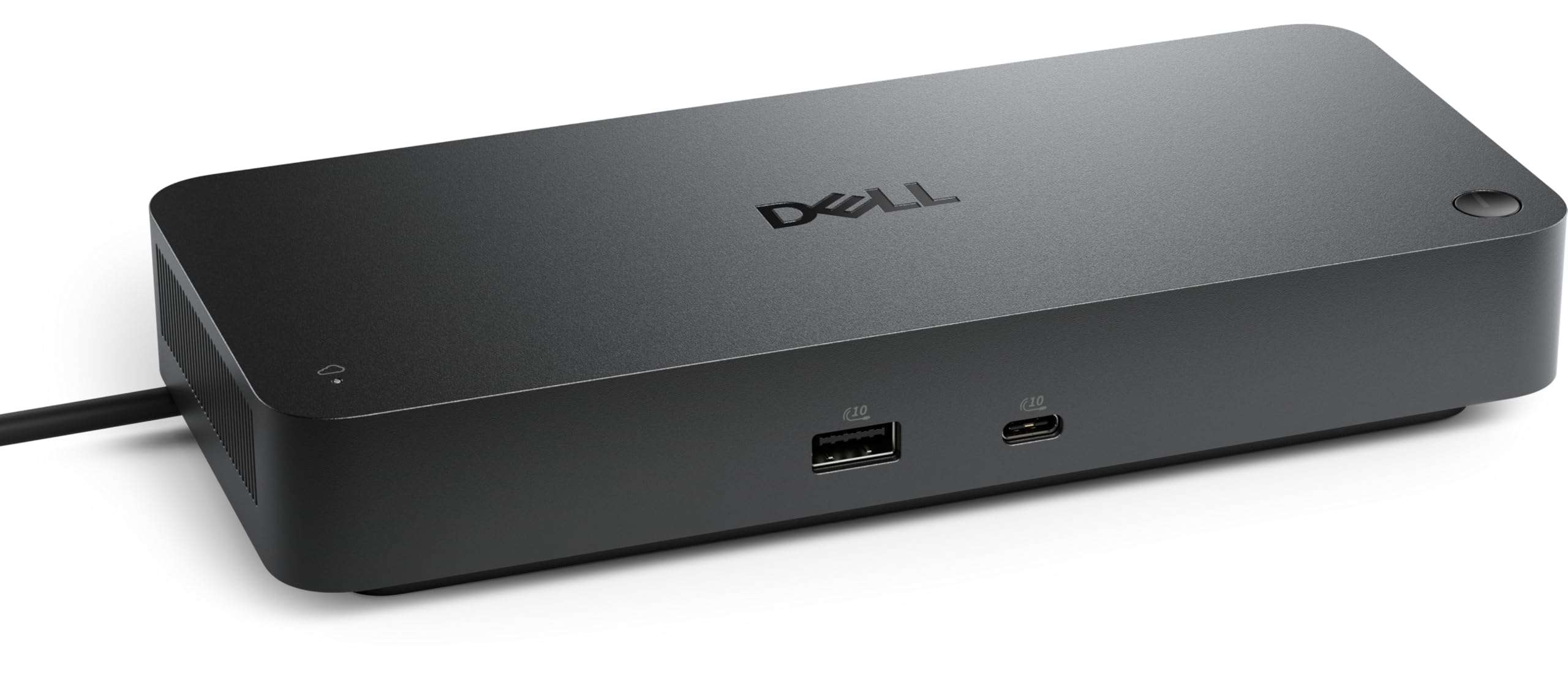
A four-monitor dock with 130W charging and a footprint that fits under a monitor stand
This is the only dock in the group that advertises up to four 4K monitors at once — spread across HDMI 2.1, DisplayPort 1.4, USB-C, and Thunderbolt 4, with the ability to chain up to six devices. The Dell charges at up to 130W for Dell laptops and 96W for others, which for a MacBook Air means comfortable headroom. It also carries 2.5GbE for fast network transfers, Wi-Fi-based remote management via Dell Console and Intel AMT, and business security features like WPA3, PXE boot, MAC filtering, and DMA protection.
The shape is genuinely different from the desktop bricks: 1.39 by 3.54 by 8.07 inches, ambidextrous so you can flip it to suit your desk, and 580 g — a fraction of the UGREEN’s 1.4 kg in weight, though its footprint is far more slender. That slimness means it tucks neatly under a monitor riser or against a rear desk lip without eating real estate. Owners describe it as genuinely plug-and-play, and reviewers rate its connectivity highest of anything they mention — multiple ports, they say, connected cleanly without a fight.
Two things worth thinking through. First, it is a Dell first and a MacBook second: the management and security features are aimed at IT environments and fleets. That is fine if you simply ignore them, but the Wi-Fi management piece in particular is overkill for a home desk. Second, designer, data, or AI work is the balance — if a single external display covers your day, the extras go unused.
Strengths that matter
- Up to four 4K displays — the most multi-monitor headroom in this group
- 2.5GbE internet and 130W charging (96W for non-Dell laptops)
- Slim 1.39″ deep body in a 580 g enclosure that slides under a monitor
Where it flexes for IT, not you
- Wi-Fi remote management and WPA3 security are corporate features an Air user will not touch
- 130W ceiling is more than an Air draws — the cost is baked into the dock
- Best at its four-monitor game on Dell laptops; Mac support is solid but not the design center
The four-screen answer: If you are the creative or data person who genuinely runs three or four monitors and wants 2.5GbE in the same box, this earns the desk space.
Pass on it if: your Air drives one external screen — you would pay for management features you never open.
5. OWC 11-Port Thunderbolt Dock
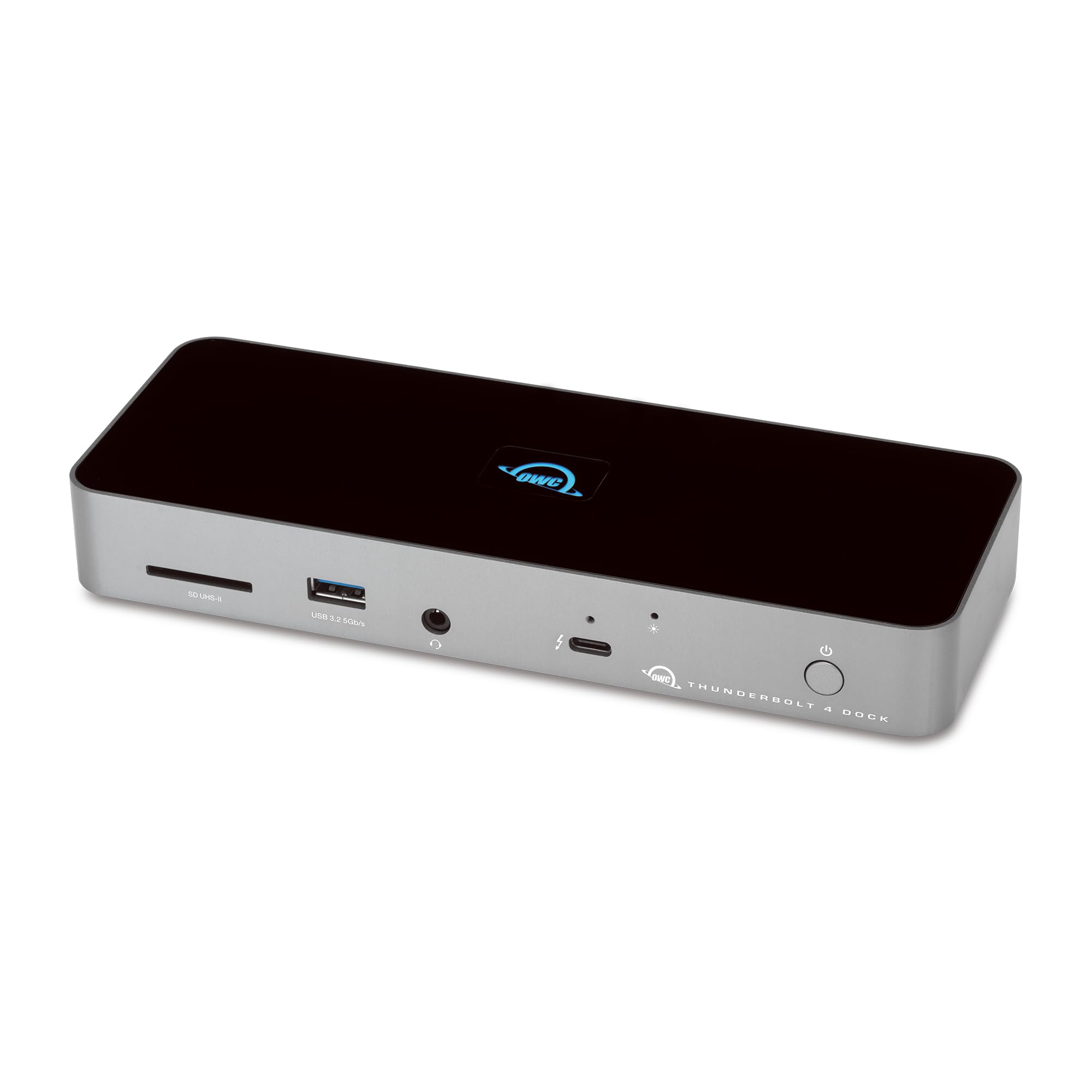
A photographer’s dock — 96W charging, an SD 4.0 reader, and an 8K path for the monitor
If you move photos or footage off cards daily, the SD 4.0 UHS-II slot (a fast card reader standard) is the spec that justifies this dock. Everything else is well-sorted too: 96W host charging through the Thunderbolt 4 host port, three downstream Thunderbolt 4 ports at 40Gbps with 15W each, three USB-A 3.2 Gen 2 ports at 10Gbps, one USB 2.0 port, Gigabit Ethernet, a 3.5mm audio combo jack, and dual-display support up to one 8K at 60Hz or two 4K at 60Hz (and one 4K at 120Hz). It even has an option for Thunderbolt 1 and 2 Macs via a USB-A host connection — rare, and useful if you are pairing it with an older machine.
What owners talk about most is straight function: it runs well with a MacBook Pro M3 and is widely regarded as one of the better Thunderbolt 4 docks on the market. Plug-and-play, broad MacBook compatibility, and a clean front-facing card reader are the recurring wins. At 400 g it is light enough to move around without thinking twice.
The thing buyers should weigh honestly is long-term reliability — several describe units that start needing frequent reboots after a month or two, and Ethernet is a common sore point. That is the single biggest reason to keep your receipts. It is also note this dock lacks a dedicated HDMI port, which is a dealbreaker if you have a monitor you want to plug straight in without a Thunderbolt-to-HDMI adapter. For a stills or video workflow that lives on cards, those are manageable; for an all-purpose desk, they are worth knowing.
The card-reader case: On a video shoot day, the SD 4.0 UHS-II slot handles loaded media at full speed and the 96W charge tops the Air up between transfers. That pairing is why this one survives in this lineup.
The realistic caveat: No dedicated HDMI and a reliability record that includes post-month reboots mean you should treat it as a workflow tool with a support line, not a bulletproof dock for the next five years.
Pick it for: photography or video work where the SD slot earns its keep and 96W keeps the Air fed.
Don’t rush in if: your monitor needs a real HDMI port or you want a dock you never reboot.
6. Thunderbolt 4 MacBook Docking Station 21-in-1
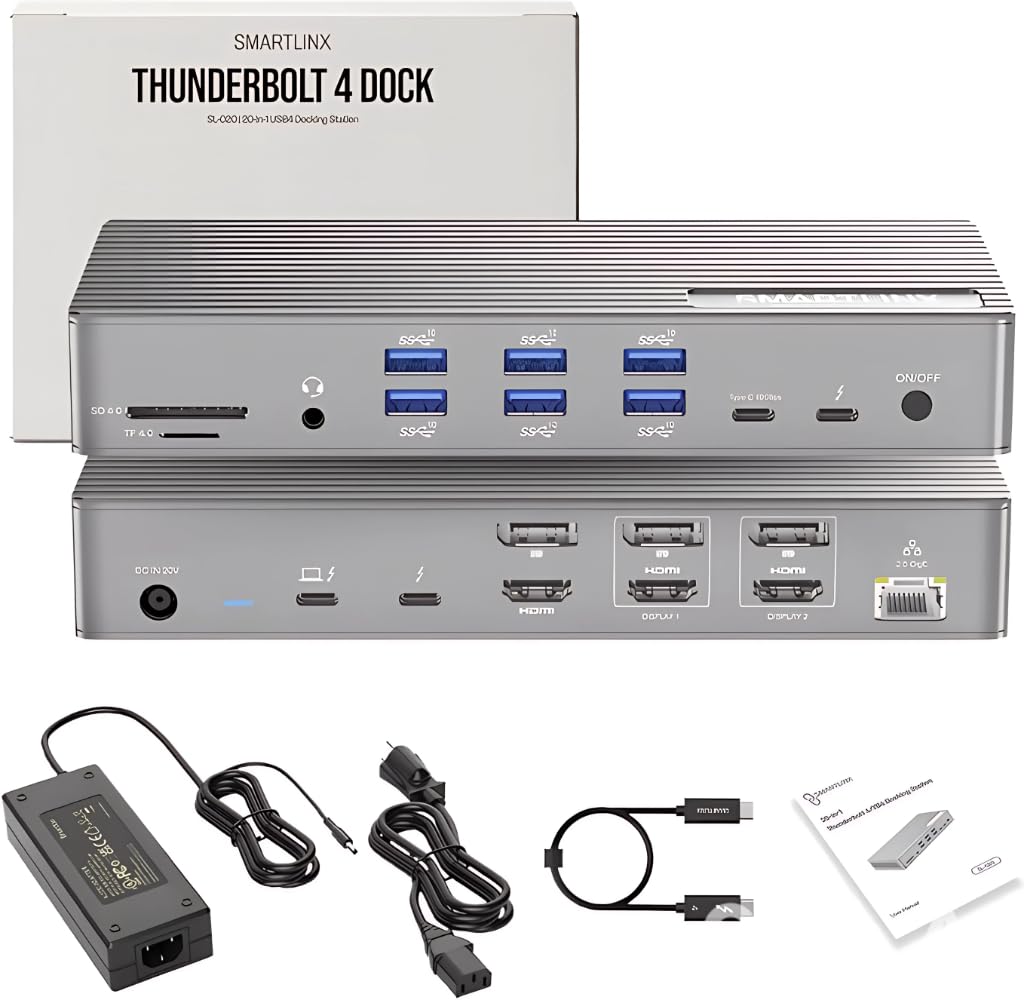
Twenty-one ports, each on its own chip, with 90W for the Air in the middle of it all
Twenty-one ports sounds wild until you read the layout: HDMI and DisplayPort for video, 2.5Gbps Ethernet (2500Mbps wired network), separate SD and microSD slots you can read from at the same time, a 3.5mm audio and mic jack, six USB-A ports at 10Gbps, one USB-C at 10Gbps, and 90W charging back through the Thunderbolt 4 uplink. The interesting engineering detail is that each function runs on its own chip — so plugging a card and copying a USB drive at the same time does not halve either speed. That is the spec you pay for.
For an Air owner the charge ceiling is comfortable: up to 90W covers the Air and a 14-inch M-Pro at their normal charging rate. The 16-inch M-Pro will charge, just not at its full 140W turbo rate. The bundle is thorough, too — the box includes the Thunderbolt 4 cable and a 150W power supply, so you have everything to start day one. The 40Gbps Thunderbolt path is aimed squarely at editors moving 4K or 8K footage, and that is where this dock makes its clearest sense.
Dual 4K works on M2 and M3 chips; M1 Airs are limited to one external display — that is Apple’s limit, not the dock’s. Compatibility is a little picky about the port: if your laptop’s USB-C port does not support DisplayPort Alt Mode, this dock will not work. And the 12-month warranty and US-based support line matter for a newer brand — you are buying backup along with the ports. Anyone expecting five years of plug-and-forget should temper expectations against the shorter warranty window and the plastic enclosure.
Why the chip-per-port design counts
- 21 ports including separate SD and microSD readers usable simultaneously
- 90W charging covers an Air and 14-inch M Pro at normal speed
- 2.5Gbps Ethernet plus 40Gbps Thunderbolt for real file movement
- 150W power supply and Thunderbolt 4 cable included in the box
Fine print to read
- Requires a Thunderbolt or USB-C DisplayPort Alt Mode port — basic USB-C will not work
- Plastic enclosure and a 12-month warranty versus aluminium docks with longer terms
- M1 Airs still see one external display only
Built for the editor: If you want every port in one place — SD, microSD, 2.5Gbps network, six USB-A — and you want the cables in the box, this delivers the widest expansion here.
Wait before you leap: Check your Air’s chip for dual display support and confirm your USB-C port has DisplayPort Alt Mode before you rely on it.
7. Satechi Thunderbolt 4 Docking Station
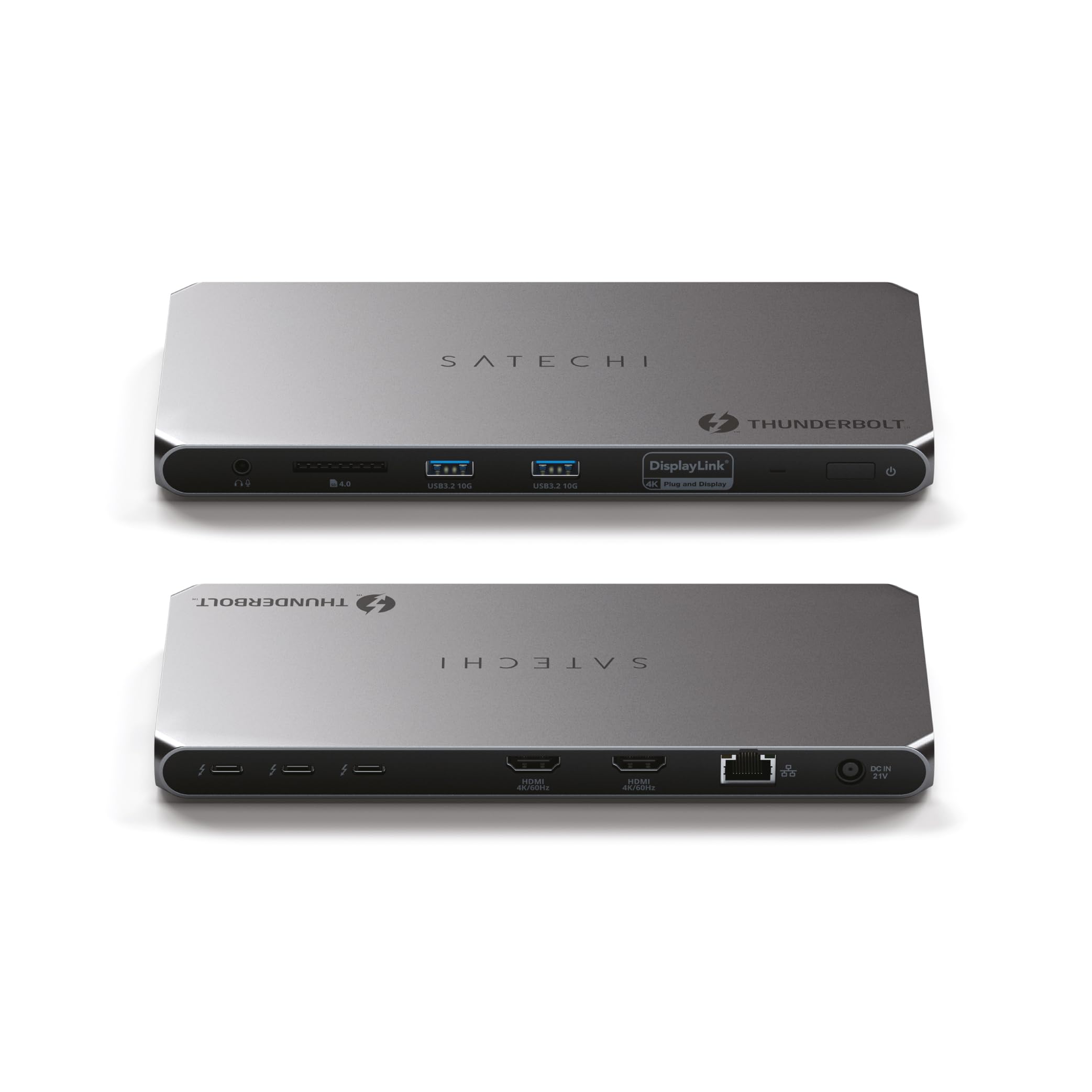
Four 4K/60Hz displays, three Thunderbolt 4 ports, and a proper 180W power brick
Four extended displays at 4K/60Hz is the headline — two over Thunderbolt 4 and two over HDMI using DisplayLink. On a MacBook Air with M1 or M2, the ceiling is three (one TB4, two HDMI). The three Thunderbolt 4 ports each run at 40Gbps, two USB-A ports run at 10Gbps, and daisy-chaining supports up to six devices with external SSD speeds up to 32Gbps. The SD reader is UHS-II SD 4.0, rated to 312MB/s, and Ethernet handles up to 1000Mbps. Charging is 96W, and the box includes a 1m Thunderbolt 4 cable, a 180W AC adapter, and a C5 power cord.
Build quality is what owners single out — this is a clean piece of hardware in space gray that looks at home next to an Apple display. Multiple ports, they note, means far fewer trips to the cable drawer. The 180W supply is enough to feed the dock and the host at once without the power sag that shows up on weaker hubs. DisplayLink drivers are required, so plan for one software install before you first use it.
Heat is the thing to think through. Several owners describe the unit running hot under load, and the spec sheet confirms a normal operating temperature of 86–131°F. It is not a problem, but it is a reality — leave breathing room around it. Compatibility with Thunderbolt 3 hosts is also imperfect: some report a display dropping out or refusing to wake. If your Air is Thunderbolt 4 or USB4, you are in the intended lane; if you are bridging from an older port, budget time for troubleshooting.
The multi-display answer: Few docks let you run four extended 4K/60Hz displays from a single cable, and that is this dock’s only real reason to exist — but when you need it, nothing else here does.
Hear the caveat: It runs warm and Thunderbolt 3 hosts sometimes stumble. Give it desk clearance and avoid it for a TB3 Air if display reliability is non-negotiable.
For you if: you want four extended screens with DisplayLink and you are on a Thunderbolt 4 or USB4 Air.
Leave it if: your Air only has Thunderbolt 3, or you own a small desk where the 180W brick and the heat have nowhere to go.
8. SD25TB4 Pro Thunderbolt 4 Smart Dock
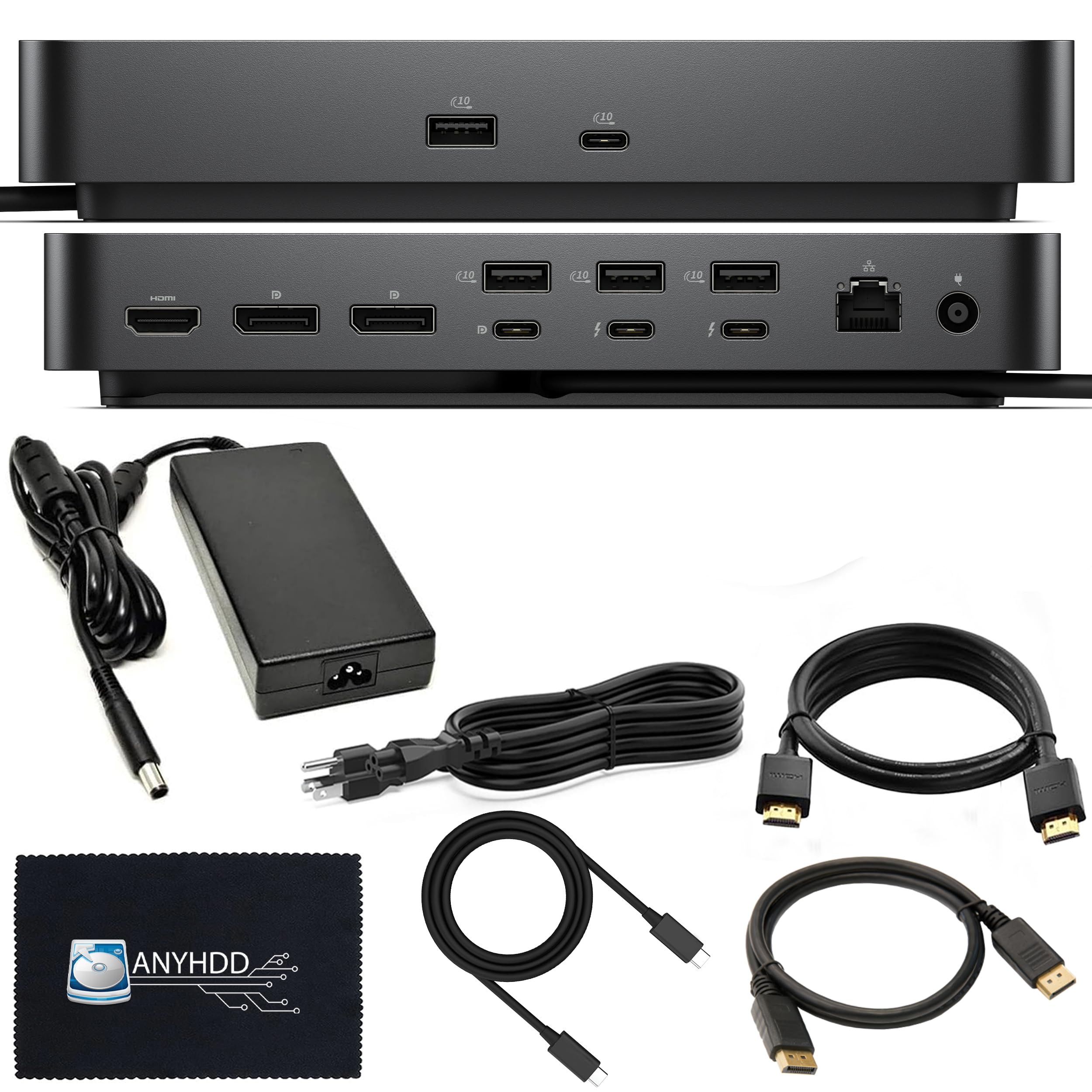
The modular Dell-style dock at 8K, with a 180W adapter and a three-year warranty
This is a swappable-module take on the Dell smart dock formula — the idea being you upgrade the dock rather than replace it. On the port side it is loaded: two Thunderbolt 4 ports, one USB-C 3.2 Gen 2, one USB-A 3.2 Gen 1 with PowerShare (a port that keeps charging devices while the dock is off), two DisplayPort 1.4, one HDMI 2.0, a USB-C multifunction DisplayPort, two USB-A 3.2 Gen 1, and a Gigabit Ethernet RJ45 jack. The 180W adapter runs on 120/230V AC, and the box includes HDMI, DisplayPort, Thunderbolt cable, a cloth, and hub accessories — so it is genuinely ready to deploy.
What people describe is instant, trouble-free connection — Dell laptops and monitors connect without hiccups, and the port count is what makes it work in a mixed household. Value-for-money comes up as a positive in the owner discussion, which is unusual for anything with a modular design and a business badge. It supports 40 GB/s SuperBoost data and charge transfer, which is comfortable headroom for an Air and its peripherals.
The compatibility list is broad — Lenovo, Dell, HP, Mac, Windows 10, Windows 11, ChromeOS, macOS — but the dock speaks Dell at heart, so the MacBook Air experience is good rather than optimised. The modular design is the interesting bit: if you plan to keep the dock for years and just want to swap the host module, it makes long-term sense. If you want dual 4K monitors from an M1 Air, no dock can deliver that — check your chip before you commit.
The long-view case: A modular body, a 180W adapter, and a three-year warranty make this the “buy once” pick of the Dell-style group. The included cable set removes the usual accessory shopping.
Where it misses: It is a Dell-engineered product first — the MacBook Air gets solid connectivity but not the tighter chip-specific tuning of a Mac-first dock, and the 8K path needs a host that supports it.
One to keep years: Take this if you want a modular shuttle dock with a 180W supply, a three-year warranty, and every video port you might need.
Mismatch if: you want a Mac-native design language and no Dell-flavoured management overhead.
9. CalDigit TS5 Thunderbolt 5 Dock – 15 Port 240W PSU
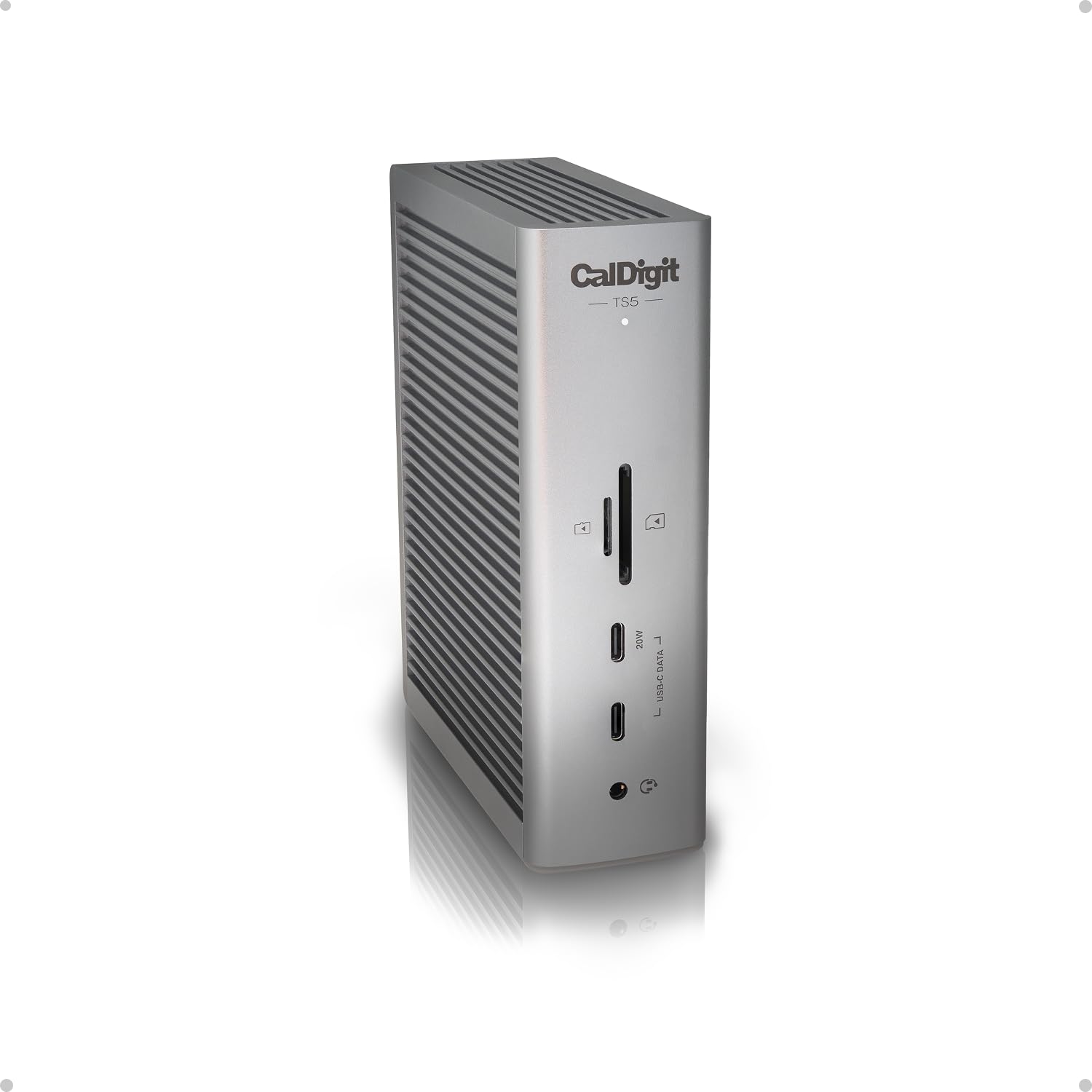
Fifteen ports, 140W host charging, and an aluminum body acting as its own heat sink
Fifteen ports and 140W host charging is the shorthand here. The TS5 carries a 240W power supply so the sustained power is there for every port, not just the host — important if your desk has a lot of bus-powered drives and accessories drawing on it. The set is: host port plus three downstream 80Gb/s Thunderbolt 5 / USB4 V2 ports (80Gb/s is the data speed, double the older 40Gbps standard), a USB-A Gen 2 10Gb/s, a USB-A 480Mb/s for legacy bits, three USB-C 3.2 Gen 2 10Gb/s, DisplayPort 2.1, SD 4.0 and microSD 4.0 UHS-II readers, 2.5GbE (2500Mbps wired network), and three audio ports.
On the display side, macOS hosts can drive dual 6K at 60Hz or dual 8K at 60Hz on Macs that support it, and refresh rates up to dual 4K at 240Hz. Windows Thunderbolt 5 hosts can go to triple 4K 144Hz. Thunderbolt 5 also introduces Bandwidth Boost — up to 120Gb/s allocated to displays when the monitor demands it. The bigger 2.5GbE is a real upgrade for anyone currently on 1GbE: PCIe-based, and backwards-compatible with 1GbE networks.
The 8.9 oz weight is almost surprising for a dock with this port stack — and the aluminum chassis is literally designed as a heat sink for the power running through it, so give it clearance. The honest caveat is bandwidth: to get all 80Gb/s you need a Thunderbolt 5 or USB4 v2 host. A Thunderbolt 4 Air will run it, but with reduced function, and the extra Thunderbolt 5 headroom goes unused. If you want the 140W charge for a 16″ M-Pro later, or you are eyeing a future laptop with Thunderbolt 5 ports, this is the one that will not need replacing.
The future-proof read
- 240W PSU with 140W host charging keeps every port fed, not just the laptop
- Three Thunderbolt 5 ports at 80Gb/s for editing and external SSDs
- 2.5GbE backwards compatible with 1GbE for a faster wired network
- SD 4.0 and microSD 4.0 UHS-II readers plus three audio ports
Why a TB4 Air may not use it all
- Full Thunderbolt 5 bandwidth needs a Thunderbolt 5 or USB4 v2 host
- Triple-display setups need a Windows TB5 host, not a Mac
- High-end port count and heat-sink chassis take up desk space
Headroom for the future: Grab the TS5 if you want to buy a dock once and keep it through your next laptop upgrade, with 140W charging and Thunderbolt 5 ports ready.
Oversized for today: If your current Air is Thunderbolt 4 and you plan to stay there, the 80Gb/s ceiling and DisplayPort 2.1 features go unused.
Know the Specs
Host Charging (watts)
This is how much power the dock sends back up the same cable to the laptop. A MacBook Air draws modestly, so a dock in the 85W–100W range usually covers it comfortably under everyday load. Higher figures (130W, 140W) are aimed at 16-inch MacBook Pros that ask for more. If the dock offers less power than your Air’s own charger while you are running heavy exports, the battery can drift downward instead of filling.
Display Outputs and the M-chip Ceiling
Count the external screens you can actually run before you count the ports on the box. Base M1 and M2 Airs are limited to one external display; base M3 gets two with the lid closed; M4, M5, and Pro/Max chips handle two. Some docks add DisplayLink to push beyond that, but DisplayLink needs a driver install. The dock’s own capability is a ceiling — your chip is the floor.
Thunderbolt Generations (3, 4, 5)
Thunderbolt 4 runs 40Gbps through every port. Thunderbolt 5 raises the ceiling to 80Gb/s and adds Bandwidth Boost of up to 120Gb/s for high-refresh displays. A Thunderbolt 5 dock will still work on a Thunderbolt 4 host but runs with reduced function — you are paying for headroom you cannot use yet. Match the dock’s generation to your Air’s port.
Ethernet: Gigabit versus 2.5GbE
Gigabit Ethernet tops out at 1000Mbps, which is fine for most home and office networks. 2.5GbE is geared toward faster network-attached storage and large file transfers, and is usually backwards compatible with existing 1GbE networks. If your desk needs a reliable wired link more than a faster one, gigabit is the steady standard; if you shuffle big media files across a local network, 2.5GbE earns its place.
Common Questions
Will a Thunderbolt hub let my MacBook Air run two external monitors?
Do I need Thunderbolt 4 or is a plain USB-C hub enough?
Why do some Thunderbolt docks need DisplayLink drivers?
Will my MacBook Air charge through the dock at full speed?
Can I daisy-chain devices off a Thunderbolt hub?
Does the dock work if my Air only has a Thunderbolt 3 port?
Can I still use an older USB-A mouse and keyboard with a Thunderbolt dock?
Do Thunderbolt docks get hot and is that a problem?
Does a Thunderbolt dock support Ethernet for a wired connection?
Can I power my laptop and run the dock from one cable?
Does the dock add latency to my external monitor?
The Bottom Line
For most Air owners, the honest winner is the UGREEN 8-in-1 Thunderbolt 4 Docking Station — 85W host charging from the included 140W GaN supply (GaN is a compact, efficient charger material), three Thunderbolt 4 ports at 40Gbps, three USB-A at 10Gbps, and a clean desk footprint. It covers the everyday case: monitor, drives, card reader, Ethernet, and charging all through one cable. If your Air is on base M1 or M2, be realistic that one external display is the ceiling — no dock on this list changes that.
If your priority is port count and dual HDMI out, the Plugable TBT4-UD5 with 13 ports and 100W charging is the expander’s choice. If you want the smallest package with real Thunderbolt speed, the OWC Thunderbolt Hub at 0.96 kg and three Thunderbolt 4 ports is the one for a bag. And if you plan to keep the dock through your next laptop upgrade, the CalDigit TS5 with 240W PSU, 140W host charging, and Thunderbolt 5 ports is the buy-once answer.
Check your Air’s chip first — an M1 or M2 base chip caps you at one external display no matter which dock you buy. Then match the port set to the accessories you plug in weekly — USB-A count, SD reader, Ethernet — and the dock stays on your desk.
How we choose
We do not accept paid placement. Every pick is matched to a real buyer and a real use-case; we do not hands-on test units.
Sources
Specifications: manufacturer listings and product documentation. Review insights: verified customer reviews, as of November 2026. Pricing: not shown on this page (it changes often); check the current price via the retailer link.
As an Amazon Associate, Tactical Gear Guy earns from qualifying purchases. This does not affect which products we feature.