Specs are compiled from manufacturer listings and verified buyer reviews and can change over time — please confirm the key details on the product page before buying.
Your MacBook Air M4 has two Thunderbolt ports and a charger. That is the whole hand you were dealt. A proper dock turns those two ports into a desk: monitors, drives, ethernet, cards, and one cable you plug in when you sit down. The catch: not every Thunderbolt 4 dock handles the M4 Air the same way — base M-chips cap external displays lower than Pro and Max chips, so a dock that ignores that sells you a second monitor you cannot extend.
This guide is built by comparing the manufacturers’ published specifications and the patterns across verified customer reviews, so you get each pick’s real strengths and trade-offs instead of marketing spin.
The picks below are sorted by what they actually deliver to an M4 Air desk rather than by badge, and every one is a true Thunderbolt 4 dock rather than a USB-C hub wearing the label. Read on for the plain-English version of the thunderbolt 4 dock for macbook air m4.
Top Picks

How To Choose The Best Thunderbolt 4 Dock For A MacBook Air M4
Start with the display question, because it is the one thing you cannot fix after the fact. A base M4 MacBook Air drives a limited number of external screens, and several docks in this list spell out exactly how many they can extend on base chips versus Pro and Max chips. If you plan on two monitors, check that sentence on the listing before anything else.
Display limits on base M-chips are the real filter
The UGREEN dock, for example, extends two 4K@60Hz displays on MacBooks with Pro or Max M-chips but only one 4K@60Hz display on base M-chips. The WAVLINK dock mirrors two monitors over HDMI on Pro and Max chips, and extending two on those chips means taking one HDMI and one downstream Thunderbolt 4 port. Knowing which of those two patterns your desk needs saves you a return.
Power delivery: enough to actually charge, not just hold
A dock that sends 85W to your laptop keeps an Air charging while you work; one that sends 96W or 100W gives you more headroom when several peripherals are pulling at once. OWC is upfront that its 96W may not fully keep up under heavy load with multiple peripherals connected — that honesty is useful, because it tells you when to plug the laptop’s own charger in as well.
Ports you will use daily versus ports on the spec sheet
Count the ones you touch every day: USB-A for a mouse receiver, an SD reader for camera cards, ethernet if your office wall has a jack, and enough Thunderbolt 4 downstream ports for a fast SSD. A 16-port dock with two ports you never touch is not better than an 8-port dock that covers your desk — just bigger on the shelf.
Side-by-Side Comparison
| Model | Best For | Host Charging | Ports | Display Support (Mac) | Amazon |
|---|---|---|---|---|---|
| UGREEN 8-in-1 Thunderbolt 4 Docking Station | Balanced desk expansion | 85W | 8 | 2x 4K@60Hz (Pro/Max); 1x 4K@60Hz (base M) | Amazon |
| Plugable Thunderbolt 4 Dock (TBT-UDM) | Driverless dual-HDMI Mac setup | 100W | 13 | 2x 4K 60Hz HDMI on M4/M5; base M1/M2 single display | Amazon |
| WAVLINK Thunderbolt 4 Dock | Fast wired networking | 96W | 13 | Mirror 2 via HDMI; extend 1 HDMI + 1 TB4 downstream (Pro/Max) | Amazon |
| Kensington SD5760T | Intel Evo and mixed-fleet desks | 100W | 13 | 2x 4K@60Hz via HDMI (M4/M5 base or Pro/Max); 1x 6K via TB4 | Amazon |
| OWC 11-Port Thunderbolt Dock | Long-standing Mac pedigree | 96W | 11 | Up to 8K@60Hz or 2x 4K@60Hz (Intel Macs and TB4 PCs) | Amazon |
| Kensington SD5900T DisplayLink | Quad-monitor MacBooks | 100W (96W certified) | 16 | Up to Quad 4K@60Hz (M4/M5 base or Pro/Max) | Amazon |
| Satechi Thunderbolt 4 Docking Station | Four-display creative work | 96W USB-C PD | — | Up to 4 extended at 4K/60Hz (2 TB4 + 2 HDMI, DisplayLink) | Amazon |
| SD25TB4 Pro Thunderbolt 4 Smart Dock | Modular upgrade path | — | — | 4K displays via TB4, DP 1.4, HDMI 2.0 | Amazon |
| StarTech Thunderbolt 4 Dock (132N-TB4USB4DOCK) | Mixed Mac and Windows fleets | 100W | 17 | Dual 4K 60Hz on M3/M4/M5 MacBooks; up to four 4K 60Hz on Windows | Amazon |
| Sonnet Echo 20 SuperDock | Built-in SSD expansion | 100W | 20 | 4K, 5K, 6K and 8K @60Hz | Amazon |
| CalDigit TS4 | Maximum port count | 98W | 18 | 8K@30Hz or 2x 6K@60Hz | Amazon |
Detailed Reviews
1. UGREEN 8-in-1 Thunderbolt 4 Docking Station
Eight ports, three of them Thunderbolt 4 at 40Gbps, and one cable doing the whole job.
The reason this one takes the top spot is the Thunderbolt 4 spread. You get one upstream and three downstream Thunderbolt 4 ports, each rated at 40Gbps and 15W — 40Gbps being roughly four times the ceiling of a standard USB-C hub, so a fast external SSD moves files in seconds rather than minutes. Those downstream ports also mean you can daisy-chain drives and displays instead of buying a second hub later.
The rest of the 8-in-1 layout is three USB-A 3.2 ports at 10Gbps, a gigabit ethernet jack, and a 140W DC power input. The included 140W GaN charger pushes up to 85W to your laptop, which keeps a MacBook Air charging during a full workday and leaves headroom for a mouse receiver and a card reader on the same bus. Build quality and setup are what people talk about most in the reviews, and the plug-and-play behaviour with MacBooks comes up again and again.
Where this dock asks for patience is the display math on base chips. On MacBooks with Pro or Max M-chips it extends two 4K@60Hz displays or a single 8K@30Hz; on a base M-chip Air it extends one 4K@60Hz display. That is the host’s limit, not the dock’s, but it is the sentence to read twice if you were counting on two monitors. The other thing to know is that the dock must be connected to the included charger to work at all — it is not bus-powered.
What earns it first place
- Three downstream Thunderbolt 4 ports at 40Gbps and 15W each — daisy-chain room a basic hub cannot offer.
- 85W charging from the included 140W GaN brick keeps the Air topped up all day.
- Gigabit ethernet plus three 10Gbps USB-A ports cover the daily desk without a second accessory.
- Plug-and-play on macOS 11.4 and above — no driver step in the setup.
Where it needs a read-first
- Base M-chip MacBooks extend one 4K@60Hz display, not two — the dock is capable, the host is the cap.
- Requires the included charger to run; it will not draw its power from the laptop.
- At 1.4 kg it is a desk fixture, not something you slip into a laptop sleeve.
Best fit for: an M4 Air desk that wants three Thunderbolt 4 downstream ports and gigabit ethernet without stepping into premium territory.
Check first: if two external monitors are non-negotiable on a base-chip Air, the display limit lands on the laptop side.
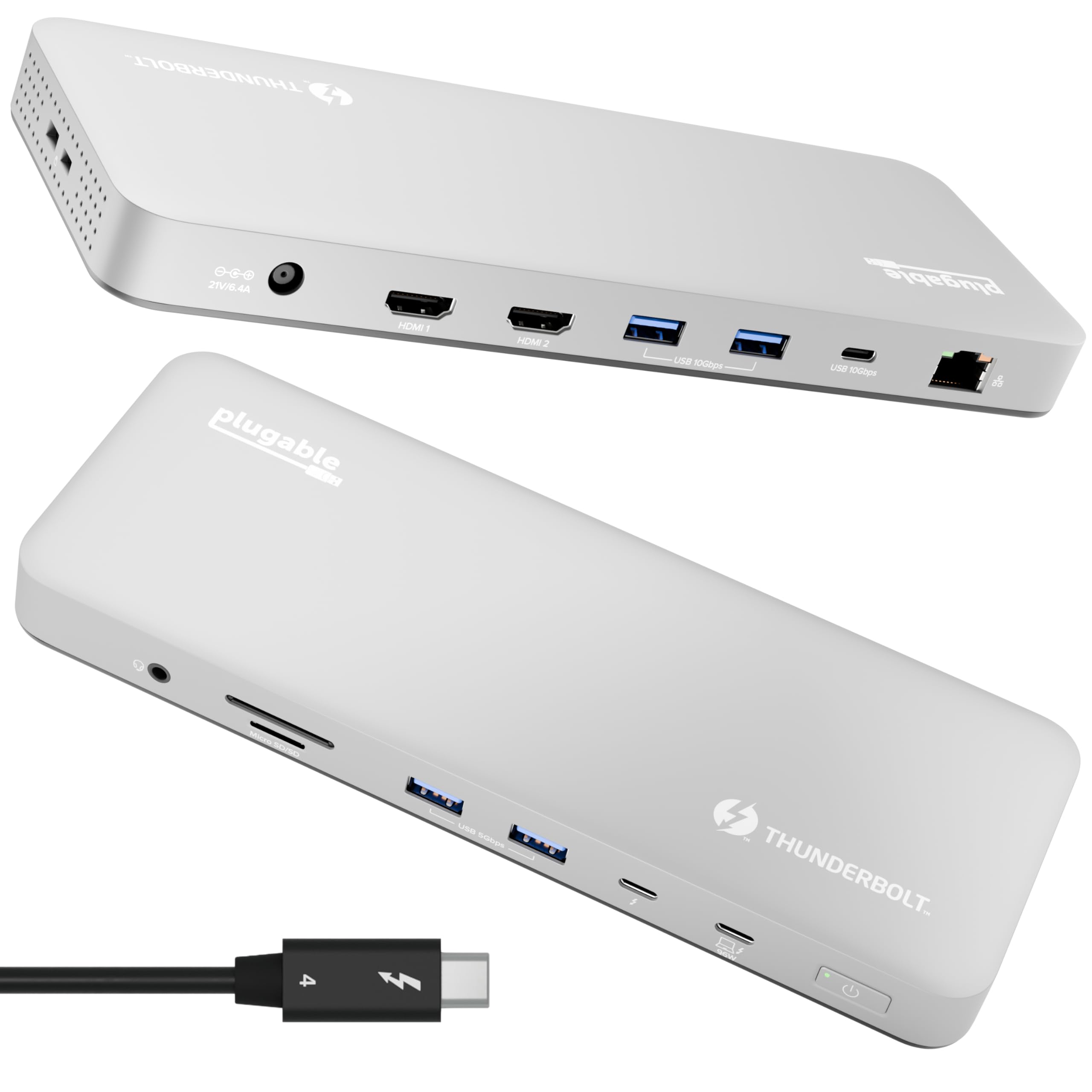
2. Plugable Thunderbolt 4 Dock
Named for the M4 Air on the box, and the spec sheet actually backs the claim.
Plugable builds this one around dual 4K 60Hz HDMI across all M4 and M5 systems, including base MacBook Air models — no driver download, no DisplayLink install, just a cable. That is the differentiator versus the UGREEN above, which limits base M-chips to a single 4K@60Hz display. If your M4 Air has two monitors on the desk, this is the spec line that matters.
The port count lands at 13: one downstream Thunderbolt 4 at 40Gbps, one USB-C, four USB-A, SD and microSD UHS-II readers, ethernet, a 3.5mm audio jack, and 100W host charging. It is aluminium-clad in space grey at 3.3 by 8.9 by 0.9 inches, so it sits flat under a monitor rather than towering over one — noticeably more compact than the UGREEN’s 9.5 by 9.5 by 2.5 inch footprint. Reliability is the trait the reviews keep returning to, and the no-driver setup is the second thing buyers bring up.
The honest caveat is the layout of the host connection: it sits on the front, which not everyone loves when the cable has to run around to the back of a desk. Value divides opinion too — this is a mid-range dock doing a job that some buyers feel should cost less. Neither point undercuts the dual-HDMI capability, which is the whole reason to pick it.
Why it wins on displays: dual 4K 60Hz HDMI on all M4/M5 systems, including base MacBook Air — the one line that separates it from the UGREEN in this list.
Small friction to expect: the host cable connects at the front, and some Mac owners find that awkward on a rear-cable desk.
Reach for this if: two HDMI monitors and a driverless setup are your first two requirements on an M4 Air.
Look elsewhere if: you need the host cable to exit at the back of the dock.
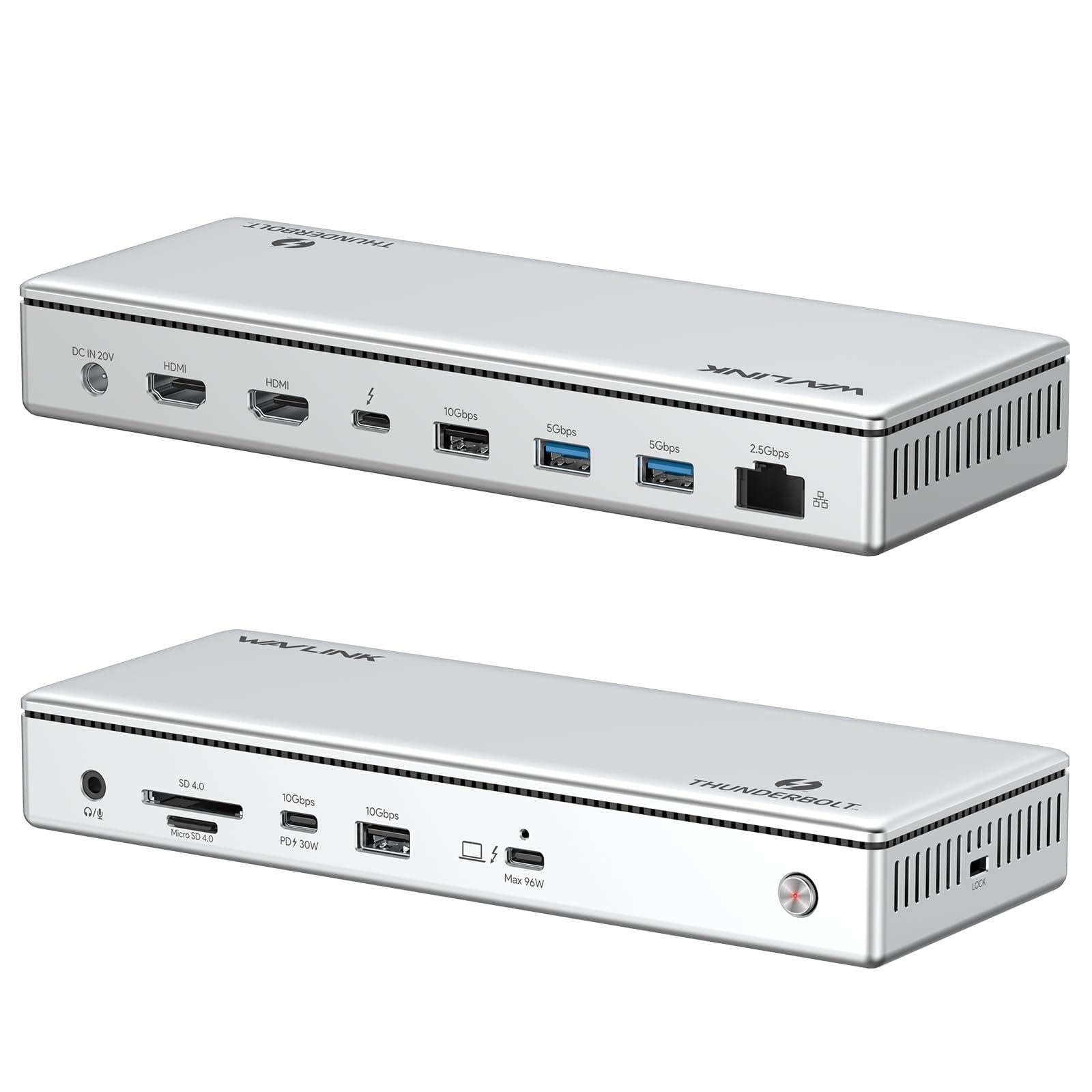
3. WAVLINK Thunderbolt 4 Dock
A 2.5Gbps ethernet port that leaves gigabit docks standing at the wall jack.
WAVLINK’s 13-port dock carries a 2.5G Ethernet port rated 2.5X faster than standard 1Gbps — the difference between pulling a 4K project off a NAS at a crawl and pulling it at pace. The same dock is Thunderbolt 4 certified, with genuine 40Gbps upstream and downstream ports, and it packs 13 ports versus the UGREEN’s 8. It also carries an SD/microSD V4.0 reader rated at 312MB/s, which is the sort of speed that clears a full camera card between meetings.
Charging comes from a 160W adapter pushing up to 96W to the laptop, and the display story is the most detailed on this list: on M1 through M5 Pro and Max chips the two HDMI ports mirror two monitors, and extending two means using one HDMI plus one downstream Thunderbolt 4 port. On Windows laptops the HDMI pair extends two 4K@60Hz displays or a single 8K@60Hz. Base M1, M2 and M3 Macs support a single display only.
The trade-off to plan around is that display routing. Mirroring is not the same as extending, and getting two extended screens on an M4 Pro or Max Air takes a specific port combination. Set that up once and it is stable; go in expecting two HDMI cables to extend automatically and you will spend an evening in display settings.
The headline spec: a 2.5G ethernet port rated 2.5X the speed of standard gigabit — the reason to pick this over cheaper docks for NAS or 4K streaming work.
Plan for this: two extended monitors on Pro and Max chips route through one HDMI plus one downstream Thunderbolt 4 port, not two HDMI.
Pick it when: your desk runs off a wired network and you want the fastest jack in the room alongside dual 4K output.
Know before you buy: base M1, M2 and M3 Macs get a single display here, so the dual-monitor maths only applies to Pro and Max chips.
4. Kensington SD5760T Thunderbolt 4 Docking Station

Two HDMI ports, 100W of power, and a 12.64-ounce brick that disappears behind a monitor.
For a MacBook Air M4 owner who wants dual HDMI without adapters, the SD5760T spells out the exact rule: dual 4K@60Hz via the two HDMI ports is natively supported on M4 and M5 base chips and on M1–M5 Pro/Max chips, while M1 and M2 base chips support only one external display. It also carries a single 6K@60Hz option over Thunderbolt. That combination makes it a safe bet for a mixed desk where someone else’s older MacBook might plug in.
Power delivery tops out at 100W to host and accessories, which is more headroom than the UGREEN’s 85W. The port list runs two HDMI, one Thunderbolt 4 host port, one Thunderbolt 4, one USB-C 3.2 Gen2 at 10Gbps, two USB-A 3.2 Gen2 at 10Gbps, two USB-A 3.2 Gen1 at 5Gbps, gigabit ethernet, an audio combo jack, and UHS-II 4.0 SD and microSD readers — 13 ports in all. Kensington also builds in Intel VT-d DMA protection, which blocks unauthorised peripherals from reaching system memory.
The one thing to weigh is that this dock is tuned for Intel Evo laptops first; Macs work, but the marketing and the DockWorks software lean toward Windows fleets. Its reported behaviour with dual monitors also splits in the reviews, with the HDMI path working reliably for some and a single-monitor outcome for others. On an M4 Air with the current chip, the supported configuration is the two-HDMI path.
What it delivers to the desk
- Dual 4K@60Hz over two HDMI on M4/M5 base chips and M1–M5 Pro/Max chips, with a 6K@60Hz single-display route over Thunderbolt.
- 100W power delivery gives more charging headroom than an 85W dock.
- 13 ports including UHS-II SD and microSD 4.0 readers for camera cards.
- 12.64 ounces — small enough to tuck behind a monitor arm.
The fine print worth reading
- Tuned for Intel Evo laptops; Mac support is there but not the primary design target.
- M1 and M2 base-chip Macs are held to a single external display.
- Mounting bracket and cable lock are sold separately.
the balance: an M4 Air desk with two HDMI monitors and a household that occasionally plugs in an older Mac.
One caveat: the strongest fit is still an Intel Evo laptop, so Mac buyers should confirm their chip’s display rule before committing.
5. OWC 11-Port Thunderbolt Dock
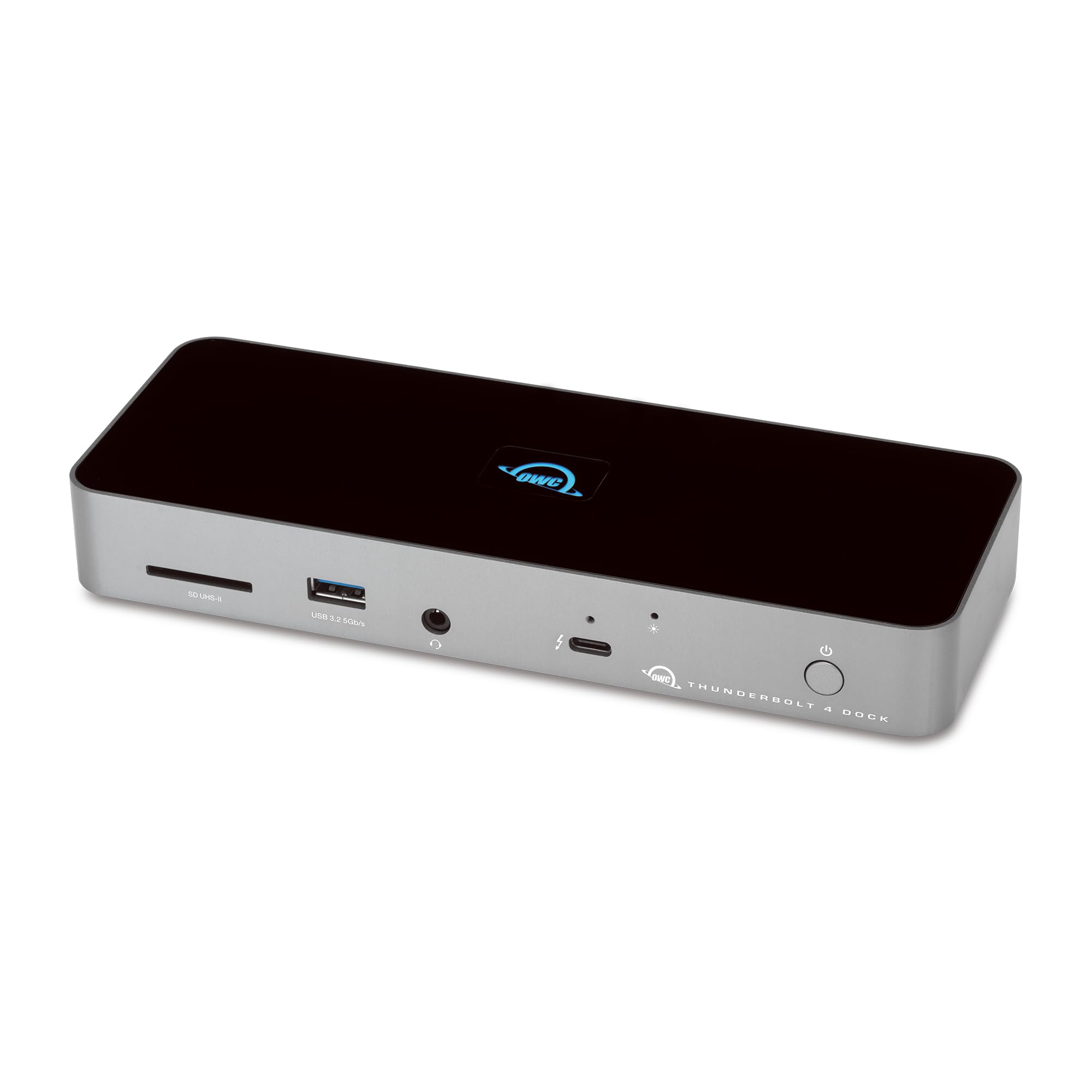
The Mac-focused dock with the longest track record in this bunch, and the smallest footprint to match.
OWC has been building Thunderbolt gear for Macs for years, and the shape shows it: 2.87 by 7.8 by 1.02 inches at 400 grams, which is the lightest dock here by a wide margin. Inside the shell you get one Thunderbolt 4 host port at 40Gbps (5000 MB/s), three Thunderbolt 4 device ports at 15W each, three USB-A 3.2 Gen 2 ports at 10Gbps (1250MB/s), one USB 2.0 port, gigabit ethernet, a 3.5mm audio combo jack, and an SD 4.0 UHS-II reader. Eleven ports, and none of them filler.
Charging is 96W to the host, with an honest note in the spec sheet that it may not fully keep up under heavy load or with multiple peripherals connected at once. Display support runs up to one 8K@60Hz screen, two 4K screens at 60Hz, or a 4K@120Hz panel, though OWC is careful to say that actual support varies by computer — Intel Macs and Thunderbolt 4 PCs are the units that drive two displays. It works with Macs running macOS 11.1 Big Sur or later and carries a 2-year OWC limited warranty.
What makes this a serious consideration is the reliability of the Mac pairing overall — the easy plug-and-play behaviour with various MacBook models is the thread running through the feedback. What pulls it off the top spot is that the dual-display spec is written for Intel Macs and Thunderbolt 4 PCs, so a base M4 Air needs its own display limit checked before you buy. OWC’s own warranty and Mac-first history are the reasons this still belongs on the shortlist.
The size advantage: 400 grams and 2.87 inches deep — the most compact dock on this list, and the easiest one to hide behind a monitor.
Set expectations here: the 96W charging may not fully keep up with a heavy peripheral load, so the laptop’s own charger stays as a backup.
The pick when: you want a small, Mac-focused dock with three Thunderbolt 4 ports and an SD reader, and you accept 96W as the power ceiling.
The honest limit: dual-display support is specified for Intel Macs and Thunderbolt 4 PCs, so a base M4 Air buyer should verify the display count first.
6. Kensington SD5900T Thunderbolt 4 DisplayLink Docking Station
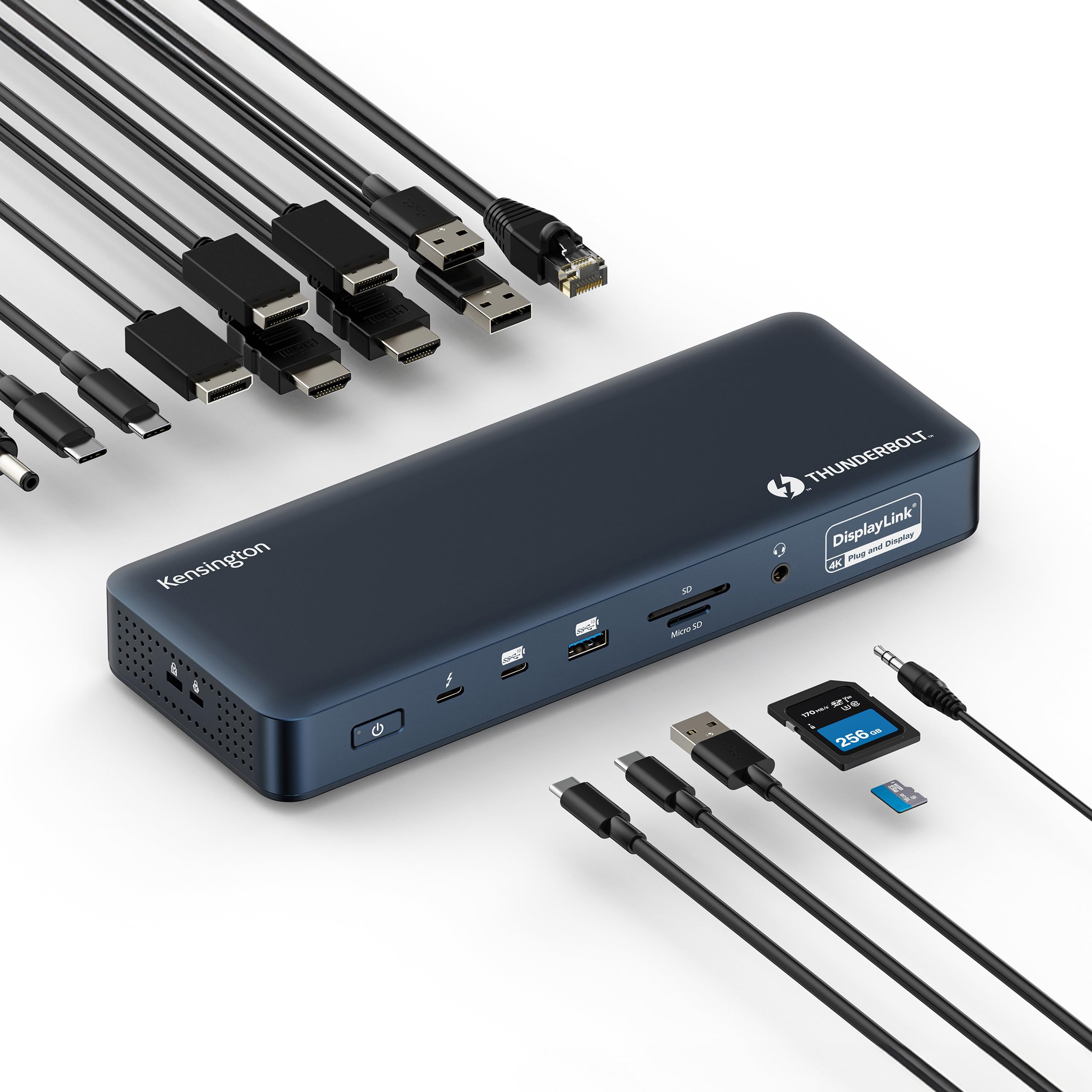
Four 4K monitors on a base M4 Air — the one thing a plain Thunderbolt dock cannot do.
DisplayLink is the trick: it is a driver-based display technology that routes video over a standard connection and sidesteps the Mac’s own display cap. Here it pushes up to Quad 4K@60Hz on MacBooks with M4/M5 base chips or M1–M5 Pro/Max chips with the lid closed, and up to Triple 4K@60Hz on M1/M2 base chips. If your desk has a trading panel, a timeline, and two references open at once, that freedom is the entire point.
The 16-in-1 layout backs it up: two downstream Thunderbolt 4 ports at 40Gbps, a USB-C 3.2 Gen2 at 10Gbps, a USB-A 3.2 Gen2 at 10Gbps, two USB-A 3.2 Gen1 at 5Gbps, two HDMI/DP, one DP, a 3.5mm combo jack, SD and microSD readers, and a 2.5Gbps ethernet port. Charging is 100W (96W certified) with off-host charging, so accessories keep topping up while the laptop is undocked. Port availability is the trait the reviews return to most — a wide spread is exactly what people want here.
Budget a driver install into setup; DisplayLink is not plug-and-play the way a pure Thunderbolt display signal is. The 1.3-pound chassis in midnight blue is easy to live with, and the mounting bracket is sold separately if you want it off the desk. That driver step is a fair trade for quadruple monitors rather than a flaw, but it is a step you cannot skip.
Why the driver earns its place
- Quad 4K@60Hz on M4/M5 base chips via DisplayLink, with triple 4K@60Hz on M1/M2 base chips.
- 2.5Gbps ethernet sits alongside the display expansion, not instead of it.
- Off-host charging keeps accessories topped up while the laptop is away.
- 16 ports including two downstream Thunderbolt 4 at 40Gbps and dual card readers.
What to plan around
- DisplayLink requires a driver install before the extra displays work.
- Quad display on base M4/M5 chips needs the lid closed.
- Mounting bracket and cable lock are extra purchases.
Choose this when: four monitors is not a nice-to-have but the actual desk layout you need on a base M4 Air.
Skip the extra step only if: you are happy with two displays and would rather not install a driver.
7. Satechi Thunderbolt 4 Docking Station
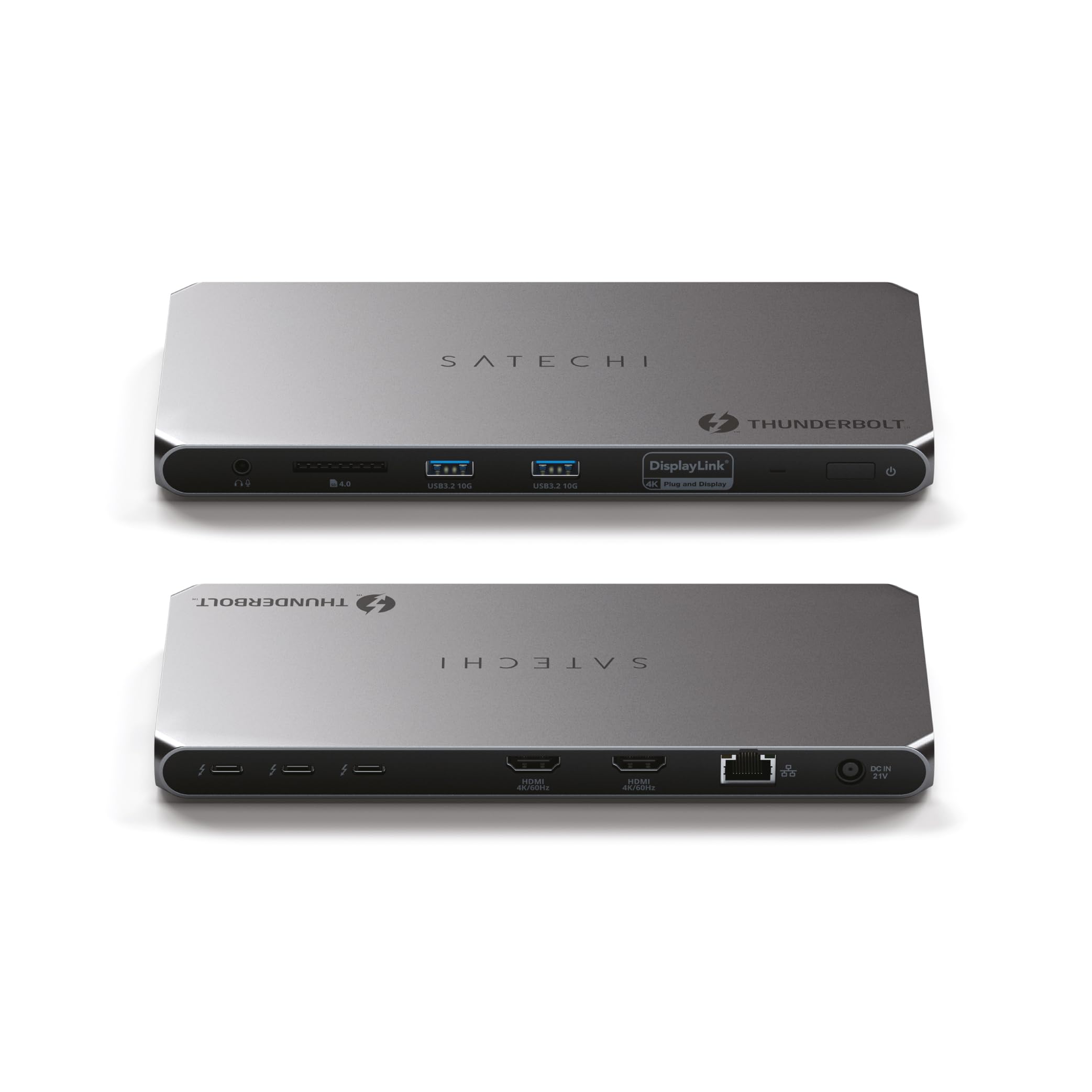
Four extended 4K/60Hz screens, split across two Thunderbolt 4 ports and two HDMI.
Satechi’s dock is built for a multi-display workstation, and the spec sheet puts a number on it: up to four extended displays at 4K/60Hz, two through Thunderbolt 4 and two through HDMI. On M1 and M2 Macs that drops to three, one via Thunderbolt 4 and two via HDMI. Three Thunderbolt 4 ports deliver 40Gbps, and daisy-chaining is supported for up to six devices, with external GPU and SSD speeds up to 32Gbps.
USB-C power delivery is rated at 96W, and the SD 4.0 UHS-II reader is rated at up to 312MB/s — quick enough for a full card offload. Ethernet is gigabit at up to 1000Mbps, which is the standard port rather than the 2.5Gbps one the WAVLINK and Kensington SD5900T carry. A 1-meter Thunderbolt 4 cable, 180W AC adapter, and C5 power cord come in the box, along with a 2-year limited warranty. The chassis is 1.1 pounds in space grey, one of the lighter premium docks here.
The thing to know going in is that DisplayLink drivers must be installed before the extended-display arrangement works — the same driver requirement as the Kensington SD5900T, and the reason the multi-monitor count climbs past what a bare Thunderbolt dock can do. If you edit video on an M4 Air and want a wall of screens, that installation is the price of admission.
What you are buying: up to four extended 4K/60Hz displays, two on Thunderbolt 4 and two on HDMI, with a 312MB/s SD reader for card offloads between edits.
Trade-off: DisplayLink must be installed for the extra displays, and ethernet stays at gigabit rather than 2.5Gbps.
Fits best: a video or photo workflow on an M4 Air with a wall of monitors and a fast card reader in constant use.
Check if: your network depends on 2.5Gbps — this dock tops out at gigabit ethernet.
8. SD25TB4 Pro Thunderbolt 4 Smart Dock
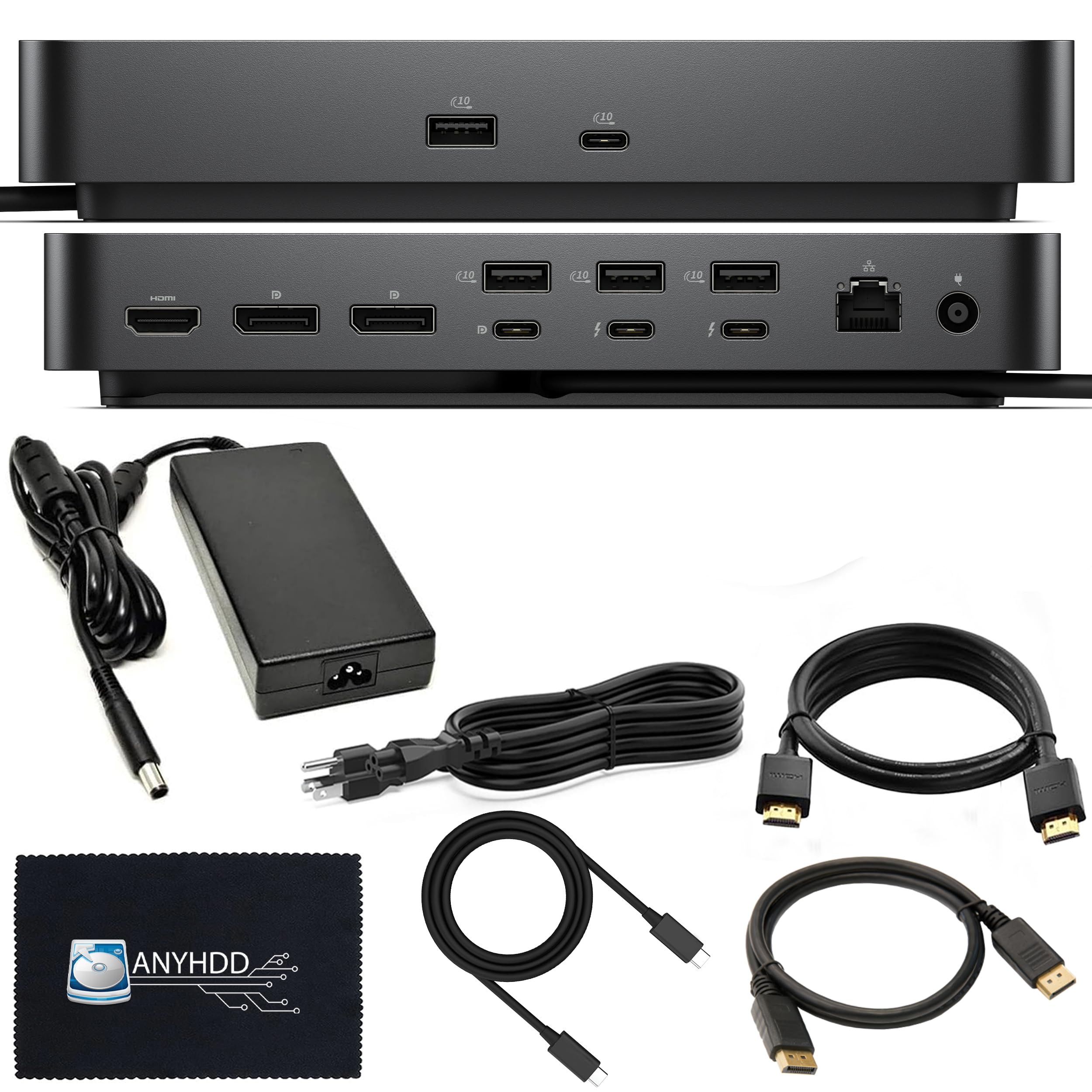
The dock you can swap modules into, with a 180W brick that does the heavy lifting.
What sets the SD25TB4 apart is the modular design: a swappable module so you can upgrade the dock without replacing the whole thing, plus Dell’s SuperBoost charging and data transfer spec rated at 40GB/s. For a desk that plans to outlive one laptop refresh, that modularity is a real reason to pick it over a sealed alternative. A single cable carries the whole desk — 4K displays and Thunderbolt peripherals both.
The port layout runs two Thunderbolt 4 ports, a USB-C 3.2 Gen 2, a USB-A 3.2 Gen 1 with PowerShare, two DisplayPort 1.4, an HDMI 2.0, a USB-C multifunction DisplayPort, two more USB-A 3.2 Gen 1, and a gigabit ethernet RJ-45 jack. Power comes from a 180W adapter at 120/230 V AC, and macOS, Windows 10 and Windows 11 are all on the supported list. The reviews point at instant connection with no fuss and a healthy number of ports — and one buyer runs four monitors off it successfully.
Compatibility with Dell laptops and monitors is the design centre, and that shows in how the setup instructions read. For a MacBook Air M4 it works, but you are buying a workstation dock with Dell’s ecosystem baked in, which is worth weighing if you will never plug in a Dell machine. The 180W adapter and modular frame are the reasons it sits in premium territory.
The differentiator: a swappable module lets the dock grow with your setup instead of being replaced, backed by 40GB/s transfer and a 180W adapter.
Honest note: this is a Dell-ecosystem dock first — Macs are supported, but much of the design is aimed at Dell laptops and monitors.
Worth it for: a desk that mixes a MacBook Air with a Windows or Dell machine and wants a dock that can be upgraded rather than replaced.
Think twice if: you are a pure Apple setup and will never use the Dell-side modularity.
9. StarTech Thunderbolt 4 Dock
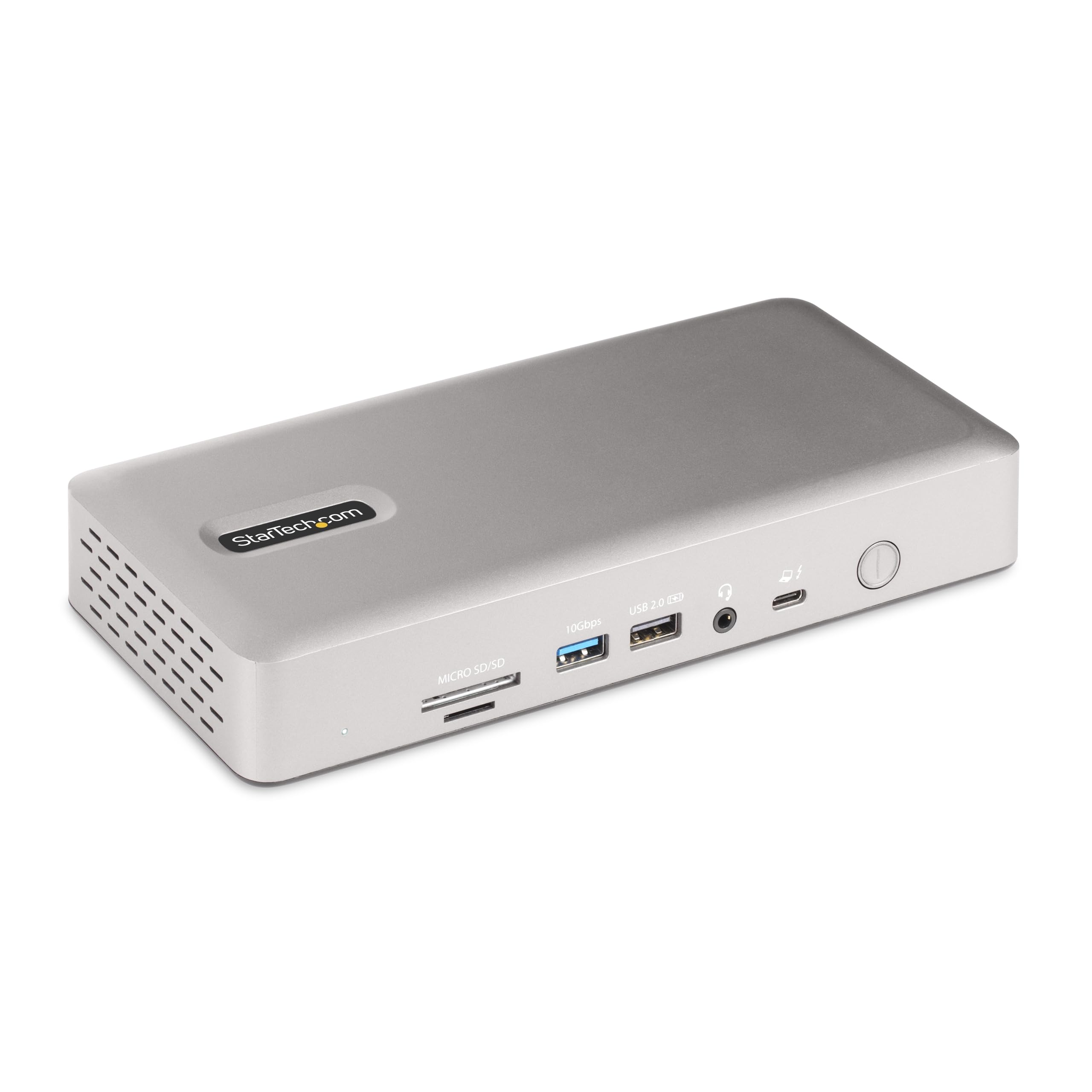
Seventeen ports, driverless on both Mac and Windows, and a chassis that weighs 7.04 ounces.
The number that defines this one is 17 ports with no driver install required — it works with Intel, Apple Silicon, AMD, and Snapdragon X Copilot+ PCs on the same desk. For a MacBook Air M4 you get dual 4K 60Hz on M3/M4/M5 MacBooks, and the Windows side of the same dock pushes up to four 4K 60Hz displays. That is the sort of flexibility that makes it the choice for a mixed-device office rather than a single-user setup.
The physical package is 8.3 by 3.8 by 1.4 inches at 7.04 ounces — light enough to pick up and move between desks without a second thought, which the heavier docks here do not manage. It also earns strong marks for plug-and-play and for the sheer number of connection options, with the dual-monitor, two-PC setup running without hiccups being a recurring theme in the feedback. Build quality and the wide compatibility list do the rest of the work.
Value is the point where opinion splits — this sits high in the premium tier, and the dock itself does not hide it. If you only need one Mac and two monitors, a lower-port dock does the job for less. If you swap between a Mac and a Windows machine all day and want the same dock for both without touching a driver, the premium is buying the flexibility.
Where it pulls ahead
- 17 ports with driverless compatibility on Intel, Apple Silicon, AMD and Snapdragon X Copilot+ PCs.
- Dual 4K 60Hz on M3/M4/M5 MacBooks, and up to four 4K 60Hz displays on Windows.
- 7.04 ounces — light enough to move desk to desk.
- Plug-and-play behaviour that holds up across a two-PC, dual-monitor setup.
The cost of flexibility
- Premium pricing sits high compared with the mid-range docks on this list.
- Four-display output is a Windows figure; MacBooks get dual 4K 60Hz.
Built for: a shared desk where a MacBook Air M4 and a Windows laptop take turns on the same dock, with no driver install either way.
Reconsider if: you are a single-Mac household — the premium buys a flexibility you may never use.
10. Sonnet Echo 20 Thunderbolt 4 SuperDock

A dock with a drive bay inside it — add your own SSD and skip the external enclosure.
Twenty interfaces is the Sonnet’s opening number, and one of them is an M.2 NVMe SSD slot that takes up to 8TB of storage inside the dock at transfer speeds up to 800MB/s. The SSD is sold separately, but an M4 Air with a full internal drive suddenly has somewhere to put a media library without another box on the desk. It is the one feature none of the other docks here offer at all.
The port list runs three Thunderbolt 4, four USB 3.2 Gen 2 Type-A, four USB 3.2 Gen 2 Type-C charging ports, HDMI, RJ45 2.5 Gigabit Ethernet, a 3.5mm combo audio, a 3.5mm microphone input, line-level R+L RCA audio out, an SD 4.0 card slot, and the NVMe bay. Display support covers 4K, 5K, 6K and 8K at 60Hz. It charges the laptop at up to 100W through the included Thunderbolt 4 cable and works with Apple M-series Macs, Thunderbolt 3 Intel Macs, Thunderbolt 3 and 4 Windows computers, Thunderbolt 4/USB4 Chromebooks, and M-series iPad Pro.
Effectiveness and the sheer number of ports are what people respond to — the front-facing USB ports getting singled out for charging a phone and a watch without reaching around the back. The unit runs warm during use, though not hot, which is normal for a dock with a drive inside. It is a 1.8-pound desktop fixture, not a travel accessory.
Storage is the headline: an internal M.2 NVMe bay taking up to 8TB at up to 800MB/s — a media library housed inside the dock instead of a separate enclosure.
Reality check: the SSD is not included, and the dock runs warm in normal use with a drive fitted.
Pick it if: your M4 Air’s internal storage is the bottleneck and you want the drive inside the dock rather than on the desk next to it.
Look elsewhere if: you already have external storage sorted and only need display and port expansion.
11. CalDigit TS4 Thunderbolt 4 Dock

Eighteen ports, 98W of charging, and the largest ownership base of any dock on this list.
Count the connectivity on the TS4 and it stops being a comparison: 18 ports including a built-in DisplayPort 1.4 connector, eight USB ports with full 10Gb/s performance, SD and microSD 4.0 UHS-II card readers, three Thunderbolt 4 ports at 40Gb/s, three audio ports, 2.5GbE, and a security slot. If you have ever unplugged a drive to free a port, the TS4’s 18 ports end that habit.
Power delivery is 98W — more than the WAVLINK’s 96W and just under the SD5900T’s 100W — enough to charge the laptop and run all 18 devices off one cable. The 2.5GbE port is rated 2.5X faster than standard 1GbE and fully backwards compatible with 1GbE devices. Display output reaches 8K@30Hz or two 6K@60Hz screens over Thunderbolt 4.
Two conditions come with the TS4 and both are in the spec sheet. It needs a Thunderbolt 4 or fully optioned USB4 port for maximum performance — on older interfaces it runs at the ceiling of the host, and it must be used with the supplied certified cable or an Intel-certified aftermarket Thunderbolt or USB4 cable. The 4.46 by 1.65 by 5.55 inch chassis stands upright on a desk, so plan shelf or desk space for a vertical footprint rather than a flat one. If your desk genuinely runs out of ports, the upright footprint is a fair trade.
What no other dock here matches
- 18 ports, the highest count on this list, including a built-in DisplayPort 1.4 and eight full-10Gb/s USB ports.
- 98W charging runs the laptop and all 18 devices off one cable.
- 2.5GbE rated 2.5X standard 1GbE, backwards compatible with 1GbE devices.
- 8K@30Hz or dual 6K@60Hz display output over Thunderbolt 4.
The two conditions in the fine print
- Must use the supplied certified cable or an Intel-certified Thunderbolt/USB4 alternative.
- Performance caps at the host interface — full speed needs a Thunderbolt 4 or fully optioned USB4 port.
- Upright 4.46 by 1.65 by 5.55 inch footprint needs desk or shelf space.
Made for: a permanently wired workstation where every port gets used and the laptop never moves.
Worth knowing: the supplied certified cable is not optional — swapping in an uncertified one drops you out of spec.
Know the Specs
Thunderbolt 4 and 40Gbps — what the number buys you
Thunderbolt 4 is the connection standard, and 40Gbps is its data ceiling — the same figure the WAVLINK, OWC, Satechi, StarTech and CalDigit docks in this list all carry. In daily use that means a large file leaves a fast SSD in seconds instead of minutes. It also means the port can carry video, data and power at the same time, which is why one cable to a MacBook Air M4 can replace four separate ones.
A plain USB-C hub is not the same thing. Thunderbolt 4 ports can daisy-chain, so the Satechi supports chaining up to six devices and the OWC carries three Thunderbolt 4 downstream ports at 15W each. Those downstream ports are the difference between a hub and a dock.
Power delivery in watts — reading the charging figure
Power delivery (PD) is the charging channel that runs back up the same cable into your laptop. The number that matters is the wattage the dock sends to the host: 85W on the UGREEN, 96W on the WAVLINK and OWC, 98W on the CalDigit, and 100W on the Plugable, Kensington SD5760T and Sonnet. A higher figure means more room to charge while peripherals draw power at the same time.
Not every dock is honest about the ceiling. OWC states plainly that its 96W may not fully support high-demand loads or heavy simultaneous peripheral use, which is a useful reminder that the figure is a maximum rather than a guarantee. And the UGREEN must be connected to its included charger to work at all — it draws nothing from the laptop.
Common Questions
Will a Thunderbolt 4 dock work with my MacBook Air M4 from the start?
Why can my M4 MacBook Air only extend one external display on some docks?
Do I need to install drivers for a Thunderbolt 4 dock?
Is 2.5GbE ethernet worth it over a standard gigabit port?
Can a Thunderbolt 4 dock charge my MacBook Air while I work?
What is the difference between mirroring and extending two monitors?
Can I plug a Thunderbolt 3 or USB-C laptop into these docks?
Should I install my own SSD in a dock rather than buy an external drive?
Does the display cable have to be a specific type?
Will a dock get hot sitting on my desk all day?
The Bottom Line
For most MacBook Air M4 desks, the thunderbolt 4 dock for macbook air m4 that gets the balance right is the UGREEN 8-in-1 Thunderbolt 4 Docking Station — three Thunderbolt 4 downstream ports at 40Gbps, 85W charging from the included GaN brick, gigabit ethernet and three 10Gbps USB-A ports, all in an 8-port frame that covers a normal working day. Its 4.0+ star rating across a few hundred owners holds up, and it is the simplest pick for a desk that never wants to install a driver.
If two HDMI monitors are non-negotiable on a base-chip Air, switch to the Plugable TBT-UDM, which supports dual 4K 60Hz HDMI across all M4 and M5 systems without drivers. For a wired-network desk, the WAVLINK brings the 2.5G port the others reserve for premium models. And if four screens are the actual requirement, the Kensington SD5900T is the one that gets you there on a base M4 chip.
The one move worth making before you buy: count your monitors first. Every dock here is competent; the right one is whichever lists Mac display support that matches the screens already on your desk.
How we choose
We do not accept paid placement. Every pick is matched to a real buyer and a real use-case; we do not hands-on test units.
Sources
Specifications: manufacturer listings and product documentation. Review insights: verified customer reviews, as of November 2026. Pricing: not shown on this page (it changes often); check the current price via the retailer link.
As an Amazon Associate, Tactical Gear Guy earns from qualifying purchases. This does not affect which products we feature.