Specs are compiled from manufacturer listings and verified buyer reviews and can change over time — please confirm the key details on the product page before buying.
If you are outfitting a K-12 classroom with a smart board, the single question that decides everything is simple: will it survive a room full of kids and still open the apps your lessons run on? Most boards look identical on the shelf, yet they split hard on touch sensitivity, Google certification, and whether the front of the room gets jammed the moment a second grader leans on the glass. This guide matches each board to the touch counts, app access, and mounting each classroom actually needs.
This guide is built by comparing the manufacturers’ published specifications and the patterns across verified customer reviews, so you get each pick’s real strengths and trade-offs instead of marketing spin.
You will see which boards handle 40 fingers at once, which ones skip app-store headaches, and which ones expect you to buy the stand separately. Each pick below is matched to a specific classroom job, from whole-table group work to hybrid lessons.
Top Picks
How To Choose The Best Smart Board for K12 Classroom
A classroom board is not a TV with a pen stuck to it. It is a computer, a display, and a shared writing surface that thirty students will touch in a single period. The boards that hold up are the ones whose touch layer, operating system, and mounting plan all fit your room.
Touch points decide how many students can work at once
Touch points are the number of fingers the screen can track at the same time. A 20-point board lets several students write together without dropped strokes. A 40-point board like the Pluss 65″ keeps up when a whole table crowds the glass. Fewer points means students take turns, which slows a lesson down.
Google EDLA certification and the app question
EDLA stands for Enterprise Device Licensing Agreement, Google’s stamp that a device can run the official Play Store and Google Workspace apps. A certified board opens Drive, Docs, and Classroom without workarounds. An open Android board can still install apps, but the certified path is the smoother one for school accounts.
Resolution and brightness for a bright room
A 4K UHD screen means 3840 x 2160 pixels — enough that small text in a worksheet stays readable from the back row. Brightness is measured in nits, and a brighter panel fights glare from windows. Contrast ratio describes the gap between the darkest and brightest parts of the picture, so higher numbers keep diagrams crisp.
Wall mount versus stand — check what ships in the box
Many boards include only the wall bracket, with the rolling stand sold as a separate item. If your room needs the board to move between spaces, budget for the stand up front. If it lives on one wall, the included bracket is all you need.
Side-by-Side Comparison
| Model | Best For | Screen Size | Touch Points | Memory / Storage | Amazon |
|---|---|---|---|---|---|
| COOLHOOD 65″ Smart Board★ Best Overall | Full-room lessons on a budget | 65 in | 20-point | 128GB | Amazon |
| Pluss 65″ 4K Interactive Smart BoardMost Touch Points | Whole-table group work | 65 in | 40-point | 8GB + 128GB | Amazon |
| JAV 65 Inch Smart Board ProBest for Hybrid Lessons | Hybrid and remote lessons | 65 in | — | 8GB + 128GB | Amazon |
| JASZDOT 75″ Smart Board | Big rooms and back-row visibility | 75 in | 20-point | 8GB + 128GB | Amazon |
| MWE 65 Inch Smart Board | Split-screen conferencing | 65 in | 20-point | 8GB + 128GB | Amazon |
| NewBoard 65E | Casting from many student devices | 65 in | 50-point | 8GB + 64GB | Amazon |
| Shiarffe X5 75 Inch | Daily K-12 wear and tear | 75 in | 20-point | 8GB + 128GB | Amazon |
| YCKJNB 86″ Smart Board | Auditoriums and large halls | 86 in | 20-point | — | Amazon |
| Samsung Pro 85″ WMB Display | Multi-device pairing and casting | 85 in | 20-point | — | Amazon |
| Vibe S1 55 Inch | Small rooms and huddle spaces | 55 in | 10-point | 8GB + 128GB | Amazon |
Detailed Reviews
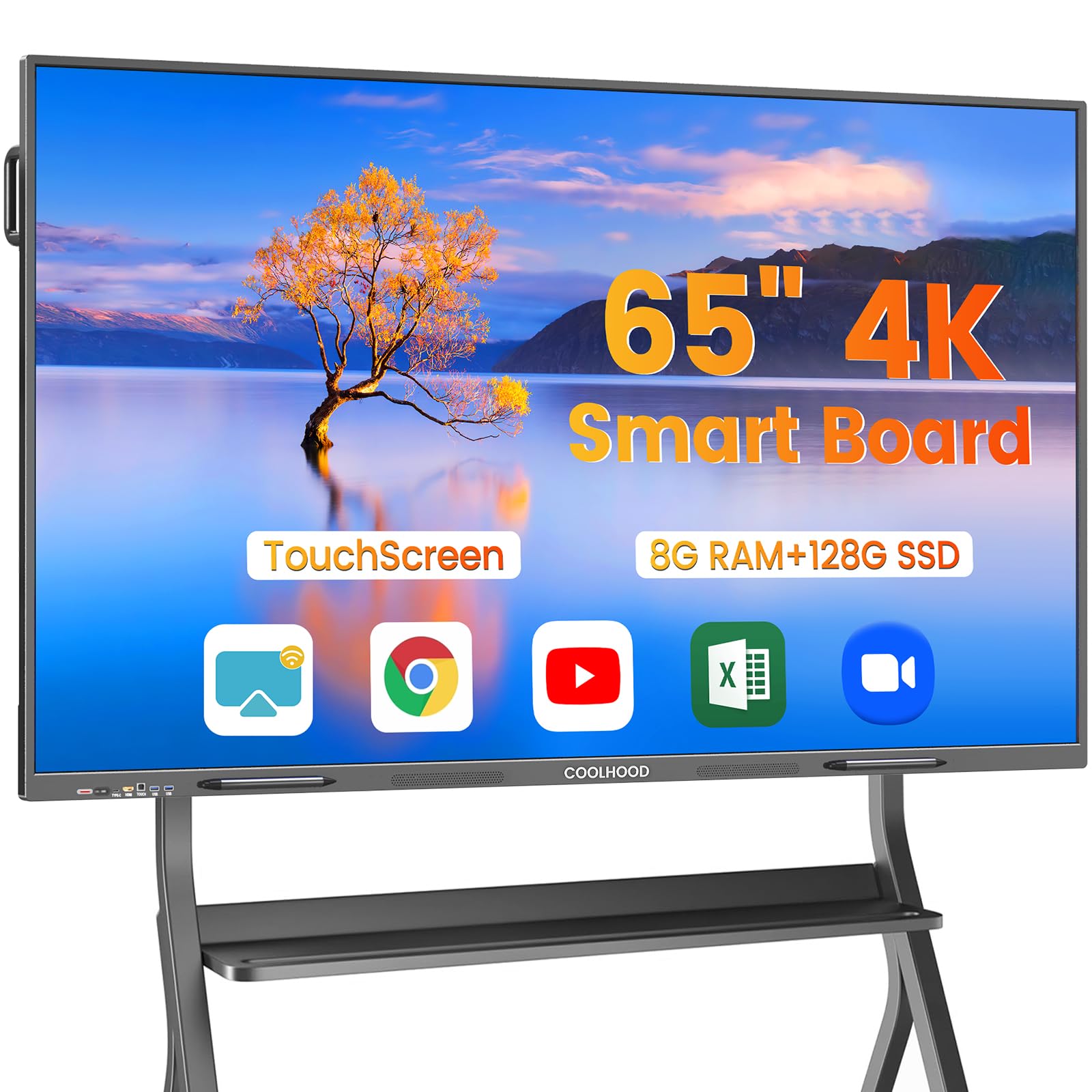
1. COOLHOOD 65″ Smart Board
Our pick — 4.5+★ from 800+ verified ratings; the strongest balance of quality and price.
The all-in-one that turns a 65-inch wall panel into the classroom computer itself.
This board earns the top spot because it won’t stall mid-lesson. Inside the frame sits an octa-core processor (eight processing cores working together, four A73 plus four A53), paired with 128GB of storage and the Android 16 operating system. In practice, you can jump from a drawing app to a quiz to a video without the panel freezing in front of thirty students. The octa-core setup handles the heavy lifting, so your lesson keeps moving.
Its 20-point multi-touch tracks twenty fingers at once — the practical number when a small group crowds the glass to label a diagram. That count sits at half the touch points of the Pluss 65″, 20-point against 40-point, so the Pluss beats it on simultaneous hands. Writing feels immediate thanks to a 6ms response time (a 6-millisecond lag) and ±1mm precision, which keeps pen strokes landing where the tip touches.
What wins people over is how much of the lesson day lives in one box. The board runs smart voting, a timer, and screenshot capture as built-in tools, and scans a QR code to push files to student devices. It also plays well with Zoom, Google Meet, Microsoft Teams, and Webex, so a remote guest can join without a second machine. The recurring trade-off is the mounting: each unit ships with a wall bracket, and the rolling stand is a separate purchase shipped on its own.
Standout strengths for a busy room
- Octa-core performance with 128GB of storage keeps lesson apps moving without stutter
- 6ms response time and ±1mm precision make handwriting feel natural on the glass
- QR code file sharing pushes notes to student devices without extra steps
- Built-in voting, timer, and screenshot tools handle classroom flow in one place
What to weigh before you buy
- The 20-point touch layer trails the Pluss 65″ at 40-point when large groups write together
- The rolling stand does not come in the box — you get the wall bracket only
- Android 16 means some classroom apps may need a fresh install rather than a carried-over setup
Pick this if: you want the classroom computer built into the screen, with conferencing and app tools already inside the frame.
Plan around this: buy the stand as a separate order at the same time, or you will be staring at a board waiting for legs.
2. Pluss 65″ Smart Board
Forty fingers at once — the board that keeps up when a whole table writes.
Group work is where most boards buckle. This one tracks up to 40 simultaneous touch points through infrared touch technology (an array of invisible light beams across the glass that registers every fingertip), double the COOLHOOD 65″ at 20-point. That extra headroom matters when a reading group crowds the board to underline a passage together, because nobody’s stroke gets dropped.
Inside runs Android 14 with a high-speed A16 processor, 8GB of RAM, and 128GB of storage. Google EDLA certification is the part teachers feel most — it opens the official Play Store, Google Workspace, and Classroom directly on the board. Adding the dual pen-tip recognition means handwriting works with a 2.8mm fine point for notes or an 8mm broad tip for bold annotation.
The display is native 3840 × 2160 4K with a 1200:1 contrast ratio and a 178° viewing angle, so a student at the far side wall sees the same picture the teacher does. The honest catch is the weight: at 40 kg this is a two- or three-person lift onto the wall bracket, so line up help and a solid wall before delivery day.
Where it pulls ahead: touch capacity. Against the COOLHOOD’s 20-point layer, this 40-point panel doubles the hands it can track, which is the whole game in a collaborative classroom.
Setup reality: 40 kg of glass and aluminum needs a real mounting plan, and the OPS slot for adding a Windows module is a separate purchase.
Reach for this if: your lessons depend on many students writing at the same time, and you want Google apps running natively.
Pair it with: a wall capable of holding 40 kg and at least two people for the lift.
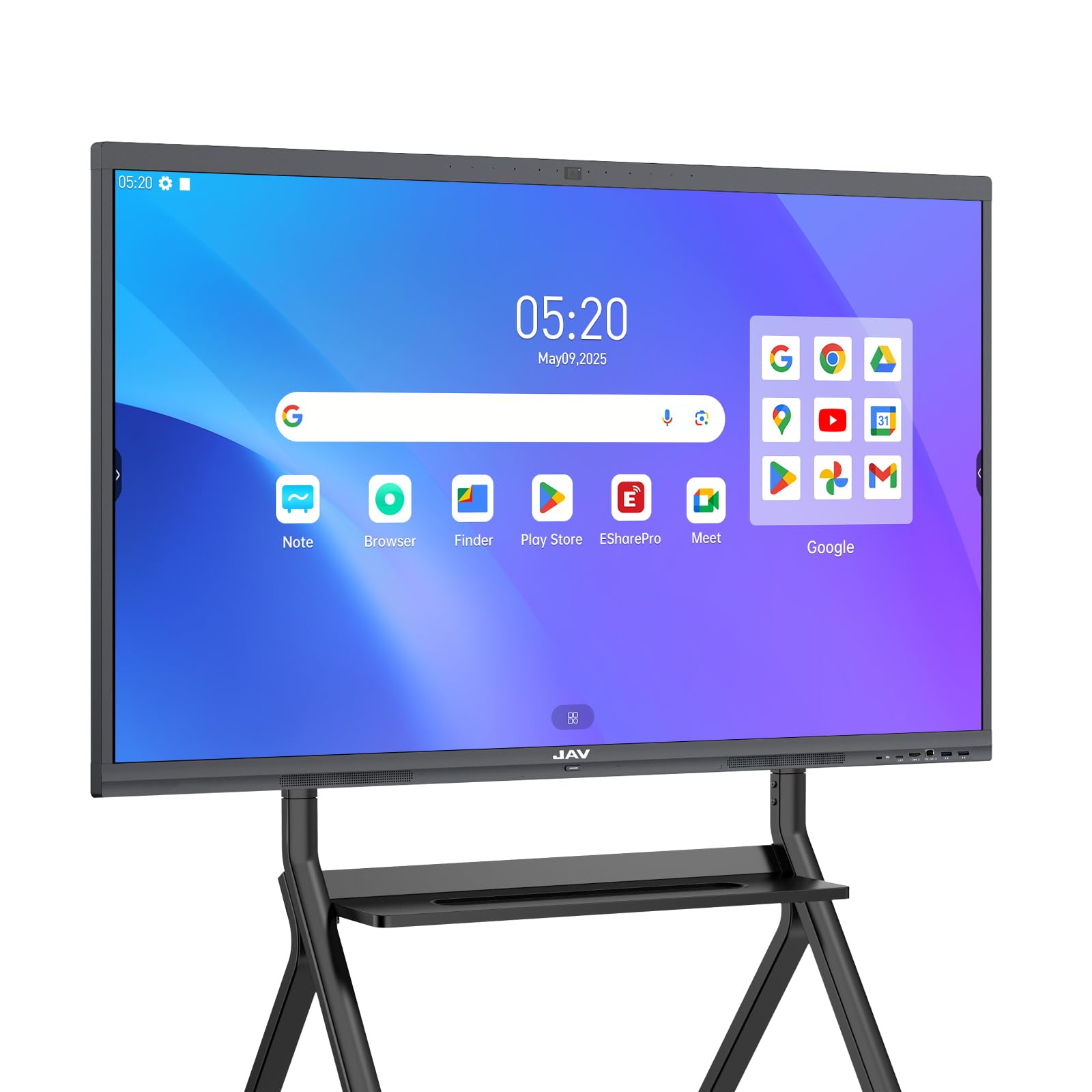
3. JAV 65 Inch Smart Board Pro
A board built for the camera — remote students see the lesson, not a blur.
A 48MP camera is the reason this board exists. When half the class is dialing in from home, the built-in camera means the teacher does not need a separate webcam rigged above the screen. The anti-glare tempered glass handles a window-lit classroom, cutting the reflections that turn a bright display into a mirror at two in the afternoon.
Google EDLA certification is here too, and that changes what a school can actually do. It opens verified educational content and adds screen lock and USB password protection so a shared board does not leak student files. Android 14 with 8GB of RAM and 128GB of storage carries heavy multitasking, and wireless mirroring covers Mac, Windows, iOS, and Android devices in the same room.
Functionally it holds up: the board runs lesson apps and annotation without fuss. Value is the split: some schools call the price fair for the 48MP camera and EDLA access, others say it asks a lot. Weigh it against your per-room budget before committing.
The hybrid angle: a 48MP camera plus EDLA certification makes it a natural fit where remote students join daily.
The honest split: value for money is the one place opinions divide, so line it up against your per-room budget before committing.
Suits: classrooms running regular hybrid sessions where the camera has to actually earn its keep.
Second-guess it if: a slightly smaller budget is tight — the price tag asks more than the COOLHOOD and the value is the debate.
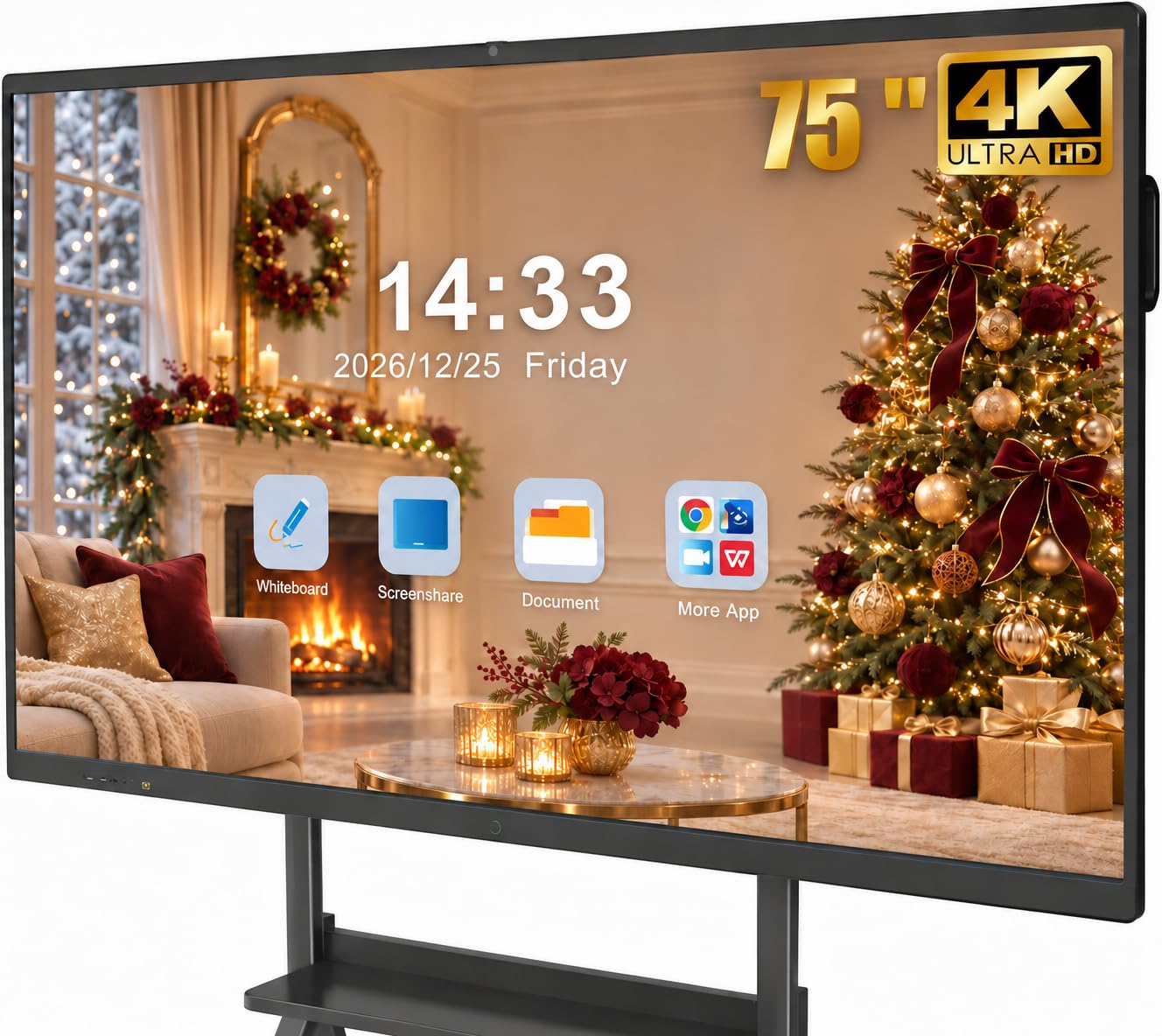
4. JASZDOT 75″ Smart Board
The big-panel pick for the back row that can never quite see the worksheet.
Size is the story here. At 75 inches, this panel runs 10 inches larger than the 65-inch COOLHOOD and Pluss boards, and it delivers over 400 nits of brightness on a true 4K UHD screen. In a deep classroom where the last desk sits well behind the front row, that extra diagonal and brightness are what keep a diagram readable instead of guessed at.
The port layout shows the room was thought through. Two USB ports, one HDMI, and one TOUCH input sit on the front panel, so a teacher plugs in a laptop without reaching around the back. The rear adds TOUCH, dual USB, a TF card slot, HDMI, RS232, and a headphone jack, while the bottom row reaches legacy gear with VGA, AV, and DisplayPort. That spread means an older projector-era room can keep its existing cables.
Under the glass sits Android 14 with 8GB of RAM and 128GB of storage, and the 20-point infrared touch carries ±1mm precision with a 6ms response time. Flicker-free, eye-care display tech earns its place during long lessons. The included screen casting box handles mirroring, and the box adds a wall mount and remote — but no rolling stand, so a mobile setup means sourcing one separately.
Why the extra inches pay off: a 75-inch panel with over 400 nits means the back row reads what the front row reads, and front-facing ports save the reach-around every period.
What you supply: the stand, since the box ships the wall bracket and casting accessories instead.
Best for: large classrooms where screen size decides whether a lesson is visible at all.
Watch this: the stand is not in the box — plan the mount before the board arrives.
5. MWE 65 Inch Smart Board, 4K Interactive Whiteboard
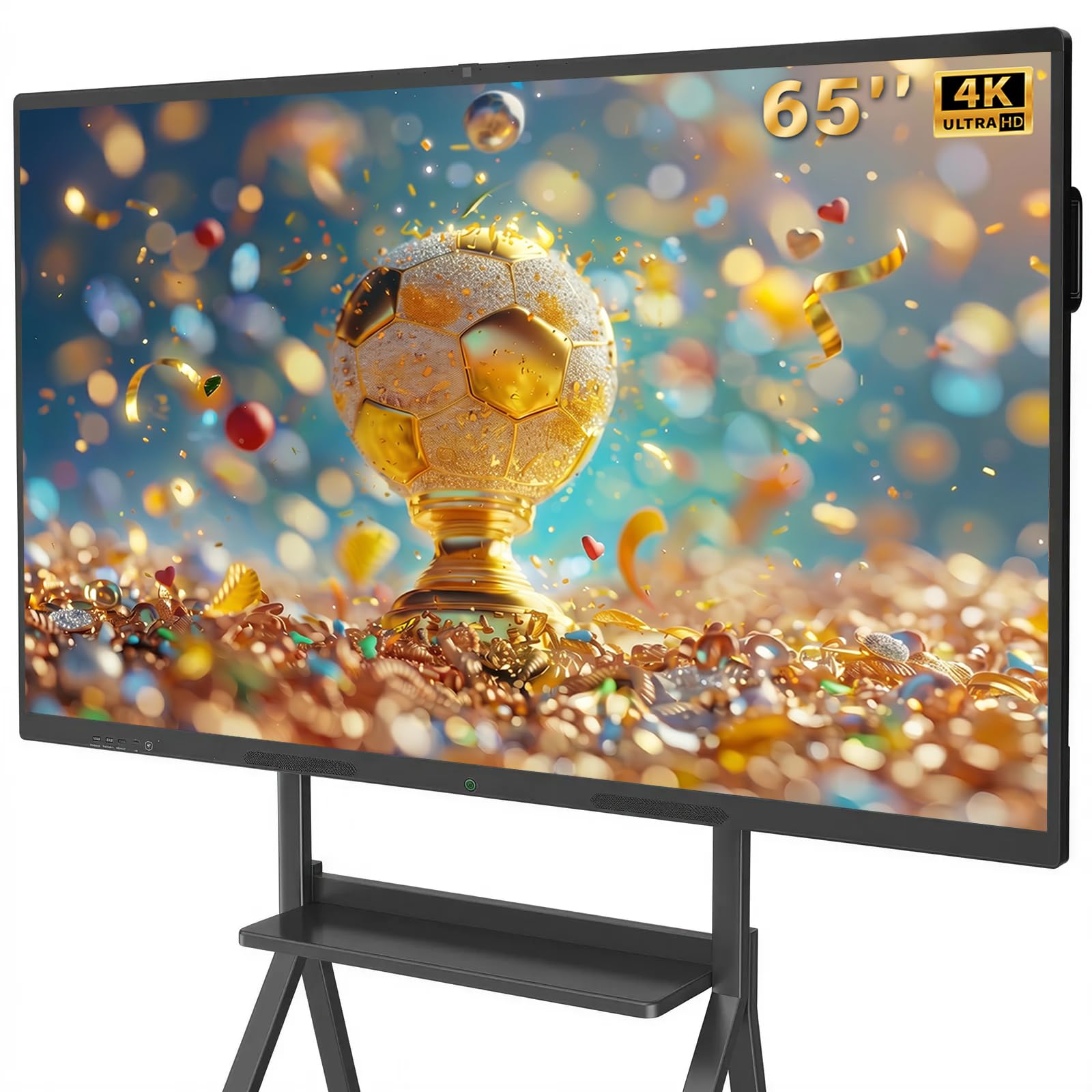
The conferencing suite with the voice gear already bolted inside the frame.
Most boards make you add a microphone. This one arrives with a 13MP auto-focus camera, an 8-array microphone that catches a soft-spoken student from across the room, and dual 20W speakers. Together that turns any classroom into a video conference room without a single extra purchase, which is the rare part here.
The split-screen function displays up to 4 different sources at once — useful when you want to compare two students’ work side by side while keeping a third source open for reference. The 4K UHD panel runs 20-point infrared touch so small groups can annotate together, and Android 14 with 8GB RAM and 128GB ROM keeps the app switching quick.
Casting is flexible by design. Wireless mirroring over Miracast or AirPlay covers phones and tablets, and HDMI or USB-C keeps a wired connection rock-solid when the wireless gets crowded. The open app ecosystem opens Google Play for tools like Khan Academy alongside cloud storage over WiFi. The practical cost is that this board starts well up the price scale, so those built-in conferencing extras are a real premium compared with the value-first picks.
Where it earns its keep
- 13MP auto-focus camera, 8-array mic, and dual 20W speakers come built in, not added on
- Split screen shows content from up to 4 sources at once for comparison lessons
- Android 14 with 8GB RAM and 128GB ROM keeps apps responsive
- Both wireless casting and HDMI/USB-C wired options cover every device in the room
The other side
- The built-in conferencing kit pushes it into the premium tier
- A floor-standing mount is listed alongside the wall mount option, so confirm the exact mounting setup before ordering
Choose this: if remote lessons happen often and you would rather not buy a camera and mic separately.
Think twice if: the budget room is a plain single-teacher wall panel — the conferencing extras are the price driver.
6. NewBoard 65 Inch 4K Smart Board, Google EDLA-Certified
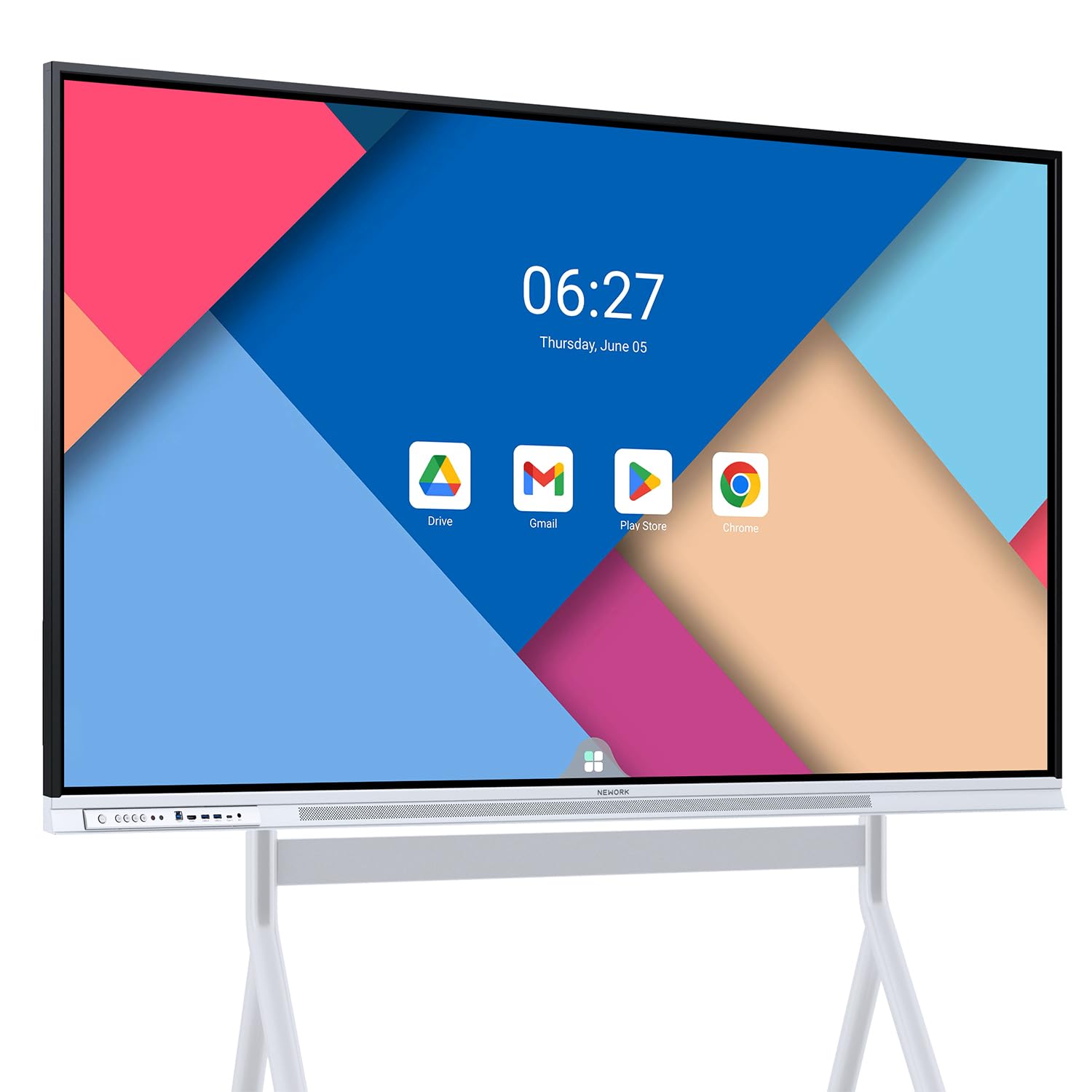
Up to ten students writing at once, on the board with the biggest touch count.
Fifty touch points is the number that separates this board from most of the field. Up to 10 users can write on the screen simultaneously, which suits a collaborative table where every student has a hand on the glass at once. That is a step beyond the 20-point COOLHOOD and the 40-point Pluss in raw touch capacity.
Casting is the second reason teachers favor it. The board accepts wireless content from up to 16 devices at once, so a classroom full of student tablets can push work to the big screen in turn rather than one at a time. It runs Google EDLA certification with full Play Store, Workspace, and Education Suite access, and Android 14 with 8GB RAM and 64GB ROM keeps a lesson moving.
The display runs a 65-inch UHD panel with a 178° viewing angle and 85% NTSC color coverage, and the 3000:1 contrast ratio protects the detail in diagrams. Brightness lands at 450 candela per square meter (nits). Compatibility is the part to check against your room — wired casting and Google account sign-in work cleanly, while some devices take extra effort to pair. The 64GB of storage is the smaller figure here, so heavy local video libraries may want the cloud instead.
Strongest at: a whole class of student devices hitting one screen — 16 casting connections and 50 touch points is the crowd-handling spec.
Sized-down storage: 64GB of room is enough for lessons but not for hoarding video locally, so lean on the cloud.
Right for: collaborative rooms where students cast work constantly and write together.
Check first: test one student device against it before relying on the whole class pairing smoothly.
7. Shiarffe X5 Smart Board 75 Inch 4K Interactive Whiteboard
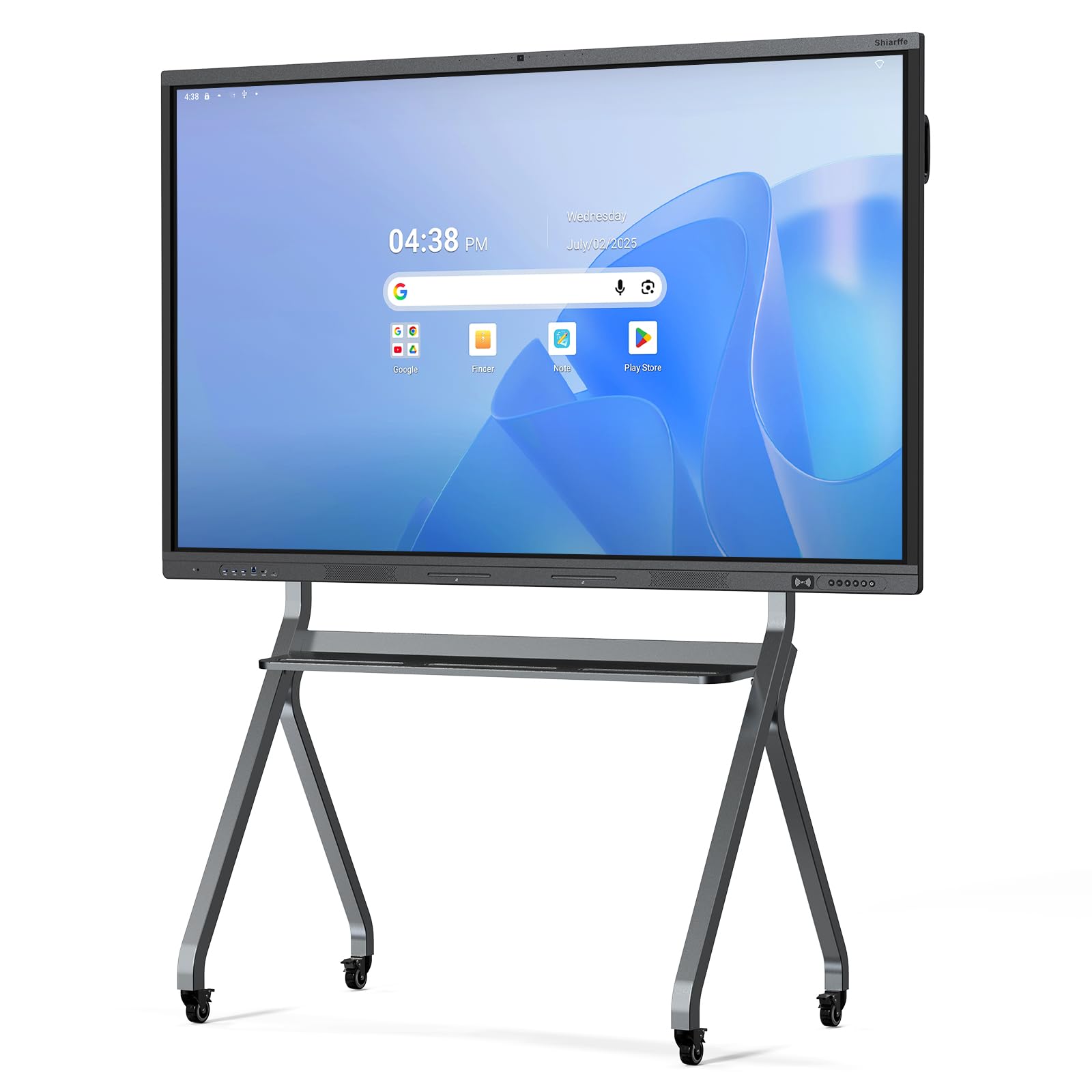
Tempered glass and a reinforced chassis, aimed squarely at daily K-12 hammering.
The build is what earns this board a slot. An industrial-grade touchscreen and a reinforced chassis are meant to take constant multi-student interaction with less downtime, which is exactly the wear a room of kids puts on a screen every day. Tempered glass over the display adds another layer of protection against the stray stylus tap.
The 75-inch 4K anti-glare IPS panel supports 20-point multi-touch with automatic brightness adjustment, so a room that shifts from morning glare to afternoon shade stays readable. It runs 8GB of RAM and 128GB of storage under Google EDLA certification, and — notably — zero software subscriptions with automatic updates. That last part saves a school from a recurring bill.
Sharing works both ways: HDMI gives plug-and-play for a laptop, and wireless mirroring covers tablets and phones. The board ships with a wall-mount bracket, remote, two styluses, and an NFC card, and the 65/75/86-inch models carry an integrated camera for hybrid lessons. The trade-off to plan around is the mount — the mobile cart is a separate item, and a 75-inch panel needs a solid wall.
Durability focus: tempered glass plus a reinforced chassis is the spec that matters when the board is touched hundreds of times a day.
No recurring bill: the no-subscription setup keeps the yearly cost of a classroom board inside the hardware price.
Best for: busy K-12 rooms where the board gets constant student contact and you want no subscription attached.
Prep this: a solid wall and a mobile cart ordered separately if the board needs to move.
8. YCKJNB 86″ Smart Board, 4K UHD Touchscreen Display
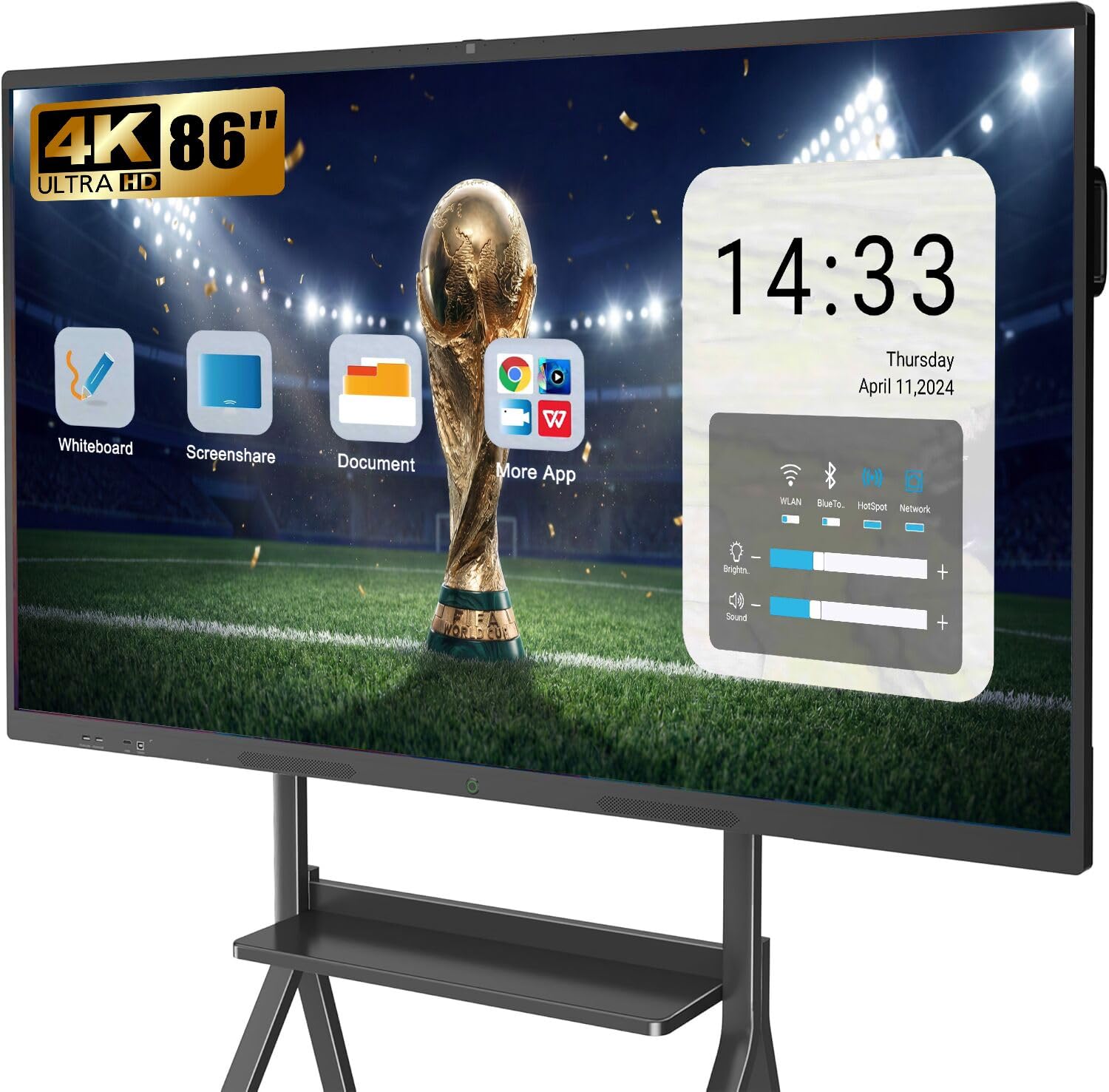
The hall-sized panel — 86 inches for rooms where a 65 disappears.
When the room is a lecture hall or an assembly space, 86 inches is the answer a 65-inch board cannot give. This panel pairs that size with a 4K UHD touchscreen and stable infrared 20-point multi-touch, so several people can still annotate despite the giant diagonal. The 13MP camera, 8 array microphones, and dual 20W speakers round it out as a video conference station for large-group lessons.
The open app ecosystem lets teachers download whichever apps fit the lesson, and the board doubles as a home movie screen when the school day ends. Reverse touch control and up to 4 users casting wirelessly mean a student’s work can be pushed up and then controlled from the big screen. The LED display carries a 1000:1 contrast ratio and a 3840 x 2160 resolution.
The reasonable follow-up question is about the software generation. Android 13 is listed for this unit, an older build than the Android 14 on several boards here, so newer apps may update less gracefully. There is also no RAM figure listed, so treat memory as unconfirmed rather than guaranteed. It ships with a wall mount, stylus, and remote, with mobile stands sold separately.
The draw: sheer scale — an 86-inch 4K panel with full conferencing hardware for spaces too big for anything smaller.
The check: Android 13 is the older system in this group, and memory is not stated, so verify the app load you need before committing.
Fits: lecture halls and large-group spaces where visibility at distance is the whole problem.
Confirm this: your lesson apps run smoothly on Android 13 before you buy for a whole department.
9. Samsung Pro 85” 4K WMB Interactive Display

The 85-inch hub that pairs fifty devices and shows six screens at once.
SmartView+ is the headline. Up to 50 devices can connect wirelessly and up to 6 screens can show at the same time, so a whole class of laptops and phones can feed the big screen without passing a cable around. That is a distinct kind of flexibility from the fixed touch boards here, and it suits a room where students bring their own devices.
The 85-inch 4K UHD panel runs up to 20 touchpoints, so several students can write at once, and the stylus or a finger both work. Universal pairing covers Apple and Google devices, which makes casting a phone or tablet quick. The display carries a 4000:1 contrast ratio and built-in speakers, with Wi-Fi and Bluetooth embedded, plus an OPS slot for adding a PC module.
The catch: it leans toward home and business use, so classroom-specific software is thinner than on the education-first boards above, and the 3.5+ star average reflects buyers expecting more. It is a strong pairing and casting hub, but for pure lesson interactivity the education-first boards carry the edge.
Pairing power: 50 wireless connections and 6 simultaneous screens let a whole bring-your-own-device room join at once — more than any other board in this group.
Honest limit: it leans toward home and business use, so a dedicated classroom ecosystem is not its focus.
Good match for: rooms where sharing from many student and staff devices is the main job.
Less ideal if: you need built-in lesson software from the start rather than a casting hub.
10. Vibe S1 55 Inch All-in-One Smart Board

The compact 55-inch board for tight rooms and small-group lessons.
At 55 inches, this board is the smallest on the list, which is a real advantage in a huddle room or a resource space where a 65-inch panel would crowd the wall. It runs VibeOS on Chromium OS with 250+ apps in the App Store, so Google Workspace and Microsoft 365 sit in the same open ecosystem. The 10-point infrared touch with under 8ms response time keeps writing smooth for a small group.
Wi-Fi 6 and Bluetooth 5.2 handle the wireless side, and an Arm RK3588 chip with 8GB of RAM and 128GB of storage keeps sessions snappy. The infinite canvas lets you annotate a PDF or a third-party app and share it on the spot. Fleet management gives IT a way to manage users and devices from one place.
The trade-off you should know before buying is reliability, which is the weakest signal in this group — some boards stop working inside a year, freeze, or lag. Writing experience earns mixed feedback too, so the fit is a small, tech-comfortable room rather than a full K-12 rollout. It weighs 50.7 pounds and mounts freestanding, so it moves less readily than a wall board.
The fit: a compact 55-inch Chromium OS board with 250+ apps, ideal where floor space is short and groups are small.
The caveat: reliability is the recurring theme to weigh — some boards fail inside the first year, so consider the warranty path carefully.
Choose it for: a small resource room or huddle space where a compact screen and app range win out.
Weigh this first: reliability is the weak spot here, so a full-building rollout wants a board with a stronger track record.
Know the Specs
Touch points and response time
Touch points are how many fingers the glass can track simultaneously. More points let more students write together without losing strokes, which is why a 40-point Pluss suits group work better than a 10-point Vibe. Response time, measured in milliseconds, is the lag between touch and ink — a lower figure like 6ms feels like a real pen.
Resolution, brightness, and contrast
4K UHD means 3840 x 2160 pixels, enough to keep small worksheet text readable across a room. Brightness in nits fights glare from windows; the JASZDOT lists over 400 nits for a bright classroom. Contrast ratio is the gap between dark and light, so a higher figure like 4000:1 keeps diagrams crisp and legible.
Google EDLA certification
EDLA stands for Enterprise Device Licensing Agreement, Google’s mark for a device that runs the official Play Store and Workspace apps. A certified board opens Classroom, Drive, and Docs natively, which simplifies student logins. A non-certified Android board can still install apps, but the certified path is cleaner for school accounts.
RAM, storage, and the operating system
RAM is the working memory that lets the board keep several apps open at once; 8GB is the common figure here. Storage in GB holds apps and files — 128GB appears on most picks, while the NewBoard lists 64GB. An older system like Android 13 may run newer apps less smoothly than Android 14.
Common Questions
Will a smart board work with my existing classroom projector and cables?
How many students can write on the screen at the same time?
Does Google EDLA certification matter for lesson apps?
Is a 65-inch board big enough for a full K-12 classroom?
Does the rolling stand come with the board?
How do I share a student’s tablet screen to the board?
What is the difference between 20-point and 40-point touch in a lesson?
Do these boards need a separate PC to run lessons?
How is the writing feel different between boards that use different systems?
Which board is easier to mount on a classroom wall?
The Bottom Line
For most classrooms, the smart board for K12 use that gets the job done is the COOLHOOD 65″ Smart Board, because the computer lives inside the panel and the QR file sharing keeps a lesson flowing. If group writing is the priority, the Pluss 65″ doubles the touch count at 40-point and adds the certified Google path. For a room that needs a bigger wall presence, the JASZDOT 75″ adds ten inches of diagonal and brighter over-400-nit output. Whichever you choose, order the wall bracket or rolling stand alongside the board so it is not stuck on the floor on delivery day.
How we choose
We do not accept paid placement. Every pick is matched to a real buyer and a real use-case; we do not hands-on test units.
Sources
Specifications: manufacturer listings and product documentation. Review insights: verified customer reviews, as of November 2026. Pricing: not shown on this page (it changes often); check the current price via the retailer link.
As an Amazon Associate, Tactical Gear Guy earns from qualifying purchases. This does not affect which products we feature.