Specs are compiled from manufacturer listings and verified buyer reviews and can change over time — please confirm the key details on the product page before buying.
Your MacBook Air has two USB-C ports and almost nothing else — so the adapter you clip on decides whether your monitor, mouse, SD card and charger all get along. The short answer: buy a dual-plug adapter that grips both ports, check its HDMI spec against your Mac’s chip, and be realistic that any hub this small has a lifespan. Everything below is built around those three real-world tests.
This guide is built by comparing the manufacturers’ published specifications and the patterns across verified customer reviews, so you get each pick’s real strengths and trade-offs instead of marketing spin.
You will see exactly which MacBook chips limit you to one external screen, why the PD charging port needs your own higher-wattage brick, and where each hub physically sits. Here is the honest shortlist of the best Mac Air USB adapter.
Top Picks

How To Choose The Best Mac Air USB Adapter
Choose on three things: how the adapter grips the laptop, what its HDMI port can actually push, and which Mac chip is inside your machine.
Start with your Mac’s chip, not the port count
Display support lives with your processor, not the dongle. On the M1 and M2 chips, the small MacBook Air adapters here state single external display support only. On M3 you can drive two screens only in clamshell mode, with the lid shut. M4 and M5 chips open up dual extended displays. That means a hub advertising two video outputs will not give an M1 Air two monitors — check your chip before you order, because this is the single most common mismatch in buyer returns.
Single plug or dual plug changes how it sits
A one-plug dongle leans out of the side of your laptop and wobbles every time you nudge the cable. A dual-plug design grabs both USB-C ports on the left side, so it lies flatter and tugs less. The trade-off is physical: these adapters do not fit over a protective case on the bottom of the MacBook, and some block the MagSafe charging cable.
Match the HDMI refresh rate to your eye
An HDMI port that runs 4K at 60Hz gives you smooth scrolling and a cursor that tracks properly. A 4K at 30Hz port halves that motion and the pointer feels sticky on a big monitor. Some adapters here also state a 5K at 60Hz output on their Thunderbolt port, which is what you use if you want one very sharp screen rather than two.
Understand the power path before you plug in
The PD port on these hubs is a pass-through, not a battery. Each manufacturer states it accepts up to 100W of input and passes power to the laptop, but it needs your charger connected to do it, and Acer explicitly recommends a 65W or higher charger for the best result. The hub channels your existing charger through to the laptop; it does not charge anything on its own.
Side-by-Side Comparison
| Model | Best For | Ports | Top Video Output | Data Transfer Rate | Amazon |
|---|---|---|---|---|---|
| Acer USB C Hub 7-in-1★ Best Overall | Everyday desk and travel use | 7 | HDMI 4K@30Hz | 5Gbps | Amazon |
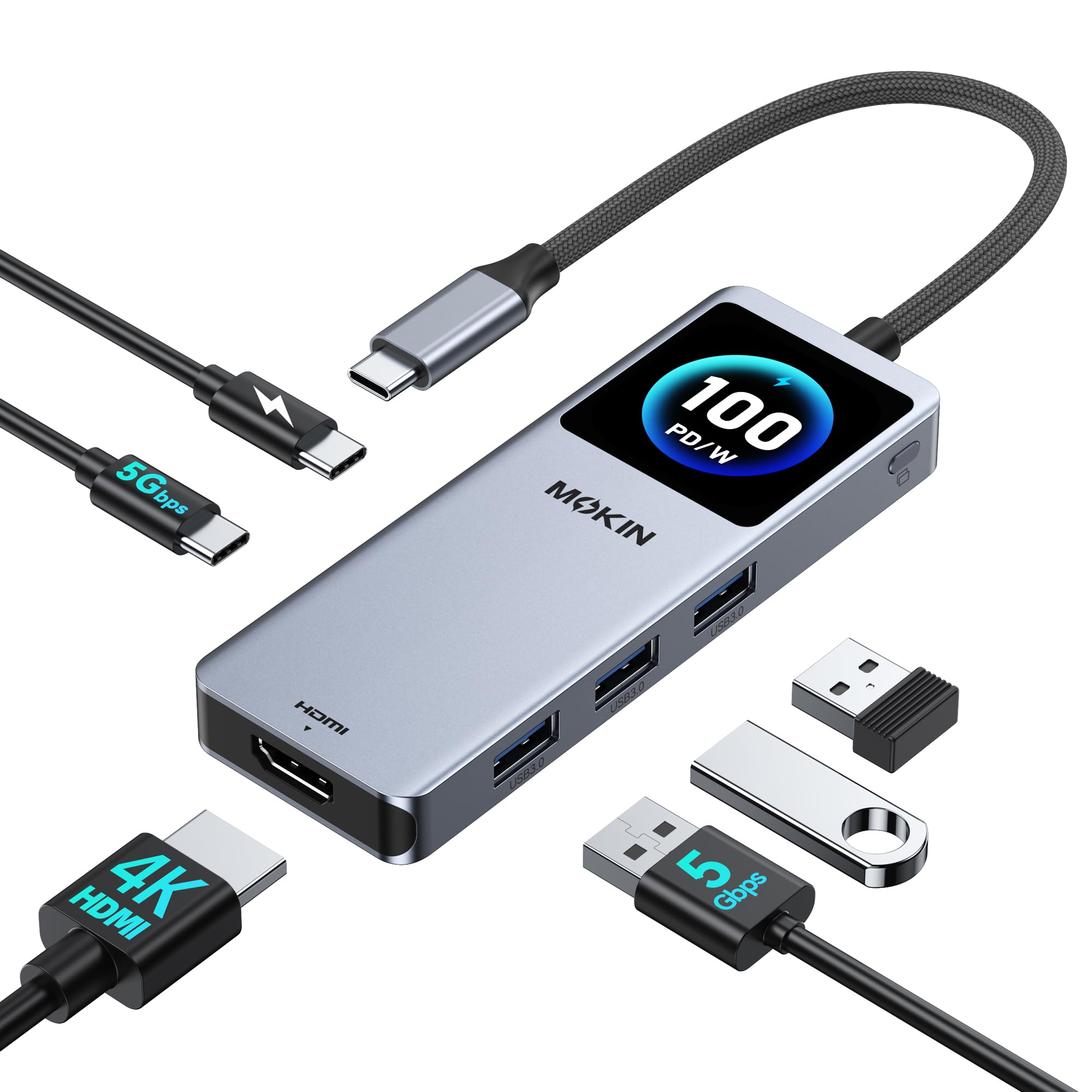
| MOKiN LCD Screen HubScreen Check | Seeing your live charging wattage | 6 | HDMI 4K@60Hz | 5Gbps | Amazon |
| Selore&S-Global 7-in-2 | Dual monitors with audio out | 7 | HDMI 4K@60Hz | 40Gbps | Amazon |
| ZMUIPNG 7-in-2 Hub | MacBook Neo and newest Air owners | 7 | USB-C 5K@60Hz | 5Gbps | Amazon |
Detailed Reviews
1. Acer USB C Hub 7 in 1
Our pick — 4.5+★ from 6,000+ verified ratings; the strongest balance of quality and price.
Seven ports in a silver aluminum slab — the straightforward everyday dock for a MacBook Air.
Acer’s hub spreads one USB-C port into seven: an HDMI output, two USB-A 3.1 ports, one USB-C port, one USB-C PD charging port, a microSD slot and a full SD slot. That covers the whole daily routine for most Air owners — monitor on the HDMI, mouse and keyboard in the two USB-A ports, a camera card in the SD slot, and your charger in the PD port. It is the crowd favorite here at 4.5+ stars across 6,400+ ratings, and connectivity is the thing buyers praise most.
The video port runs 4K at 30Hz, which is fine for a slide deck or a video call but not as smooth as the 60Hz ports on the Selore and the MOKiN. Acer states plainly that it will not do 4K at 60Hz or 2K at 144Hz, and that your Mac’s USB-C port must support DP Alt Mode (the video-over-USB-C feature) for the HDMI to work at all. Data moves at 5Gbps across the two USB-A ports and the USB-C data port, which is the same figure the MOKiN lists but well under the 40Gbps Thunderbolt 3 figure on the BHHB and Selore adapters.
Two honest notes. The PD port did not deliver full charging speed for everyone, so expect to run your own charger through it rather than relying on the hub alone. And build quality earns plenty of praise while long-term durability is the recurring gripe — treat it as a component that may need replacing rather than a permanent fixture, and it will not disappoint you.
What earns it first place
- Seven ports including full-size SD and microSD, so cards go straight in
- Aluminum housing that helps shed heat during long sessions
- 5Gbps on the two USB-A ports and the USB-C data port
- Works across macOS, Windows, ChromeOS and Linux
Where it asks patience
- HDMI tops out at 4K@30Hz, so a big monitor feels less fluid
- Its own guidance asks for a 65W+ charger to hit full charging speed
- Single-plug body leans out of the port and can wobble on a lap desk
Go for this: you want one adapter that handles a monitor, two USB-A gadgets, a camera card and your charger with zero fuss.
Look past it: you run a 4K display at high refresh, where the 30Hz ceiling will bother you and the 60Hz options up next are the better fit.
2. MOKiN 4K HDMI Dongle
A tiny screen that tells you the truth about your charging wattage and refresh rate.
Here is the feature nobody else on this list offers: a built-in LCD panel that reads out the live resolution, refresh rate, charging wattage and USB connection status. If you have ever wondered whether your charger was actually feeding the laptop through the hub, this answers it without a guess.
Its HDMI output reaches 4K at 60Hz, which beats the Acer’s 30Hz ceiling and matches the Selore’s figure. Data transfer is 5Gbps, the same as the Acer, and MOKiN notes that is fast enough to move a 1GB file in about two seconds. There is a multi-function button too: double-click to blank the external monitor for privacy, hold it to flip the display orientation, or hold for five seconds to switch the LCD off entirely.
The catch worth knowing is charging: power delivery is the mixed spot in owner feedback, and the hub needs your own charger plugged into the PD port to feed the laptop at all. Compatibility with some PCs and display glasses is also uneven, so it earns its keep on Macs and surfaces the video signal cleanly there. On a Mac it surfaces the video signal cleanly and reads the LCD readout without fuss.
Straight read: the LCD panel is genuinely useful for diagnosing why a monitor or charger is behaving oddly, and 4K@60Hz keeps the pointer smooth on a large screen. Reliability chatter exists, so treat it as a gadget you would replace rather than a permanent desk fixture.
Reach for this if: you like seeing real numbers — watts, refresh rate, port status — instead of trusting a label.
Pass it by if: you want a plain black box with no screen to read and no button to press.
3. USB C Adapter HDMI Hub
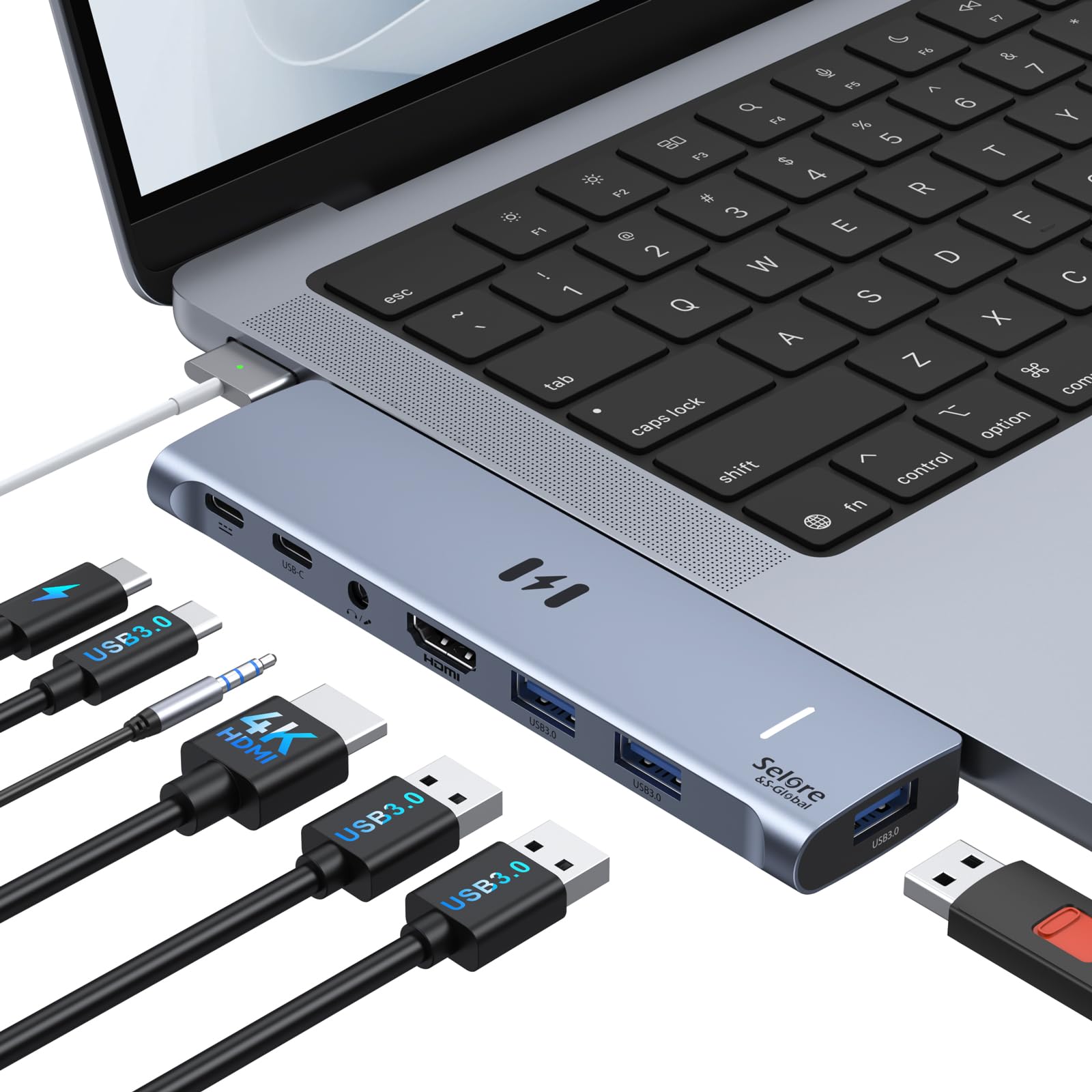
The dual-plug dock that grabs both ports and drives two monitors at once.
This is the most-bought adapter on the list, and the appeal is visible on the spec sheet. Its dual-plug body clips onto the left-side USB-C ports without covering the MagSafe cable, so it lies flat against the laptop instead of hanging off one port like the Acer. It expands to HDMI at 4K@60Hz, a Thunderbolt 3/4 port, three USB-A, one USB-C data port and a 3.5mm audio jack — the only adapter here with a headphone socket, since the BHHB leaves that out.
The dual-monitor story needs care. HDMI runs 4K at 60Hz while Thunderbolt 3 delivers 5K at 60Hz. M1 and M2 Macs get a single display only, M3 gets dual screens only in clamshell mode with the lid shut, and M4, M5 and Intel chips get full dual extended displays. Data transfer reaches 40Gbps on the Thunderbolt port, matching the BHHB, while the three USB-A ports and the USB-C port run 5Gbps and stay backward compatible with USB 2.0 devices. The Thunderbolt port also accepts up to 100W for laptop charging or 15W downstream for a phone, and Selore notes the four functions cannot all run at the same time.
The honest caveat is fit. This is a case-friendly design in principle but Selore states it will not work with a MacBook Pro case on, and it wants Mac OS 14 Sonoma or newer. Durability is the soft spot in the feedback — the pattern is HDMI ports giving out over time — so buy it for the port layout and the 18-month warranty rather than for a decade of service, and keep your receipts in the drawer.
Port layout: three USB-A plus a 3.5mm jack plus dual video is the broadest single-unit kit here for a desktop.
The honest wrinkle: the M1/M2 single-display limit catches people who buy this expecting two screens, so confirm your chip first.
Pick this one if: you dock a MacBook Air into a desk with two monitors and want audio and three USB-A ports without daisy-chaining adapters.
Not the one if: your Air runs M1 or M2 and you specifically want two external screens — the chip caps you at one.
4. USB C Hub Adapter
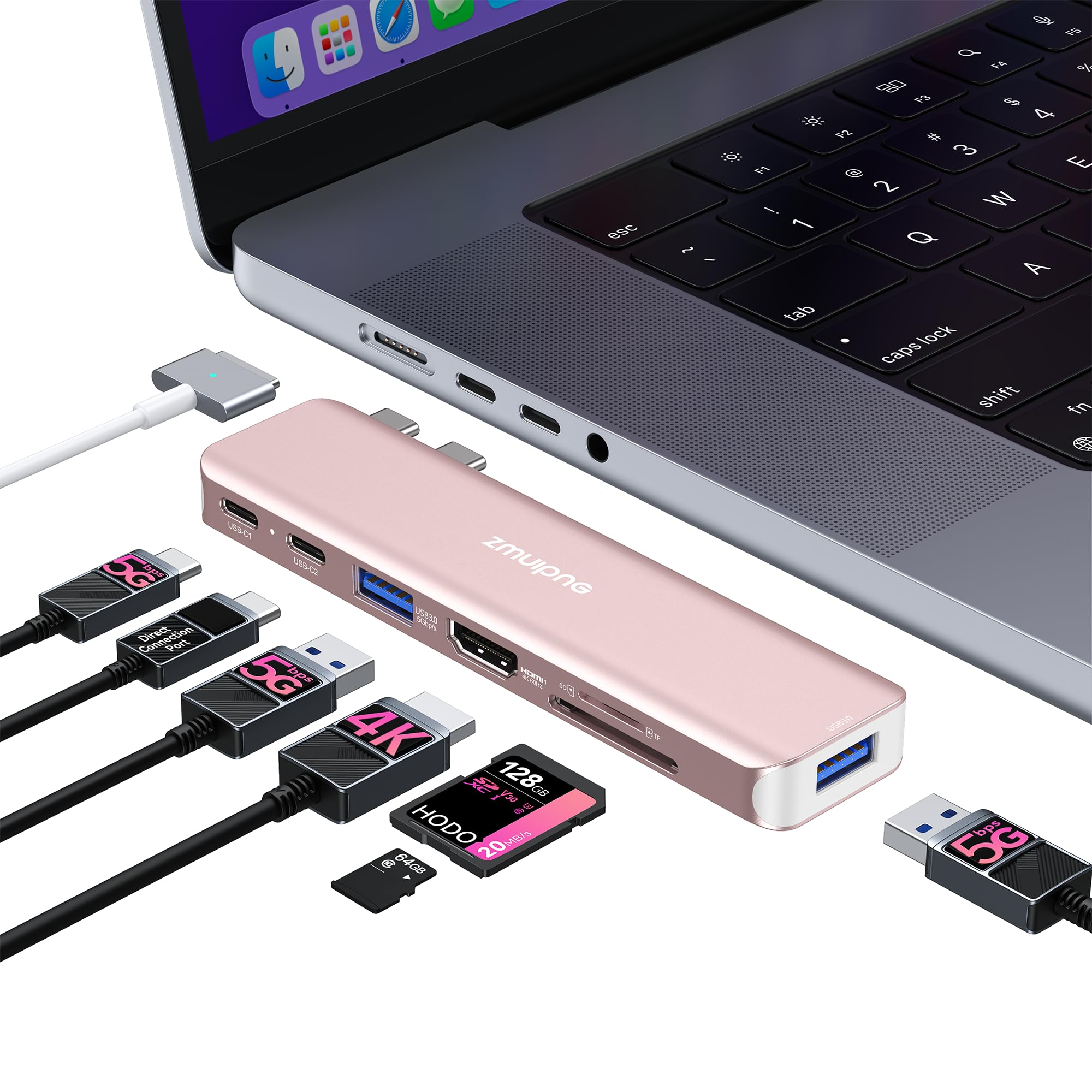
Built for the newest MacBook Neo, and happy to sit on an older Air too.
ZMUIPNG advertises this as one of the few on the list that names MacBook Neo (2026) in its compatibility line, alongside MacBook Pro 13″ to 16″ from 2016 to 2026 and MacBook Air 13″ and 15″ from 2018 to 2026. Seven ports fill it out: HDMI, a USB-C video output port, two USB-A and one USB-C data port, plus SD and microSD slots. The two card readers work at once and read up to 104MB/s, which is the detail photographers and drone flyers will care about most.
Video is handled two ways. HDMI runs 4K at 60Hz and the USB-C video port reaches 5K at 60Hz, so you can mirror or extend across two screens — subject to the same chip rules as the Selore. On an M1 or M2 you get one external display, and on the Neo the HDMI is the only video path, since the USB-C video port there is listed as charging and USB 2.0 only. The USB-C port also accepts up to 100W for the laptop and 15W downstream to a phone, with 40Gbps data on that same port.
Two things to weigh. The three USB-A ports and the USB-C data ports run at 5Gbps, whereas the Selore and BHHB reach 40Gbps on their Thunderbolt ports — fine for mice, drives and card work, less so for huge file moves. And reliability is the word that comes up mixed in owner experiences, with some units giving out over months rather than years. Its aluminum body and simultaneous SD and microSD reads are what owners praise most. It carries a one-year warranty.
Worth knowing up front
- Explicitly listed for MacBook Neo 2026, Pro 2016–2026 and Air 2018–2026
- HDMI at 4K@60Hz alongside a 5K@60Hz USB-C video port
- SD and microSD slots that read simultaneously at up to 104MB/s
- Aluminum body and a one-year warranty
Trimmed for a reason
- Data ports sit at 5Gbps, not 40Gbps
- USB-C video is charging and USB 2.0 only on the Neo
- Does not fit with a MacBook case attached
Right answer for: a brand-new MacBook Neo owner, or anyone who needs simultaneous SD and microSD reads.
Second-guess it if: your work involves pushing big video files, where the 40Gbps Thunderbolt adapters above will save you real minutes.
Know the Specs
HDMI resolution and refresh rate
Resolution is how many pixels wide the picture is — 4K is the sharp large-monitor format. Refresh rate is how many times the image redraws each second, and that is what makes a cursor glide or stutter. A port rated 4K at 60Hz redraws sixty times a second, so a mouse moving across a big screen tracks smoothly. A port rated 4K at 30Hz redraws thirty times a second, which is fine for a static slide but drags on long documents. Some adapters also list a 5K at 60Hz output on Thunderbolt, which gives you one sharper screen instead of two.
Data transfer speed in Gbps
Gbps means gigabits per second — how much data crosses the cable each second. A 5Gbps port handles a memory card, a mouse, a keyboard and a portable SSD without complaint. A 40Gbps Thunderbolt port is the far faster lane, and it is the one to want if you shuffle large video files onto an external drive. Note which port gets the fast figure: on these hubs the 40Gbps rating applies to a specific Thunderbolt port while the USB-A and USB-C data ports run at 5Gbps.
Power Delivery (PD) pass-through
PD is the charging standard that lets one USB-C cable carry power to the laptop. On these adapters the PD port is a pass-through, meaning it channels your existing charger through the hub while the other ports stay busy. They accept up to 100W of input, but that is a ceiling, not a guarantee — Acer asks for a 65W or higher adapter to reach full speed. If charging feels slow through the hub, check your charger’s wattage first — Acer asks for 65W or higher.
DP Alt Mode and chip limits
DP Alt Mode is the feature that lets a USB-C port carry a video signal at all, and an adapter’s HDMI output depends on your laptop having it. Separately, your Mac’s processor sets how many screens you can drive. M1 and M2 chips are listed by these makers as single external display only on the small Air adapters. M3 reaches two screens only in clamshell mode, with the lid shut. M4, M5 and Intel chips run full dual extended displays.
Common Questions
Will any of these adapters give my M1 MacBook Air two external monitors?
Does the adapter fit if I keep a protective case on my MacBook?
Do I still need my own charger if the hub says 100W power delivery?
What is the difference between 4K at 60Hz and 4K at 30Hz on a monitor?
Why do some adapters block the MagSafe charging cable?
Is a 40Gbps Thunderbolt adapter worth it over a 5Gbps hub?
Can I use these hubs with a MacBook Neo?
How long do these small MacBook adapters usually last?
Do I need to install drivers for a USB-C hub on macOS?
Can I read SD and microSD cards at the same time?
The Bottom Line
For most MacBook Air owners, the mac air usb adapter to beat is the Acer 7-in-1, because seven ports including full-size SD and microSD cover a normal workday without adding anything else to your bag. If you want to see your live charging wattage and get 4K at 60Hz on a monitor, the MOKiN LCD hub shows you exactly what is happening. And when your desk has two monitors and a wired headset, the Selore 7-in-2 is the one to reach for — just confirm your chip first.
The top pick here carries 4.5+ stars across 6,400+ ratings, so you are choosing between known quantities rather than guessing. A dual-plug adapter that grips both USB-C ports turns them into a monitor, two USB-A gadgets, a card reader and a charger pass-through.
How we choose
We do not accept paid placement. Every pick is matched to a real buyer and a real use-case; we do not hands-on test units.
Sources
Specifications: manufacturer listings and product documentation. Review insights: verified customer reviews, as of November 2026. Pricing: not shown on this page (it changes often); check the current price via the retailer link.
As an Amazon Associate, Tactical Gear Guy earns from qualifying purchases. This does not affect which products we feature.