Specs are compiled from manufacturer listings and verified buyer reviews and can change over time — please confirm the key details on the product page before buying.
Running a work laptop and a personal desktop on the same two monitors should take one button press, not a cable swap. A good KVM docking station (a box that switches your keyboard, video, and mouse between computers) lets you take over both screens, your keyboard, and your mouse in one press — no lost windows. The wrong one leaves you with black screens, dead USB ports, and a laptop that stops charging mid-task. Every pick here switches keyboard, video, and mouse between at least two computers, which is the job you actually need done. Not every pick is the exact model number you typed in, so we match on that job instead.
This guide is built by comparing the manufacturers’ published specifications and the patterns across verified customer reviews, so you get each pick’s real strengths and trade-offs instead of marketing spin.
The picks below split cleanly by what you plug in — a laptop plus a desktop, two laptops, or two desktops — and each has a clear reason to exist. Here is the honest breakdown of seven KVM docking stations that earn their desk space.
Top Picks
How To Choose The Best KVM Docking Station
Start with your two computers, not the dock. A docking KVM has to physically accept what each machine can output — a USB-C laptop with video support, a desktop with its own HDMI or DisplayPort plugs, or two of the same. Get that wrong and nothing else matters.
Match the input ports to your two computers
A laptop side usually needs a full-featured USB-C or Thunderbolt port (a USB-C shaped port that carries video as well as data). Some docks want Thunderbolt 3/4/5 specifically, others work with DP Alt Mode, which is the common video-over-USB-C standard. Check the specs line for your exact machine before you buy.
The desktop side is stricter than people expect. Some docks take two HDMI cables from the tower, one dock here needs three native DisplayPort outputs and won’t work with a laptop at all, and a couple take just one USB cable. Count your PC’s video outputs first — that is the number that decides your shortlist.
Decide how many monitors you truly run
Two monitors covers most hybrid workers, and almost every pick here handles it. Three screens narrows the field hard. On a Mac, read the fine print: several docks state that macOS mirrors the second display (shows the same image on both) instead of extending it (spreading one desktop across both). That is a system limitation, not a defect, and it changes what you should buy.
Check resolution and refresh rate against your monitors
DisplayPort outputs here reach 4K@120Hz on one pick and dual 8K@60Hz on another, while HDMI outputs typically cap at 4K@60Hz. Higher refresh matters for smooth motion and cursor movement, not just gaming. Your monitor, your graphics card, and the cable all have to support the figure, or you drop to a lower resolution automatically.
Weigh the charging and the switching
Power Delivery (PD) is the charging lane that tops up your laptop through the same cable that carries video. Watch the adapter in the box — a dock rated for 100W PD may ship with a smaller brick, so the real ceiling can be lower until you upgrade it. For switching, most docks give you a front button plus a wired remote you can park on the desk; keyboard hotkeys are rarer than you would guess.
Side-by-Side Comparison
| Model | Best For | Computers | Max Resolution | USB Speed | Amazon |
|---|---|---|---|---|---|
| VEDINDUST USB C KVM Switch 2 Monitors★ Best Overall | 1 desktop + 1 laptop, top overall pick | 1 desktop + 1 laptop | 3840×2160@120Hz | 10Gbps (USB 3.2 Gen 2) | Amazon |
| JCYMELE HDMI KVM Switch 13-in-1Best Value | HDMI-only desktops on a budget | 1 desktop + 1 laptop | 4K@60Hz | 10Gbps (USB 3.2) | Amazon |
| TobenONE KVM Switch 2 Monitors | Hybrid workers who want a wide port hub | 1 laptop + 1 desktop | 4K@60Hz / 1440P@120Hz | 10Gbps (USB 3.2) | Amazon |
| DGYBDFC 13-in-1 KVM Docking Station | Mixed HDMI and DisplayPort monitors | 1 desktop + 1 laptop | 4K@120Hz DP / 4K@60Hz HDMI | 10Gbps (USB 3.2) | Amazon |
| AV Access 8K KVM Switch 3 Monitors | Two desktops with three screens | 2 desktops | 8K@60Hz / 4K@165Hz | 5Gbps (USB 3.0) | Amazon |
| AV Access iDock C20 Dual Laptop Dock | Two laptops, dual monitors | 2 laptops | 2K@144Hz / 1080P@240Hz | USB 3.0 + USB 2.0 | Amazon |
| AV Access iDock B10 8K Dock | Premium laptop + desktop performance | 1 laptop + 1 desktop | Dual 8K@60Hz / dual 4K@165Hz | 10Gbps (4x USB) | Amazon |
Detailed Reviews
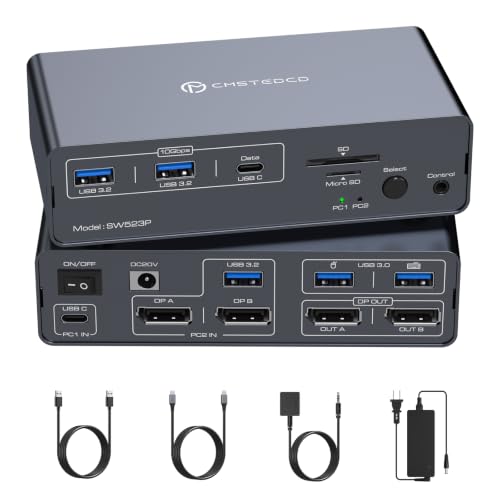
1. VEDINDUST KVM Docking Station USB C 2 Monitors 2 Computers
Our pick — 4.5+★ from 500+ verified ratings; the strongest balance of quality and price.
A 120Hz DisplayPort dock that turns one laptop and one tower into a single desk.
The headline here is the DisplayPort 1.4 output, which runs up to 3840×2160@120Hz — that is a genuinely sharp, smooth picture where a 60Hz dock looks sluggish by comparison. For a laptop-plus-desktop setup, you get two monitors, one mouse, one keyboard, and your USB peripherals all reachable from either machine. Switch with the front-panel button or the wired desktop controller, and a bright LED shows which computer is live.
The expansion side is what keeps it clean day to day. USB 3.2 Gen 2 ports move data at up to 10Gbps, so moving a large project folder or copying a card full of photos does not stall your afternoon. There are SD and Micro SD slots built in, which means no dongle hunt when a camera card lands on the desk. True plug-and-play, no drivers.
The honest catch is power and cables. It is rated for 100W PD, but the included DC 20V 3.6A adapter supports up to 72W — you need a separate DC 20V 6A adapter to actually hit 100W. DisplayPort cables are not in the box either, and the maker recommends quality DP 1.4 cables within 3.3ft to avoid the black-screen and splash-screen issues people hit with long or cheap runs. This is the strongest all-rounder of the set: 4.5+ stars on 500+ ratings, and the only pick that pairs 120Hz DisplayPort with a 10Gbps hub and a desktop controller.
What earns the top spot
- 3840×2160@120Hz over DisplayPort 1.4 — smoother than the 4K@60Hz HDMI picks here
- 10Gbps USB 3.2 Gen 2 plus SD and Micro SD slots for quick card pulls
- Wired desktop controller so you switch without reaching behind the monitors
- Plug-and-play, no drivers, LED shows the active machine
Where it asks more of you
- Boxed adapter tops out at 72W — full 100W PD needs a separate DC 20V 6A brick
- DisplayPort cables sold separately; maker wants short, high-quality DP 1.4 runs
- Button and controller switching only — no keyboard hotkeys
Best fit: one laptop and one desktop feeding two DisplayPort monitors, where you want the smoothest picture and fast storage.
Think twice if: you want true 100W charging straight from the box or rely on keyboard hotkeys to switch.
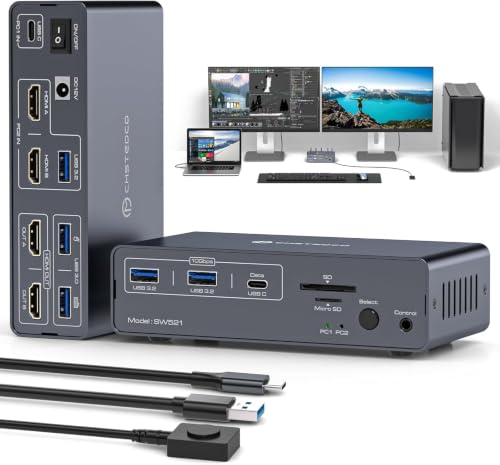
2. JCYMELE HDMI KVM Switch 2 Monitors 13-in-1
For a tower with two HDMI outputs and a laptop, this is the tidy, affordable answer.
Everything rides on HDMI here — up to 4K@60Hz across two outputs, with MST extended mode and SST mirror mode on compatible systems. MST is what lets one connection split into two independent screens; SST simply mirrors what is on one. The built-in EDID emulation is the real day-to-day win: it remembers your display layout so windows stop jumping to new spots every time you swap computers.
The hub is the part that surprises people at this price. You get 2 USB 3.2 Type-A ports and 1 USB-C 3.2 data port running at up to 10Gbps, plus 2 USB 3.0 Type-A ports at up to 5Gbps, and SD and Micro SD slots. That is a full docking station’s worth of ports tucked into a KVM. The included external controller sits on the desk so you switch without touching the back panel.
Read the compatibility line carefully before ordering. Your laptop’s USB-C port must carry video and data, your desktop needs 2 HDMI outputs, and both monitors need HDMI inputs. And macOS will not do dual extended displays through this dock — a system limit, not a fault. If your setup is HDMI end to end, this is the value pick; the DisplayPort dock above wins on refresh rate, but at a higher outlay.
The EDID payoff: the dock holds your monitor information so switching no longer rearranges your desktop — a small feature that saves daily window reshuffling.
Know before you buy: two HDMI cables come out of your desktop and one USB-C plugs into the laptop; miss either and the second screen stays dark.
Reach for this if: your desktop has twin HDMI outputs and you want a 13-in-1 hub without stretching the budget.
Look elsewhere if: you need dual extended displays on a Mac or want DisplayPort-level refresh rates.
3. TobenONE KVM Switch 2 Monitors 2 Computers

The port-rich hybrid worker’s dock, built for one laptop and one desktop only.
Functionality is what carries this one — it is far and away the trait buyers praise most, and the setup leans on the USB-C laptop as the star. Plug it in through Thunderbolt 5/4/3, USB4, or a full-featured USB-C port and the laptop drives dual HDMI to 4K@60Hz or a single display at 1440P@120Hz. Your desktop feeds in through HDMI 1.4 or later. One front button or the wired remote flips between them.
The reason it earns “most versatile” is the port spread: 2 USB-A at 10Gbps, 1 USB-C at 10Gbps with 15W output for a phone or tablet, 2 USB 2.0 for keyboards and mice, and a 3.5mm audio jack. There is a dedicated PD 3.0 pass-through port that keeps feeding up to 100W to your laptop even while the desktop is the selected source. Auto-Wake brings a sleeping machine back the instant you switch, and EDID emulation locks your window layout in place.
Two limits to know. It is engineered strictly for one laptop plus one desktop — two laptops or two desktops will not work. And on macOS the second external screen mirrors rather than extends. Buyers report the plug-and-play setup is genuinely quick; the recurring gripes sit around connectivity and laptop charging, so keep your USB-C cable short and origin-known. Set against the VEDINDUST, you trade 120Hz DisplayPort for a wider, friendlier port hub.
Charging that keeps up: the dedicated PD 3.0 port holds a steady 100W to the laptop even when you are working on the desktop, so the laptop keeps charging while you work on the desktop.
The honest catch: it is a one-laptop, one-desktop tool by design; bring two laptops and it simply will not switch them.
Worth it for: hybrid workers running a USB-C laptop against a desktop, who want lots of USB ports and a remote switch.
Not for: two-laptop desks or Mac users needing two independently extended screens.
4. DGYBDFC KVM Docking Station USB C + HDMI/DP 13-in-1
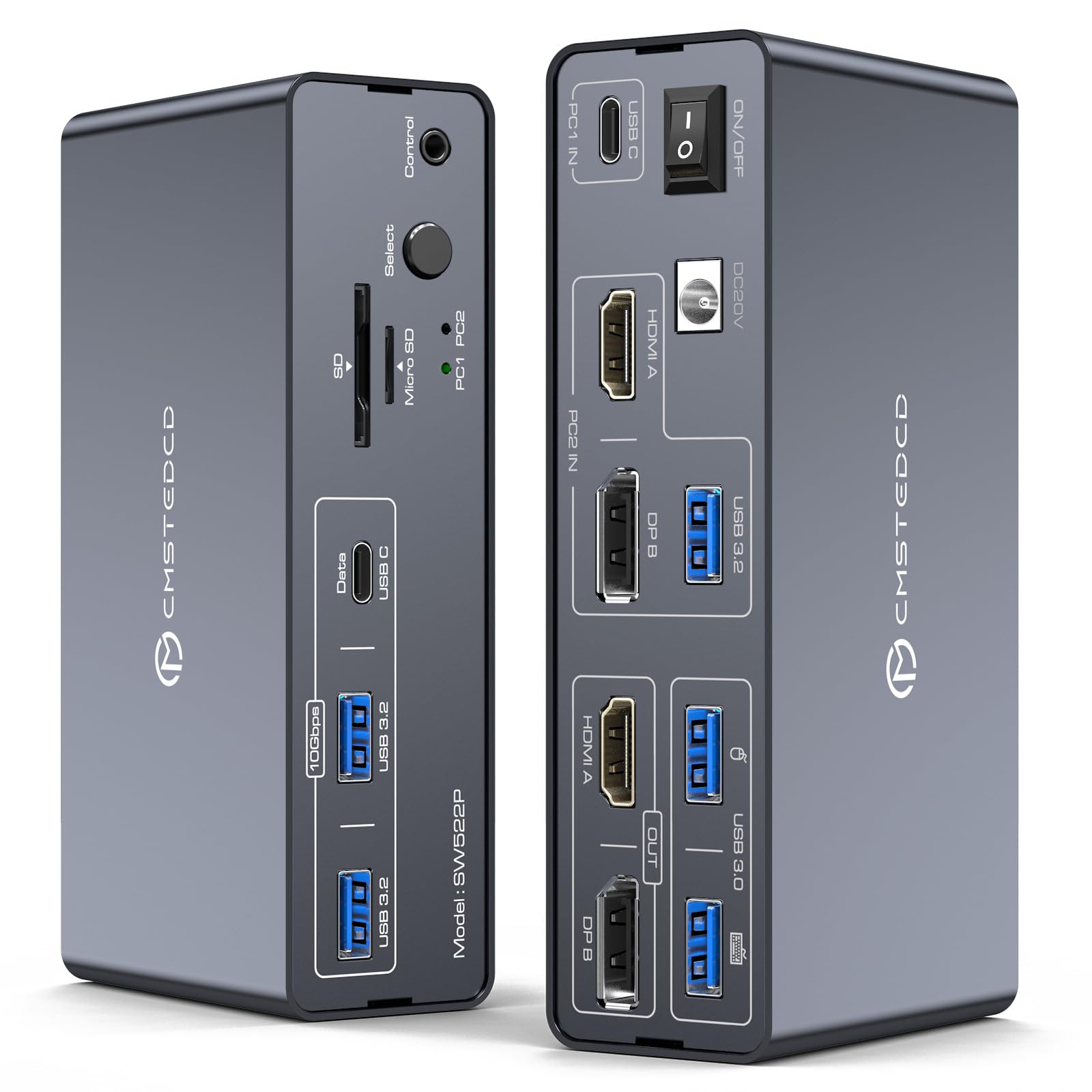
One HDMI monitor and one DisplayPort monitor, shared by a laptop and a desktop.
Most docks force you to pick a cable family. This one accepts USB-C plus HDMI or DisplayPort on the input side, which solves the mismatch problem when your laptop and desktop speak different video languages. The outputs split the same way: HDMI runs 4K@60Hz while DisplayPort reaches 4K@120Hz and falls back cleanly. Your computer, monitor, and cable all have to support the figure, or the image steps down.
The chassis is aluminum alloy, which does double duty — it shrugs off desk life and spreads heat so the internals stay stable during long sessions. It is compact enough to tuck under a monitor or hide away if you want a clean top desk. A 13-in-1 hub packs 2 USB 3.0 for keyboard and mouse, 2 USB 3.2 at 10Gbps, a USB-C data port, and SD plus Micro SD slots. Switching is the front panel button or the wired extension controller, with an LED marking the live source.
Caveats worth hearing: the USB-C port labeled “Data” carries data only — no charging and no video through it. The laptop side wants a Thunderbolt 3/4/5 port, and Mac devices only mirror rather than extend. Keyboard hotkeys are not supported. With 4.0+ stars and a mid-pack price, it suits anyone whose two monitors are a mixed pair, which is more common than the all-HDMI or all-DisplayPort assumption implies.
Why mixed ports matter: you rarely replace both monitors at once, so a dock that accepts HDMI and DisplayPort on both ends saves you buying adapters.
Ideal for: a workstation mixing one HDMI and one DisplayPort monitor across a laptop and desktop.
Skip if: your laptop lacks Thunderbolt or you depend on hotkey switching.
5. AV Access 8K KVM Switch 3 Monitors 2 Computers
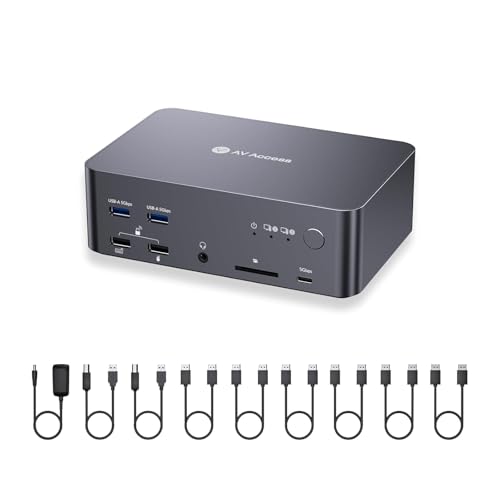
Two desktops, three independent monitors, and a shared network line that never drops.
This one is for the trader, coder, or editor running two desktop towers across a triple screen array. Each computer feeds three DisplayPort inputs for a full extended desktop, and the outputs are independent — different resolutions, layouts, and arrangements per screen. On the resolution front it is the most ambitious pick here: DP 1.4a and DP 2.0 support up to 8K@60Hz, 4K@165Hz, 1440P@165Hz, 1080P@360Hz, and 1080P@480Hz, with HDR and VRR to smooth motion and deepen contrast.
The smart addition is the 1 Gbps Ethernet that both machines share at once. Even the computer you are not currently looking at stays online for downloads, cloud sync, or updates, so switching does not cost a background job its connection. Auto wake-up brings a sleeping tower back when you select it, and MST support lets you build flexible multi-display layouts. A desktop controller keeps switching at your fingertips, and the USB 3.0 hub at up to 5Gbps handles your peripherals.
Know the limits up front: this model is built for desktops with 3 native DisplayPort outputs per machine and does not support laptops. The maker also wants direct DisplayPort-to-DisplayPort cables, not adapters, since conversions can upset display detection or refresh rate. It runs 4.0+ stars with the most reviews of the AV Access trio, and the switching is quick with no lag; reliability is the honest trade-off to weigh, so keep your return window in mind.
Where it shines
- Three independent DisplayPort outputs per desktop — genuine triple-screen extended desktop
- Up to 8K@60Hz and 1080P@480Hz for high-refresh and pro work alike
- Shared 1 Gbps Ethernet keeps both PCs online at once
- Instant switching with auto wake-up, no lag on the flip
What to weigh
- Desktop-only — no laptop support at all
- Wants 3 native DisplayPort outputs per PC and direct DP cables, not adapters
- Reliability is the most-discussed concern on the review pages
Designed for: dual-desktop power users running a three-monitor wall who need both machines online at once.
Don’t choose it if: you wanted a laptop in the mix or can’t run three DisplayPort cables straight from each tower.
6. AV Access KVM Switch Dock 2 Monitors 2 Laptops (iDock C20)
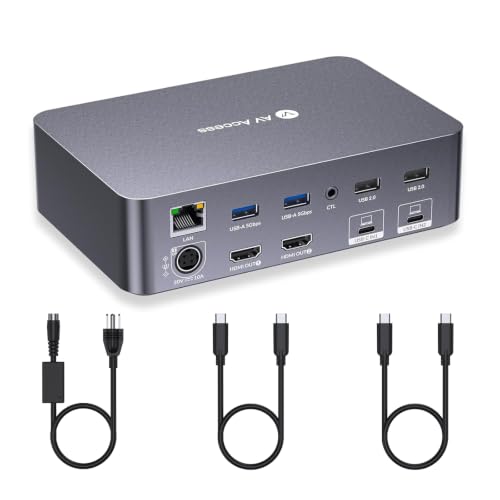
Two laptops, one shared dual-monitor desk, and a single USB-C cable per machine.
This is the pick for the work-laptop-plus-personal-laptop crowd — the setup a desktop-oriented dock cannot serve. Each laptop connects through one full-featured USB-C cable that carries 4K video, data, and charging together. Switching is a single button press, and with EDID emulation plus automatic PC wake-up the transition takes about 2-3 seconds without rebuilding your displays. The wired remote works too, though it is sold separately.
Connectivity is the trait that wins people over here, and it is easy to see why. The 12-in-1 hub gives you 2 USB 3.0, 4 USB 2.0, 1 USB-C, 1 Gbps Ethernet, a 3.5mm headset jack, an SD card slot, and 2 HDMI outputs. Both laptops can charge at up to 60W each while staying wired to the network through the LAN port. Switching between a Mac Mini and a laptop is called out as a workflow the dock supports, keeping one system on routine tasks and the other on heavier development work.
The fair warning is heat and power. The unit runs hot under load, and 60W per side is modest if you drive a power-hungry laptop. Mac users get mirrored displays only, and there is no support for 5K monitors, FreeSync/G-Sync, or Dell Display Manager. The 49″ ultrawide cap sits at 3840×1080. For two laptops on a dual-monitor desk, though, the one-cable convenience is the whole pitch and it delivers.
The one-cable win: a single USB-C run per laptop carries video, data, and up to 60W charging, so one cable covers docking and undocking.
The trade-off: it gets warm in use, and 60W may not keep a demanding laptop topped off under heavy work.
Pick this when: both your machines are USB-C laptops and you want two monitors and one clean cable each.
Keep looking if: you need to switch a desktop, use 5K screens, or require more than 60W charging per laptop.
7. AV Access KVM Switch iDock B10
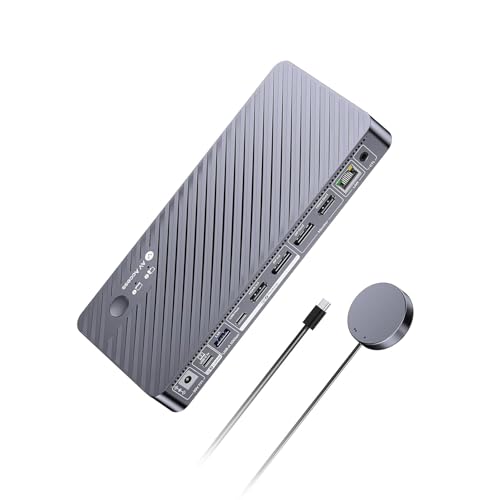
The top-shelf all-rounder: dual 8K desktop power and one-cable 100W laptop docking.
Performance is the trait buyers call out most here, and the spec sheet backs the reputation. The desktop side drives up to dual 8K@60Hz or dual 4K@165Hz, with 1080p reaching 480Hz/360Hz, backed by VRR, FreeSync, G-Sync, and HDR. A Windows USB-C laptop tops out at dual 4K@60Hz, so know your laptop’s ceiling before you expect the same picture. It is the highest-resolution pick on this list, a step past the 4K docks above.
For hybrid workers the single USB-C cable is the star: one full-featured run carries dual 4K@60Hz video, up to 10Gbps data, and up to 100W charging, so one cable handles docking and undocking. The 11-in-1 hub keeps displays, USB gear, audio, SD card, and Ethernet in one central spot. Four fast USB ports — 1 USB-C and 3 USB-A at 10Gbps, plus 2 USB-A at 5Gbps — keep SSDs, cameras, and webcams connected across both machines. Both computers stay on Gigabit Ethernet even when only one is selected.
Mac users need to read the notes: B10 supports a USB-C laptop plus a Mac mini, but the mini needs HDMI plus USB-C-to-USB-C plus USB-C-to-DP cables that are not included. On macOS, two external monitors mirror rather than extend due to MST, and the maker points dual-extended Mac work to its iDock M10 instead. At 4.0+ stars it is a premium buy, and the connectivity and value notes on the review pages suggest checking your exact monitor and PC combo first.
Resolution headroom: dual 8K@60Hz and 480Hz support future-proofs the display side more than any other dock here.
Honest limit: the laptop runs at dual 4K@60Hz, not 8K, and Mac users only get mirrored externals.
Best for: power users pairing a USB-C laptop with a high-refresh desktop who want 8K headroom and 100W one-cable docking.
Not the one if: you need two extended displays on a Mac or want every cable supplied for a Mac mini setup.
Know the Specs
DisplayPort versus HDMI output
DisplayPort outputs on these docks reach higher resolutions and refresh — up to 4K@120Hz on one pick, 8K@60Hz on the AV Access units — while HDMI generally caps at 4K@60Hz. Higher refresh makes cursor movement and motion smoother. Your monitor, graphics card, and cable all have to support the figure, or the picture drops to a lower rate automatically. If you have mixed monitors, look for a dock that accepts both input types.
EDID emulation
Your monitor sends back data describing what it can display, called EDID. EDID emulation means the dock remembers that data and keeps feeding it to both computers. So after you switch, your windows stay where you left them and the screen does not flicker or redraw the layout. It is among the most useful features day to day, and several picks here include it.
Power Delivery (PD) and pass-through
PD is the charging lane that tops up a laptop through the same cable carrying video. Watch the adapter: a dock rated for 100W may ship with a smaller brick, so the real ceiling stays lower until you upgrade it. Pass-through keeps charging your laptop even while the other computer is the selected source, which keeps the laptop charged while the other computer is selected.
USB speed and port groups
USB 3.2 Gen 2 runs at up to 10Gbps, USB 3.0 at up to 5Gbps, and USB 2.0 is slower — good for keyboards and mice but not big files. Spread your fast devices (external SSDs, card readers) across the 10Gbps ports and leave the slower ones for peripherals. A data-only USB-C port, where noted, carries no video and no charging.
MST versus SST
MST (Multi-Stream Transport) lets one connection split into two or more independent displays — extended screens. SST (Single-Stream Transport) mirrors the same image to both. On macOS, several docks here mirror rather than extend because of a system limitation, so dual-extended Mac users should confirm compatibility first.
Laptop port requirements
A dock that expects Thunderbolt 3/4/5 or DP Alt Mode needs a laptop port that carries video, not just data. Full-featured USB-C ports work; charge-only USB-C ports do not. Check your laptop’s spec sheet for video-over-USB-C before ordering, since a mismatched port is the most common reason a KVM docking station appears not to work.
Common Questions
Will a KVM docking station work with my laptop and desktop together?
Why do my windows jump around after I switch computers?
Can I extend two displays on a Mac through these docks?
Do these docks charge my laptop as well as pass video?
Do I need special cables for 4K or 8K?
What is the difference between MST and SST on a KVM dock?
Can I switch computers with my keyboard instead of a button?
Why does my second monitor stay black after switching?
Will my ultra-wide or 5K monitor work with these docks?
Can both my computers stay online at the same time?
The Bottom Line
For a laptop-and-desktop desk where sharp pictures and fast storage top the list, get the VEDINDUST USB C KVM Docking Station. It pushes 3840×2160@120Hz over DisplayPort (4K resolution at 120 frames per second, so motion stays smooth), moves files at 10Gbps USB 3.2 Gen 2 (about 1.25GB per second), and comes with a wired controller — all plug-and-play. Want the widest, friendliest port hub for one laptop and one desktop? The TobenONE pairs a dedicated 100W PD lane (Power Delivery, a charging channel that feeds your laptop) with 10Gbps USB and a 3.5mm jack (a standard headphone plug). And if you run two desktop towers across three screens, the AV Access 8K 3-monitor dock is the one built for that wall.
Two laptops instead? Go with the AV Access iDock C20 for its one-cable-per-laptop convenience. And if 8K headroom and 100W one-cable docking are your priority, the iDock B10 sits at the top of the range. Match your ports and monitors first, and any of these will clear the cable clutter off your desk.
How we choose
We do not accept paid placement. Every pick is matched to a real buyer and a real use-case; we do not hands-on test units.
Sources
Specifications: manufacturer listings and product documentation. Review insights: verified customer reviews, as of November 2026. Pricing: not shown on this page (it changes often); check the current price via the retailer link.
As an Amazon Associate, Tactical Gear Guy earns from qualifying purchases. This does not affect which products we feature.