Specs are compiled from manufacturer listings and verified buyer reviews and can change over time — please confirm the key details on the product page before buying.
If you want to write, sketch, or take meeting notes and keep a digital copy without buying paper ever again, buy the one that matches how you actually work. A pen tablet plugs into your computer and draws into whatever software you already use. A paper-like notebook captures your handwriting as you write on real pages. An all-in-one screen tablet does both with no computer attached. Get that split wrong and you will spend money on a device that fights your workflow every day.
This guide is built by comparing the manufacturers’ published specifications and the patterns across verified customer reviews, so you get each pick’s real strengths and trade-offs instead of marketing spin.
Below you will find the differences that matter most: pressure levels, active drawing area, connection type, and whether the device has its own screen. Each pick gets a plain assessment so you know exactly which desk it belongs on. This breakdown of the best digital writing pad options separates pen tablets from paper-style notebooks and screen tablets so you buy the right type first.
Top Picks


How To Choose The Best Digital Writing Pad
The biggest mistake is buying before you decide which of three families you need. A pen tablet is a blank slab that draws into your computer — no screen, no notes app, just a surface and a pen. A paper-capture notebook lets you write on real paper and copies the strokes to your phone. A screen tablet is a full computer in your hands with a pen on top. Decide the family first, then compare specs inside it.
Pressure levels decide how real the pen feels
Pressure sensitivity means the tablet senses how hard you press and thickens or thins the line to match. More levels give you a smoother ramp between a hairline and a heavy stroke. 8,192 levels is the professional standard and 16,384 levels sits above it. If you only sign documents or mark up PDFs, a lower count will not bother you in daily use.
Active area versus desk space
The active area is the part of the slab that actually registers your pen — the rest is bezel and shortcut buttons. A large active area gives your arm room for big sweeping strokes. A small one packs into a backpack but forces shorter, tighter movements. Match the area to your work: broad for illustration, compact for note-taking on the move.
Wired or wireless changes your whole setup
USB keeps the connection rock solid and needs no charging. Bluetooth frees you from the cable but adds a pairing step and, on some models, a rare dropped connection. If you sit at one desk, USB is the simpler life. If you move between rooms and machines, the wireless convenience usually wins.
Side-by-Side Comparison
| Model | Best For | Pressure Levels | Active Area | Connection | Amazon |
|---|---|---|---|---|---|
| XPPen Deco 01 V3★ Best Overall | Beginners drawing on a computer | 16,384 | 10 x 6.25 in | USB-C | Amazon |
| HUION NoteNote-Taker’s Friend | Paper notes copied to your phone | — | 7.35 x 5.5 in | Bluetooth 5.0 / USB | Amazon |
| Like-New Kindle ScribeBest Reading Combo | Reading and writing in one | — | 10.2 in screen | Wi-Fi | Amazon |
| Boogie Board Jot | Quick notes and kids | — | 8.5 in screen | None (standalone) | Amazon |
| XPPen Magic Note Pad | Color screen note-taking | 16,384 | 10.95 in screen | Bluetooth / Wi-Fi | Amazon |
| Wacom Intuos Pro Medium | Pro desktop illustration | 8,192 | 11.4 x 8.1 in | Bluetooth / USB-C | Amazon |
| Penstar eNote 2 | E-ink notes plus Android apps | 8,192 | 10.3 in screen | Wi-Fi | Amazon |
| reMarkable Paper Pure | Focused distraction-free writing | — | 10.3 in screen | Wi-Fi | Amazon |
| Wacom MovinkPad 11 | Standalone drawing on the go | 8,192 | 9.6 x 6.3 in | Bluetooth | Amazon |
Detailed Reviews
1. XPPen Deco 01 V3 10×6 Drawing Tablet
Our pick — 4.5+★ from 14,500+ verified ratings; the strongest balance of quality and price.
A budget slab with more pressure sensitivity than tablets costing far more.
Here is the number that matters if you draw on a computer: 16,384 pressure levels. That is how finely the pen reads your hand — hard press gives a thick line, light press gives a hairline, and the jump between them is smooth enough for shading. The stylus has no battery and never needs charging, so it behaves like a normal pen every time you pick it up. You get a 10 x 6.25-inch active area, which is broad enough for full-arm strokes yet still slides into a backpack at 8 mm thin.
The 8 shortcut keys are customizable and sit on both sides, so left-handed and right-handed users get the same reach. Connection is USB-C to USB-C with a USB adapter in the box, and it works with Windows, Mac, Android 10 and above, Chrome OS and Linux. Beginners on a computer benefit most here: the whole thing is plug-in-and-draw, and the customer consensus is exactly that — good value for a first tablet that plays nicely with Photoshop and Sketchbook. It weighs 1000 g and measures 13.9 by 8.8 inches overall, so it wants a real desk rather than a train tray.
Sold as a 4.5+ star device with 14,000+ ratings behind it. The honest limit: this is a pen tablet with no screen. You draw on the slab while watching your monitor, which takes a short adjustment period if you have never used one. The end lights let you work in a dark room, and Android 10.0 and above is the minimum if you plan to use a phone or tablet as your display.
What earns the top spot
- 16,384 pressure levels put it above 8,192-level pro tablets for line control
- Battery-free stylus means zero charging routine
- 8 ambidextrous shortcut keys speed up brush and undo work
- 10 x 6.25-inch active area gives real arm room
The honest catch
- No screen — you draw while looking at your monitor instead
- At 1000 g it stays on a desk rather than in a bag
Reach for this if: you want serious pen sensitivity for computer drawing without paying pro-tier money.
Think twice if: you need to see your strokes land on the same surface your pen touches.
2. HUION Note Digital Notebook with Offline Sync
Write on real paper, then watch the same strokes appear on your phone.
This is the pick for anyone who loves a pen on paper but hates losing the page. You write on a regular A5 notepad and a digital pen captures every stroke, sending vector lines to the free Huion Note app over Bluetooth 5.0. No screen is involved — the paper stays paper, and the copy lands on your phone. At 433 g and 9.5 by 7 inches it travels lighter than the XPPen Deco above, whose 1000 g and 13.9 by 8.8-inch frame keep it desk-bound. That 433 g versus 1000 g weight gap is why this one earns a spot in a bag.
The battery runs 18 hours on a full charge with about 30 days on standby, so a week of meetings is comfortably covered. You can record audio synced to your notes and play back the handwriting process, and pages save offline before syncing. A 7.35 by 5.5-inch capture area matches the A5 pages you write on.
What wins people over is the paper feel with a quality A5 pad in the box. The Bluetooth link is the part to keep an eye on — a few units pair stubbornly, and the general read is that drawing on it suits sketching better than heavy illustration. It ships 4.0+ stars from a modest pool of under 1,000 buyers.
Where it shines: turning handwritten meeting notes, class notes and brainstorms into searchable digital pages without changing how you write.
Where it strains: treat it as a note-capture tool first — as a drawing surface it is serviceable, not a illustrator’s board.
Suits you when: your notes start on paper and you want a digital backup that syncs to iOS or Android.
Look elsewhere when: you need Bluetooth to connect flawlessly every single time with zero fiddling.
3. Like-New Amazon Kindle Scribe (32GB)
The notebook that carries your library — write on books, then read them by the fire.
You get two devices in one shell here: a digital notebook for writing and a reader for books. The 10.2-inch glare-free display runs at 300 ppi — pixels per inch, the measure of sharpness — so text stays crisp indoors and out. That is the same kind of paper-white clarity e-readers are known for, and it makes marking up a PDF far kinder on your eyes than a bright phone screen. Active Canvas is the neat bit: start writing on a book’s page and the layout makes space for your note, which you can then collapse again.
The Premium Pen needs no setup or charging, so you just start writing. Built-in AI tools convert messy handwriting into readable text and can summarize your notes or shift their tone. You can import documents and PDFs through Send to Kindle and mark them up on the page. It holds 32GB, which is plenty for a deep library plus your notebooks.
Functionality is what earns the most praise across the review pages, with the writing feel close behind. This is a certified like-new refurbished unit — it is tested and carries the same limited warranty as a new one, though it may arrive in a plain Amazon-branded box. Responsiveness is the honest trade-off: page turns and pen strokes are not instant the way a phone is, so do not expect a tablet’s snap. It sits at 4.0+ stars.
Solid for daily use
- 10.2-inch 300 ppi front-lit display reads cleanly in any light
- Premium Pen writes with no charging or pairing
- Active Canvas turns any book page into a notepad
- 32GB holds a full library and your notebooks
Worth going in clear-eyed
- Pen and page response is slower than a phone or LCD tablet
- Refurbished stock may ship in generic packaging
Pick it for: a single flat device that handles both your book reading and your handwritten notes.
Pass if: you want instantaneous tap-and-stroke reactions from a full-color screen.
4. XPPen 3-in-1 Color Digital Notebook Magic Note Pad

A full Android tablet tuned for note-taking, not a monochrome e-reader.
Be clear on what this is before you buy: a normal Android 14 tablet with an LCD, not an e-ink device. The panel is 10.95 inches at 1920 by 1200 with a 90Hz refresh rate — 90 frames per second means page turns and pen strokes stay fluid with no ghosting trail behind them. An X-key flips between Monochrome LCD, Light Color and Nature Color modes in one press, so a plain white page for study and full color for diagrams are both one tap away. The AG nano-etched glass softens glare so writing feels closer to paper.
The X3 Pro Pencil carries 16,384 pressure levels and a soft nib, which means stroke thickness and color depth react to how hard you press. Charging comes from an 8,000 mAh battery with a 20W charger, and there is 128GB of storage for apps from Google Play. An app called XPPen Notes converts handwriting to text, records sound, imports and edits PDFs and can push your notes to OneDrive or Google Drive. A 13-megapixel front camera, two speakers and two microphones make it a workable video-meeting screen, at 495 g and 7 mm thick.
Owners praise the color modes and the paper-like writing feel, and the display is the headline. The honest trade-off: this LCD panel uses a deliberately narrow viewing angle so it stays readable head-on, which means tilted viewing fades — look at it straight. It ships 4.0+ stars. Battery average life runs about 4 hours, so plan on charging around a working day.
The color advantage: three switchable color profiles plus a 90Hz screen make this better for diagrams, highlighting and app-heavy work than any monochrome paper tablet.
The catch to size up: it is an Android LCD tablet first — app multitasking needs restraint and the viewing angle wants a head-on seat.
Good match for: students and professionals who want a color screen, Android apps and a pressure pen in one slab.
Not the one for: anyone chasing true e-ink battery life or off-angle screen viewing.
5. Wacom Intuos Pro Medium with Pro Pen 3

The pro desk tablet that hands you dials, keys and a magnesium shell.
The active area here is the widest of the pen tablets in this group at 11.4 by 8.1 inches — more room than the 10 x 6.25-inch XPPen Deco for long, confident strokes. The Pro Pen 3 delivers 8,192 pressure levels with tilt and lag-free tracking, and you can swap between slim, straight or flared grips. Adjust the pen’s balance and button layout and it sits in your hand exactly how you like it.
Productivity is where the case gets made. Ten ExpressKeys plus two mechanical dials sit at the top of the slab, near your keyboard, so shortcuts and brush sizing happen without leaving your stroke. It is a 16:9 format for wide monitors and multiple displays, and it connects over USB or Bluetooth to switch between computers. The magnesium body holds up over years and measures 4 mm at its thinnest, so it feels like pen on paper on your desk.
Performance earns the most cheers — for photo editing especially — and travelers like the perfect-size footprint. The honest limits: it weighs 14.56 ounces, so it stays home or in a studio bag, and it has no screen, so you watch your monitor. Some find the button placement takes getting used to. It holds 4.0+ stars.
Pro reasons to own it
- 11.4 x 8.1-inch active area for big-motion artwork
- Two dials plus 10 ExpressKeys cut menu diving
- Magnesium build with interchangeable grip and balance
- Bluetooth switching between multiple computers
Why it may not fit
- 14.56 ounces makes it a desk resident, not a backpack item
- New button layout asks for a day of practice
The right buy for: working illustrators and photo editors who want dials and a wide canvas at a fixed desk.
Skip the upgrade if: you want the same pen feel and a screen, which this one does not have.
6. Penstar eNote 2 E-Ink Digital Notebook
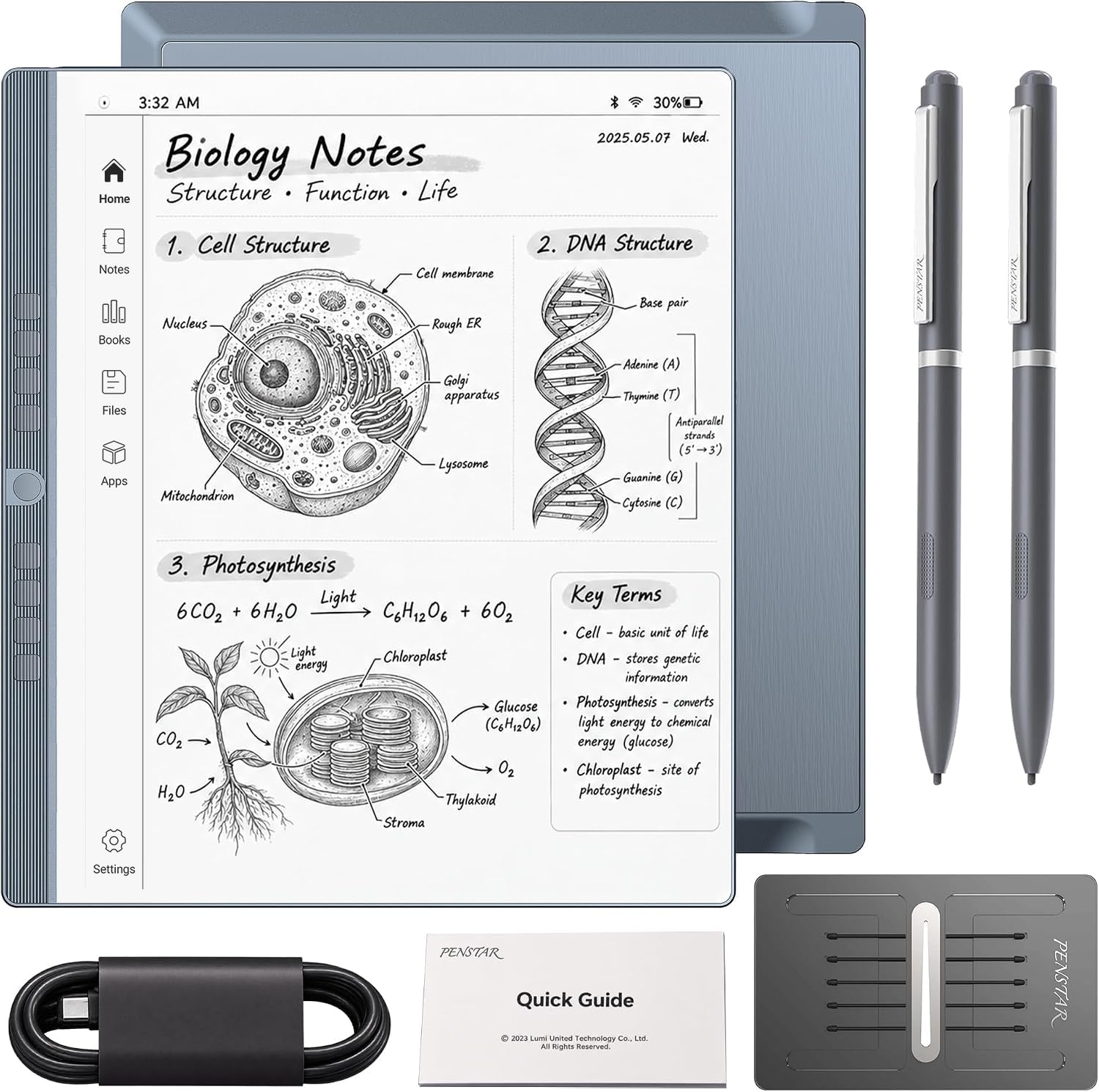
Whiter paper than e-ink usually gives, with a full Android brain underneath.
Penstar attacked the one thing that dulls many e-ink screens: haze. By removing display layers, the text sits closer to the surface, so whites read brighter and blacks punch harder. The 10.3-inch panel runs at 2480 by 1860 — 300 ppi — which keeps text book-sharp even under sunlight. The stylus delivers 8,192 pressure levels with no charging needed, and 9 customizable buttons line the edge for quick control.
It is also a working Android 14 device. An octa-core CPU, 4GB of RAM and 128GB of storage run third-party apps, and a 6500 mAh battery lasts up to 4 weeks. The real-time AI voice-to-text turns speech into typing, and it converts handwriting, summarizes notes and sorts them into folders and tags. Split-screen lets you read a book on one half and take notes on the other. There is a built-in microphone and four speakers for audio, and it opens over 35 file formats.
Quality and the paper-like writing feel are what owners like most, and the leather folio cover, two B5 pens and spare nibs come in the box. The honest trade-off: responsiveness divides opinion — the pen feel is right but a few report lag when switching tasks. Call it 4.0+ stars from a newer, smaller pool.
Strongest argument: a genuinely crisp 300 ppi e-ink canvas combined with Android apps and voice-to-text, all in one folio-covered device.
Second thought: a newer product with a smaller review base — treat app-heavy multitasking gently and expect occasional lag.
For you if: you want e-ink calm but still need Android apps, audio and AI note tools.
Choose another if: you want lightning-fast app switching and a long track record of users.
7. reMarkable Paper Pure Digital Notebook

A page that keeps up with your pen at 21 ms and refuses to distract you.
Latency is the figure worth quoting: digital ink lands in 21 ms — milliseconds, thousandths of a second — which is faster than the blink of an eye. That is why the pen feels like it is drawing directly on the surface instead of trailing behind it. The third-generation 10.3-inch display is whiter with more contrast than earlier reMarkable panels, so black text and sketches read clearly. Dozens of note-taking templates and an uncluttered screen keep your thoughts moving without interruption.
You get a distraction-free screen for deep work, because it runs a focused operating system with no social feeds or push noise. Your handwriting converts to typed text, so notes become searchable documents. Tags and folders keep every note and document organized. The reMarkable apps and plugins pull web articles, documents and PDFs in from Google Drive, Dropbox, Microsoft Word and more, so your reading lands on one device. You can also email notes straight from the tablet. At 360 g it is the lightest screen tablet in this guide, lighter than the 495 g XPPen Magic Note Pad — easy to hold through a long session.
Owners most often point to build quality as the standout, and the device has a small but positive review base that considers it worth what it asks. The honest trade-off: it is a single-purpose tool — no Android app store, no color — so it rewards a buyer who wants focus and punishes one who wants flexibility. It sits at 4.0+ stars.
Why it stands: 21 ms ink response and a whiter 10.3-inch screen make it the most natural-feeling writing surface in the premium tier.
The trade you accept: a deliberately limited OS with no third-party app store — a feature for focusers, a limit for app lovers.
Belongs on your desk if: distraction-free writing, PDF markup and clean note organization are the only jobs you need.
Not for you if: you expect an app store, color or desktop-class software on your tablet.
8. Wacom MovinkPad 11 Android Drawing Tablet

A whole drawing studio in 1.3 lbs, with no laptop required.
A pen tablet normally needs a computer; this one is the computer. It is an 11.45-inch Android 14 tablet with 8GB of memory and 128GB of storage, and the battery-free Pro Pen 3 is the same slim design Wacom builds for its pro lines. Tap and hold the pen and Wacom Canvas launches instantly, like flipping open a sketchbook. That standalone design is the whole pitch: take it to a café, a class or a job site and start drawing with nothing else in the bag.
The MovinkPad’s active surface measures 9.6 by 6.3 inches, and the Pro Pen 3 delivers 8,192 pressure levels with three buttons and spare nibs tucked in its back end. The display uses matte etched glass with subtle texture, which cuts glare and fingerprints so you can focus on creating. It weighs just 1.3 lbs and supports popular digital pens from Dr. Grip, LAMY and STAEDTLER if you have a favorite. The box includes Wacom Canvas, two years of CLIP STUDIO PAINT DEBUT and trials of Ibis Paint, Magma blaze and Artwod training.
Owners prize the matte texture and the standalone portability most, and battery life earns a nod. The honest trade-off: responsiveness is split — most find it fabulous but a few watch it get sluggish over time, so keep long sessions realistic. It holds 4.5+ stars across a compact pool.
What sells it: true no-computer drawing with an 8,192-level Wacom pen on an 11.45-inch Android tablet that fits a backpack at 1.3 lbs.
The limit to know: a few owners see it slow down over long use, so it suits artists more than heavy app multitaskers.
Buy this one if: you draw away from a desk and want Wacom pen feel without dragging a laptop along.
Leave it if: you need rock-steady performance under heavy sustained app load.
9. Boogie Board Jot Reusable Writing Tablet 8.5″

The fridge-door scribble pad that erases with one button press.
Forget syncing and folders — this is the simplest thing in the guide. An 8.5-inch pressure-sensitive LCD takes writing from the included stylus or even a fingernail, and a single button press wipes the screen clean. That means no paper pad stacked by the phone, no stray notes on the kitchen counter. The back carries built-in magnets for hanging on any metal surface, and the included stylus doubles as a kickstand to prop the board up. It weighs 0.11 kg, so it lives happily in a bag or on a fridge.
Kids from age 4 upward love it for long car rides, and adults use it for quick lists and messages around the house. It is also a practical board for someone facing verbal communication challenges, since the stylus is easy to grip and the screen clears instantly for the next message. Appearance is what wins people over — this is the sort of board that looks good enough to leave out — and ease of use follows close behind.
Durability is the catch. Buyers report that “the erasability and durability are significant concerns, with customers reporting that the screen stops erasing and the product breaks within six months.” Size that up before you buy: this is a light-task board, not a daily-driver writing tool, and gentle handling gets the most life from it. It sits at 4.5+ stars, and nobody in this guide is easier to hand to a child.
The simple win: one button erase and a magnetic back make this the easiest note board to keep in plain sight.
The wear to expect: the screen can stop fully clearing and the shell can crack over time — this is a quick-notes board, not a permanent journal.
Made for: grocery lists, doodles and a distraction-free board for kids on a road trip.
Wrong tool if: you need digital copies of your notes or years of heavy daily writing.
Know the Specs
Pressure Levels
Pressure levels measure how many gradations of force the pen can sense — the finer the number, the smoother the ramp from hairline to heavy stroke. 8,192 levels is the professional benchmark, and anything at or above it handles shading and line variation comfortably. A lower or absent count means the pen behaves more like a marker: it writes, but the line width barely shifts with pressure. For signatures and PDF markup, a high count makes little difference. For illustration, it is the spec that decides whether the pen feels natural in your hand.
Active Area vs Screen Size
On a pen tablet the active area is the drawing zone and the rest is bezel and shortcut keys; on a screen tablet the display size is the canvas. A larger active area lets your arm make broad strokes and gives you more room for detailed work, but it also limits how easily the device travels. A compact area fits a backpack and suits quick notes. Before you buy, measure your desk — a wide slab with a small footprint suits a fixed workstation, while something slim belongs in a bag.
Battery-Free Stylus
You never stop mid-note to charge a pen, because a battery-free stylus draws power from the tablet’s own sensing field. That removes a small daily chore: no stylus to plug in, no replacement battery to hunt for. The trade is that the pen only works with its matching tablet — you cannot borrow it for a different device. All the pressure-sensitive pens in this guide are battery-free, so your only charging concern is the tablet itself.
Sync and Connectivity
USB wiring is the simplest and most stable link for a pen tablet — plug it in and the computer sees it instantly. Bluetooth frees the cable but adds pairing, and its reliability varies by device. A paper-capture notebook uses Bluetooth to push your handwriting to a phone, while screen tablets use Wi-Fi to reach cloud storage and apps. Choose based on where you work: a fixed desk favors USB, a roaming notebook favors a wireless link you can trust.
Common Questions
Will a pen tablet work with my phone or just a computer?
Do I need a screen tablet to draw digitally?
What do pressure levels actually change about writing?
Will the pen ever need charging or a new battery?
Can a paper-capture notebook keep my handwriting if I have no internet?
How long before my notes go digital on a paper notebook?
Is a color screen better than e-ink for note-taking?
Can kids use these writing pads safely?
What is the difference between a pen tablet and a graphics display?
Can a digital notebook read my handwriting and turn it into text?
The Bottom Line
For most buyers, the best digital writing pad is the XPPen Deco 01 V3. It gives you pro-grade pen control without a pro-tier outlay: 16,384 pressure levels in a battery-free pen, an 8 mm slab and a broad 10 x 6.25-inch drawing area. That is built for a computer user who plugs it into a laptop or desktop. If you would rather write on paper and keep a digital copy, the HUION Note does exactly that over Bluetooth. And if you want to draw anywhere with no laptop in the bag, the Wacom MovinkPad 11 is the one to reach for. Start with the pressure-sensitive pen tablet at the top of this list — it is the value that holds up best for the money and the thing most beginners never regret.
How we choose
We do not accept paid placement. Every pick is matched to a real buyer and a real use-case; we do not hands-on test units.
Sources
Specifications: manufacturer listings and product documentation. Review insights: verified customer reviews, as of November 2026. Pricing: not shown on this page (it changes often); check the current price via the retailer link.
As an Amazon Associate, Tactical Gear Guy earns from qualifying purchases. This does not affect which products we feature.