Specs are compiled from manufacturer listings and verified buyer reviews and can change over time — please confirm the key details on the product page before buying.
Buy the cheapest adapter that matches your laptop’s port, not the one with the biggest number on the box. Most USB-C to HDMI 2.1 adapters fail for one boring reason: the laptop’s USB-C port does not output video at all, or it caps the signal well below 8K. The seven picks here all clear the HDMI 2.1 bar, and the differences between them are mostly about whether your machine can actually feed them.
This guide is built by comparing the manufacturers’ published specifications and the patterns across verified customer reviews, so you get each pick’s real strengths and trade-offs instead of marketing spin.
The short answer: check your port, check your monitor, then pick. Everything below walks you through the exact spec that decides whether a given adapter works in your setup, so you buy once. That single check is what separates a working setup from a shelved adapter, and it is the core of this guide to the usb-c to hdmi 2.1 adapter.
Top Picks
How To Choose The Best USB-C to HDMI 2.1 Adapter
The single most common mistake is buying for the adapter’s spec sheet instead of your laptop’s port. An adapter can advertise 8K@60Hz all day, but if the USB-C port on your machine does not support DisplayPort Alt Mode (a mode where the port carries a video signal alongside data), you get nothing on the screen. Check that first.
Start with DisplayPort Alt Mode, not resolution
DisplayPort Alt Mode is the feature that lets a USB-C port send video to an HDMI display. Adapters here require it, and many manufacturers list it as “DP Alt Mode” or “DP 1.4.” A Thunderbolt 3, 4, or 5 port always includes it; a plain USB-C data port often does not. Look up your exact laptop model before you buy anything.
Match your target resolution and refresh rate
Getting 8K@60Hz is a three-part deal: your laptop’s port, the adapter, and your monitor all need to support it. If any one of them falls short, the signal drops to the lowest common spec — often 4K or 2K. The same logic applies to 4K@240Hz, which needs a graphics card and a certified HDMI 2.1 cable that can carry that much data.
Know your Mac’s ceiling
Several picks here cap out at 4K@60Hz on macOS, and that is a system limit, not a fault in the adapter. If you are on a MacBook and want higher refresh rates, look for a firmware-enhanced macOS-specific version from the same maker. On Windows, Linux, Chrome OS, and Android, the adapter’s full rated resolution is usually available if the hardware lines up.
Decide if you need charging passthrough
A unidirectional adapter only sends video out — it has no charging port. If your laptop has just one usable USB-C port and you need to keep it topped up while driving a display, look for a version with power delivery built in. Otherwise, a simpler unidirectional adapter does the job and costs less.
Side-by-Side Comparison
| Model | Best For | Max Resolution | Max Refresh | Bandwidth | Amazon |
|---|---|---|---|---|---|
| CHENLENIC USB C to HDMI 2.1★ Best Overall | Gaming and multi-monitor setups | 8K@60Hz | 4K@120Hz | 48Gbps | Amazon |
| UGREEN 48Gbps UnidirectionalBest Value | Plug-and-play home and office | 8K@60Hz | 4K@240Hz | 48Gbps | Amazon |
| Acer USB C to HDMI 2.1 | High-refresh esports monitors | 8K@60Hz | 4K@240Hz | 48Gbps | Amazon |
| Cable Matters Unidirectional | Desktop GPU workstations | 8K@60Hz | 4K@240Hz | 48Gbps | Amazon |
| CalDigit USB-C to HDMI 2.1 Dongle | Mac and dock users | 8K@60Hz | 4K@120Hz | — | Amazon |
| Cable Matters with 100W Charging | Single-port laptops | 8K@60Hz | 4K@240Hz | 48Gbps | Amazon |
| Plugable USB C to HDMI Adapter | Gamers and creative pros | 8K@60Hz | 4K@144Hz | — | Amazon |
Detailed Reviews
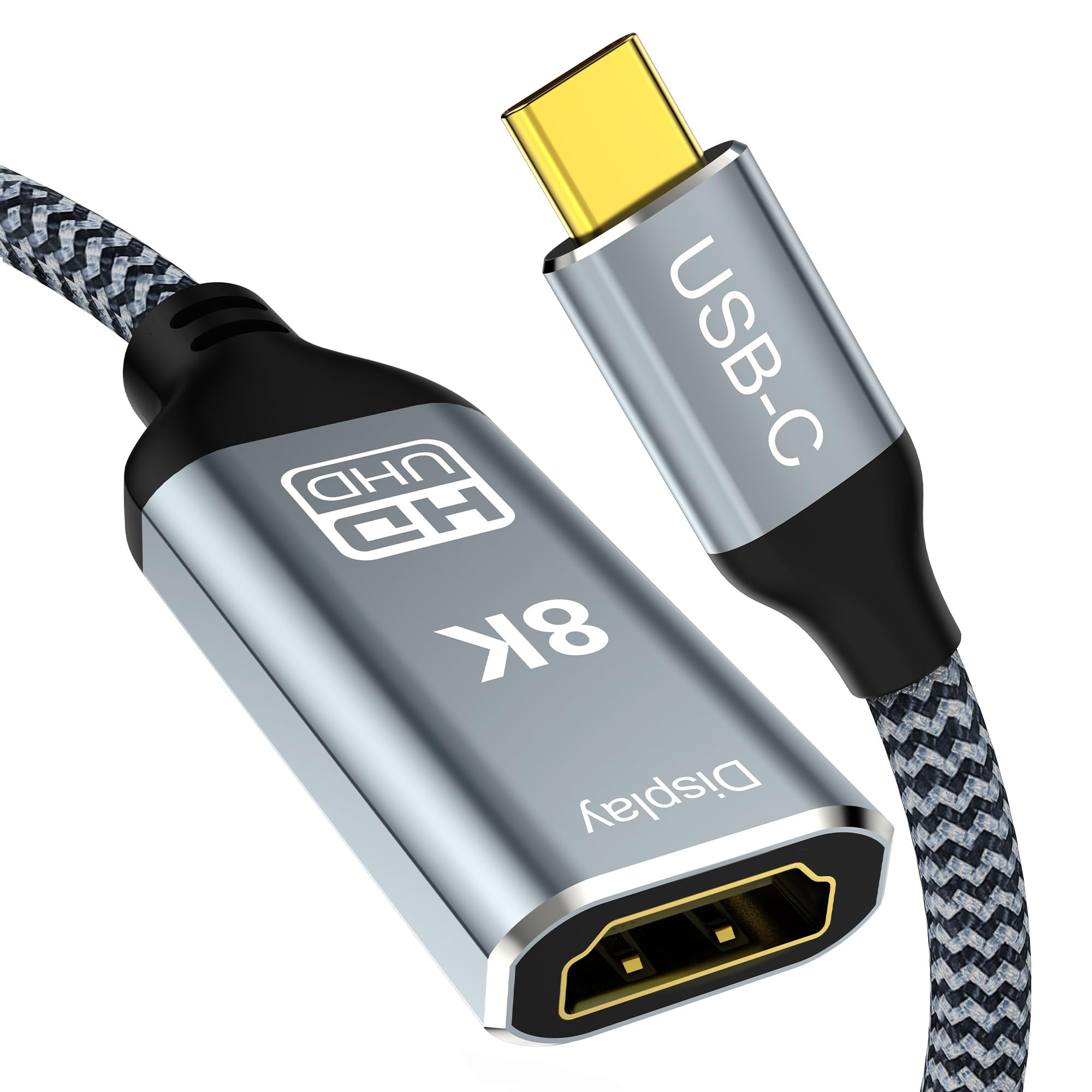
1. CHENLENIC USB C to HDMI 2.1 Adapter
Our pick — 4.5+★ from 100+ verified ratings; the strongest balance of quality and price.
A braided adapter that pushes 8K while juggling a multi-monitor desktop.
The headline is the video output: 8K@60Hz, stepping down to 4K@120Hz and 2K@240Hz on displays that need the higher frame rate. That 8K@60Hz figure (roughly eight thousand pixels across) is the top of the HDMI 2.1 ladder, and it means one cable carries an ultra-high-resolution picture without you hunting for a second output. For gaming, the 4K@120Hz mode keeps motion smooth enough that fast pans stop smearing.
The multi-screen part is what separates this from most rivals. It runs mirror and extend modes, works in clamshell mode with the laptop lid shut, and supports MST daisy-chain splicing so several monitors act as one wide desktop. Its two-port build (USB-C in, HDMI out) plus the nylon braid and zinc alloy housing means it survives being tossed in a bag between desks. The 24K gold-plated connector is there to keep the signal stable over long sessions rather than oxidizing.
Here is the catch, and it is a big one for Mac owners: macOS caps this adapter at 4K@60Hz, and it has no charging port, so it is for computers only. You also must confirm your device supports DP Alt Mode. The adapter asks for it in plain terms — check your specs before buying. This pick suits a Windows gamer or a multi-monitor office worker who wants the highest resolution and a durable build in one unit.
What It Delivers
- 8K@60Hz output, with 4K@120Hz and 2K@240Hz backward modes for gaming
- MST daisy-chain support lets several monitors form one desktop
- Nylon braid and zinc alloy housing take daily bag-and-desk abuse
Where It Stops Short
- Mac OS is limited to 4K@60Hz
- No charging port — video out only
Reach for this if: you run a Windows rig or a multi-display desk and want the highest resolution available in a single braided adapter.
Look elsewhere if: you are on a MacBook that needs to stay charged while driving a display.
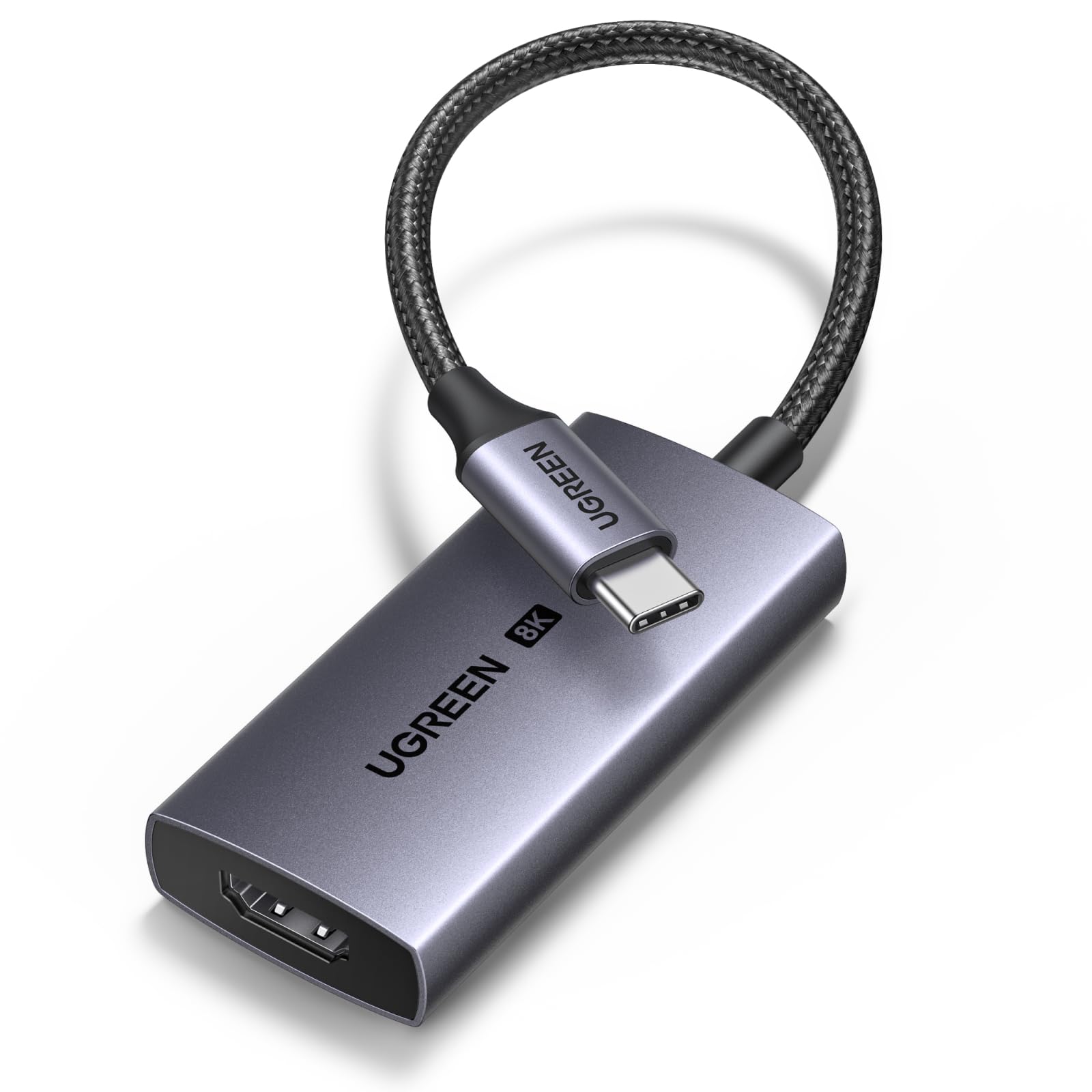
2. UGREEN 48Gbps Unidirectional USB C to HDMI 2.1 Adapter
The budget ticket to 4K@240Hz, provided you bring the right laptop port.
UGREEN stacks four layers of shielding — a nylon braid cover, a TPE jacket, aluminum foil, and a ground wire — to keep the 48Gbps signal clean. In plain terms, that shielding (the wrapping that blocks outside electrical noise) is why the picture stays flicker-free instead of dropping out mid-game. The 48Gbps figure is the full HDMI 2.1 bandwidth, enough for 8K@60Hz or 4K@240Hz in one stream.
It is plug and play with no driver install, and it handles both mirror and extend modes, so a presentation deck and a spreadsheet can sit side by side. The aluminum case may feel warm during use, which UGREEN notes is normal heat dissipation. It lists a wide device range, but the real gate is the same as everywhere: your port needs DisplayPort 1.4 to hit 8K@60Hz. If the monitor or the port falls short, you land at 4K or 2K instead.
Its physical footprint is small — the housing measures 2.66 x 1.24 x 0.51 inches — and that compact shape is easy to slip into a laptop sleeve. Compare that to the Acer below at 2.56 x 1.77 x 0.59 inches: the UGREEN is a touch longer but slimmer in depth. For a buyer who wants the full 48Gbps ceiling without paying the premium tier, this is the sensible starting point.
Why it earns its spot: 48Gbps bandwidth at a budget price is the whole pitch, and the four-layer shielding backs it with cleaner signal delivery than you would expect at this tier.
The honest limit: 8K@60Hz lives or dies on your DisplayPort 1.4 support, so this is only a bargain if your machine qualifies.
The smart buy for: budget-conscious buyers with a DP 1.4 laptop who want the full 48Gbps ceiling.
Not the pick for: anyone whose machine maxes out at 4K or 2K — you will not use what you paid for.
3. Acer USB C to HDMI 2.1 Adapter

Built for the esports monitor crowd, with the anti-tearing tools to match.
You get a lot of features for a small adapter. It moves 48Gbps of data (48 gigabits per second, the HDMI 2.1 speed limit) so you can run 8K@60Hz (8K resolution at 60 frames per second) or 4K@240Hz (4K at 240 frames per second). VRR (Variable Refresh Rate, which syncs the screen to the game’s frame output to stop tearing) and ALLM (Auto Low Latency Mode, which tells the TV to drop into its fastest picture setting) keep games smooth. HDR and Dolby Vision add deeper contrast, and Dolby Atmos handles the audio side.
Before you plug in, Acer asks for three checks: your laptop must have a USB-C port with video output; the adapter is unidirectional (USB-C male to HDMI female); and it is video-only. Macs are capped at 4K@60Hz because of system limits. That list of prerequisites is not a flaw, but it does mean a quick spec check saves you a return.
The step up from the UGREEN above is the gaming feature set: both move 48Gbps, but this one adds VRR and ALLM for high-refresh monitors. If you have a high-refresh monitor and a desktop GPU that can feed it, VRR removes screen tearing and ALLM cuts input lag in fast games. Plug and play, mirror and extend modes, and a compact 2.56 x 1.77 x 0.59 inch body round it out.
Features Worth Having
- VRR cuts screen tearing for fast-paced gaming
- ALLM drops display latency automatically
- Dolby Vision and Dolby Atmos for a richer picture-and-sound combo
Read Before Buying
- Requires DP Alt Mode on your laptop port
- Mac capped at 4K@60Hz
- Unidirectional video-only — no charging
Top of the list if: you own a high-refresh gaming monitor and want VRR and ALLM working for you.
Pass it up if: you only need a basic office display connection — those gaming tools go unused.
4. Cable Matters Unidirectional USB C to HDMI 2.1 Adapter

The familiar name in desktop workstations, with the clearest compatibility list here.
This adapter gets the fine print right. It lists exactly which graphics cards can feed 8K@60Hz or 4K@240Hz — NVIDIA RTX 2060/30/40 series, AMD RX 6000/7000 series, or Intel 11th/12th Gen with Iris Xe or newer — and it requires a certified HDMI 2.1 cable in the chain. That specificity is why serious desktop builders choose it, and why it works reliably at 4K 60Hz and native 4K 120Hz for most owners.
The picture quality is the other standout, with an 8K 60Hz maximum at RGB 4:4:4, meaning full color detail with no compression shortcuts. ALLM support keeps gaming latency low. What wins people over first, though, is how it behaves on day one — plug it in and it works, no driver dance. The build matches that impression: a braided cable, metal connectors, and an aluminum enclosure.
The caveat worth knowing is the macOS story. This adapter tops out at 4K@60Hz on macOS, and Cable Matters points Mac users toward a separate firmware-enhanced version for higher refresh rates. VRR, G-Sync, and FreeSync are not supported, so PC gamers who depend on variable sync should look elsewhere. For a Windows desktop with a recent GPU, it is a steady, well-documented choice.
The real draw: a spec list that tells you up front whether your graphics card qualifies, plus clean RGB 4:4:4 color at 8K 60Hz.
The trade-off: no VRR, G-Sync, or FreeSync — fine for creative work, a gap for sync-dependent gamers.
Built for: desktop workstation owners who want documented compatibility and full color fidelity.
Think twice if: you rely on G-Sync or FreeSync — this adapter does not carry those signals.
5. CalDigit USB-C to HDMI 2.1 8K Adapter Dongle

The dongle Mac owners reach for when they need a rock-solid dock companion.
CalDigit has a loyal following among Apple users, and this dongle leans into that. It supports displays up to 8K 60Hz at 7680×4320@60Hz with DSC (Display Stream Compression, a technique that squeezes the signal so 8K fits through the cable) — or 30Hz without DSC — and 4K 120Hz. HDCP 2.3, DSC 1.32a, HDR, and 10-bit color are all on the spec sheet, and it works with Thunderbolt 3, 4, 5, USB4, or any USB-C port that outputs video.
Buyers keep coming back to the aluminum build and the clean record across macOS, iPadOS, Windows, Chrome OS, Linux, and Android with no driver install. It is plug and play across macOS, iPadOS, Windows 10/11, Chrome OS, Linux, and Android with no driver install. That broad OS support is a real advantage if you juggle several machines in one week.
Two honest notes. It is non-bidirectional and only converts USB-C to HDMI, so it cannot take an HDMI source and feed a USB-C monitor — and it is not meant for GPUs, consoles, or Blu-ray players. It also requires a certified HDMI 2.1 cable for top resolution and refresh. The adapter itself is a 3-port design, and it expects your host USB-C port to support DisplayPort 2.0 or 2.1 specs.
The right fit for: MacBook and iPad Pro owners who already live in a Thunderbolt dock ecosystem and want a dependable video out.
Not the one for: anyone hoping to run HDMI into a USB-C display — the signal only travels one direction.
6. Cable Matters USB C to HDMI 2.1 Adapter 100W Charging

One port does double duty: full 8K video and 100 watts back to your laptop.
The feature that solves a real problem is the 100W power delivery. If your laptop has a single Thunderbolt 3 or 4 port and you want to keep it charged while driving an external display, this adapter does both. The 100 watts flows to your smartphone or laptop over the same port, and the adapter is bus-powered — it does not need a separate charger to function. Without it, a single-port laptop loses charge while driving the display through a long work session.
On the video side it handles 8K@60Hz or 4K@240Hz on supported hardware, with 48Gbps of bandwidth and HDR. ALLM keeps gaming latency low, and surround audio like Dolby Atmos and DTS:X flows through for a home-theater feel. Wide compatibility reaches Nvidia RTX 3000 series and AMD Radeon RX6000 series cards, plus USB4 and Thunderbolt 4 ports on laptops with 11th generation or newer Intel CPUs and Iris Xe graphics.
The honest wrinkle is macOS. Cable Matters notes this works with the new MacBook, MacBook Air, MacBook Pro, iMac, iMac Pro, and iPad Pro, but compatibility reports are mixed on some MacBook setups. It also wants DP Alt Mode on your USB-C device. The 100W passthrough is the reason to pick this over the unidirectional Cable Matters above; if you do not need charging, the simpler pick costs less.
What You Gain
- 100W pass-through powers a laptop off the same port
- Bus-powered — runs without a separate charger
- Dolby Atmos and DTS:X support for richer audio
The Fine Print
- MacBook compatibility reports are mixed
- Requires DP Alt Mode on your USB-C device
Worth it if: you are down to one usable port and need to charge and display at once.
Keep looking if: your laptop already has the ports you need — the passthrough charge is wasted on you.
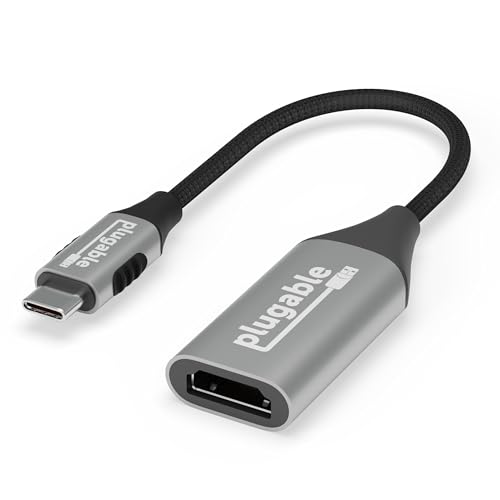
7. Plugable USB C to HDMI Adapter
Aimed squarely at people who already bought the fast monitor and want to feed it.
Plugable’s pitch is speed, and the number to remember is 4K@144Hz. That higher refresh rate suits gamers and designers moving between fast and precise work, and if you upgrade your monitor later, it can output up to 8K 60Hz using DSC. The aluminum casing is there for heat dissipation and to survive travel, which matters if the adapter lives in a laptop bag.
It hits 4K 144Hz over a USB-C, USB4, or Thunderbolt 4/3 port that supports DP 1.4, across Windows, macOS, and Chrome OS with no driver download. That plug-and-play spec is consistent, but the Mac ceiling is real: macOS is limited to 4K 60Hz, and higher refresh rates — including 4K 120Hz — are not supported there. Do not buy this for a Mac if the refresh rate is the reason.
It differs from the Acer above in its 4K@144Hz rating versus the Acer’s 4K@240Hz, and its higher price buys an aluminum case built for travel. If you are on Windows with a DP 1.4 port (DisplayPort 1.4, a video output that supports high refresh rates) and a high-refresh monitor, you get a fast, clean picture with HDR and HDCP (copy protection) handled. Its 60W nominal power spec is note if you also count on passthrough — this is a video-first adapter, so just confirm what your port can deliver.
The headline: 4K@144Hz brings smooth motion to fast monitors, backed by an aluminum case built for travel.
The honest caveat: macOS tops out at 4K 60Hz, so the high-refresh selling point is Windows-only in practice.
Pick this if: you are on Windows with a DP 1.4 port and a monitor that deserves 4K at 144Hz.
skip it if: your machine is a Mac — you will cap out at 4K 60Hz and pay for speed you cannot use.
Know the Specs
DisplayPort Alt Mode
This is the mode that lets a USB-C port transmit video, and every adapter on this list needs it. Thunderbolt ports include it, but plain USB-C data ports often do not. If your device lacks it, no adapter here will work — check the laptop specs first.
8K@60Hz vs 4K@240Hz
These are two different ways to spend the same bandwidth. 8K@60Hz gives you maximum resolution for movies and photo work; 4K@240Hz gives you a lower resolution at a very high frame rate for competitive gaming. Pick the one that matches your monitor, not the bigger number.
Bandwidth (48Gbps)
The 48Gbps figure is the full HDMI 2.1 pipe. It is what allows a single stream to carry 8K resolution or a very high refresh rate. An adapter rated lower than that cannot squeeze the full HDMI 2.1 signal through, even if it claims the same resolution.
HDR, HDCP 2.3, and DSC
HDR widens the brightness range for deeper contrast. HDCP 2.3 (the copy-protection handshake) is what lets a streaming service play on your display. DSC compresses the signal so 8K fits through the cable. Miss any one of these and you may get a black screen instead of a picture.
Common Questions
Do I need DisplayPort Alt Mode to use a USB-C to HDMI 2.1 adapter?
Will a USB-C to HDMI 2.1 adapter give me 8K on a MacBook?
Can I use a USB-C to HDMI 2.1 adapter to charge my laptop at the same time?
Does a USB-C to HDMI 2.1 adapter work in both directions?
What HDMI cable do I need for 8K@60Hz or 4K@240Hz?
Why is my refresh rate lower than the adapter’s spec?
Do these adapters support G-Sync or FreeSync?
Can I connect multiple monitors through one USB-C to HDMI 2.1 adapter?
Is HDMI 2.1 over USB-C as good as a native HDMI 2.1 port?
The Bottom Line
For most people the winner is the CHENLENIC USB C to HDMI 2.1 Adapter because it pairs the top 8K@60Hz resolution with MST multi-monitor support and a braided build that lasts. If value matters more than multi-screen splicing, the UGREEN 48Gbps Unidirectional delivers full bandwidth for less. And if you need one port to both charge and display, the Cable Matters with 100W Charging is the one to reach for. Across all seven picks, DisplayPort Alt Mode on your laptop’s USB-C port is the one spec that decides whether any of them work — check it before you buy.
How we choose
We do not accept paid placement. Every pick is matched to a real buyer and a real use-case; we do not hands-on test units.
Sources
Specifications: manufacturer listings and product documentation. Review insights: verified customer reviews, as of November 2026. Pricing: not shown on this page (it changes often); check the current price via the retailer link.
As an Amazon Associate, Tactical Gear Guy earns from qualifying purchases. This does not affect which products we feature.