Specs are compiled from manufacturer listings and verified buyer reviews and can change over time — please confirm the key details on the product page before buying.
Here’s the thing about a Mac Pro USB-C dock: the dock itself is rarely the problem — your Mac’s display limit is. Base M-series MacBooks only drive one external screen natively, so the dock you pick has to work around that limit with DisplayLink software or pay for Thunderbolt certification. Get that part wrong and you’ll own a very expensive USB hub. This guide sorts the nine most-relevant Mac docks by what they actually do for a multi-screen desk, from triple-4K workstations down to single-cable office setups.
This guide is built by comparing the manufacturers’ published specifications and the patterns across verified customer reviews, so you get each pick’s real strengths and trade-offs instead of marketing spin.
The spec that decides whether a dock expands your desk or caps it is your Mac’s chip, not the port count. Here’s what separates a dock that drives your monitors from one that just mirrors them.
Top Picks

How To Choose The Best Mac Pro USB-C Dock
Start with your Mac’s chip, not the dock. Base M1, M2 and M3 MacBooks natively drive a single external display, so a dock that lists two HDMI ports will still mirror the same image on both unless the dock adds DisplayLink software. Pro and Max chips drive more screens on their own, which means the same dock behaves completely differently on two laptops sitting side by side.
DisplayLink versus Thunderbolt — pick your lane
DisplayLink docks run a small driver that compresses each screen’s video and sends it down one USB-C cable. That’s how a triple-4K setup works on a base M-series MacBook. The trade-off is a driver install, a Screen Recording permission prompt on macOS, and the fact that DRM video (paid streaming services) often won’t play while the driver is active. Thunderbolt docks skip the driver entirely and simply deliver what your Mac already supports — cleaner, but capped by the same chip limits.
Count the ports you will actually use
A useful dock for a Mac Pro desk usually needs video outputs, at least three USB-A ports for drives and receivers, an SD reader if you shoot photos, and wired Ethernet for a stable connection. Gigabit is fine for most home networks; 2.5GbE matters if you move large files to a NAS and your switch supports it. Anything above that is headroom you may never touch.
Match the charger to your laptop’s appetite
A dock rated for 100W input rarely sends all 100W to the laptop — a certified 96W is typical, and 85W appears on some Thunderbolt units. For a 14-inch MacBook Pro that’s plenty to stay topped up under load. For a 16-inch machine, a dock with a 140W host port and a large internal power supply is the safer pick.
Side-by-Side Comparison
| Model | Best For | Total Ports | Display Output | Laptop Charging | Amazon |
|---|---|---|---|---|---|
| TobenONE DisplayLink Docking Station (UDS033)★ Best Overall | Triple-screen Mac desks | 18 | 3x HDMI + 3x DP, up to triple/quad 4K@60Hz | 100W (96W certified) | Amazon |
| JCYMELE 19-in-1 USB-C DockMost Ports | Max port count on a budget dock | 19 | 2x HDMI + 2x DP, triple 4K@60Hz | 100W PD (charger not included) | Amazon |
| TobenONE MacBook Docking Station StandDesk Saver | Clamshell desk with a vertical stand | 13 | 2x HDMI + VGA, dual 4K@60Hz | 87W from 100W PD3.0 input | Amazon |
| Plugable Thunderbolt 4 Dock (TBT4-UD5) | Mixed-fleet IT deployments | 13 | 2x HDMI, dual 4K@60Hz or single 8K | 100W (96W certified) | Amazon |
| UGREEN 8-in-1 Thunderbolt 4 Dock | Thunderbolt 4 speed, minimal footprint | 8 | Dual 4K@60Hz or single 8K@30Hz | 85W from 140W GaN charger | Amazon |
| Plugable USB C Dock (UD-6950PDH) | Dual 4K on a base M-chip Mac | 14 | 2x HDMI or 2x DP, dual 4K@60Hz | 100W charging | Amazon |
| WAVLINK Thunderbolt 4 Dock (WL-UTD45) | Fast wired networking (2.5GbE) | 13 | 2x HDMI, dual 4K@60Hz or single 8K | 96W from 160W adapter | Amazon |
| Anker Prime 14-in-1 Docking Station | Powering a whole desk of devices | 14 | Dual HDMI, up to 2K@60Hz | 160W total, 100W max per USB-C | Amazon |
| CalDigit TS5 Thunderbolt 5 Dock | 16-inch MacBook Pro power and 8K | 15 | Dual 6K/8K@60Hz, dual 4K@240Hz | 140W host charging | Amazon |
Detailed Reviews
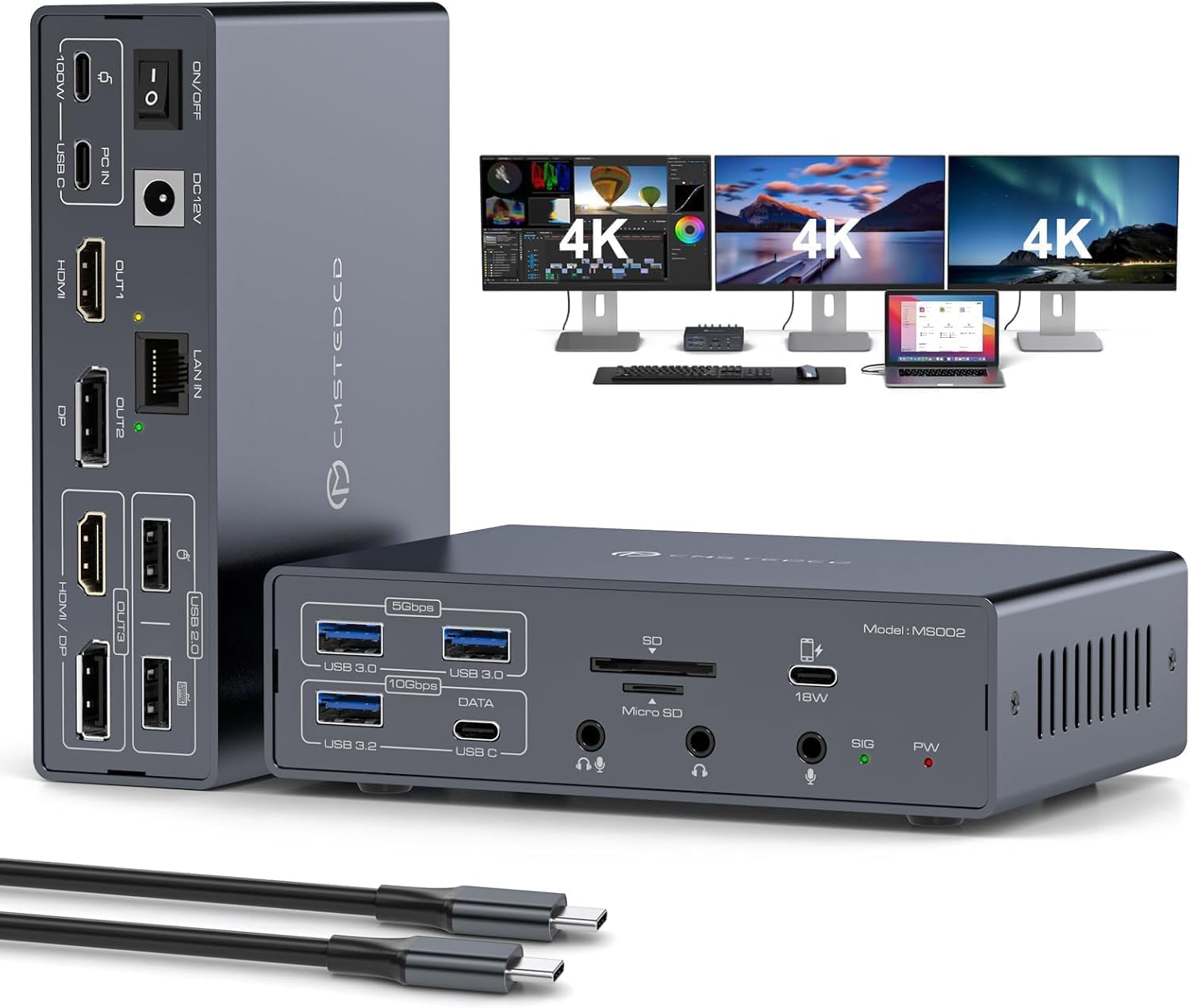
1. TobenONE DisplayLink Docking Station
Our pick — 4.5+★ from 950+ verified ratings; the strongest balance of quality and price.
Three 4K screens off one cable, on a MacBook that “only” does one.
If your Mac refuses to run the third monitor, this is the dock that breaks the rule. It uses DisplayLink — a driver that compresses and streams video down a single USB-C cable — to push three or four displays at 4K@60Hz, where 60Hz means a smooth 60 screen refreshes per second rather than the choppy 30Hz some docks settle for. On macOS it drives three screens; on Windows with a video-capable USB-C port it goes to four.
The port count is 18, and that’s the real story of the price. Three HDMI and three DisplayPort outputs let you mix connector types, four USB 3.1 ports plus two Type-C ports run at up to 10Gbps (roughly 1.25GB per second of file transfer), and there’s gigabit Ethernet on board. The included 120W adapter feeds the dock and sends up to 100W to your laptop — 96W certified — so your MacBook’s own charger can stay in the bag.
It’s the highest-volume dock in this group by a distance, with a 4.5+ star average across 900+ ratings, and reliability is the theme reviewers keep returning to. Set it up once with the driver installed and Screen Recording permission granted, and it just sits there. Note the caveat the maker states plainly: paid streaming services like Netflix won’t play while the DisplayLink driver is active, and macOS caps this dock at three external monitors no matter how many ports sit on the back.
Why triple-screen people keep this one
- Triple 4K@60Hz extended displays on a base M-series MacBook, the exact limit most docks leave in place
- 18 ports including 3x HDMI, 3x DP, 4x USB 3.1 and 2x USB-C at 10Gbps
- 120W adapter included, delivering up to 100W (96W certified) to the laptop
- Gigabit Ethernet built in, so one cable carries network too
What to know before it lands
- macOS stops at three displays; four is a Windows-only figure
- Netflix and similar paid services won’t play while the driver runs
- Driver install plus a Screen Recording permission step is mandatory
- Not built for high-refresh-rate gaming setups
Sized up for: anyone running a MacBook Pro or Air who needs three extended 4K monitors and refuses to buy a Windows machine to get them.
Move on if: you have a Pro or Max chip already driving your screens and would rather skip DisplayLink software entirely.
2. JCYMELE USB C Docking Station 3 Monitors for MacBook Air Pro
Two more ports than the TobenONE, and a big stack of card readers.
On paper this is the busiest dock in the group: 19 ports against 18 on the TobenONE above, and two HDMI against three. It packs an SD reader and a microSD reader alongside two HDMI and two DisplayPort outputs, seven USB ports split across USB-C 3.2, USB-A 3.2, USB-A 3.0 and USB-A 2.0, plus gigabit LAN and not one but two audio jacks — a combo headphone/mic port and a dedicated mic input.
Video works the same way as the TobenONE: DisplayLink software plus per-user-manual drivers open up triple extended 4K@60Hz on macOS as well as Windows. Monitor one takes HDMI, monitor two takes DisplayPort, and monitor three can use either output. The spec sheet also lists backwards compatibility with 2K@144Hz, 1440p@120Hz and 1080p@240Hz, and it notes a sensible rule — use HDMI cables of 4.9ft or less and DP cables of 3.3ft or less to keep the signal lossless.
The honest catch sits in the box. There’s no 100W PD power adapter included — just a 12V/3A DC adapter that powers the dock itself — so you’ll need your own USB-C charger to feed both laptop and dock at the same time. Reviewers consistently praise functionality and build quality, with a 4.5+ star average across 160+ ratings — a much smaller pool than the TobenONE’s.
Where the money goes: card readers, dual audio inputs and the extra USB port — the stuff photographers and podcast recorders notice first.
The asterisk: 100W charging exists on the port list but the charger does not, so factor in that cost before comparing it to a dock with a brick in the box.
Reach for this if: you want the largest port mix going and already own a strong USB-C charger to feed the power side.
Look elsewhere if: you want to unbox and plug in with nothing else to buy.
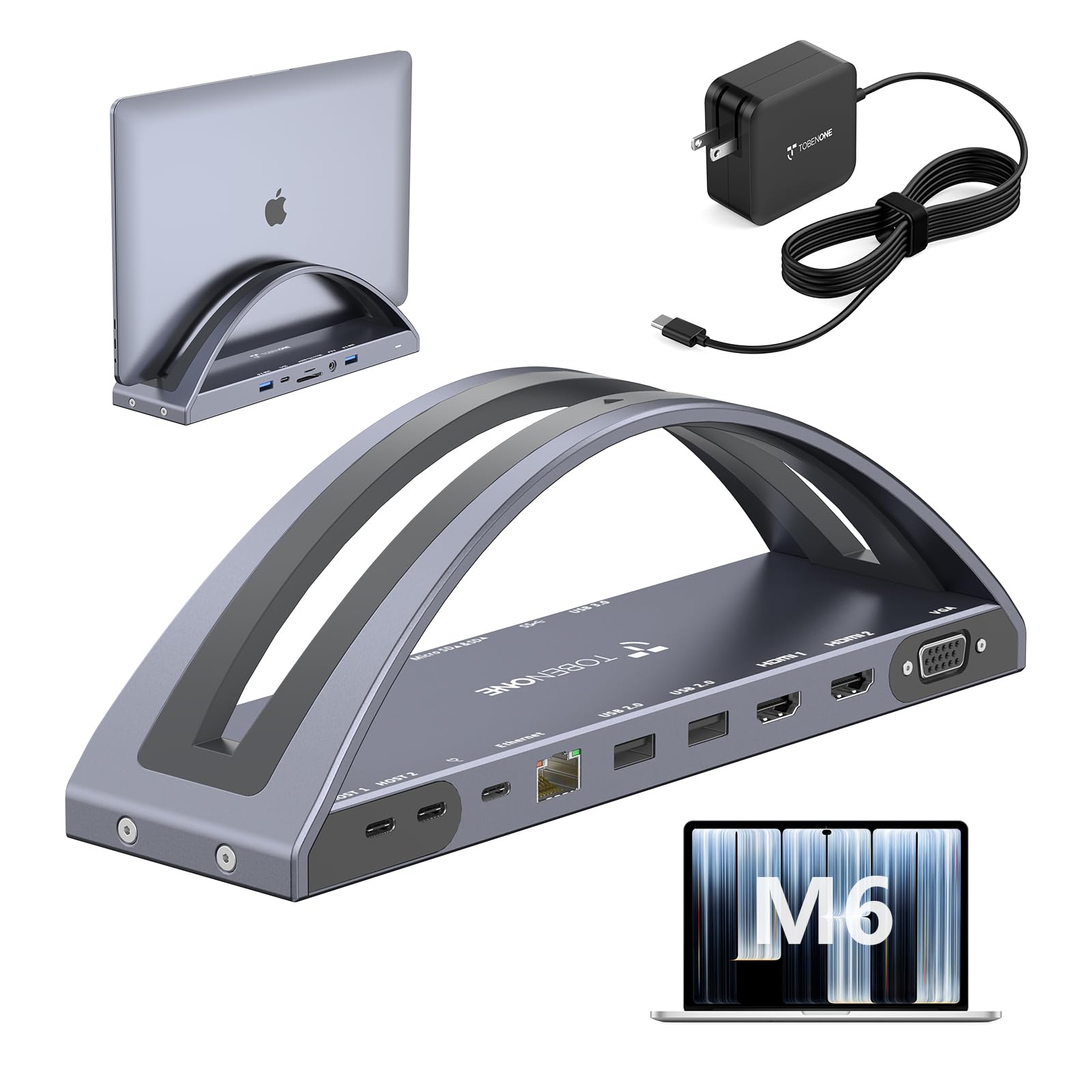
3. TobenONE MacBook Pro/Air Docking Station Stand
A dock and a laptop stand welded into one grey wedge, with a swivel that stays put.
This is the Mac-only pick, and it wears that badge honestly. It’s designed around MacBook Pro and Air models only — no Windows, no Linux, no ChromeOS — and it stands your laptop upright in a vertical cradle while 13 ports fan out the back. Two HDMI outputs plus a VGA port handle video, dual 4K@60Hz is the ceiling over HDMI1 + HDMI2, and a 100W PD3.0 input delivers up to 87W into the MacBook with a 100W charger included in the box.
Builder quality is what carries it. The stand is the kind of solid that doesn’t slide when you nudge the lid, and the swivel moves when you want it to and then holds its angle. Beyond video you get 5Gbps data USB-C, two 5Gbps USB 3.0 ports, two USB 2.0 ports reserved in spirit for wireless receivers, simultaneous SD and microSD read/write, gigabit Ethernet at 10/100/1000Mbps, and a 3.5mm audio jack.
Buying advice here is genuinely model-specific, because the display ceiling depends on the chip. Base M1, M2 and M3 MacBooks — plus MacBook Neo — only support a single display on this dock. Dual monitors need a Pro or Max chip from the supported list. The other thing to weigh is the HDMI output on the hub, which is where the mixed feedback lives; USB-C and USB-A ports are the ones that hold up. If VGA plus a projector mirror is your meeting-room use case, HDMI2 and VGA show identical content, which is exactly what you want.
What the desk gains
- Dock and vertical stand in one, freeing a chunk of desk real estate
- 100W charger included, pushing up to 87W to the MacBook
- Two 4K@60Hz HDMI outputs plus VGA for legacy projectors
- Simultaneous SD and microSD read/write, plus gigabit Ethernet
What to check first
- MacBook only — no Windows, Linux or ChromeOS support at all
- Base M1/M2/M3 chips get a single display, not two
- The hub’s HDMI output is the least reliable port of the set
Built for: MacBook Pro owners with a Pro or Max chip who want their laptop standing up and their cables gone.
Not the pick for: base-chip MacBook users expecting two extended screens, or anyone with a Windows machine in the mix.
4. Plugable Thunderbolt 4 Dock with 100W Charging, Dual Monitor
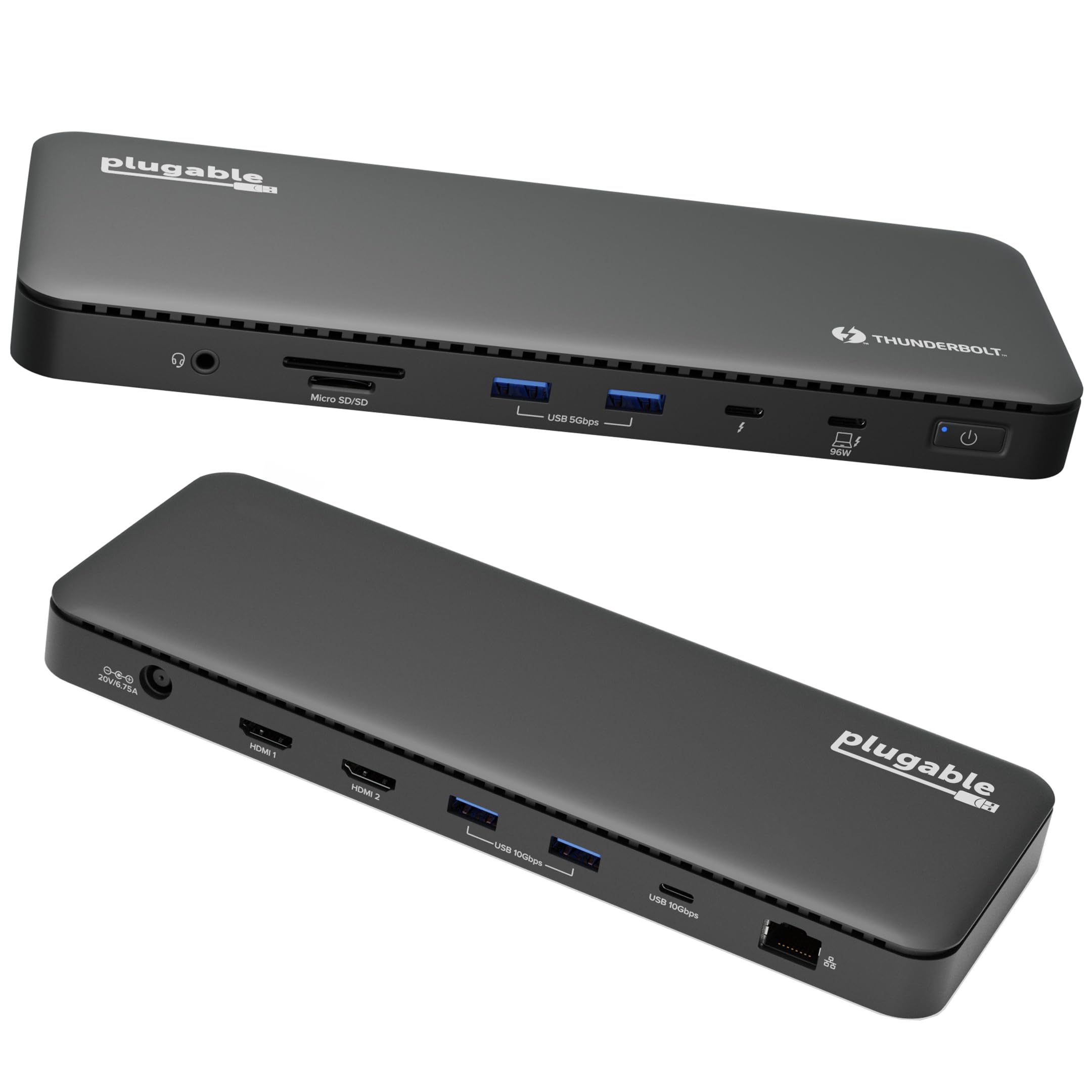
The driverless Thunderbolt 4 dock an IT department can hand out to anyone.
Thunderbolt 4 certification is the whole pitch, and it buys you a 40Gbps pipe — 40 gigabits per second, which is the standard ceiling for a Thunderbolt 4 link — with no DisplayLink driver to install. Two HDMI ports run dual 4K@60Hz, or a single 8K display on a Thunderbolt 4 or 5 host, and the downstream Thunderbolt 4 port adds 15W charging plus its own display path. Thirteen ports total, including four USB ports, one USB-C at 10Gbps, SD and microSD readers, a combo audio jack, gigabit Ethernet and a K-lock slot.
The 100W power supply sends up to 96W certified to the laptop, which is enough to keep a 14-inch MacBook Pro topped up under load. Setup is genuinely plug-and-play on a certified host — no software, no permission prompts — which is why mixed-device offices standardize on units like this. Compare that to the DisplayLink docks above: they buy you more screens, this buys you fewer moving parts.
Two limits deserve your attention before you buy. Base M1 and M2 MacBooks get a single display here, and base M3 needs clamshell mode (lid shut) for dual monitors. Reliability is also the most-debated topic on this dock’s page — plenty of flawless reports sitting alongside some “stopped working” ones, which is the pattern you’d expect on a high-volume certified unit. Treat it as a fit question: if you can drive two screens without help and want a driver-free life, this is the tidy answer.
Why it wins in offices: no driver, no permission prompt, no user training — hand someone the dock and a single cable and their desk is back after a hot-swap.
The fine print: base M1 and M2 models still cap at one screen, and base M3 needs the lid closed for two.
Pick it for: a Thunderbolt 4 or 5 MacBook Pro on a Pro or Max chip where you want dual 4K without installing anything.
Pass if: your Mac is a base M1 or M2 and you genuinely need two extended monitors — that needs DisplayLink instead.
5. UGREEN 8-in-1 Thunderbolt 4 Docking Station

Eight ports, three of them Thunderbolt 4, and a 140W GaN brick in the box.
Where most docks pad the count with slow USB 2.0 ports, UGREEN trimmed it: three Thunderbolt 4 ports at 40Gbps and 15W each, three USB-A 3.2 ports at 10Gbps, one gigabit Ethernet and the DC power input make up the eight. That’s a dock for someone who wants fast lanes, not the longest port list on the desk.
Charging is the part worth understanding. The included 140W GaN charger — gallium nitride, a newer power-conversion material that packs the same output into a smaller brick — feeds the dock, which passes up to 85W to your laptop while you work, so you don’t plug the MacBook’s own charger in alongside. On displays you get dual 4K@60Hz or a single 8K@30Hz on Windows, and dual 4K@60Hz on MacBooks with Pro/Max M-chips or Intel chips. Base M-chip Macs get one 4K@60Hz screen.
Build quality is the standout here, and it’s consistent — the chassis and the plug-and-play behaviour with a MacBook Pro come up repeatedly as the good news. The Ethernet port and the port limitations are the two areas where feedback goes the other way, so rely on Thunderbolt peripherals rather than a full desktop of adapters. Price-wise it lives in the premium tier despite the small footprint, which is worth weighing against the bigger port counts on cheaper docks here.
What it gets right
- Three Thunderbolt 4 ports at 40Gbps and 15W each — real fast lanes, not filler
- 140W GaN charger included, delivering 85W to the laptop while working
- Dual 4K@60Hz or single 8K@30Hz on supporting systems
- Compact chassis that suits a small desk or a bag
Where it asks for patience
- Eight ports is far fewer than the 18- and 19-port docks here
- Base M-chip MacBooks are capped at one 4K@60Hz display
- Ethernet is the least dependable port of the set
For the minimalist: a MacBook Pro on a Pro or Max chip, a pair of 4K screens, and a refusal to buy extra adapters.
Keep looking if: your desk runs on card readers, legacy USB 2.0 gear and a wired mouse dongle — you’ll run out of holes.
6. Plugable USB C Docking Station, Dual Monitor 4K 60Hz

Two 4K screens on a base M-chip Mac, no Thunderbolt host required.
Plugable’s UD-6950PDH is the middle ground: it uses DisplayLink — the driver workaround — to give even a base M1 or M2 MacBook two extended 4K@60Hz monitors, but it does it over a standard USB-C or Thunderbolt 3 connection rather than demanding a Thunderbolt 4 host. Two HDMI ports, two DisplayPort ports, and you can run both screens on either connector type or mix the two.
The 14-in-1 layout covers what a desk actually accumulates: a front-facing USB-C port for charging gadgets, three more USB 3.0 ports, SD and microSD readers, a 3.5mm headset jack, Ethernet, and 100W charging into the laptop. The aluminium housing in space grey is the sturdy, put-it-down-and-forget kind, weighing 11.7 ounces, which is light enough to move between rooms but not so light it skates across a desk.
Reliability dominates the reviews, with plenty of users running two external monitors on both Macs and PCs. What it won’t do is hide its DisplayLink origins: driver install is required, HDCP is not supported (so protected video content may refuse to play), and the performance side is where opinions split, with some finding no lag and others finding it noticeably slower under load. The charging capability also splits both ways depending on the laptop it’s feeding.
Best at: rescuing a dual-monitor plan when your MacBook is a base M-chip machine and your dock budget is mid-range.
Say no to: the idea that this will play protected streaming content — HDCP isn’t supported, and that’s a hard limit.
This one’s for: base-chip MacBook Air or Pro owners who want two real extended monitors without shopping for a Thunderbolt host.
Better off with the TobenONE if: three screens are the goal — this stops at two.
7. WAVLINK Thunderbolt 4 Dock with 4K HDMI Dual Monitor
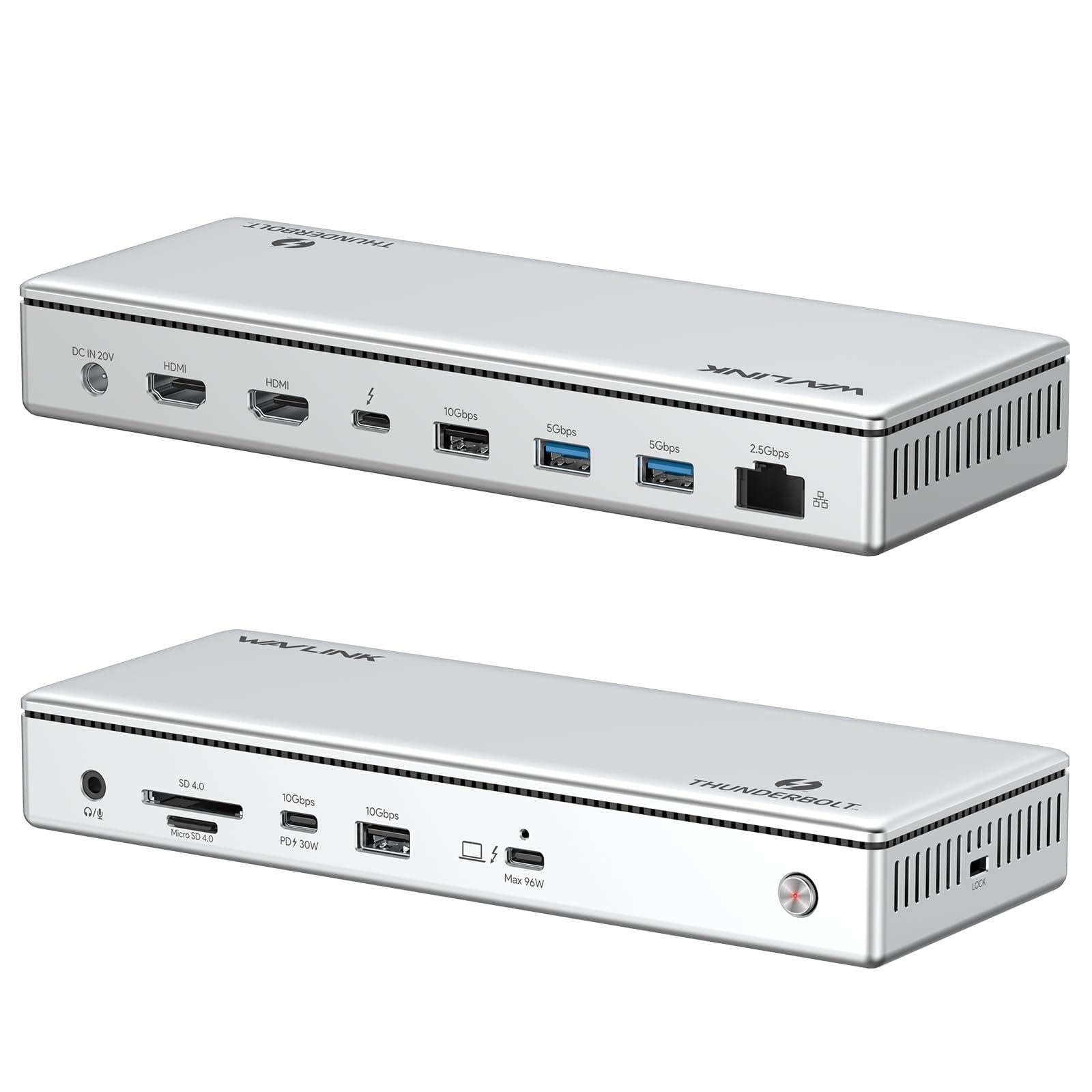
The 2.5GbE port is the reason to care — everything else is steady Thunderbolt 4 fare.
Most docks here stop at gigabit Ethernet, and for a 4K video editor pulling project files off a NAS that’s a bottleneck. WAVLINK fits a 2.5G Ethernet port that steps down to 10/100/1000Mbps when your network isn’t ready for it. Combine that with a 160W power adapter pushing up to 96W into your MacBook, true 40Gbps Thunderbolt 4 upstream and downstream ports, and an SD/microSD V4.0 card reader rated at 312MB/s, and the pitch for a media workflow starts to make sense.
Display handling needs a careful read. On a Windows Thunderbolt 4 host you get dual 4K@60Hz or a single 8K@60Hz. On a Mac the two HDMI ports mirror, not extend — so to get two separate extended screens on an M1/M2/M3 Pro or Max (or M4/M5 with Pro/Max), you take one HDMI output and the other through the downstream Thunderbolt 4 port. That downstream port can also drive 8K@60Hz or 4K@120Hz on a native Thunderbolt 4 display. Base M1, M2 and M3 Macs stay at a single display. It’s Thunderbolt certified, so no driver install, and there are 13 ports in a slick silver chassis.
This one carries a lighter review footprint than the older picks in the group, and the maker’s own display notes are the thing to read twice before you buy. If your Mac is a Pro or Max chip and the NAS on your desk is the real workload, the Ethernet upgrade is the differentiator.
What it beats the crowd on: 2.5Gbps wired networking when the older docks here settle for standard gigabit, which is the difference a NAS user feels.
Read the fine print: the two HDMI ports mirror on a Mac — extended dual displays require one HDMI plus the downstream Thunderbolt 4 port.
Right for: a Pro or Max-chip MacBook Pro tied to a 2.5G network and a fast SD card workflow.
Wrong for: base M1, M2 or M3 MacBooks — single display only, no matter the port count.
8. Anker Prime Docking Station

A 14-port dock that moonlights as a charger for four devices at once.
Anker treats this as a charging station first and a video dock second, and the numbers back it: 160W of total output, split as 100W max through each of three USB-C ports plus 12W on the USB-A. That’s enough to keep a stream deck, a phone, a tablet and the laptop itself topped up from one plug — the sort of thing a live streamer or podcast desk actually needs.
The 14-in-1 layout tops out at 10Gbps on the data ports, which matters for external SSDs and card dumps. Video is where you need to read the spec twice: the dual HDMI ports run up to 2K@60Hz with a DP 1.4 laptop or 1080p@60Hz with DP 1.2, and it won’t handle a 5120×1440 ultrawide. On macOS the two external monitors show identical images rather than extended — so a Mac user wanting two separate spaces out of this dock is out of luck.
Reviewers consistently praise the port count, the wattage and the plug-and-play setup, and functionality reads positive across a hefty body of reviews. Connectivity and reliability are the two areas where feedback splits, with some MacBook and external monitor pairing trouble reported. For a USB-C or Thunderbolt MacBook Pro on the go, though, it’s a solid desktop power hub that happens to handle two mirrored screens.
What earns it a spot
- 160W total output across three USB-C ports (100W max each) and one 12W USB-A
- 14 ports with 10Gbps data speeds for external storage
- Plug-and-play with USB-C and Thunderbolt Macs
- Charges four devices from one unit
Where it won’t satisfy
- On macOS the dual HDMI displays mirror rather than extend
- Topped out at 2K@60Hz on a DP 1.4 laptop
- No support for a 5120×1440 monitor
- MacBook-to-monitor pairing is where the mixed reports sit
Suits: a streaming or editing desk where the dock doubles as the charger for everything plugged into it.
Not for: a Mac user whose whole reason for a dock is two extended, separate monitors.
9. CalDigit TS5 Thunderbolt 5 Dock – 15 Port 240W PSU
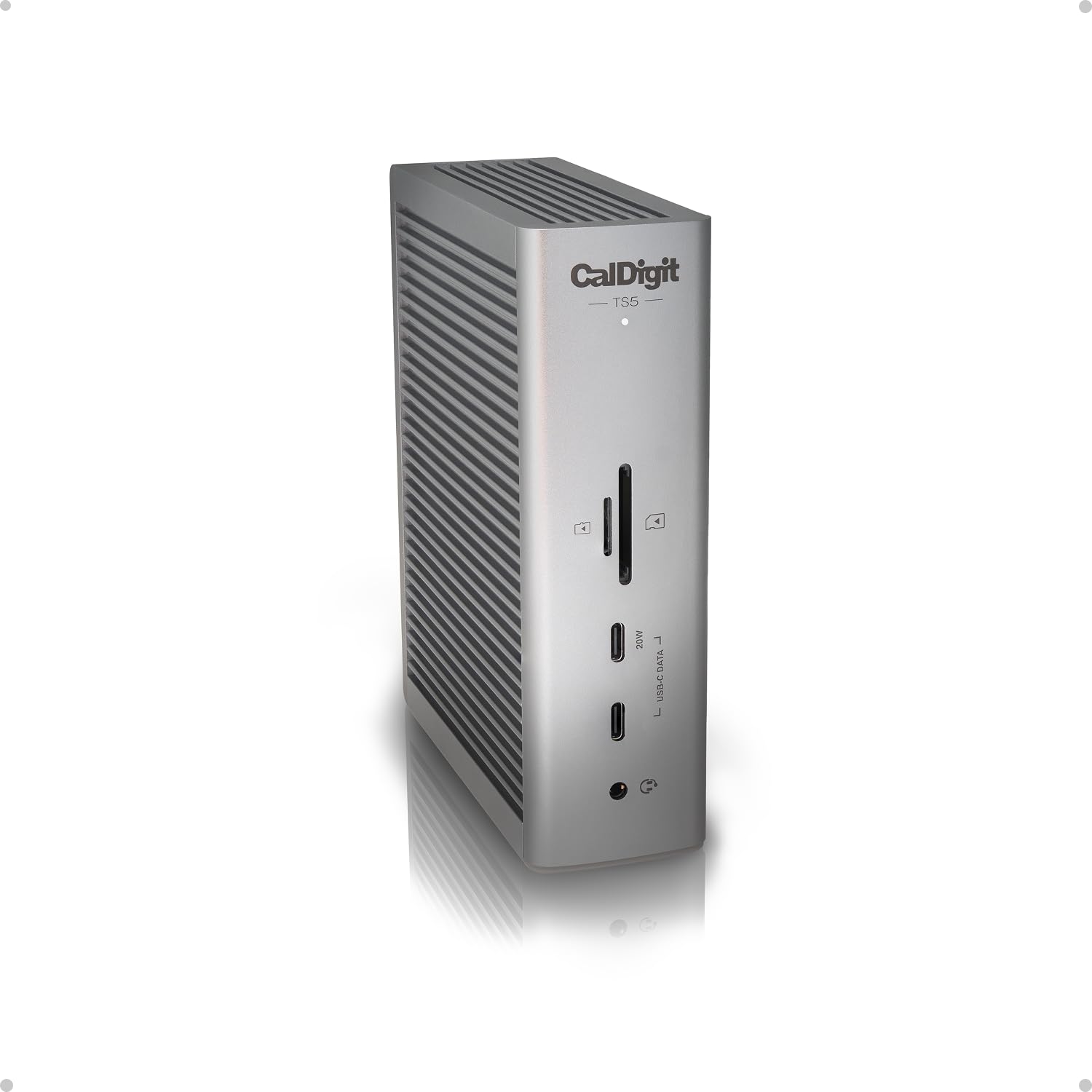
Fifteen ports, 140W into the laptop, and a 240W power supply that never blinks.
If you own a 16-inch MacBook Pro with an M3, M4 or M5 Pro or Max chip, that laptop draws 140W when it’s working hard, and that’s exactly what the TS5’s host port delivers. Backing that up is a 240W power supply, so the dock keeps feeding power to every port — 15W on each downstream Thunderbolt 5 port, 20W on one front USB-C for accessories — rather than borrowing from the laptop. Thunderbolt 5 runs at 80Gb/s, with Bandwidth Boost letting up to 120Gb/s flow to displays when a high-resolution, high-refresh monitor asks for it.
Display flexibility is the headline. On macOS it drives dual 6K@60Hz, or dual 8K@60Hz on Macs that support those resolutions, or dual 4K@240Hz for high-refresh work. Windows Thunderbolt 5 hosts can add a third 4K@144Hz screen where the OS allows it. The port list runs 15 deep, including DisplayPort 2.1, SD and microSD 4.0 UHS-II readers, 2.5GbE Ethernet that’s 2.5x faster than traditional 1GbE, three audio ports, and a metal chassis built to double as a heat sink — which is why CalDigit asks you to leave clearance around it.
Here’s the honest part: this is the premium of the premium, and the value question lands harder because of it. It also wants a Thunderbolt 5 or USB4 v2 host to earn its keep — plug in a Thunderbolt 3 or 4 laptop and you get reduced functionality. That’s the trade for anyone not on a current Mac: the TS5 is future-proofing, and the cheaper certified docks above do most of the same job today.
Built for the long haul: a 240W supply, 140W to the host, and an aluminium heat-sink chassis that keeps it sustained rather than throttled.
The honest trade: you’re paying premium-tier money and need a Thunderbolt 5 or USB4 v2 host to open up the 80Gb/s headline.
Made for: a 16-inch MacBook Pro on an M3/M4/M5 Pro or Max, driving 6K or 8K screens and a 2.5G NAS.
Overkill if: your laptop is an older Thunderbolt 3 or 4 machine — it’ll work, but you’re paying for bandwidth you can’t reach.
Know the Specs
DisplayLink drivers
DisplayLink is software that compresses each screen’s video and streams it down a single USB-C cable, letting a MacBook that natively drives one external display run two or three. You install a driver and grant Screen Recording permission on macOS for it to work. The trade-off is that protected streaming content often won’t play while the driver runs, and all of the video traffic has to share one USB-C pipe, so a fast SSD on the same dock competes with it.
Power delivery (PD)
A dock rated for 100W input usually delivers less to the laptop — 96W certified is common, and 85W appears on some Thunderbolt units. That’s still enough for a 14-inch MacBook Pro under load. A 16-inch Pro or Max draws 140W when pushed, so a dock with a 140W host port and a large power supply is the safer match for it.
Thunderbolt versus USB-C
Thunderbolt 4 runs at 40Gbps and Thunderbolt 5 at 80Gb/s, and both are certified to behave consistently across machines without a driver. A plain USB-C dock relies on DisplayLink to add screens. Thunderbolt docks can’t override your Mac’s chip limit — a base M1 or M2 machine still gets one display — they just remove the software layer and add headroom for fast storage and displays.
Refresh rate in Hz
60Hz means the screen refreshes 60 times per second, which is the smooth standard for 4K work. Some docks list backwards compatibility with 2K@144Hz, 1440p@120Hz or 1080p@240Hz — useful if you also game or edit motion footage on a 1440p panel. 30Hz at the same resolution looks noticeably choppier, which is why 8K@30Hz matters to check before you assume smoothness.
Common Questions
Will any of these docks give my base M2 MacBook Air two extended monitors?
Is a Thunderbolt 4 dock better than a USB-C dock for a Mac Pro?
Do I need to install software for these docks to work?
Why won’t Netflix play when my dock is connected?
Can I run two monitors on a base M3 MacBook Pro with a Thunderbolt dock?
Will a 96W dock keep a 16-inch MacBook Pro charged?
What is the real difference between 1GbE and 2.5GbE on a dock?
How many external displays can a Mac Pro USB-C dock actually drive?
Can I use one of these docks with a Windows laptop too?
Does an SD card reader on a dock slow down when monitors are connected?
The Bottom Line
The mac pro usb-c dock that solves the most desks here is the TobenONE UDS033, because it breaks the base-chip display limit with three extended 4K@60Hz screens, comes with its 120W adapter in the box, and carries the deepest pool of owner experience in the group — 4.5+ stars across 900+ ratings, with reliability as the theme that keeps coming back.
If dual monitors are enough and you’d rather skip the DisplayLink driver entirely, grab the Plugable TBT4-UD5 for its driverless Thunderbolt 4 setup. And for a 16-inch MacBook Pro on a Pro or Max chip that needs 140W and 6K or 8K output, the CalDigit TS5 is the one to reach for.
One last nudge: DisplayLink docks need a driver install and lose paid streaming playback, while certified Thunderbolt docks need a Pro or Max chip and lose the extra screen. Match the dock to the chip you actually own: DisplayLink for base M-series multi-screen, certified Thunderbolt for Pro and Max chips.
How we choose
We do not accept paid placement. Every pick is matched to a real buyer and a real use-case; we do not hands-on test units.
Sources
Specifications: manufacturer listings and product documentation. Review insights: verified customer reviews, as of November 2026. Pricing: not shown on this page (it changes often); check the current price via the retailer link.
As an Amazon Associate, Tactical Gear Guy earns from qualifying purchases. This does not affect which products we feature.