Specs are compiled from manufacturer listings and verified buyer reviews and can change over time — please confirm the key details on the product page before buying.
If you run two or more computers on one desk, you already know the mess: two keyboards, two mice, and a monitor that only talks to one machine at a time. A USB 3.0 KVM switch fixes that by letting one keyboard, one mouse, and one screen serve every computer you own. The trick is picking one that passes your display signal cleanly and moves files at full USB 3.0 speed instead of throttling them to USB 2.0. This guide sorts out which ones do that job and which ones quietly cost you a feature you needed.
This guide is built by comparing the manufacturers’ published specifications and the patterns across verified customer reviews, so you get each pick’s real strengths and trade-offs instead of marketing spin.
You will see which boxes handle 4K at 60Hz (4K resolution at 60 frames per second, so motion looks smooth), how many USB 3.0 ports each one shares, and where the switching controls live. The short version: match the computer count to your PCs, then check the resolution your monitor actually runs at. Every pick below is a genuine USB 3.0 KVM (a switch that lets one keyboard, mouse, and monitor control several computers), and the right usb 3.0 kvm depends on how many machines and screens you need to juggle.
Top Picks


How To Choose The Best USB 3.0 KVM Switch
A KVM switch is a traffic cop for your desk. It routes one monitor, one keyboard, and one mouse to whichever computer you select. The letters stand for keyboard, video, and mouse. A USB 3.0 KVM adds fast USB ports on top of that, so you can also share a printer or an external drive. Buy the wrong one and you will lose a screen, drop to USB 2.0 file transfers, or fight a cable that will not carry the picture.
Count your computers and your monitors first
Write down how many PCs you need to reach and how many screens you want lit up. A 2-computer, 1-monitor unit is the simple case. A 4-computer unit sharing two or three monitors is a different animal, and it needs each computer to have the matching video outputs. Some dual-monitor KVMs need two HDMI outputs from every PC, so check your graphics card before you buy.
Match the resolution to your monitor
4K@60Hz means 3840×2160 pixels refreshing 60 times a second, which is the everyday standard for sharp office work. 8K@60Hz and 4K@144Hz push far more pixels, and they only work if your monitor, your cable, and your computer all support them. A 60Hz switch feeding a 144Hz gaming monitor will cap you at the lower rate. The listed resolution is a ceiling, not a promise, and every cable in the chain has to keep up.
Look for EDID emulation on multi-PC setups
EDID is the data a monitor sends a computer to tell it what resolutions it can display. Without emulation, a KVM that sits between them can leave a computer guessing. Emulation stores that display information inside the switch, so your windows stay where you put them when you jump between machines. It is the difference between a switch that holds your window layout and one that reshuffles your desktop every time.
Check the switching method you actually want
Most units switch with a panel button or an included wired remote. A few add hotkey switching, where a keyboard shortcut changes machines. Some models deliberately leave hotkeys out. If you keep the switch under the desk or behind a monitor, a wired remote matters more than a button you cannot reach. Buy for the switching method you will use daily, not the one on the spec sheet.
Side-by-Side Comparison
| Model | Best For | Computers | Max Resolution | USB 3.0 Ports | Amazon |
|---|---|---|---|---|---|
| PVBCTCSID 4 Port HDMI KVM★ Best Overall | Four PCs on one screen | 4 | 4K@60Hz | 4 | Amazon |
| SUIDEK 1 Monitor 2 Computers KVMBudget-Friendly | Two-machine desk on a budget | 2 | 4K@60Hz | 4 | Amazon |
| ANGEET 4 Port KVM with EDIDWindow Keeper | Window positions that stay put | 4 | 4K@60Hz | 4 | Amazon |
| VPFET 8K Dual Monitor KVM | Two screens, high refresh gaming | 2 | 8K@60Hz / 4K@120Hz | 4 | Amazon |
| AOOCOO Triple Monitor KVM | Three-screen trading or editing rig | 3 | 8K@60Hz / 4K@144Hz | 4 | Amazon |
| UGREEN 8K HDMI KVM | Aluminum build and 8K headroom | 4 | 8K@60Hz | 4 | Amazon |
| TESmart 2 Port HDMI KVM | Four-way switching control | 2 | 4K@60Hz | USB 3.0 | Amazon |
Detailed Reviews
1. USB3.0 HDMI KVM Switch 4 Computers EDID 4K@60Hz 4 Port KVM
Our pick — 4.5+★ from 450+ verified ratings; the strongest balance of quality and price.
Four computers feed one monitor here, and a little remote keeps the box off your desk entirely.
Start with the number that decides everything: four. This switch lets four computers share one display and four USB 3.0 devices, which is the full office scenario in a single box. Those USB 3.0 ports move data at up to 5Gbps, ten times the 480Mbps ceiling of USB 2.0, so a flash drive or a printer does not crawl while you work. The video side tops out at 4K@60Hz and steps back to 4K@30Hz, 1080P@60Hz, and 720P@60Hz for older screens. That is high enough for crisp text, sharp spreadsheets, and normal photo and video work.
The metal body and the included wired infrared receiver answer the placement question most desks run into. Put the switch behind the monitor or under the desk, aim the remote at the small receiver, and you never touch the unit itself. On the panel you also get four white buttons labelled PC1 through PC4, so a plain press works when the remote is buried. Note that hotkey switching is absent, so there is no keyboard shortcut to learn or accidentally trip.
What holds up in daily use
- Four USB 3.0 ports at 5Gbps, ten times the speed of a USB 2.0 hub, for printers, drives, and webcams.
- Remote plus panel button covers both a tidy hidden install and a quick manual reach.
- 4K@60Hz output with backward support down to 720P for mixed-age monitors.
- Plug-and-play across Windows, Vista, XP, Mac OS, Linux, and Unix with no drivers to install.
Where you should check first
- No hotkey switching, so every switch is a physical button or the remote.
- To hit 4K@60Hz, the source, the HDMI cable, and the monitor must all support it.
- The listing’s own connectivity notes are the mixed part of the feedback, so confirm your cable types before ordering.
Reach for this if: you run three or four machines on one screen and want the switch out of sight behind the desk.
Look elsewhere if: you demand keyboard hotkeys, because this model leaves them out on purpose.
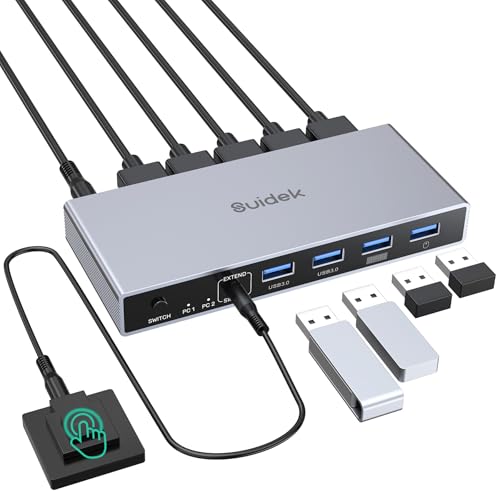
2. HDMI KVM Switch 1 Monitors 2 Computers
A small aluminum box that handles the two-computer desk without asking much of you.
A desktop controller and a push button give you two ways to jump between machines, and the extended button helps when the switch itself is tucked away. The one-button design means no software and no shortcut to memorize. Just press and go between your desktop and your laptop. The lag on this switch is brief, the kind you notice once and then stop thinking about.
Four USB 3.0 ports is the standout detail, because some rival units stop at three. That fourth slot lets you keep a keyboard, a mouse, a printer, and a flash drive all connected at once without a hub. The ports deliver up to 5Gbps, so moving photos and documents is quick rather than a coffee break. The aluminum case gives it a solid feel, heavier than the flimsier boxes in this bracket.
Two honest catches matter before you buy. EDID is not supported on this model, so a computer may briefly re-detect the display when you switch. And switching does not work while a computer is in sleep mode, so wake the machine first. It only speaks HDMI as well, with no DisplayPort or VGA path, so make sure both computer and monitor offer HDMI.
On the money: for a two-machine setup where you want four fast USB ports and a solid aluminum shell, this covers the job. The extra USB slot versus three-port rivals is the practical win.
The honest trade: no EDID emulation means your display can blink and re-settle on each switch, and sleep mode blocks the button entirely.
Suits you when: you have a desktop and a laptop on one screen and want the most ports for the least fuss.
Worth skipping if: your monitor is finicky about losing its signal on every switch, since EDID is absent here.
3. 4 Port HDMI KVM Switch
EDID emulation here means your windows stay exactly where you parked them.
That single feature is the reason to pick this one over the four-port model above. The switch stores your display’s resolution and refresh rate inside the box, so when you hop between your four computers the original window positions do not move. Rival units without emulation make you drag and rearrange everything after each switch. If you keep a dozen apps open across screens all day, skipping that reshuffling on every switch adds up fast.
The video ceiling matches the field at 4K@60Hz, with backward support for 4K@30Hz, 2560×1440@120Hz, and 1080P, and it handles ultrawide monitors. Four USB 3.0 ports move data at up to 5Gbps for keyboards, printers, and USB drives. Switching happens through a wired remote or the panel button, with LED lights showing which computer is live. Plug-and-play covers Windows, Mac OS, Linux, and Chrome OS, and it also accepts HDMI sources like a PS5 or a streaming box.
The box is compact at 8.27 x 2.56 x 0.79 inches and light at 350 g, so it disappears behind a monitor without fuss. The cable bundle is generous: four USB 3.0 cables, an HDMI 2.0 cable, the wired remote, and the power adapter all come in the box. You will still need to confirm your own HDMI runs are rated for the resolution you want, since the advertised rate only holds when every link matches.
Why it wins the tidy-desktop crowd: emulation holds your layout steady across four machines, and the bundled HDMI plus USB cables mean fewer extras to buy.
Best fit for: anyone who switches between several PCs all day and cannot stand a desktop that resets itself.
Think twice if: you only need two machines on one screen, where a simpler two-port unit covers the same ground.
4. 8K HDMI KVM Switch 2 Monitors 2 Computers
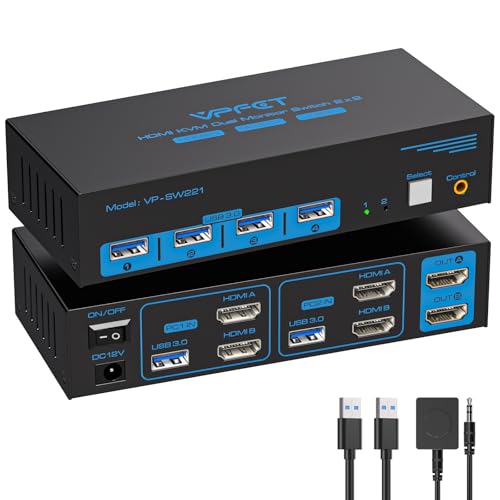
Two monitors, two computers, and a resolution ceiling well above the 4K crowd.
The headline here is 8K@60Hz, far above the 4K@60Hz ceiling on the four-computer PVBCTCSID at the top. It also runs 4K@120Hz, so a fast gaming panel keeps its refresh rate instead of dropping back to 60. That extra headroom matters if you edit video or game on one machine and work on another, because both can share the same pair of screens. The dual-display setup handles mirrored and extended desktop modes across Windows, Mac, laptops, desktops, and gaming PCs.
Four USB 3.0 ports at up to 5Gbps share a printer, scanner, webcam, or drive between the two machines, with backward support for USB 2.0 gear. Switching is the straightforward kind: a panel button or the included wired controller, one touch each. There are no hotkeys, so switching is a physical act by design. The included 12V power adapter keeps USB devices steady, since a PC’s own port current is too small for devices like external hard disks.
Here is the requirement that trips people up. Every computer needs two HDMI outputs from its graphics card to light both monitors, and a single-monitor PC simply cannot use the dual-display feature. Passive adapters and plain conversion cables will not carry the video signal through this switch. Only an active adapter works. Check your graphics outputs before you buy, not after.
Strengths worth the desk space
- 8K@60Hz and 4K@120Hz support, with a higher video ceiling than the four-port picks.
- Two monitors shared across two computers in mirrored or extended mode.
- 4 USB 3.0 ports at 5Gbps plus a 12V adapter for stable drive power.
- Backward compatible with USB 2.0 devices and older operating systems.
Requirements to clear first
- Each computer must have two HDMI outputs, or the second screen stays dark.
- Only active adapters pass video through the switch, so passive ones will fail.
- No keyboard hotkey switching on this model.
Pick it when: you run two machines across two high-refresh monitors and want the highest resolution headroom on the list.
Not for you if: your PC has only one video output, because the second screen will not light up.
5. HDMI DP KVM Switch 3 Monitors 3 Computers, 8K@60Hz/4K@144Hz

Three computers and three monitors, with the fastest refresh rate on this whole list.
This is the heavy-lifting end of the lineup. Two DisplayPort 1.4 ports plus HDMI 2.1 route three computers across three monitors and four USB 3.0 ports at once. The video ceiling is 8K@60Hz and 4K@144Hz, the latter the fastest refresh rate here. The HDMI side supports 8K@60Hz and 4K@120Hz, while the DisplayPort side runs 8K@30Hz and 4K@144Hz. For a trader’s wall of charts or a video editor’s timeline, that is real working throughput.
Switching is handled by a panel button or the wired remote, with three colored lights showing which computer is active. It is plug-and-play with no drivers, so you wire it up and go. The package includes three USB 3.0 cables at 1.5m, a remote with a 1.52m cord, and a 12V power adapter. The metal body is compact at 3.94 x 1.97 x 0.79 inches.
The setup demand is the thing to weigh. Each computer needs two DisplayPort plus HDMI outputs from its graphics, and on machines with both discrete and integrated graphics, all of those ports must belong to the discrete card. A docking station is not recommended. Use proper HDMI 2.1 and DP 1.4 cables, and keep the cable runs short if the layout allows. If your PC cannot drive three displays on its own, this switch cannot create that ability.
The real-world win: three monitors shared across three PCs at 4K@144Hz, plus four USB 3.0 ports for the keyboard, mouse, and printer that follow you machine to machine.
The setup toll: every PC needs two DisplayPort outputs plus one HDMI, all from the discrete card, so weak or single-output machines are ruled out.
Fits like a glove: three-display power users running multiple PCs who want the highest refresh rate available here.
Pass it over if: your machines cannot drive three screens from the discrete graphics card on their own.
6. UGREEN 8K@60Hz HDMI KVM Switch 4 Computers, Aluminum

A solid aluminum four-PC switch that reaches 8K and even 4K@240Hz, if your gear can follow.
Resolution is the reason people look at this one. It supports 8K@60Hz and steps back to 4K@60Hz, 4K@30Hz, 2560×1440@120Hz, and 1920×1080@240Hz. It also handles HDMI 2.0/1.4 and HDCP 2.3/2.2/1.4 plus 3D and HDR. Four computers share one monitor and four USB 3.0 devices, and the ports move data at up to 5Gbps versus the 480Mbps of USB 2.0. There are three USB-A ports and one USB-C port in that four-device share.
The aluminum shell is the other draw. It weighs 1.32 kg, which gives it a planted, heftier feel than plastic boxes. Switching works through a one-button press or the desktop controller, and the wired controller lets you keep the unit off to the side for a cleaner desk. It is driver-free across Windows, MacOS, and Linux, and accepts desktop and laptop machines plus consoles like the PS5, Xbox One, and Switch. Note that hotkey switching is not supported.
Two caveats deserve a read before you commit. Each PC must connect with an HDMI cable for video and a USB A to C cable for data, and skimping on either one breaks the setup. Docking stations are not supported, and EDID emulation is absent, so a display may resettle on switching. The reported weak spot is USB port grip, where the ports feel loose over time. It still does its core work, but heavy drive use is worth thinking through.
The appeal: an 8K-capable, aluminum-finished four-PC switch with four USB 3.0 ports and a clean desktop controller for a tidy install.
The caveat to weigh: no EDID emulation and a dock-free-only rule, plus ports that do not grip as tightly as you would like for travel-heavy drives.
Point it at: setups that want 8K headroom and a sturdy metal body from a known peripheral brand, without a docking station in the chain.
Better to avoid if: you rely on a dock or you constantly plug and unplug high-capacity drives into tight ports.
7. TESmart 2 Port HDMI KVM Switch

Four ways to switch, dedicated keyboard and mouse ports, and audio that runs both directions.
Most KVMs give you a button and a remote. This one offers four switching options: IR remote, button, hotkey, and mouse wheel. It is the only pick here that supports hotkey switching at all, which suits anyone who wants a keyboard shortcut to jump machines. Add the pass-through mode and it plays well with wired, wireless, mechanical, and gaming keyboards and mice, though wireless Bluetooth models are not supported.
The display side runs up to 3840×2160 at 60Hz, plus 3440×1440@100Hz and 2560×1440@120Hz, with 3D, HDR10, HDCP2.2, and Dolby Vision. EDID emulators in each input port keep each computer’s display information intact, so your settings do not jump around when you switch. There is a dedicated keyboard and mouse port, which gives you zero-latency switching on those inputs. An integrated microphone and L/R audio output handle a headset, handy for gaming or calls.
The one big warning is Mac compatibility. The mixed feedback centers on Macs not working reliably, with mouse and keyboard dropouts, and a Mac mini failing outright. Windows and Linux setups report fast, near-instant switching. The two included 5ft KVM cables, IR remote, and 12V adapter cover the basic wiring, and a year of warranty backs it. Treat this as a Windows-first switch and confirm your Mac works before relying on it.
Why it stands out: four switching methods including the only hotkey support in this lineup, plus dedicated keyboard and mouse ports for lag-free control.
The deal to check: Mac users report trouble, so if your setup is Apple, test the connection or choose a Windows-tested pick instead.
Go for it if: you want the most switching flexibility and run Windows or Linux machines with a mix of input gear.
Hold off if: a Mac is in your mix, since compatibility is the weak spot here.
Know the Specs
USB 3.0 vs USB 2.0 speed
USB 3.0 moves data at up to 5Gbps, while USB 2.0 caps out at 480Mbps. That gap matters when you transfer large files, back up a drive, or run a high-resolution webcam. A USB 3.0 KVM keeps those devices at full speed on whichever computer you are using. Check that the KVM’s ports are genuinely USB 3.0, because a slow port turns a quick copy into a long wait.
EDID emulation explained
EDID is the display information a monitor sends a computer. Without emulation, a switch in the middle can leave the computer guessing, and it may reshuffle your windows. With emulation, the switch stores that display data and feeds it back consistently. The result is a desktop that stays put across every switch. If you keep many apps open across screens, emulation is worth seeking out.
Common Questions
Will a USB 3.0 KVM switch slow down my external hard drive?
Do I need EDID emulation for a two-computer setup?
Can a KVM switch handle 4K at 60Hz on my monitor?
Why do some dual-monitor KVMs need two HDMI outputs per computer?
Do these KVM switches support keyboard hotkey switching?
Will a USB 3.0 KVM work with my Mac as well as my Windows PC?
Should I use a docking station with a KVM switch?
How many USB peripherals can I share through a KVM switch?
Is there a lag when I switch between computers?
Do I need to plug in the KVM’s power adapter?
The Bottom Line
For most desks, the usb 3.0 kvm winner is the PVBCTCSID 4 Port HDMI KVM because it handles four computers on one screen, shares four USB 3.0 ports at 5Gbps (5 gigabits per second, fast enough for external SSDs), and can sit out of sight behind a desk with its wired receiver. If keeping your windows exactly where you left them matters most, the ANGEET 4 Port KVM adds EDID emulation (a chip that remembers your monitor’s settings) for a steadier switch. And for a two-monitor, two-computer gaming and work split that wants 8K headroom (8K resolution, so extra future-proofing), the VPFET 8K Dual Monitor KVM is the one to reach for. Start by counting your computers and your monitors, and the choice narrows from there.
How we choose
We do not accept paid placement. Every pick is matched to a real buyer and a real use-case; we do not hands-on test units.
Sources
Specifications: manufacturer listings and product documentation. Review insights: verified customer reviews, as of November 2026. Pricing: not shown on this page (it changes often); check the current price via the retailer link.
As an Amazon Associate, Tactical Gear Guy earns from qualifying purchases. This does not affect which products we feature.