Specs are compiled from manufacturer listings and verified buyer reviews and can change over time — please confirm the key details on the product page before buying.
Your laptop has two USB-A ports, but you own a mouse, a keyboard, a card reader, an external drive, and a phone cable — and only two can plug in at once. A USB port extender turns that single free port into four, seven, or even sixteen extra ones, so you stop unplugging your mouse to grab a photo off a thumb drive. The catch is that extenders split into two builds: unpowered splitters that draw everything from your laptop’s port, and powered units with their own supply that keep a hard drive from stalling mid-transfer. This guide sorts out which extender fits your desk, your laptop bag, or your editing bench.
This guide is built by comparing the manufacturers’ published specifications and the patterns across verified customer reviews, so you get each pick’s real strengths and trade-offs instead of marketing spin.
The picks below are grouped by what they actually fix: dead ports on a thin laptop, a tower PC tucked under the desk, or a rig juggling several external drives at once. Every specification here comes straight from the manufacturer’s own listing and real owner feedback for the best USB port extender.
Top Picks

How To Choose The Best USB Port Extender
Your first decision is not how many ports you want — it is whether the hub gets its own power from a wall adapter or leans entirely on your laptop’s USB port. That powered-versus-unpowered choice explains almost every complaint and every happy review in this category.
Powered or unpowered — pick the one that matches your devices
An unpowered hub takes its electricity from the port it plugs into. That is fine for a mouse, a keyboard, and a flash drive, which sip very little. The moment you add an external hard drive or SSD, the drive can draw more than the single port can give, and transfers slow or drop out. A powered hub ships with its own adapter — a 12V/2A brick, a 5V/2.5A unit, or a 65W supply — so each port has headroom on its own.
Know your port types before you buy. Most extenders are USB-A splitters that multiply the classic rectangular port. A USB-C splitter is a different animal, and a USB-C port on a hub is often power-only rather than a data port — several listings here say so plainly in their notes.
Data speed: what 5Gbps buys you day to day
The 5-gigabits-per-second figure (5Gbps) is the standard USB 3.0 speed, and it is what most of these hubs run. It moves everyday files and an HD movie in reasonable time. The 10Gbps units double that ceiling and make more sense if you shuttle large video or RAW photo files between drives with any regularity. Both numbers describe the maximum the hub can pass through — your laptop’s own port, your cable, and the drive itself all have a say in what you actually get.
Cable length and where the hub actually sits
A 0.7ft cable makes a hub a travel accessory you toss in a bag. A 3.3ft or 4ft cable is a desk tool you can place where your hands already are, while the tower PC stays on the floor. Cable length is not cosmetic — a short cable forces you to reach behind the machine for every plug-in, which is the exact problem a hub exists to solve.
Side-by-Side Comparison
| Model | Best For | Ports | Data Speed | Power Source | Amazon |
|---|---|---|---|---|---|
| Acer USB Hub 4 Ports (ODK350)★ Best Overall | Thin laptops with almost no ports | 4 USB-A | 5Gbps | USB bus, 5V USB-C optional | Amazon |
| Powered USB Hub 3.0, 10-Port (ONFINIO)Most Ports | Charging a family’s worth of gadgets | 10 USB-A | 5Gbps | 12V/2A adapter included | Amazon |
| Aluminum 8-Port USB Hub (FORIDA)Best Cable Reach | Tidying a desk without an AC brick | 7 USB-A 1 USB-C power | 5Gbps | USB-C 5V/3A power in | Amazon |
| SABRENT HB-UMP3 | Switching devices on and off by button | 4 USB-A | 5Gbps | 2.5A adapter included | Amazon |
| Wenter 5-Port Powered Hub | Mixed desk of data and charging | 4 USB-A 1 USB-C charging | 5Gbps | 5V/3A adapter included | Amazon |
| ABFCRTTW 4FT 7-Port Hub | Floor towers and roomy desks | 4 USB-A 3 USB-C | 5Gbps | USB bus, 15W Type-C in | Amazon |
| GiGimundo 7-Port Hub | Upward-facing ports for quick swaps | 7 USB-A 1 USB-C power | 5Gbps | USB-C 5V/3A power in | Amazon |
| Acer 10Gbps USB-C Hub (ODK4L0) | All-USB-C laptops and tablets | 4 USB-C 3.2 Gen 2 | 10Gbps | 100W PD pass-through | Amazon |
| intpw 16-Port USB 3.2 Hub | Video edits and heavy multi-drive work | 16 USB-A | 10Gbps | 65W adapter included | Amazon |
Detailed Reviews
1. Acer USB Hub 4 Ports
Our pick — 4.5+★ from 19,500+ verified ratings; the strongest balance of quality and price.
Four extra ports in a shell that weighs barely more than a set of keys.
If you carry a slim laptop with one free USB-A port, this Acer hub turns it into four. It splits that single port into four USB 3.0 ports — the classic rectangular kind that your mouse, keyboard, printer, and flash drives already use. Data moves at up to 5Gbps, which is the standard USB 3.0 ceiling and quick enough to pull files off a thumb drive without a coffee break.
The physical size is the part that sells it. Ship weight is 1.6 ounces and the body measures 4.13″L x 1.18″W x 0.35″H, so it slips into a laptop bag beside the charger and you forget it is there. A 0.7ft cable is the trade-off that makes travel work — it sits right against your machine instead of dangling. The ABS housing (a hard plastic shell that shrugs off heat) also carries an LED indicator, so you can see at a glance whether the hub has a live connection.
There is one quirk to learn before you plug anything in. That small USB-C port marked “IN 5V” is power-only — it feeds the four USB-A ports when you connect a heavy device like an external drive, and it cannot move data or charge a phone. Owners who understand that distinction describe the hub as plug-and-play and dependable for older laptops short on ports. What wins people over is the core job: a busy workstation of peripherals running off one thin laptop without stalling.
Where it earns its keep
- Turns a single USB-A port into four, which covers a mouse, keyboard, drive, and printer at once
- 1.6 ounces and 0.7ft of cable — genuinely bag-friendly for travel and business trips
- Advanced GL3510 chip inside with a thermal design meant to keep devices and data cool and safe
- Works across macOS, Windows, ChromeOS, and Linux with no driver install
What to plan around
- No 5V power supply is included, so heavy external drives need you to source one
- The USB-C port powers the hub only — it will not charge or transfer data for other devices
- Occasional dropouts are reported when a device like a soundbar is left connected long-term
Reach for this if: you commute with a laptop that has one spare port and want four without adding bulk.
Think twice if: your plan is to run multiple external hard drives — budget for the separate 5V supply first.
2. Powered USB Hub 3.0, 10-Port USB Splitter Hub
Ten ports, ten little buttons, and a wall adapter that does the heavy lifting.
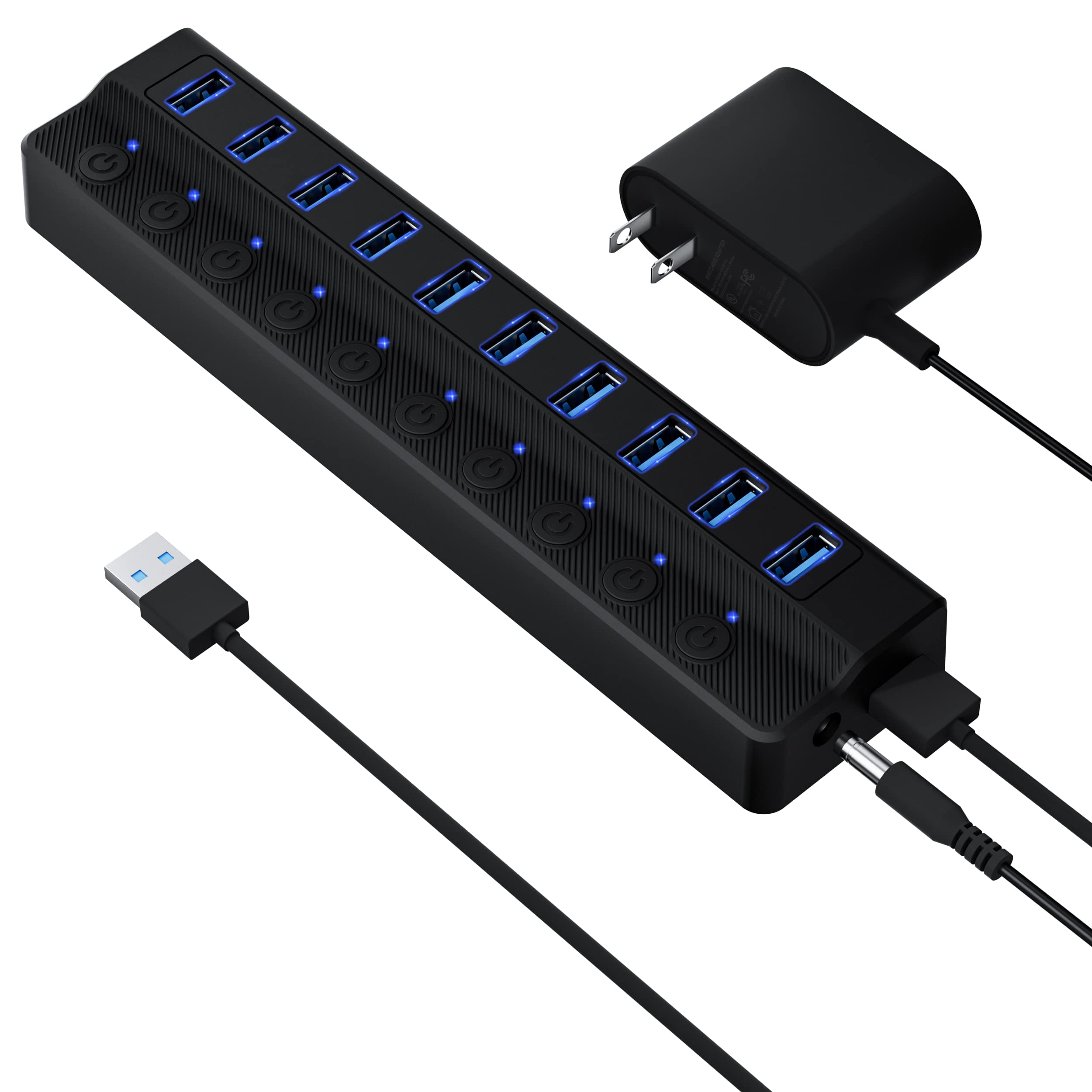
Ten is a lot of ports. This ONFINIO hub takes one USB 3.0 port on your notebook, desktop, or smart TV and turns it into ten — and unlike the four-port Acer, it ships with its own 12V/2A power adapter, so each port is fed from the wall rather than draining your laptop. The gap is genuine: this hub measures 7.8″L x 1.7″W x 0.9″H and weighs 0.28 kg against the FORIDA’s 0.1 kg counterpart, which tells you a real power supply and a ten-port board are inside.
Each port has its own on/off switch and a small LED, so you can kill power to a single device without yanking the cable. Plugging in a houseful of gadgets is the obvious use case — one port for your phone, one for a tablet, one for the family’s assorted cables, and still room to spare. Transfer speed holds at 5Gbps and the hub asks for nothing in the way of drivers.
Two things are worth knowing before you buy. The buttons are small and their activation lights are faint, which makes a dark shelf a little fiddly. And charging an iPhone or iPad through the hub draws mixed results — some devices take power happily, others do not. Data devices like drives, keyboards, and card readers behave themselves. Set your expectations on charging rather than data and this one delivers what it promises.
The honest read: if you need a wall of ports on a shared desk, ten switched ones with a dedicated power brick is a serious amount of expandability for a desktop companion.
What it is not: a phone-charging station. Treat the ports as data ports that happen to pass some power.
It wins on: households that plug in a lot of different devices on one machine.
The catch: faint switch lights and inconsistent phone charging mean you should keep a separate charger for your phone.
3. Aluminum 8-Port USB Hub
Almost four feet of cable, so the hub lives where your hands do.
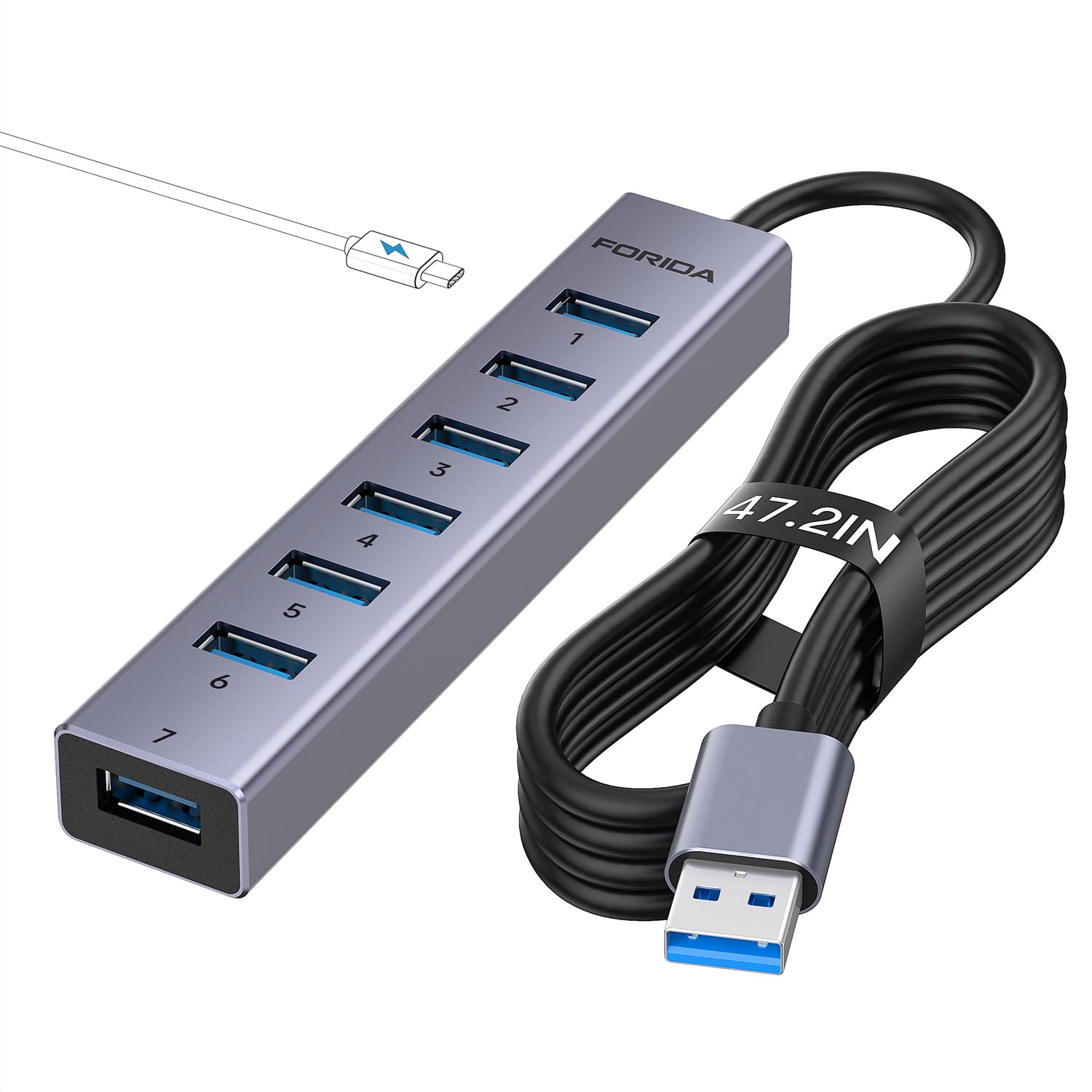
Seven USB-A 3.0 ports plus a 47.2in cable is the combination that makes this FORIDA hub a desk organizer rather than a bag accessory. Your tower PC sits on the floor, this sits on the desktop, and you stop crawling under the desk to swap a drive. The aluminum shell counts for something too — a metal case on this weight class (0.1 kg) tells you it is built for a permanent desk spot, and metal sheds heat better than plastic over a long workday.
Data runs at 5Gbps across the seven data ports, which the listing frames as more than ten times faster than USB 2.0 — a fair way to say an HD movie copies in seconds rather than minutes. There is also an eighth port: a USB-C 5V/3A power input for feeding the hub when you have several power-hungry devices going at once. That port does not move data and the cable for it is not in the box.
The recurring theme in owner feedback is that it just works as a docking point for a stack of peripherals — a mouse, keyboard, printer, and a couple of flash drives all happy at once. What tends to catch people out is the fine print: this hub does not charge your devices, and without the optional Type-C power cable, heavy loads get unstable. Buy it as a data hub with a long reach, not a charging dock, and the fit is clean.
Desk-first design: the aluminum body and 47.2in cable are meant for one fixed spot where you plug and unplug all day.
Good match for: desktop owners who want the hub on the desk, not on the tower.
Look elsewhere if: you expected the ports to charge a phone — this is a data-only splitter.
4. SABRENT 4-Port Powered USB 3.0 Hub

Four ports, each with its own glowing switch you can click off in a second.
A light tap on a switch kills power to a single port here — no unplugging a cable, no hunting for which device is drawing current. That is the SABRENT signature across its four USB 3.0 ports, and it comes with a 2.5 Amp power adapter so the ports are fed from the wall. At 1.5 ounces and 3.5″L x 1.5″W x 0.5″H it is basically the same footprint as the Acer four-port, but with a dedicated power brick instead of a passive supply.
Speed is the standard 5Gbps for USB 3.0, and it also handles older USB 2.0 at 480Mbps and USB 1.1 at 12Mbps, so legacy gear still works. The plug-and-play build means no driver hunting. Gamers running flight sticks and small LCD panels off this hub are a common happy use case, and the per-port switches are the reason — turn off the sim gear you are not using without crawling behind the rig.
One point to plan around: the USB cable that links the hub to your computer is short. On a laptop that is fine. On a floor tower it becomes a real reach problem, so measure the distance between your rear ports and where you want the hub to sit. A light touch on the cable can also disturb a monitor signal if your displays are routed through here, so route the monitors straight to the machine and use the hub for peripherals.
Why it earns a spot
- Individual LED-lit switches on every port — click one off without touching the cable
- 2.5 Amp adapter means the ports do not lean on your computer for current
- Backwards compatible with USB 2.0 and USB 1.1, so old devices still connect
- Thin and light at 1.5 ounces for a hub with its own power supply
Measure before you mount it
- The connecting cable is short — awkward if your tower sits on the floor
- A nudged cable can interrupt a monitor feed; keep displays off this hub
The right pick when: you want to cut power to individual peripherals without yanking cables on a desk or a gaming setup.
Measure first if: your machine is under the desk rather than on it.
5. Wenter 5-Port USB Hub

Four data ports for the work, one USB-C port for the phone.
Most hubs here are all-data. This Wenter adds a dedicated USB-C charging port alongside its four USB-A 3.0 data ports, which means your phone or tablet gets a socket while the drives keep their own. The 5V/3A adapter delivers up to 2.4 amps to that charging port, and it is a separate outlet — you are not stealing current from your hard drive to top off a phone.
Each port has its own on/off switch with a soft LED, which the listing notes is gentle on the eyes rather than a harsh glare. Cable lengths are generous for the category: a 100cm (3.3ft) USB cable and a 120cm (4ft) power cable, so you can route things around a monitor stand instead of dangling. Data runs at 5Gbps across the four data ports, and setup is plug-and-play across Windows, Mac OS, and Linux.
Be clear about the split. The USB-C port is charge-only — no data passes through it — and the four USB-A ports will not power high-draw devices like certain external hard drives without the adapter connected. Large transfers through heavy drives have shown read timeouts in some setups. For a desk where you plug in a flash drive, a headset, a keyboard, and a phone, the layout is genuinely convenient.
Best use: a mixed desk where one gadget needs charging while others need data, and you would rather not add another wall charger.
Keep in mind: the four data ports are modest power for spinning hard drives — connect the adapter and avoid the heaviest transfer jobs.
Goes well with: a phone-and-accessories desk that wants one socket doing two jobs.
Not for: a workflow built on constant large-drive transfers.
6. 4FT 7-Port USB Hub 3.0
A four-foot leash that lets the desk hub reach where your hands already work.
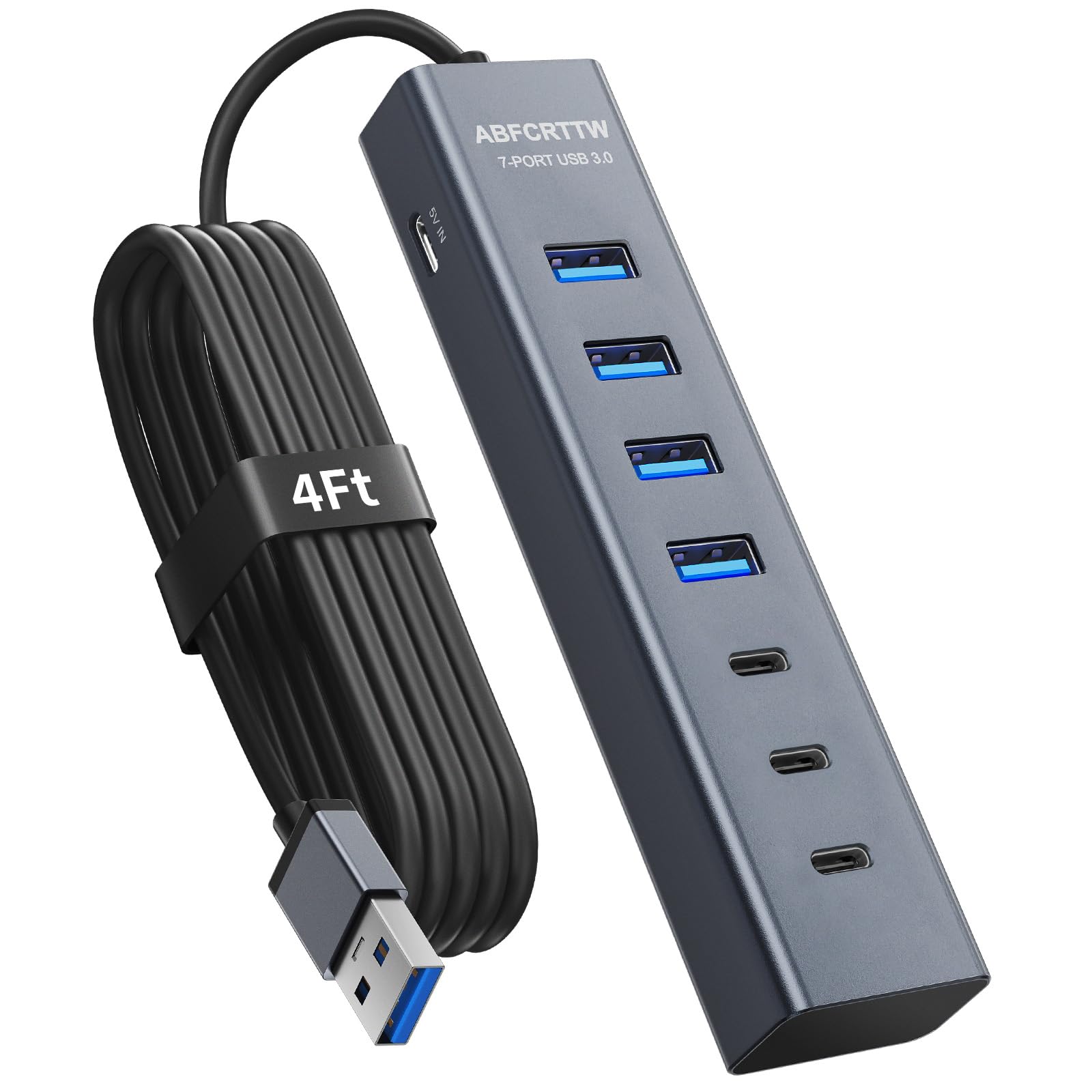
Seven ports on this ABFCRTTW hub are not all the same shape — four are USB-A and three are USB-C. That mix matters on a modern desk where the older peripherals still use rectangular plugs but your newer cables are all USB-C. The 4-foot cable is the real story: with your tower PC under the desk or on the floor, the hub can sit on the desktop and give you access without crawling on your knees.
Transfer runs at 5Gbps, which the listing calls 10x faster than USB 2.0, and the aluminum case does the heat-shedding work over a long day. Inside, dual high-performance chips are meant to keep multiple devices talking to the laptop without stepping on each other. A 5V/3A Type-C port adds 15W of power for a high-draw device like an external drive or a USB fan, so the heaviest item on your desk gets its own supply.
This is a data hub, so no port here will charge a phone — the listing says it plainly. Owners who fit this to a tower and a desktop get one version of satisfaction: mouse, mic, webcam, and a couple of drives all living on the desktop while the PC stays parked out of sight. The aluminum body feels solid rather than hollow, and it stays cool to the touch. If you want to charge devices from it, this fails the brief. If you want ports where your hands are, it nails it.
Made for: a tower PC on the floor that needs its ports lifted to the desktop.
skip it if: you wanted to charge a phone from the hub — this one is data only.
7. 3.28FT 7-Port USB 3.0 Hub Multiport Adapter for Laptop, PC
Seven ports facing the ceiling, so plugging in is a one-hand drop.
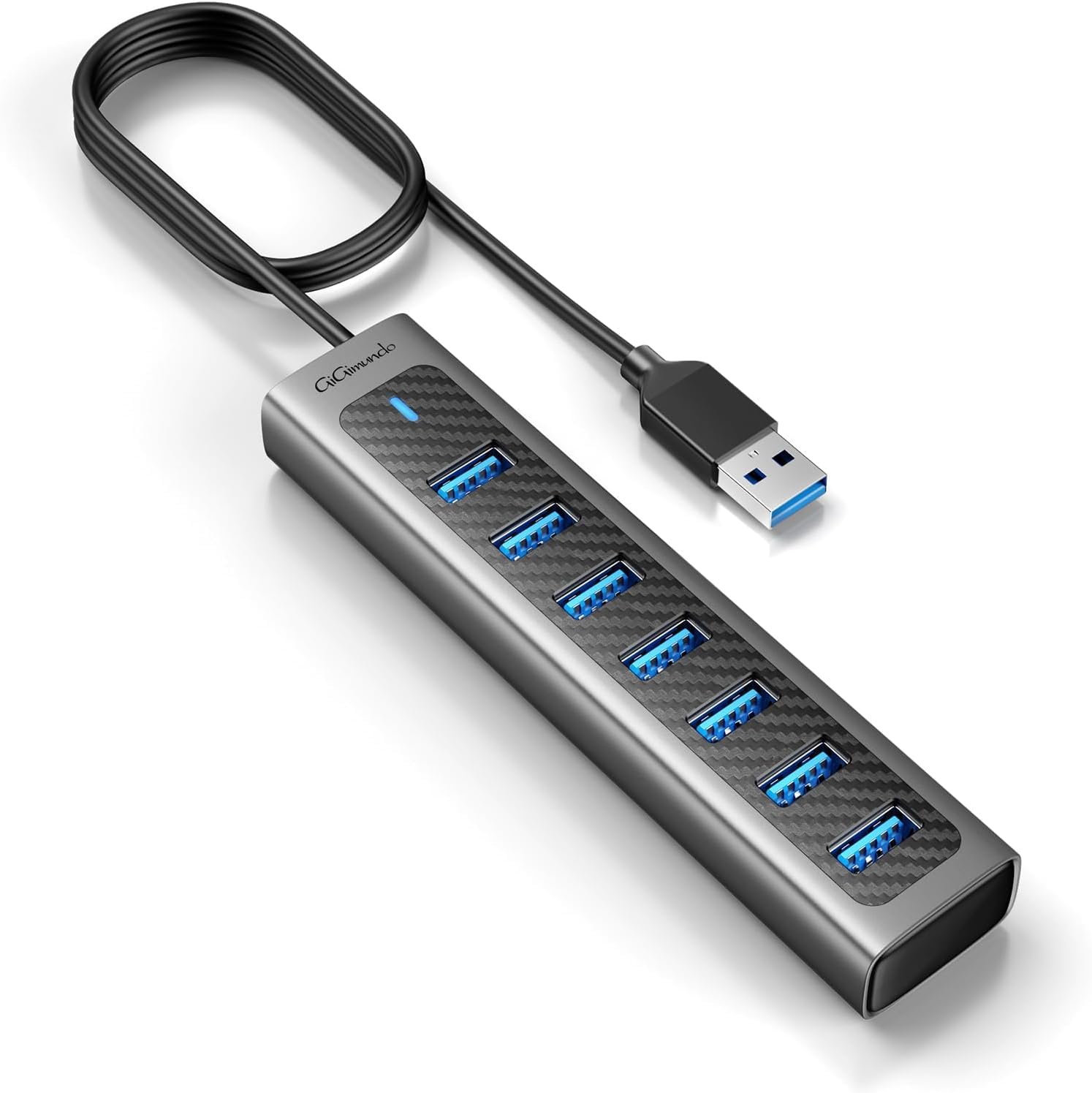
The ports on this GiGimundo hub point upward. That sounds small until you are reaching behind a machine in the dark — a top-facing port means you can drop a plug in from above instead of feeling for a slot. Seven USB-A 3.0 ports are on offer, with a 3.3ft cord giving you more reach than the short-cable options. The aluminum body looks the part on a desk and lets heat escape under load.
Each port delivers 5Gbps, so photos, documents, and HD video move at the normal USB 3.0 pace. There is also a USB-C 5V/3A power input for the hub itself when you have several hungry devices connected. The compact size and light weight — 3 ounces — keep it tucked into a corner of the desk or a mini-PC setup without adding clutter.
One rule applies across this whole GiGimundo, FORIDA, ABFCRTTW family: the ports do data, not charging. Your phone or tablet will not juice up from here, and the USB-C power input is for the hub, not the devices. Set up in the right role, it is a tidy desktop companion that owners reach for as a one-stop docking point for a mouse, keyboard, and a couple of external drives. The upward layout is the detail you notice every time you plug in.
Small details that add up
- Ports face upward, so you can plug in from above without looking
- 3.3ft cord gives real reach to a desk-top placement
- Aluminum build looks polished and helps shed heat
- Compact footprint fits a small desk without crowding it
Data role only
- The USB-C port powers the hub but cannot charge or move data
- Charging cable for the power input is not in the box
The one to pick: when quick, blind plug-ins matter and seven ports cover your whole desk.
Rethink it if: you expected to charge a phone from a hub port.
8. Acer 10 Gbps USB C Hub
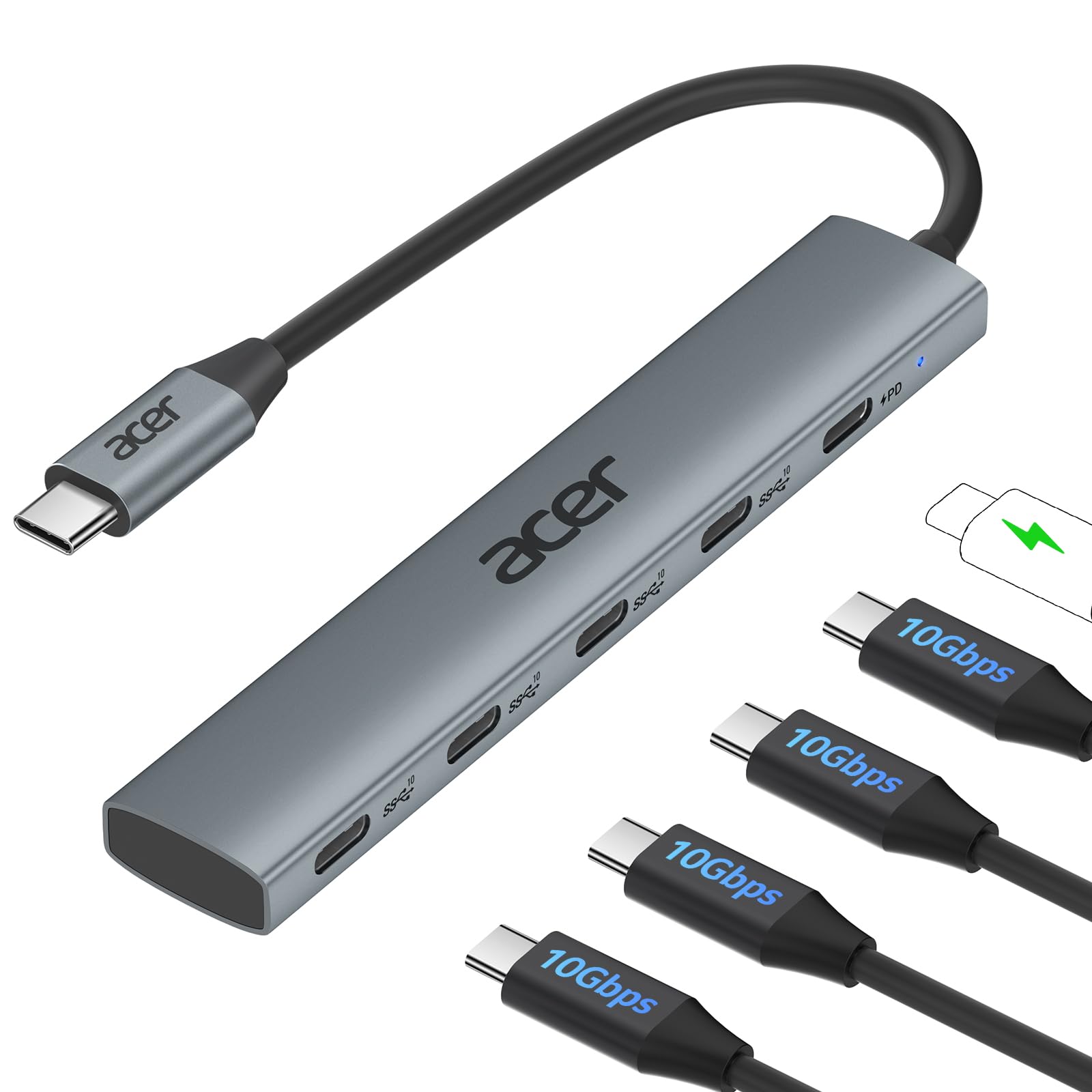
Four USB-C ports at 10Gbps, plus a pass-through that keeps your laptop charged.
A USB-C-only laptop has a different problem from an older machine. This Acer splits one USB-C port into four USB-C 3.2 Gen 2 ports, and they move data at 10Gbps — double the 5Gbps ceiling of the USB-A hubs above. The listing says that is 1GB in one second, which is the kind of speed that changes a RAW photo or video backup from a wait into a blink. If you work on a modern MacBook, iPad, or XPS, this is the hub that speaks your port’s language.
The fifth port is a 100W Power Delivery port — a pass-through socket that sends power back to your laptop while the four data ports do their work. You keep your charger connected and the laptop stays topped up during the transfer. The aluminum enclosure sheds heat and the whole unit weighs 60 g, small enough to slip into a sleeve. Setup is plug-and-play across Windows, macOS, Linux, iPadOS, iOS, and Android.
Two conditions decide whether this is the right call. The 10Gbps ceiling is shared across all four ports, not handed to each one, so packing every port with a drive splits the bandwidth. And it is a data hub — no video output, so it will not drive a monitor, and Acer recommends keeping to one or two external drives or SSDs at a time for stability. For a USB-C laptop hauling files between fast drives, it is a clean tool.
Where it shines: a USB-C-only laptop that wants four more USB-C ports and a charging pass-through in one palm-sized piece.
The limit to respect: 10Gbps is the shared total across four ports, and there is no video out — keep the display cable in the laptop.
Made for: MacBook and USB-C laptop owners moving large files between fast drives.
Not the pick if: you need an HDMI or display output from the hub.
9. 16-Port USB 3.2 Hub
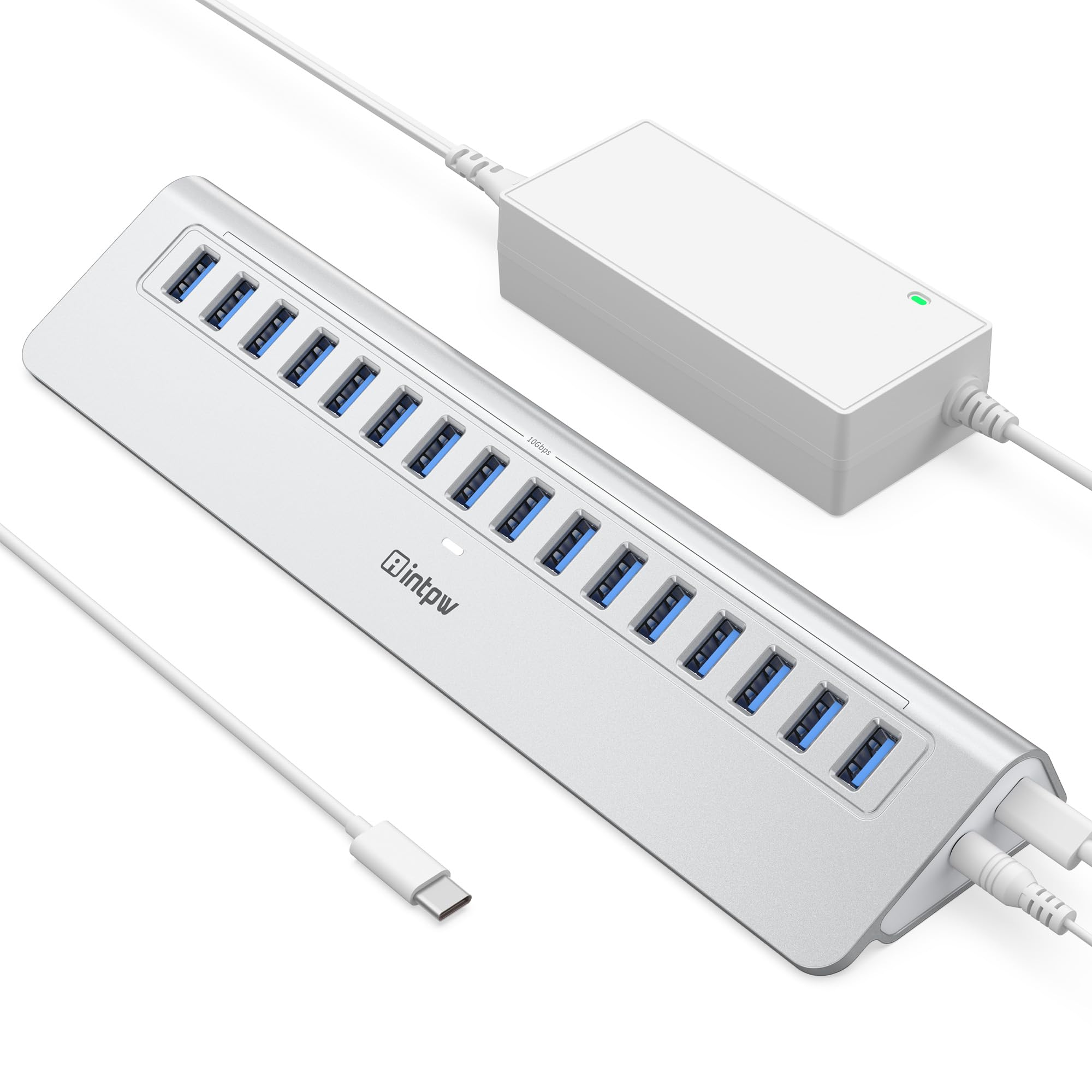
Sixteen ports at 10Gbps and a 65W supply — this is a workbench, not a desk toy.
Sixteen all-USB-A ports at 10Gbps each is a different tier of hub entirely. The intpw listing quotes measured throughput of 999.4MB/s write and 886.5MB/s read — numbers built for a video editor or a data-heavy workflow copying footage straight off a card. Unlike the hybrid hubs that mix USB-A and USB-C, every port here is USB-A 3.2 Gen 2, so there is no adapter confusion and no sharing the sandbox with a slower connector.
The 65W external adapter is what makes sixteen ports workable at once — no device starving for current because eleven others are plugged in. The chassis is one-piece aluminum with anti-slip feet, and the entire port face sits at a 28-degree angle so you plug straight in from above without lifting the unit. Surge protection plus FCC, UL, and CE certification rounds out a package clearly aimed at a working setup rather than a coffee table. A 3.3ft USB-C to USB-C cable is included for cable management.
This is the most expensive option here and built for the use case to match. Two limits to hold onto: it will not drive a video output, and it is not built for fast phone charging — this is a data and peripheral-power hub for a bench. If you are a creator juggling a stack of drives, the throughput and sixteen ports make it the serious tool. If you want four ports for a mouse and a USB stick, it is more machine than you need.
The professional read: sixteen USB-A ports backed by a 65W supply and a tilted face is a bench instrument, priced and sized for people who move large files daily.
Built for: video editors, IT benches, and multi-drive workflows that would otherwise swap drives all day.
Wrong tool if: you only need a few extra ports for everyday peripherals.
Know the Specs
5Gbps versus 10Gbps data transfer
The speed number — 5 Gigabits per second or 10Gbps — is the ceiling for how fast data can move through the hub. 5Gbps is the standard USB 3.0 rate and handles files, photos, and an HD movie in comfortable time. 10Gbps doubles that ceiling, and it pays off when you shuttle large video or RAW photo files between fast drives. Both are maximums: your laptop’s port, the cable, and the drive on the other end each cap the real-world speed, so a 10Gbps hub feeding a slow thumb drive will not feel different.
Powered versus bus-powered
A bus-powered hub drinks current from the single USB port it plugs into. A powered hub brings its own wall adapter — a 12V/2A brick, a 5V/2.5A unit, or a 65W supply — so every port has headroom. For a mouse, keyboard, or flash drive, a bus-powered splitter is enough. The instant an external hard drive or SSD joins the party, the drive wants more current than the host port can supply, and a powered hub is what stops the transfer from stalling or dropping.
Data ports versus charging ports
Data-only versus charging ports is the most-missed distinction in this category. Many hubs have a USB-C port that exists only to power the hub itself, not to move data or charge a device — the Acer ODK350 and the aluminum FORIDA hub say so plainly. Other hubs include a genuine charging port, like the Wenter’s USB-C charging socket or the Acer ODK4L0’s 100W pass-through. Read which is which before you plan a phone around it, or you will wonder why nothing happens.
Cable length and port orientation
A short cable keeps a hub in a laptop bag. A 3.3ft or 4ft cable lets it sit where your hands already work while the computer stays under the desk. Port direction matters too: an upward-facing or 28-degree angled port lets you plug in blind from above. Cable length and port angle decide how often you actually use the hub — most extender frustration comes from reaching behind a machine to plug something in.
Common Questions
Will a USB port extender charge my phone?
Do I need a powered hub for an external hard drive?
Will a 10Gbps hub make my files copy faster?
Will a USB hub add lag to my mouse or keyboard?
Can I use a USB-A hub with a USB-C laptop?
Can a USB hub drive a monitor or display?
How long should the hub cable be for a tower PC on the floor?
Do these hubs work with Mac, Windows, and Linux?
Are the 16 ports on the intpw hub all the same type?
Can I use every port on a hub at the same time?
The Bottom Line
For most people, the usb port extender that solves the everyday problem is the Acer 4-Port Hub — four USB 3.0 ports at 5Gbps in a 1.6-ounce shell that slips into a laptop bag, and it is the one to grab if you commute with a thin machine. If you want a wall of ports on a shared desk, the ONFINIO 10-Port Hub gives you ten switched ports with its own 12V/2A adapter. And if you work with a tower PC on the floor or edit video off a stack of drives, the intpw 16-Port Hub is the serious tool — sixteen USB-A ports at 10Gbps fed by a 65W supply. For a USB-C-only laptop, the Acer ODK4L0 is the one to reach for.
How we choose
We do not accept paid placement. Every pick is matched to a real buyer and a real use-case; we do not hands-on test units.
Sources
Specifications: manufacturer listings and product documentation. Review insights: verified customer reviews, as of November 2026. Pricing: not shown on this page (it changes often); check the current price via the retailer link.
As an Amazon Associate, Tactical Gear Guy earns from qualifying purchases. This does not affect which products we feature.