Specs are compiled from manufacturer listings and verified buyer reviews and can change over time — please confirm the key details on the product page before buying.
Your Windows 10 desktop only looks as sharp as the panel you plug it into. A 27-inch screen with a fast refresh rate and an IPS panel (a screen type that keeps colours steady from side angles) makes text crisp and cursor motion smooth. Most people overspend on the tower and then sit behind a dim, blurry display that hides half the detail. This guide sorts the real standouts for a Windows 10 desk from the ones that leave you squinting.
This guide is built by comparing the manufacturers’ published specifications and the patterns across verified customer reviews, so you get each pick’s real strengths and trade-offs instead of marketing spin.
What actually matters for a Windows 10 setup is panel type, refresh rate, and ports that match your ports. Below you get eleven picks sorted so you can match one to your desk and your budget in a few minutes with confidence, choosing the best monitor for Windows 10 without second-guessing the specs sheet.
Top Picks

How To Choose The Best Monitor for Windows 10
Windows 10 won’t tell you which display to buy. It just wants a cable and a working connection, and the choice is yours. Three things you’ll feel every day decide it: how sharp the picture is, how smooth the motion is, and how well the ports match the gear on your desk.
Refresh rate is the biggest upgrade you will feel
A refresh rate is how many times per second the screen redraws, measured in hertz (Hz). A 144Hz display redraws 144 times a second, so dragging a window or scrolling a long document feels smooth instead of jerky. Windows 10 handles this fine, but you often need to set it yourself under Display Settings. A 60Hz panel is the old standard and looks choppy beside a fast one.
Panel type decides colour and viewing angles
IPS stands for In-Plane Switching, a screen design that keeps colours steady when you look from the side. That matters if you lean back in your chair or glance at the screen from a second desk position. Cheaper twisted-nematic panels wash out at an angle. The picks here lean heavily on IPS for that reason.
Match the ports to your PC before anything else
Check what your desktop or laptop outputs. HDMI is the most common connector and almost every pick here has it. DisplayPort is common on graphics cards and gives you the higher refresh rates. VGA is the old analog plug and still useful if you keep an ageing tower alongside a newer laptop. Buying a beautiful panel that needs a dongle you do not own is the classic first-week frustration.
Side-by-Side Comparison
| Model | Best For | Resolution | Refresh Rate | Panel | Amazon |
|---|---|---|---|---|---|
| Dell SE2726H★ Best Overall | All-round Windows 10 desk | 1920 x 1080 | 144Hz | IPS | Amazon |
| LG 24G411A-BCompact Pick | Budget gaming | 1920 x 1080 | 144Hz (O/C) | IPS | Amazon |
| Samsung S3 (S32GF)Everyday Favourite | Everyday home office | 1920 x 1080 | 120Hz | IPS | Amazon |
| ViewSonic VA2448-MH | Multi-monitor walls | 1920 x 1080 | 120Hz | IPS | Amazon |
| ViewSonic VA2456A-MHD | Mixed-port setups | 1920 x 1080 | 120Hz | IPS | Amazon |
| MSI PRO MP275Q | Sharp productivity | 2560 x 1440 | 100Hz | IPS | Amazon |
| Dell S2725HSM | Adjustable comfort | 1920 x 1080 | 144Hz | LCD | Amazon |
| AOC Q27G41ZE | Fast competitive play | 2560 x 1440 | 240Hz (260Hz O/C) | IPS | Amazon |
| LG 27US500-W | 4K detail work | 3840 x 2160 | — | IPS | Amazon |
| ASUS ProArt PA279CRV | Photo and video editing | 3840 x 2160 | — | IPS | Amazon |
| Samsung Odyssey OLED G6 | Premium gaming | 2560 x 1440 | 240Hz | QD-OLED | Amazon |
Detailed Reviews
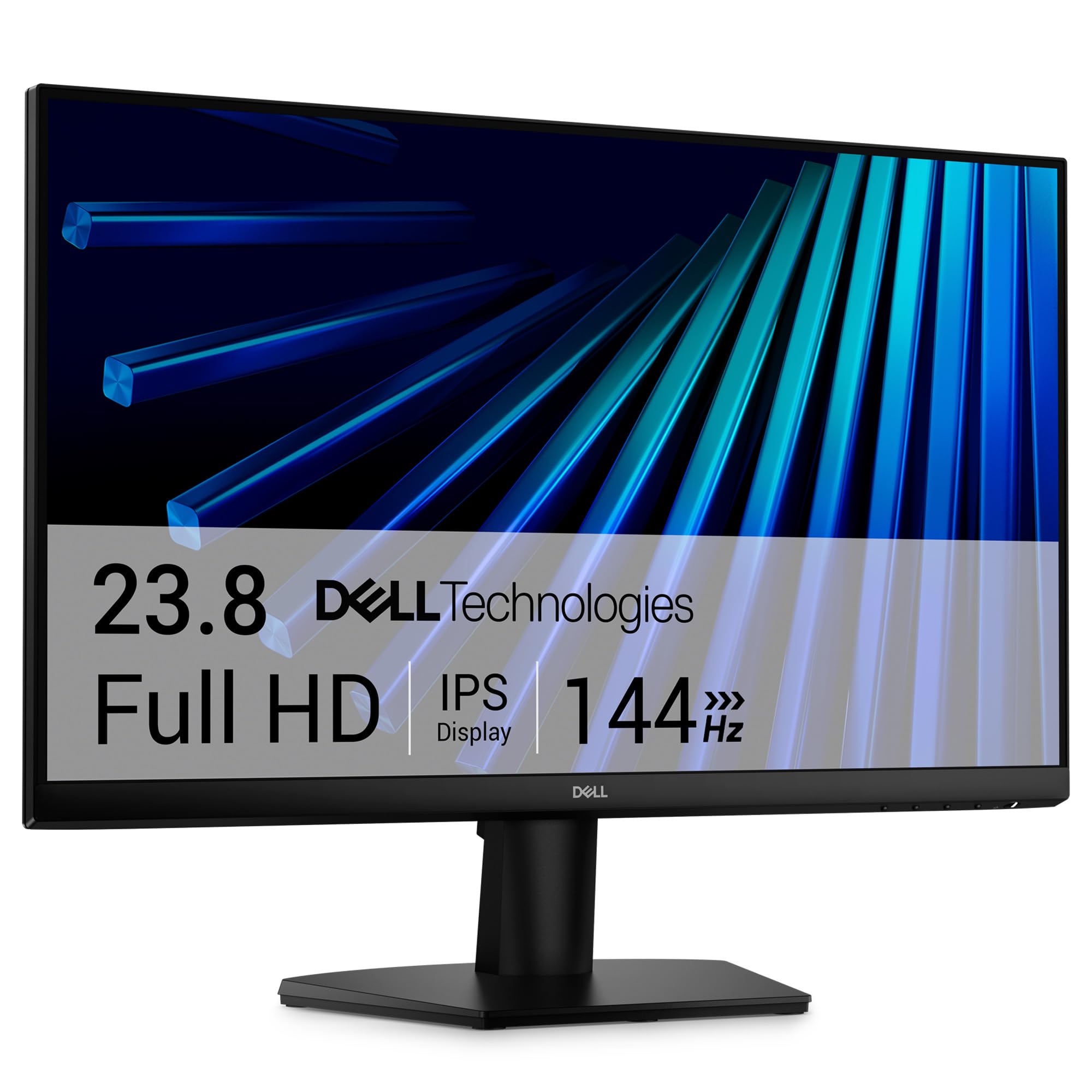
1. Dell 27 Monitor – SE2726H
Our pick — 4.5+★ from 850+ verified ratings; the strongest balance of quality and price.
A 27-inch workhorse that moves as fast as a gaming panel without the gamer styling.
The Dell SE2726H is the pick most people should start with. Its 27-inch IPS panel runs a 144Hz refresh rate, so on Windows 10 a scrolling spreadsheet or a dragged window glides instead of stuttering. Resolution is 1920 x 1080, which at this screen size keeps text large and readable without scaling tricks. The 1ms MPRT figure (a motion-response measure) means fast on-screen movement stays crisp rather than smearing.
Brightness sits at 300 nits, which is bright enough to fight a sunlit window. The 178° /178° viewing angle keeps the picture steady if you pivot your chair, and anti-glare coating softens overhead lamp reflections. Dell ships an HDMI cable in the box at 1.8m, so plugging into your desktop takes minutes. Its 4.5+ star average across 800+ ratings reflects that same all-round competence.
Move this next to the Samsung S3 and the extra speed shows: 144Hz versus 120Hz, and a 1,000:1 contrast ratio against the Samsung’s 1000:1. What wins people over is straight quality that holds up across both work and play. It is not a 4K panel, so fine photo retouching may push you toward the LG 27US500-W instead. For everything else on a Windows 10 desk, this is the size, speed, and price balance that fits.
What earns its keep
- 144Hz refresh keeps Windows 10 scrolling and dragging smooth
- 27-inch IPS panel with 178° /178° viewing angles so colour holds up off-centre
- 300 nit brightness plus anti-glare treatment for bright rooms
- HDMI cable included, so setup is a single plug
Where it gives ground
- Resolution tops out at 1920 x 1080, so it is not a fine-detail editing panel
- Stand offers tilt only, no height or pivot adjustment
Reach for this if: you want one 27-inch display that handles office work, streaming, and casual gaming on Windows 10 without thinking twice.
Look elsewhere if: you need pixel-level colour work or an adjustable stand — the ProArt and Dell S2725HSM cover those jobs.
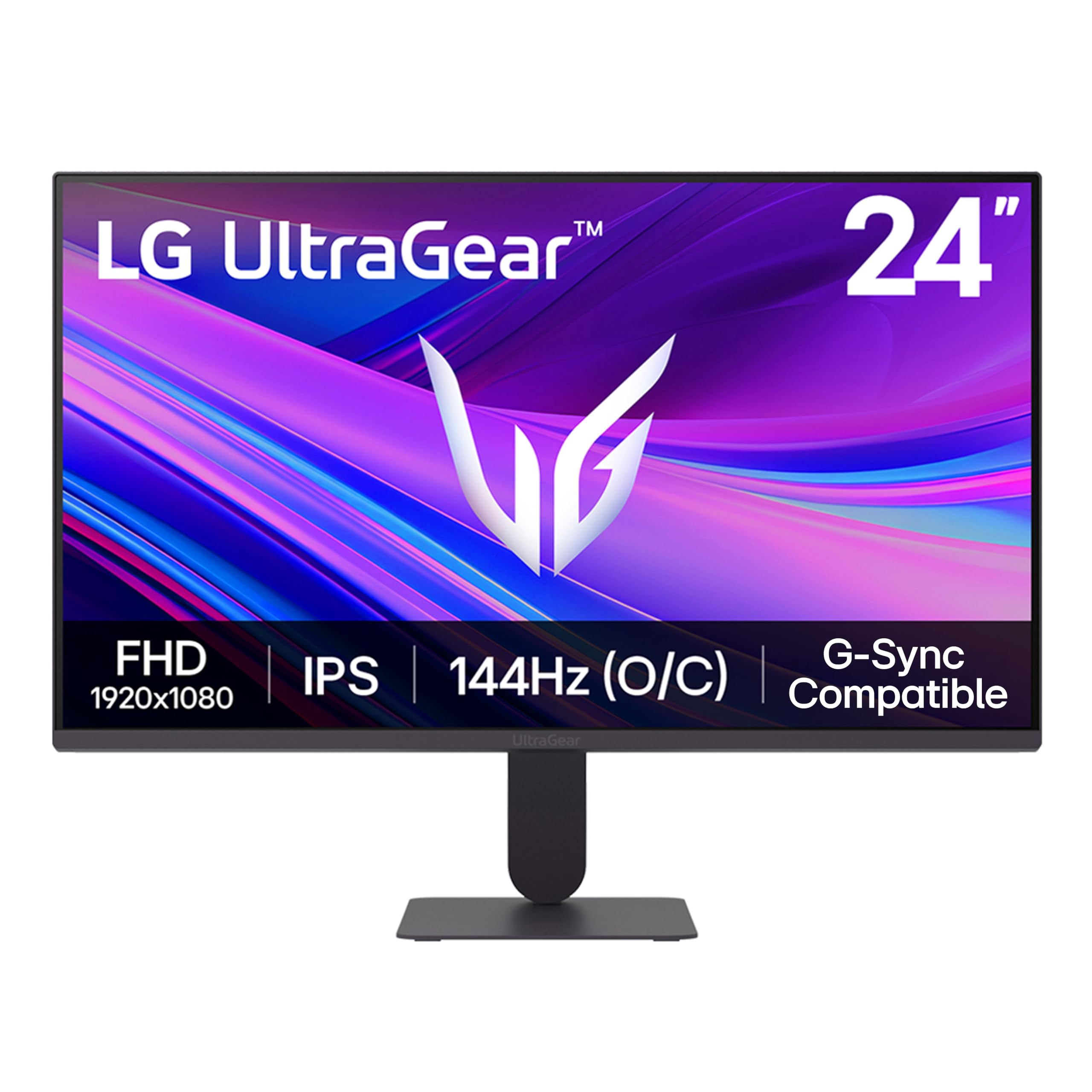
2. LG 24G411A-B 24-inch Ultragear
A compact 24-inch speed panel that bets on colour depth over screen size.
Colour is where this LG separates itself from the rest of the list. Its IPS panel covers up to 99% sRGB (the colour range most Windows 10 content is built for). That is the figure to keep in mind when you compare it to the Samsung S3, which the spec sheets list at a far lower gamut figure. In plain terms, photos and video thumbnails carry more faithful colour on this screen. The 24-inch 1920 x 1080 panel is also a sensible fit for a smaller desk or a second display.
Speed is not compromised. It runs a 120Hz native refresh rate that overclocks to 144Hz, with 1ms MBR (motion blur reduction) to keep fast scenes sharp. Both NVIDIA G-Sync Compatible and AMD FreeSync are supported, so regardless of which graphics card fights for a frame, you get no tearing. HDR10 support adds a wider brightness range on supported content.
The extras aim at gamers: Dynamic Action Sync trims input lag, Black Stabilizer lifts dark scenes, and a Crosshair overlay puts a centre aiming reference on screen. The Switch app splits the display into up to 6 sections, which is genuinely handy for Windows 10 multitasking. The honest limit is brightness at 250 nits, dimmer than the 300-nit Dell and ViewSonic panels. On a very bright room that difference shows, though the vivid colour offsets it.
Colour-first logic: 99% sRGB coverage is the standout spec here, and it is why the picture punches above its screen size for streaming and photo viewing.
Suits the colour-conscious buyer: a compact desk, a love of faithful colour, and a taste for fast shooters.
Think twice if: your room is flooded with daylight — the 250-nit panel is dimmer than rivals here.
3. Samsung 27″ S3 (S32GF) Series
A slim 27-inch home-office panel for people who mostly browse, stream, and type.
The S32GF is the easy everyday choice for a Windows 10 desk that is mostly documents and video. Its 27-inch IPS panel runs a 120Hz refresh rate, which smooths out scrolling and cursor movement well past the old 60Hz standard. Reduced blue light and flicker-free backlighting keep long sessions easier on the eyes during a full workday.
Four picture modes shift colour and contrast for different genres, and there is a dedicated eye-care setting for evening reading. The build is notably slim, with ultra-thin borders that keep the screen itself the star on a tidy desk. Setup is close to plug-and-play via HDMI, and the panel works fine as a second screen alongside a laptop. The recurring gripe is brightness control, which can feel locked; treat that as a quirk rather than a fault.
The headline trade-off against the Dell SE2726H is speed: 120Hz versus 144Hz. That gap is small enough that most office workers will not notice it in a spreadsheet. Where the Samsung shines is simplicity — unbox it, plug in the HDMI, and it just works for a home setup.
Desk-friendly package: a slim frame and easy HDMI setup make this a quick swap-in for an ageing monitor.
Best fit for: the home office user who values a clean look and painless setup over peak motion speed.
One thing to accept: brightness adjustment is the most common frustration — some users find it stubborn to dial in.
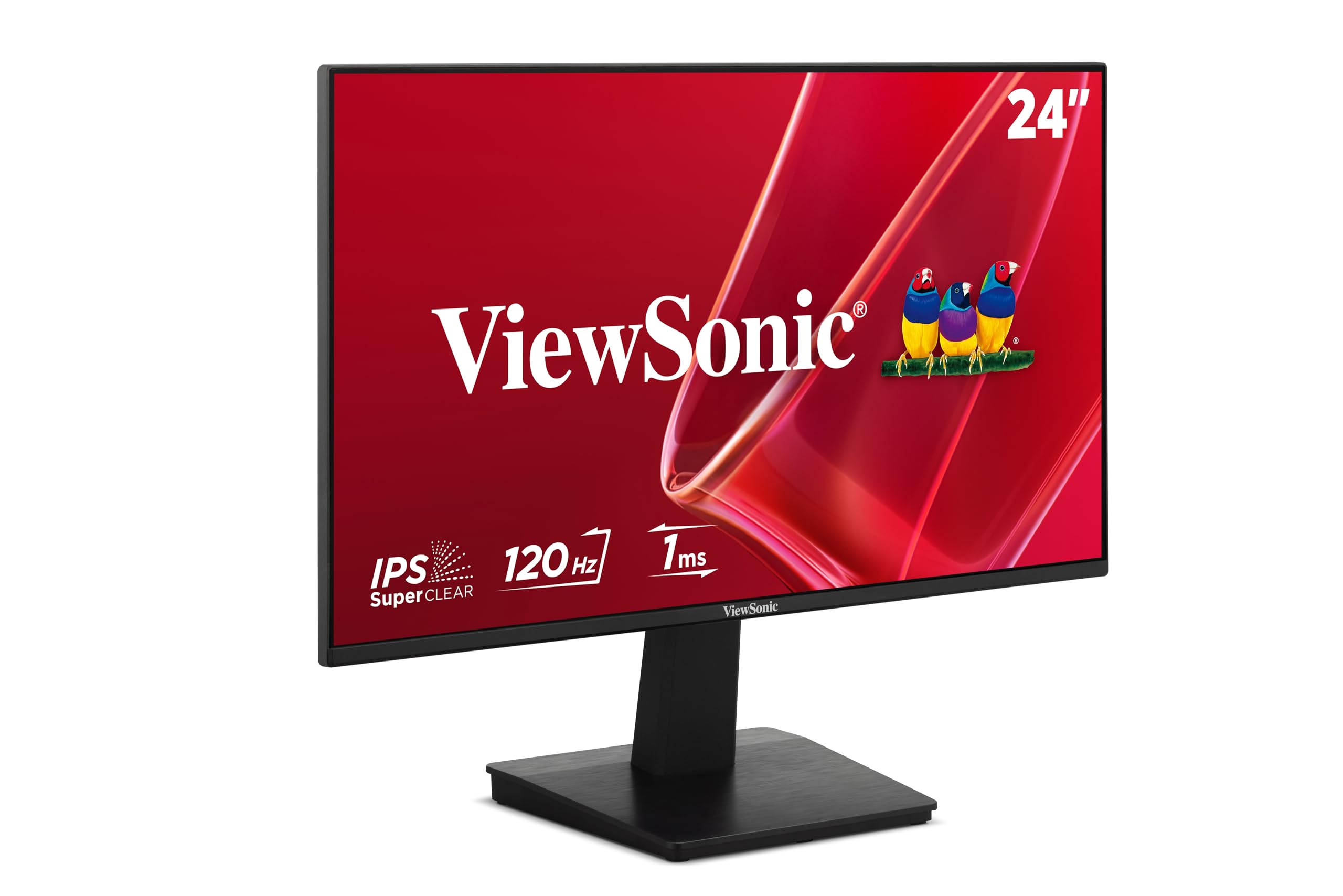
4. ViewSonic VA2448-MH 24 Inch
A frameless 24-incher built to sit flush beside its twin on a dual-monitor desk.
Frameless design is the reason this one makes the list. The 24-inch Full HD screen has almost no border, so you can line up two or three of them side by side with barely a gap between images. That turns a Windows 10 workspace into a single wide canvas for email, spreadsheets, and video calls. It also beats the Dell SE2726H on contrast: 1500:1 versus 1,000:1, which means black text on white pages and dark scenes carry more separation.
Connectivity is deliberately broad. HDMI 1.4 handles modern laptops and desktops, while VGA keeps an older tower in play. Built-in 2W speakers and a 3.5mm audio in-and-out remove the need for separate speakers on a cramped desk. At 300 nits with an anti-glare finish, text stays legible beside a window.
Motion sits at 120Hz over HDMI with a 1ms response time and Variable Refresh Rate to cut tearing in casual games. A 100 x 100mm VESA mount lets you hang it on a monitor arm, and a 3-year limited warranty backs the panel.
Built for walls of screens: the frameless edge and VGA-plus-HDMI pairing make this the natural pick for a two- or three-monitor array.
Pick this for: a multi-display Windows 10 setup where you want screens to sit flush and blend.
Know going in: the 2W speakers are weak, so add your own audio for anything beyond a call.
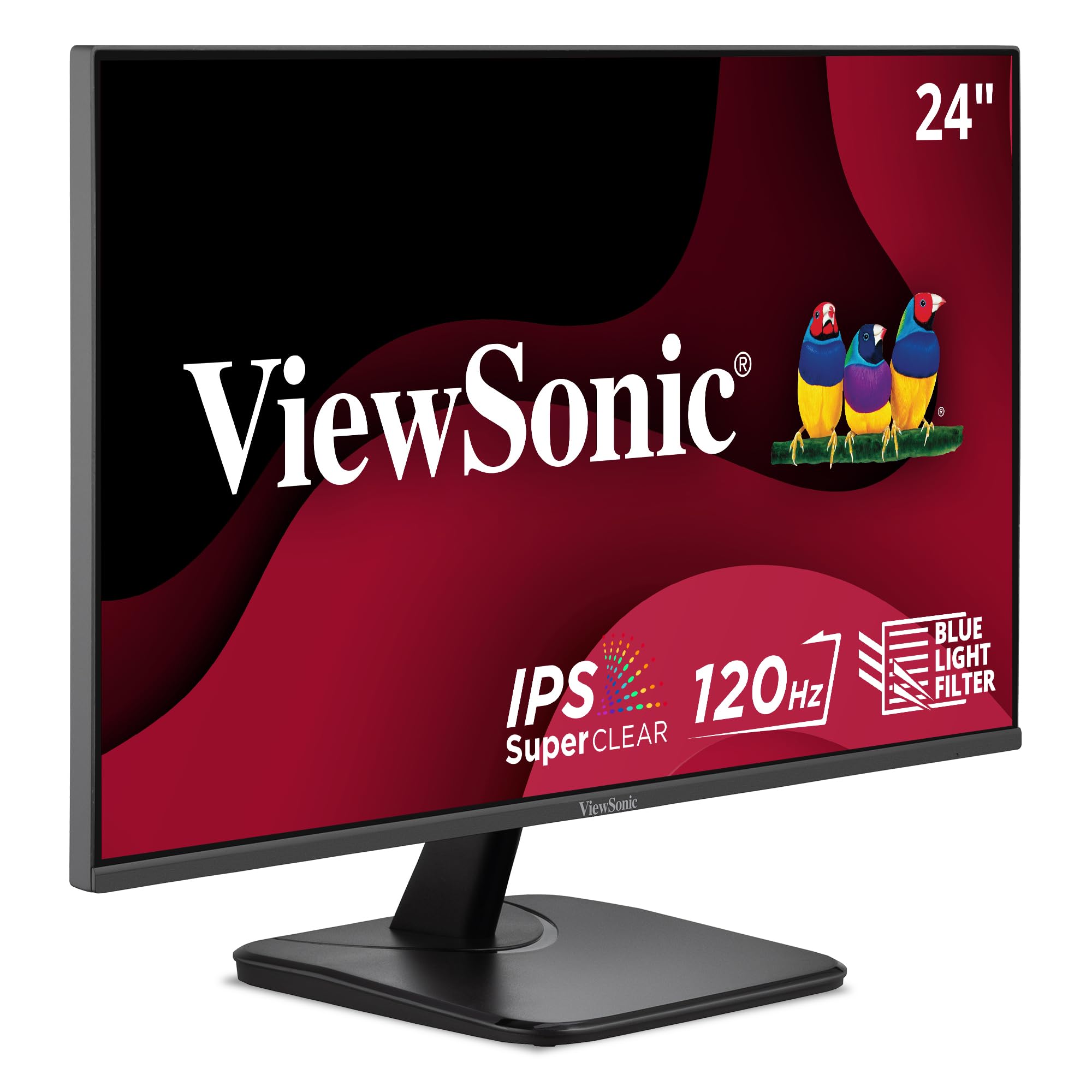
5. ViewSonic VA2456A-MHD 24 Inch
Three input types on one 24-inch panel, so almost any PC in the house can use it.
Most monitors here offer one or two ports and leave you adapting. This ViewSonic carries HDMI, DisplayPort, and VGA together, which makes it the most flexible connector on the list. A modern laptop goes through HDMI, a graphics card through DisplayPort, and an old tower through VGA — all from one screen. The 24-inch 1080p IPS panel runs a 120Hz refresh rate with a 4ms response time and Variable Refresh Rate for smooth scrolling and video.
Dual built-in speakers mean you get audio without extra gear. Eye Care technology and an anti-glare surface keep long study or meeting sessions comfortable. Colour gamut sits at 0.8 on the spec sheet, which is a step below the LG 24G411A-B’s 99% sRGB coverage — fine for office work and browsing, less so for colour-critical editing.
The thin-bezel frame fits neatly into a single- or multi-display layout. What holds it back is neither speed nor ports, but that colour figure. For mixed-port convenience on a Windows 10 desk, though, few screens cover this many cable situations in one clean package.
Strong points
- HDMI, DisplayPort, and VGA together — the widest input mix here
- 120Hz IPS panel with 4ms response and Variable Refresh Rate
- Dual built-in speakers and anti-glare screen for long sessions
Worth noting
- Colour gamut (0.8) trails the LG’s 99% sRGB, so avoid colour-critical work
- 24-inch size only — no larger variant for bigger desks
Right call if: you juggle several PCs or laptops and want one screen that accepts all of them.
Not the one if: accurate colour is your priority — go with the LG or the ProArt for that.
6. MSI PRO MP275Q 27 Inch WQHD

More pixels than a 1080p panel of the same size, without a jump in complexity.
Resolution is the draw here. This MSI packs a 2560 x 1440 WQHD panel into 27 inches, which means more pixels than the 1080p Dell SE2726H across the same physical area. On Windows 10 that shows up as crisper text in documents and more spreadsheet columns visible at once. The IPS panel covers 100% sRGB (10 bits, 1.07B colours) with 300 nits brightness and a 1300:1 contrast ratio, so colour is wide and blacks stay deep.
Refresh rate is 100Hz, lower than the 144Hz Dell but still smoother than 60Hz. The MSI Display Kit app adds split-window multitasking and preset display profiles, which is a useful extra for a Windows 10 workflow. A tool-free stand snaps together in moments, with a cable management clip to tidy the back. Built-in 2W speakers handle conference calls in a pinch, and 100mm VESA brackets let you mount it on an arm.
The honest catch shows in eye comfort and brightness feedback. Some buyers find the panel needs tuning before it feels comfortable for long stretches — worth setting your own brightness and profile on day one. For pixel density on a productive desk, though, this is the sharpest 27-incher before the 4K tier.
Pixel-density payoff: the 2560 x 1440 panel is the reason text looks tighter here than on any 1080p 27-inch pick in this list.
Made for: document-heavy work where more on-screen pixels means less scrolling.
Set expectations: expect to tweak brightness and profile settings to make it comfortable over a long day.
7. Dell 27 Plus Monitor – S2725HSM
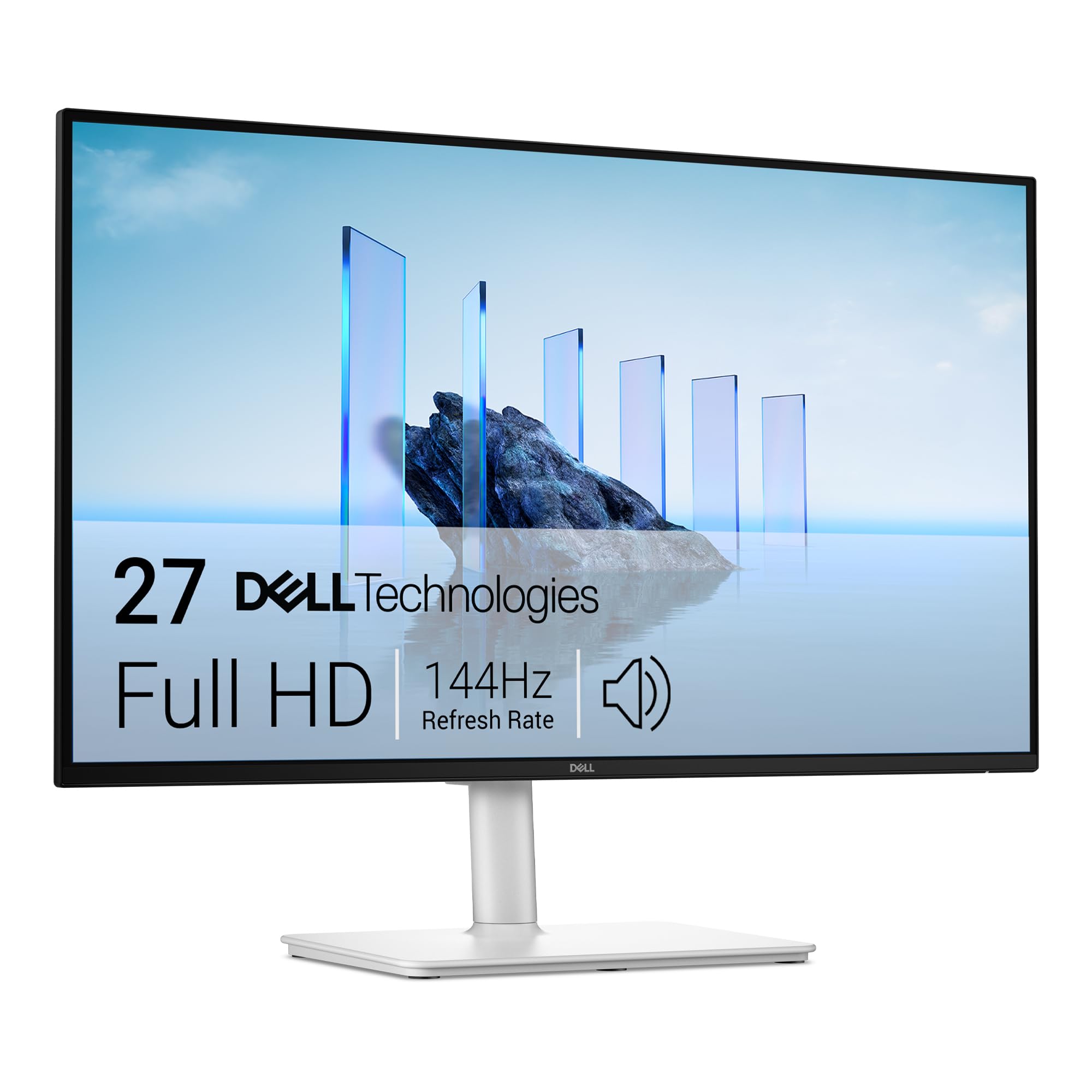
The pick for anyone whose neck has paid the price for a fixed stand.
Adjustment is the whole story with the S2725HSM. Its stand handles height, tilt, pivot, and swivel all at once, so you can raise the screen to eye level and rotate it to portrait for long documents. A 27-inch 1080p panel with a 144Hz refresh rate and 1ms MPRT keeps motion smooth, and the 1500:1 contrast ratio beats the 1,000:1 of the Dell SE2726H for deeper blacks. Its 4-star TÜV certification cuts blue light without shifting colour.
Audio is a real step up too. Dual integrated 3W speakers cover a wider frequency range than most built-in monitor speakers, which means calls and video play without a separate soundbar on a tight desk. The 300-nit anti-glare panel stays readable in daylight, and the ash-white finish suits a lighter desk.
The Dell Display and Peripheral Manager app lets you tune the workspace from Windows 10 itself. What you give up is size-to-price smoothness against the cheaper SE2726H — you pay more for the adjustable stand and better speakers. For all-day comfort, that trade is worth naming clearly.
Why desk ergonomics matter here
- Height, tilt, pivot, and swivel adjustment in one stand
- Dual 3W speakers deliver fuller audio than typical monitor speakers
- 144Hz refresh with 1ms MPRT and 1500:1 contrast for deeper blacks
The honest trade
- Still a 1920 x 1080 panel, so it is not a 4K detail screen
- Costs more than the SE2726H for the same core panel speed
Best for: anyone who shares a desk or works long hours and needs the screen to move to them.
Skip if: a fixed stand already sits at the right height and you would rather spend on pixels.
8. AOC 27″ Gaming Monitor QHD Q27G41ZE
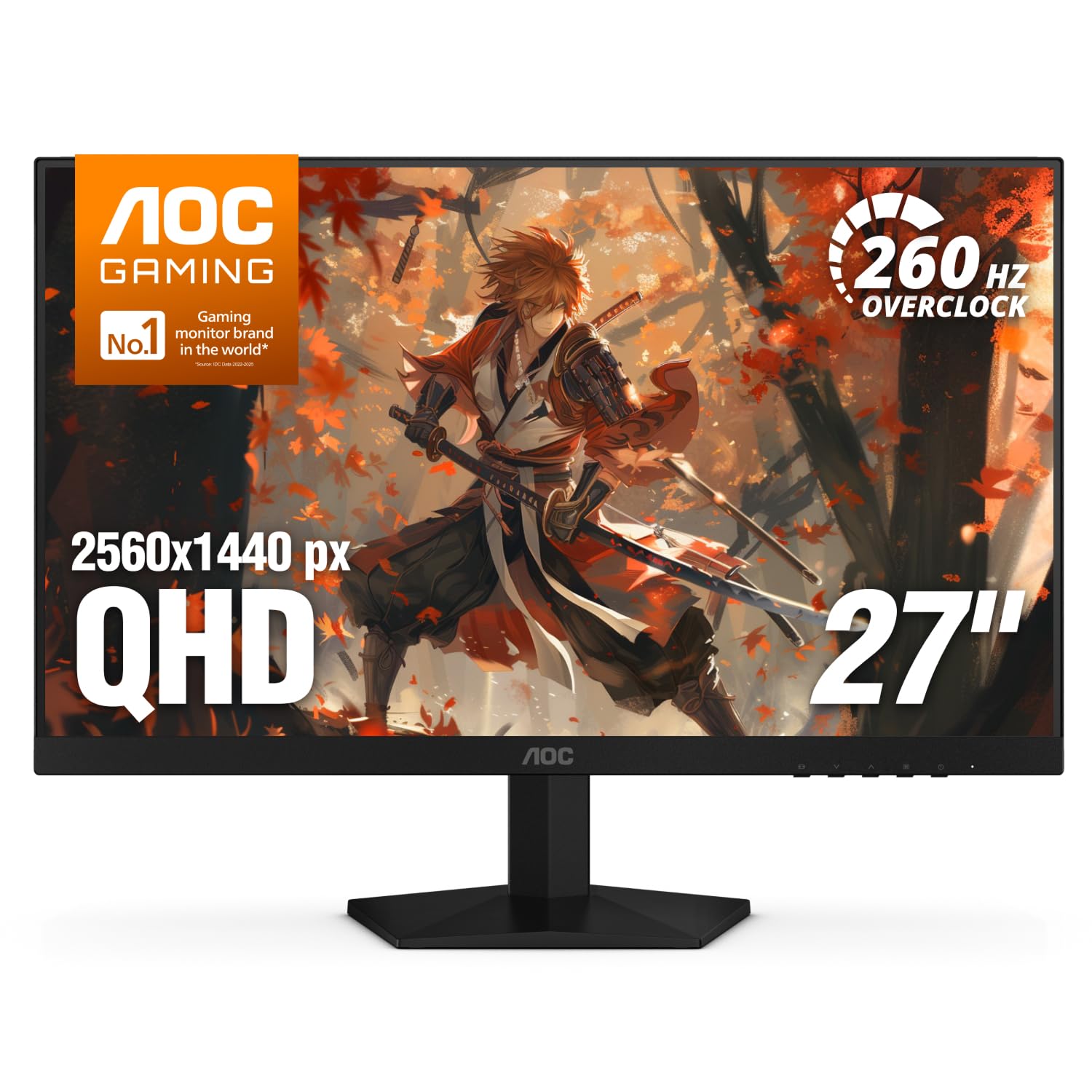
A 240Hz QHD panel for the Windows 10 gamer who also needs a sharp workspace.
The 240Hz refresh rate (via DisplayPort) and 0.3ms MPRT response time push this AOC into a different league for fast games. That is well above the 144Hz offered by the Dell SE2726H, and it makes motion look almost frictionless in competitive play. The 27-inch IPS panel runs a 2560 x 1440 QHD resolution, so you get more pixels than a 1080p screen of the same size — sharp text for work and detailed scenery for games.
Adaptive-Sync support covers both AMD and NVIDIA graphics cards, so tearing and input lag are handled no matter what is in your PC. Shadow Control lifts dark corners and Game Mode presets switch tuning in seconds. Connectivity is generous: one DisplayPort 1.4 and two HDMI 2.0 ports, plus an audio out.
The -3° to +21° tilt range adjusts the angle, but this is a tilt-only stand — the bigger rivals like the Dell S2725HSM add height and pivot. It also carries a black-and-red gaming finish that may not suit a quiet office. On pure speed and pixel count together, though, it is the best balance of the two here.
Speed and sharpness together: the 240Hz refresh rate paired with 2560 x 1440 resolution is what gives this pick its edge for mixed gaming and work.
The gamer’s pick: you play fast shooters on Windows 10 and still want a high-resolution desktop for work.
Accept this: tilt-only stand and a bold gaming look, so it is less at home in a plain office.
9. LG 27US500-W Ultrafine 27-Inch 4K
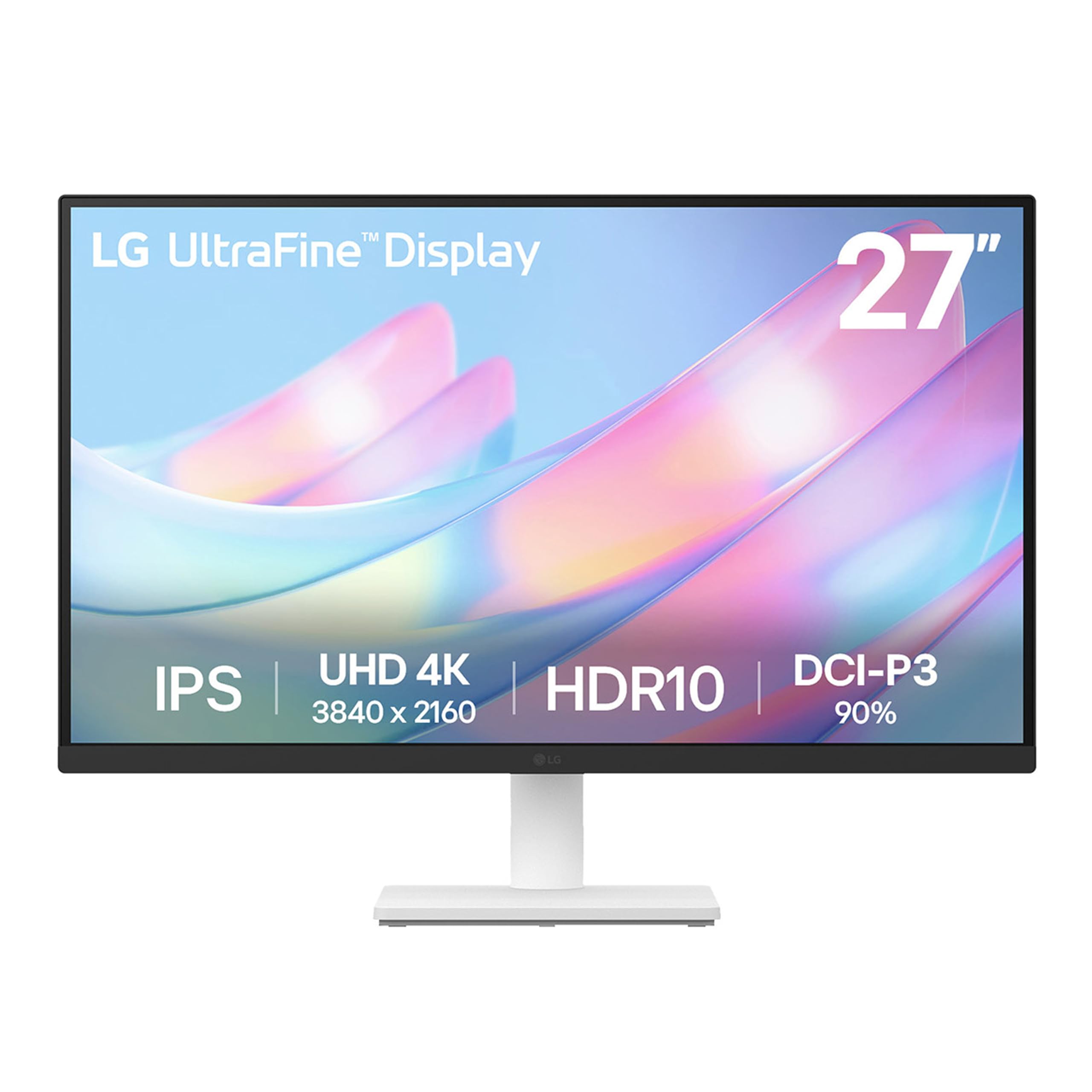
Four times the pixels of the 1080p picks, in a white frame that suits a clean desk.
This LG jumps to a 3840 x 2160 4K UHD panel, which on a Windows 10 machine means noticeably sharper text and images than any 1080p screen here. The IPS display with a 1000:1 contrast ratio keeps blacks deep, and up to 90% DCI-P3 colour gamut gives HDR10 content a wider, more faithful palette. For detail-heavy work on digital imagery, the extra pixels are the reason to pick it.
The borderless white design stands out on a light desk, and the Onscreen Control app lets you split the screen or adjust settings with a few mouse clicks. An HDMI cable ships in the box, so connecting is quick. The IPS panel holds colour across wide angles, and 300 nits suits normal indoor light.
Two things to weigh honestly. The stand is the weakest part — it is a tilt-only design, and buyers flag its steadiness as the main flaw. The ergonomic stand does adjust tilt, but there is no height or pivot. Reliability feedback is also split, so consider it a strong detail screen rather than a rugged long-haul workhorse. For pixel density on a Windows 10 desk, few non-professional panels match it.
Pixel-first view: the 3840 x 2160 resolution is the reason text looks measurably sharper than the 1080p picks, ideal for reading dense documents and detailed images.
Made for: the detail worker who wants maximum sharpness and a bright, white-framed desk.
Weigh carefully: the tilt-only, less-steady stand and mixed reliability feedback mean it is not the panel for a punishing environment.
10. ASUS ProArt PA279CRV 27 Inch 4K
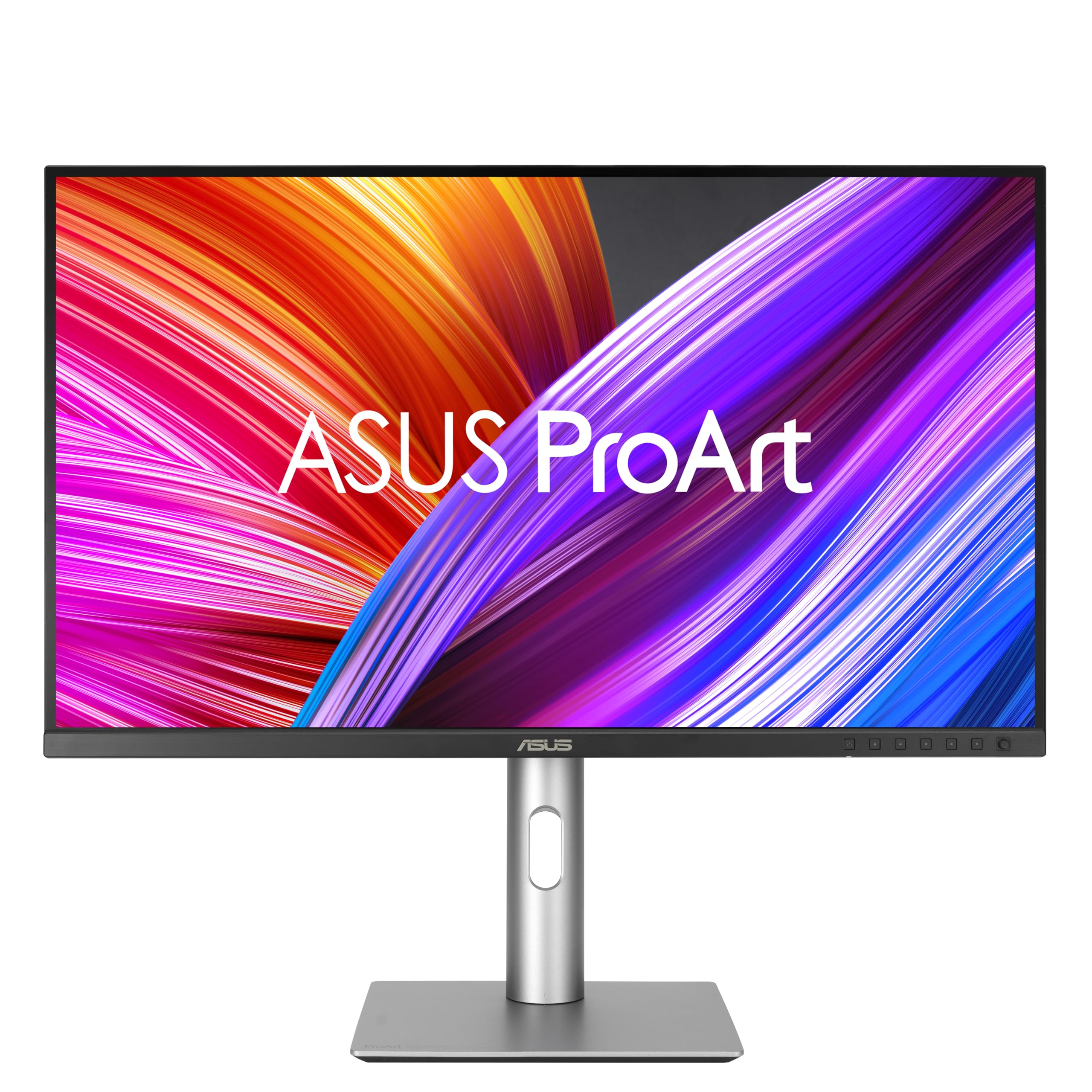
A calibrated 4K panel for editors who need colour they can trust before export.
You buy this monitor for colour you can trust. Its 27-inch 4K panel (4K means about 8 million pixels, so fine detail stays crisp) covers 99% DCI-P3 and 99% Adobe RGB (two colour ranges used in video and photo work). It also ships Calman Verified and factory pre-calibrated to Delta E < 2 (a colour-error score where lower is better), so the colour is already close to the true reference from the start. For photo and video editing on Windows 10, that removes a lot of guesswork before you send a file out. The 178-degree IPS panel (a screen type with wide viewing angles) keeps that colour steady from any angle.
Brightness reaches 400 nits, higher than most picks here, and the 3,000:1 contrast ratio puts it well ahead of the 1,000:1 panels for punchy separation. Connectivity is serious: DisplayPort over USB-C with 96-watt Power Delivery means one cable can carry video and charge a laptop at the same time. DisplayPort daisy-chain support lets you run a second screen from the same cable run, and a USB hub rounds out the ports.
The ergonomic stand tilts, swivels, pivots, and adjusts height, and a 5-year warranty (3 years plus 2 with registration) covers the long haul. The honest caveat is that some buyers find resolution and connectivity tuning takes effort to get right, and it costs more than most screens here. For calibrated 4K colour, that investment is the point.
Colour you can verify: the Delta E < 2 factory calibration and 99% DCI-P3 coverage are what justify this pick for editing work.
Reach for it if: you edit photos or video and need a 4K panel with factory-calibrated colour and one-cable USB-C charging.
Look past it if: colour accuracy is not your job — cheaper 1080p picks cover general Windows 10 use.
11. Samsung 27″ Odyssey OLED G6 (G61SH)
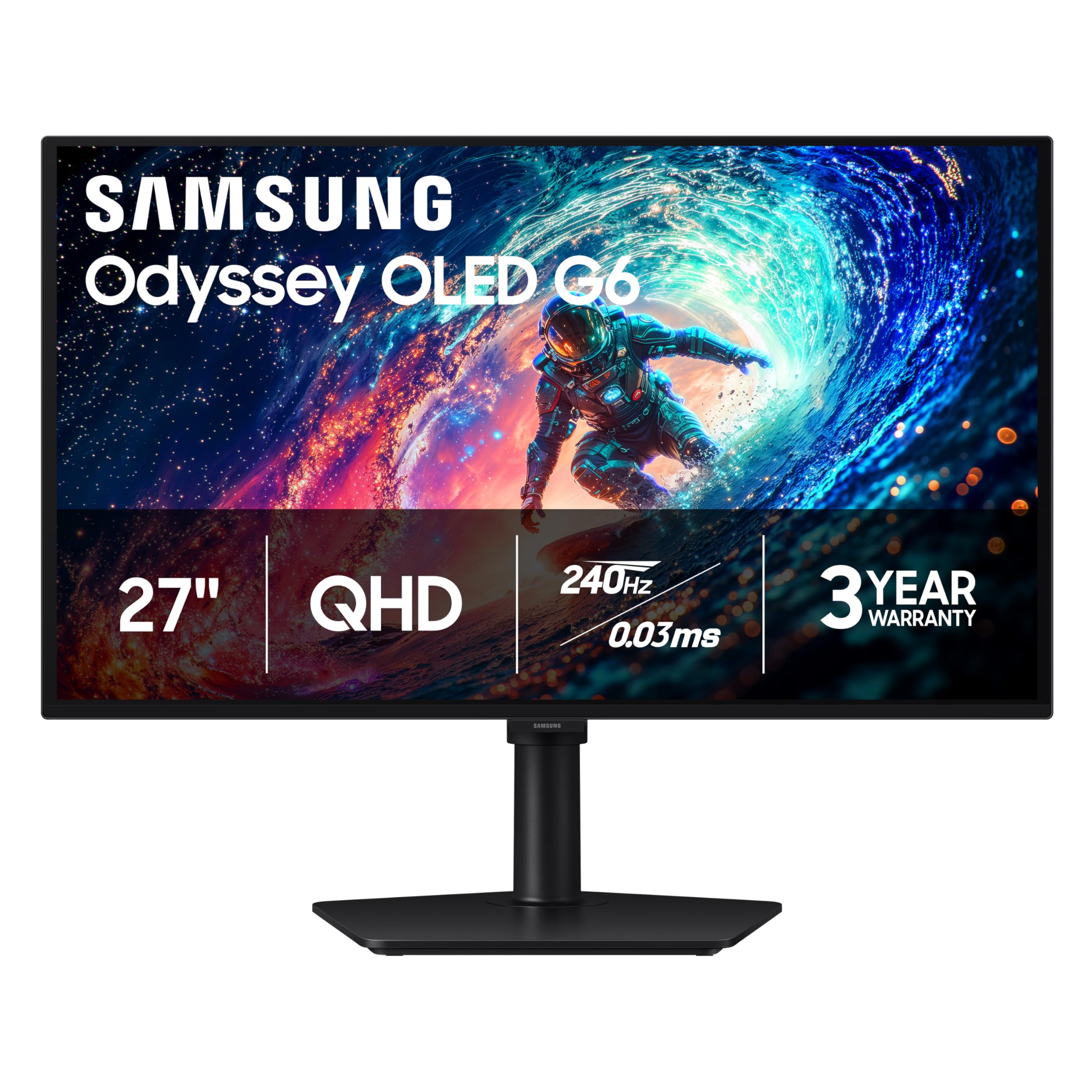
An OLED panel that turns black scenes genuinely black and motion nearly instant.
QD-OLED is a self-lit panel type, which means each pixel makes its own light instead of relying on a backlight. The result here is a 1,000,000:1 contrast ratio — far beyond the 1000:1 of the IPS picks — so dark scenes in games and films carry real depth. The 27-inch QHD (1440p) panel pairs that with a 240Hz refresh rate and 0.03ms response time, so fast motion stays razor-sharp in competitive play.
AMD FreeSync Premium reduces choppiness and tearing, and Glare Free technology keeps reflections from washing out the screen. HDR10 adds brighter highlights and more nuanced shadows for extra scene depth. The screen is Pantone Validated and reproduces 2100+ lifelike colours and 110+ skin tone shades, which shows in rich, saturated game worlds. The height-adjustable stand pivots, tilts, and swivels to get the view just right.
OLED Safeguard uses thermal modulation to help prevent burn-in, a real consideration with this panel type. The catch is text clarity, which several buyers rate as merely adequate — crisp enough for gaming and media, but fine print on a Windows 10 desktop is not this screen’s strength. If you want the deepest blacks and fastest motion on the list, this is the ceiling.
Where it pulls ahead
- 1,000,000:1 contrast for true blacks and rich dark scenes
- 240Hz refresh and 0.03ms response for near-instant motion
- Glare Free coating and HDR10 for reflections-free depth
What to know first
- Text clarity is rated only adequate for fine desktop work
- OLED burn-in needs the Safeguard feature and careful static-image habits
The premium leap: movie and game lovers who want the deepest blacks and fastest motion available here.
Hold back if: you stare at static spreadsheets all day — text clarity and burn-in care suit this screen less.
Know the Specs
Refresh rate and response time
Refresh rate, in hertz (Hz), is how many times per second the panel redraws. Higher is smoother — a 144Hz screen feels noticeably more fluid when you drag windows than a 60Hz one. Response time, in milliseconds (ms), is how quickly a pixel changes colour; a lower figure means less blur on fast movement. Windows 10 will run at whatever the panel supports, but you often need to set the rate manually under Display Settings, so check it after plugging in.
Resolution and panel type
Resolution is the pixel count across the screen — 1920 x 1080 is Full HD, 2560 x 1440 is WQHD, and 3840 x 2160 is 4K UHD. More pixels means sharper text, especially at larger sizes. IPS (In-Plane Switching) is a panel design that keeps colour and brightness steady when you look from the side. OLED is a self-lit panel type that delivers true blacks and very fast response, at the cost of some care around static images.
Common Questions
Will any of these monitors work with a Windows 10 desktop or laptop?
Do I need a graphics card to run a 144Hz or 240Hz monitor on Windows 10?
Is a 27-inch 1080p monitor sharp enough for office work?
What is the difference between IPS and OLED for a Windows 10 monitor?
Can I use a monitor with both my laptop and my desktop?
How long should a monitor last before I replace it?
Do built-in monitor speakers replace desktop speakers?
Does a higher refresh rate help with normal Windows 10 use or only gaming?
Why do some 4K monitors cost more than others with the same resolution?
Can I mount these monitors on an arm or wall bracket?
The Bottom Line
The panel you stare at all day matters more than the tower under the desk. For most people, the monitor for windows 10 winner is the Dell SE2726H because its 27-inch IPS panel blends a 144Hz refresh rate with 300 nits of brightness and a 1ms MPRT response at a sensible everyday cost. If you want sharper text and more pixels, the MSI PRO MP275Q gives you 2560 x 1440 across the same 27 inches. And for calibrated 4K colour on an editing desk, the ASUS ProArt PA279CRV is the one to reach for.
How we choose
We do not accept paid placement. Every pick is matched to a real buyer and a real use-case; we do not hands-on test units.
Sources
Specifications: manufacturer listings and product documentation. Review insights: verified customer reviews, as of November 2026. Pricing: not shown on this page (it changes often); check the current price via the retailer link.
As an Amazon Associate, Tactical Gear Guy earns from qualifying purchases. This does not affect which products we feature.