Specs are compiled from manufacturer listings and verified buyer reviews and can change over time — please confirm the key details on the product page before buying.
You bought a Surface for the speed, then plugged it into a slow dock and gave half of it back. That is the honest problem here: most “docking stations” that list Surface compatibility quietly run their USB ports at 5Gbps, not the Thunderbolt 4 speed your machine’s port was built for. The picks below are the ones that actually move data at Thunderbolt rates, charge your laptop through the same cable, and drive the monitors you already own — schooled down to the ones worth a desk slot for business use.
This guide is built by comparing the manufacturers’ published specifications and the patterns across verified customer reviews, so you get each pick’s real strengths and trade-offs instead of marketing spin.
You will see exactly where each dock earns its place: how many ports you really get, what display setup it feeds, and how much power travels back to your Surface. The short answer on which one most business desks should buy is below in our surface usb4 dock for business rundown.
Top Picks


How To Choose The Best Surface USB4 Dock for Business
The Surface side is the easy part — almost every dock here lists Surface Pro and Surface Laptop models in its compatibility line. The hard part is the spec sheet nobody reads closely: the transfer speed, the display output, and the power wattage. Get those three right and a dock just disappears into your desk. Get them wrong and you spend the day watching a progress bar.
Match the dock’s top speed to your Surface port
A Thunderbolt 4 or USB4 port on your Surface can carry data at up to 40Gbps (gigabits per second — roughly how fast files move). Some docks list a “Thunderbolt 4” name but only run their USB data ports at 5Gbps. That is the single biggest trap in this category. If you move big video files or work from an external SSD, the 40Gbps number is the one that decides whether your day feels fast or sluggish.
Count the displays you actually run
Dual HDMI ports at 4K@60Hz (a 4K picture refreshing 60 times a second) give you two sharp external screens. A VGA port at 1080P@60Hz is the older analog output — fine for a legacy projector or a spare boardroom display, but not the port you want to build your main setup around. If you need three or four monitors, check that the specific dock lists that many supported screens before you buy.
Power delivery decides your charging cable count
Power delivery is how much wattage the dock feeds back into your laptop through the same cable that carries data. A dock rated at 100W can keep a working Surface topped up while you run monitors and drives. Lower-wattage docks may charge more slowly or leave you reaching for the original charger. For a business desk, one brick and one cable is the whole point.
Driverless versus DisplayLink software
Driverless means you plug in and it just works — no software to install, which is what IT departments want for a fleet of machines. Some multi-monitor docks use DisplayLink technology, which requires a software application to drive the extra screens. That is fine at a single desk, but it adds a step when you roll out dozens of machines.
Side-by-Side Comparison
Every row uses the same three dimensions so you can scan trade-offs at a glance: the transfer speed the dock is rated for, the number of ports it exposes, and how much power it sends back to your laptop.
| Model | Best For | Transfer Speed | Ports | Power Delivery | Amazon |
|---|---|---|---|---|---|
| Surface Pro Dock Thunderbolt 4 (Rocketek)★ Best Overall | Best Overall | 5Gbps USB data | 12 | 100W | Amazon |
| New Surface Thunderbolt 4 Dock (Rocketek)Highest Rated | Highest rated | 5Gbps USB data | 12 | 96W | Amazon |
| Surface Thunderbolt 4 Docking Station (Quanlex)Budget Champion | Budget-friendly 12-in-1 | 5Gbps USB data | 12 | 100W | Amazon |
| Plugable Thunderbolt 4 Dock (TBT4-UD5) | Best for IT deployment | 40Gbps | 13 | 100W | Amazon |
| Microsoft Surface Thunderbolt 4 Docking Station | Best first-party pick | Thunderbolt 4 | 6 USB | Quick charge | Amazon |
| Plugable 16-in-1 Thunderbolt 4 Dock (TBT4-UDZ) | Best for dual-monitor desks | 40Gbps | 7 USB | 100W | Amazon |
| Kensington SD5750T | Best for secured setups | 40Gbps | 11 | Full power delivery | Amazon |
| CalDigit TS5 | Best for power-hungry laptops | 80Gb/s Thunderbolt 5 | 15 | 140W host | Amazon |
Detailed Reviews
1. Surface Pro Dock Thunderbolt 4, Triple Display (Rocketek)
Our pick — 4.5+★ from 80+ verified ratings; the strongest balance of quality and price.
The desk expander that turns one Surface port into twelve, without a driver in sight.
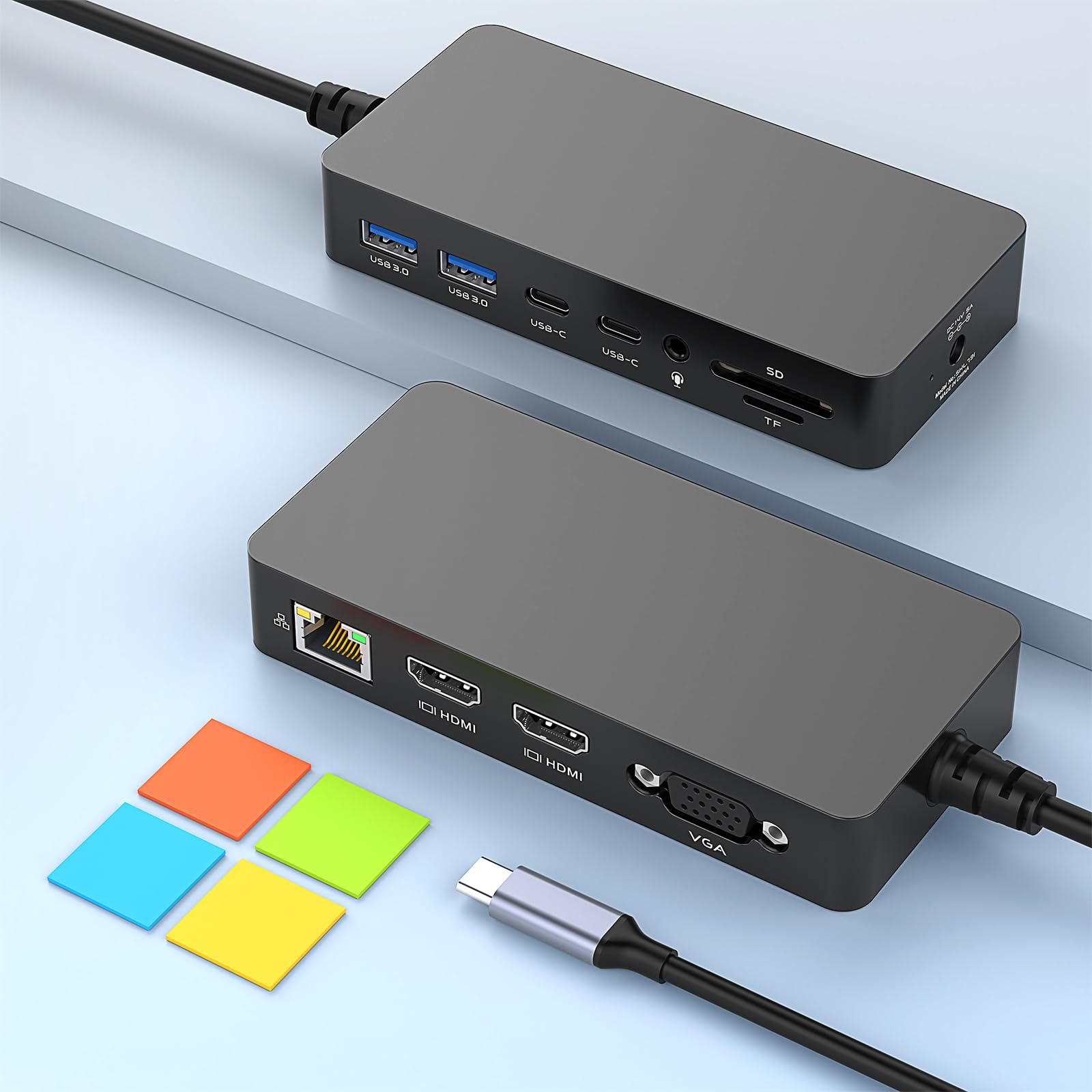
Twelve connections from a single cable is the whole pitch here, and for a Surface-based desk it covers nearly everything you plug in over a workday. You get two HDMI ports at 4K@60Hz (two sharp 4K screens, each refreshing 60 times a second), a VGA port at 1080P@60Hz for an older projector or boardroom screen, Gigabit Ethernet, two USB-C data ports at 5Gbps, two USB-A 3.0 ports at 5Gbps, SD and TF card slots, and a 3.5mm audio jack. Three displays at once, in extend or mirror mode, is the headline — your laptop screen plus two externals is a genuinely comfortable spreadsheet-and-email layout.
Power comes from a 100W DC input and a 100W power supply adapter included in the box, so the same cable that carries your monitors also keeps the laptop topped up. The Ethernet port is the quiet win for business: a wired Gigabit connection beats hotel and office Wi-Fi for video calls every time. Card slots at 5Gbps mean you can pull photos off an SD card without hunting for a reader — small thing, but it is one fewer dongle in the bag.
The catch you should know before you buy: the USB data ports here run at 5Gbps, not the 40Gbps a Thunderbolt 4 dock can reach. That is fine for keyboards, mice, printers and the occasional flash drive, but if your workday leans on a fast external SSD, you want a 40Gbps pick. Compatibility is broad — Surface Pro 13/12/11/10/9/8/X/7+/7, Surface Laptop 7/6/5/4/3, Surface Laptop Go, Surface Go, Surface Book and Surface Studio 2 all appear on the list. It ships with a 12-month service and warranty and needs no drivers — plug the single USB-C cable in and all twelve ports come up.
Where this dock pulls ahead
- Twelve ports including dual HDMI at 4K@60Hz plus a VGA output — three displays without adapters.
- 100W power delivery through the same cable, with the power adapter included.
- Wide Surface compatibility across Pro, Laptop, Go, Book and Studio lines.
- Gigabit Ethernet and a 3.5mm audio jack built in for calls and wired headsets.
What to weigh first
- USB data ports top out at 5Gbps — not the 40Gbps a Thunderbolt 4 dock can carry.
- VGA is limited to 1080P@60Hz, so it is a legacy screen output rather than a main display.
The right buy for: a Surface Pro or Laptop desk that needs lots of everyday ports and two or three monitors, where speed is not the bottleneck.
Look past it if: your workflow leans on a fast external SSD and you need genuine 40Gbps transfer.
2. New Surface Thunderbolt 4 Dock Triple Displays (Rocketek)
The near-identical sibling of the top pick, with a smaller power brick and the best score on this list.
If you own a Surface Pro or Laptop and simply want the ports back, this 12-in-1 arrangement does the same core job as the pick above: dual HDMI at 4K@60Hz, a 1080P@60Hz VGA, Gigabit RJ45 Ethernet, two USB-C data ports, two USB 3.0 ports, an SD/Micro SD 3.0 reader, and a 96W DC power supply. The 96W adapter is the one real difference from the top pick’s 100W — a four-watt gap that in practice means both keep a working Surface charged through a long day of calls and monitors.
The PowerExpand USB-C connector is a small but real convenience: the plug is shaped so you do not have to spin the cable around trying to find the right orientation. It also carries a 24-month manufacturer warranty with free lifetime technical support — double the 12-month cover on the Rocketek 12-in-1 above. The card reader runs at 480Mbps for TF/SD, which is fine for pulling a few photos but not the port to move a full shoot from.
Here is the honest trade-off, identical to the top pick: these USB ports run at 5Gbps, while the Plugable TBT4-UD5 below pushes 40Gbps — an eight-times gap in rated data speed. For office peripherals that does not matter; for an external SSD it does. Note also that you must connect the included power adapter for the dock to work, so this is not a bus-powered travel puck. If you want a proven 12-in-1 that simply plugs in and behaves, this is the one with the best track record here.
Why buyers settle here: plug-and-play with no drivers, plus the longest warranty of the two Rocketek docks — 24 months and lifetime technical support.
The one dial to watch: 5Gbps USB data and a mandatory power adapter mean it is a desk dock, not a pocket hub, and not a fast-storage machine.
Reach for this if: you want the calmest setup — plug it in, forget it, and let the 24-month cover do its job.
Think twice if: you need 40Gbps transfers or a dock that runs without its power brick attached.
3. Surface Thunderbolt 4 Docking Station, 12-in-1 (Quanlex)
A 12-port Surface dock that covers the basics without stretching the desk budget.
This one earns its slot on port count and value. Twelve ports include dual HDMI at 4K@60Hz (up to 3840×2160), VGA at 1920×1080@60Hz, Gigabit RJ45 Ethernet rated 10/100/1000Mbps, two USB-A 3.0 and two USB-C ports at 5Gbps, SD/TF slots reaching up to 104MB/s, a 3.5mm audio jack, and a 100W DC power supply with the adapter included. For a Surface desk that needs screens, network and a wired headset, that is the whole checklist.
The SD/TF figure is worth a note — 104MB/s is a card-reader speed measured differently from the 5Gbps USB figure, so don’t compare the two numbers directly. The point is the slots are fast enough to grab photos and video off a card without a separate reader. Ethernet at Gigabit is the business-relevant part: a steady wired line for calls and uploads beats Wi-Fi whenever the office network gets crowded.
What you give up: these are 5Gbps USB ports, so a fast external SSD will not run at Thunderbolt rates here. The dock also requires its power adapter to function. It backs itself with 18 months of after-sales service, six months longer than the 12-month Rocketek 12-in-1 and six months short of the 24-month Rocketek sibling. For a junior desk, a shared meeting room or a second workstation, the port spread covers the job at the friendliest value tier on this list.
What the port list buys you
- 12 ports including dual 4K@60Hz HDMI and a 1080P VGA for legacy screens.
- 100W power supply adapter included, so the laptop charges through the dock.
- Gigabit Ethernet and a 3.5mm audio jack for wired calls.
- 18 months of after-sales cover and driver-free plug-and-play.
Trade-offs to know
- USB data runs at 5Gbps, not 40Gbps Thunderbolt speed.
- The power adapter is required for the dock to operate.
The sensible fit: a second desk, a meeting room or a small-business rollout where port coverage matters more than raw speed.
Step up instead if: you move large files from external drives daily and need the faster Thunderbolt throughput.
4. Plugable Thunderbolt 4 Dock TBT4-UD5
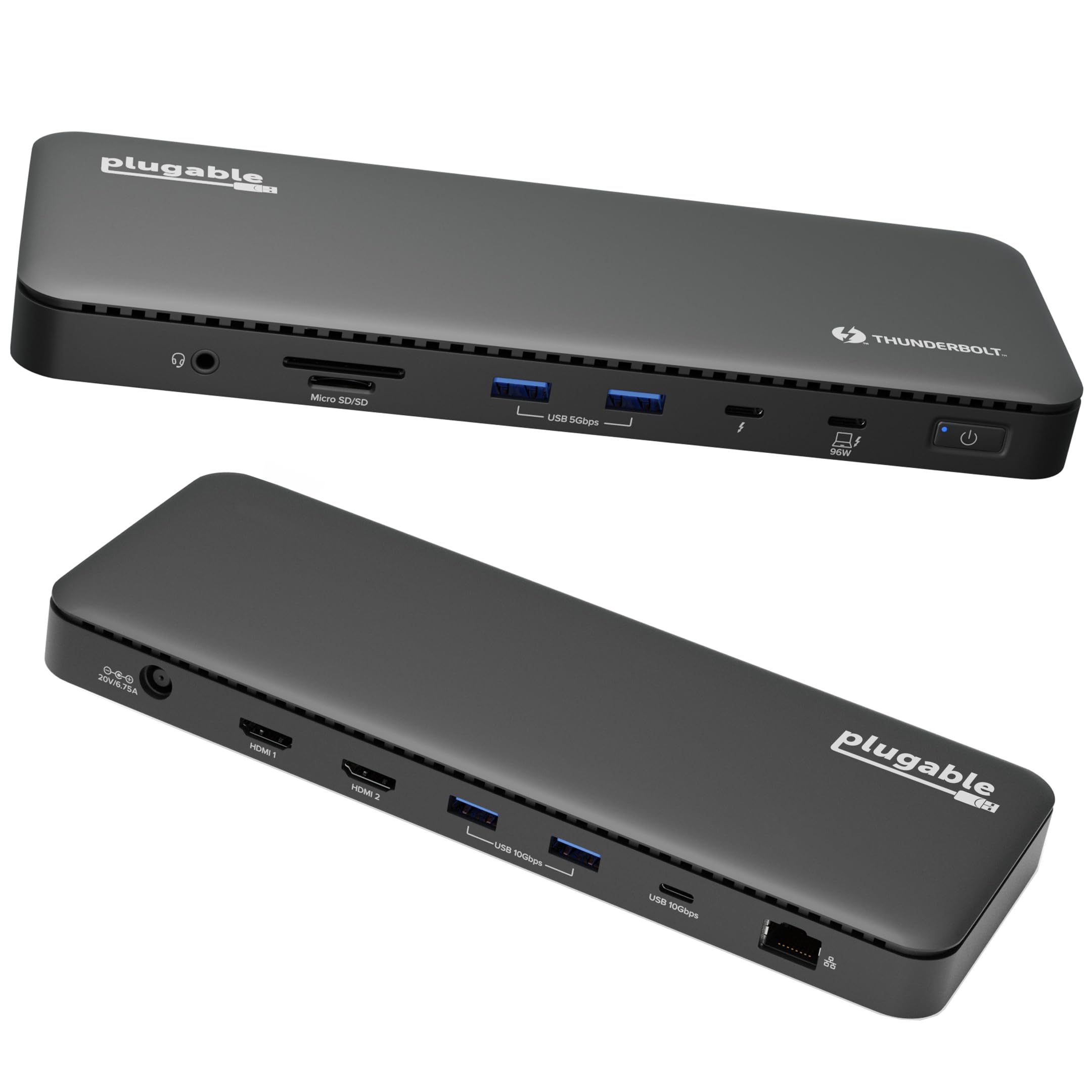
The one IT will actually standardize on: 40Gbps, driverless, and 13 ports that just behave.
Here is the number that separates this dock from the three 5Gbps docks above: 40Gbps Thunderbolt 4 performance, an eight-times jump over those 5Gbps ports. For a business that runs external SSDs, big media files or a KVM workflow, that gap turns a slow copy into a near-instant one. It is Intel Evo-certified, which is a hardware certification that the dock meets Intel’s spec for speed and reliability, and it carries dual 4K 60Hz HDMI support with single 8K on Thunderbolt 4 hosts.
The port layout is the IT-friendly part. Thirteen ports include 2× HDMI, a Thunderbolt 4 downstream port at 40Gbps with 15W charging for peripherals, 4× USB ports (10Gbps and 5Gbps), a USB-C port at 10Gbps, SD/microSD, an audio combo jack, Gigabit Ethernet, and a K-lock slot. That K-lock is a small detail with an outsized role in an office: it lets you cable-lock the dock to the desk so it does not walk. Driverless means no software to push out to a fleet — plug a Surface in and it comes up.
It charges your laptop at up to 100W (96W certified) through the same cable, enough to keep a working machine topped up. The honest caveat: display support depends on the host. On macOS, dual display is only supported on the higher-tier chips, and base M1/M2 MacBooks are limited to a single display — but that is a Mac limitation, not a Surface one. For a Windows Thunderbolt 4 Surface Pro or Laptop, this is a clean, manageable 40Gbps workstation core.
The throughput story: 40Gbps versus 5Gbps on the budget docks — if you move big files, this is the pick that stops the waiting.
The deployment story: 13 ports, a K-lock slot, driverless install and 100W charging make it easy to standardize across a desk fleet.
Built for: IT managers and power users who need 40Gbps throughput and a dock that can be cable-locked and deployed without drivers.
Not needed if: your peripherals are just a mouse, keyboard and a flash drive — the budget docks cover that.
5. Microsoft Surface Thunderbolt 4 Docking Station (T8H-00001)
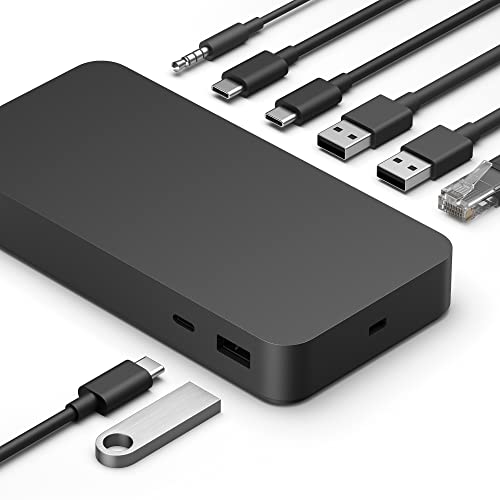
Microsoft’s own dock: a clean black slab with raised port bumps so you never fumble a cable.
There is a reason to want the first-party option: it is built by the same company that builds your Surface, and it shows in the details. Each port carries a raised tactile indicator, a small physical bump you can feel with a fingertip, so you find the right connection without peering behind the laptop. The shell is made with 20% recycled ocean-bound plastic — a materials choice, not a spec that affects performance, but a real one in the listing.
Under the hood it is Thunderbolt 4 with (3) USB-C and (3) USB-A ports, a 3.5mm audio jack, 2.5G Ethernet (a fast wired network port, quicker than the standard Gigabit on most docks here), and a security lock slot. It charges your laptop in about 2.5 hours and drives up to two 4K monitors over its three USB-C and three USB-A ports. That 2.5G Ethernet is a standout for anyone moving large files across a wired office network.
The honest caveat is in the port count: this dock is leaner than the 12-in-1 and 13-port competitors here, and the additional-port question is a genuine point of split opinion among owners. If your desk needs a stack of USB-A peripherals, the Plugable 13-port or a 12-in-1 gives you more slots. What you buy here instead is Surface-native build quality, tactile port guidance, and a fast 2.5G network port.
What it gets right: first-party Surface fit, tactile port markers, a 2.5G Ethernet port and a 2.5-hour charge.
The honest limit: fewer ports than the 12-in-1 and 13-port docks, so a heavy USB-A load will outgrow it.
Pick this when: you want the dock that matches your Surface exactly, with a fast 2.5G network port and port bumps you can feel.
Go wider instead if: you run a lot of USB-A devices and need more sockets on the desk.
6. Plugable 16-in-1 Thunderbolt 4 Dock (TBT4-UDZ)

Dual 4K over HDMI or DisplayPort, seven USB ports, and 100W charging in a silver shell.
A 16-in-1 designation sounds like marketing until you count it out: 7 USB ports, 2.5Gbps Ethernet, SD/microSD slots, audio, plus dual 4K 60Hz screens via either HDMI or DisplayPort — and 100W charging. DisplayPort matters because it gives you a second way to drive a 4K monitor if your screens do not all speak HDMI. No drivers are needed for the dual monitor setup; you plug in and it works.
Power delivery is the piece that makes it a one-cable desk. The 100W charge keeps your laptop fed while it drives two monitors and a stack of peripherals, and the dock’s charging was tested to UL standards by a third-party lab. It scales down automatically for lower-power systems, so a smaller Surface is not overcharged. The included Thunderbolt 4 cable runs 40Gbps and reaches 3.3ft, enough slack to route from a desk-mounted laptop to the dock without a tangle.
The trade-off to weigh: with 7 USB ports and dual HDMI/DisplayPort outputs, this sits at a higher price tier than the 12-in-1 docks, so you are paying for the DisplayPort flexibility and port count. Check your monitor’s inputs — if both of your screens are DisplayPort, this pick solves a problem the HDMI-only docks cannot. For a dual-monitor content or analysis desk, it is a strong, single-cable core.
The case for the 16-in-1
- Dual 4K 60Hz over either HDMI or DisplayPort — flexible monitor matching.
- 100W charging plus 2.5Gbps Ethernet and 7 USB ports in one dock.
- Driverless dual-monitor setup and an included 40Gbps Thunderbolt 4 cable.
- Third-party lab tested to UL charging standards.
Where it asks more
- Sits at a higher tier than the HDMI-only 12-in-1 docks for the extra port count and DisplayPort.
Best matched to: a dual-monitor desk that needs DisplayPort outputs, lots of USB ports and 100W laptop charging.
Overkill if: you run a single HDMI screen and a couple of peripherals — the budget 12-in-1 covers it.
7. Plugable Thunderbolt 4 Dock Quad Monitors (TBT-6950PD)
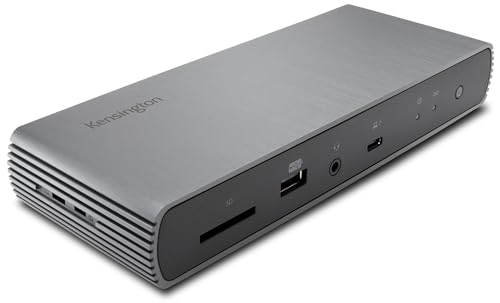
The only dock here purpose-built for Surface, with security and manageability baked into the hardware.
Kensington made this one specifically for Surface: it is designed exclusively for the line, targeting USB4/Thunderbolt 4-enabled Surface computers like the Pro 10/9/8/7 and the 13″ Surface Laptop Studio. It carries 11 ports — four Thunderbolt 4, four USB-A (one 5V/1.5A front charging port and three 10Gbps Gen2 ports on the rear), Gigabit Ethernet, an audio combo jack and a UHS-II SD 4.0 card reader. It runs single 8K @ 30Hz or up to dual 4K @ 60Hz, at 40Gbps speeds.
The security angle is the differentiator. It includes Intel VT-d DMA protection, a hardware-level safeguard against direct memory attacks through the Thunderbolt port — a genuine concern for IT buyers deploying docks in shared spaces. It also offers a zero-footprint mounting option, cable lock slots, and Kensington’s DockWorks management software, plus a three-year warranty, a full year longer than the 24-month Rocketek cover and the longest on this list. For an organization standardizing its Surface fleet, those are the features that get a dock approved.
Be honest about the fit: the connectivity result is split among owners — some report it works perfectly, others hit issues, and some note a hissing sound where others hear nothing. Noise and connectivity are the two areas with mixed opinions, so it is worth testing early on arrival. If your priority is security and management rather than the widest port count, this is the pick built for that job.
The security-first build
- Designed exclusively for Surface, with USB4/Thunderbolt 4 support.
- Intel VT-d DMA protection, cable lock slots and DockWorks management software.
- Three-year warranty — a year beyond the 24-month Rocketek docks and the longest cover here.
- Four Thunderbolt 4 and four USB-A ports at 40Gbps.
The fit note
- Connectivity and noise opinions are split — test it early in shared surroundings.
Made for: IT teams standardizing Surface fleets that need DMA protection, lock slots and management software.
Not the pick if: you want the widest port count or the quietest, simplest single-desk setup.
8. CalDigit TS5 Thunderbolt 5 Dock

Fifteen ports, a 240W power supply and 140W to the host — the dock that never runs dry.
The TS5 is a Thunderbolt 5 dock, which means it is built for the next tier of laptop: 80Gb/s Thunderbolt 5 / USB4 V2 ports, 64Gb/s PCIe, and a 240W power supply that lets it hold sustained power delivery across every port, not just the host. The host charging port alone delivers up to 140W, aimed squarely at power-hungry 16″ laptops that draw that much. Downstream Thunderbolt 5 ports offer 15W, and one front USB-C port provides up to 20W for accessories.
The port count is among the highest here: 15 ports, including three downstream 80Gb/s Thunderbolt 5 / USB4 V2 ports, a USB-A Gen 2 10Gb/s port, a 480Mb/s USB-A, three USB-C 3.2 Gen 2 10Gb/s ports, DisplayPort 2.1, SD 4.0 and microSD 4.0 UHS-II readers, 2.5GbE and three audio ports. Display support is generous on Macs — up to dual 6K 60Hz, or dual 8K 60Hz where supported, and dual 4K 240Hz high-refresh — while Thunderbolt 5 Windows hosts can run up to triple 4K 144Hz (macOS does not support triple displays).
The honest qualification: to get full 80Gb/s you need a Thunderbolt 5 or USB4 v2 host. On Thunderbolt 3, Thunderbolt 4, USB4 or USB-C hosts you will see reduced functionality — so a current Surface on Thunderbolt 4 will not open up the full speed, though the dock still works and feels built to last. That mismatch is why the higher-tier price is best justified by a machine that can actually use the port ceiling.
Where it leads: 140W host charging and a 240W supply make it the safest home for a demanding laptop, backed by 15 ports and 2.5GbE.
What to check first: the full 80Gb/s speed only appears on a Thunderbolt 5 or USB4 v2 host — older ports get reduced functionality.
Choose it for: a power-draining laptop and a desk that needs 15 ports, 2.5GbE and 140W of sustained charging.
Hold off if: your Surface is on Thunderbolt 4 — you will not reach the 80Gb/s ceiling paying for.
Know the Specs
Transfer speed (Gbps)
Gbps means gigabits per second — the rate data moves between your laptop and the things plugged into the dock. Thunderbolt 4 and USB4 ports can reach 40Gbps, which is why an external SSD feels near-instant. Some docks wearing a “Thunderbolt 4” name still run their USB data ports at 5Gbps, which is fine for a mouse or keyboard but slow for big files. If you move video or back up drives daily, check the rated speed before anything else.
Display output and resolution
4K@60Hz means a 3840×2160 picture refreshing 60 times per second — sharp and smooth for spreadsheets and video. VGA at 1080P@60Hz is the older analog output, useful for a legacy projector but not for a main monitor. Count the displays a dock lists before buying: some drive two, some drive four, and the number depends partly on your host’s own limits.
Power delivery (W)
Power delivery is the wattage the dock sends back into your laptop through the same cable. A dock rated at 96W or 100W keeps a working Surface charging while it runs monitors and drives. A higher 140W host port suits larger, power-hungry laptops that draw more. If the dock needs its own power adapter, that brick stays on your desk — factor in the outlet.
Ethernet: Gigabit vs 2.5G
Gigabit Ethernetis a wired network port rated 1Gbps — steady and fast enough for calls and uploads. 2.5G Ethernet is a faster wired port, so large files cross the network quicker if your office switch supports it. Either way, a cable beats crowded Wi-Fi for a video meeting. Both speeds fall back to slower networks when needed.
Common Questions
Will a Thunderbolt 4 dock work with my Surface Pro 9 or Surface Laptop 6?
Why does my dock say Thunderbolt 4 but only run 5Gbps?
How many external monitors can a Surface USB4 dock drive?
Do I need to install software for these docks to work?
Will the dock charge my Surface while I use it?
Is 2.5G Ethernet worth having on a business dock?
What is the difference between Thunderbolt 4 and Thunderbolt 5 on a dock?
Can I use these docks with a MacBook as well as a Surface?
Do I need a security lock slot on a desk dock?
Should I buy a Thunderbolt 5 dock for a Thunderbolt 4 Surface?
The Bottom Line
For most business desks built around a Surface, the right buy in this surface usb4 dock for business roundup is the Rocketek Surface Pro Dock Thunderbolt 4 — twelve ports, dual 4K HDMI plus VGA, and 100W charging through one cable, with a 4.5+ star record behind it. The 5Gbps USB ports are its honest limit, so if you move large files from external drives, step up to the Plugable TBT4-UD5 for genuine 40Gbps and 13 ports. And if your monitor wall runs to four screens, the Plugable TBT-6950PD is the one to reach for.
How we choose
We do not accept paid placement. Every pick is matched to a real buyer and a real use-case; we do not hands-on test units.
Sources
Specifications: manufacturer listings and product documentation. Review insights: verified customer reviews, as of November 2026. Pricing: not shown on this page (it changes often); check the current price via the retailer link.
As an Amazon Associate, Tactical Gear Guy earns from qualifying purchases. This does not affect which products we feature.