Specs are compiled from manufacturer listings and verified buyer reviews and can change over time — please confirm the key details on the product page before buying.
You want your console footage on your screen, clean and in sync, and you do not want to find out mid-broadcast that your card drops frames. The trick is knowing what each card’s HDMI input accepts, what it actually records, and whether it needs a free PCIe slot inside your PC or just a USB port on the outside.
This guide is built by comparing the manufacturers’ published specifications and the patterns across verified customer reviews, so you get each pick’s real strengths and trade-offs instead of marketing spin.
Below you will find seven cards that handle console and camera footage differently, from a plug-and-play USB stick to a PCIe board that passes 8K. Each entry is written around what the hardware does in a real session, so you can match a card to your setup before you spend anything on a Television Capture Card.
Top Picks
How To Choose The Best Television Capture Card
Start with the resolution you want to record, not the resolution on your television. A card can accept a 4K signal from your console and still only write a 1080p file to your computer. That split is normal, and it is the first thing to confirm before you buy.
Input resolution versus record resolution
The input side is what the card accepts from your console or camera. The record side is what lands in OBS or your editing app.
Look for the words “input” and “capture” separately on the spec sheet. A card that offers 4K input and 1080p 60FPS capture preserves your source quality for editing while keeping the file light enough to stream.
Loop-out: the port that keeps your TV live
A loop-out port passes the console signal straight through to your television or monitor, so you play on the big screen while the card records.
Without one, you watch your gameplay through the capture software window instead. That works, but a loop-out port lets you play on your TV at full resolution while the card records.
USB or PCIe: pick by how you play
A USB card travels. You unplug it, drop it in a bag, and use it on a laptop or an iPad. A PCIe card lives inside a desktop PC and needs a free slot and a closed case.
The internal route usually means a more stable connection and a tidier desk. The external route usually means you can move it between machines in seconds.
The software you already own
Most modern cards are driver-free and appear as a normal video device. That means OBS, Streamlabs, QuickTime Player, and VLC can pick them up without a special app.
Check that the card lists the software you use by name if you run something less common. It saves a frustrating evening of troubleshooting.
Side-by-Side Comparison
| Model | Best For | Capture Output | Passthrough | Interface | Amazon |
|---|---|---|---|---|---|
| UGREEN 2K@30Hz 1080P 60FPS★ Best Overall | Budget streaming from console or iPad | 2K@30Hz / 1080p 60FPS | — | USB 3.0 (USB-A & USB-C) | Amazon |
| Bytebridges 4K HDMI Capture CardBudget Entry | Cheapest route to 4K passthrough | 1080p 60FPS | 4K 30fps | USB 3.0 | Amazon |
| acer USB 3.0 HDMI Capture Card | Low-latency 1080p60 with clean colour | 1080P@60Hz (YUY2/MJPEG) | 4K loop-out | USB 3.0 Type-A & Type-C | Amazon |
| SUDTREEV C7 HDMI Capture Card | Marathon sessions without disconnects | 1080P 60FPS (MJPEG/YUY2) | 4K@30Hz | USB 3.0 Type-A | Amazon |
| AVerMedia GC571 Live Streamer Ultra HD | Internal 4K60 passthrough for PS5 and Xbox | 4K30 | 4K60 | PCIe x4 | Amazon |
| AVerMedia Live Gamer ULTRA S GC553Pro | 4K60 recording over USB with HDR and VRR | 4K60 / 1080p60 HDR | VRR passthrough | USB 3.2 Gen 1 Type-C | Amazon |
| Elgato 4K Pro | 8K60 passthrough with 4K60 HDR10 capture | 4K60 HDR10 | 8K60 / up to 1080p240 | PCIe, HDMI 2.1 | Amazon |
Detailed Reviews
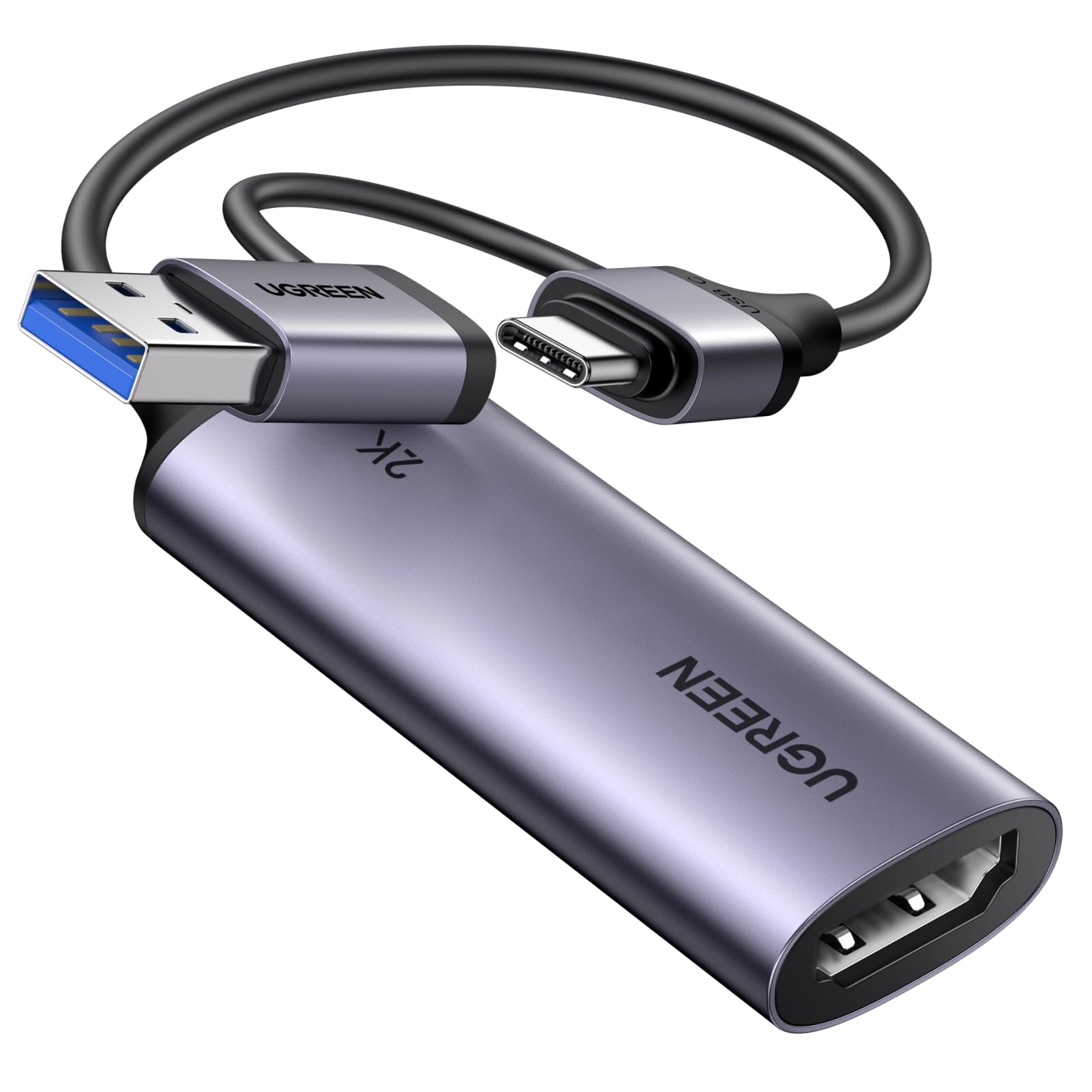
1. UGREEN 2K@30Hz Video Capture Card
Our pick — 4.5+★ from 950+ verified ratings; the strongest balance of quality and price.
Fifty grams of aluminum that turns a console into a stream without a driver install.
The headline here is a 4K@30Hz HDMI input paired with a 2K@30Hz output, and that combination is the reason this card takes the top spot. The high input side keeps your original signal intact for editing, while the 2K output is the middle ground between sharp picture and broad compatibility. It also steps back to 1080p 60FPS when you want smoother motion for fast gameplay.
Both a USB-A and a USB-C port sit on the body, so the same card connects to a desktop tower, a laptop, a tablet, or a Quest 3 headset. The aluminum alloy shell is there to spread heat and shield the signal from interference, and at 50 g it disappears into a bag. Inside, the cable runs 26AWG (2C) + 30AWG (1P) tinned copper conductors, which is the boring engineering that keeps the feed from degrading over distance.
Data moves at 5 Gbps over USB 3.0, and the card still works if you only have a USB 2.0 port. Windows 11 down to 7, MacOS, Linux, and iPadOS 17 or later are all listed as supported, and it runs without a driver on every one of them. It is a one-way pipe: HDMI in, USB out, so plan your cabling around that direction.
What wins people over is driver-free setup — it appears as a standard video device the moment it is plugged in. The most-discussed sticking point is compatibility, with HDCP being the usual culprit: on PS4, PS5, and Xbox you have to turn HDCP off or the card sees nothing. Latency is the other split opinion, so if you plan to watch your own gameplay through the software preview rather than a passthrough TV, test that feel early.
What earns it first place
- 4K@30Hz input keeps source quality; 2K@30Hz and 1080p 60FPS give you output choices
- Both USB-A and USB-C on the body, so laptop, desktop, iPad, and Quest 3 all connect
- Driver-free on Windows, MacOS, Linux, and iPadOS 17 or later
- 50 g aluminum housing with 26AWG/30AWG tinned copper conductors inside
Where it asks for care
- HDCP must be disabled on PS4, PS5, and Xbox before the card will see a signal
- Signal flow is one-way only — HDMI in, USB out, no return path
- 2K output depends on both your source and your capture device supporting it
Reach for this if: you stream console or camera footage from a mixed set of machines and want one card that plugs into all of them.
Look elsewhere if: your workflow needs an HDMI passthrough to a television — this card has no loop-out port.
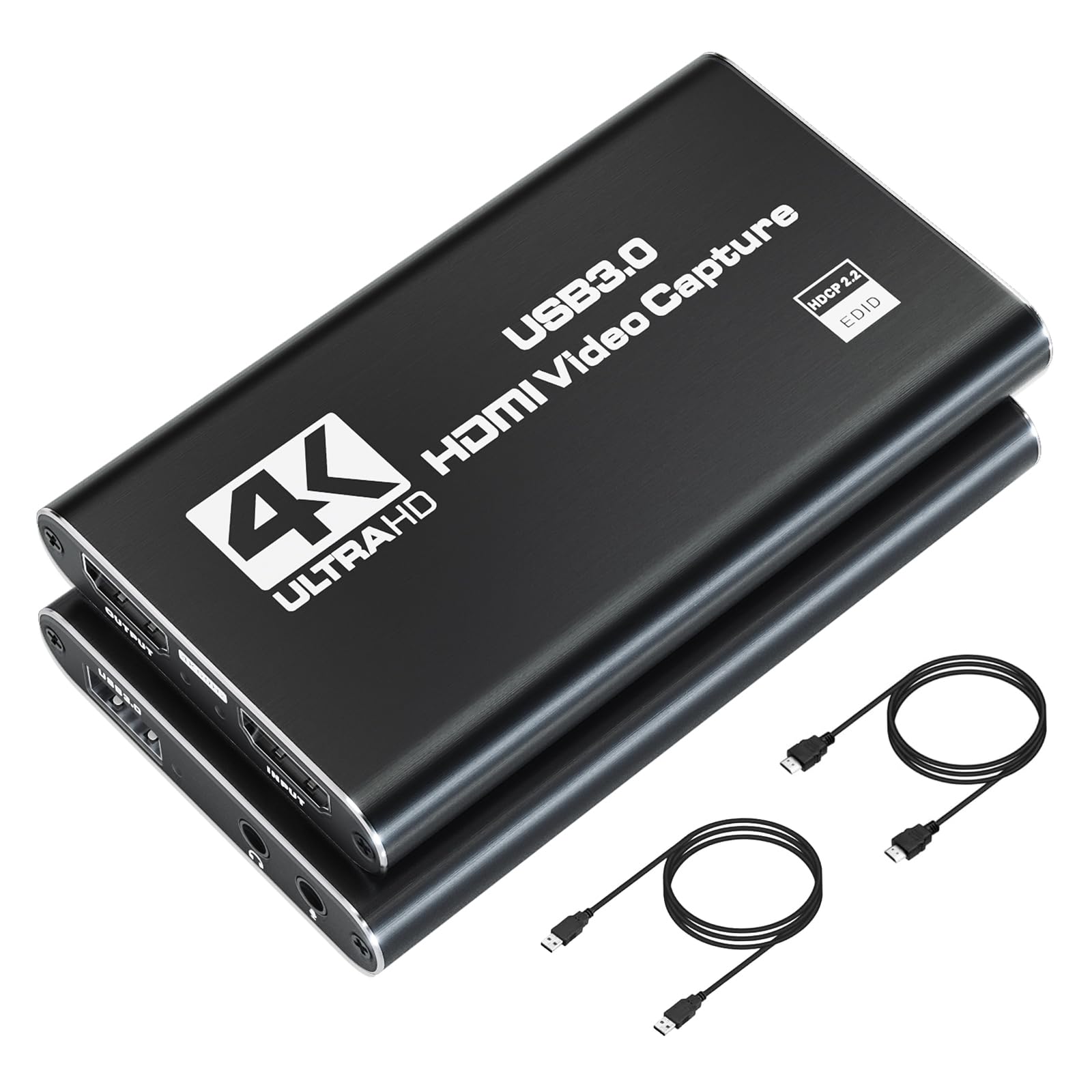
2. Bytebridges 4K HDMI Capture Card
The entry point that hands you a 4K passthrough and a mic jack on the smallest spend.
This is the card you buy when the goal is simply to get gameplay into OBS without spending much. It accepts a 4K 60fps HDMI input, passes 4K 30fps through to your display, and records at 1080p 60fps. Unlike the UGREEN pick above, this one has a real passthrough path, so the television stays live while the software records.
Setup is genuinely hands-off — no driver, no external power supply, and Windows, macOS, and Linux are all listed. Consoles covered include PS5, PS4, Xbox, Switch, Steam Deck, and ROG Ally. The 3.5mm microphone and audio input/output ports are the extra that budget cards usually leave out, letting you talk over the footage through the same box.
The honest catch is audio. The sound capture is the part buyers flag most, and the HDMI input ports draw mixed reports too. Reliability splits the same way: plenty of units run for months, and some stop working. At this tier that is the gamble, so treat it as a starter card you prove out in a week rather than a permanent fixture.
Mic ports on a budget card: a 3.5mm input and output on the body means commentary and audio monitoring without a separate mixer.
Test before you trust it: run a full session early, because the audio path and the HDMI input are the two places this card can let you down.
Good first card: a cheap, driver-free way to learn OBS with a live passthrough to your TV.
Think twice if: your broadcast depends on clean recorded audio, since the sound capture is the weak link here.
3. acer USB 3.0 HDMI Capture Card
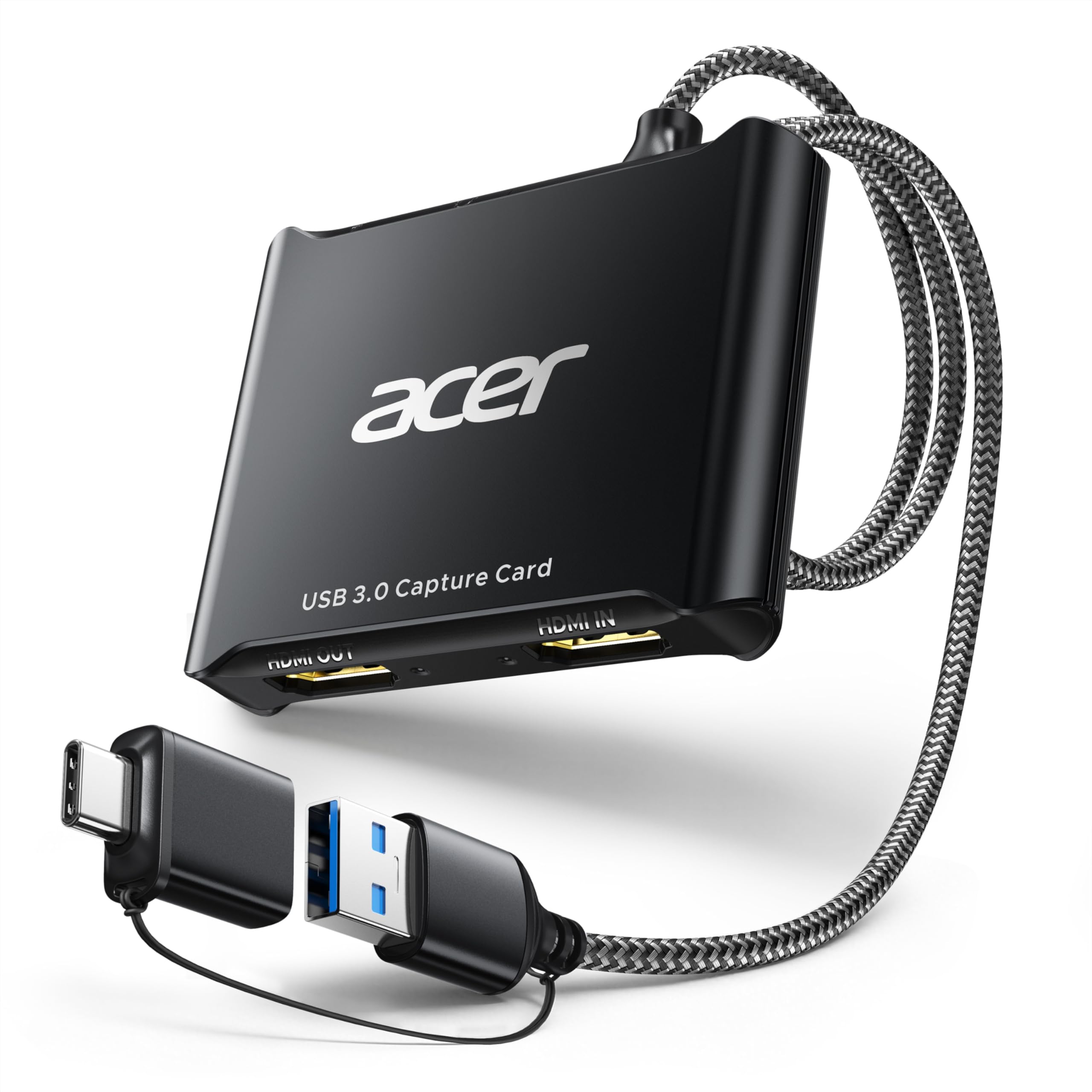
Cleaner colours than most budget cards, and a loop-out that keeps the television in play.
Here is the spec that separates this card from the pack below it: it records in YUY2 as well as MJPEG. YUY2 is an uncompressed colour format, and it delivers richer colours than the compressed MJPEG stream most cheap cards default to. You get a 4K input and a 1080P@60Hz output, plus a loop-out port so the game stays on your TV.
The body carries both USB 3.0 Type-A and Type-C, the same dual-port approach the UGREEN takes, so desktop and laptop both work without an adapter. A 3.5mm mic input lets you plug a headset in directly for live commentary, and the low-latency processing keeps that voice lined up with the picture. That combination suits game commentary, online teaching, and vlog dubbing equally well.
There is no driver and no power brick — plug it in and your software sees it. Streaming apps named on the sheet include OBS, XSplit, VLC, YouTube, Facebook, and Twitter, alongside Switch, Switch 2, PS5, PS4, Xbox, DSLR cameras, PC, macOS, and Android. It is a shade larger than the UGREEN at 6.3 x 5.2 x 0.6 inches versus 5.91 x 3.94 x 0.67 inches, so it occupies slightly more desk.
Plug-and-play functionality is what carries this card, with smooth, lag-free 1080P@60Hz performance running close behind. Picture and setup ease both land positive. The trade-off is size rather than performance, which makes it a strong pick for a fixed desk and a slightly awkward one for a pocket.
Why the picture stands out
- YUY2 capture gives richer colour than MJPEG-only cards
- 4K input with 1080P@60Hz output and a 4K loop-out
- Mic-in for headset commentary with no extra adapter
- USB 3.0 Type-A and Type-C both on the body
The small print
- Larger footprint than the UGREEN card, so it suits a desk better than a bag
- Requires a USB 3.0 port to hit its full capture rate
The desk pick: you want the better colour format and a live passthrough for a permanent streaming station.
Less ideal for: travel rigs, where its larger body is the thing you notice first.
4. SUDTREEV C7 USB 3.0 HDMI Video Capture Card
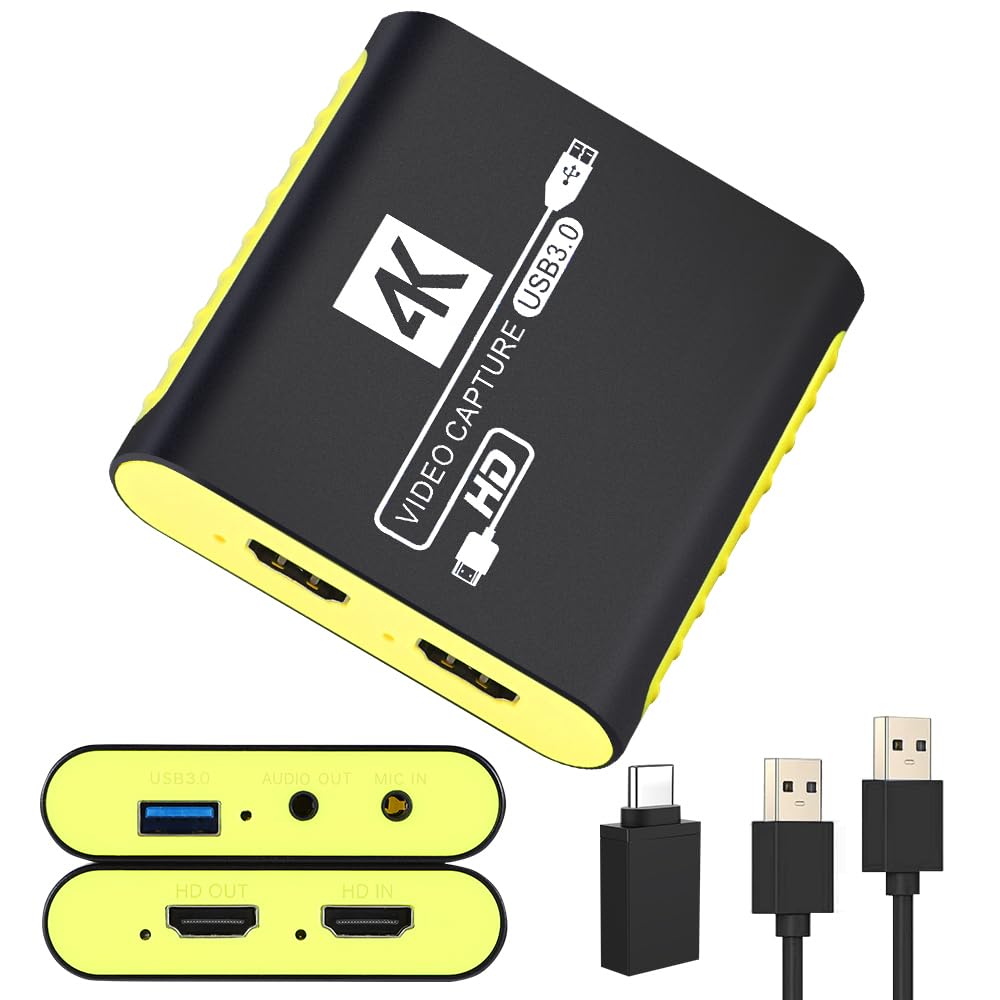
Built for the four-hour broadcast, with a full aluminum shell that shrugs off heat.
Heat is what kills a capture card halfway through a stream, and this C7 attacks it directly. The whole housing is aluminum alloy, shaped to pull heat away from the internal chipset so the card does not throttle, drop frames, or disconnect during a long recording block. That is the engineering reason to pick it over the cheaper cards here.
The capture side is 1080P at 60FPS in either MJPEG or YUY2, with a 4K@30Hz signal passing out to your monitor. It also carries a 3.5mm audio port for a mic plus audio monitoring, so you hear what you are recording. At 90 g it is heavier than the 50 g UGREEN but still sits neatly behind a monitor or in a travel bag.
The box is unusually complete: the card, a 50 cm USB 3.0 data cable, a USB-A 3.0 to USB-C adapter, an installation guide, and a warranty card. That adapter is why a MacBook, iPad, or Android phone can connect without a dongle hunt. It ships with 18-month warranty coverage and 24-hour online technical support.
Reliability is the trait that carries it — the aluminum housing keeps it steady across extended sessions, with build quality right behind. The one thing to check is patience on the delay side: some setups show a slight lag, so the loop-out to a separate display is your friend if you play competitively. Switch 2, Switch OLED, PS5, PS4, PS3, Xbox Series X/S, Xbox One, and Steam Deck are all listed, and the HDMI cable is the one piece you supply yourself.
Value that shows up in the box: cable, USB-A to USB-C adapter, guide, and warranty card are all included at this mid-range tier.
The one omission: there is no HDMI cable in the package, so add one to your order or you will be stuck on setup night.
Built for endurance: streamers who run long sessions and want the card to stay cool rather than drop out.
Worth knowing: a slight delay can appear, so play off a loop-out display rather than the software preview if timing matters.
5. AVerMedia GC571 Live Streamer Ultra HD HDMI Capture Card

It slides inside your PC and passes 4K60 straight through to the monitor.
This is the first card on the list that lives inside your computer. It is a PCIe board, so instead of a USB cable on your desk you open the case and seat it in a slot. The payoff is a 4K60 HDMI 2.0 passthrough and 4K30 capture, which means you play at the full refresh rate your console sends while the recording runs alongside.
Variable Refresh Rate support is the second draw. VRR is the monitor feature that stops the picture tearing when the frame rate wobbles, and this card passes it through untouched. It also opens 1080p120, the high frame rate mode that keeps fast competitive gameplay looking fluid on stream.
The slot requirement is flexible — PCIe x1, x4, x8, or x16 all take it. Setup is driver-free once seated, and Windows 10 x64 or Windows 11 x64 are the supported systems. At 115 g and 7.95 x 5.93 x 2.04 inches it is a small board, easy to fit around a graphics card. There is no USB option here, so this is a desktop-only choice by design.
Why it earns the internal slot
- 4K60 pass-through with 4K30 capture from HDMI 2.0 sources
- VRR support keeps the picture tear-free and responsive
- 1080p120 mode for smooth high frame rate gameplay footage
- Fits PCIe x1, x4, x8, or x16 with no driver install
What you give up
- Desktop only — there is no USB path for a laptop or iPad
- Needs an open PCIe slot and a case you are willing to open
- Windows 10 x64 and Windows 11 x64 are the listed systems
For the tower crowd: a permanent streaming PC where the card stays seated and the desk stays clean.
Not for you if: you capture from a laptop or tablet, because this board has no external connection at all.
6. AVerMedia Live Gamer ULTRA S 4K60 HDMI Capture Card
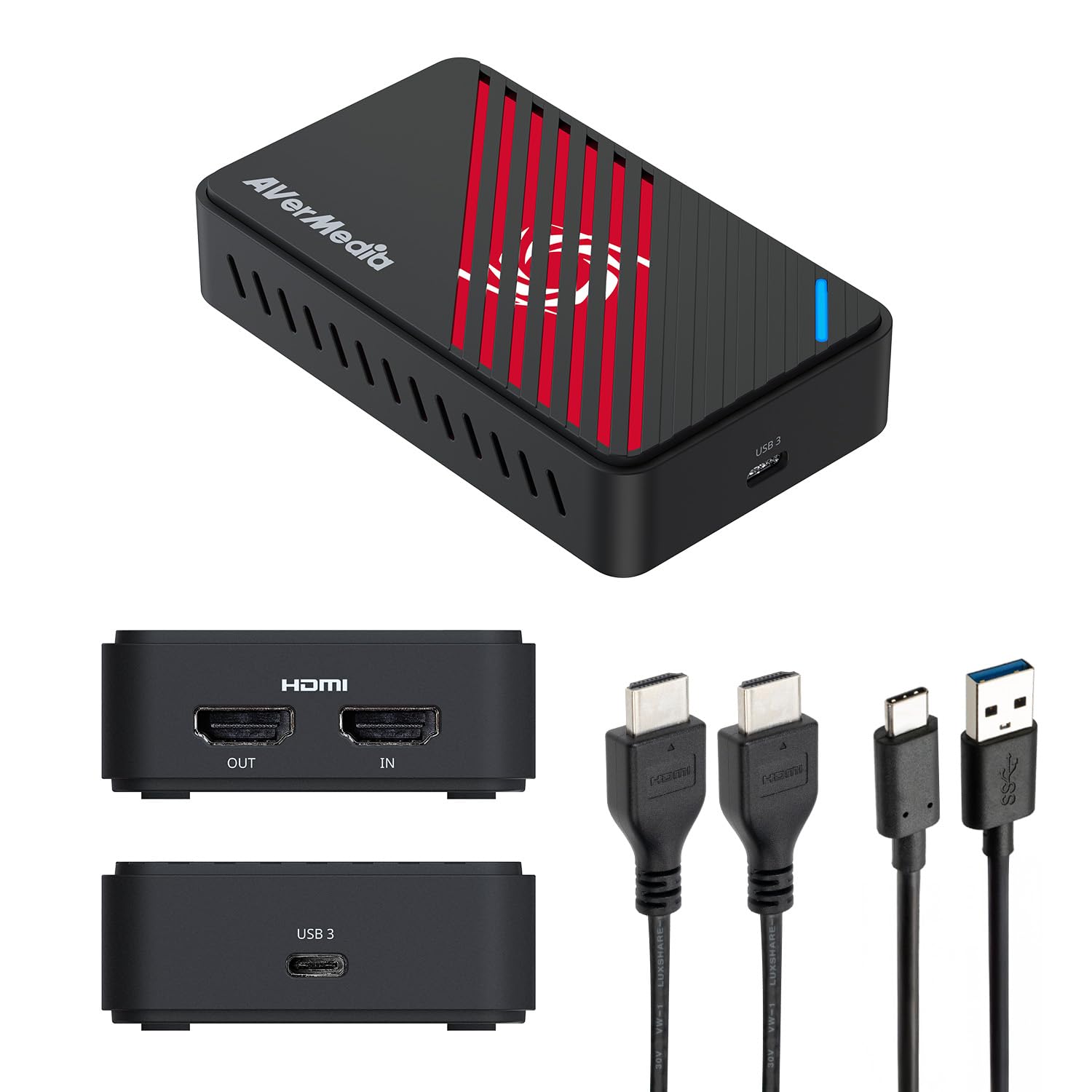
The external card that records 4K60 — no case opening, no PCIe slot, no compromise.
Here is the difference between this and the GC571 above: this one does 4K60 capture over USB 3.2 Gen 1 Type-C, while the internal board tops out at 4K30 capture. You get the resolution in the file, not just on the screen. Console footage from PS5, PS5 Pro, and Xbox Series X/S records and streams at up to 4K60, or 1080p60 in HDR.
Nintendo Switch 2 needs nothing extra. Dock the console in TV mode, connect it, and the capture starts. VRR recording reaches up to 1440p60, 1080p120, or 1080p240 through AVerMedia Streaming Center, and the input side accepts 3440×1440 and 2560×1080 for 21:9 ultrawide gaming. At 99 g it is lighter than the SUDTREEV C7.
Audio is where this card distances itself further. It captures 5.1-channel sound on Windows through Streaming Center, or through the Streaming Center Plug for OBS, across that USB-C connection. The box includes an HDMI 2.1 cable and a Type-C to Type-A cable, so the two cables you actually need are present. Windows 10 or 11, macOS 13 or 14 and later, and iPadOS 17 or later are supported.
4K60 capture over USB 3.2 Gen 1 is what earns the trust here, with reliability following close behind — it holds up across both retro and modern console streaming. The trade-off is that some of the best modes, VRR recording at 1080p240 and the 5.1 audio capture, run through AVerMedia’s own software rather than plain OBS alone.
Where the money goes: 4K60 recording, HDR, 5.1 audio, and ultrawide input all in one external box.
The catch: VRR capture and 5.1 audio lean on AVerMedia Streaming Center, so budget a little setup time in that app.
Pick this when: you want 4K60 console footage landed on disk without installing anything inside your PC.
Consider the GC571 instead if: a desktop slot is free and you would rather save on the external build.
7. Elgato 4K Pro Internal Capture Card, 8K60 Passthrough

The internal board that lets you play in 8K60 and still record in 4K60 HDR10.
No other card here passes 8K60 through to your display. That is the defining number on the 4K Pro: HDMI 2.1 in and out, 8K60 passthrough to the monitor, and 4K60 HDR10 capture into your recording app. HDR10 is the high dynamic range format that keeps bright skies and dark corners both readable instead of blowing out to white or crushing to black.
Frame rates go high on the capture side too — up to 1080p240 through the HDMI 2.1 connection, which is the kind of rate competitive players want for frame-by-frame review. VRR passthrough keeps the picture smooth without tearing, and the ultra-low latency keeps broadcast and gameplay in step. Dual PC setups are supported, so a dedicated streaming machine can take the feed while you play on another.
Software support is broad by name: OBS, Streamlabs, Twitch Studio, Restream, Zoom, and Teams on the app side, with YouTube, Twitch, Discord, and Facebook Gaming on the destination side. Windows 10 is the listed system, and a PCIe slot is required. At 110 g and 2.2 x 4.76 x 0.75 inches it is a low-profile board that tucks into a compact case.
Build quality and the ease of installation are what the card is known for. The more complicated story is functionality: it draws the largest share of discussion of any aspect and lands mixed, with the recurring point being that it does not do 4K at 240fps — the high frame rate tops out at 1080p240. Compatibility is the other soft spot. If your expectation is 4K240, this is the wrong board; if it is 8K60 passthrough plus 4K60 HDR10 capture, it is exactly right.
For the top-tier rig: an 8K60 display, a PCIe slot, and a workflow that needs 4K60 HDR10 files.
Wrong tool if: your target is 4K240 recording, since 240fps only happens at 1080p here.
Know the Specs
Input resolution versus capture resolution
Input is the signal the card accepts from your console or camera; capture is what it writes to your computer. These are often different, and that is fine. A card with 4K input and 1080p 60FPS capture keeps your original quality for editing while giving you a file small enough to stream smoothly. When you compare cards, read both numbers, not just the bigger one.
Passthrough and loop-out
A loop-out port sends the HDMI signal back out to your television or monitor while the card records. You play on the big screen at full resolution and the capture runs quietly in the background. Without one, you watch the software preview instead. For anything longer than a quick clip, the loop-out is the difference between a normal gaming session and a session spent squinting at a window.
USB versus PCIe connection
A USB card is external, so it moves between laptop, desktop, and tablet, and needs no case access. A PCIe card seats inside a desktop PC and needs a free slot and an open case. The internal route tends to give a tidier desk and a very stable link; the external route gives you portability. Match this to how you actually play rather than to the spec sheet.
YUY2 versus MJPEG colour
MJPEG compresses each frame as an image, which is light on bandwidth but softer on colour. YUY2 sends uncompressed colour data, which looks richer but needs more USB headroom. If colour accuracy matters for your footage, look for a card that lists YUY2. If you only need a clean, light stream, MJPEG is easier on older hardware.
HDCP and blank screens
HDCP is the copy-protection handshake that consoles use on their HDMI output. A capture card cannot record a protected signal, so on PS4, PS5, and Xbox you have to switch HDCP off in the console settings before the card will see anything. A blank screen on a working card is almost always this setting, not a fault.
Latency and VRR
Latency is the delay between the action and the picture; VRR is variable refresh rate, the feature that stops tearing when frame rates shift. Low latency matters most if you play from the software preview rather than a loop-out display. VRR passthrough matters if you use a modern monitor or TV that supports it, because it keeps the game smooth while the card records.
Common Questions
Why does my capture card show a black screen on PS5 or Xbox?
Do I need a PCIe slot or is USB enough for a Television Capture Card?
Can a capture card record in 4K or only 1080p?
Will a capture card add lag to my gameplay?
Does a capture card work with OBS without extra software?
Can I use a capture card with a Nintendo Switch 2?
What does loop-out actually do for my stream?
Is USB 2.0 fast enough for a capture card?
Can I capture from a DSLR or a camera instead of a console?
Do I need a separate HDMI cable to get started?
The Bottom Line
For most setups, the television capture card worth starting with is the UGREEN 2K@30Hz 1080P 60FPS card, because it takes a 4K input, records 1080p 60FPS or 2K, and connects to a laptop, desktop, iPad, or Quest 3 through either USB-A or USB-C with no driver at all. If colour accuracy and a live passthrough to your television matter more than portability, the acer USB 3.0 card brings YUY2 capture and a 4K loop-out to the same desk. And if the goal is 4K60 footage without opening your PC, the AVerMedia Live Gamer ULTRA S GC553Pro records it over USB 3.2 Gen 1, with HDR, 5.1 audio, and ultrawide input included.
How we choose
We do not accept paid placement. Every pick is matched to a real buyer and a real use-case; we do not hands-on test units.
Sources
Specifications: manufacturer listings and product documentation. Review insights: verified customer reviews, as of November 2026. Pricing: not shown on this page (it changes often); check the current price via the retailer link.
As an Amazon Associate, Tactical Gear Guy earns from qualifying purchases. This does not affect which products we feature.