Specs are compiled from manufacturer listings and verified buyer reviews and can change over time — please confirm the key details on the product page before buying.
A full drive makes even a good Mac mini feel broken — apps hang, files crawl, and you start thinking about a whole new computer. The cheaper fix is a replacement NVMe blade (a slim, gumstick-shaped drive that seats in the Mac mini’s internal slot). The catch: which blade fits depends entirely on which Mac mini you own. A Late 2014 unit and an M4 unit take completely different parts. Match your model first, then pick a drive.
This guide is built by comparing the manufacturers’ published specifications and the patterns across verified customer reviews, so you get each pick’s real strengths and trade-offs instead of marketing spin.
You will see read and write speeds in MB/s (megabytes per second — how fast data moves on and off the drive), the exact Mac models each blade fits, and the honest installation friction for each one. The right mac mini ssd upgrade depends on matching your model number before you spend a cent.
Top Picks

How To Choose The Best Mac Mini SSD Upgrade
Buying the wrong drive is the top reason this upgrade fails. Apple changed the internal blade shape between the Late 2014 Mac mini and the M4 Mac mini, so a drive built for one will not physically seat in the other. Find your model identifier first, then shop only drives that list it.
Match the drive to your exact Mac mini generation
The Late 2014 Mac mini (model identifier Macmini7,1) takes an NVMe PCIe blade, and the OWC Aura N2 lists that identifier directly. The M4 generation is a different story. Drives like the CHGRNLF, NURUBRM, Dogfish, and sbaceflay blades are built specifically for the M4 and M4 Pro chassis, and they are not meant for older machines. Buy the wrong generation and the drive simply will not fit.
Understand what the MB/s numbers buy you
Read and write speeds are measured in MB/s (megabytes per second). A drive rated at 3300 MB/s moves data roughly in the same ballpark as Apple’s own factory storage. That is enough headroom for video editing and large photo libraries. A drive rated at 2150 MB/s read and 1650 MB/s write is slower but still a clear step up from an old, cramped drive. Either way, both drives beat the old factory blade on boot times and file copies.
Plan your macOS reinstall before you open the case
A replacement drive arrives blank, so you need a way to put macOS back on it. Your options are a Time Machine backup, a bootable USB installer, or Internet Recovery. Back up your original data to an external drive first. Then confirm your current system is on macOS 10.13 High Sierra or later where the drive listing requires it. Skip this step and your new drive may look “dead” after install — it is fine, it just has no operating system on it yet.
Side-by-Side Comparison
| Model | Best For | Capacity | Read Speed | Mac Fitment | Amazon |
|---|---|---|---|---|---|
| OWC Aura N2 1TB★ Best Overall | Late 2014 Mac mini and older Macs | 1 TB | 2382 MB/s | Macmini7,1 and select MacBook Air/Pro | Amazon |
| OSCOO 512GB NVMeBudget Champion | Mid 2013–2014 Macs on a budget | 512 GB | 2150 MB/s | Mac mini A1347 2014 and select MacBook/iMac | Amazon |
| CHGRNLF M4 512GB | First M4 storage bump | 512 GB | 3300 MB/s | Mac mini M4 / M4 Pro | Amazon |
| NURUBRM M4 1TB | M4 owners who want 1TB | 1 TB | 3300 MB/s | Mac mini M4 | Amazon |
| Dogfish 1TB | M4 owners who want tools included | 1 TB | 3300 MB/s | Mac mini M4 | Amazon |
Detailed Reviews
1. OWC Aura N2 1TB NVMe SSD for Select 2013 & Later Macs
Our pick — 4.5+★ from 90+ verified ratings; the strongest balance of quality and price.
The one blade that actually lists your Late 2014 Mac mini by name on the box.
The Aura N2 earns this spot because it publishes the exact model identifiers it supports. The list includes Macmini7,1 for the Late 2014 Mac mini. It also names MacBook Air 11-inch and 13-inch units from Mid 2013 to Mid 2017, plus Retina MacBook Pro 13-inch and 15-inch units from Late 2013 to 2015. Check your identifier against that list and you know before you buy. This is the opposite of the M4 drives that get all the attention but will not fit your older machine.
It reads at up to 2382 MB/s and writes at up to 1732 MB/s over an NVMe PCIe 3.1 x4 connection. That last part is a PCIe lane standard, meaning the drive talks to the Mac across four data channels at once. In practice, that means faster boots and quicker app launches on a Late 2014 Mac mini. It is designed for macOS 10.12 and later, so modern system versions are covered.
Reliability is what wins people over — the drive has a reputation for simply working, including in 2017 MacBook Air machines where it replaced a failed SSD outright. Installation gets talked up next, because it drops into the factory slot rather than requiring adapters. OWC also backs it with a 3 year limited warranty, longer coverage than most third-party blades offer. The honest catch is capacity: 1TB is the ceiling here, so a library already pushing past that needs a different drive.
Where it earns its keep
- Lists Macmini7,1 explicitly, so Late 2014 fitment is confirmed before purchase
- 2382 MB/s read and 1732 MB/s write over PCIe 3.1 x4
- 3 year limited OWC warranty
- Reliability and easy installation are the two things owners consistently call out
Where it stops
- 1TB is the only capacity offered here
- Not a fit for M4 generation Mac minis
- One connection standard, so no room to grow into a newer chassis
Buy this if: you own a Late 2014 Mac mini and want a drive whose fitment is spelled out in the listing.
Look elsewhere if: you need more than 1TB of space, or you are working inside an M4 machine.
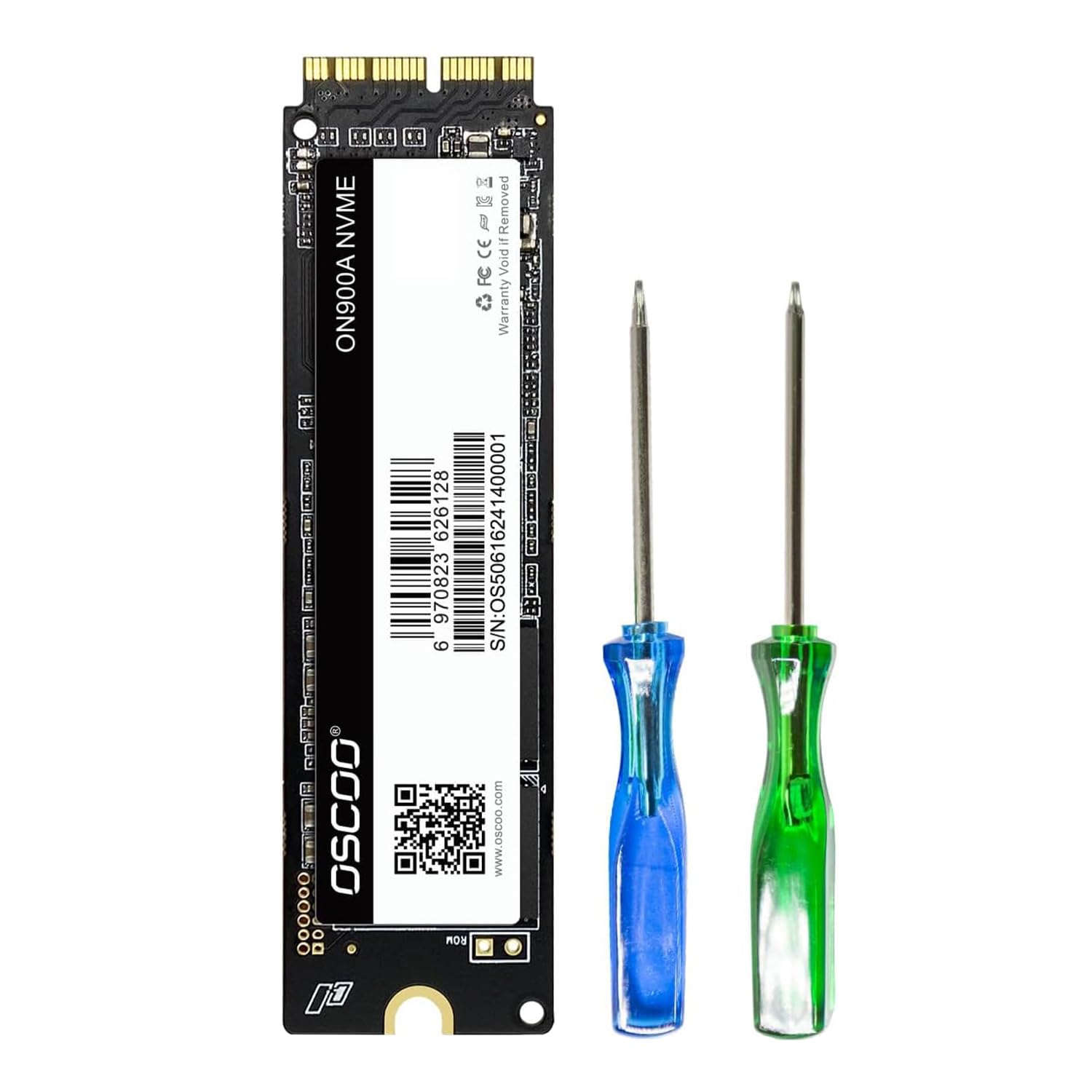
2. OSCOO 512GB NVMe SSD for MacBook – PCIe Gen3.0x4 SSD
The broad-fitment blade that covers almost every older Mac in one box.
One listing covers more older Macs than anything else here. The OSCOO names MacBook Air A1369, A1465 and A1466, Retina MacBook Pro A1502 and A1398, iMac A1418 and A1419, Mac mini A1347 2014, and Mac Pro A1481 2013. Those A-numbers are Apple’s model codes — match yours and you know it fits. It reads at up to 2150 MB/s and writes at up to 1650 MB/s over PCIe x4 (four data lanes), slower than the M4 drives below but plenty for everyday work on an older chassis.
The listing is unusually up front about the install. It tells you to back up your original data to an external drive first. It warns that your existing SSD needs to be on macOS 10.13 High Sierra or later, or the new drive may not be recognized. It also walks through three separate ways to reinstall macOS — Time Machine backup, a bootable USB installer, or Internet Recovery. One more step: format, meaning erase, the new SSD before restoring the system. That hand-holding matters on a first drive swap.
Buyers report it behaving well in older MacBook Airs, including Mid 2013 units, and they note the speed bump over a tired original drive. Setup is easier thanks to included screwdrivers, which saves you hunting for the right bit. The obvious trade-off is capacity at 512GB — fine for a clean system and a moderate app load, tight once you pile in video or a big photo catalog. It is also the slower of the two halves of this list on paper, so if raw throughput is your goal, the 3300 MB/s blades down the page pull ahead.
Speed-versus-spend read: 2150 MB/s read against 1650 MB/s write is not headline-grabbing. It still turns a sluggish older Mac into a responsive one, and the huge compatibility list means fewer returns from buying the wrong blade.
The follow-up question: will it fit my exact model? Check the A-number on your Mac against the list above before ordering — the one step that prevents a non-booting machine.
Reach for this if: you want a wide-fit drive for an older MacBook, iMac, or 2014 Mac mini and you value clear install instructions.
Pass if: you need more than 512GB or you are chasing the fastest speeds on this list.
3. CHGRNLF Mac mini M4 512GB Internal SSD Replacement
Built for the M4 chassis and nothing else — no adapter, no guessing.
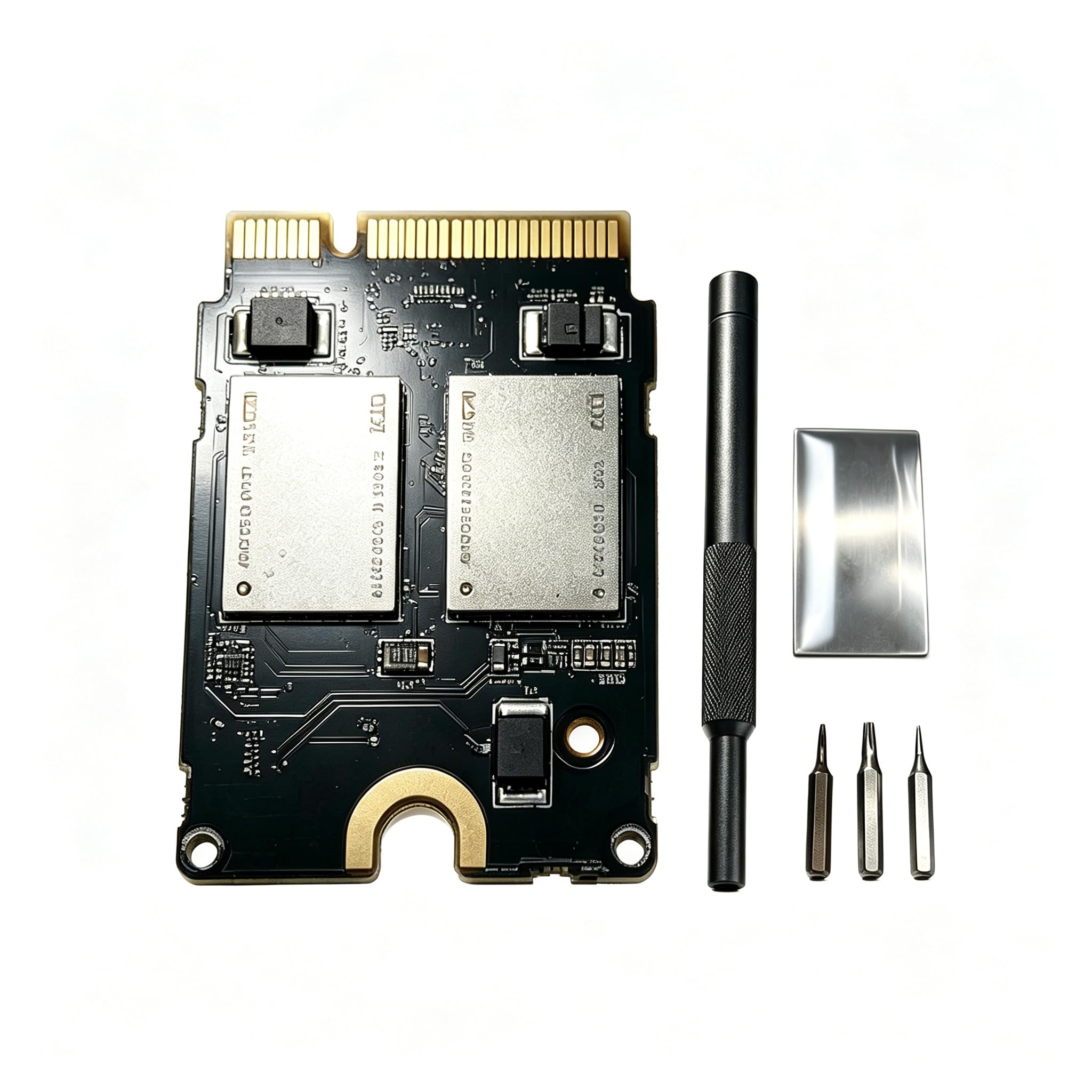
This blade is built specifically for the Mac mini M4 and M4 Pro bay, so it slots in where the factory drive came out rather than fighting the case. Speeds hit up to 3300 MB/s for both read and write. That is the number that matters in the M4 generation — it keeps large file transfers and app launches from dragging. The drive ships as a 512GB capacity part and is designed to expand the M4’s internal storage directly.
The manufacturer runs a 3-month test period on these drives and reports stable performance with no speed degradation across it. That is the brand’s own claim, and it is the kind of assurance you want on a third-party part going into a machine you rely on. There is also an option to move up the capacity ladder, from 256GB up to 2TB, if you want more room than the 512GB here.
Buyers talk up the installation most — the drive drops in cleanly and the system recognizes it without compatibility drama — and quality is the other recurring theme. The honest caveat is reliability, which gets mixed feedback: plenty of units run without a hitch, but some owners mention problems after the swap. Treat that as a reason to back up before you start rather than a reason to walk away. Compared with the OSCOO above, the CHGRNLF is far quicker on paper — 3300 MB/s versus 2150 MB/s read — but it only fits M4 machines.
What owners prize
- 3300 MB/s read and write, matching the M4’s expected speed class
- Purpose-built for the Mac mini M4 and M4 Pro bay
- 3-month stability test with no speed loss reported
- Installation described as easy and drama-free
What to weigh first
- Reliability feedback is mixed — back up before you swap
- 512GB fills fast with video or large libraries
- Will not fit Late 2014 or other pre-M4 Mac minis
The right call for: M4 Mac mini owners who want factory-class 3300 MB/s speed at 512GB and a clean install.
Think twice if: your library is already large — the higher capacity tiers elsewhere on this list will save you a second swap.
4. NURUBRM 2025 M4 Mac mini 1TB SSD, 3300MB/s

Doubles the room of the 512GB M4 blades without asking you to slow down.
Doubling the storage of the 512GB M4 blades is the whole point here. You get 1TB in a custom M4 NVMe form factor built for the Mac mini M4 bay, so the fitment question is settled. Read and write speeds reach 3300 MB/s, the same speed class as the CHGRNLF and Dogfish blades. That is the same 3300 MB/s ceiling the other M4 blades here quote.
The build uses 3D NAND flash (a stacked memory construction that lets the drive hold more data in the same footprint). The maker puts each drive through a 1-month test to check for consistent performance and long-term stability, and stages it for both professional and personal use. For everyday work — photo libraries, app installs, project files — this is the capacity tier that stops you managing free space every week.
Buyers give the storage capacity solid marks, which makes sense given how much more room you get than a 512GB part. Slow down on the reliability question: some units work exactly as promised, while others run into trouble booting after a restore. That pattern points to the restore step as the fragile moment. Have a Time Machine backup or USB installer ready before you start, and follow Apple’s recovery process to the letter. Compared with the Dogfish below, the two trade blows on capacity and speed and land at exactly the same 3300 MB/s ceiling.
Capacity that pays off: 1TB in a purpose-built M4 form factor is the difference between managing space constantly and forgetting about it. The 3300 MB/s rating means that extra room does not come at a speed penalty.
The restore caveat: boot troubles after a restore are the one thing to plan around, so keep your original backup intact until the new drive proves itself.
Pick this when: 512GB feels like a squeeze and you want 1TB at full M4 speed.
Hold off if: you want the simplest possible install with the fewest moving parts — the smaller blades are less to worry about.
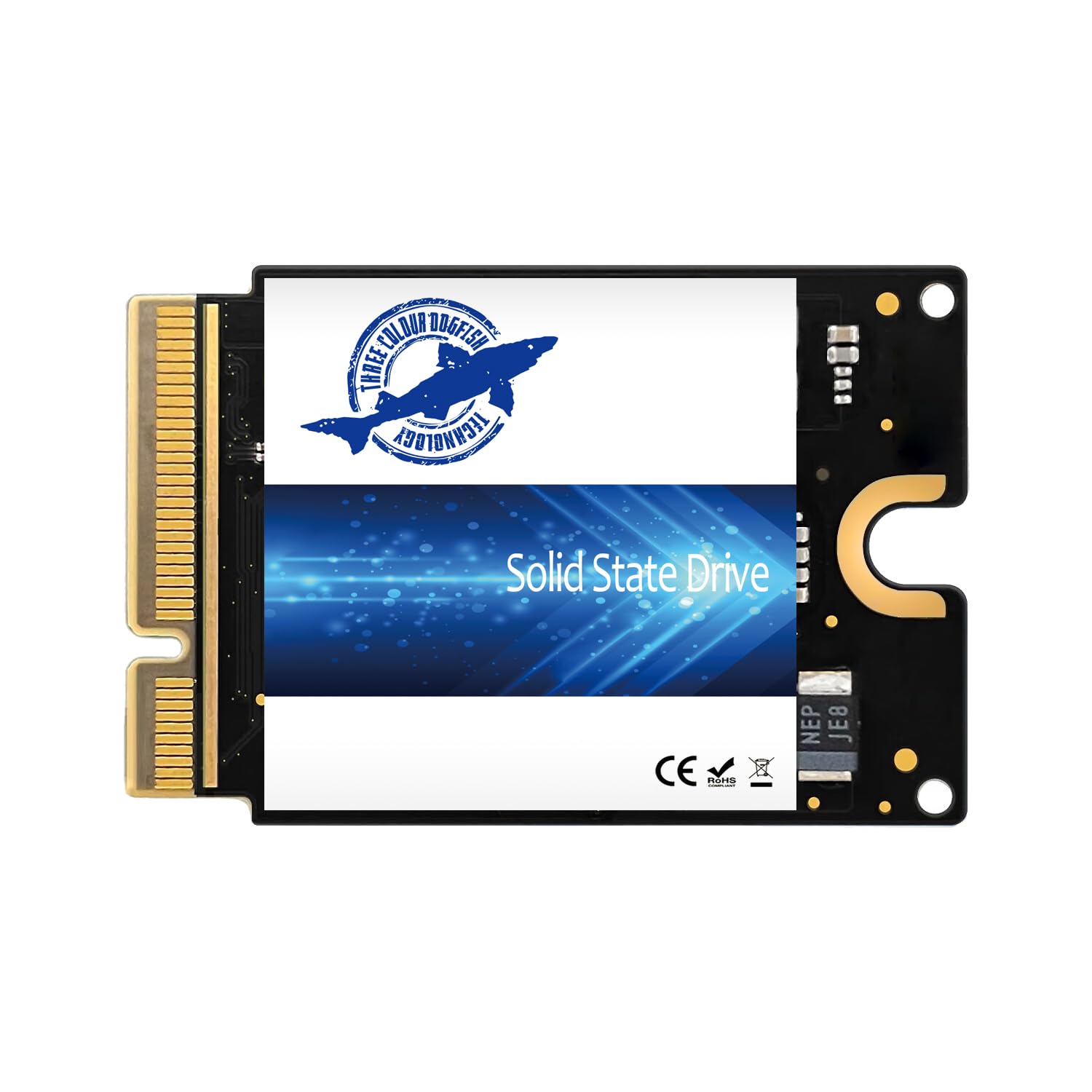
5. Dogfish 1TB SSD for Mac mini M4 Internal Solid State Drive
The only pick here that ships with the tools you need to do the job.
Most replacement blades arrive as a bare drive and leave you sourcing a screwdriver. The Dogfish comes as an SSD plus installation tools, so the kit is complete on arrival. It is built specifically for the Mac mini M4 and not meant for other model sizes. Read and write speeds reach up to 3300 MB/s — the same top-end figure the CHGRNLF, NURUBRM, and sbaceflay blades all quote. That 3300 MB/s rating matches the other M4 blades on this list.
Capacity comes in 512GB, 1TB, and 2TB tiers, so this listing lets you pick the room you actually need rather than one fixed size. The drive includes detailed installation instructions written for beginners, so zero prior experience is not a barrier. Every unit goes through testing before it ships, and there is one year of after-sales support behind it.
Against the OSCOO further up, the Dogfish is the quicker drive on both figures — 3300 MB/s read and write versus the OSCOO’s 2150 MB/s read and 1650 MB/s write. It is also M4-only, so that speed does not help a Late 2014 owner. One honest note: this is the least-reviewed blade here, so there is less buyer history to lean on. That is not a warning sign. Lean on the one year support and keep your original drive and backup safe until everything is confirmed working.
Why it belongs on the list
- Ships with installation tools, not just the bare drive
- 3300 MB/s read and write for the M4 bay
- Pick from 512GB, 1TB, or 2TB capacity options
- One year of after-sales support
Set your expectations
- M4-only, so it will not fit older Mac minis
- Less buyer history than the more established picks
- Detailed instructions help, but a first-time swap still takes care
Made for: M4 owners who want one box with the drive, the tools, and written instructions inside it.
Skip if: you are upgrading a pre-M4 Mac mini or you prefer a drive with a longer track record.
6. sbaceflay Mac mini M4 2TB SSD Hard Disk Upgrade DIY

Twice the room of the 1TB M4 blades for media libraries that never stop growing.
When no amount of deleting is enough, 2TB settles the argument. This blade packs 2TB into an M4-specific NVMe form factor, which quadruples a base storage setup and gives professional-grade apps and large media libraries room to breathe. Speeds hold at up to 3300 MB/s read and write, so the extra capacity does not force you onto a slower drive.
Build quality is what buyers praise most, and the value angle comes up just as often — it reads as a money-saver against buying a bigger machine outright. Speed gets its share of favorable mentions too. Installation experiences split, though: some customers note the DIY swap going smoothly while others hit snags. Go in knowing this job rewards patience and a clear head.
The real draw is the capacity. Two terabytes means you stop deciding which projects to archive and just keep them. It also costs less than trading up to a factory-bigger M4, which is the whole point of a DIY upgrade. Compared with the Dogfish, which tops out at the same 3300 MB/s across its capacity tiers, this one wins on room — 2TB versus a 1TB ceiling — while the Dogfish gives you a wider spread of sizes. One honest note on reliability: it mostly runs well, with some units needing care during the install. Have your recovery plan ready and this is the biggest single upgrade on the list.
Storage verdict: 2TB at 3300 MB/s is the answer for anyone editing video, holding a large photo catalog, or running software that eats disk space. It removes the ceiling without slowing you down.
The install reality: DIY here means you are the technician, so budget a calm hour, a backup, and a bootable installer before you begin.
Best for: M4 owners whose libraries have outgrown 1TB and who want to avoid buying a bigger machine.
Not for: anyone who wants a hands-off install — this one asks the most of you at the bench.
Know the Specs
Read and Write Speeds (MB/s)
These two numbers, measured in megabytes per second, describe how fast the drive pulls data up (read) and pushes data down (write). A high read speed means the system loads macOS and apps off the drive faster. A high write speed means saving large files and copying projects takes less time. The M4-generation blades here all quote 3300 MB/s for both. The older-Mac drives sit lower — the OWC Aura N2 at 2382 MB/s read and 1732 MB/s write, and the OSCOO at 2150 MB/s read and 1650 MB/s write. Match the number to your machine’s generation, because the faster drives are built for newer chassis.
Model Identifier and Form Factor
Every Mac mini has a model identifier, a short code like Macmini7,1 for the Late 2014 unit. The internal drive bay shape changes between generations. The OWC and OSCOO blades list the exact identifiers and A-numbers they fit, spanning older MacBook Air, MacBook Pro, iMac, and Mac mini models. The CHGRNLF, NURUBRM, Dogfish, and sbaceflay blades are built for the M4 and M4 Pro chassis only. Before you buy, pull up your Mac’s identifier and line it up against the listing — this single check decides whether the drive seats at all.
Common Questions
Will an M4 Mac mini SSD fit my Late 2014 Mac mini?
How do I find my Mac mini’s model identifier?
Do I need to reinstall macOS after installing a new SSD?
What macOS version do I need before upgrading?
Why does my new drive show up as not detected?
Is 512GB enough or should I go bigger?
Can I use a MacBook SSD in a Mac mini?
Do these drives come with the tools I need?
Is a DIY SSD swap cheaper than buying a bigger Mac mini?
What should I back up before swapping the drive?
The Bottom Line
For a Late 2014 Mac mini or another pre-M4 machine, the OWC Aura N2 1TB is the pick because it publishes the exact model identifiers it fits and backs the drive with a 3 year limited warranty. If you want the widest fitment across older MacBook, iMac, and 2014 Mac mini models with clear install guidance, the OSCOO 512GB covers more ground. And for M4 owners, the CHGRNLF 512GB and sbaceflay 2TB cover both ends of the storage scale at 3300 MB/s — pick your capacity and go.
How we choose
We do not accept paid placement. Every pick is matched to a real buyer and a real use-case; we do not hands-on test units.
Sources
Specifications: manufacturer listings and product documentation. Review insights: verified customer reviews, as of November 2026. Pricing: not shown on this page (it changes often); check the current price via the retailer link.
As an Amazon Associate, Tactical Gear Guy earns from qualifying purchases. This does not affect which products we feature.