Specs are compiled from manufacturer listings and verified buyer reviews and can change over time — please confirm the key details on the product page before buying.
The short answer: an uncertified USB-C hub splits one port’s bandwidth between your monitor and your drive, so buy a Thunderbolt-certified dock rated at or above your laptop’s charger wattage. Most buyers get burned by the same thing — they buy a cheap hub, plug in two monitors, and one screen stays dark or the laptop drains while it works. This guide covers eleven certified Thunderbolt docks, explains each spec in plain English, and tells you which one suits a single-monitor desk versus a four-screen workstation.
This guide is built by comparing the manufacturers’ published specifications and the patterns across verified customer reviews, so you get each pick’s real strengths and trade-offs instead of marketing spin.
You will learn how Thunderbolt 4 and 5 differ, why port count is not the same as charging wattage, and which dock fits a Mac versus a Windows laptop. The picks below run from a five-port travel hub to a twenty-port 10GbE dock, so you can match one to your machine’s chip and charger.
Top Picks
How To Choose The Best USB-C Thunderbolt Hub
The single biggest mistake is treating “USB-C hub” and “Thunderbolt hub” as the same thing. They are not. A plain USB-C hub splits one port into several and shares a small slice of bandwidth between them. A Thunderbolt-certified dock taps the full pipeline, so your external SSD and your second monitor are not fighting each other for the same road.
Start with charging wattage, not port count
Your laptop needs a certain amount of power to hold its charge while you work — a figure printed on its original charger. A dock that delivers less than that will let the battery slip downward during a long session. Match the dock’s Power Delivery wattage to your laptop’s charger and the battery holds steady instead of trickling down over a long session.
Then check how many displays your laptop can actually drive
This trips up more buyers than any other spec. Base-model Apple silicon Macs (the plain M1, M2, and M3 chips) support only one external display through most docks, no matter how many video ports the dock has. The Pro and Max versions, plus most Windows Thunderbolt machines, drive two or more. Check your exact chip before you blame the hub.
Decide if you need Thunderbolt 5 speed
Thunderbolt 4 tops out at 40Gbps, and that is plenty for dual 4K monitors and fast external drives. Thunderbolt 5 pushes to 80Gb/s and beyond, and it matters if you move huge video files or run very high-refresh displays. If your laptop is Thunderbolt 4 or older, a Thunderbolt 5 dock still works — it just runs at your laptop’s ceiling.
Count the ports you truly use every day
Two video outs, a couple of USB-A slots for a mouse and keyboard dongle, an Ethernet jack, and an SD reader cover most desks. Add more only if you genuinely plug in cameras, audio interfaces, or networked storage. Every port beyond that list adds cost and desk footprint you may never use.
Side-by-Side Comparison
| Model | Best For | Host Charging | Ports | Max Displays | Amazon |
|---|---|---|---|---|---|
| CalDigit E5 Element 5 Hub★ Best Overall | MacBook Air and Pro users who want Thunderbolt 5 headroom | 90W | 9 | Triple 4K on Windows, dual 6K/8K on Mac | Amazon |
| Plugable 5-in-1 TB4 HubBest Value | A compact certified hub with a free HDMI adapter | 15W downstream / up to 2x 4K | 5 | Dual 4K or single 8K | Amazon |
| Plugable TB4 Dock 100WMost Versatile | Mixed Windows and Mac office fleets | 100W (96W certified) | 13 | Dual 4K 60Hz or single 8K | Amazon |
| SABRENT Thunderbolt 4 Hub | Travel-light desks that still want dual monitors | 60W | 4 | Dual 4K 60Hz or single 4K 144Hz | Amazon |
| UGREEN 8-in-1 TB4 Dock | Adding Ethernet plus three USB-A to a MacBook | 85W | 8 | Dual 4K 60Hz or single 8K 30Hz | Amazon |
| OWC 14-Port Thunderbolt Dock | Photographers who live off SD and microSD cards | 85W | 14 | One 5K or dual 4K 60Hz | Amazon |
| Dell Pro TB4 Smart Dock SD25TB4 | IT-managed workstations needing four 4K screens | 130W Dell / 96W others | 12 | Up to four 4K | Amazon |
| OWC 11-Port TB4 Dock | A straightforward Mac dock with an SD reader and audio | 96W | 11 | One 8K or dual 4K 60Hz | Amazon |
| Plugable 16-in-1 TB4 Dock | Quad-monitor desks with 2.5GbE networking | 100W | 16 | Dual 4K 60Hz | Amazon |
| CalDigit TS5 Plus | Studios running 10GbE networks and multiple 8K panels | 140W | 20 | Dual 8K on Mac, up to quad 6K on M5 Max | Amazon |
Detailed Reviews
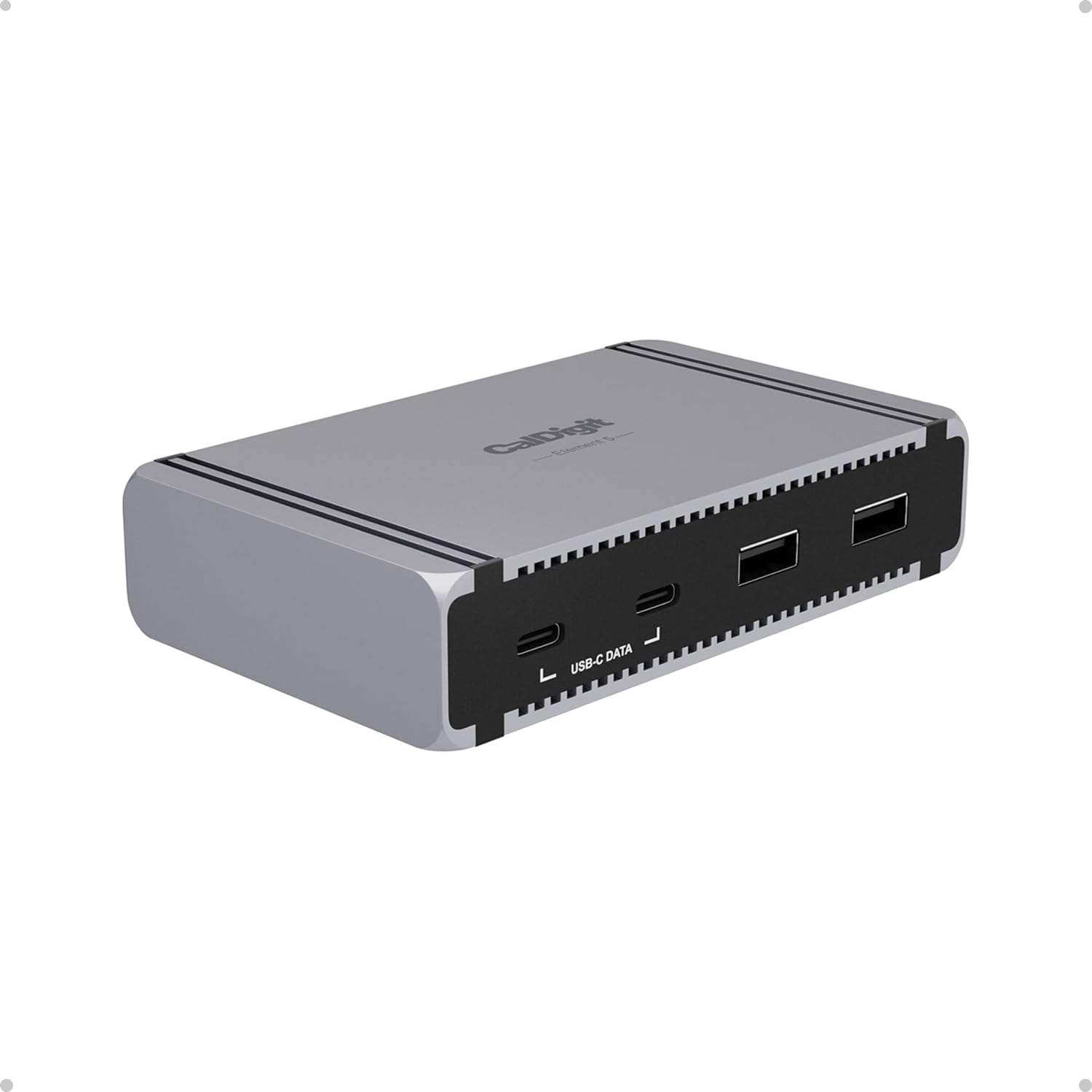
1. CalDigit E5 – Thunderbolt 5 Element 5 Hub
Our pick — 4.5+★ from 150+ verified ratings; the strongest balance of quality and price.
Nine ports, four of them future-proof, and a compact body that shoves a full workstation onto one cable.
If you want a dock that still feels current when your next laptop arrives, this is the strongest all-round pick. It packs 9 ports into a body measuring 4.5″L x 2.75″W x 1.12″H — small enough to tuck behind a monitor stand, yet it carries four Thunderbolt 5 ports running at 80Gb/s each. Those same ports support 64Gb/s PCIe, which the maker quotes as up to 6,200MB/s for external Thunderbolt SSDs. In plain terms, you edit video straight off a fast drive without waiting for files to copy across.
The charging story is what makes it a genuine one-cable solution. It delivers up to 90W sustained Power Delivery (the power a dock feeds back into your laptop) from a 180W power supply, and that figure holds no matter how many devices you plug in. Owners confirm it, with buyers reporting that the 90 watts are fully dedicated to the laptop port. There is even Offline Charging, so the hub tops up a phone or tablet while it sits disconnected from your computer.
Display flexibility is where it separates from cheaper Thunderbolt 4 hubs. On a Windows Thunderbolt 5 laptop you can run up to three 4K@144Hz monitors. On a Mac that supports the resolution you get dual 6K@60Hz, dual 8K@60Hz, or dual 4K@240Hz for smooth motion. The catch: base M1 through M3 Macs will not do dual displays here, and triple screens are off the table on macOS and on Thunderbolt 4 or 3 machines. Check your chip first — that is the one place this dock can disappoint. It sits at 4.5+ stars across 160+ ratings.
What earns the top spot
- Four Thunderbolt 5 ports at 80Gb/s, ready for the next few years of laptops.
- 90W sustained charging that holds steady with all nine ports loaded.
- Offline Charging tops up accessories even with no laptop attached.
- Compact 4.5″ x 2.75″ footprint that hides behind a display.
Where it asks you to check first
- Base M1-M3 Macs still cap at one external display.
- Triple monitors only work on Windows Thunderbolt 5 hosts.
- Unrestricted speed needs a Thunderbolt 5 or USB4 v2 laptop.
Reach for this if: your laptop has Thunderbolt 5 or you plan to upgrade soon and want the dock to outlast it.
Look elsewhere if: you are on an entry-level M1-M3 Mac and need two screens — a base-chip limit no dock fixes.
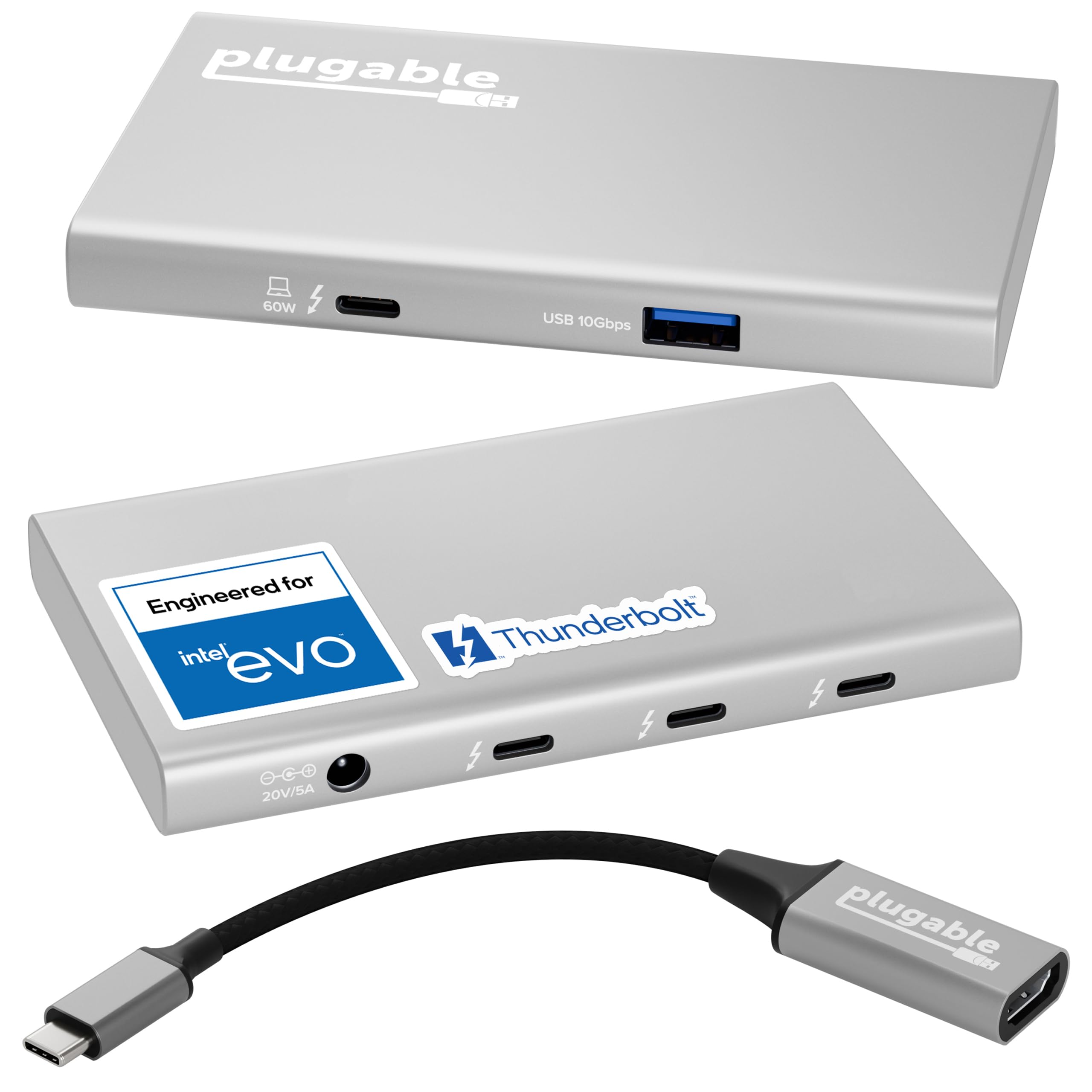
2. Plugable 5-in-1 Thunderbolt 4 Hub
The no-drama budget entry — certified, adapter included, and small enough for a laptop bag.
This is a hub, not a full dock, and that distinction saves you money while covering a simple desk. It runs on the Intel Goshen Ridge chipset and carries the Engineered for EVO certification, a stamp Intel gives to hardware that meets its own compatibility tests. Three Thunderbolt 4 ports each handle 40Gbps of bandwidth — enough for high-resolution displays or a fast NVMe drive — plus one 10Gbps USB-A port for an older mouse, keyboard, or thumb drive.
Here is the trade-off worth naming up front: it delivers up to 2x 4K screens and 15W downstream power, which is fine for accessories but not a laptop charger. If you want a single cable to both expand and refuel your machine, skip to a dock with 90W or more. For a desk where the laptop keeps its own charger plugged in, this hub does the expansion job with one fewer wall plug to think about.
Plugable throws in a USB-C to HDMI adapter, so you can add that first monitor without buying anything else. The aluminum shell keeps it cool, and it comes driverless — you plug it in and it works. Set it beside the CalDigit E5 above and you feel the gap in ambition, but for pure port expansion at the entry level, it is the cleanest certified option here.
The honest read: a compact, certified hub that does exactly what a simple desk needs, with no promise of charging your laptop.
Fits best on: a secondary desk or travel kit where the laptop keeps its own power brick.
Not meant for: anyone chasing a one-cable docking setup — 15W will not hold a laptop charge.
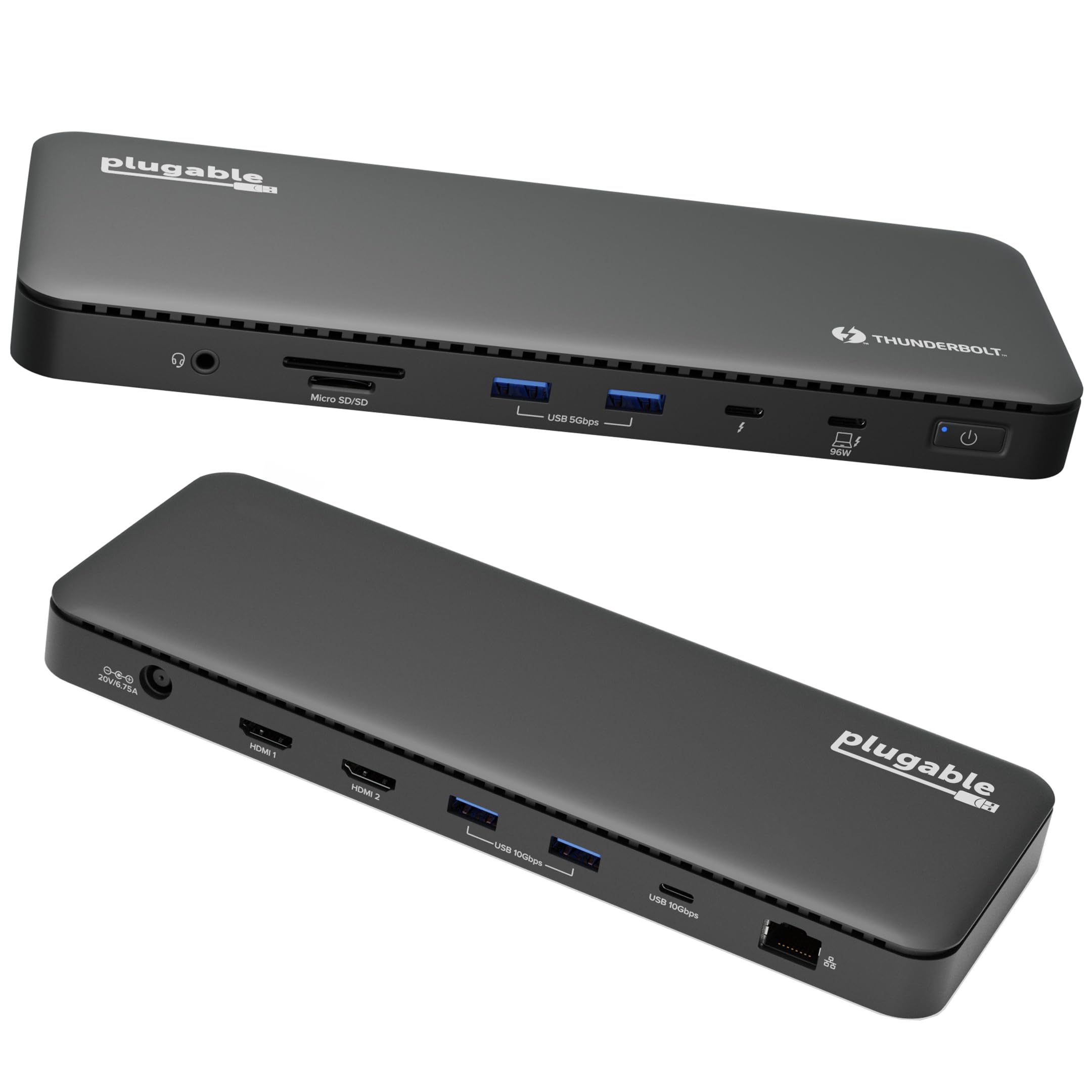
3. Plugable Thunderbolt 4 Dock with 100W Charging
Thirteen ports, two HDMI outs, and enough power to keep a workhorse laptop topped up all day.
This is the dock to hand out if you run a mixed Windows and Mac office. It carries Intel Evo certification (Intel’s stamp that a laptop meets its performance and battery rules), moves data at 40Gbps (gigabits per second, a fast data rate), and charges your laptop at up to 100W — 96W certified — so power-hungry machines stay fed. Two HDMI ports drive dual 4K screens at 60Hz (4K is 3840×2160 pixels; 60Hz means 60 screen refreshes a second), or one 8K display over Thunderbolt. The port spread is the real draw: 2× HDMI, a downstream Thunderbolt 4 port at 40Gbps carrying 15W, four USB-A ports split between 10Gbps and 5Gbps, one USB-C at 10Gbps, SD and microSD slots, an audio combo jack, Gigabit Ethernet (a 1Gbps wired network port), and a K-lock slot (a security slot for a cable lock) to bolt it to a desk.
Set that against the SABRENT hub further down, which manages fewer ports and stops at 60W charging; the Plugable doubles the charging headroom. The same Mac caveat applies here as everywhere: base M1 and M2 MacBooks get one display, base M3 manages two only in clamshell mode. Pro and Max chips drive two without fuss. The 2.4-pound aluminum body stays planted on a desk rather than sliding around.
Why fleets pick it: driverless setup, a certified 96W charge, and 13 ports that cover monitors, storage, network, and audio in one box.
The limit to know: dual displays depend on your chip — base Apple silicon is capped at one unless you close the lid.
Suits: a home office or IT rollout where the same dock has to behave predictably across Windows and Mac laptops.
Prefer another pick if: you are on a base M1 or M2 Mac and expect two mirrored-out monitors.
4. SABRENT Thunderbolt 4 Hub, 60W Charging

An aluminum travel hub that squeezes dual 4K out of a MacBook Air without eating your bag space.
Small and light wins here: the SABRENT hub weighs 198 grams and ships with a 15.7-inch certified Thunderbolt 4 cable, so it drops into a laptop sleeve and travels well. Three Thunderbolt 4 ports run at 40Gbps, and one USB-A slot covers a mouse or a dongle.
Buyers get real results from it on modern machines, with customers reporting it runs two external monitors on MacBook Air M4. The aluminum shell does double duty as a heat spreader, keeping the internals cool through a workday. Display support is generous for the size: dual 4K at 60Hz, a single 4K at 144Hz, or 5K, 6K and 8K at 60Hz using DSC (Display Stream Compression, a technique that squeezes high-resolution video into the cable).
The honest caveat is port count. Four ports is the leanest offering on this list, so if you juggle a webcam, a card reader, external storage, and a second screen at once, you will run out of slots. It is also not a KVM switch, so it will not swap one keyboard and monitor between two computers. For a lean travel desk, neither matters.
Size-versus-slots call: at 198 grams this is the lightest certified hub here — but a four-port layout means no room for extras beyond the essentials.
Take it traveling if: you want a certified 40Gbps hub that disappears into a bag and still runs two monitors.
Pass if: your desk setup needs more than a couple of USB devices plugged in at once.
5. UGREEN 8-in-1 Thunderbolt 4 Docking Station

Eight ports, a built-in GaN charger, and a wired network jack for desks that hate Wi-Fi dropouts.
The UGREEN dock nails the everyday wired-desk formula. It carries three Thunderbolt 4 ports at 40Gbps with 15W each, three USB-A 3.2 ports at 10Gbps for your keyboard, mouse, and drives, a Gigabit Ethernet jack for a stable wired connection, and a 140W DC power input. The included 140W GaN charger (gallium nitride — a newer chip material that runs cooler and smaller) pushes 85W into your laptop, so you leave the original power brick in the drawer.
What wins people over on this one is the plug-and-play ease with MacBooks and the power delivery, which customers describe as charging laptops quickly. Windows laptops can extend to two 4K@60Hz screens or a single 8K@30Hz display. Macs with Pro, Max, or Intel chips drive dual 4K, while base-chip MacBooks are limited to one 4K screen. A note worth checking: the dock must be connected to its charger to work, so it is not a bus-powered travel piece.
Reliability is the recurring gripe — it comes up more than any other point in buyer feedback on this dock, and some units go flaky over time. So treat it as the pick for a desk that stays put, not a machine you unplug and replug all day. Weigh that honestly, because buyers praise the build quality and the aluminum-and-plastic shell feels solid. It is the cheapest route to Ethernet plus three USB-A ports in one certified dock.
Why the wired desk loves it
- Gigabit Ethernet built in — no dongle chain for a stable connection.
- Included 140W GaN charger delivers 85W to the laptop.
- Three USB-A 3.2 ports at 10Gbps plus three Thunderbolt 4 at 40Gbps.
The fair warning
- Reliability is the most-discussed concern — a stay-put desk dock, not a travel one.
- Base-chip MacBooks still cap at a single 4K screen.
- Needs its charger connected to function.
Solid choice for: a fixed desk that needs Ethernet, USB-A, and dual monitors from one certified dock.
Keep looking if: you need to grab the dock and go — it depends on its power brick to run.
6. OWC 14-Port Thunderbolt Dock

A photographer’s dock — twin card readers, Mini DisplayPort, and audio outs for a full editing station.
If you chase speed, the two card slots here move files at up to 312MB/s on the SD 4.0 UHS-II spec (a fast SD card standard), so you copy a card of stills or clips without a separate reader dangling off a cable. That is the headline if you shoot on SD or microSD and want it all in one box. The rest of the port stack is deep too: a Thunderbolt 3/4 host port pulling up to 40Gb/s, a second Thunderbolt 3 port, one USB-C 3.2 Gen 2 at 10Gb/s, five USB-A 3.2 Gen 1 ports at up to 600MB/s, Mini DisplayPort, Gigabit Ethernet, an S/PDIF digital audio output (a digital audio connection for speakers or amps), a 3.5mm audio combo jack, and the two card readers.
The huge plus factor for photographers: it powers the laptop with up to 85W over the host connection, so shooting gear and storage stay connected while your computer charges. Two of the USB-A ports are high-powered, feeding up to 7.5W to extra devices. Display-wise it does one 5K at 60Hz or two 4K at 60Hz — enough for a colour-managed editing desk.
Where it shows its age: it is a Thunderbolt 3 design, so it caps at 40Gb/s and will not reach Thunderbolt 5 speeds. Refreshingly, it makes no empty promises about future tech — it is a mature, stable dock that reviewers call outstanding and simply keep recommending for its versatility. If you want the newest bandwidth, look at the OWC Thunderbolt 5 unit below; if you want every port a media desk needs, this delivers.
Built for shooters: twin UHS-II card slots at up to 312MB/s and 85W charging turn it into a complete import-and-edit dock.
Best fit: photo and video work off SD cards, where a fast reader plus audio and Ethernet need to live in one spot.
Think twice if: you are chasing Thunderbolt 5 speed — 40Gb/s is this dock’s ceiling.
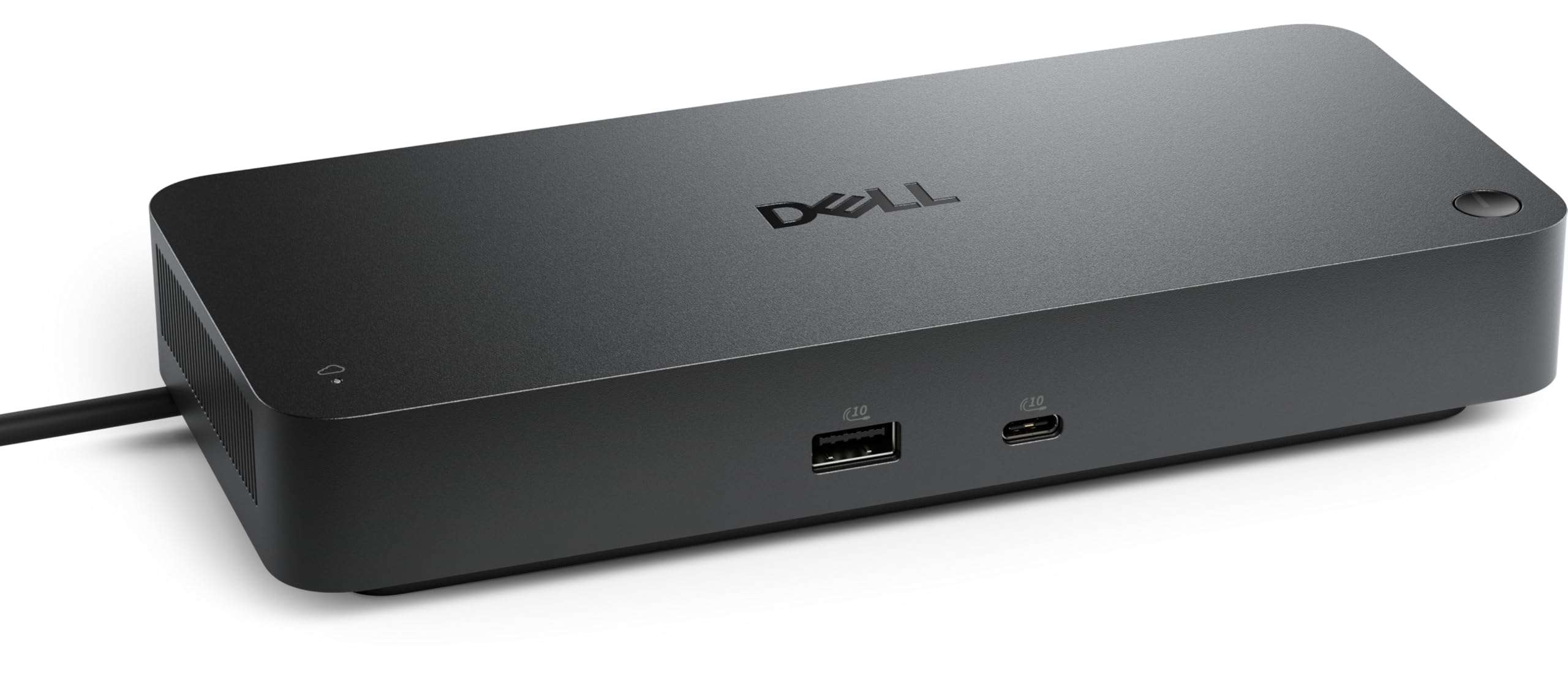
7. Dell Pro Thunderbolt 4 Smart Dock SD25TB4
Four 4K monitors, 130W of charging, and remote management for a fleet of workstations.
This is the dock to consider when one screen is never enough. It drives up to four 4K monitors through HDMI 2.1, DP 1.4, USB-C and Thunderbolt 4, laid out across 12 ports — ideal for a trading desk or a creative station with spreadsheets and timelines everywhere. Charging lands at up to 130W for Dell laptops and 96W for others, plenty to keep a workhorse topped up through a shift.
The business extras are what separate it from a plain hub. Wi-Fi-based remote management lets an IT team service docks through Dell Console and Intel AMT without touching the PC. Security is layered in too: WPA3 encryption, PXE boot, MAC filtering, and DMA protection (a guard against a device attacking memory directly through a port). The enclosure uses 65% recycled plastic and 100% recycled packaging, and the ambidextrous shape works on either side of a monitor.
Owners praise the connectivity above all — the range of ports and the way the back-facing USB slots keep cables tidy. It is also plainly plug-and-play, which matters on a managed desk. On a single-monitor home desk, you are paying for capability you will not touch.
Office-grade setup: plug-and-play connectivity and back-facing USB ports keep a work desk clean, with remote management baked in.
Made for: IT-managed workstations needing four monitors, security controls, and remote servicing.
Overkill for: a single-monitor home office, where the management features sit unused.
8. OWC 11-Port Thunderbolt Dock
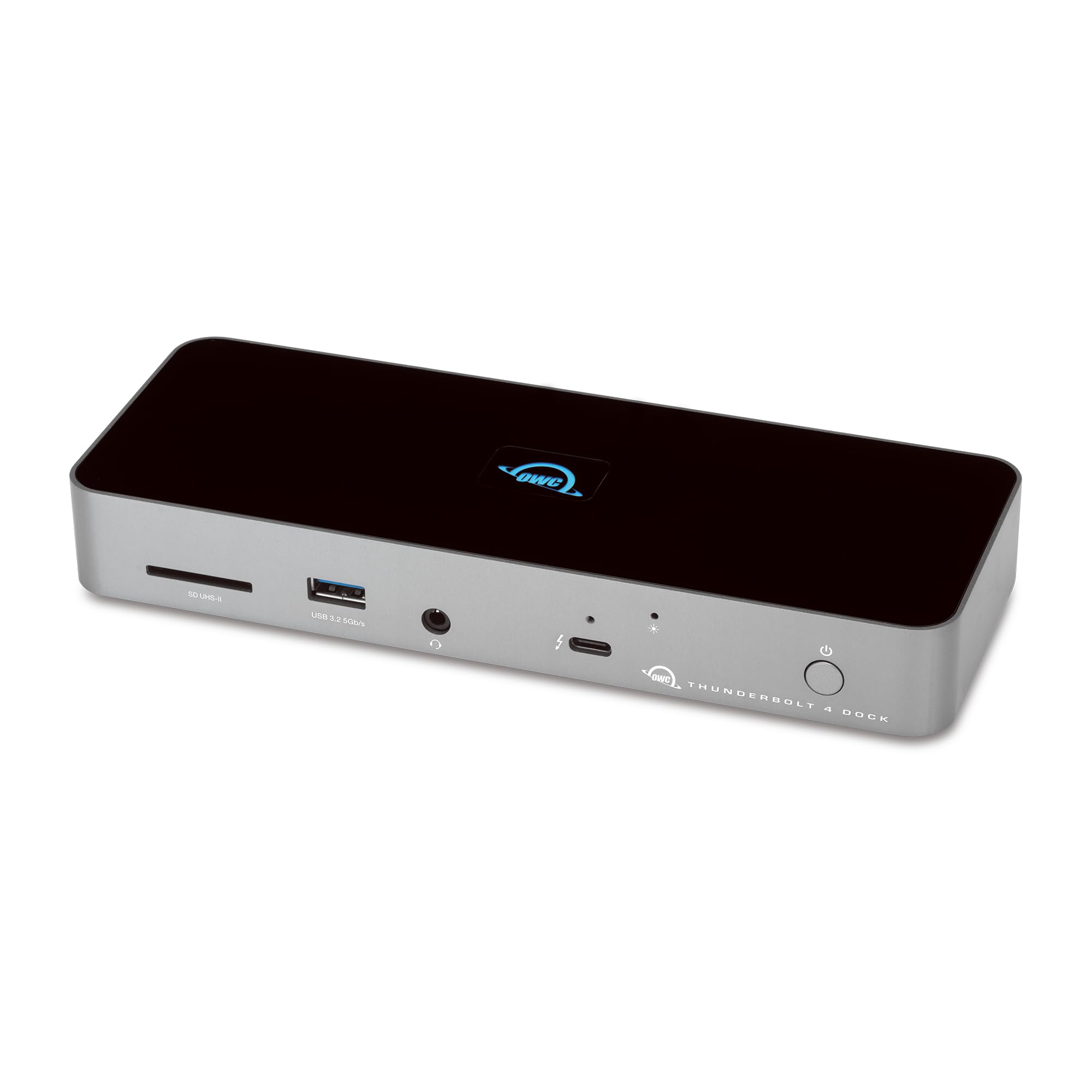
Eleven ports, 96W charging, and an SD reader — the sensible middle for a MacBook Pro desk.
The straightforward spec: 96W flows to your laptop from the host port, three Thunderbolt 4 ports push 15W each to drives and accessories, and the USB port carries up to 1.5A for bus-powered gear. Displays reach one 8K at 60Hz, two 4K at 60Hz, or a single 4K at 120Hz, which is more than most people need. Ports include three USB-A 3.2 Gen 2 at 10Gb/s, a USB 2.0 port, Gigabit Ethernet, a 3.5mm audio combo jack, and an SD 4.0 UHS-II card reader.
What keeps this pick relevant is how well it works on the laptops people actually own. Feedback points to it working smoothly with a MacBook Pro M3 from 2023 and calls it one of the better Thunderbolt 4 hubs around. Setup is driverless, so it is plug-and-play on macOS 11 Big Sur or later and on Windows PCs with a Thunderbolt 4 port. At 400 grams it is light but not flimsy.
One thing to state plainly: this dock draws more reliability complaints than the others on this list, so it suits someone who wants a familiar feature set and can live with the occasional hiccup. Feedback on port capacity and connectivity lands mixed too, so power users who need six USB devices at once may feel pinched. For a clean MacBook Pro desk with Ethernet, an SD reader, and a monitor, it is a comfortable fit.
Steady everyday dock: 96W plus Ethernet, SD, and audio covers a normal laptop desk — tempered by more reliability gripes than most here.
Grab it if: you want a proven 96W Mac dock with Ethernet and an SD reader and do not need Thunderbolt 5.
Go elsewhere if: long-term reliability is your top concern — this one sees more complaints than the rest.
9. Plugable 16-in-1 Thunderbolt 4 Dock

Sixteen ports, 2.5GbE networking, and dual 4K that finally works driverless on modern M4/M5 Macs.
The port count is the story: 16 connections in one dock, spanning two HDMI plus two DisplayPort outs, seven USB ports, SD and microSD slots, an audio jack, and 2.5Gbps Ethernet. That 2.5GbE jack (two and a half times the throughput of standard Gigabit) is the standout if you move files across a network or sit on fast office storage. It delivers 100W Power Delivery, tested to UL standards, so charging stays steady on a demanding laptop.
Dual monitor setup is where it shines on the newest Macs — two 4K at 60Hz over HDMI or DisplayPort, no drivers, on M4 and M5 machines and Windows Thunderbolt 4 or USB4 laptops. The included Thunderbolt 4 cable runs 40Gbps and reaches 3.3ft, so a laptop placed to the side still connects comfortably. It measures 4.1″L x 1.4″W x 7.7″H and weighs 646 grams.
Spend the extra time on compatibility if your desk is Apple-based. On older base-chip Macs, dual displays still depend on Pro or Max silicon or clamshell mode, which is the same trap every dock on this list shares. Setup itself is quick, and the build feels solid in the hand. For a busy desk that needs every port and fast Ethernet at once, it earns its place.
The case for sixteen ports
- 2.5Gbps Ethernet for moving large files across a network.
- Dual 4K 60Hz with no drivers on M4/M5 Macs and Windows TB4.
- Seven USB ports plus SD and microSD cover nearly everything.
Check before you commit
- Older base-chip Macs still need Pro/Max or clamshell mode for two screens.
- Sixteen ports mean a larger footprint on the desk.
Ideal for: content creators and multitaskers on recent M4/M5 Macs or Windows Thunderbolt 4 who want every port and fast Ethernet.
Look past it if: you are on an older base-chip Mac and need guaranteed dual displays.
10. CalDigit TS5 Plus – Thunderbolt 5 Docking Station

Twenty ports and 10GbE — the top-tier dock for a studio that links every device at once.
If your work lives on a fast network, this is the one to study. It carries a 10Gb Ethernet port, which CalDigit bills as 10 times faster than the 1GbE found on most docks, so you push files to networked storage far quicker. Altogether it holds 20 ports: three 80Gb/s Thunderbolt 5 slots, five USB-A 10Gb/s, five USB-C 10Gb/s, a DisplayPort 2.1 output, SD 4.0 and microSD 4.0 UHS-II readers, the 10GbE jack, and three audio ports.
Power is the other half of the pitch. The host port delivers up to 140W dedicated charging, aimed at 16-inch MacBook Pro models that draw that much, and the included 330W power supply keeps that flowing to every port at once. Two downstream Thunderbolt 5 ports and one front USB-C port each feed up to 36W to accessories. A neat internal touch is its dual USB controllers — front and rear ports run on separate 10Gb/s controllers, so a cluster of fast devices on the front does not slow the devices on the back.
Display handling goes large: on Macs it drives dual 6K at 60Hz or dual 8K at 60Hz where the machine supports it, with triple 6K on M5 Pro/Max and quad 6K on M5 Max. The catch is compatibility — to get maximum performance you need a Thunderbolt 5 or USB4 v2 host, and older Thunderbolt 3, 4, or USB4 machines see reduced functionality. It is genuinely high-end hardware, and the fit is a studio running networked storage and multi-8K workflows.
Studio-grade reach: 10GbE, 140W charging, and 20 ports make it the most capable dock here — but older hosts only get part of what it can do.
Worth it for: a studio or edit suite on Thunderbolt 5 feeding networked storage and multiple 8K panels.
Too much for: a simple two-monitor desk, where its bandwidth and 10GbE go unused.
Know the Specs
Power Delivery (charging wattage)
This is the amount of power a dock pushes back into your laptop over the same cable that carries your data. Match it to your laptop’s own charger and the battery holds steady; fall short and it trickles down through a long session. A 60W dock suits a MacBook Air, while a 140W dock is aimed at big notebooks that draw that much.
Bandwidth (40Gbps versus 80Gb/s)
Bandwidth is how much data moves through the cable each second. Thunderbolt 4 tops out at 40Gbps, and Thunderbolt 5 reaches 80Gb/s or more. In practice, the higher number keeps high-refresh monitors smooth and lets a fast external SSD run at full speed even with other devices attached.
Hertz and display resolution
Resolution sets how much fits on the screen and hertz sets how smoothly motion refreshes. A dock supporting dual 4K at 60Hz is a comfortable work setup, while 4K at 144Hz or 8K at 60Hz is for editing and detailed work. Your laptop must support the figure too — the dock cannot exceed the host’s ceiling.
Ethernet speed (Gigabit versus 2.5GbE versus 10GbE)
A wired jack trades Wi-Fi dropouts for a steady, faster connection. Gigabit handles everyday office work, 2.5GbE pushes largerfiles across a network, and 10GbE is for studios moving huge media to networked storage. Pick the speed your network actually provides, or you pay for a connection your router cannot feed.
Thunderbolt versus plain USB-C
A Thunderbolt-certified dock taps the full pipeline of your laptop’s port. A plain USB-C hub splits a smaller slice of bandwidth between devices, so two displays and a fast drive start competing. Every dock on this list is Thunderbolt-certified, which is why they hold up under a heavy desk load.
Downstream power (accessory wattage)
Separate from laptop charging, downstream ports feed power to drives and phones. Figures like 15W on a Thunderbolt port or 1.5A on a USB port decide whether a bus-powered drive spins up without a second cable. Check these if you run portable SSDs straight off the dock.
Common Questions
Will a Thunderbolt hub work with a plain USB-C laptop?
Why do base M1, M2, and M3 MacBooks only show one external display?
How much charging wattage does my laptop actually need?
Do I need Thunderbolt 5, or is Thunderbolt 4 enough?
Can I plug a Thunderbolt dock into an iPad or a phone?
What is the difference between a hub and a dock?
Will a Thunderbolt dock add lag to my keyboard or mouse?
Does a dual-monitor dock work without installing drivers?
How fast is the SD card reader on these docks?
Do these docks need their own power supply to run?
The Bottom Line
For most desks, the winner of this usb-c thunderbolt hub roundup is the CalDigit E5 Element 5 Hub, because it pairs four Thunderbolt 5 ports and 90W sustained charging in a body small enough to hide behind a monitor. If you want a wired network and a battery of USB-A ports at a lower tier, grab the UGREEN 8-in-1. And for a studio running networked storage and multiple 8K panels, the CalDigit TS5 Plus is the one to reach for.
One last nudge: the CalDigit E5 is the crowd favorite here, holding 4.5+ stars across 160+ ratings — a solid sign it lives up to its spec sheet on real desks. Whichever you pick, match the charging wattage to your laptop’s charger and confirm your chip’s external display limit before you buy.
How we choose
We do not accept paid placement. Every pick is matched to a real buyer and a real use-case; we do not hands-on test units.
Sources
Specifications: manufacturer listings and product documentation. Review insights: verified customer reviews, as of November 2026. Pricing: not shown on this page (it changes often); check the current price via the retailer link.
As an Amazon Associate, Tactical Gear Guy earns from qualifying purchases. This does not affect which products we feature.