Specs are compiled from manufacturer listings and verified buyer reviews and can change over time — please confirm the key details on the product page before buying.
If you want to draw anywhere without a laptop tethered to your wrist, the short answer is this: the Wacom MovinkPad 11 is the one to buy. It runs Android on its own, so you boot it, tap the screen with the pen, and sketch. No cable, no second device, no desk. The rest of this list covers the buyers who need something different — a cheap pad to plug into an existing PC, a dial-heavy board for editing, or a bigger screen for colour work. Every pick below connects wirelessly over Bluetooth, so you are never chained to a port.
This guide is built by comparing the manufacturers’ published specifications and the patterns across verified customer reviews, so you get each pick’s real strengths and trade-offs instead of marketing spin.
Pressure sensitivity, active drawing area, and battery life matter more than any glossy photo. Below you will find those numbers side by side, plus plain-English notes on what each one means when you actually sit down to draw — the full breakdown of the best wireless drawing pad.
Top Picks


How To Choose The Best Wireless Drawing Pad
The beginner’s mistake is buying the pad with the biggest pressure number and ignoring everything else. Pressure levels only change how finely your line thickens as you press. A pad with 8,192 levels and a good pen feels smooth. A pad with a huge number and a laggy Bluetooth link feels awful. Decide first what the pad plugs into — or whether it needs to plug into anything at all.
Standalone tablet or a pen tablet for your computer
A standalone tablet has its own screen, its own processor and its own battery, so you draw directly on the image. A pen tablet has no display at all. You draw on a blank surface while watching your monitor, which costs a few days of adjustment but saves a lot of money. If you already own a laptop and a copy of your art software, a pen tablet is the smarter spend. If you sketch on the sofa, on site, or in a café, only a standalone model keeps you free of a second device.
The drawing area decides your stroke length
Active drawing area is the live zone the pen reads, and it is measured across the diagonal. A small pad around 6 x 4 inches (roughly A6 paper) fits in a bag and suits sketching. A mid-size board near 8 x 5 inches gives your wrist room for longer strokes before you lift and reposition. Large surfaces above 10 inches let you use broad arm movements, which many artists prefer for clean long lines and for driving a big desktop monitor.
Bluetooth is a convenience, not a guarantee
Wireless pads connect two ways: Bluetooth, or a small USB dongle that plugs into your machine. Bluetooth frees up a port, but pairing quality varies between models and operating systems. The reliable habit is to keep the bundled cable in your bag for the first session. Pair the pad once, confirm your shortcuts work, then go wireless. And note that on some pen tablets the wireless mode is designed for certain systems only, so check your computer before you cut the cord.
Side-by-Side Comparison
| Model | Best For | Pressure Levels | Active Area | Wireless Battery | Amazon |
|---|---|---|---|---|---|
| Wacom MovinkPad 11★ Best Overall | Drawing with no computer at all | 8,192 | 9.6 x 6.3 in | — | Amazon |
| GAOMON WH851Best Value | Dial shortcuts on a tight budget | 16,384 | 8 x 5 in | 18 hours | Amazon |
| XPPen Deco mini7W | Online teaching and note taking | 16,384 | 7 x 4 in | — | Amazon |
| HUION Inspiroy Frego Small | Throwing in a bag and forgetting it | 8,192 | 6.3 x 3.9 in | 24 hours | Amazon |
| HUION Inspiroy Dial 2 | Big canvas and editing shortcuts | 16,384 | 10.5 x 6.56 in | 18 hours | Amazon |
| Wacom Intuos Pro Small | Pro pen feel next to a desktop monitor | 8,192 | 54.6 sq in | — | Amazon |
| XPPen Magic Drawing Pad | A big colour screen in your bag | 16,384 | 53.34 sq in | 13 hours | Amazon |
Detailed Reviews
1. Wacom MovinkPad 11
Our pick — 4.5+★ from 250+ verified ratings; the strongest balance of quality and price.
The sketchbook that boots up — a full Android tablet with the pen already in the box.
This is the only pick here that needs nothing else. The 11.45-inch Android 14 tablet carries 8 GB of memory and 128 GB of storage, so your art app, your reference photos and your files all live on the pad itself. Tap and hold the pen on the screen and Wacom Canvas launches instantly, which is the closest thing to flipping open a real sketchbook. The pen is the slim version of the Pro Pen 3, it never needs charging, and it delivers 8,192 pressure levels with three side buttons and spare nibs stashed inside its back end.
Your long shading strokes stay steady on the matte etched glass, which has a subtle texture that resists glare and fingerprints and gives the nib a little grip so it does not skate. The 9.6 x 6.3-inch active area (the drawing zone) is generous enough for full-page work. At 588 g with a 10.5 x 7.2-inch footprint, it drops into a backpack next to a paperback. The HUION Inspiroy Frego Small undercuts it hard on weight at 280 g — a 2.1x gap you notice only when you carry it all day rather than draw on it.
The honest trade-off is that this is a closed, self-contained machine. You are drawing inside Android apps, not your desktop copy of Photoshop, and you rely on the bundled Wacom Canvas app plus the included two years of CLIP STUDIO PAINT DEBUT to get started. That mix works well — owners consistently describe the setup as simple enough for beginners — and an occasional unit arrives with a screen complaint. If your work lives inside a desktop suite, this is not your pad.
Where it earns its place at the top
- Android 14 with 8 GB / 128 GB means no laptop in the chain at all.
- 8,192 pressure levels with a battery-free pen and three side buttons.
- Matte etched glass cuts glare and gives the stylus real paper-like traction.
- Tap-and-hold launches the sketch app in a heartbeat.
- Accepts popular digital pens such as Dr. Grip, LAMY and STAEDTLER.
What you give up for the freedom
- Heavier than the mini pen tablets here at 588 g.
- Locked to Android apps rather than a full desktop art suite.
- Premium-tier spend for a single self-contained device.
Buy it if: you sketch away from a desk and want one gadget that does everything.
Think twice if: your workflow is built around desktop software and a calibrated monitor.
2. GAOMON WH851
Double the pressure resolution of the Wacom above, for a fraction of the outlay.
Read the pressure column and this one stands out: 16,384 levels from the battery-free AP519 pen, exactly twice the 8,192 the MovinkPad 11 offers. That extra resolution matters when you are laying in feather-light hatching and want the line to darken gradually instead of stepping. Tilt detection is supported too, so the side of the nib shades broadly the way a pencil does. Add the 0.45 mm nib retraction that keeps strokes from sinking and the 8 x 5-inch active area, and you have an entry-level pen tablet that behaves like a much dearer one.
The dial is the sleep-deprived editor’s friend. Sitting at the centre of the board, it flips between radial and driver modes to scrub zoom, brush size or canvas scroll, then pairs with eight programmable keys for the rest. Battery runs 18 hours per charge, and you can fall back to a USB-C cable when the charge dips. Windows, Android and Mac are all covered, and the board ships with a glove, spare nib and cleaning cloth.
What wins people over here is raw performance for the money — the pad behaves far above its tier, and the value angle is what gets talked about most. The trade-off is that this is a pen tablet, so you still need a computer or phone to draw on. If you want the screen built in, stay with the MovinkPad; if you already own a laptop, this board gives you more pressure resolution for less.
The quiet standout: 16,384 pressure levels and a functional dial at an entry-level outlay is the sharpest value story on this list.
The catch: no display, so every stroke is drawn blind while you watch your monitor — a habit that takes a session or two to settle.
Reach for this one: if you have a laptop, a favourite art app and a limited budget.
Leave it on the shelf if: drawing straight onto the image is non-negotiable for you.
3. XPPen Deco mini7W 7 x 4 inch Bluetooth 5.0 Graphic Tablet
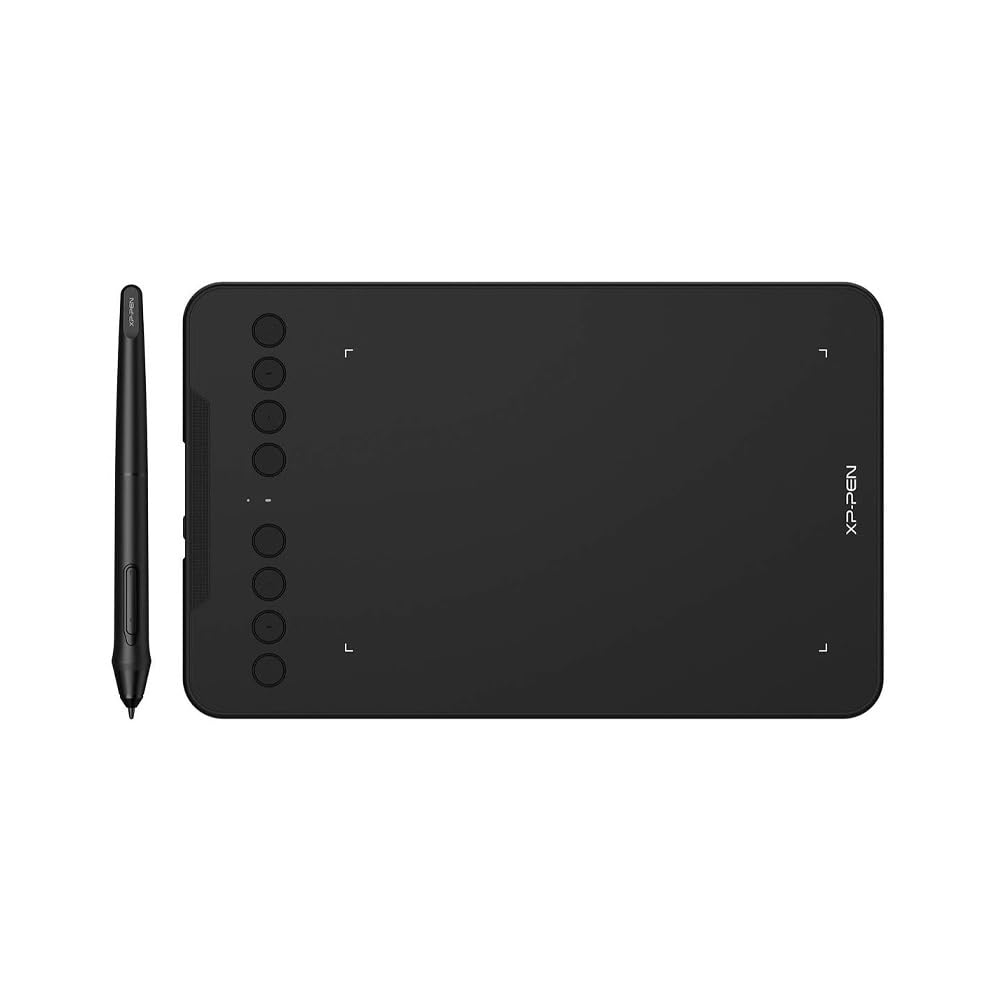
Built for the online lesson — annotate a shared screen while your students watch.
Teaching over a video call is where a pen tablet earns its keep. You can circle a diagram, sign a PDF or sketch a worked equation in real time, and the 7 x 4-inch active area is compact enough to sit beside a keyboard without crowding your desk. The 8 customizable shortcut keys save you from hunting through menus mid-sentence, and the pen is battery-free with 16,384 pressure levels plus 60° tilt. Connectivity runs two ways: plug in the bundled dongle, or pair over Bluetooth 5.0 for a cable-free setup.
The board feels solid and competent rather than toy-like, and it works with an unusually broad range of systems. The compatibility list covers Windows 7 and above, Mac OS X 10.10 and up, Android 6.0 and up, Chrome OS 88.0.4324.109 or above, and mobile phones — so your existing laptop or phone likely plugs straight in. The box includes ten spare nibs (the pen tips that wear down) and both USB-C and micro-USB adapters.
Be straight with yourself about the wireless side, though. Bluetooth pairing and the general feel of the driver are the most divided topics on this pad — it works beautifully for plenty of people and frustrates others. Treat the first pairing as a setup session, keep the cable handy, and you sidestep most of it. Charge in mind that this is a screenless pen tablet, so it needs a computer, tablet or phone to draw against.
Solid where it counts: the construction and the wide OS support give you a dependable daily annotator.
Mind the setup: wireless reliability is the variable here — pair it calmly once, then leave it.
A natural fit for: tutors, students and anyone marking up shared screens.
Not the pick for: artists who want a plug-and-play wireless link with zero fiddling.
4. HUION Inspiroy Frego Small

The one you forget is in your bag until you need it — 280 g and a full day of charge.
Battery life is the headline. At 280 g it is light enough to disappear in a backpack, and with a working area of 6.3 x 3.9 inches it matches an A6 sheet of paper — a genuine pocket sketchbook footprint. The design is deliberately bare: no shortcut keys, nothing but a clean drawing surface, so you either love the simplicity or you install shortcuts on your computer instead.
The PW550S stylus is the slim one at 9.5 mm in diameter with a 0.4 mm retraction distance for strokes that feel solid, and its two programmable side keys cover brush, eraser, zoom and undo. The sloping curved edges and the wrist rest along the bottom are there for long sessions. There is a built-in nylon pen holder, and the symmetrical body means left-handed artists are not penalised. Wireless runs over Bluetooth, with USB-C as the backup.
Two things to know. Pen pressure response and connection stability are the split opinions on this model — most users get on fine, but some fight the pairing. And Bluetooth on this pad is limited to Windows 10 or later 64-bit, macOS 10.13 or later, and Android 6.0 or later, with the older Ubuntu support arriving only by cable. Check your machine before you rely on the wireless mode.
Why it travels well: 24 hours of battery and 280 g of weight is a combination that outlasts most laptops on a weekend away.
The caveat to plan for: Bluetooth needs a recent OS — older machines work over USB-C only.
Made for: commuters, students and travellers who draw in short bursts on the move.
Look past it if: you want a large canvas or an on-board dial for heavy editing.
5. HUION Inspiroy Dial 2

Two dials and a 10.5-inch canvas — the editor’s board, not the sketcher’s toy.
Start with the surface, because it is the biggest selling point. The 10.5 x 6.56-inch active area is the largest pen-tablet canvas on this list, sized for large monitors and multi-display setups, so a full sweep of your arm translates to a full sweep across the screen. The high-friction textured surface is paired with PenTech 3.0 for what the maker describes as industry-leading low latency, and the 60° tilt support rounds out the drawing feel.
Then there is the control set. Dual dials each handle brush size, zoom or any shortcut you assign, and the manufacturer says each of the 6 easy-located press keys can carry up to 12 programmable functions per software. That combination is what makes photo retouching and 3D work flow — your eyes stay on the canvas instead of diving into menus. Wireless is Bluetooth 5.0 with up to 18 hours of battery, and you can switch to the included USB-C cable for longer shoots.
The practical limit: this pad leans on its own driver for those dial functions, and driver behaviour is the most mixed part of the owner experience — some setups run flawlessly, others need patience. The other point is weight at 1.5 lb, heavier than the Frego, but that is what a 10.5-inch board costs you in grams. It runs on macOS 10.12 and above, Windows 7 and above, Android 6.0 and above, Linux and ChromeOS 88 or later, wired or wireless.
Why editors reach for it
- Largest pen-tablet canvas here at 10.5 x 6.56 inches.
- Dual dials plus 6 keys, up to 12 functions per software key.
- Bluetooth 5.0 wireless with up to 18 hours of battery.
- Textured high-friction surface and 60° tilt with PenTech 3.0.
- Symmetrical body that suits left- and right-handed artists.
Points to weigh before buying
- Dial shortcuts depend on the driver behaving well on your machine.
- No display, so you draw blind against your monitor.
- 1.5 lb is on the heavier side for a bag.
Worth it when: your day is retouching, 3D or multi-monitor work and you want dials under your fingers.
Pass when: a small sketching pad is all you need.
6. Wacom Intuos Pro Small
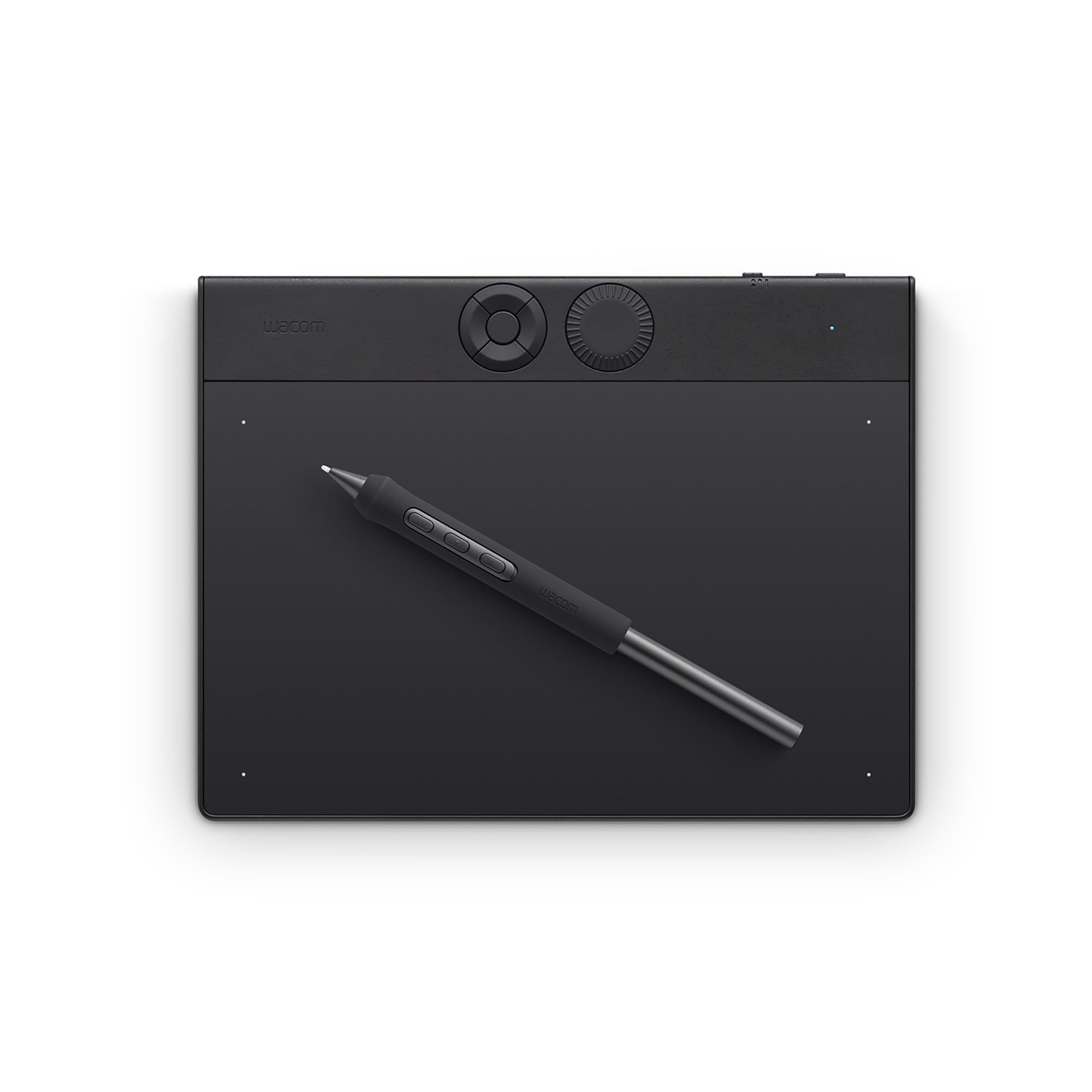
Four millimetres thin and wrapped in magnesium — the tablet you keep for years.
What you are buying is the pen. The Pro Pen 3 delivers 8,192 pressure levels with tilt support and lag-free tracking, and it can be re-shaped — choose a slim, straight or flared grip, then adjust the balance and the button layout. That matters more than any number when you are drawing eight-hour sessions, because a pen that fits your hand reduces the urge to grip hard. The 16:9 format of the active area is designed for multiple monitors and wide displays, and the board squeezes a 54.6-square-inch surface into an 8.5 x 6.4-inch footprint.
The build is the other argument. At 4 mm at its thinnest, this professional-grade tablet feels like pen on paper on your desk, and the magnesium construction is built to survive being carried. Five customizable ExpressKeys plus a mechanical dial sit along the top, close to your keyboard, so your off-hand can switch tools without leaving the canvas. Wireless runs over Bluetooth with a simple switch between paired computers, and USB is there when you want it.
Now the fair warning. Build quality is the most divided topic on this model — some units develop problems with the buttons over time, so treat the dial and keys with some care rather than brute force. Set that aside and it is the most refined pen tablet in this group, the one you hand down rather than replace.
The reason pros pay up: an adjustable pro-grade pen and a magnesium body that survives a daily commute.
The thing to handle carefully: the ExpressKeys and dial are the components most likely to need attention down the line.
Picks itself: when precision pen feel and a keyboard-adjacent dial are how you work.
Keep looking if: you want a display under your nib at this spending level.
7. XPPen Magic Drawing Pad
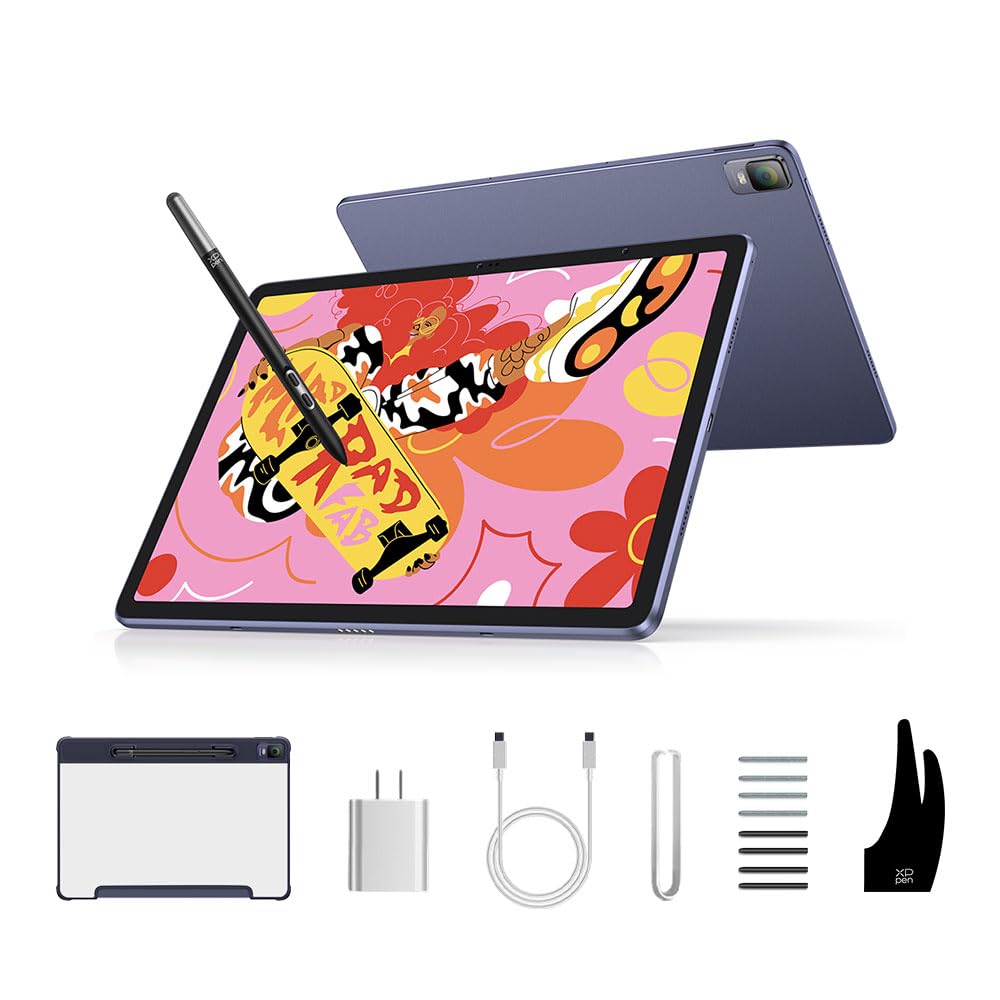
A full-colour 12.2-inch canvas you can zip into a bag and draw on in a café.
This is the pad that lets you see the drawing. The 12.2-inch screen runs at 2160 x 1440 resolution with a 3:2 aspect ratio, covers 97% of sRGB and displays 16.77 million colours, and it uses AG-etched glass for that soft paper texture artists keep praising. The X3 Pro slim stylus (PD51B) is the standout hardware: 16,384 pressure levels, 60° tilt recognition, and no charging or pairing required — you pick it up and draw. Compare that with the 8,192 levels on the Wacom MovinkPad 11, and line work gains noticeably more nuance on light-to-dark transitions.
Being standalone, it carries its own Android 14 system, 8 GB of running memory and 256 GB of storage that you can expand up to 1 TB with a micro SD card. There is a thirteen-megapixel rear camera and an eight-megapixel front camera, so you can grab reference shots in the field. Battery is rated at 8000 mAh for thirteen hours of non-stop creation. And at 6.9 mm thin and 599 g, it stays portable despite the larger screen — 11 g heavier than the MovinkPad 11, so the size costs you almost nothing in the hand.
The stylus (the pen) is the catch. It is the most reliable part of the pitch and also the most inconsistent part of the field reports — a run of buyers report a stylus that stops responding, which usually means a return rather than a fix. Most pads work as intended. Each also comes with a three-month membership of both Clip Studio Paint and ibis Paint X, so you can start drawing on day one.
What the big canvas delivers
- 12.2-inch 2160 x 1440 screen at 97% sRGB and 16.77 million colours.
- 16,384 pressure levels and 60° tilt from a pen that never needs charging.
- Android 14, 8 GB RAM and 256 GB storage expandable to 1 TB.
- 8000 mAh battery rated for thirteen hours of creation.
- 6.9 mm thin and 599 g — a big screen that still travels.
The honest reservations
- Stylus reliability is the most uneven part of the owner picture.
- Higher-tier spend for a single self-contained device.
- Android app ecosystem, not a full desktop suite.
The right call for: colour illustrators who want to see their work in full on the move.
Second thoughts if: you want a pen-tablet bargain — the screenless picks above cover that ground.
Know the Specs
Pressure Levels
Pressure levels count how many distinct thickness values the pen can register between a feather touch and a firm press. A higher count means the transition from a light hairline to a bold stroke happens more smoothly. In practice, a pad with a low thousands figure can still feel excellent if the pen and the surface are well matched. The number to watch is whether the pen is battery-free, because that removes the charging habit from your routine entirely.
Active Drawing Area
The active area is the live zone the pen reads, given as width by depth or as a square-inch total. A larger area lets you work with arm movements instead of wrist movements, which is why large-monitor users favour big boards. A smaller area means shorter strokes and more repositioning, but it also means a pad that slips into any bag. Match the size to the screen you draw on, not to the biggest number on the listing.
Wireless Battery Life
Battery figures on wireless drawing pads are quoted in hours of active use, and they vary widely between models on this list. A long figure buys you a weekend of sketching away from a socket; a shorter one means a charge ritual after a busy day. Every pad here also takes a cable, so the wireless mode is a convenience layer rather than the only way to work.
Standalone vs. Screenless
A standalone pad carries its own processor, screen and battery, so you draw directly on the image with no computer attached. A screenless pen tablet shows nothing at all; you draw while watching your monitor. Screenless boards are cheaper, lighter and usually offer the same pressure sensitivity, which makes them the better buy if you already have a machine and your art software installed.
Common Questions
Do I need a computer to use a wireless drawing pad?
Is 16,384 pressure levels better than 8,192 for line art?
How long does the battery last on a wireless drawing tablet?
Will Bluetooth on these pads work with Windows, Mac and Android?
Can I use a wireless drawing pad for online teaching and screen annotations?
Do these pens need charging or batteries?
Is a big drawing area better than a small one?
What program can I use to start drawing on a standalone pad?
Can left-handed artists use these tablets?
Should I choose a dial or shortcut keys for editing?
The Bottom Line
If you want to draw without a computer in the chain, the Wacom MovinkPad 11 wins outright for most buyers chasing a wireless drawing pad — a full 8 GB / 128 GB Android tablet with a battery-free 8,192-level pen and no cable anywhere in sight. If you already own a laptop and want the most pressure levels per dollar, the GAOMON WH851 gives you 16,384 levels plus a radial dial (a round on-pad menu for shortcuts) for an entry-level outlay. When the work needs a big, colourful screen you can carry, the XPPen Magic Drawing Pad puts 2160 x 1440 pixels and 16,384 pressure levels in a 599 g body. Decide first if you want the drawing on the pad or on your monitor — that single choice narrows this list to two or three quickly.
How we choose
We do not accept paid placement. Every pick is matched to a real buyer and a real use-case; we do not hands-on test units.
Sources
Specifications: manufacturer listings and product documentation. Review insights: verified customer reviews, as of November 2026. Pricing: not shown on this page (it changes often); check the current price via the retailer link.
As an Amazon Associate, Tactical Gear Guy earns from qualifying purchases. This does not affect which products we feature.